
Obsidian Plugins Review — 32
Discover the Latest Plugins Revolutionizing Your Knowledge Management Workflow

Once again, let’s delve into the exciting world of Obsidian plugins, shining a spotlight on the latest and most innovative offerings that are reshaping the boundaries of what can be accomplished with this extraordinary tool.
This week, in Obsidian Plugins Review:
- Geocoding Properties
- Auto Tag
- Timer
- Commands
- Share Note
- Daily Note Pinner
- Todo.txt Codeblocks
- Permalink Opener
- iDoRecall
- Recipe View
- Ocrlatex
Geocoding Properties
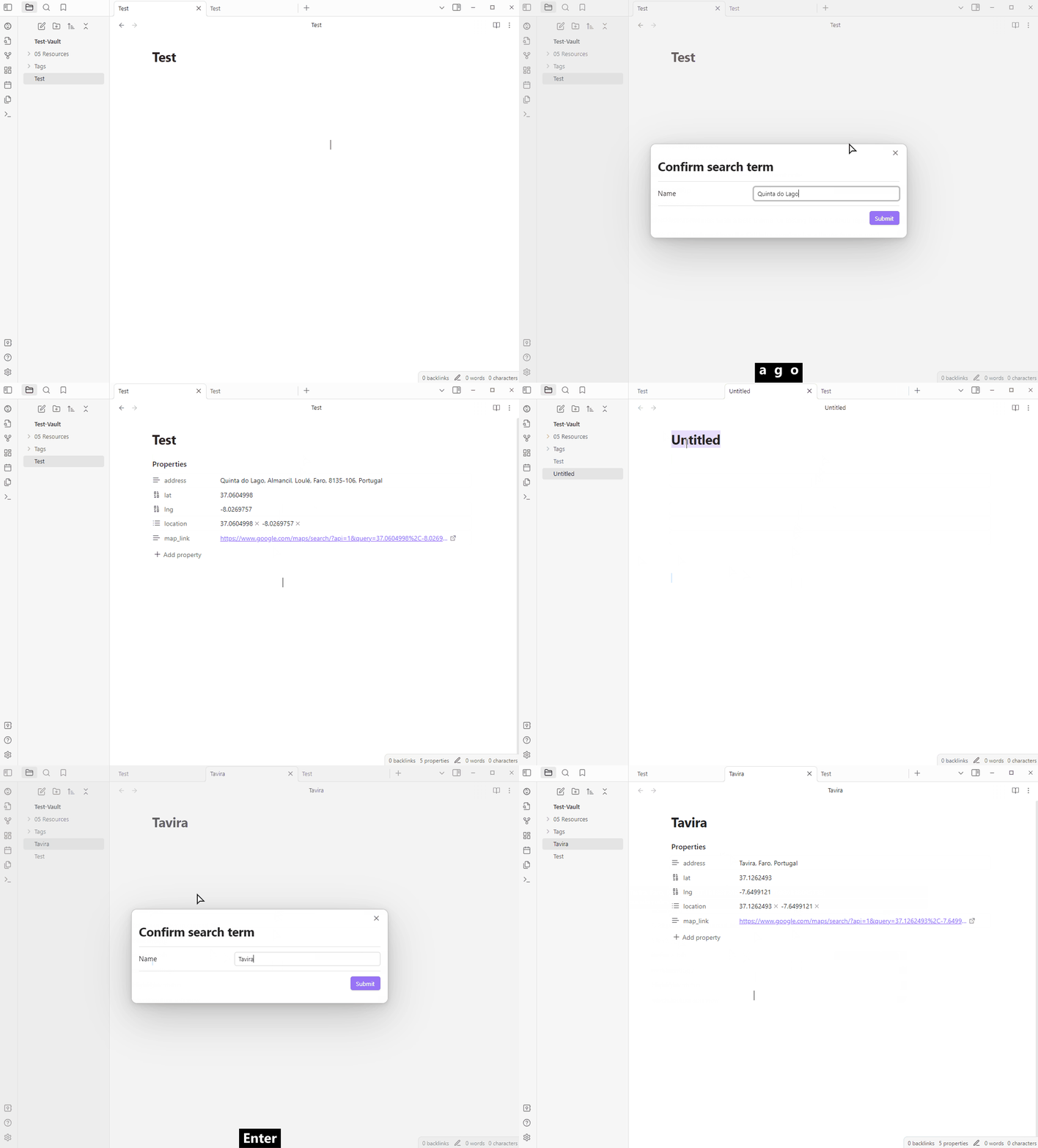
This plugin allows you to insert address/location data from geocoding APIs as notes’ properties. It will search using address property, title property, current note’s name, or just prompting for location before submitting, It will return the results, and after selecting the right one, it will create or override the Address, Latitude, Longitude, Location, and Map link. You can enable/disable these fields, rename them, and also toggle override existing properties.
Auto Tag
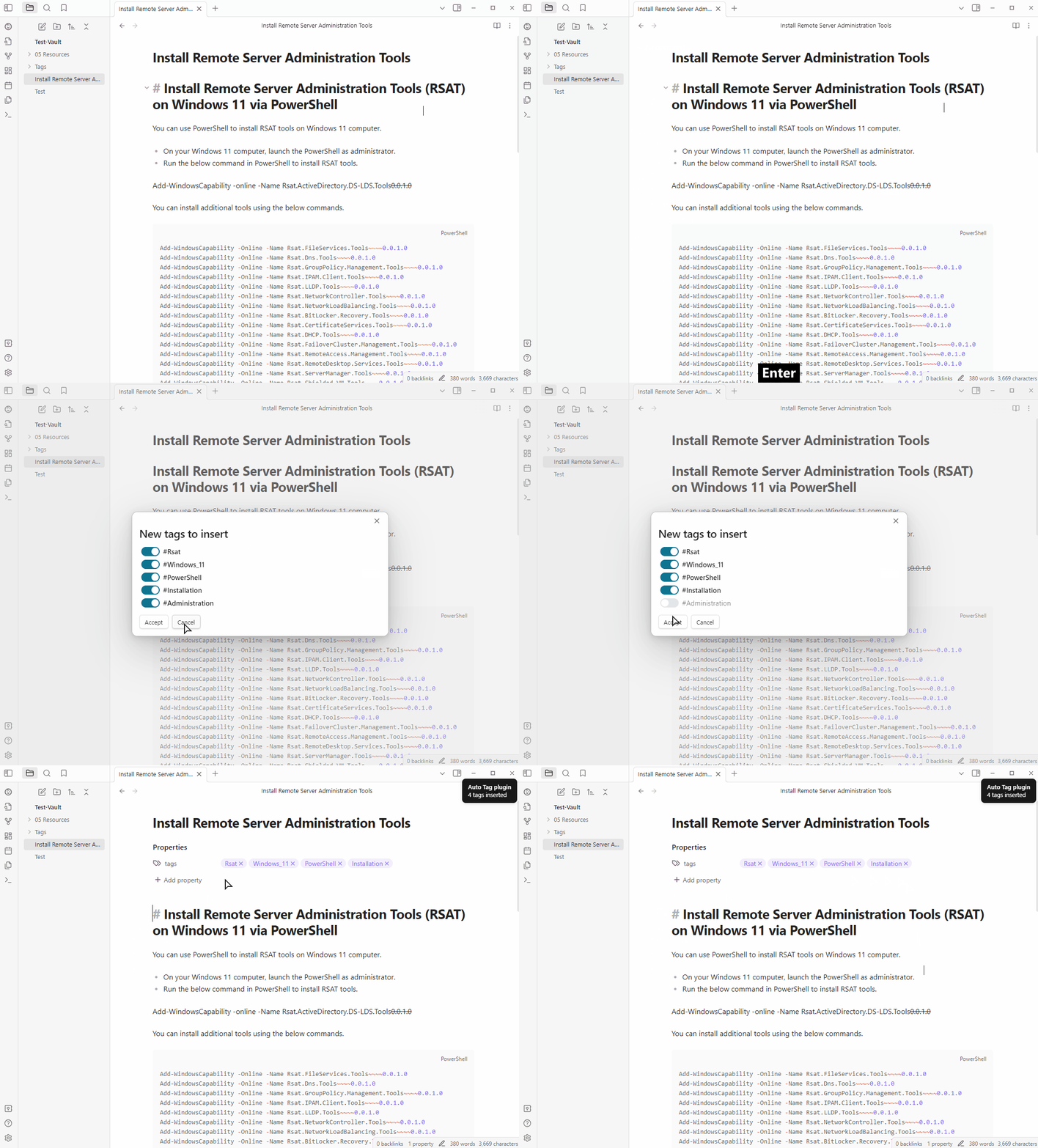
The Obsidian Auto Tag plugin is designed to help users by suggesting tags for their notes, with the help of AI. This is very useful if you’re not sure about which tags to assign, tend to forget to add them, or just want to enrich your notes metadata this plugin is here to assist you.
You can setup the plugin to insert suggested tags with a prefix, like #autotag/newtag instead of just #newtag, or insert under autotags property, instead of tags. You can also configure how many tags to suggest, how to format multi-word tags, or toggle review tags before applying any changes.
Since the plugin uses OpenAI API, you can select from the model from the latest OpenAI models.
Timer
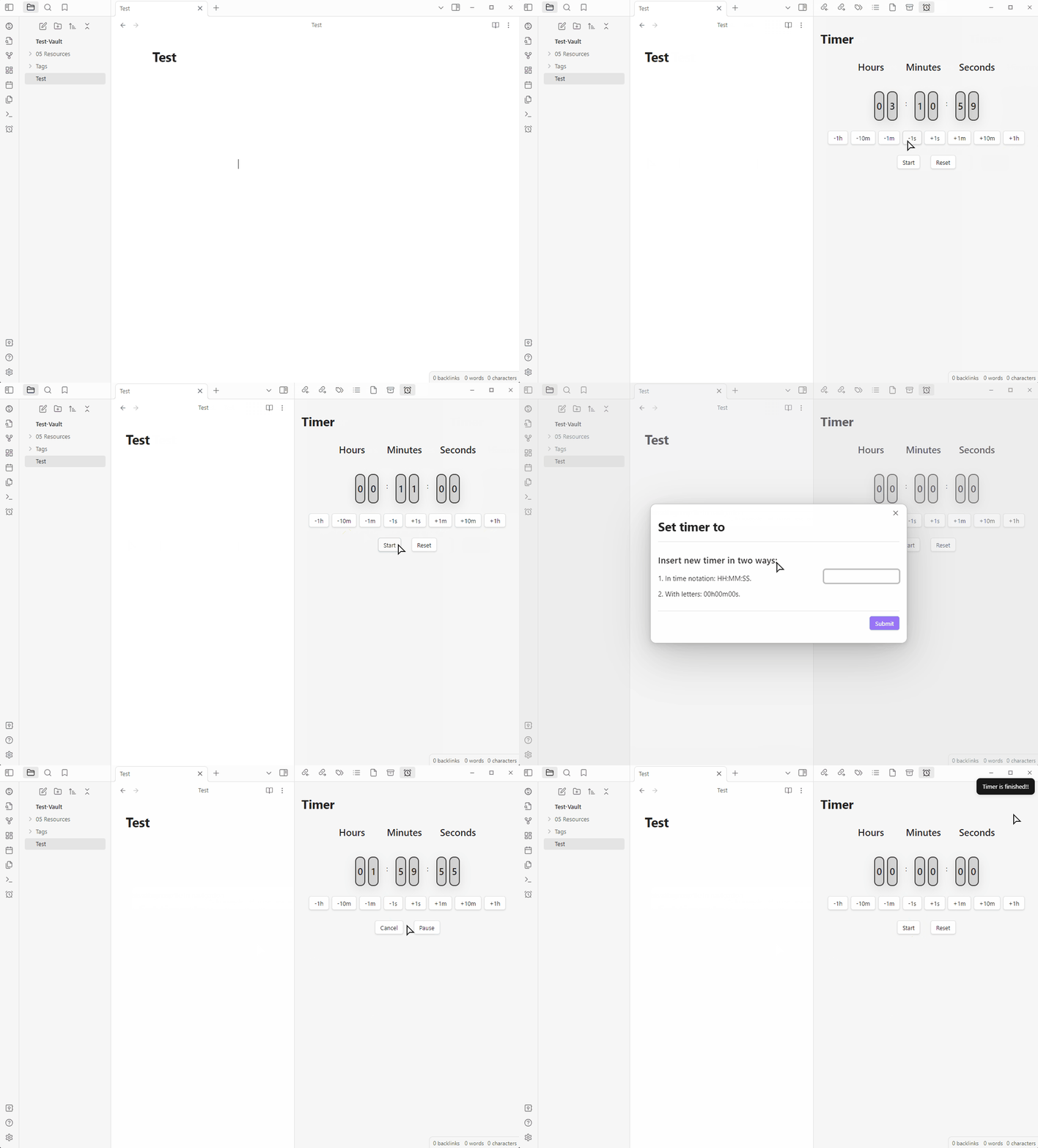
This plugin allows you to track time, create timers, and receive notifications when the timer is completed. You can set the timer using either commands or the timer buttons located below the clock. Open the timer using the sidebar icon or the command Timer: Open timer. You can also set the timer with the command Timer: Set timer to.
Commands
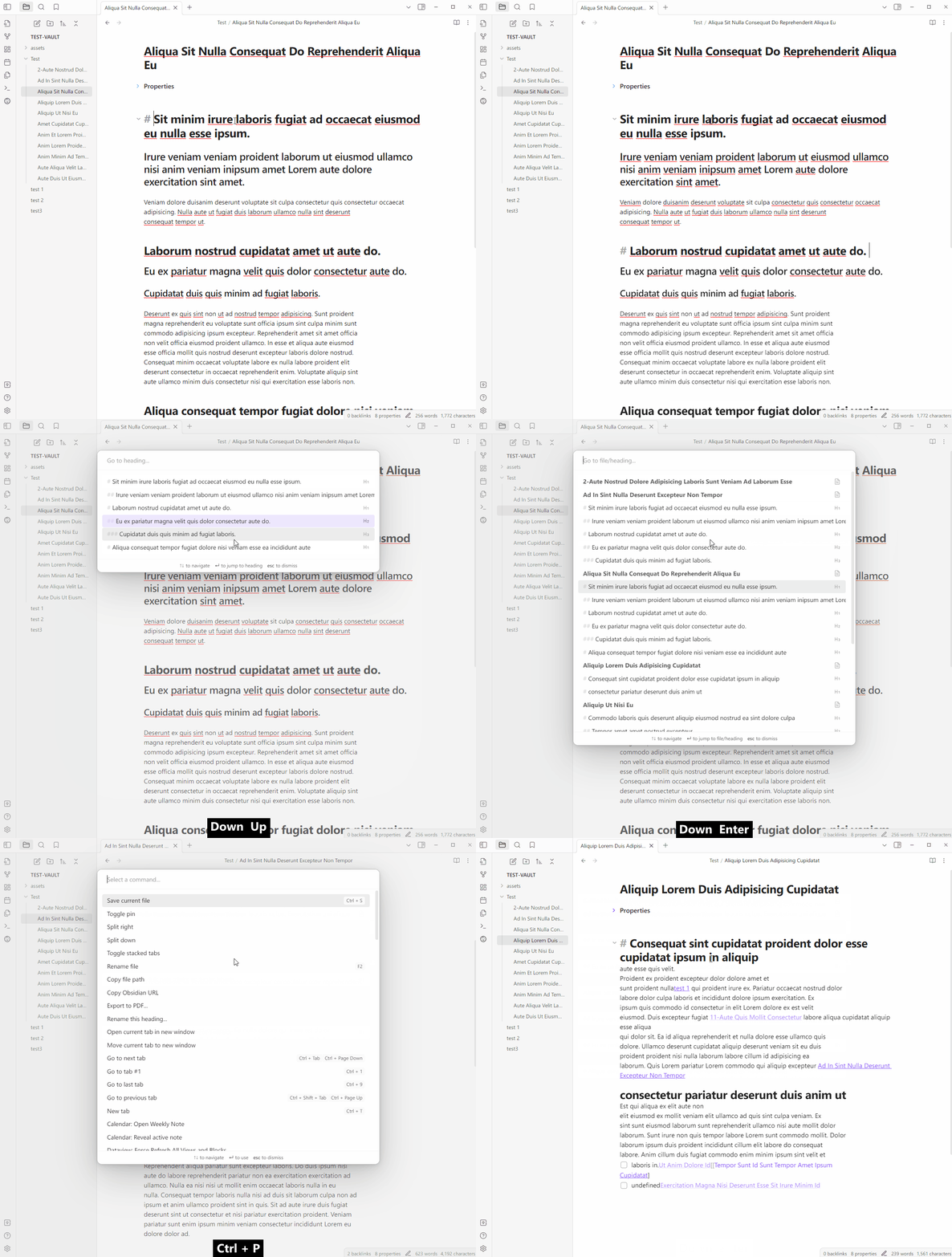
This plugin offers commands that enhance the navigation experience between headings, within a note, or notes within a folder:
- Next/Previous heading: Navigate to the next/previous heading depending on the position of the cursor.
- Open switcher: Open a switcher modal window that displays the outline of the active note and enables you to easily choose a heading in order to navigate directly to it.
- In folder: Open switcher: same as previous but for all notes within the current folder.
Share Note
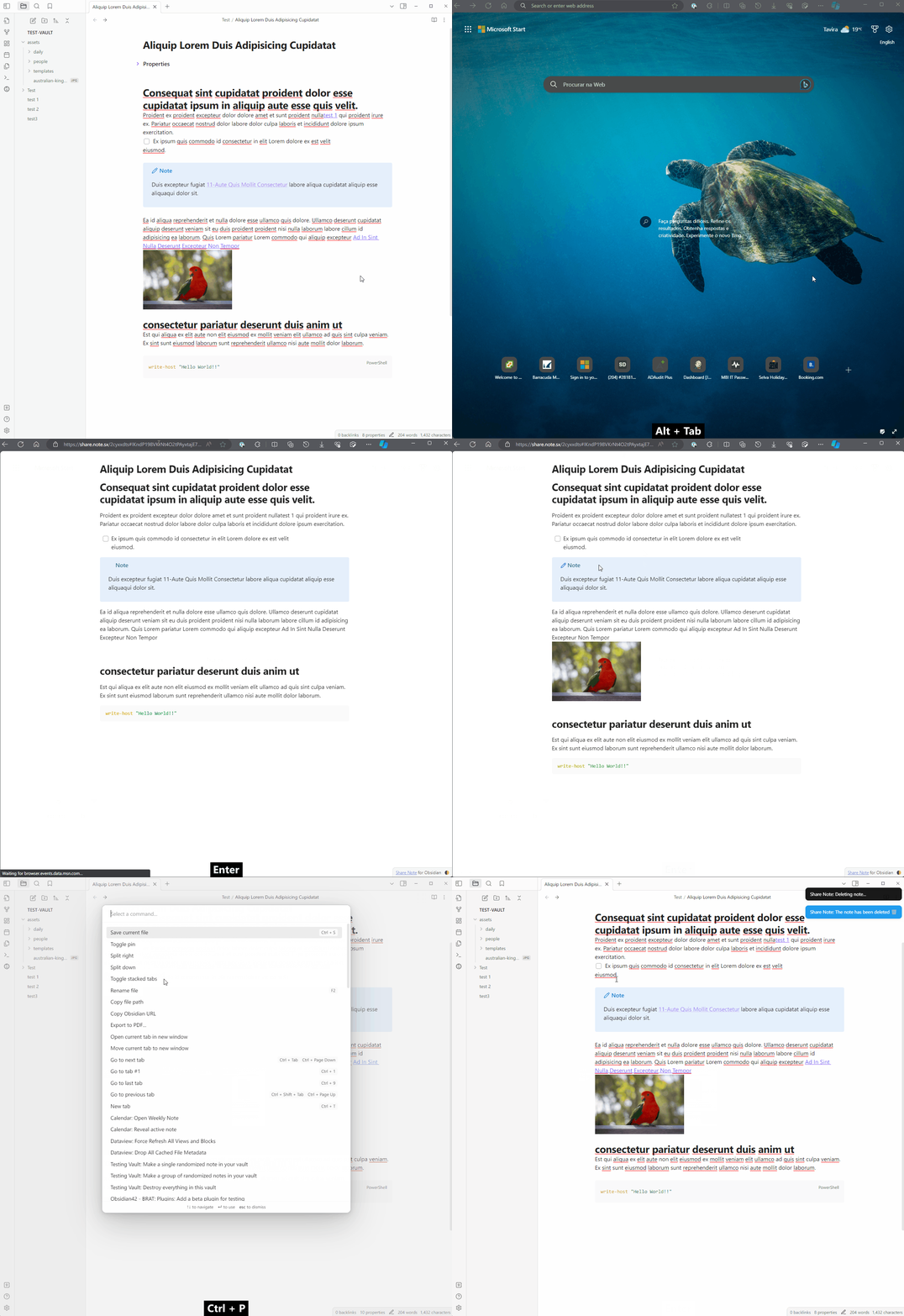
This plugin allows you to share a note quickly. The shared note includes your vault’s theme and should look the same as in Obsidian. Dataview queries, callouts, links between notes, code blocks, checkboxes, tags, etc… everything will be rendered correctly as if you were opening the note in Obsidian.
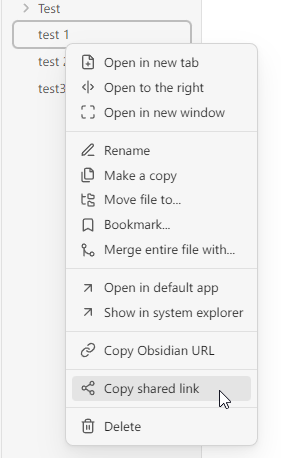
To share a note, use the context menu and click Copy shared link or use Share Note from the command palette.
When you share a file for the first time, the plugin will automatically upload all the styles related to your theme. Then, every time you share a file it will use the theme files that were previously uploaded. To update the CSS theme files, use the command Force re-upload of all data for this note.
To delete the shared note, you can set in the settings the expiring time, or you can run the command Share Note: Delete this shared note.
One note about encryption. By default, the note you share is encrypted (you can turn it off in the plugin’s settings). This implies that only you and the person you send the link can read its content. No one else, including the server hosting, can access or read it.
Daily Note Pinner
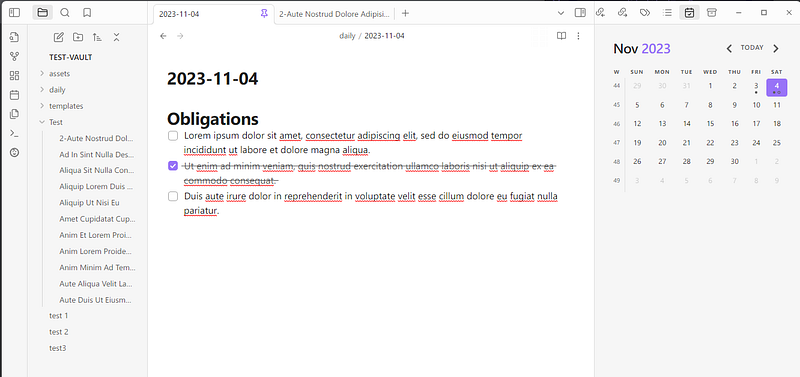
A simple plugin that automatically pins your current day Daily Note. It also unpins past and future Daily notes.
Todo.txt Codeblocks
This plugin allows you to manage your ToDos based on the Todo.txt specs.
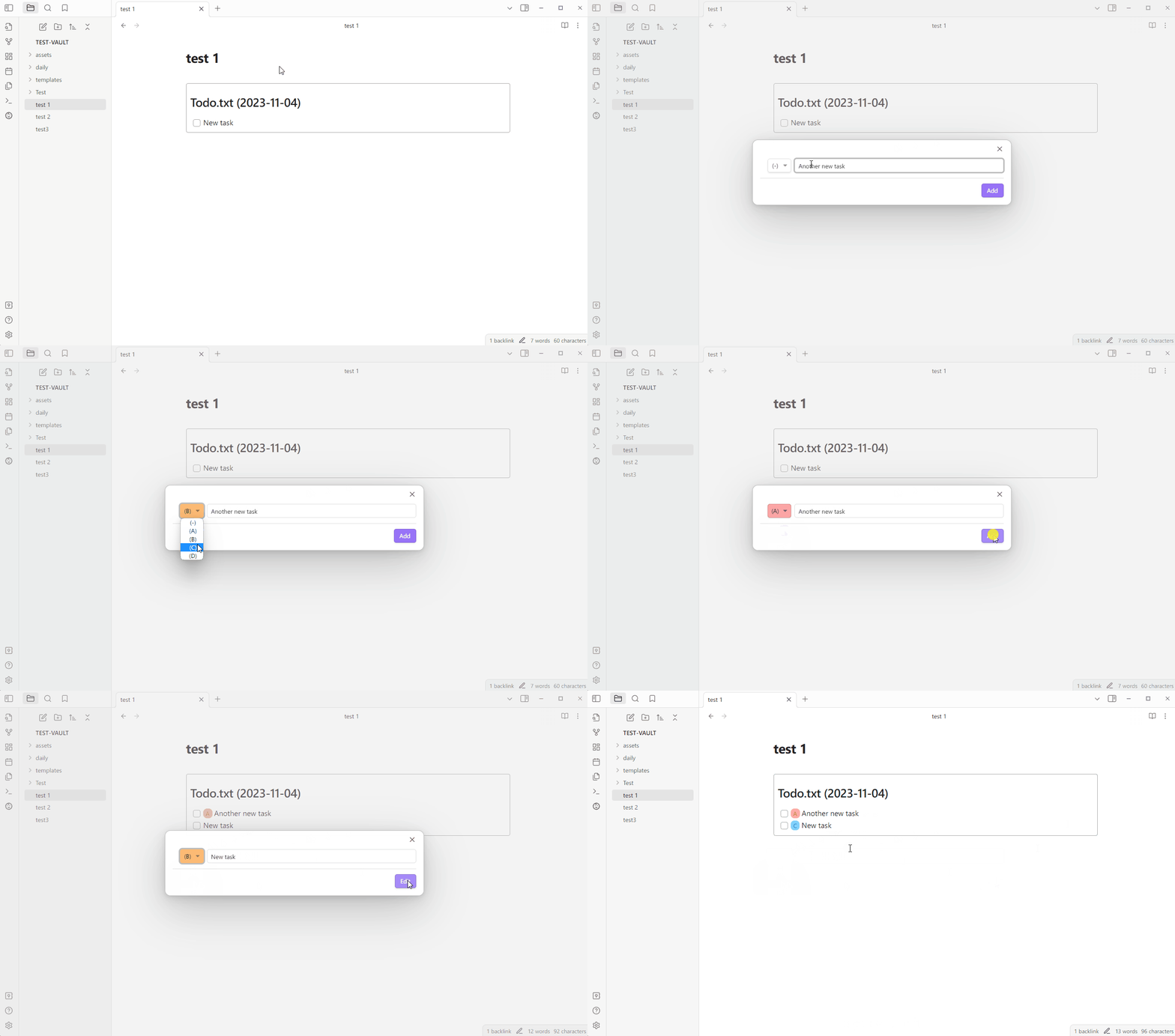
To get started, create a todotxt codeblock, and start adding your tasks.
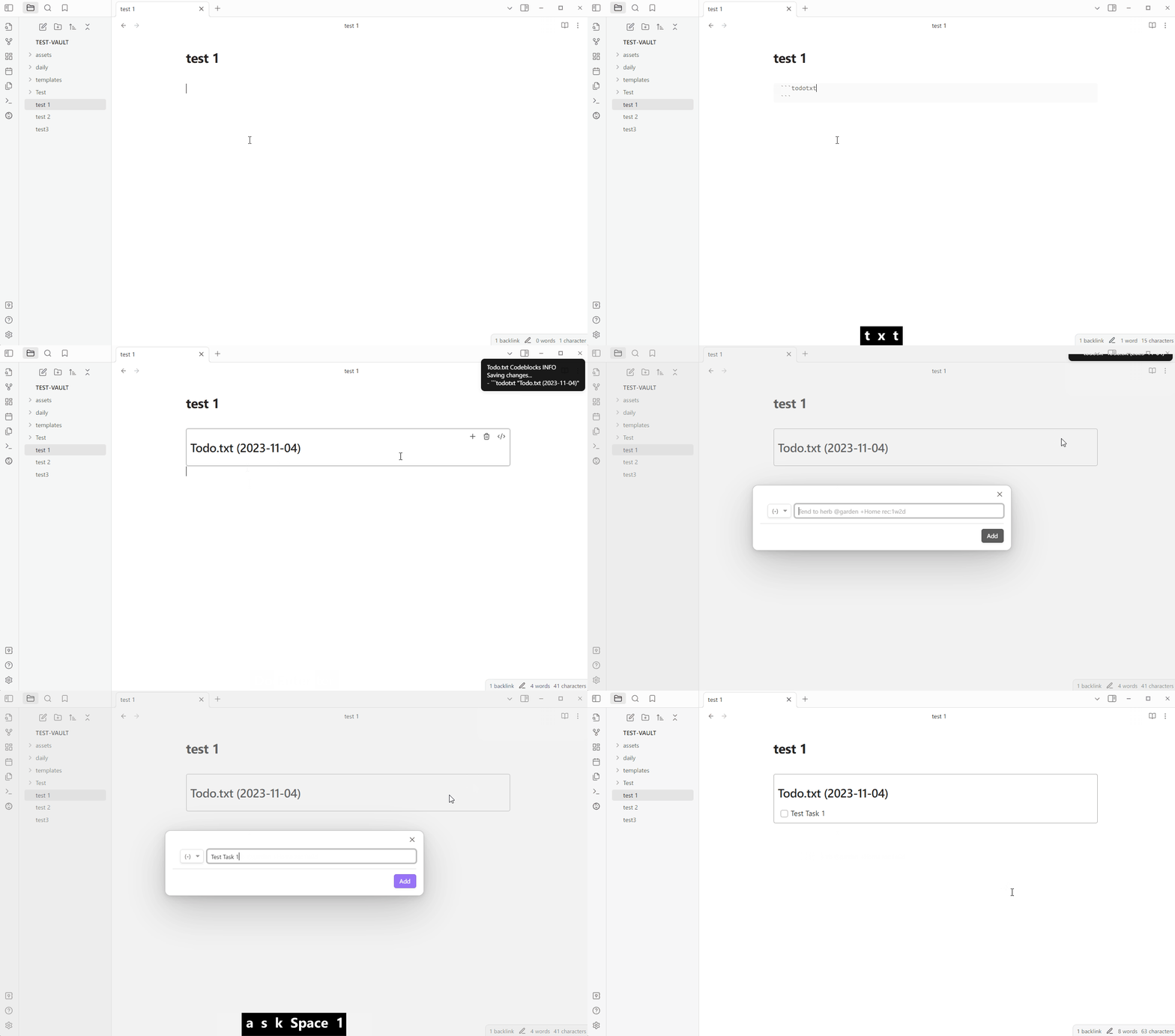
You can set the priority when creating/editing the task using the dropdown before the task name, or adding manually inside the code block.
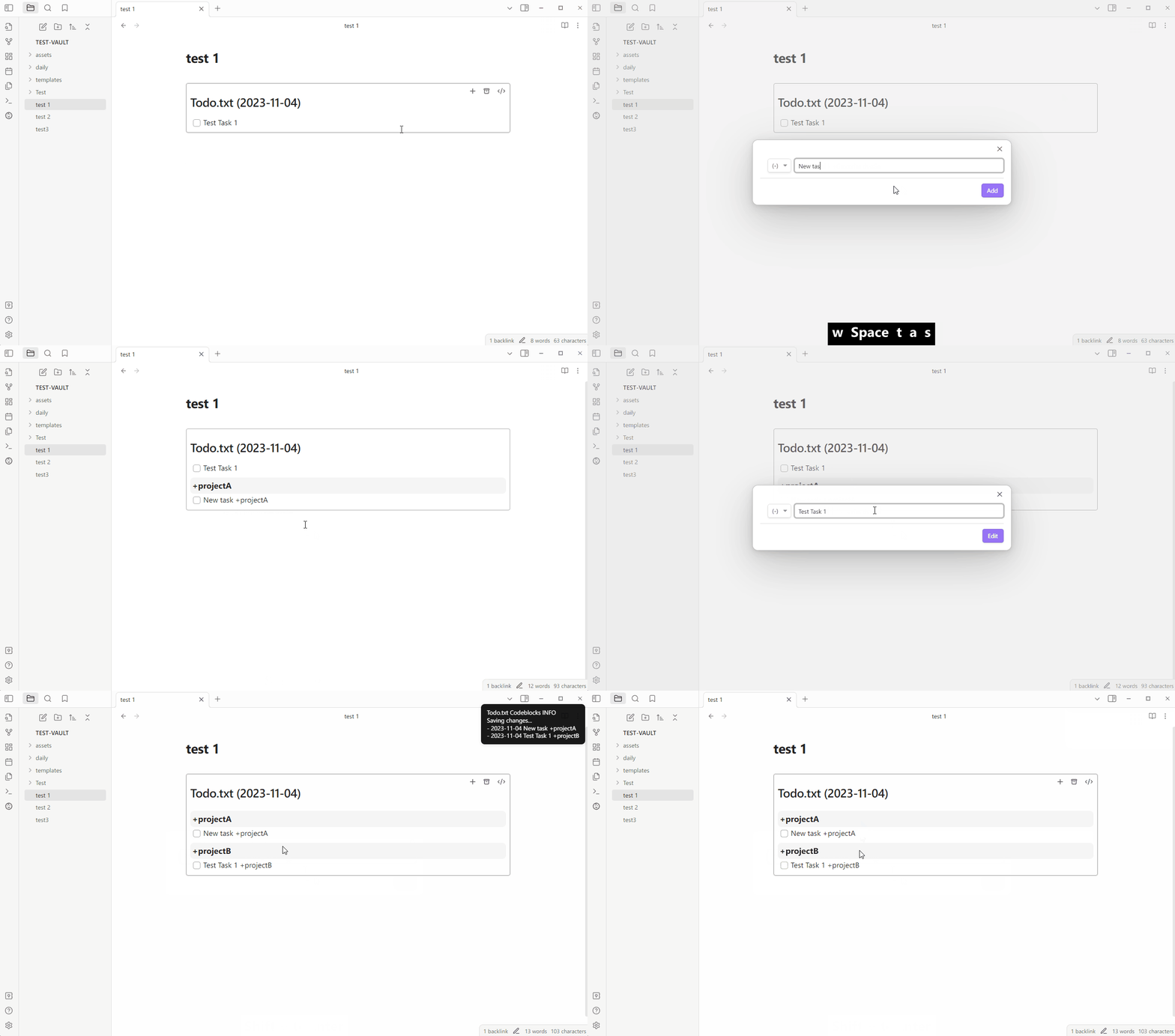
Use +project_name to create collapsible project groups.
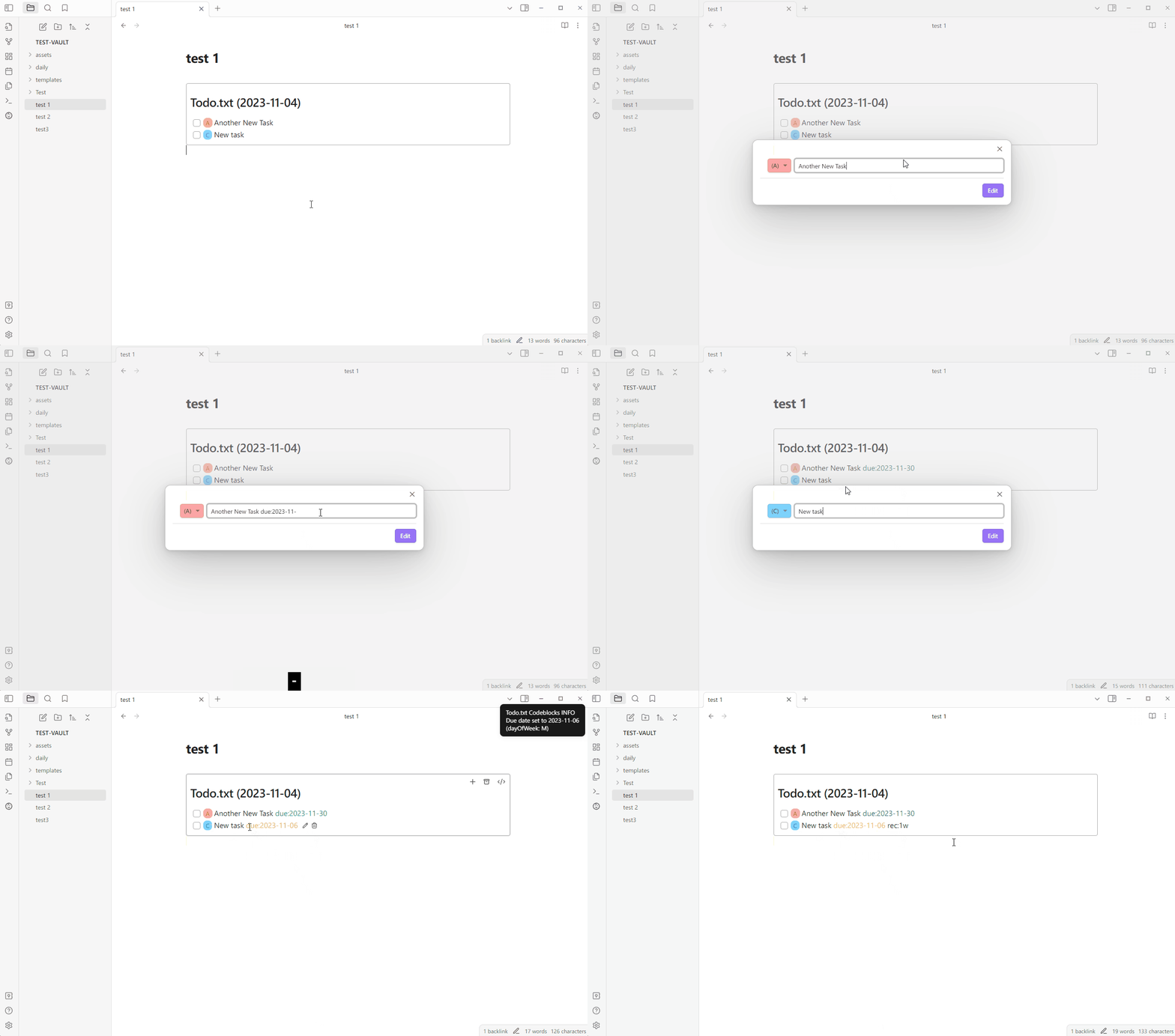
Set a due date or recurrence frequency using due: and rec:.
Date formats:
<YYYY-MM-DD> (ex. 1996–08–06)
<MM-DD> (ex. 08–06)
<n><[dateUnit]> (ex. 1w = 1 week from today)
  calculates date n number of dateUnits away
  dateUnits: d, w, m, y, b (business day)
  if only a number is provided, it will calculate days (ex. 0 = today, 1 = tomorrow, 7 = next week)
<dayOfWeek> (ex. M = next Monday)
  calculates date for first upcoming dayOfWeek
  M, Tu, W, Th, F, Sa, Su
dayOfWeek and dateUnits (except b) can be combined (dayOfWeek must come first)
  1w2d = 9 days (1 week + 2 days)
  Su5d = first upcoming Sunday in 5 days
if the rec: value is prefixed with a plus (ex. rec:+1w), the date is determined from the original due date rather than the completed date
You can setup the default sorting rule on the settings, and change it on the code block.
Sorting (listed in order of priority):
string[]
  proj (project)
    ex. "sort:proj:Home,Work"
  ctx (context)
    "n/c" = no context
    ex. "sort:ctx:bug,feature,n/c,nice-to-have"
desc/asc (defaults to asc)
  status
  prio (priority)
  completed (completed date)
  due (due date extension)
  created (created date)
  ex. "sort:status sort:created:desc"
default (ex. "sort:default")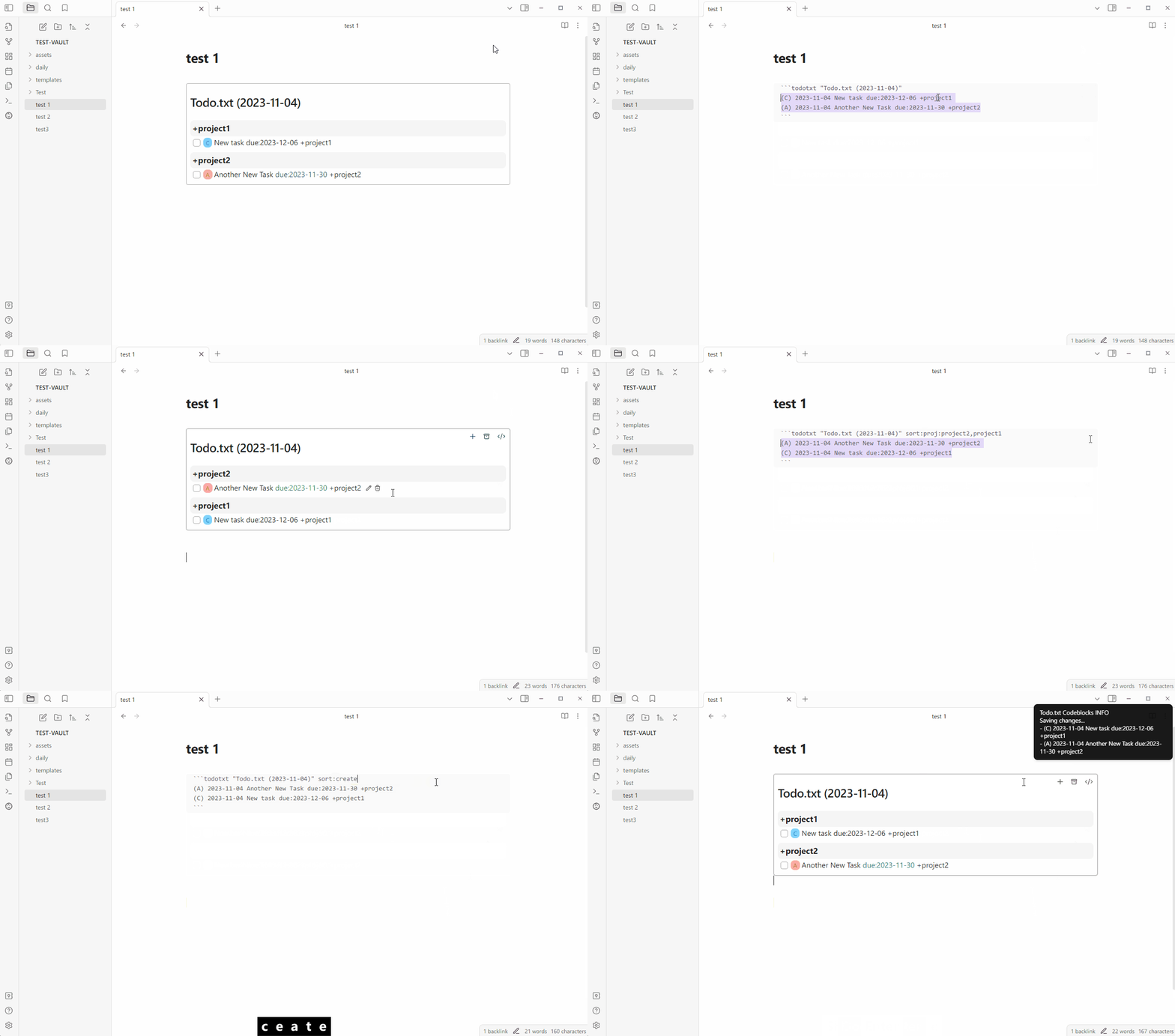
Completed tasks are archived to archive.todotxt file according to Auto-archive settings.
Permalink Opener
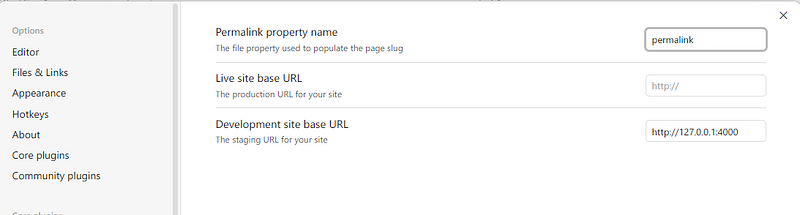
A very useful plugin for anyone who uses a static site generator or a publishing platform such as Jekyll, Hugo, Eleventy, Astro, Obsidian Publish, etc. It allows you to open URLs based on a permalink or slug saved on the note’s properties. You can set in the settings the permalink property name, live site URL (e.g. https://yourdomain.com) and dev site URL (e.g. http://127.0.0.1:8000).
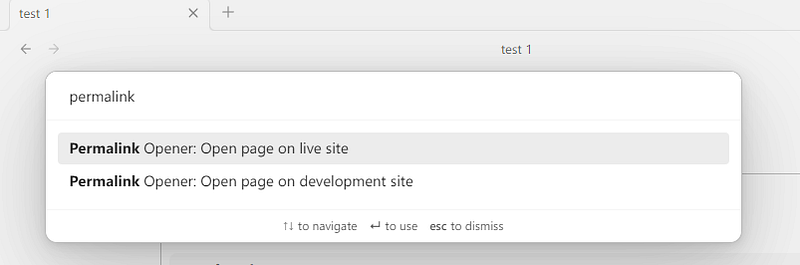
Then you can use commands from the command palette or set hotkeys to open the current page on the live site or dev site.
iDoRecall
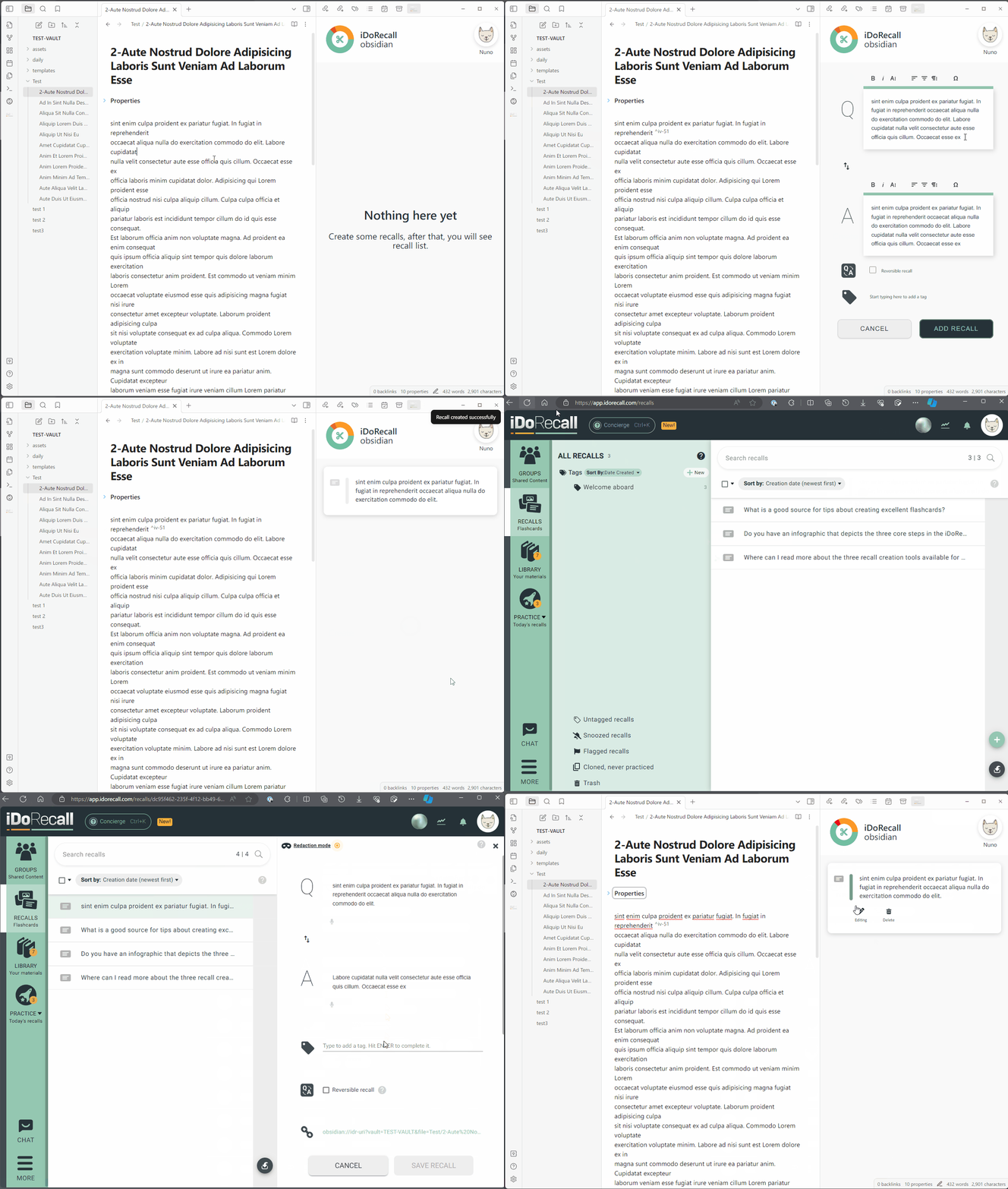
iDoRecall is a spaced-repetition flashcard app that enables you to create flashcards, called recalls in the app, that are linked to the location where you learned it, allowing you to easily see the context of the recall.
This plugin is a companion plugin for the iDoRecall web application that allows you to create recalls linked to your Obsidian notes. When you’re studying or practicing memory retrieval with those recalls, if you don’t remember the answer, you can click the source button, and it will open the source note in Obsidian with the linked text highlighted.
Recipe View
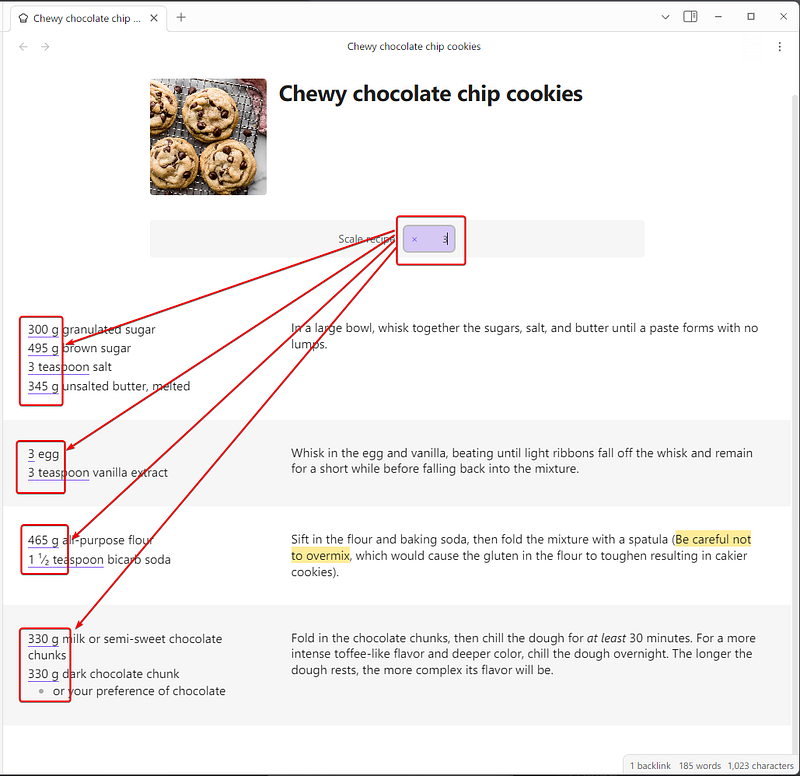
This plugin allows you to render your recipes as a gorgeous interactive recipe card. You can divide your recipes into two columns. Separate the ingredients by step making it easier to refer to while cooking.
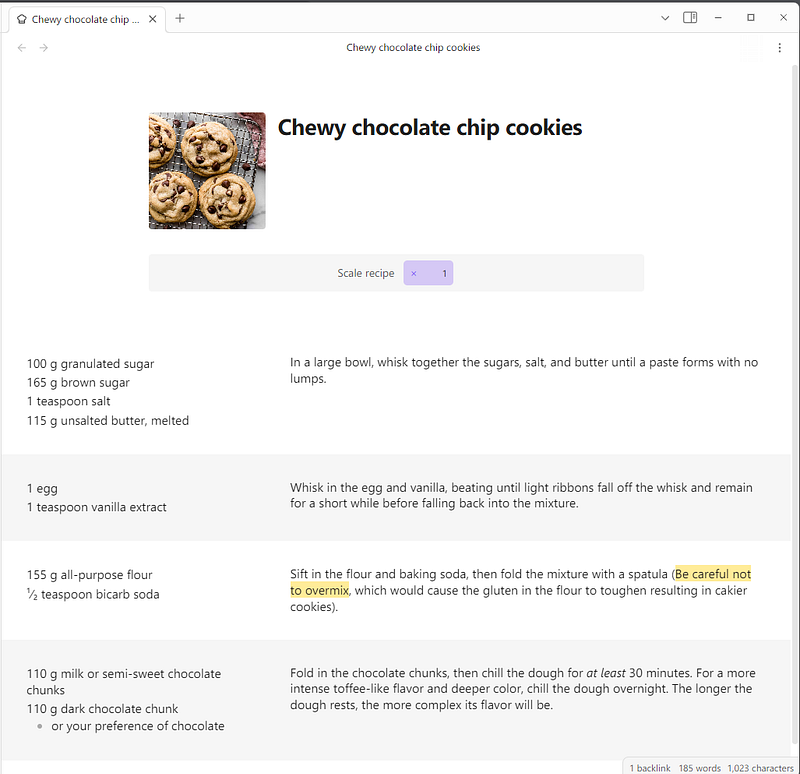
You can easily scale the quantities in your recipes easily, just by insert the quantity to scale.
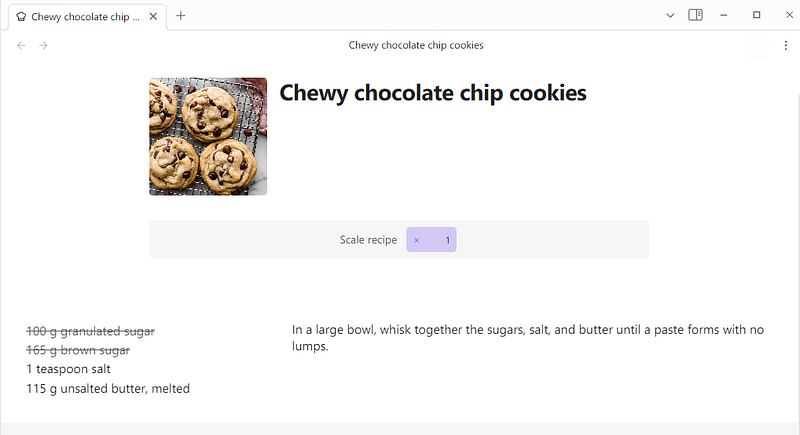
It also allows you to cross-out ingredients, by clicking on them, so you can keep track of which you have already used.
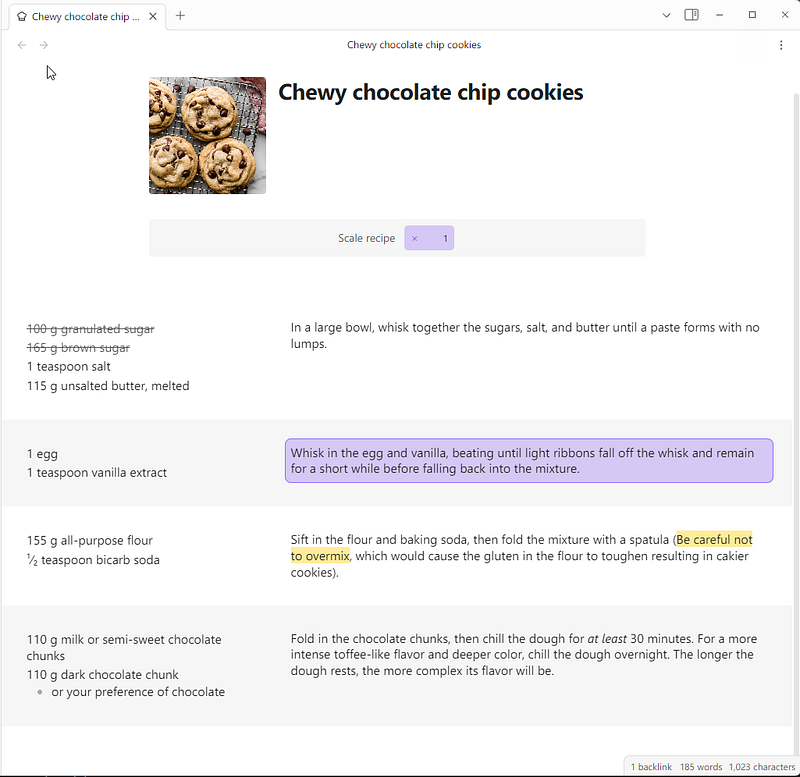
And finally, it let’s you highlight steps, so you can quickly resume where you left.
Ocrlatex️
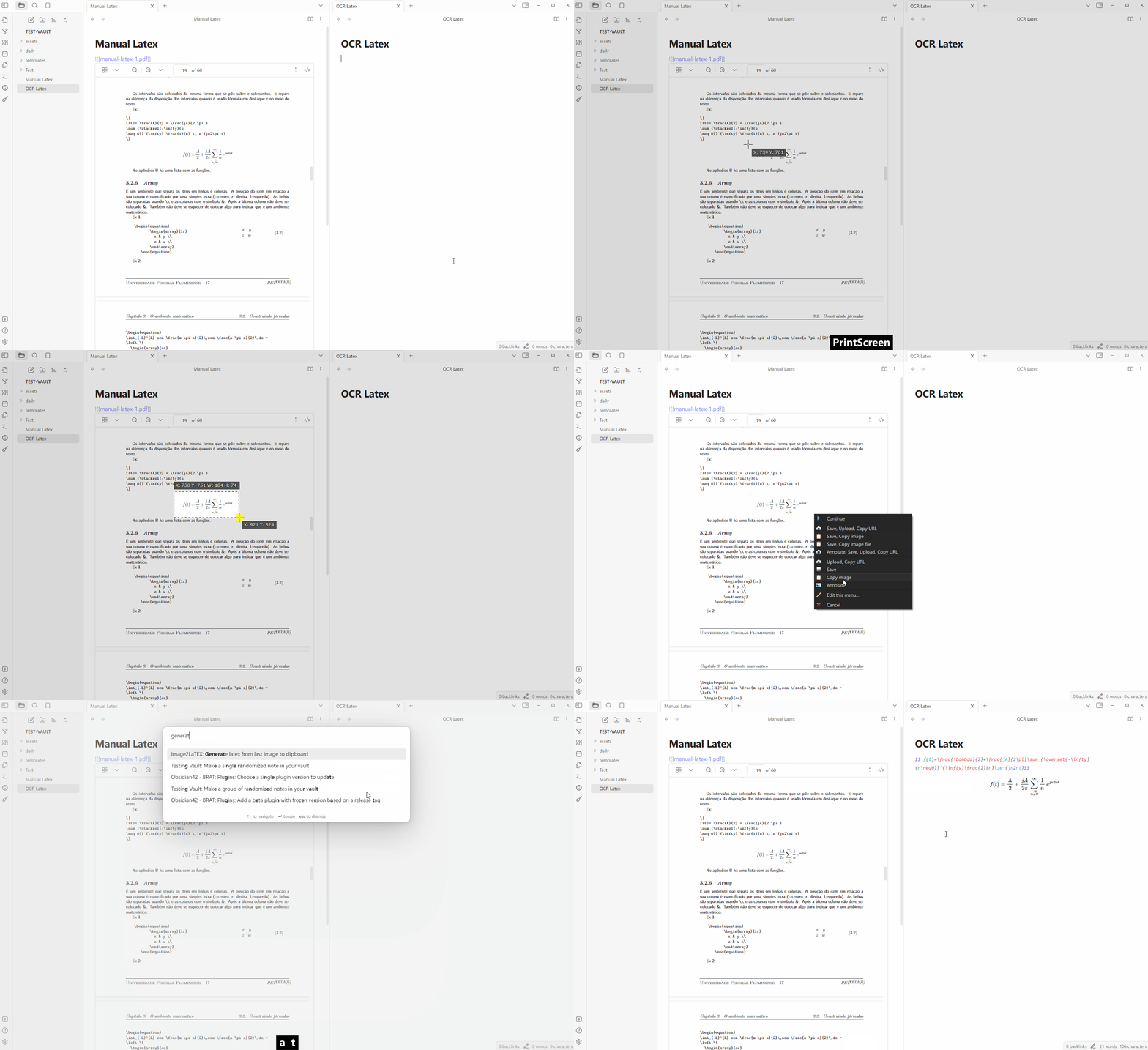
This plugin uses simpletex OCR to read the math formula your latest copied image from the clipboard and generates the corresponding latex expression. You’ll need to create an account at simpletex and generate an API token to insert in the plugin’s settings.
You can read the previous Obsidian articles here:
Click here to be notified every time I publish a new story 😉.
If you’re not a Medium member yet and wish to support me or get access to all my stories, click here.


