
Obsidian Plugins Review — 19
This week, in my Obsidian Plugins Review:
- Attachment Management
- Pronunciation Trumpet
- Adamantine Pick
- Auto Hide Cursor
- Surfing Key
- CSS Editor
- Auto Template Trigger
- Link with alias
- Mood Tracker
Attachment Management
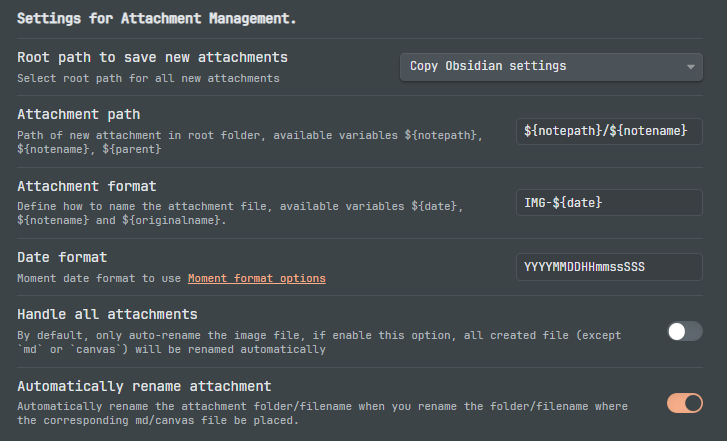
This plugin allows you to better organize your note’s attachments. You can set the attachment path and attachment name using variables, allowing you to, for example, add the date to the name, or the note name to the path.
Pronunciation Trumpet
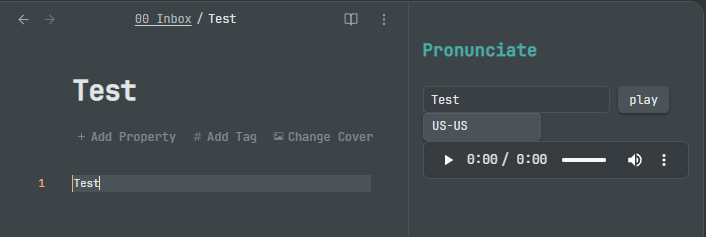
Select a word in your note, and this plugin will pronounce it in one of these English accents: US, UK, UK-RP, UK-Yorkshire, Irish, Scot, US-South or Jamaica. The pronunciations are from the wordreference.com database.
Adamantine Pick
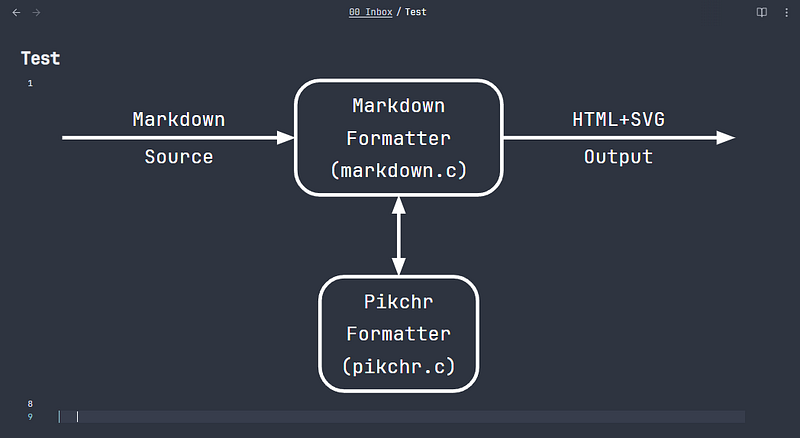
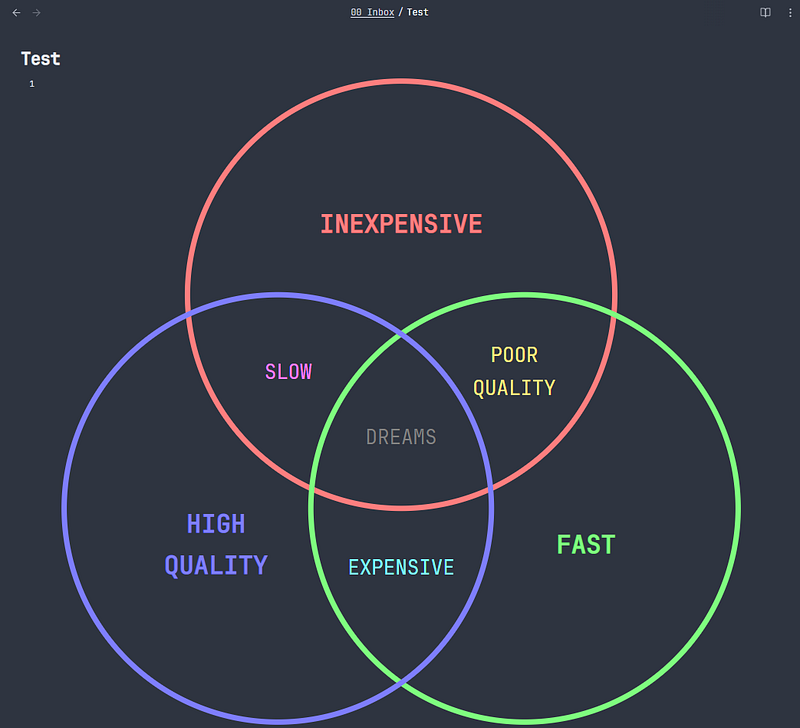
This plugin renders Pikchr diagrams in your notes. Pikchr allows you to create diagrams for technical documentation using markdown.
Example:
 ```pikchr
       arrow right 200% "Markdown" "Source"
       box rad 10px "Markdown" "Formatter" "(markdown.c)" fit
       arrow right 200% "HTML+SVG" "Output"
       arrow <-> down 70% from last box.s
       box same "Pikchr" "Formatter" "(pikchr.c)" fit
  ```
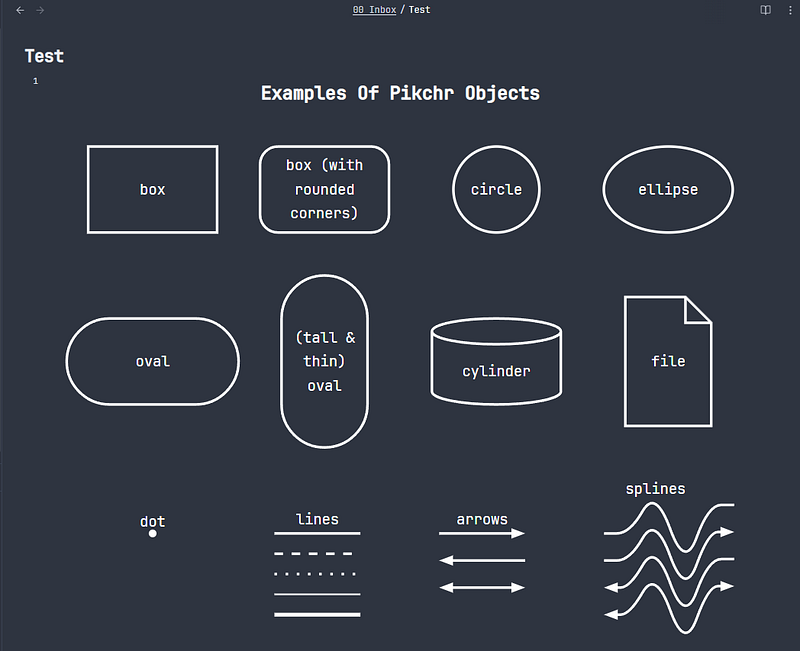
Object types:
 ``` pikchr
        AllObjects: [
        # First row of objects
        box "box"
        box rad 10px "box (with" "rounded" "corners)" at 1in right of previous
        circle "circle" at 1in right of previous
        ellipse "ellipse" at 1in right of previous
        # second row of objects
        OVAL1: oval "oval" at 1in below first box
        oval "(tall &" "thin)" "oval" width OVAL1.height height OVAL1.width at 1in right of previous
        cylinder "cylinder" at 1in right of previous
        file "file" at 1in right of previous
        # third row shows line-type objects
        dot "dot" above at 1in below first oval
        line right from 1.8cm right of previous "lines" above
        arrow right from 1.8cm right of previous "arrows" above
        spline from 1.8cm right of previous go right .15 then .3 heading 30 then .5 heading 160 then .4 heading 20 then right .15
        "splines" at 3rd vertex of previous
        # The third vertex of the spline is not actually on the drawn
        # curve.  The third vertex is a control point.  To see its actual
        # position, uncomment the following line:
        #dot color red at 3rd vertex of previous spline
        # Draw various lines below the first line
        line dashed right from 0.3cm below start of previous line
        line dotted right from 0.3cm below start of previous
        line thin   right from 0.3cm below start of previous
        line thick  right from 0.3cm below start of previous
        # Draw arrows with different arrowhead configurations below
        # the first arrow
        arrow <-  right from 0.4cm below start of previous arrow
        arrow <-> right from 0.4cm below start of previous
        # Draw splines with different arrowhead configurations below
        # the first spline
        spline same from .4cm below start of first spline ->
        spline same from .4cm below start of previous <-
        spline same from .4cm below start of previous <->
        ] # end of AllObjects
        # Label the whole diagram
        text "Examples Of Pikchr Objects" big bold  at .8cm above north of AllObjects
   ```
 ``` pikchr
        O: text "DREAMS" color grey
        circle rad 0.9 at 0.6 above O thick color red
        text "INEXPENSIVE" big bold at 0.9 above O color red
        circle rad 0.9   at 0.6 heading  120 from O thick color green
        text "FAST" big bold at 0.9 heading  120 from O  color green
        circle rad 0.9 at 0.6 heading -120 from O thick color blue
        text "HIGH" big bold "QUALITY" big bold at 0.9 heading  -120 from O  color blue
        text "EXPENSIVE" at 0.55 below O  color cyan
        text "SLOW" at 0.55 heading  -60 from O  color magenta
        text "POOR" "QUALITY" at 0.55 heading   60 from O  color gold
   ```
Auto Hide Cursor
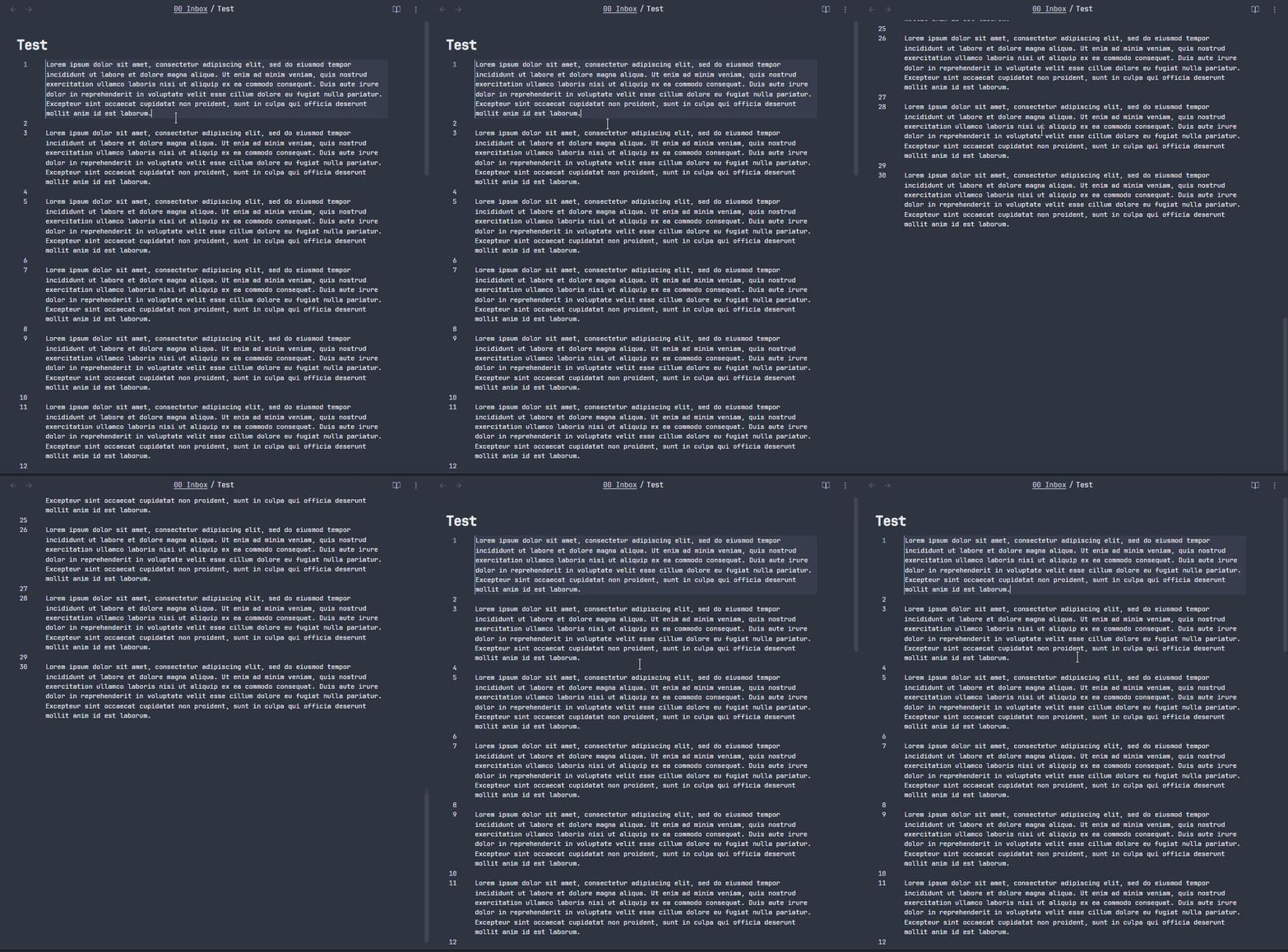
If you’re a fan of focus mode, this plugin is definitely for you. It hides the cursor after you scroll up or down, and shows it again when you move it.
Surfing Key
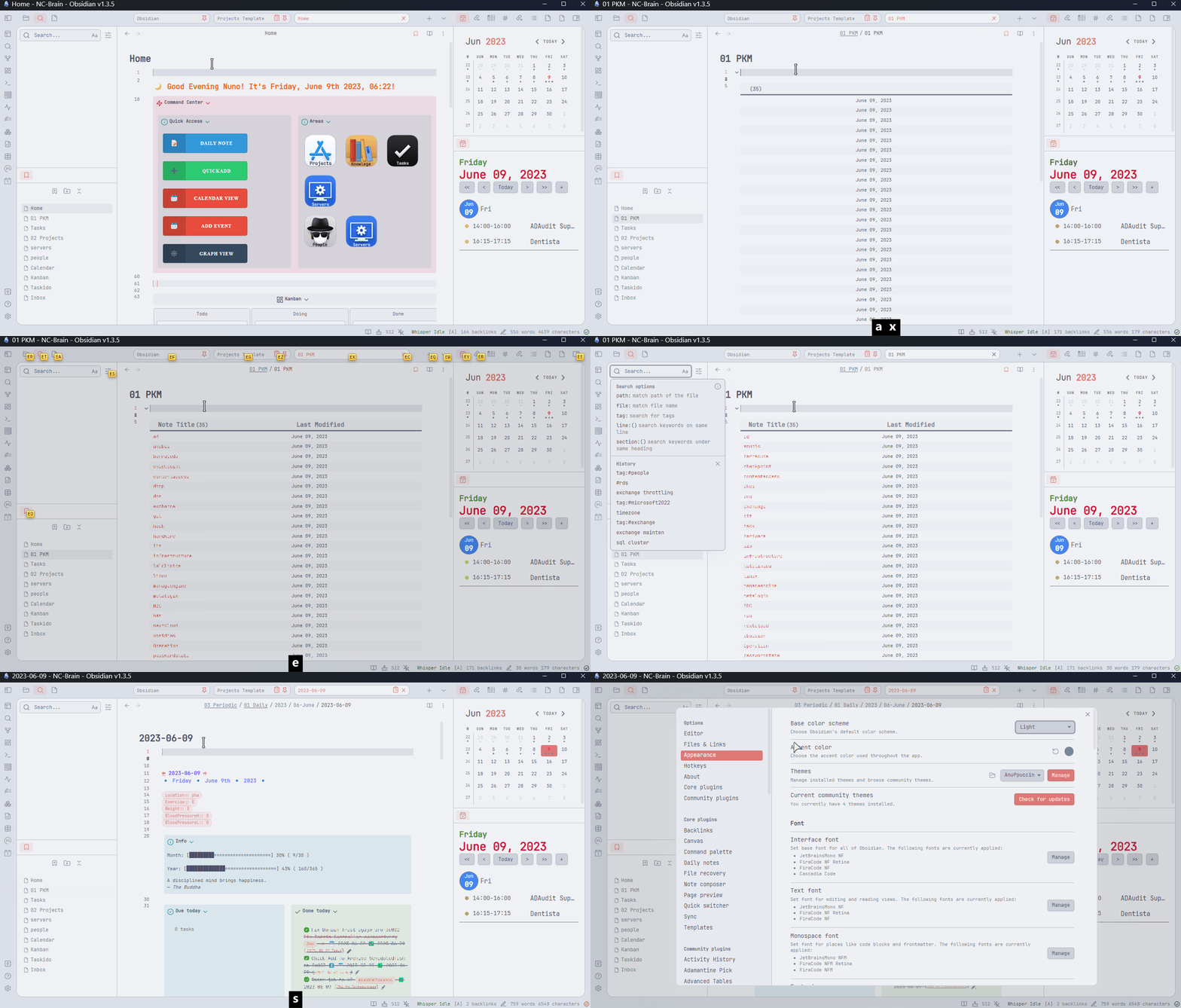
This plugin allows you to control Obsidian using only your keyboard. First, you have to assign an hotkey to Suring key: Surfing Obsidian in Obsidian's settings. When you press the hotkey all visible elements of Obsidian will have a string associated. All you have to do is insert the corresponding string to what you want to click.
CSS Editor
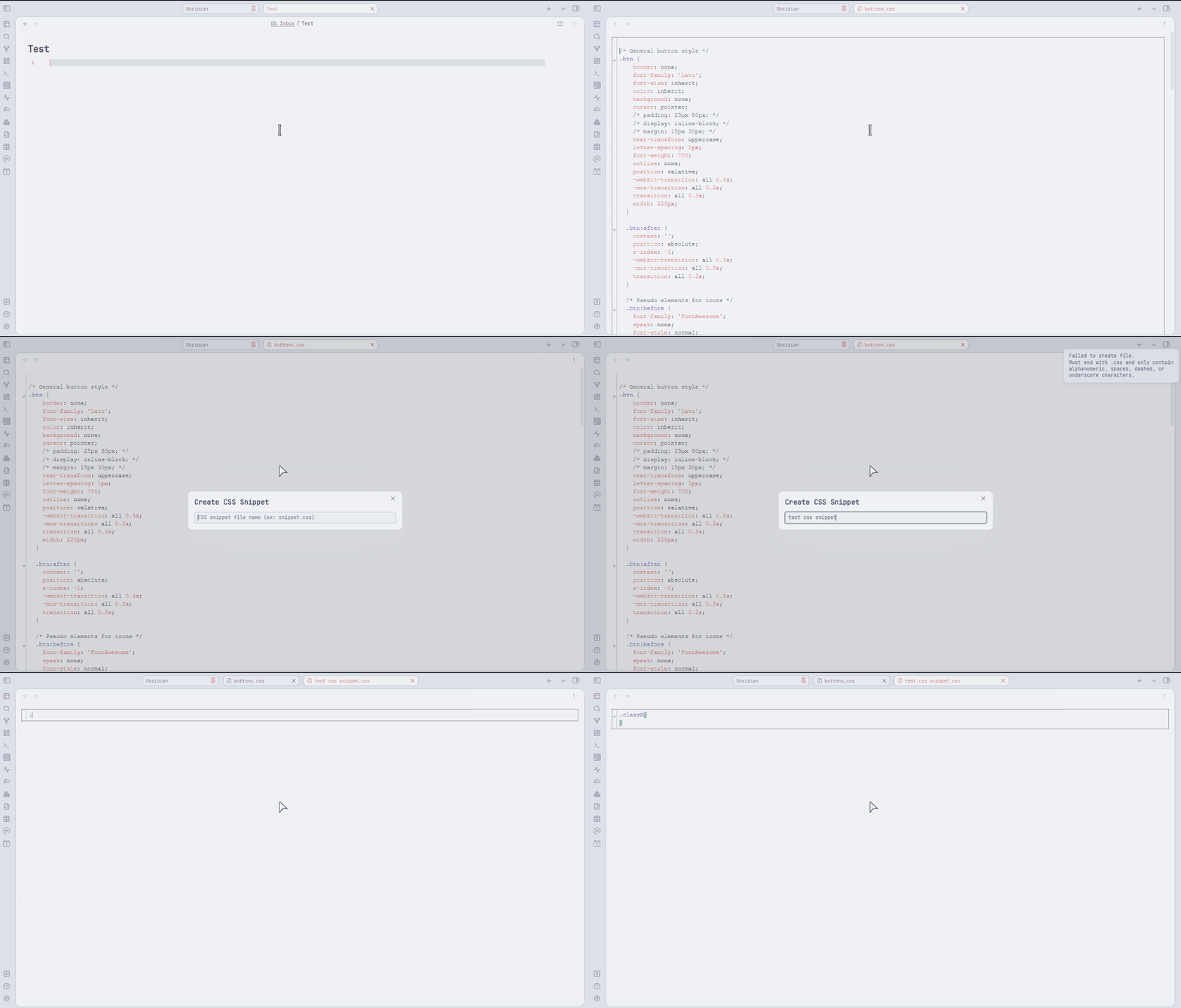
Allows you to edit your CSS snippets in .obsidian/snippets/ directory in Obsidian. The command Edit CSS Snippetwill open a modal window to select the CSS file to open. You can also create or delete CSS files with the commands Create CSS Snippetand Delete CSS Snippet.
Auto Template Trigger
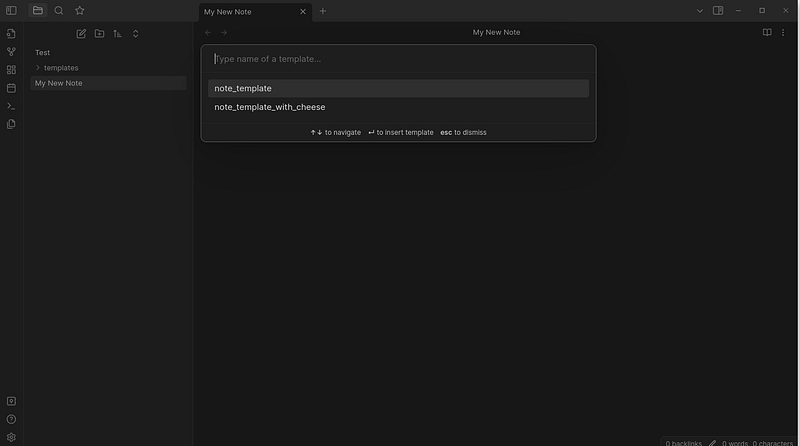
This plugin will prompt you to select a template whenever you create a new note. Unfortunately, it doesn’t work with Templater, you have to enable the core Templates plugin. If that’s fine to you, it’s a very handy plugin.
Link with alias
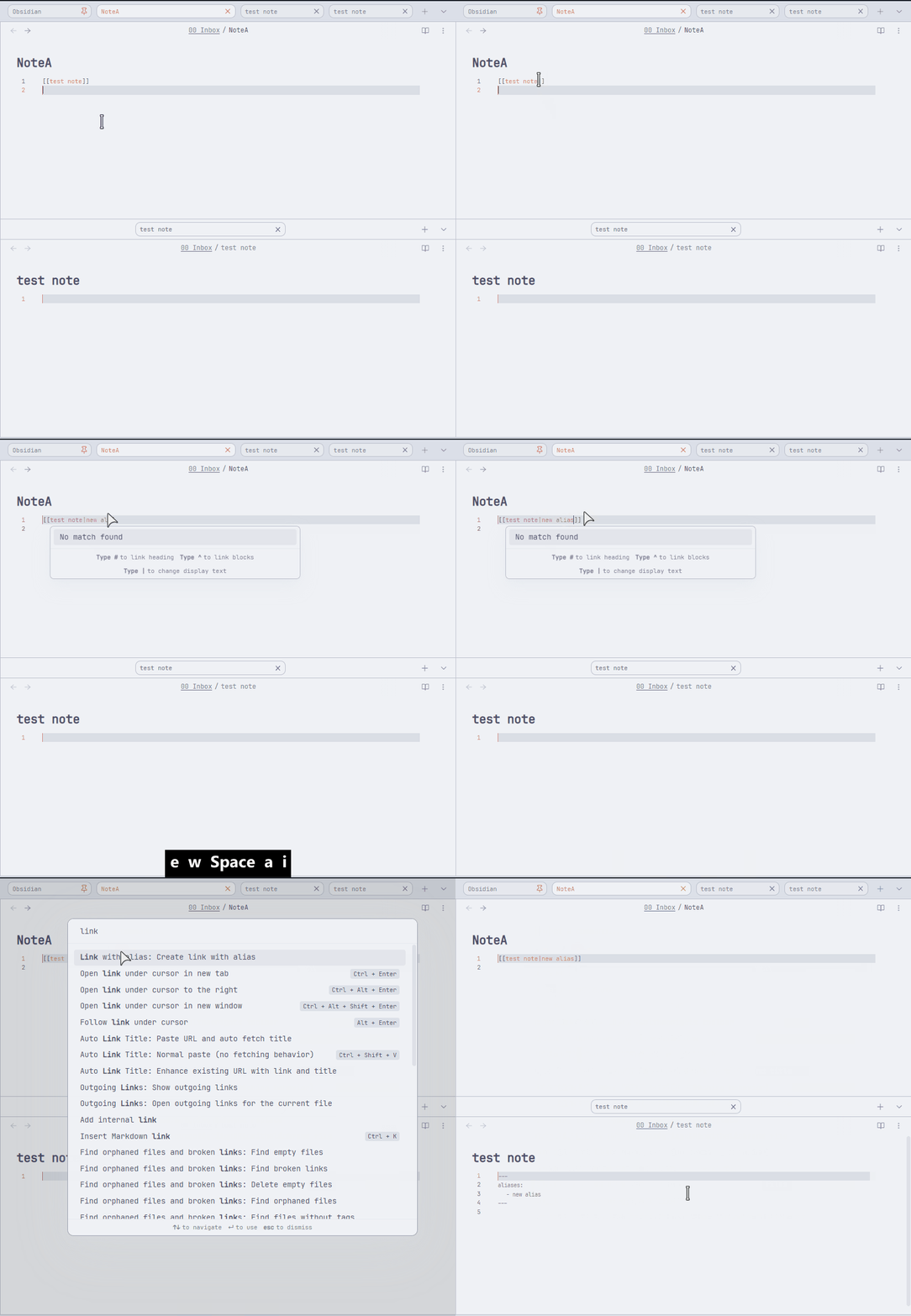
This plugin allows you to quickly add an alias to a note when adding a display text to a link. You just need to add the display text and run the command Create link with alias.
Mood Tracker
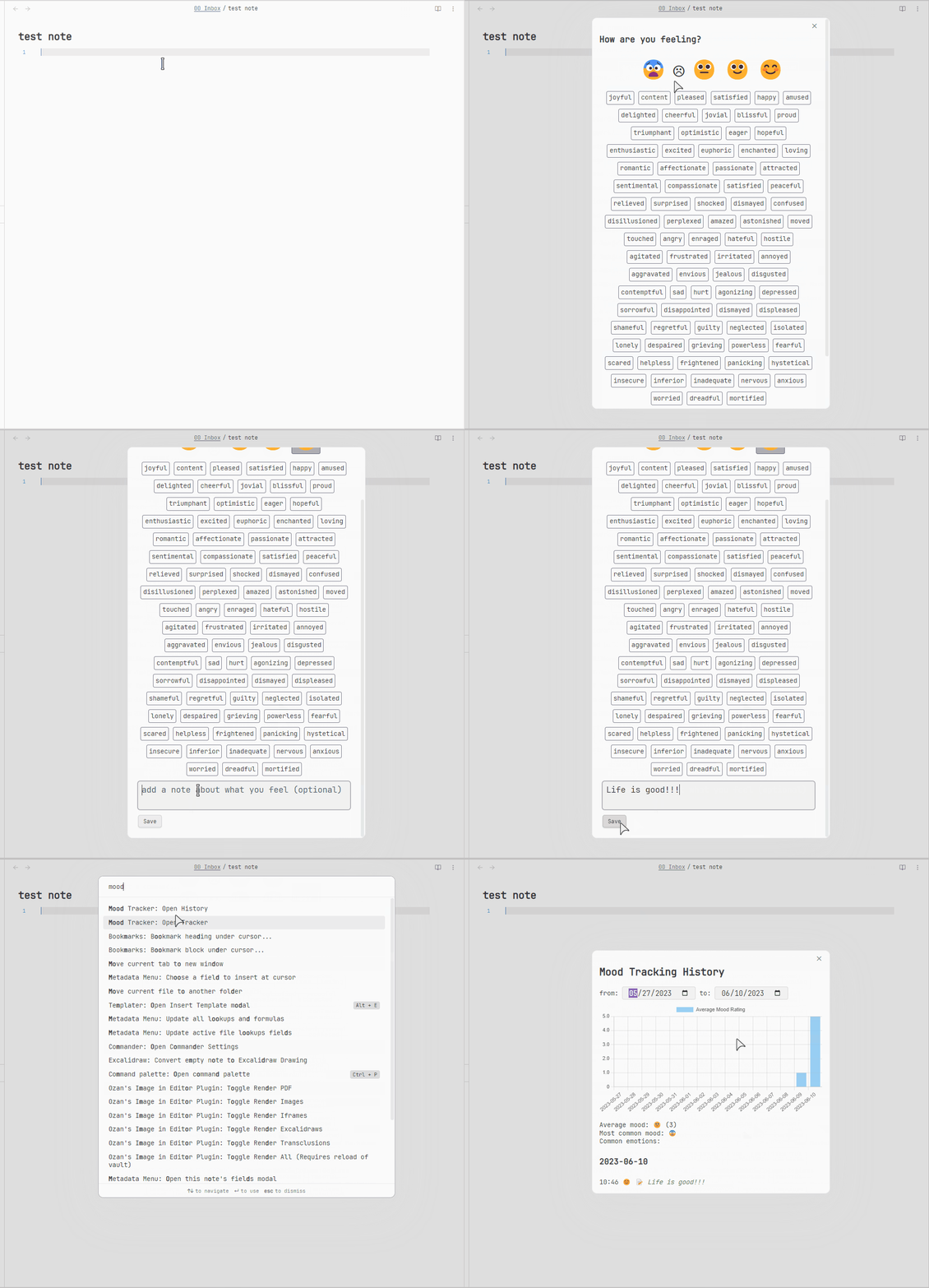
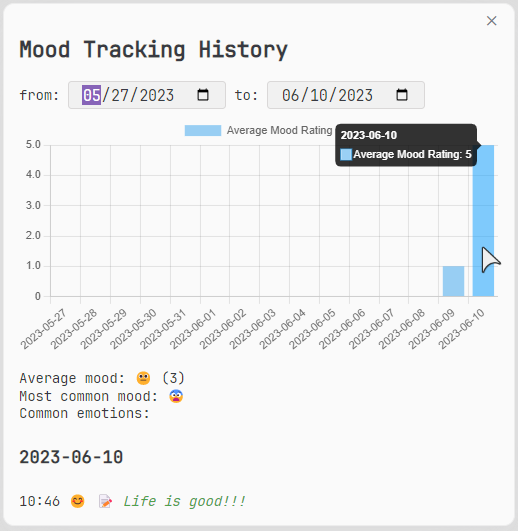
This plugin allows you to track your mood and visualize your mood history on a graph.
You can read the previous Obsidian articles here:
Click here to be notified every time I publish a new story 😉.
If you’re not a Medium member yet and wish to support me or get access to all my stories, click here.


