
Obsidian Plugins Review — 17
Weekly Obsidian plugins review
This week, in my Obsidian Plugins Review:
- Obsidian Weaver
- OZ Calendar Plugin
- Obsidian snippets by Zamsyt
- Frontmatter Alias Display
- Bulk open selected links
- File Order Obsidian Plugin
- Obsidian Whisper
- Select current line Plugin
- Codeblock Customizer Plugin
- Short links
- Persistent Links
Obsidian Weaver
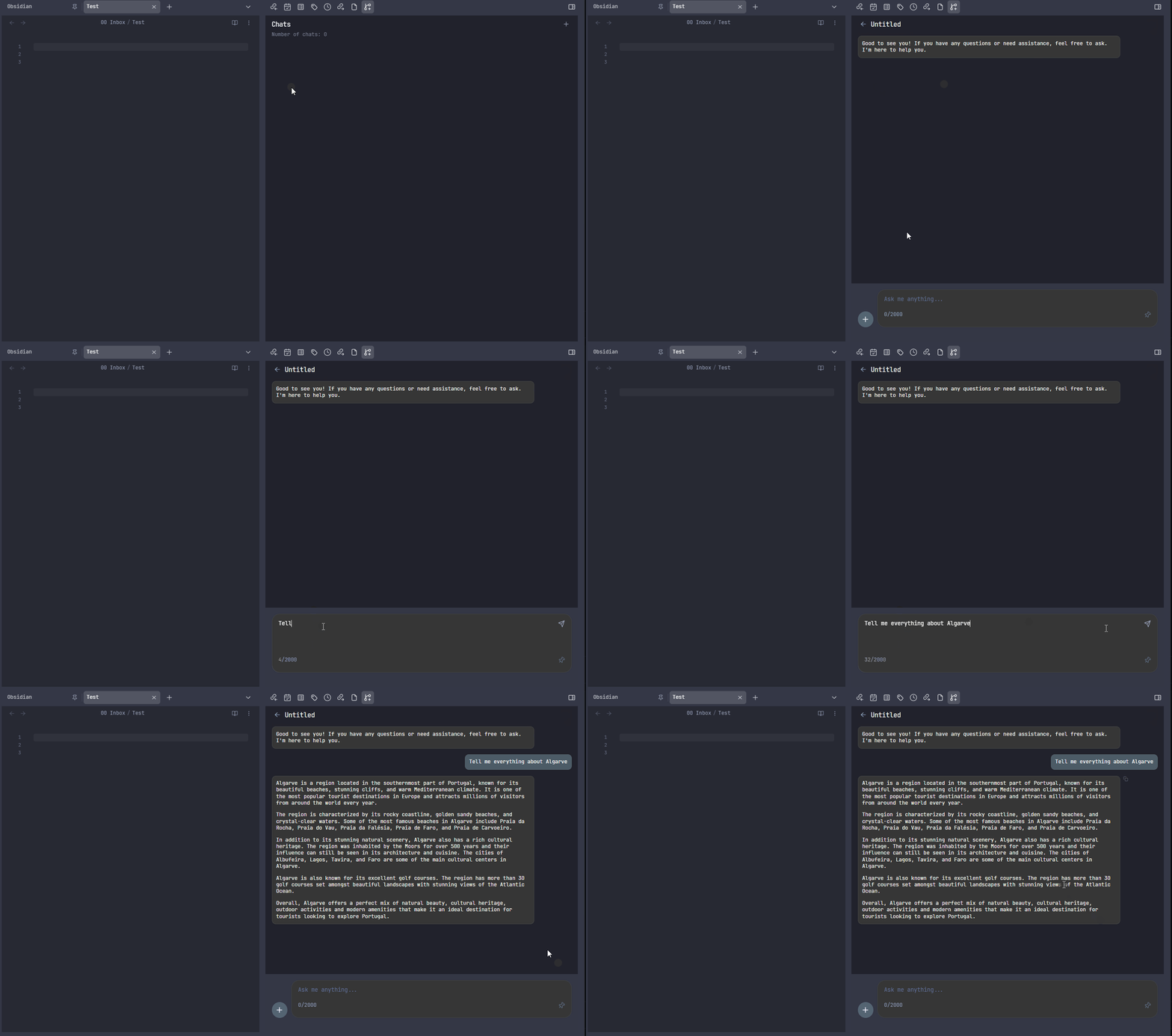
Yet another ChatGPT powered plugin. What makes this plugin different from all the other AI assistants? Weaver integrates very well with Obsidian interface, making you more efficient and more focused on your writing process. Weaver creates a sidebar widget that you use to create new conversations or view past ones. It stores your conversations in a folder of your choice in a .bsonformat, ensuring your data remains private.
OZ Calendar Plugin
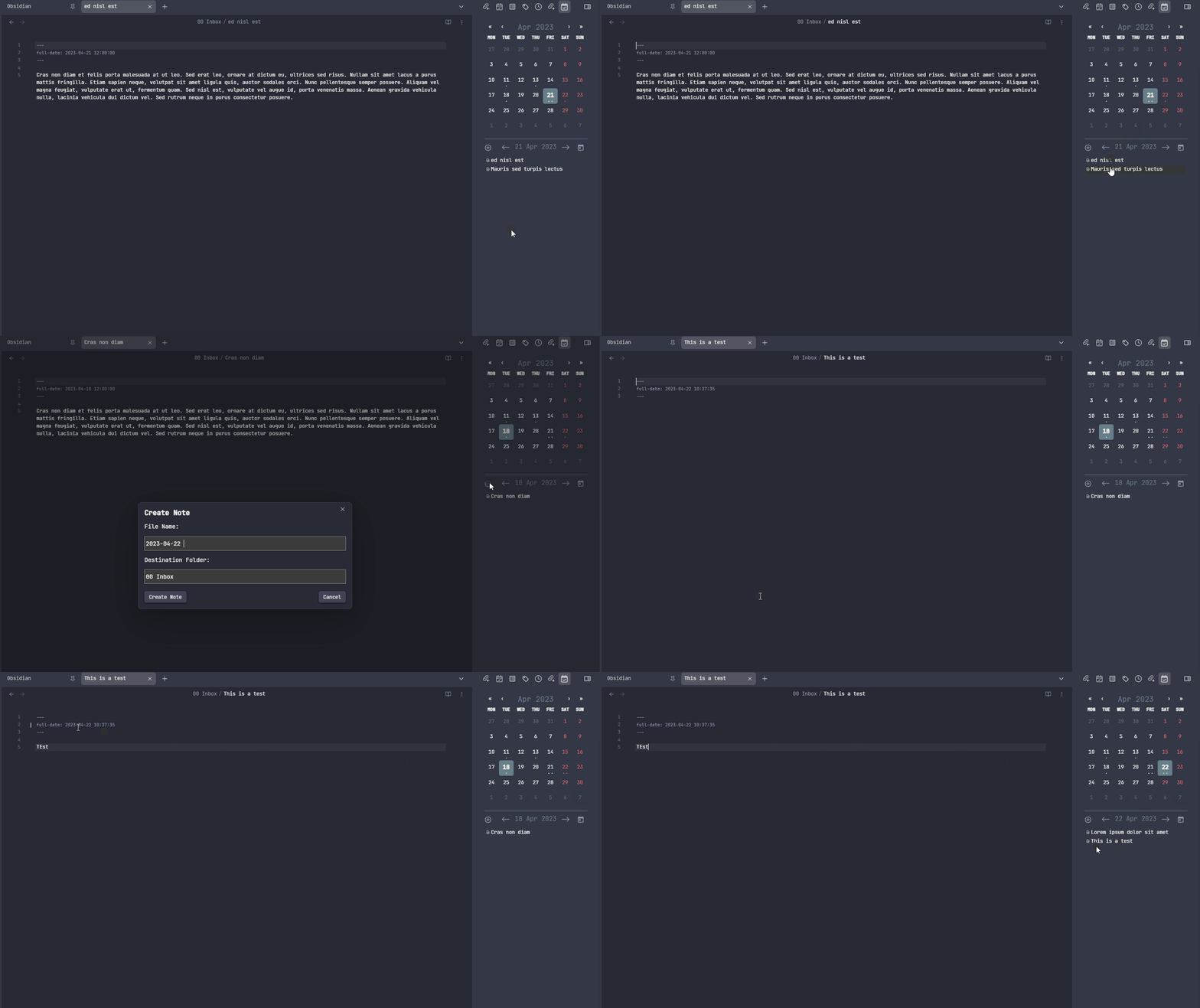
This plugin creates a sidebar calendar widget that allows you to view your notes based on their creation date. You can use a YAML key or the filename to set the date.
Obsidian snippets by Zamsyt
These are a couple of CSS snippets, not a plugin, but very useful.
Easy multi column notes
Inserts a multi-column layout. Use 2 consecutive horizontal lines to separate columns.
First column

---
---

Second column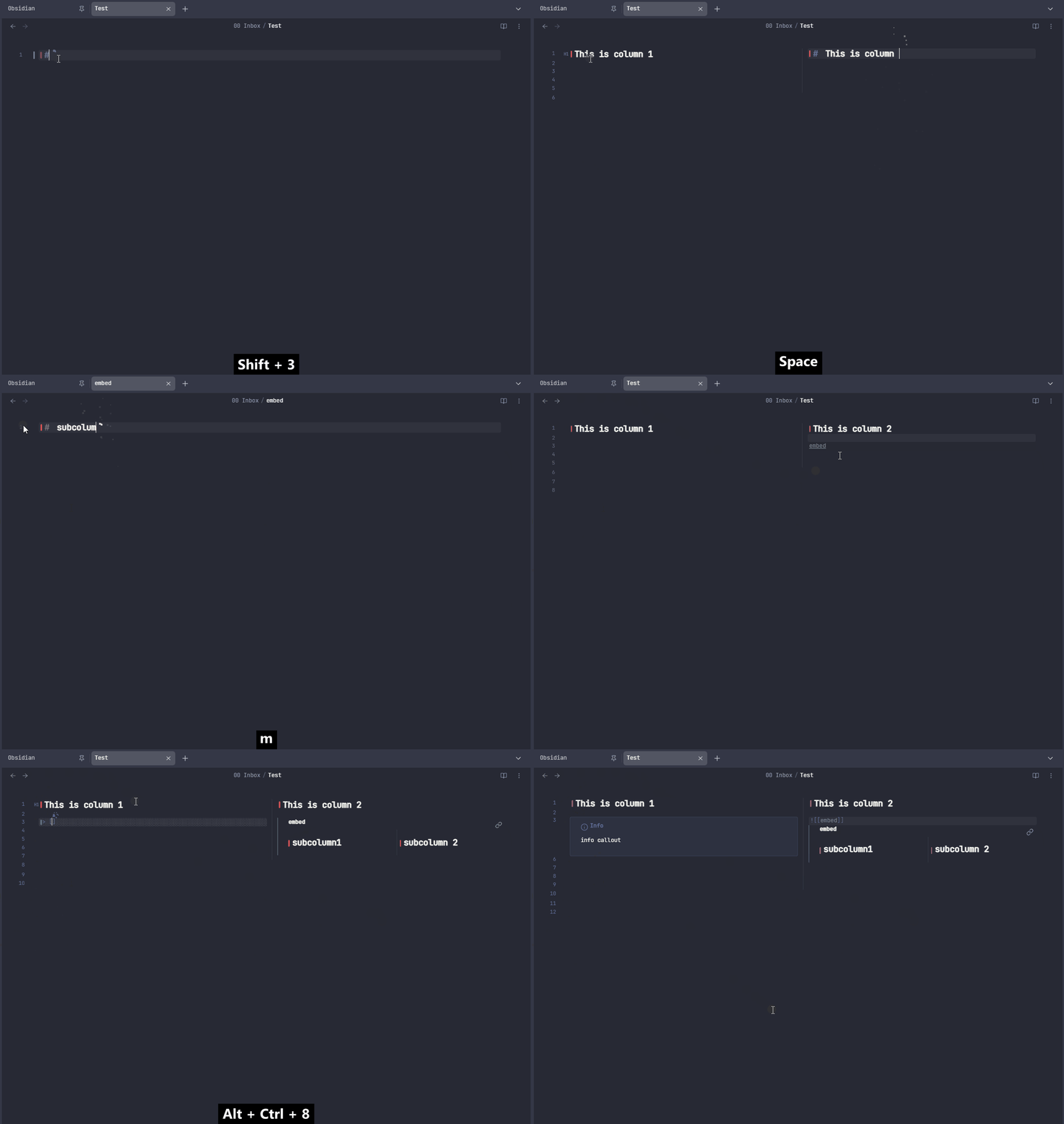
Indent headings
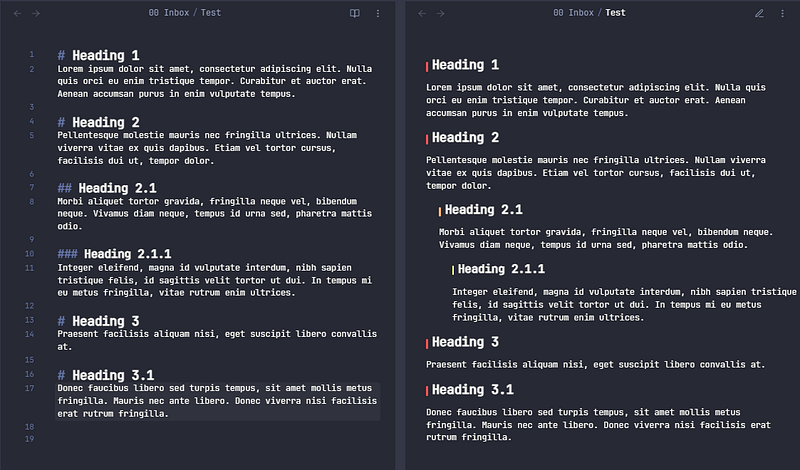
Idents headings and text under them.
Note color scheme
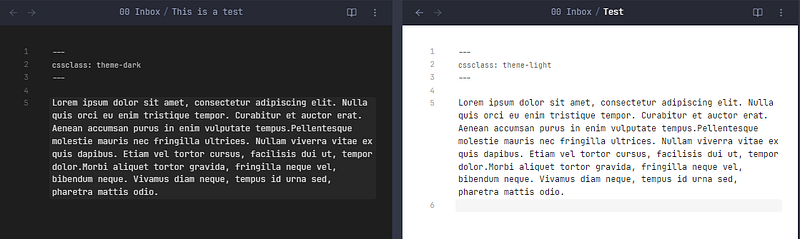
This snippet sets the color scheme light or dark individually on your notes. Just use YAML cssclass: theme-darkor cssclass: theme-light.
Custom page preview
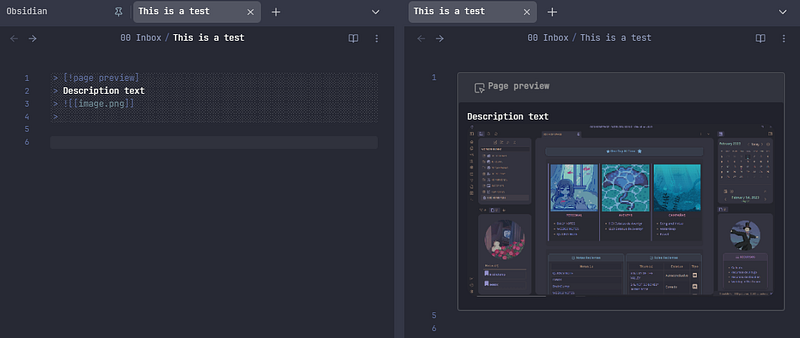
Adds Wikipedia-style notes preview.
Enable dark mode printing
This snippet allows you to export to a dark pdf file when dark mode is enabled.
Force light mode printing
Prints everything, including code blocks, in a light color scheme, even when dark mode is active.
Frontmatter Alias Display
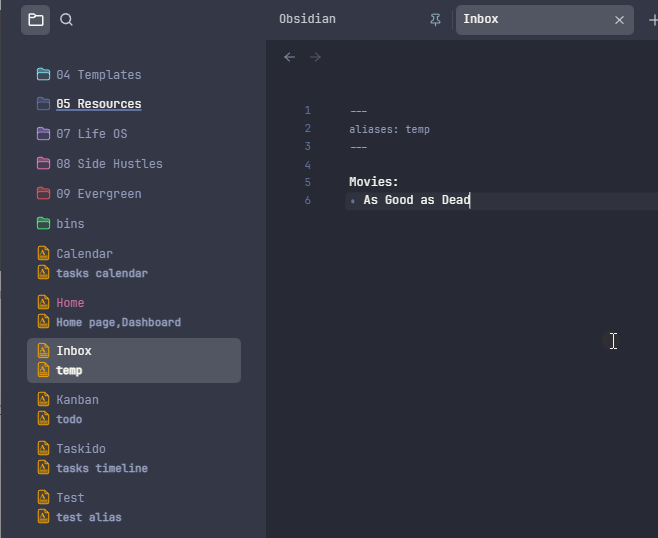
Shows frontmatter aliases below the note name in file explorer. This is very useful, especially for folks using the Zettelkasten system to organize their notes, where their notes get arbitrary titles or IDs.
Bulk open selected links
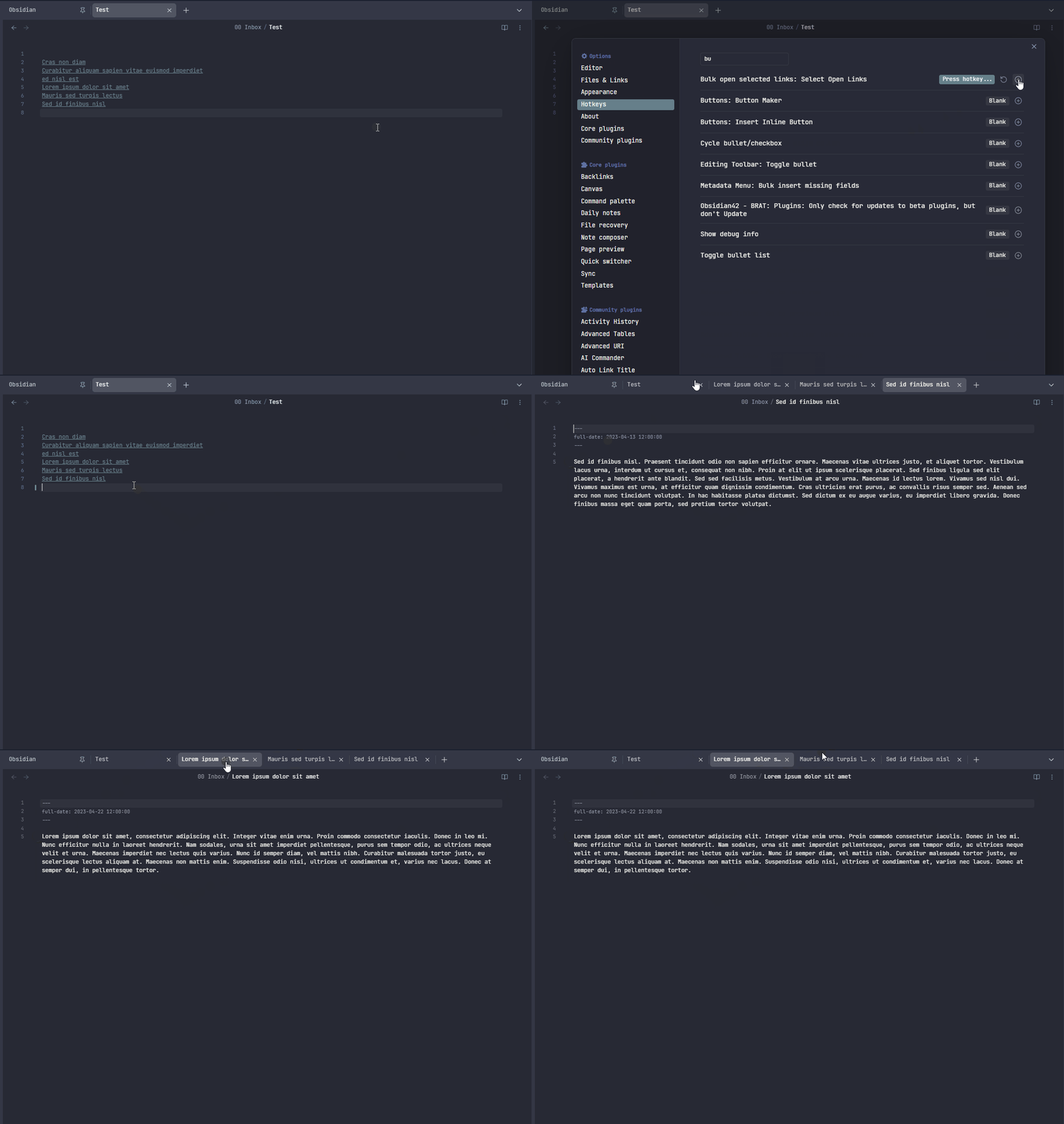
This plugin allows you to open all selected links at once in edit mode, saving time and increasing your productivity and efficiency. Works even better if you assign a hotkey to the plugin command.
File Order Obsidian Plugin
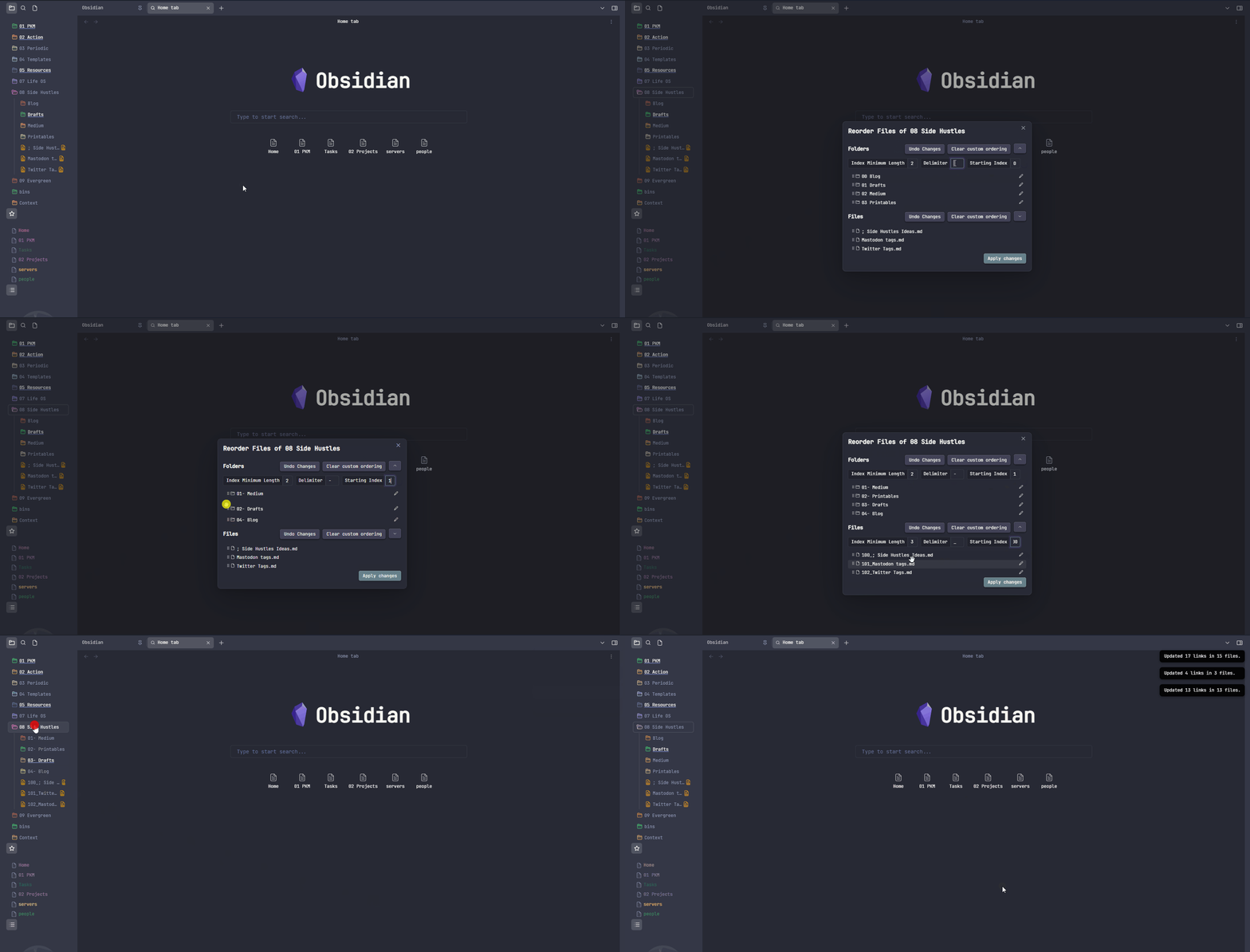
This plugin allows you to add prefixes to your folders and notes to reorder them. You can drag and drop to change the order. Just right-click any folder or note to use it and click “Reorder Items”. You can set a minimum prefix length, and select a delimiter and a starting index. When you reorder the items, it will automatically update all your references and links to the affected notes and folders.
Obsidian Whisper: Hands-Free Note-Taking
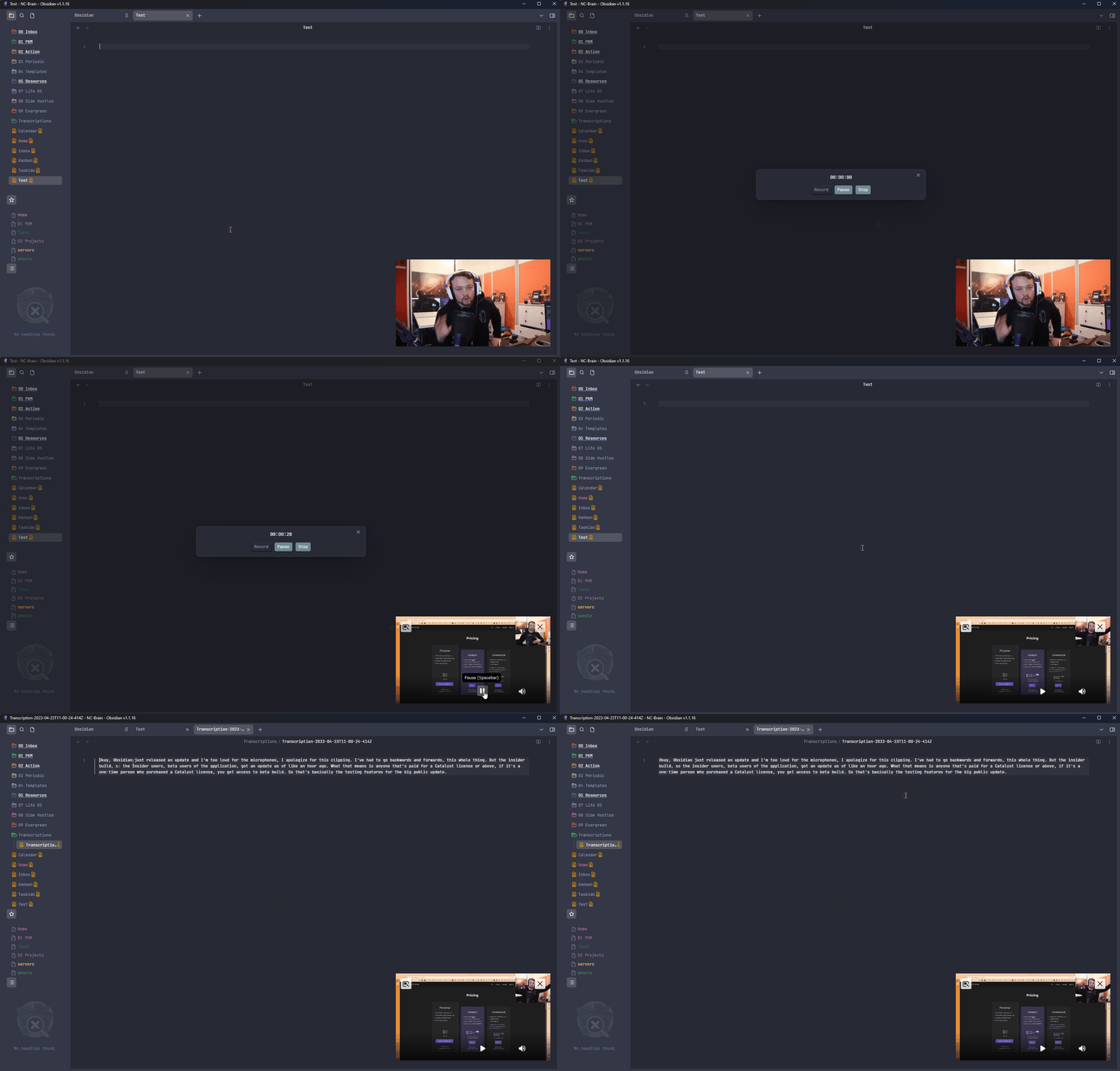
This plugin records your speech and turns it into written notes, using OpenAI’s Whisper API. Just click the button on the left ribbon to access the recording controls, and then use the buttons Record, Pause, Resume, and Stop to manage your recordings. The recording transcription will be saved in the folder you specify on the plugin’s settings. You can also use this plugin to make transcriptions of videos, like from YouTube, just play the video and record it.
Select current line
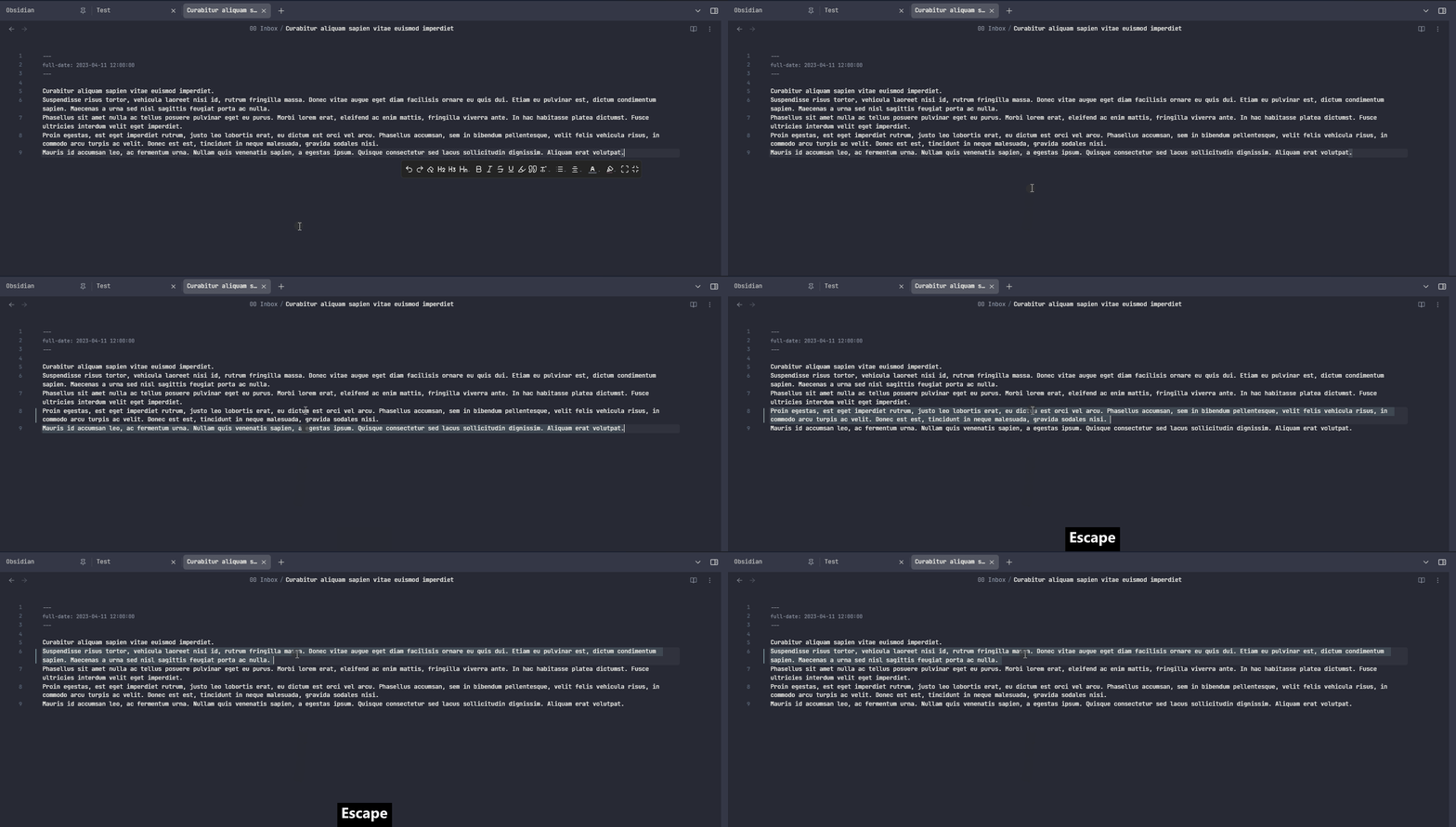
This simple plugin allows you to press a specified key, ESCby default, and it selects the current line, from the beginning to the end.
Codeblock Customizer Plugin
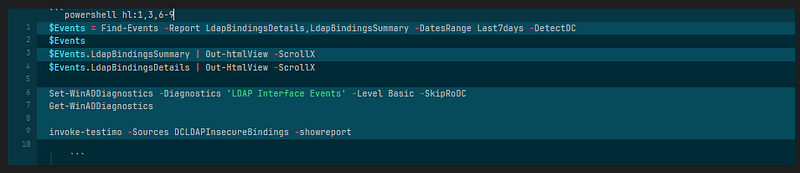
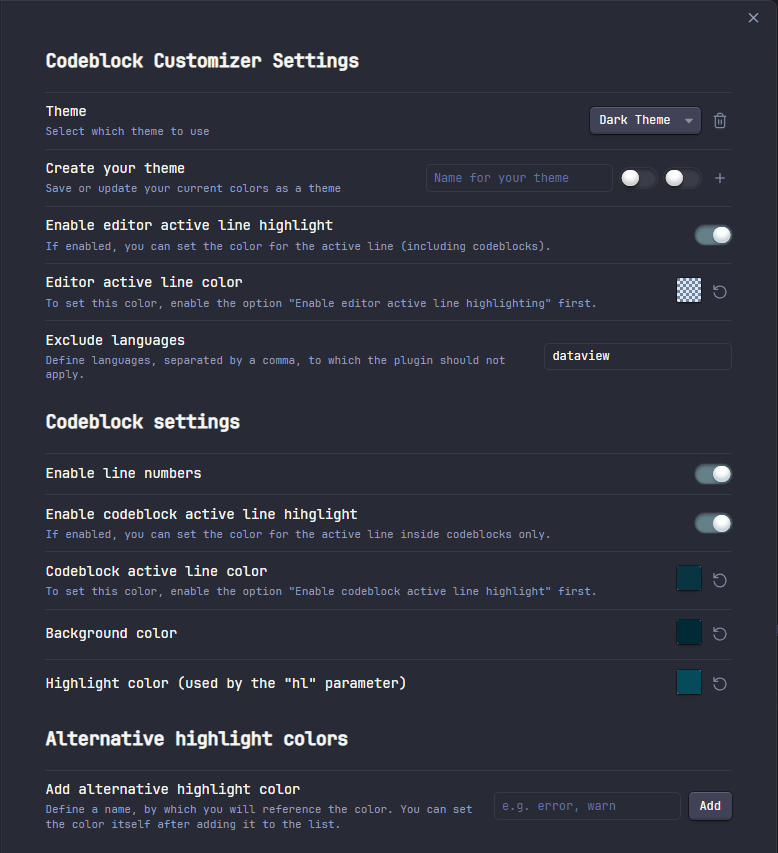
Further customization for code blocks for both preview and reading modes. It also supports line highlighting using hl: followed by the line numbers. e.g.:
- comma-separated line numbers:
hl:1,3,4,8 - line ranges:
hl:3-7 - combination of both:
hl:1,5,7-9
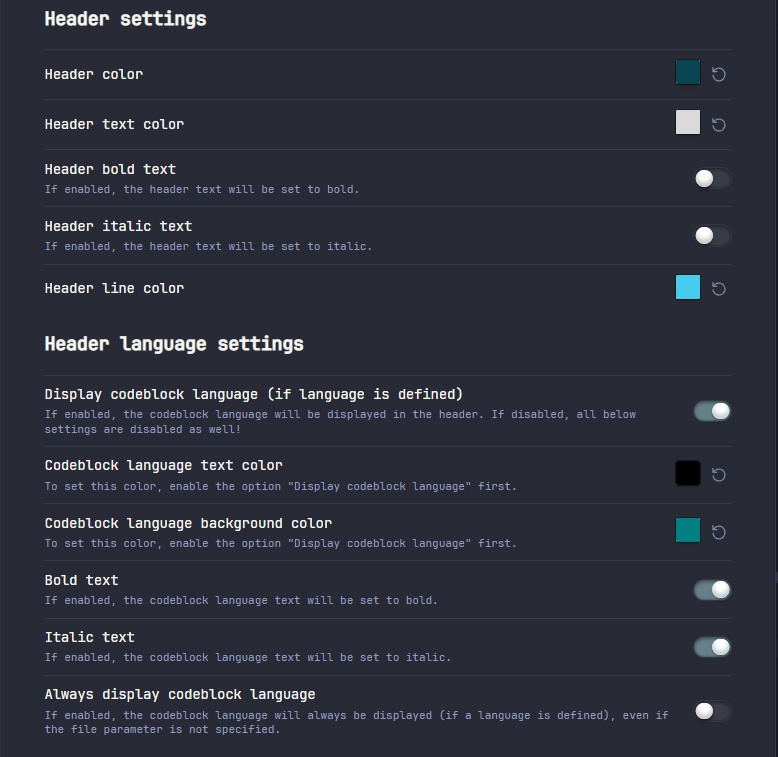
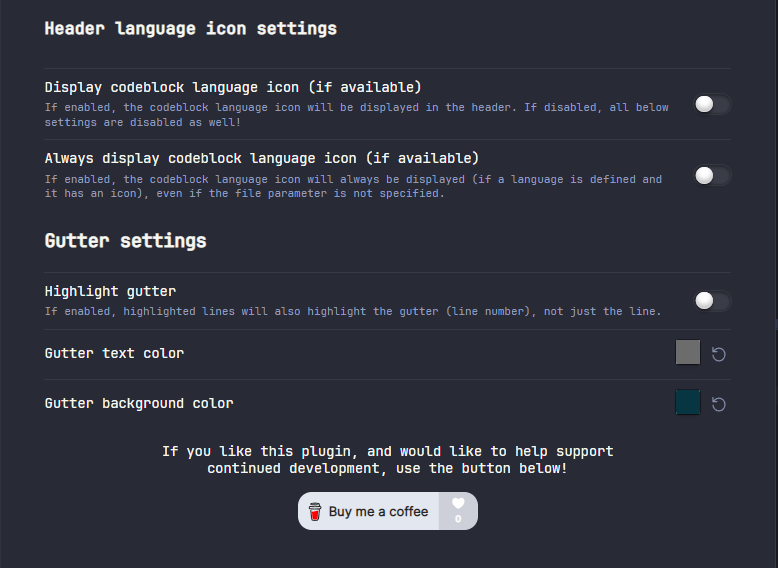
Here are the customization options available:


Short links
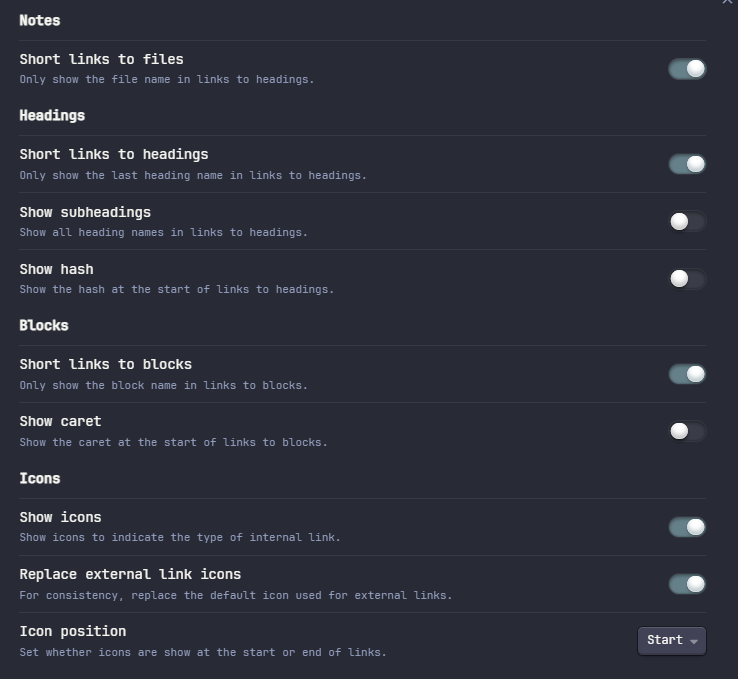
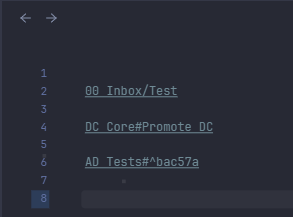
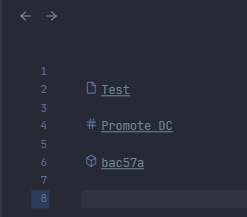
Shorten links to files, notes, heading, or blocks. This plugin includes various configuration options:
Check the below examples before and after Short Links for a note link, heading link and block link.
Persistent Links
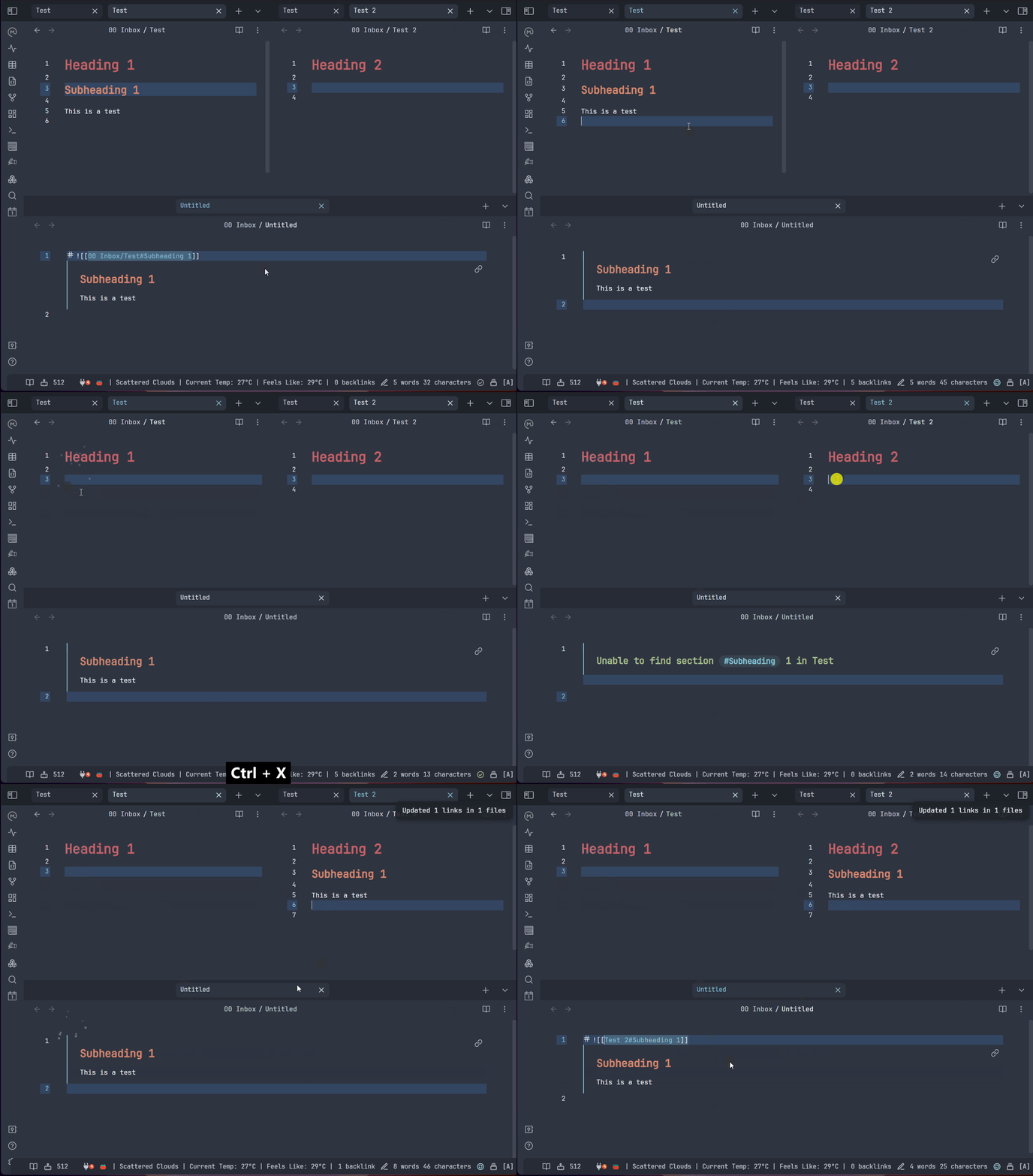
Fixes the backlinks to headings or blocks when you move them across notes. Let’s say you have a note X with links to headings of note Y. If you cut and paste that heading to note Z, the link in note X will break. This plugin will automatically fix it. If the heading or block was updated any other way than copy and paste, you can you the command Repair links in fileto fix it.
You can read the previous Obsidian articles here:
Click here to be notified every time I publish a new story 😉.
If you’re not a Medium member yet and wish to support me or get access to all my stories, click here.


