Obsidian Plugins Review — 16
Weekly Obsidian Plugins review
This week, in my Obsidian Plugins Review:
- Easy toggle sidebars
- Meld Build
- Prioritize
- Gemmy — Obsidian Unhelper
- Journal Review
- Unfilled Stats Highlighter
- Fast Image Cleaner
- Obsidian Image Upload Toolkit
- Reveal File in Explorer
- Colorful Note Borders
- Obsidian Cron
- Obsidian Code Files
Easy toggle sidebars
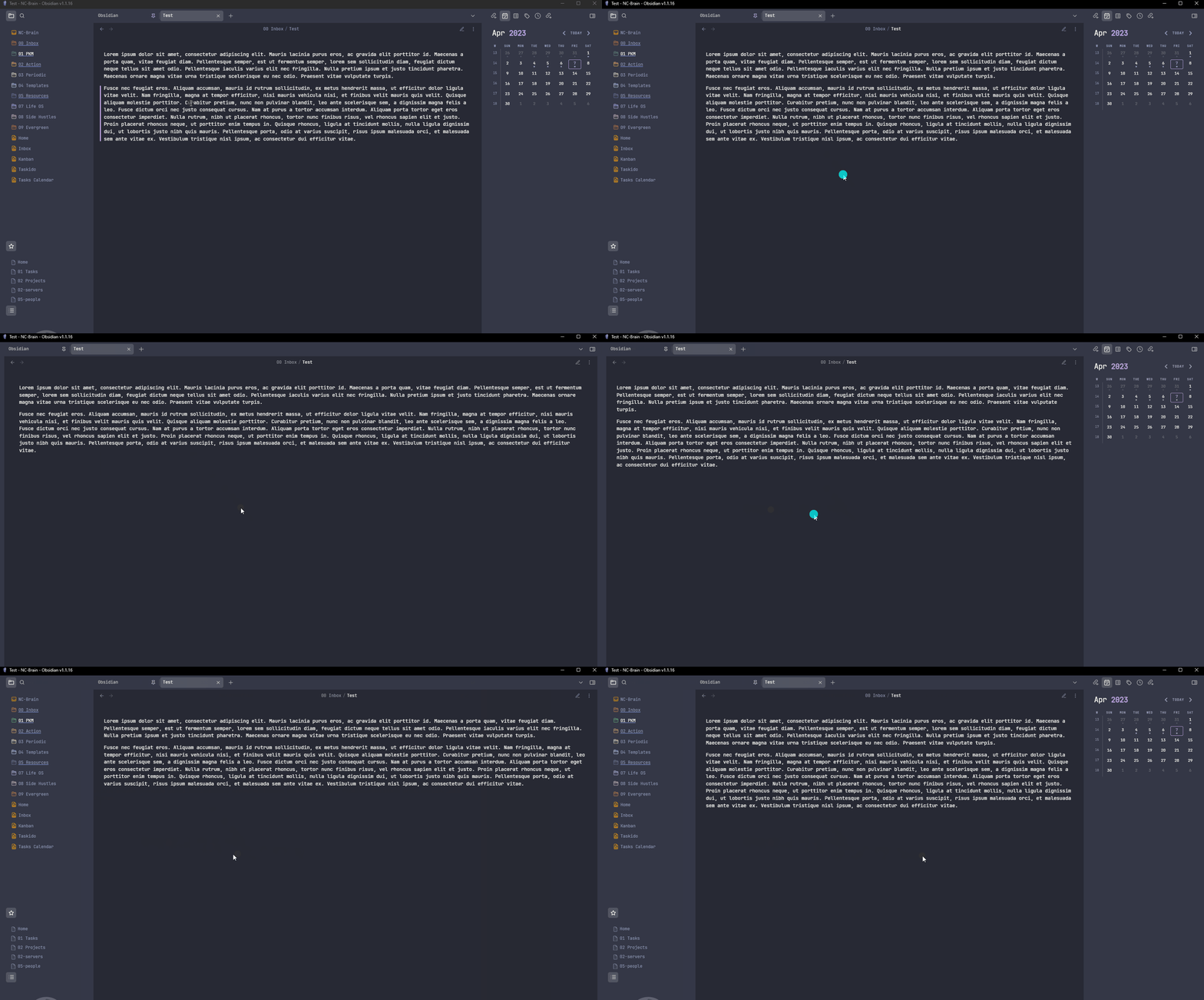
This plugin allows you to easily show or hide the sidebars by double-clicking the mouse middle button. You can also show or hide the sidebars individually by clicking the mouse middle button and moving toward the sidebar you want to show/hide.
Meld Build
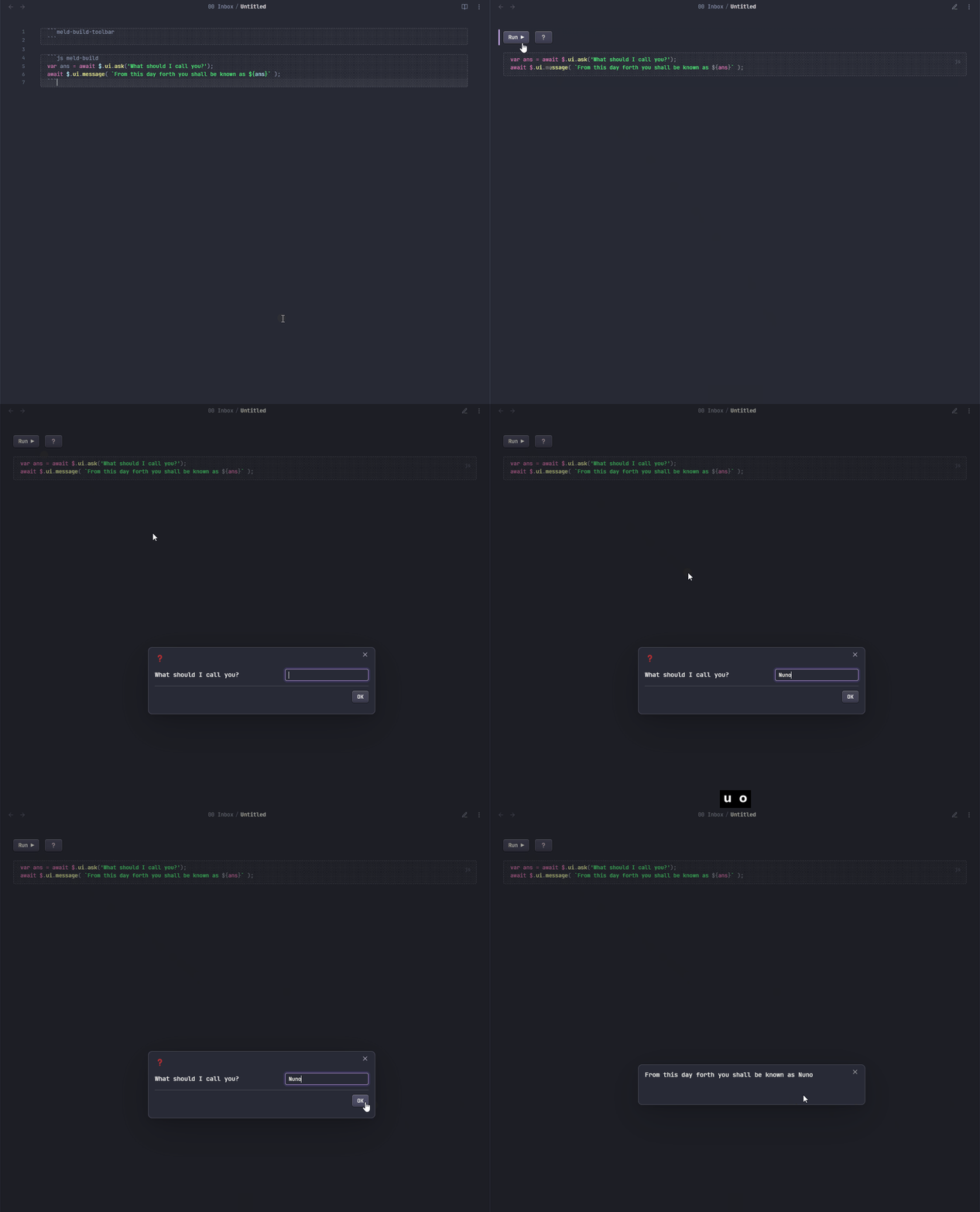
This plugin allows you to run Javascript code (sandboxed) to create dynamic notes. Use the following to add a toolbar with run and help buttons:
```meld-build-toolbar
```
and this to add your code:
```js meld-build
const ans = await $.ui.ask('What should I call you?');
await $.ui.message( `From this day forth you shall be known as ${ans}` );
```
Check out here a great example of an invoice generator.
Prioritize
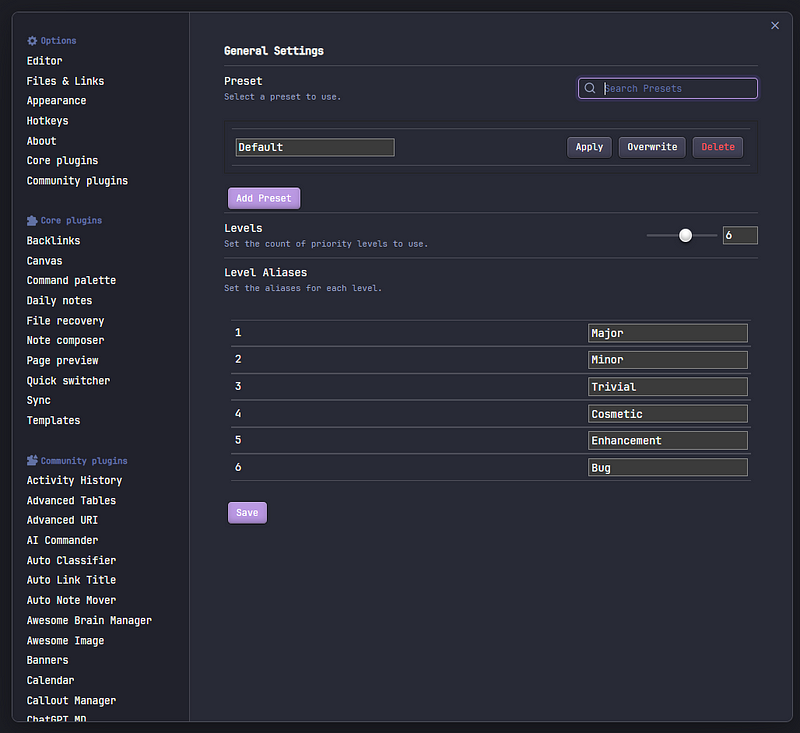
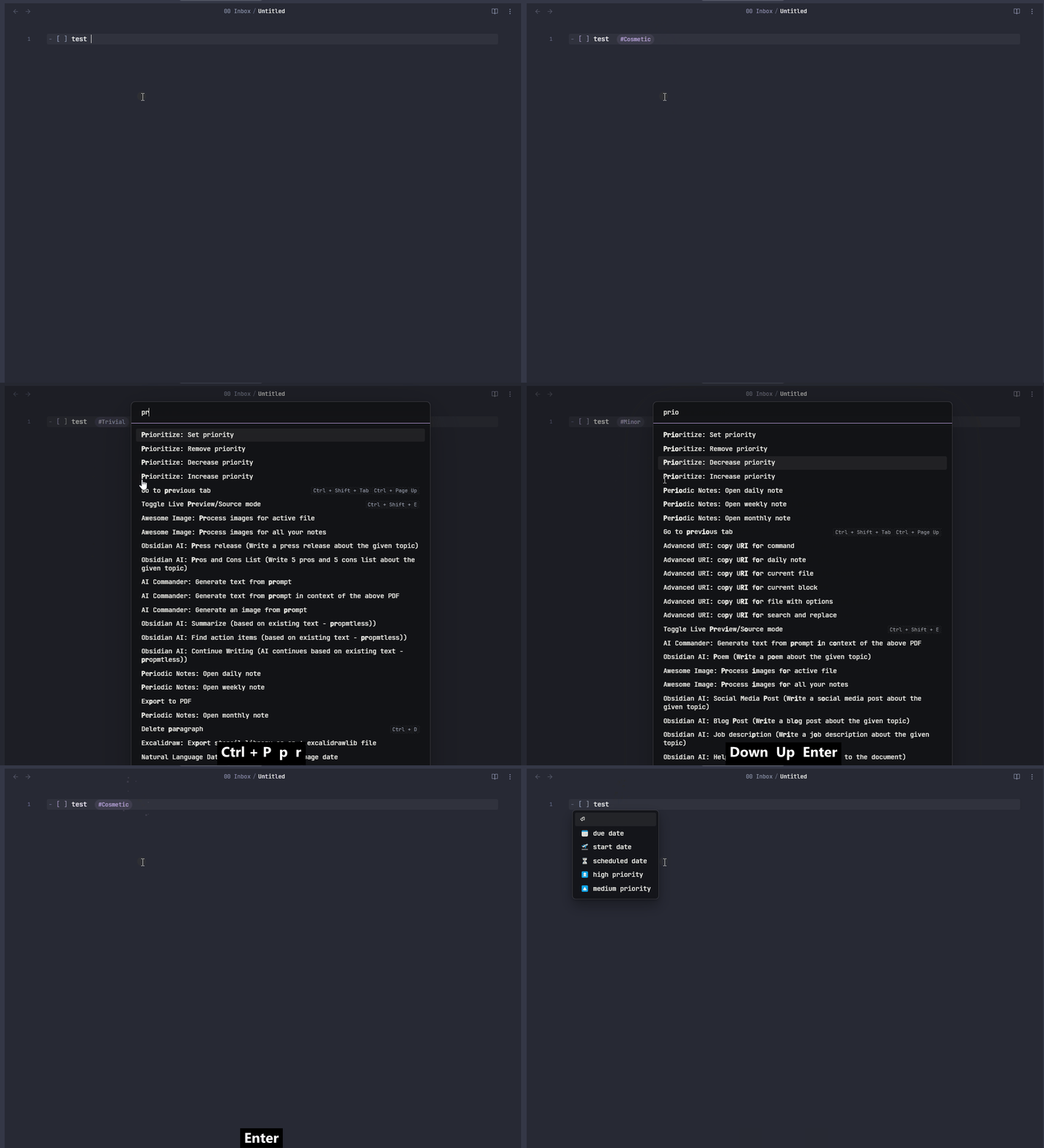
Mark notes or tasks with a predefined priority level.
Journal Review
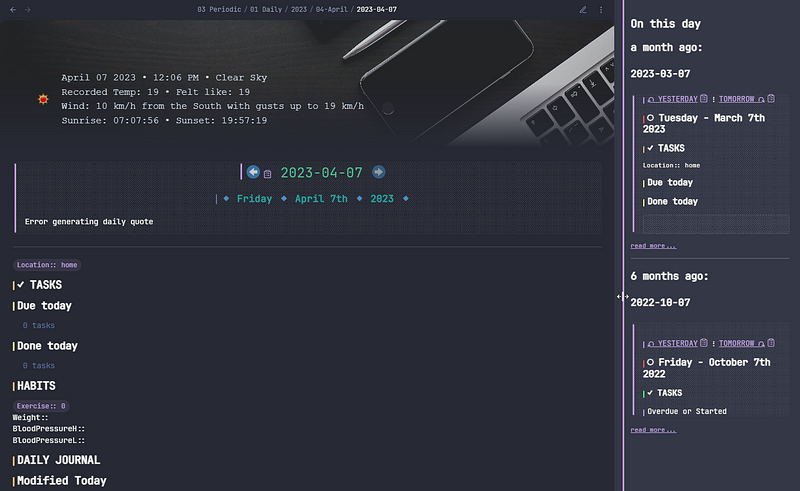
Allows you to review daily notes from predefined time spans (default is 1 month, 6 months, 1 year, 2 years, 3 years).
Unfilled Stats Highlighter
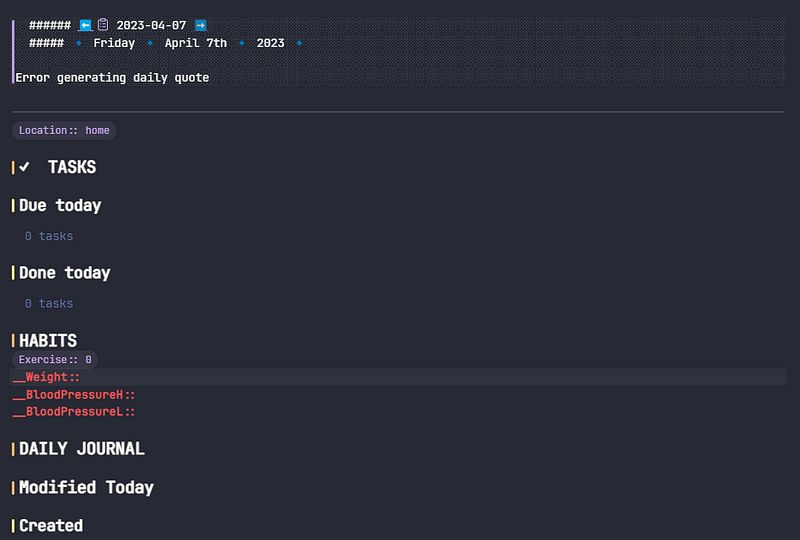
This plugin will identify, adding a prefix (default is __ ), unfilled stats in your notes. This is very handy if you track your habits in Obsidian, as it will highlight the empty fields, so you don’t forget to record your stats.
Fast Image Cleaner
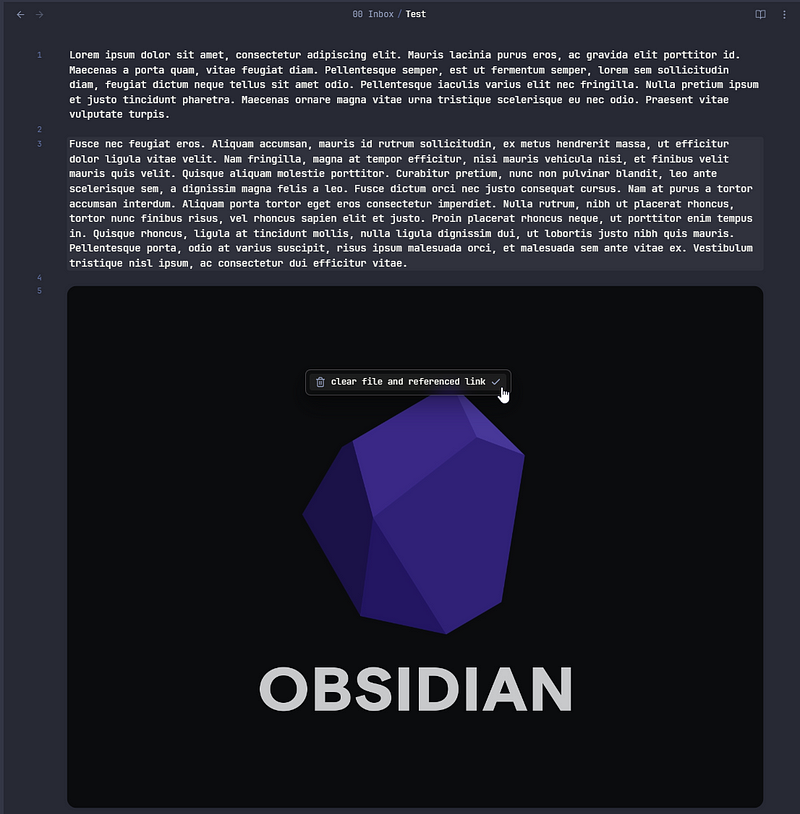
This plugin adds a right-click option to remove images, and image links from your note. If the image is referenced in another note, the image file is not deleted, only the opened note link reference. If the image is referenced more times in the note, then a popup will appear. Also, if you delete a note, all referenced images will also be deleted, unless they’re referenced in another note. You can choose the deletion method to Obsidian trash, system trash or delete permanently.
Obsidian Image Upload Toolkit
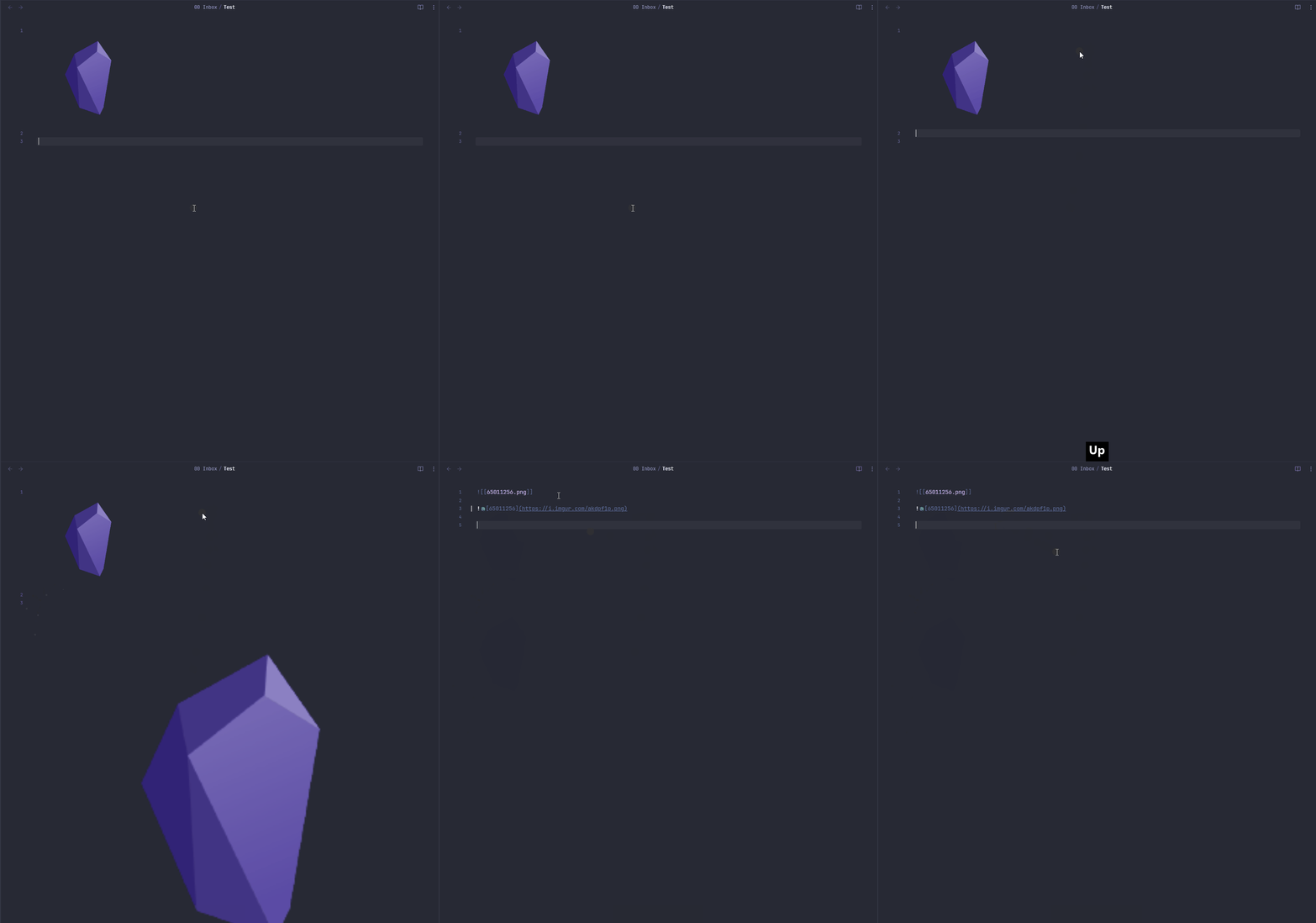
This plugin allows you to upload a note’s attached images to cloud storage, currently imgur and AliYun OSS. When you run the command Image Upload Toolkit: Publish Pagethe markdown in your note will remain to reference local images, but you’ll have the markdown code with reference to the image in the selected cloud storage in the clipboard.
Reveal File in Explorer
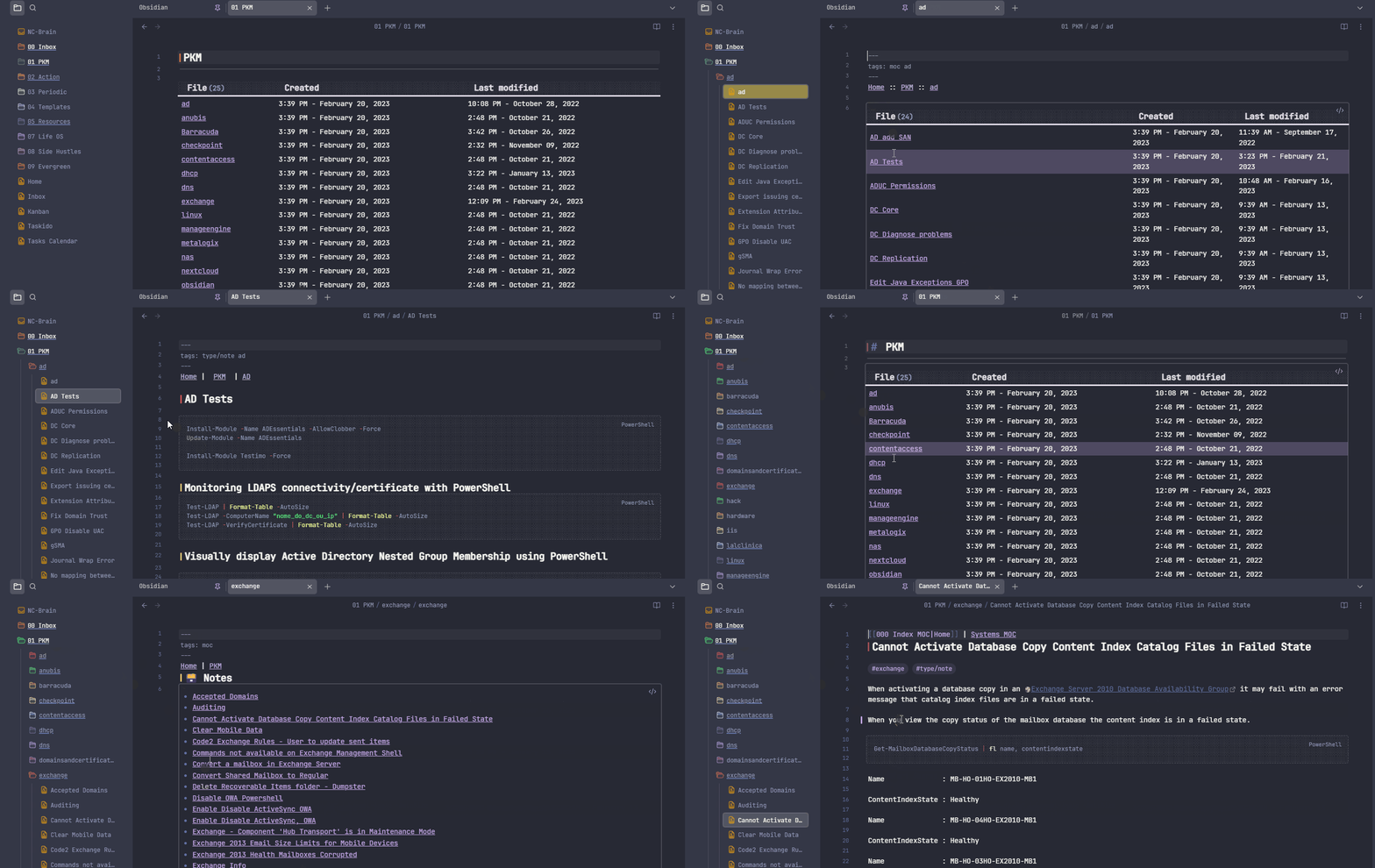
This plugin allows you to reveal the active note in the explorer when clicking the note’s header title. You’ll also have the options to fold all other folders and reveal the file when you open it.
Colorful Note Borders
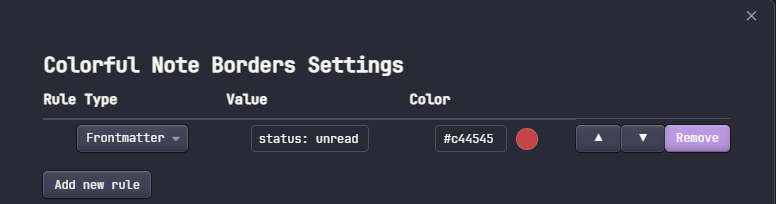
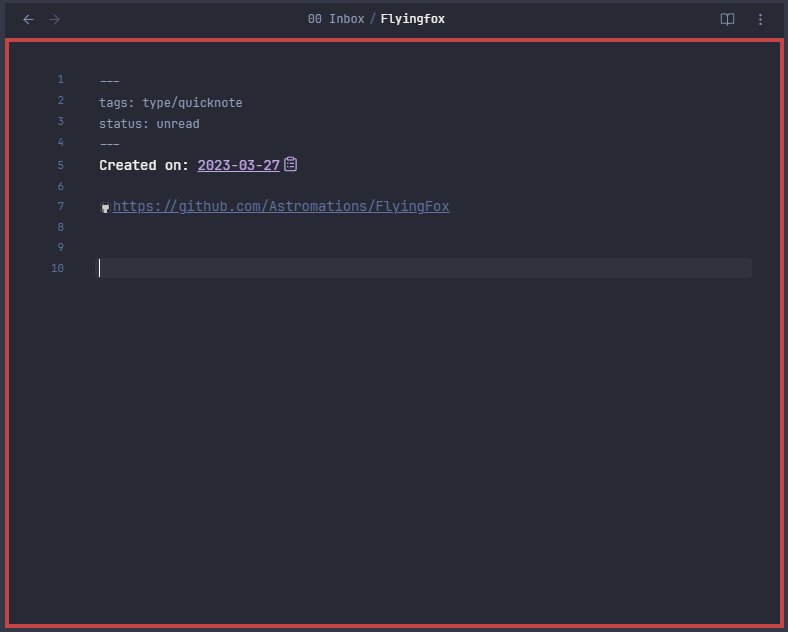
This plugin allows you to create rules to apply colorful borders to your notes, helping you to visually distinguish your notes. You can create rules based on the note’s folder location, or based on frontmatter metadata fields.
For example, I want to highlight with a red border, my notes with the status unread:
Obsidian Cron
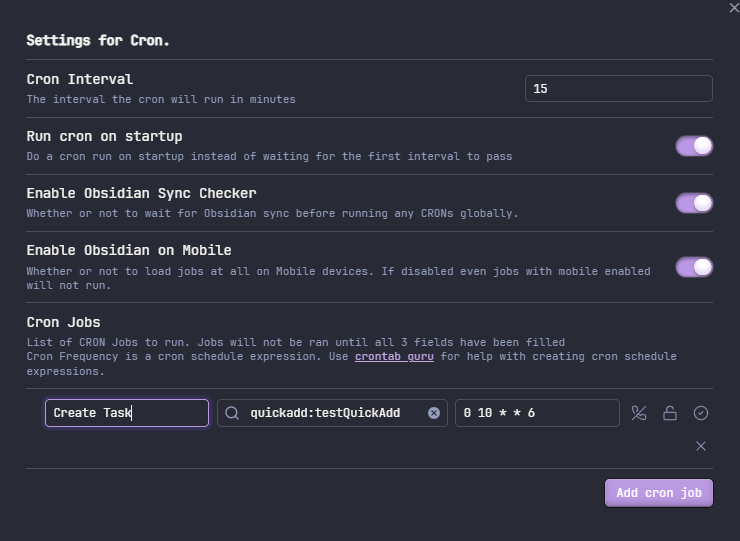
Allows you to create scheduled tasks in Obsidian. You can schedule Obsidian commands or your custom scripts. Get help here if you’re not familiar with Unix cron expressions.
For example, we could create a cron job to every Saturday create a new task for reviewing the week. We just need to set up QuickAdd to create the task according to our needs, and then set up the cron job to run that QuickAdd command every Saturday 0 10 * * 6.
Obsidian Code Files
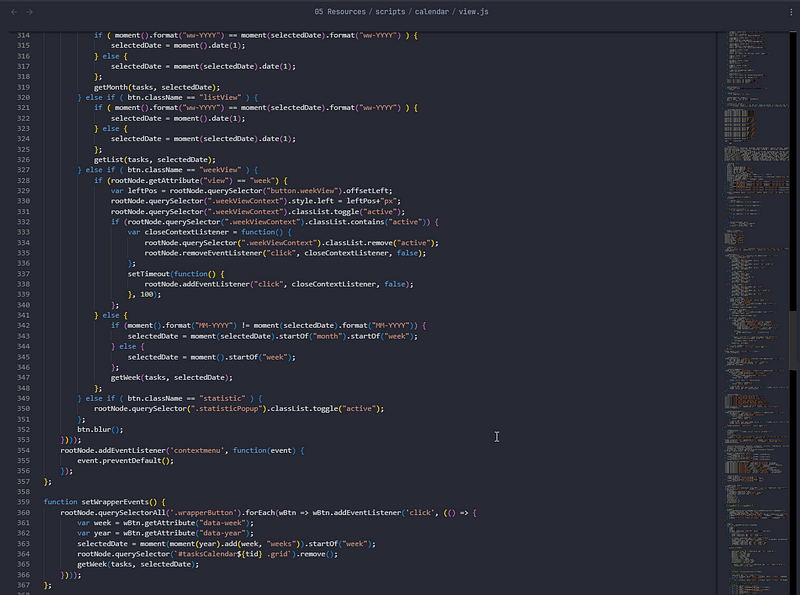
Adds a code editor view, using Monaco Editor, that will open the configured file extensions. You can also create new files by right-clicking a folder and selecting Create Code File, using the command Create newCode File or using the ribbon button Create Code File.
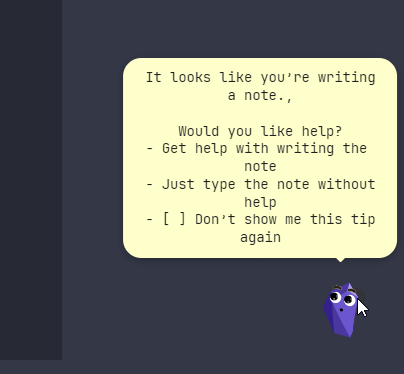
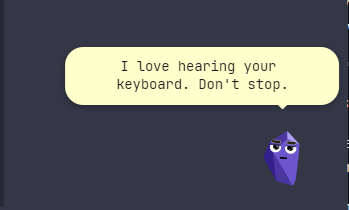
Gemmy — Obsidian Unhelper
April’s Fools joke plugin that does mainly two things: randomly says something about Obsidian, and has a writing mode that motivates you when you stop writing for a predefined period. You can also find new emojis in the Obsidian Discord.