Obsidian Bookmarks: A New Way to Organize Your Vault
Major features and updates to starred notes plugin

Obsidian is a great note-taking tool. But as the number of notes grows, it can be challenging to find specific notes quickly. That's what the plugin called starred notes was built for.
It allowed users to mark specific notes as important and make them easily accessible. When a note was starred, it appeared in a separate pane. This made it easy for navigating important notes, without having to search through the entire vault.
But as the number of starred notes increased, it became a mess again. This is the problem Obsidian Bookmarks is solving with the latest release of Obsidian. It offers several improvements over the previous plugin, making it a more powerful and versatile tool for organizing and accessing notes.
Obsidian Bookmarks
Obsidian bookmarks is an upgrade to the starred notes plugin. It offers several improvements over the previous plugin, making it a more powerful and versatile tool for organizing and accessing important and top-level notes.
Here are some features of the bookmarks plugin:
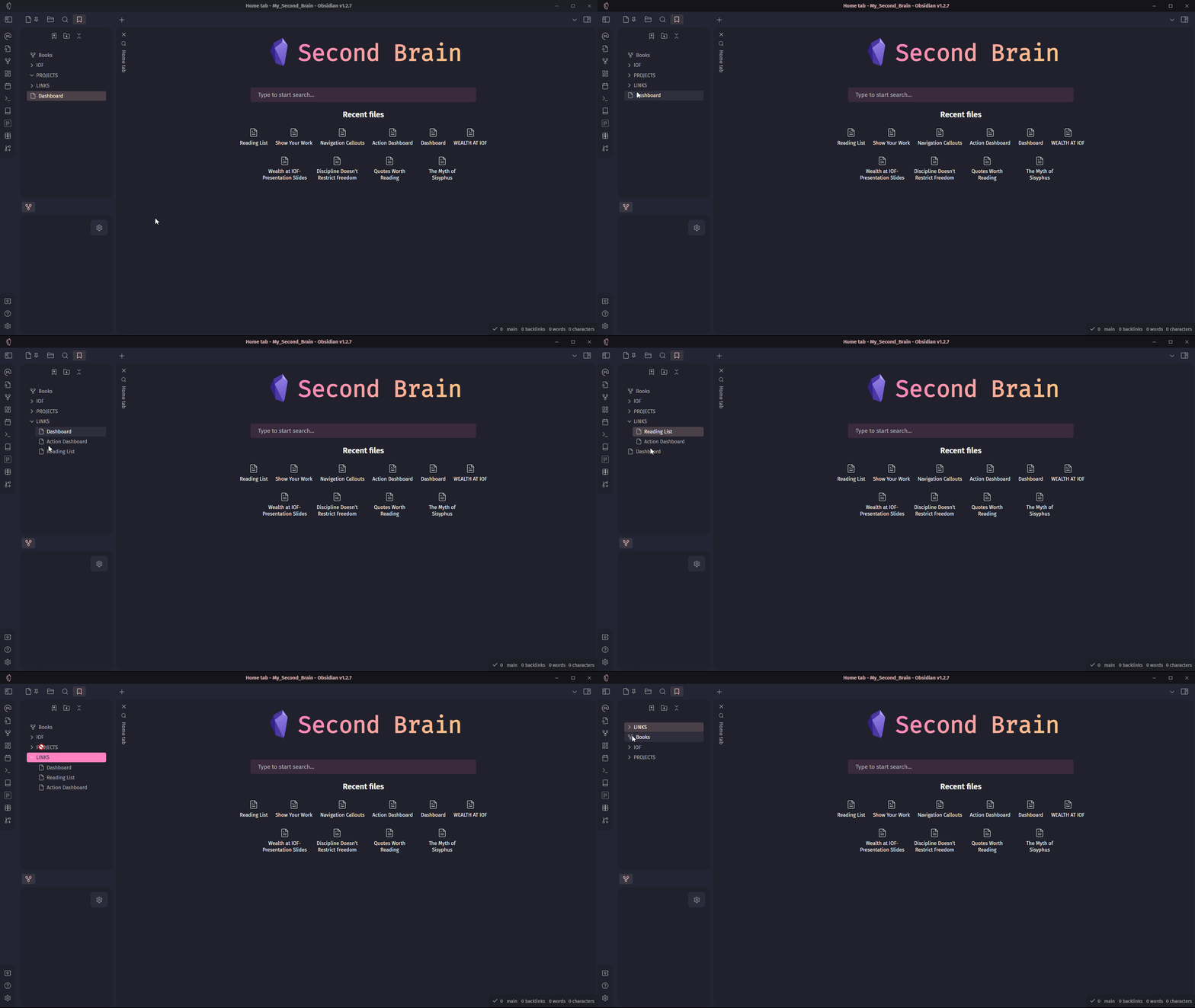
Folder Level Organization:
You can create folder-level organization. These are called groups.
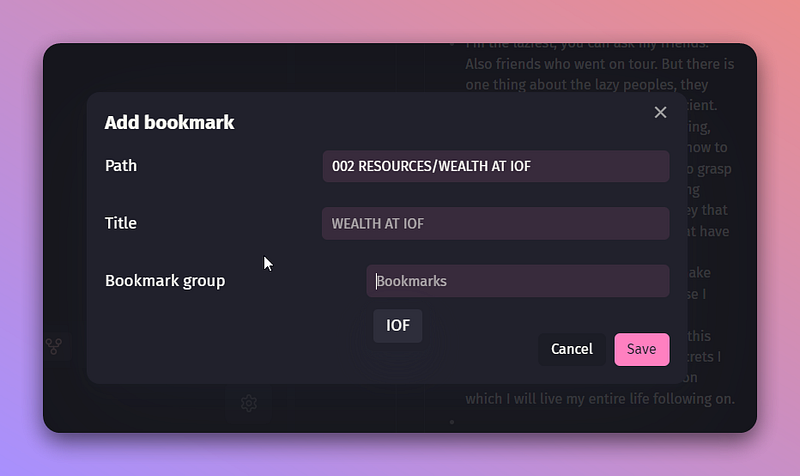
When bookmarking a note, you can choose to add it to a specific bookmark group, making it easier to keep related bookmarks together.
In addition to grouping them together, you can also change the title while still maintaining the original name of the note. This means you can create a better title for your bookmark to easily identify them at a glance.
Nested Folders
This allows you to create folders within folders. This is useful if you have large number of bookmarks and want to keep them organized.
Bookmark anything
Here’s the cool part. Unlike starred notes which only allowed you to bookmark notes, the bookmarks plugin lets you bookmark anything that is present in Obsidian.
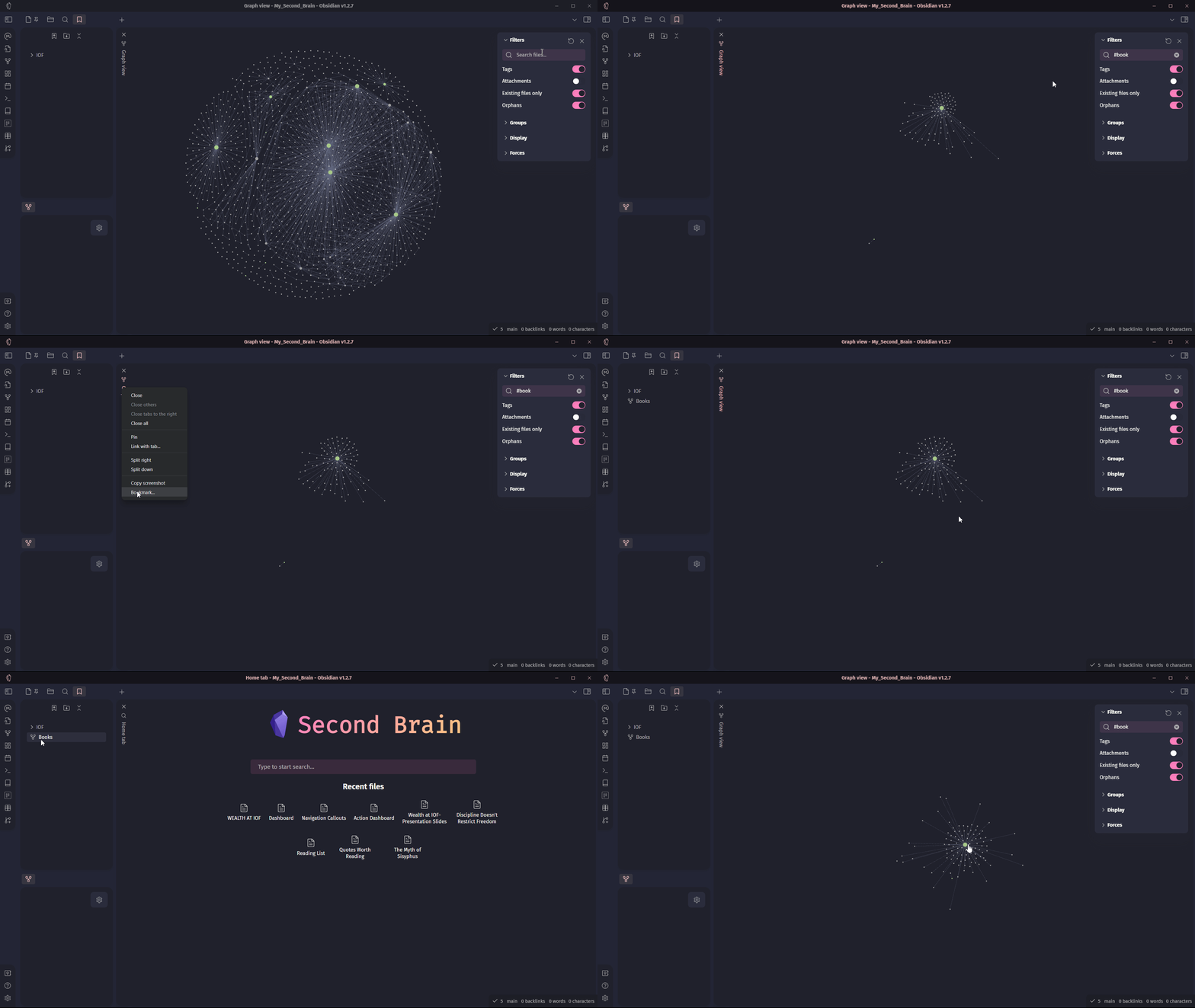
This includes search queries, graph views, headings, and even specific blocks within notes.
For example, you can create a bookmark for a specific search query that you frequently use to find notes related to a particular topic. Or, you might even create a bookmark for a graph view that shows the relationships between different notes in your vault.
Here’s me creating a bookmark for graph view.
Easily Reorder your bookmarks
Bookmarks offer you a flexible way to organize and access notes. You don’t have to follow a rigid file structure. You can easily reorder your bookmarks. You can reorder bookmarks based on your current priorities and workflow as needed.