
Part V — NVIDIA Mellanox Bluefield-2 SmartNIC Hands-On Tutorial: Install the Latest Bluefield OS with DPDK and DOCA
In this episode, we will install the latest Bluefield OS on the Bluefield-2 DPU from scratch. As a result, we will be given a fresh system with DPDK and DOCA pre-installed.
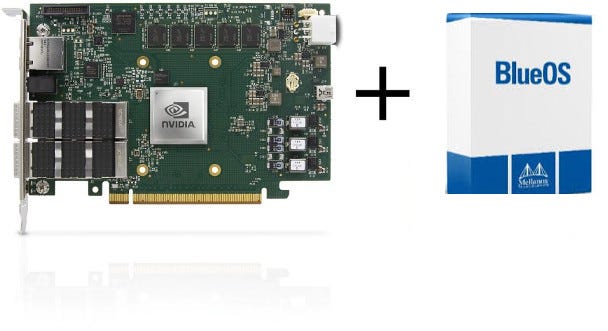
[UPDATE 08/2023]: I started to revise my tutorials here by reproducing them from scratch. The content below has been updated accordingly without explicitly mentioning it at every single instance.
We will install BlueOS from scratch on the Bluefield-2 SmartNIC
Preamble
In the last episode, Part IV., I had some trouble accessing the Bluefield after firing up my ultimate Cloudlab setup in Part III. As a result of getting permission denied every time I tried to log in to the Bluefield, I decided to reinstall the whole operating system on it.I had the feeling that maybe someone has changed the password for fun.
On the other hand, it might happen to you straight away, when you getting your hands dirty with Bluefield for the first time. For instance, even after following Part I., you might end up not being able to access the Bluefield at all.
The part below presents how this can be done.
The information gathered here is from the following NVIDIA documentation and guides:
- Upgrade NVIDIA Bluefield DPU Software
- Installation and Initialization
- Installing Popular Linux Distributions on BlueField
Before you start
Before you start, ensure that all drivers are installed properly on the Host machine. To do so, have a quick look (again) on Part I. As a quick recap, you might do the following (again).
# wget https://www.mellanox.com/downloads/DOCA/DOCA_v2.0.2/doca-host-repo-ubuntu2004_2.0.2-0.0.7.2.0.2027.1.23.04.0.5.3.0_amd64.deb
# dpkg -i doca-host-repo-ubuntu2004_2.0.2–0.0.7.2.0.2027.1.23.04.0.5.3.0_amd64.deb
# apt-get update
# apt install doca-runtime
# apt install doca-tools
# systemctl enable rshim
# systemctl start rshim
# systemctl status rshim

● rshim.service - rshim driver for BlueField SoC
     Loaded: loaded (/lib/systemd/system/rshim.service; enabled; vendor preset: enabled)
     Active: active (running) since Wed 2023-08-02 04:27:41 EDT; 27s ago
       Docs: man:rshim(8)
   Main PID: 565724 (rshim)
      Tasks: 7 (limit: 618614)
     Memory: 4.0M
     CGroup: /system.slice/rshim.service
             └─565724 /usr/sbin/rshim

Aug 02 04:27:41 bf1.clemson.cloudlab.us systemd[1]: Starting rshim driver for BlueField SoC...
Aug 02 04:27:41 bf1.clemson.cloudlab.us systemd[1]: Started rshim driver for BlueField SoC.
Aug 02 04:27:41 bf1.clemson.cloudlab.us rshim[565724]: Probing pcie-0000:81:00.2(vfio)
Aug 02 04:27:41 bf1.clemson.cloudlab.us rshim[565724]: Create rshim pcie-0000:81:00.2
Aug 02 04:27:41 bf1.clemson.cloudlab.us rshim[565724]: rshim pcie-0000:81:00.2 enable
Aug 02 04:27:42 bf1.clemson.cloudlab.us rshim[565724]: rshim0 attached
The last command and its output is crucial. You should have the rshim driver properly installed and running. Otherwise, you won’t be able to access the Bluefield to flash the firmware.
Note, if you have are running a newer Ubuntu on your Host, replace the doca-host-repo package downloading part as follows:
# wget https://www.mellanox.com/downloads/DOCA/DOCA_v2.2.1/doca-host-repo-ubuntu2204_2.2.1-0.0.3.2.2.1009.1.23.07.0.5.0.0_amd64.deb -O /opt/doca-host-repo-ubuntu2204_2.2.1-0.0.3.2.2.1009.1.23.07.0.5.0.0_amd64.deb
# dpkg -i doca-host-repo-ubuntu2204_2.2.1-0.0.3.2.2.1009.1.23.07.0.5.0.0_amd64.deb
The rest of the commands remain the same.
The Reason to Reinstall
First of all, let’s see why I decided to reinstall the OS from scratch. Of course, the expected benefits are always there: new system, more things built-in, most up-to-date, etc.
However, I installed it because I could not access the Bluefield neither through the rshim and SSH nor through rshim console.

Okay, I was first checking whether the IP address I wanted to login into is okay. Apparently, it is. No other interface has any IP within the same range (i.e., with the same netmask), and also route -n tells me that I could not try to connect to a random machine on the network. I can only connect to the one reached through the rshim interface.
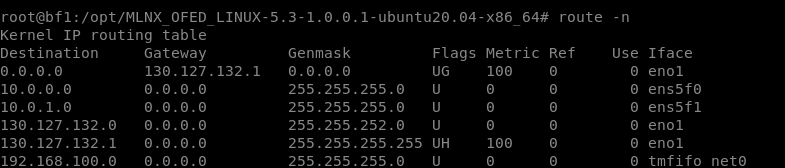
I could only come to the conclusion that when your experiment or node reservation expires, Cloudlab does not reset Bluefield; it only resets the Host OS. And maybe a funny guy was experimenting with changing the password :)
Anyway, there is no such way to reset the settings on Bluefield, or at least I did not find such documentation. However, we can reinstall an OS from scratch. This might sound a bit tricky, and it reminisces me to the good old days when I was flashing cheap TP-link routers with OpenWRT images, hoping to not brick them :D
How to Install an OS on the Bluefield?
According to the Installing Popular Linux Distributions on Bluefield manual from NVIDIA, we simply do this. I scrolled down to the end of this documentation, where the Ubuntu With MLNX_OFED Installation guide is shown.
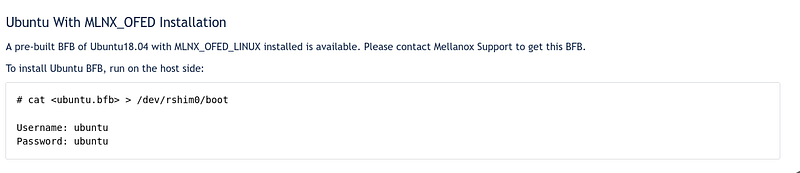
Pretty straightforward, isn’t it? The only problem is: how do I get that bfb image. The whole guide just says it’s kinda shipped with your Bluefield NIC…I think this is the first problem of not having the NIC itself but only playing around with it at Cloudlab :)
Okay, after asking questions on the NVIDIA developer forum about DOCA SDK, I got an answer that the Bluefield Software I can download from here (scroll down to the very end) already contains DOCA. After clicking through the terms and conditions, I eventually downloaded a bfb image file…Yaaay. Since this also includes DOCA, it will be good in the future (maybe in Part VI. :)).
Download cmd with the exact URL
# wget https://content.mellanox.com/BlueField/BFBs/Ubuntu22.04/DOCA_2.2.0_BSP_4.2.0_Ubuntu_22.04-2.23-07.prod.bfbOlder versions:
# wget https://content.mellanox.com/BlueField/BFBs/Ubuntu22.04/DOCA_2.0.2_BSP_4.0.3_Ubuntu_22.04-10.23-04.prod.bfb
# wget https://content.mellanox.com/BlueField/BFBs/Ubuntu20.04/DOCA_1.5.2_BSP_3.9.6_Ubuntu_20.04-5.2306-LTS.prod.bfb
# wget https://content.mellanox.com/BlueField/BFBs/Ubuntu20.04/DOCA_v1.0_BlueField_OS_Ubuntu_20.04-5.3-1.0.0.0-3.6.0.11699-1-aarch64.bfb
Wait a sec!! What if the default credential (i.e., ubuntu/ubuntu) will not work? How can I be sure about this?
Luckily, I found another documentation, which addresses this issue. The most important part is to create a hash of the password you want to use, save it in a text file, and set it as a configuration parameter when installing the bfb image to the Bluefield.
Create password
# openssl passwd -1
Password:
Verifying - Password:
$1$3B0RIrfX$TlHry93NFUJzg3Nya00rE1
Note, your “password string” will look different.
Save it as a configuration file
# cat >> bf.cfg << EOF
ubuntu_PASSWORD='$1$3B0RIrfX$TlHry93NFUJzg3Nya00rE1'
EOF
Check the content of the bf.cfg file as sometimes the generated hash consists of a special character at the wrong place and you ubuntu_PASSWORD string becomes wrong.
Install pv to be able to keep track of the installation process
# apt-get install pvInstall the image
# bfb-install --rshim /dev/rshim0 --bfb DOCA_2.0.2_BSP_4.0.3_Ubuntu_22.04-10.23-04.prod.bfb --config bf.cfg
Pushing bfb + cfg
1.05GiB 0:02:20 [7.64MiB/s] [                                                 <=>                                                          ]
Collecting BlueField booting status. Press Ctrl+C to stop…
 INFO[BL2]: start
 INFO[BL2]: DDR POST passed
 INFO[BL2]: UEFI loaded
 INFO[BL31]: start
 INFO[BL31]: lifecycle GA Non-Secured
 INFO[BL31]: runtime
 INFO[UEFI]: eMMC init
 INFO[UEFI]: UPVS valid
 INFO[UEFI]: eMMC probed
 ERR[UEFI]: OobEth Phy create fail
 INFO[UEFI]: PMI: updates started
 INFO[UEFI]: PMI: boot image update
 INFO[UEFI]: PMI: updates completed, status 0
 INFO[UEFI]: PCIe enum start
 INFO[UEFI]: PCIe enum end
 INFO[UEFI]: exit Boot Service
 INFO[MISC]: Found bf.cfg
 INFO[MISC]: Ubuntu installation started
 INFO[MISC]: Installing OS image
 INFO[MISC]: Changing the default password for user ubuntu
 INFO[MISC]: Installation finished
It will take 5–10 minutes, so feel free to grab your breakfast or a coffee. Or just simply stand up and walk around to boost your blood circulation :P
If you are very tech-savvy, you can actually follow the whole process by attaching to the rshim console. One of the typical way to do so, is using cat and defining the correct baud rate to 115200:
# cat /dev/rshim0/console 115200However, if you want to interact with the Bluefield through the console (e.g., changing UEFI settings, Secure boot), you might attach yourself via screen.
# screen /dev/rshim0/console 115200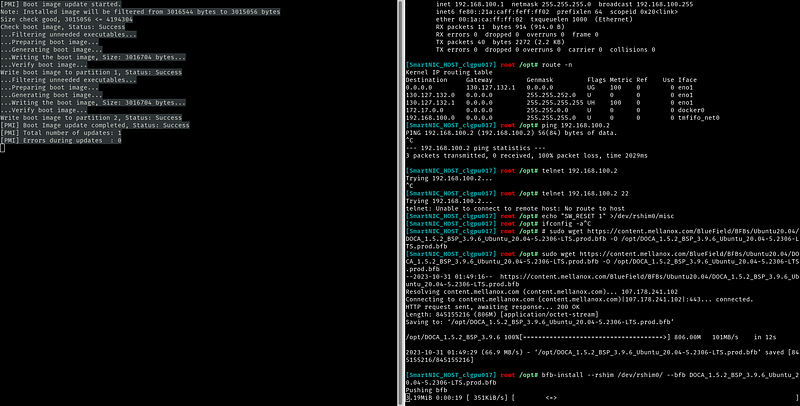
After installation, reboot also takes some time. While it seems the Bluefield is already up, as you can ping the IP 192.168.100.2, the SSH daemon will be running a bit later. For me, it’s around 3–4 minutes. So, don’t give up early; just wait…
Okay, it seems we are done. Let’s try…fingers crossed.
This solution, at least for me, was not working either as I still got the permission denied error. If it worked for you, feel free to move on to the next section.
As a last resort, I tried to not set the “—config” parameter; this leads us to a case when after typing in the default credentials at the first login, we will be immediately prompted to change the password.
After reinstalling the image in that way, I still cannot access the Bluefield :(
The Final Solution
I started to scratch my head even harder and tried further troubleshooting that is not directly related to the Bluefield itself.
I started by explicitly removing all IP addresses assigned to the Bluefield ports. Then, also switched off the interfaces via ifconfig down <interface>.
Finally, I observed that I have multiple ifb interfaces present. Intermediate Functional Block (i.e., ifb) is a pseudo-interface that acts as a QoS concentrator for multiple different traffic sources. Packets can be redirected or even dropped to fulfill specific needs. Click here for more details. So, I thought, I won’t need these interfaces, especially if they can take over the control of my network. Let’s remove them.
The easiest way to get rid of all of them is to remove the kernel module itself.
# rmmod ifbAfter removing the kernel module, no ifb interfaces exist anymore.
And, what is more, I could finally reach Bluefield via rshim and SSH.

And I was also prompted to change the password as promised after my last installation efforts. I have changed it to ‘bluefield’ as it does not allow me to have ‘ubuntu’.
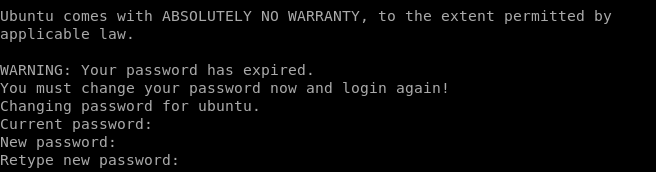
After logging in, I changed it back to ‘ubuntu’. Note, as ‘ubuntu’ user, the system will not allow you to use ‘ubuntu’ as a password since it is too weak. Hence, you have to be root and then explicitly assign the password ‘ubuntu’ to user ‘ubuntu’.
# sudo su
# passwd ubuntu
New password:
Retype new password:
passwd: password updated successfully
We can obtain the version number of the Bluefield Ubuntu OS we have just installed once logged in.
# uname -a
Linux localhost.localdomain 5.15.0-1015-bluefield #17-Ubuntu SMP Tue Apr 11 14:34:16 UTC 2023 aarch64 aarch64 aarch64 GNU/Linux

# lsb_release -a
No LSB modules are available.
Distributor ID: Ubuntu
Description: Ubuntu 22.04.2 LTS
Release: 22.04
Codename: jammy
Check all the drivers installed under /opt/mellanox
# ls /opt/mellanox |cut -d ' ' -f 9
collectx
doca
dpdk
ethtool
flexio
grpc
hlk
iproute2
mlnx-fw-updater
mlnx_snap
mlnx_virtnet
sfc-hbn
spdk
Alternative: Update firmware on the Bluefield
Assuming you have installed a working firmware on your DPU via the above guide, you can update the firmware on the DPU as well, instead of repeating the whole process again. This might be a good solution if, for some reason, upgrading from the Host is not feasible.
First, let’s see what is the Bluefield version on the DPU:
# cat /etc/mlnx-release
DOCA_2.0.2_BSP_4.0.3_Ubuntu_22.04-10.23-04.prod
We can observe that in this case we did not have the latest available firmware (which is 2.2.1). Let us issue the following command for firmware upgrade:
# /opt/mellanox/mlnx-fw-updater/mlnx_fw_updater.pl --force-fw-update
Initializing...
Attempting to perform Firmware update...

The firmware for this device is not distributed inside Mellanox driver: 03:00.0 (PSID: MT_0000000703)
To obtain firmware for this device, please contact your HW vendor.

Failed to update Firmware.
See /tmp/mlnx_fw_update.log
As can be seen, on the Cloudlab machine, I cannot use this sript to update the firmware. Let us try another one.
# mlxfwmanager --online -u -d 03:00.0
Querying Mellanox devices firmware ...

Device #1:
----------

  Device Type:      BlueField2
  Part Number:      MBF2H516A-CENO_Ax_Bx
  Description:      BlueField-2 DPU 100GbE Dual-Port QSFP56; PCIe Gen4 x16; Crypto Disabled; 16GB on-board DDR; 1GbE OOB management; FHHL
  PSID:             MT_0000000703
  PCI Device Name:  03:00.0
  Base GUID:        b83fd20300b9225c
  Base MAC:         b83fd2b9225c
  Versions:         Current        Available
     FW             24.38.1002     24.38.1002
     PXE            3.7.0201       3.7.0201
     UEFI           14.31.0020     14.31.0020
     UEFI Virtio blk   22.4.0010      N/A
     UEFI Virtio net   21.4.0010      N/A

  Status:           Up to date
Observe that according to the firmware manager, we are running the latest available firmware on our DPU and there is no newer version available (at least by this update process).
OvS bridge
Even OvS is installed and sometime run by default. Actually, two OvS bridges are running, ovsbr1 and ovsbr2, configured similarly to the right-hand side of the figure below.
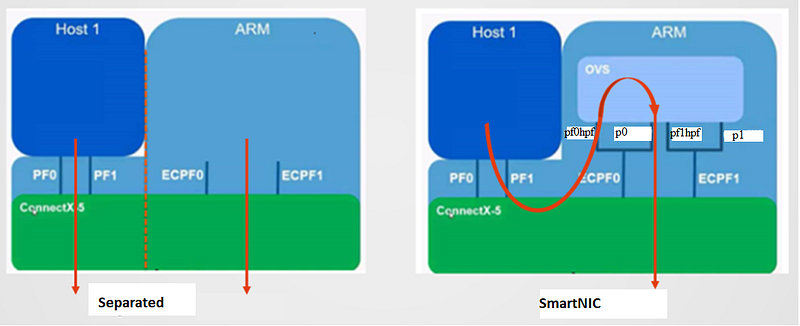
root@localhost:/home/ubuntu# ovs-vsctl show
c56b6d9b-cee2-4a07-96de-d6e10920ac84
    Bridge ovsbr2
        Port ovsbr2
            Interface ovsbr2
                type: internal
        Port en3f1pf1sf0
            Interface en3f1pf1sf0
        Port pf1hpf
            Interface pf1hpf
        Port p1
            Interface p1
    Bridge ovsbr1
        Port ovsbr1
            Interface ovsbr1
                type: internal
        Port pf0hpf
            Interface pf0hpf
        Port en3f0pf0sf0
            Interface en3f0pf0sf0
        Port p0
            Interface p0
    ovs_version: "2.17.7-e054917"
Your output might be different based on the OVS version and the mode you are running your DPU in.
If OVS is not running and you have the following error
root@localhost:/home/ubuntu# ovs-vsctl show
ovs-vsctl: unix:/var/run/openvswitch/db.sock: database connection failed (No such file or directory)
then just start the main process and repeat the ovs-vsctl show command:
root@localhost:/home/ubuntu# /etc/init.d/openvswitch-switch start
 * Starting ovsdb-server
 * Configuring Open vSwitch system IDs
 * Starting ovs-vswitchd
 * Enabling remote OVSDB managers
root@localhost:/home/ubuntu# ovs-vsctl show
c56b6d9b-cee2-4a07-96de-d6e10920ac84
    Bridge ovsbr2
        Port ovsbr2
            Interface ovsbr2
                type: internal
        Port en3f1pf1sf0
            Interface en3f1pf1sf0
        Port pf1hpf
            Interface pf1hpf
        Port p1
            Interface p1
    Bridge ovsbr1
        Port ovsbr1
            Interface ovsbr1
                type: internal
        Port pf0hpf
            Interface pf0hpf
        Port en3f0pf0sf0
            Interface en3f0pf0sf0
        Port p0
            Interface p0
    ovs_version: "2.17.7-e054917"
For now, let assume all will work properly, and we might not need to repeat the installation steps presented in Part II.
Conclusion
Whenever you cannot access the Bluefield, first try to clean up your networking interfaces by removing all IP addresses and routing table entries that can affect “the path towards the Bluefield”.
If you are at Cloudlab, try ‘bluefield’ as a password, too. Just in case, Cloudlab indeed does not reset the SmartNICs. However, after my installation efforts, I have changed back the password to ‘ubuntu’.
Before reinstalling the OS on the Bluefield as a last resort, check whether you also have some ifb devices; and remove them.
Since this post, my experiments have been scheduled several times to different servers at the Clemson cluster. At least 4–5 Bluefields are already running the latest DOCA-enabled firmware :)
Still cannot access?
Leave a comment and/or contact me, I might can help :)
In the next part, Part VI., I will investigate the performance of the DPDK-based OvS on the Bluefield.


