
Notion Projects Revealed
Plus some tips and tricks to make the most out of it.
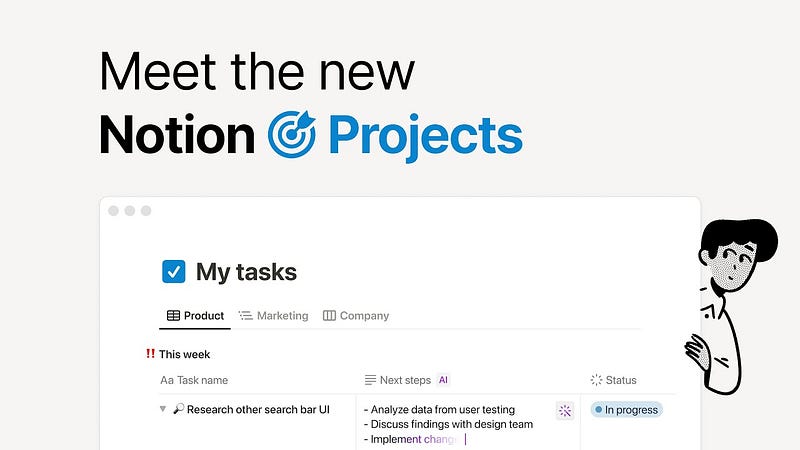
Hey Notion enthusiasts! 🚀 With the May release, Notion Projects emerged from the digital shadows, promising to be the game-changer in project management. But hold your horses! Despite Notion’s grand announcement, many of us are still scratching our heads, asking, “What the heck is Notion Projects?”
Fear not, my friends! In this laid-back exploration, we’re going to unravel the mysteries of Notion Projects, sprinkle in some essential recommendations.
What’s the Buzz About Notion Projects?
So, what’s the deal with Notion Projects? Is it a mystical blend of new functionality, a template, or some secret methodology passed down from the tech gods? It turns out; it’s a bit of everything — a hybrid that aims to make your project management life smoother than ever.
Picture this: Notion Projects is like a set of preconfigured databases, neatly tucked away in your Templates sidebar. You’ve got options — Projects & tasks or Projects, tasks & sprints. And yeah, sprints — they’re not just for your morning jog. In Notion Projects, they’re a nod to Agile project management, dividing tasks into phases for that focused, iterative magic.
Under the Notion Projects Hood
When you hit “Get Template,” it’s like adding a touch of magic to your workspace. Two or three interrelated databases pop up, preconfigured with properties and prepopulated with sample content. It’s like Notion reading your mind, only cooler.
But here’s the secret sauce: Relation properties. Projects and tasks form a parent-child relationship, and when sprints join the party, they become parents too. It’s like a family reunion for your project elements.
And let’s talk about those configurations. Sure, you could be a Notion wizard and build Projects from scratch, but some features, like Unique ID and AI autofill, are like the cool kids who showed up at the same party.
The Projects Database: Your Project HQ
Now, let’s stroll through the Projects Database. Views galore! Table, timeline, full table, or your very own board — pick your poison. And the Completion Rollup? Think of it as your progress report card, showing the percentage of tasks marked “Done.” I like to call it the “Progress Bar of Awesomeness.”
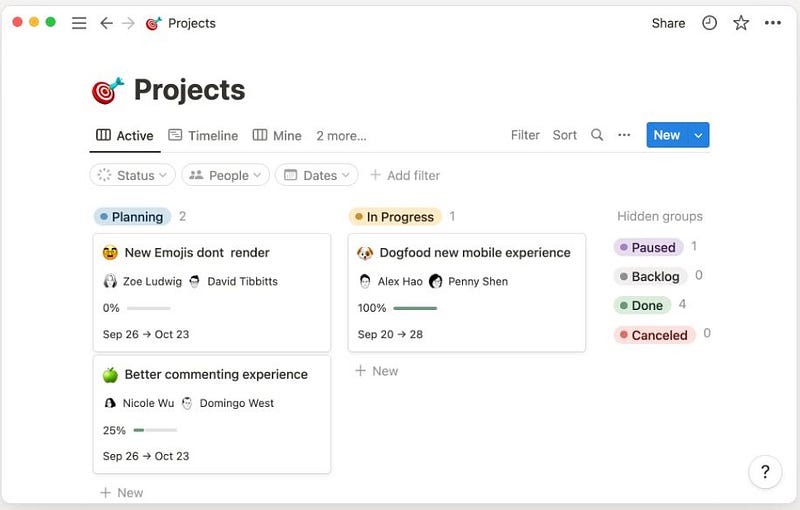
Then there’s the Project Template — the inner sanctum of your project. Related tasks, board views, and an “About this project” section — it’s like your project’s private diary.
Tasks Database: Where the Magic Happens
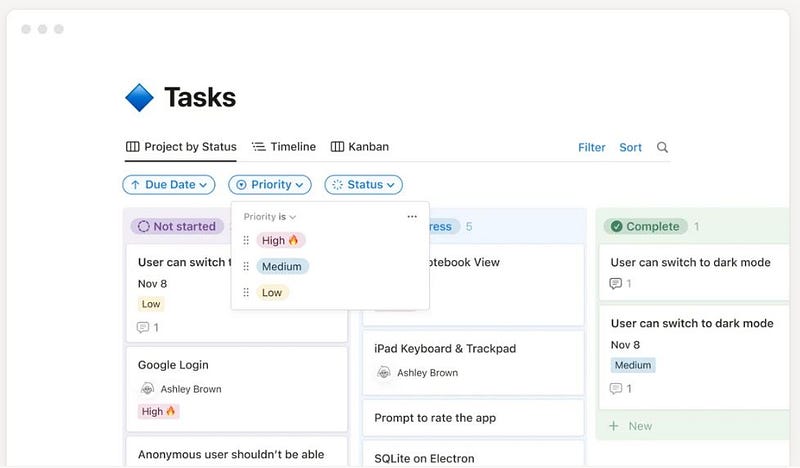
The Tasks Database is where the real magic unfolds. Task ID, parent-tasks, and sub-tasks — it’s the family tree of project tasks. Unique ID properties bring a touch of elegance, ensuring each record gets its unique identity. And my personal favorite — sub-items. Who wouldn’t want tasks flaunting their mini-me sub-tasks?
Sprints: Because Life is a Marathon, Not a Sprint
Sprints, the rockstars of Agile project management, find their home in Notion Projects.
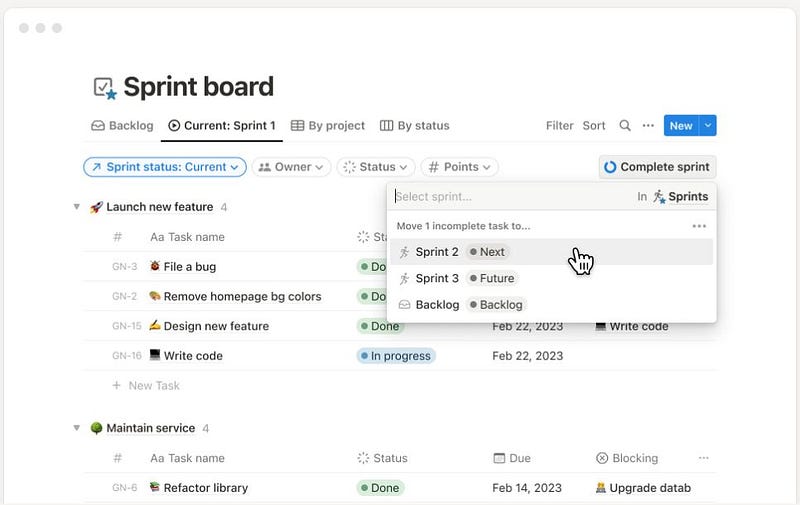
Plan iteratively, focus on subsets of tasks, and let the creative juices flow. Include sprints in your template, and Notion throws in a Sprints database and a special page — “Sprint board.”
So let’s dive into a step by step guide to use this awesome notion’s features:
1. Getting Started: Templates Galore
- Templates in the Sidebar: To kick things off, head to the Templates section in your Notion sidebar. Here, you’ll find the gateway to Notion Projects.
- Choose Your Poison: You have two main options — “Projects & tasks” or “Projects, tasks & sprints.” Choose the one that fits your project management style.
2. The Core Components: Projects, Tasks, and Sprints
- Preconfigured Databases: Notion Projects essentially offers preconfigured databases tailored for seamless project management.
- Understanding Sprints: The concept of sprints, borrowed from Agile project management, is about breaking down tasks into focused phases. Notably, a sprint in Notion Projects can encompass tasks from multiple projects.
3. Database Configuration and Unique Features
- Relation Properties: Projects and tasks establish a parent-child relationship through Relation properties. When sprints join the mix, they also function as parents.
- Configurations and Features: While you could theoretically build Notion Projects from scratch, some features like Unique ID and AI autofill were introduced alongside Notion Projects and add an extra layer of functionality.
- Deleting Databases: Notion smartly prompts you when deleting one database, considering their interconnected nature. If you replace one, it’s often best to replace them all to maintain relationships.
4. Projects Database: Your Project Headquarters
- Multiple Views: Within the Projects database, you can choose from various views — table grouped by status, a timeline with dependencies, a full table, or a board showing projects owned by the viewing user.
- Notable Properties: The Completion Rollup is a nifty feature displaying the percentage of completed tasks. Relation properties like Is Blocking and Blocked By are used to showcase dependencies.
5. Tasks Database: Where the Magic Happens
- Views and Notable Properties: The Tasks Database organizes tasks by project in the default view, and another view displays all tasks in a table. The Unique ID property ensures each task has a unique identifier, and the parent-task and sub-tasks relationship allows for task breakdown.
6. Sprints: Agile Project Management in Action
- Adding Sprints: If you opt for sprints in your Notion Projects template, a Sprints database and a unique “Sprint board” page are added.
- Sprint Views and Notable Properties: The Sprints database showcases sprints in an ungrouped table and timeline. Notable properties like Total tasks and Completed tasks are derived from the sprint-task relationship.
7. Notion VIP’s Enhancements: Supercharging Your Experience
- Template Adjustments: The Notion VIP template enhances the Notion Projects system with various adjustments, such as renaming “Completion” to “Progress” in the Projects database and enabling auto-update for AI-generated Summary properties in the Tasks database.
- Additional Recommendations: From sorting views and showing/hiding properties to creating “Admin” views, these tips optimize your overall Notion experience.
8. Connecting the Dots: The Bigger Picture
- Integration with Master Databases: While Notion Projects can work wonders on its own, the true power lies in connecting it to your broader ecosystem of master databases. This aligns with the fundamental principle of structuring information and accessing it through contextual views.
In essence, Notion Projects is a versatile project management tool that combines preconfigured databases, thoughtful relations, and agile features to provide a comprehensive and user-friendly project management experience. Whether you’re a solo entrepreneur or part of a larger team, Notion Projects can adapt to your workflow, offering a dynamic and customizable approach to project management.
If you liked the article, clap and comment! Join my newsletter or my telegram channel.And if you want to have full access to Medium, you can subscribe here with my membership.


