
New Obsidian Plugins: ChatGPT Md, Awesome Reader, Home Tab & More
Useful community plugins
Welcome to another edition of our regular series on the latest addition to obsidian’s community plugins. In this article, we’ll be talking about some of the new and useful plugins that have been added to obsidian.
With an ever-growing community of obsidian users, new plugins are developed every other day. This makes obsidian a powerful Note-taking tool. So without further ado, let’s dive into today’s edition of New obsidian plugins.
ChatGPT Md
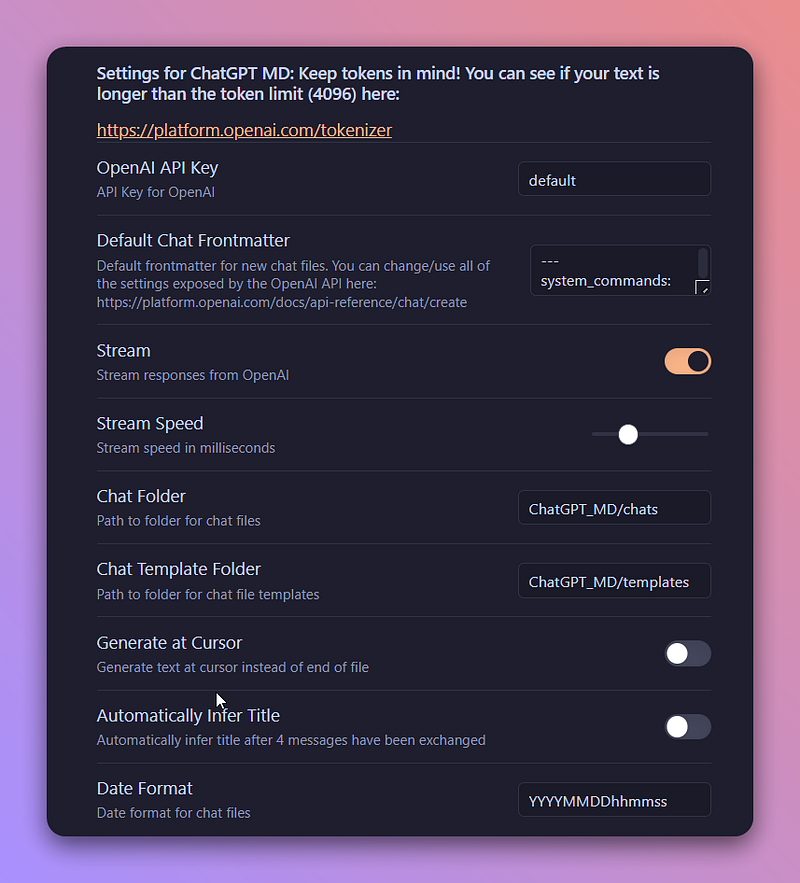
ChatGPT MD allows you to create a seamless integration of ChatGPT into obsidian. You don’t need to go into your browser to ask anything. You can use it for brainstorming and idea generation or writing. You can also use it as a personal assistant to answer questions on various topics.
To use the ChatGPT feature inside obsidian, Install and enable the ChatGPT Md plugin. Add the OpenAI API keys on the plugin options, and you are good to go. Now you can easily create chats within markdown notes.
This is great. Your chat history will always be saved as a markdown file. This can be helpful in learning about new topics and coming back frequently for recalling the information in case you forget.
You can also create chat templates and assign chat folders where you want to save all of your chats. This helps to organize your chats better.
You can also change the different settings exposed by the OpenAI API like the max no. of tokens generated, temperature, model, etc.
Home tab
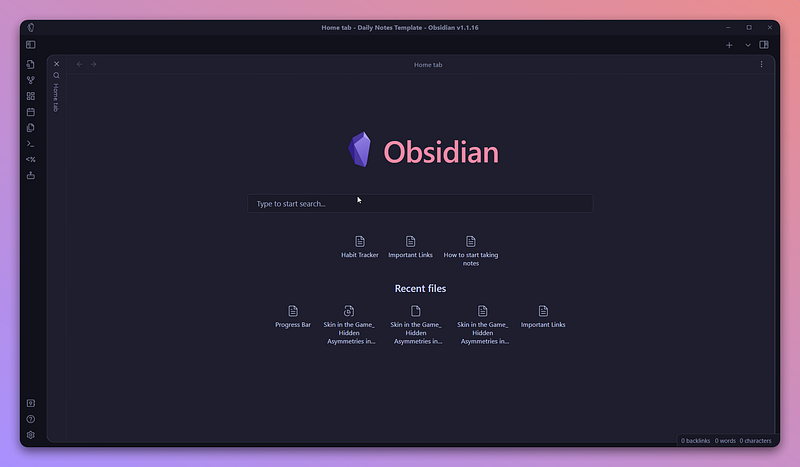
The home tab plugin creates a default new tab on your obsidian vault. This adds a browser-like home default tab with a search bar and a grid of all your starred notes.
You can configure the plugin to search for different types of files like canvas files, attachments, or just markdown files.
If you want to use this plugin for searching all types of files in your vault, you can also create a filter. For example: If you want to search for images in your vaults, you can type image and press the tab key in order to perform a filtered query.
The grid view of starred notes and the filter search makes it easy to navigate your vault.
Open files with commands
This is another plugin that can help you increase your speed when using obsidian and make you efficient. You won’t have to keep searching for your files.
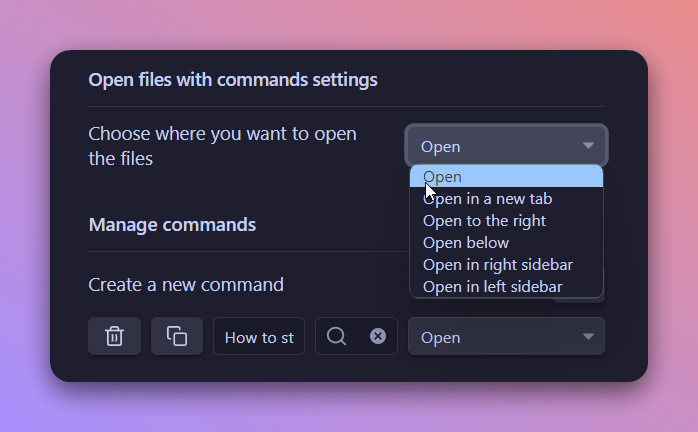
You can create commands for your important notes and files. And then you can assign a hotkey that can be used to open those files in different ways.
Here’s how you can do that:
- Install and enable the plugin
- Right-click on the note you want to create commands for.
- Click on create command for this file
- Go to the hotkeys section on your settings
- Assign a proper hotkey
That’s it. You have created a new command for opening your notes. You can also change the way you want your notes to open.
Awesome reader
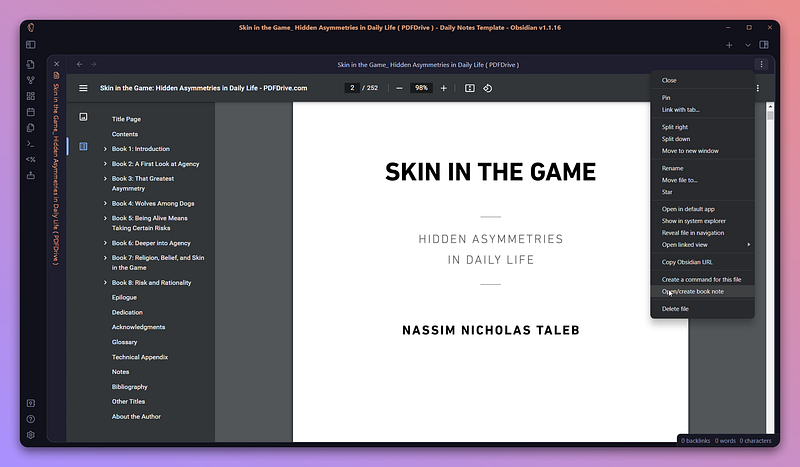
The awesome reader turns obsidian into a proper reading environment. Currently, it supports epub and pdf formats of books.
It supports the feature to remember the reading position of books and syncs across all devices. This allows you to continue where you left off. This feature is not fully implemented for PDF formats but supports epubs.
Also, another feature that I liked was the ability to create book notes. It extracts headings from the table of contents and creates a new book note in the same folder as the book.
This can be helpful to keep your notes organized if you take notes while reading on the side.
Progress bar
This plugin helps you to generate progress bars. You can do this either based on Time or Manually.
I created an article on how to create a life progress dashboard like this previously using only Dataview, you can check it out.
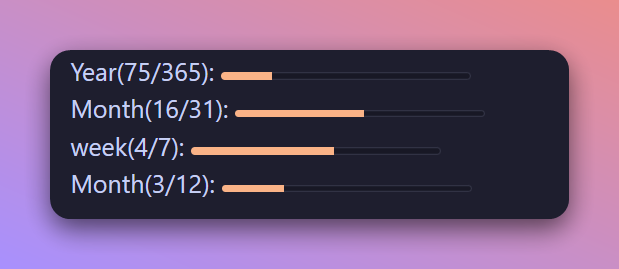
Another plugin similar to this is the text progress bar. This can be used to create more customized progress bars. You can change how you choose to display the progress bars.
Omnivore
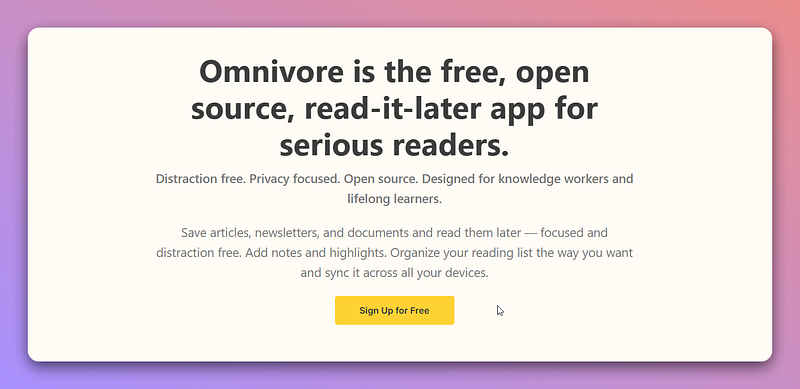
Omnivore is a read-later app like Pocket, Instapaper, and Readwise Read. Moreover, it is free and open-source. You can save your articles and read them later, highlight them, and take notes.
The Omnivore plugin for obsidian lets you sync your articles as well as highlights to your vault. You can import your highlights and saved articles. Also, you can create graphs based on Omnivore data.
Emoji Titler
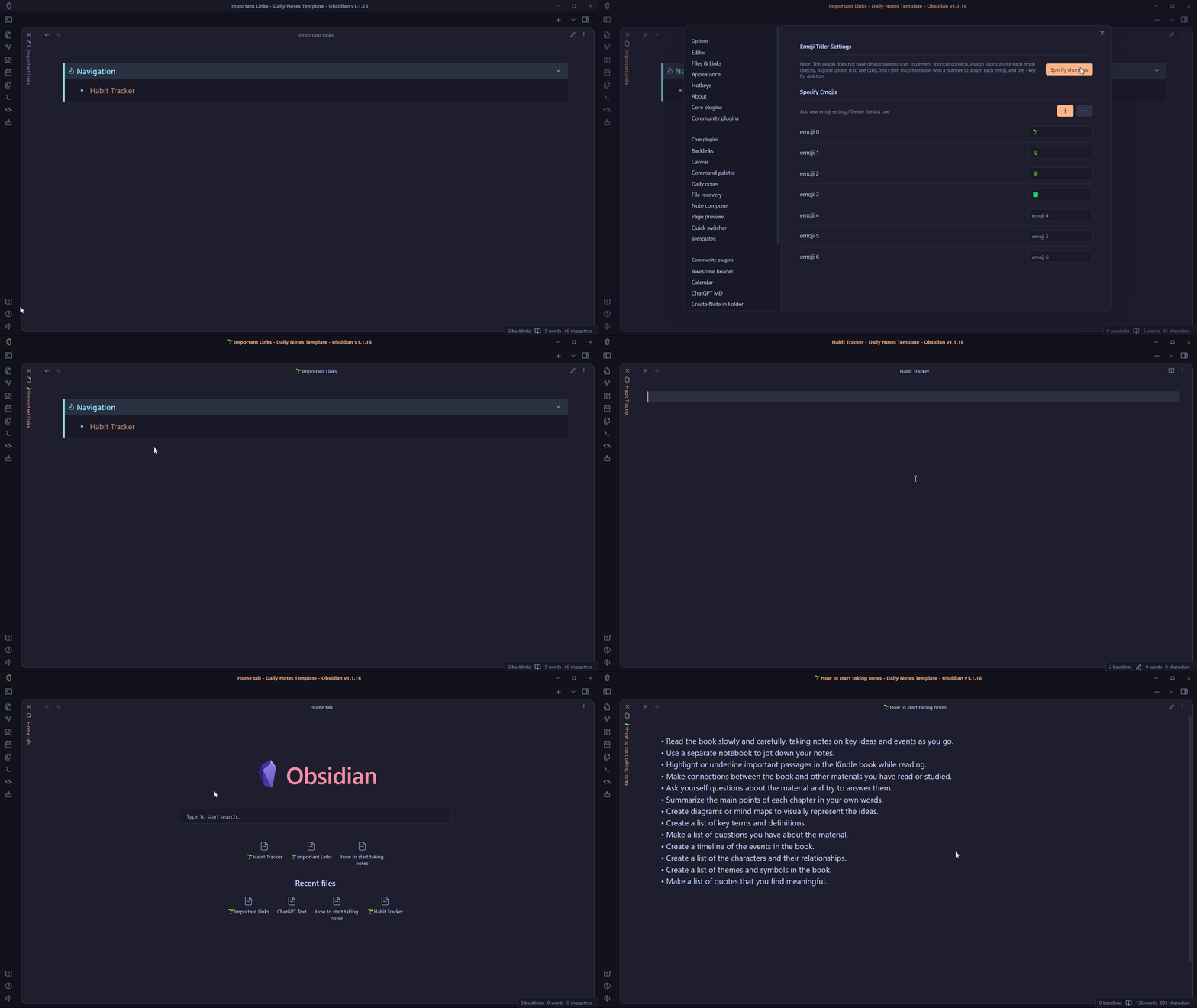
As the name itself tells, emoji titler makes it easy to insert emojis in the title of your notes. This can be helpful to distinguish important notes on your vault from others.
You can specify the emoji you want to use in the plugins option. And then assign a hotkey for different emojis.
Open a note. Use the hotkey. And you will have easily changed the name of your note starting with an emoji. This gives your note a distinguishing look.
Perilous Writing
The concept of the perilous writing plugin is taken from ‘The Most Dangerous Writing App’. It forces you to write anything on the screen. Because if you stop, all of your progress will be lost. It will be erased.
Here’s how this plugin works:
- Install and enable this plugin
- Assign a hotkey or use the command palette to start a perilous writing session. There are two types of sessions: Short(5mins) and Long(10mins)
- Once you start writing, a bar will appear at the top of your editor.
- If you stop writing for 5 seconds, all of the addition in the session will be lost. Also, you will get a warning after two seconds of inactivity.
This can be a great tool at your disposal to produce a rough draft for your work and get in the state of flow while writing.
Thanks for reading. Become a Medium member with my affiliate link.