avatarPrakash Joshi Pax

Free AI web copilot to create summaries, insights and extended knowledge, download it at here

2919

Abstract

w to use this plugin</h2><p id="0a59">Simply click on the ribbon icon. It will open a new note called review notes on the right sidebar to display recent notes.</p><h1 id="10c4">Canvas Presentation</h1><p id="5ce0">The canvas presentation plugin helps you to display the cards on your canvas based on the sequence. It’s not as robust as the obsidian canvas but works well.</p><h2 id="0705">How to use this plugin</h2><p id="6fdd">There are three hotkeys you can assign to this plugin for easier use:</p><ul><li>Mark slide number</li><li>Next slide</li><li>Previous slide</li></ul><p id="8cc3">Assigning hotkeys makes it easier to use the plugin rather than using a command palette for every command. Here are the next steps you need to follow:</p><ul><li>Mark the sequence of slide numbers by using the hotkeys</li><li>Start presentation of slides.</li></ul><p id="9159">This will cause the slides to shift from one card to another based on the sequence you set previously.</p><h1 id="dd52">Surfing</h1><p id="da36">I love this. This adds new possibilities for obsidian. You can use obsidian as a browser now. Isn’t this cool?</p><p id="18a7">It gives obsidian more power by giving the ability to browse the internet directly within its interface. You don’t need to switch to your browser again to search for something when you are using obsidian</p><h2 id="0823">How to use this plugin</h2><p id="e302">Install this plugin and enable it. Go to ‘options’ and configure the settings of your choice. Some of the features that you might want to check out are:</p><ul><li>Show the search bar on an empty page</li><li>Default search engine(Choose your preferred one)</li><li>Bookmarks</li></ul><p id="833e">You will get a surfing window if you open a new tab. And you will have the ability to search from the header bar. Moreover, if you are in editing mode, you can select the text and search for it in the browser. Cool, Isn’t it?</p><p id="5bc6">Here are some other cool features of the surfing plugin:</p><ul><li>Select keywords in your notes(editing mode) and perform a web search</li><li>Select text on the web browser and copy links pointing to it</li><li>Open the current URL with an external browser</li><li>Choose your default search engine</li><li>Easily jump back and forth between the pages</li><li>Easily clear your browsing history</li><li>Save the webpage as markdown(Great for offline reading)</li></ul><figure id="7b64"><img src="https://cdn-images-1.readmedium.com/v2/resize:fit:800/1*luYxxCSesbI1RqBPMgcUGQ.png"><figcaption>Using obsidian as a web browser</figcaption></figure><h1 id="e6a2">GPT-3 Notes</h1><p id="b39e">We’re in the phase of the AI revolution. One of the most recent developments in the field of AI is the release of GPT-3. It is a powerful language model created by OpenAI. It can be used to generate highly relevant and useful human-like text based on prompts provided by the user.</p>

Options

<p id="4d8e">As the name itself suggests, GPT-3 Notes uses GPT-3 technology to write text based on your prompts.</p><h2 id="6124">How to use this plugin</h2><p id="f388">Once you have finished installing the plugin, go to <a href="https://beta.openai.com/overview">openAI’s website</a> and create an account.</p><ul><li><a href="https://beta.openai.com/overview">Create a new API key</a> to add it to the plugin’s configuration</li><li>Add the key to OpenAI API key option</li></ul><figure id="7e1a"><img src="https://cdn-images-1.readmedium.com/v2/resize:fit:800/1*MbsoLCLW4AqZrPUT_pU_Gw.png"><figcaption></figcaption></figure><p id="57e8">That’s all. You are now ready to use GPT-3 inside obsidian.</p><p id="67c2">Click on the ribbon icon called GPT-3 notes and you will see a pop-up window. Let’s talk about all the elements in there.</p><figure id="f3f0"><img src="https://cdn-images-1.readmedium.com/v2/resize:fit:800/1*3s1qctZpIVE6EoxCZ2I_Vw.png"><figcaption></figcaption></figure><p id="15bb">The prefix, postfix, and tokens are helpful to write a good prompt. Or you can also create a prompt of your own.</p><ul><li>Temperature: It is used to control the randomness and creativity of the model’s prediction. The more the value, the more creative will be the generated text.</li><li>Tokens: You can think of tokens as words. They say 1000 tokes is nearly equal to 750 words.</li><li>OpenAI Model: Choose the model you want to choose. Here’s a picture showing a comparison.</li></ul><figure id="36e8"><img src="https://cdn-images-1.readmedium.com/v2/resize:fit:800/1*W5kAfL5GwmDONC1FDPD8Jw.png"><figcaption></figcaption></figure><p id="3d9e">Configure all the options and you can start using GPT-3 AI technology inside of obsidian.</p><div id="edd2" class="link-block"> <a href="https://beingpax.medium.com/list/03c50628bfa1"> <div> <div> <h2>Obsidian Note-Taking</h2> <div><h3>All the articles and tutorial I've created related to obsidian and note-taking in general</h3></div> <div><p>beingpax.medium.com</p></div> </div> <div> <div style="background-image: url(https://miro.readmedium.com/v2/resize:fit:320/0*3fa674def11f2fd76f58799d39a91ef8d9189963.jpeg)"></div> </div> </div> </a> </div><h1 id="0c8e">Not a Medium Member Yet?</h1><p id="86d6">If you liked this story, you will love the <a href="https://beingpax.medium.com/membership"><i>medium subscription</i></a>. With only <i>$5 a month</i>(less than the price of a cup of coffee), you get unlimited access to the best stories and articles written on the web.</p><p id="e5a5">This is<a href="https://beingpax.medium.com/membership"> <i>my referral link</i></a><i>.</i> If you sign up using this link, I earn a small commission with no additional charges to you.</p></article></body>

New Obsidian Plugins: Browser, Image Generator, GPT-3 Notes & More

New powerful plugins for obsidian
This is a new obsidian series where I will talk about the newly released obsidian plugins that can add value to your obsidian workflow. Here is the list of useful recently released obsidian community plugins.

File Color Plugin

The file color plugin does exactly what the name suggests. It allows you to select different colors for folders and files in your vault. This is great from the perspective of customization and making creating a good look on your explorer.

How to use this plugin

Once you have installed it from the community plugins section, enable the plugin and go to options.

Now you can create different color palettes by selecting the desired colors.
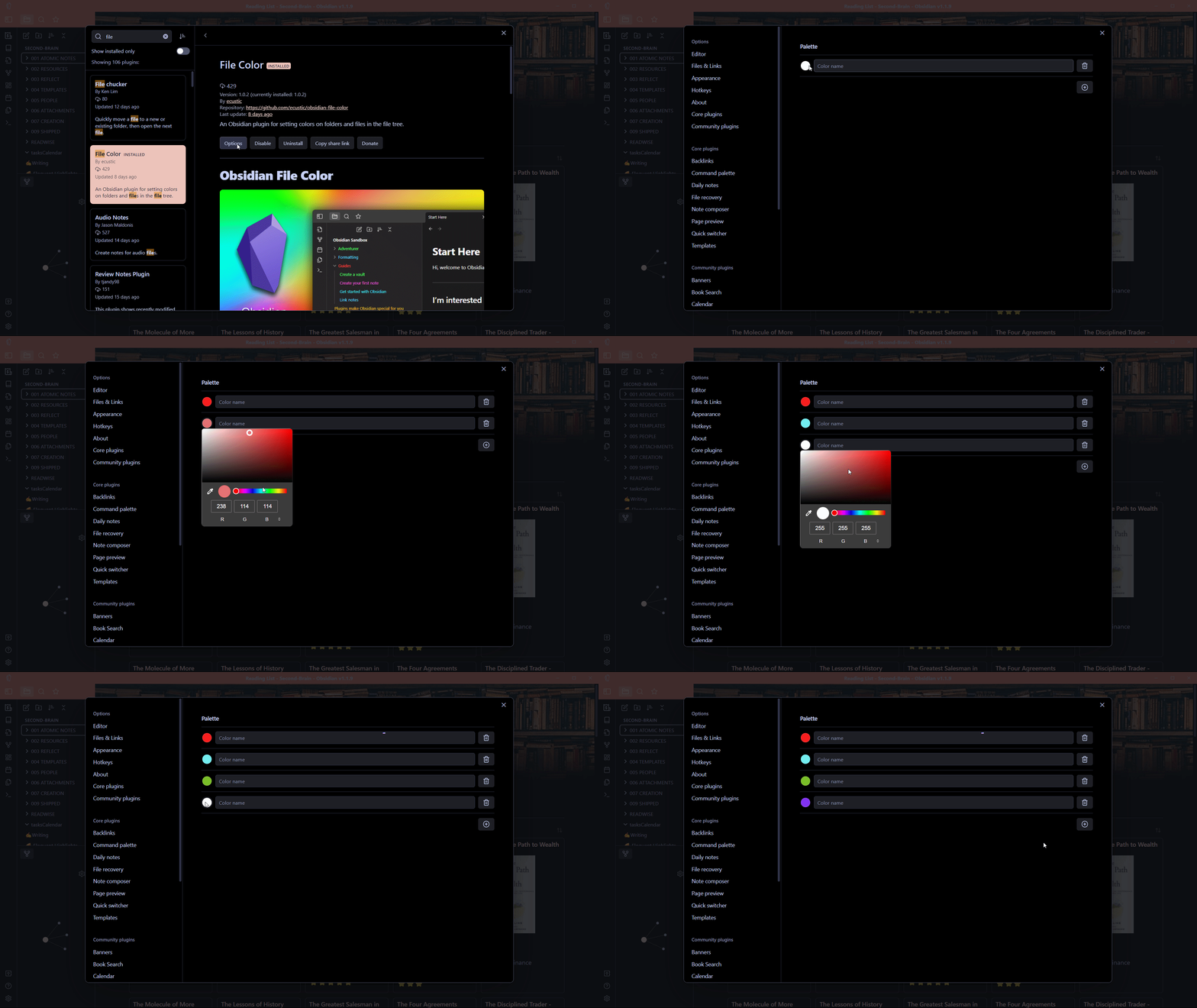
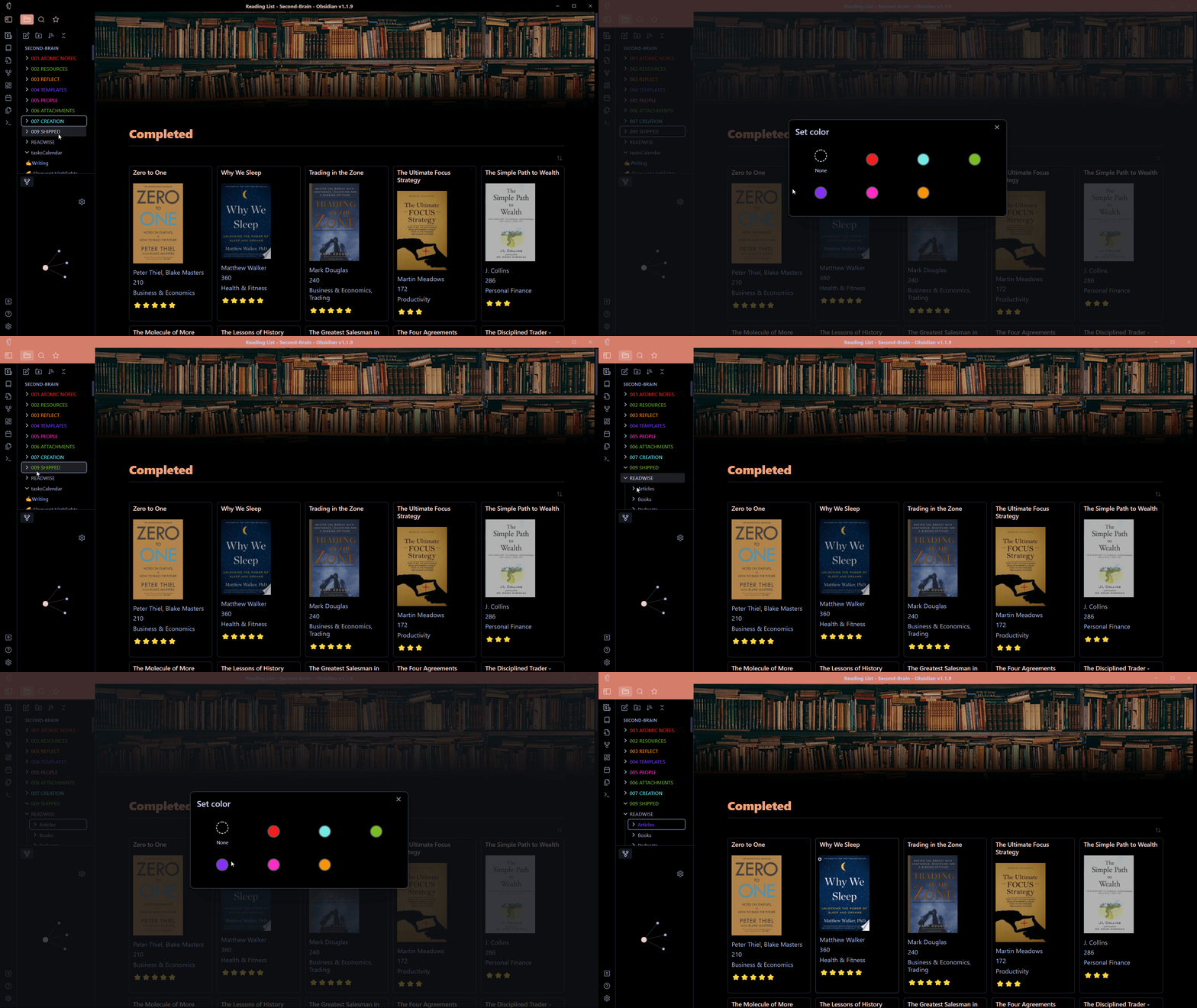
These colors will be used for files and folders. Now click on any folder that you want to change color for and select ‘set color’. This will pop up all the color palettes that you have added previously.

As simple as that.
Quote Share

Quote share is another great addition to obsidian community plugins. It allows you to generate a gradient image for text on your notes. This is useful especially if you want to share some parts of notes with others like quotes or important passages.

How to use this plugin

After enabling the plugin, a new icon will be added to the sidebar. I don’t know why the icon is visible, but you will see it when you hover over there. Click on it and you will see a note open on your sidebar(Or, you can also assign a hotkey for quote share: share as a gradient.)

Now you just need to select the text you want as an image and drag it over there. Copy the image and share it wherever you want to.
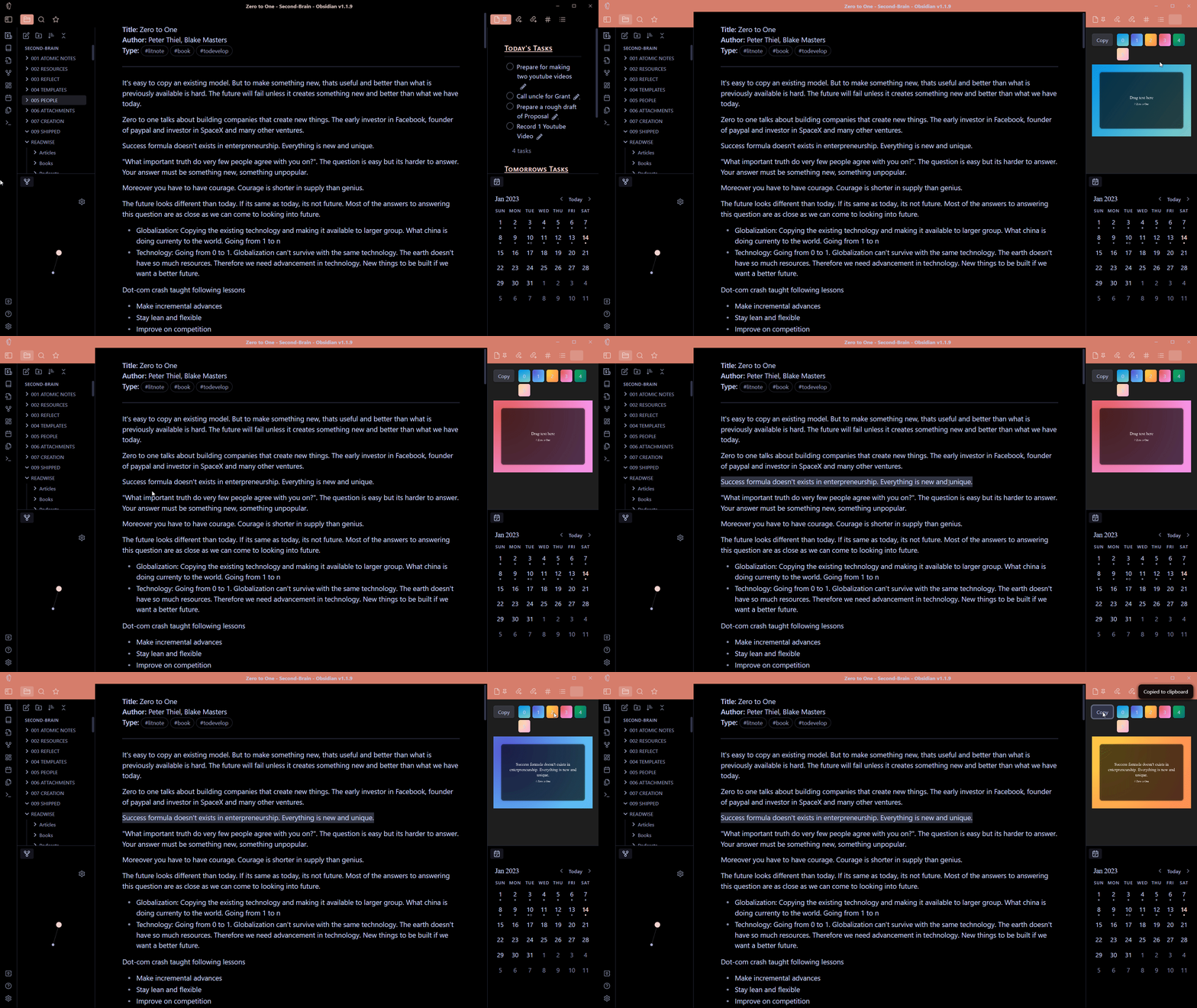

Sharing text as a gradient image
Image generated by Quote Share

Review Notes

This is a very simple plugin that allows you to see recently created and modified vaults on your vault.

How to use this plugin

Simply click on the ribbon icon. It will open a new note called review notes on the right sidebar to display recent notes.

Canvas Presentation

The canvas presentation plugin helps you to display the cards on your canvas based on the sequence. It’s not as robust as the obsidian canvas but works well.

How to use this plugin

There are three hotkeys you can assign to this plugin for easier use:

  • Mark slide number
  • Next slide
  • Previous slide

Assigning hotkeys makes it easier to use the plugin rather than using a command palette for every command. Here are the next steps you need to follow:

  • Mark the sequence of slide numbers by using the hotkeys
  • Start presentation of slides.

This will cause the slides to shift from one card to another based on the sequence you set previously.

Surfing

I love this. This adds new possibilities for obsidian. You can use obsidian as a browser now. Isn’t this cool?

It gives obsidian more power by giving the ability to browse the internet directly within its interface. You don’t need to switch to your browser again to search for something when you are using obsidian

How to use this plugin

Install this plugin and enable it. Go to ‘options’ and configure the settings of your choice. Some of the features that you might want to check out are:

  • Show the search bar on an empty page
  • Default search engine(Choose your preferred one)
  • Bookmarks

You will get a surfing window if you open a new tab. And you will have the ability to search from the header bar. Moreover, if you are in editing mode, you can select the text and search for it in the browser. Cool, Isn’t it?

Here are some other cool features of the surfing plugin:

  • Select keywords in your notes(editing mode) and perform a web search
  • Select text on the web browser and copy links pointing to it
  • Open the current URL with an external browser
  • Choose your default search engine
  • Easily jump back and forth between the pages
  • Easily clear your browsing history
  • Save the webpage as markdown(Great for offline reading)
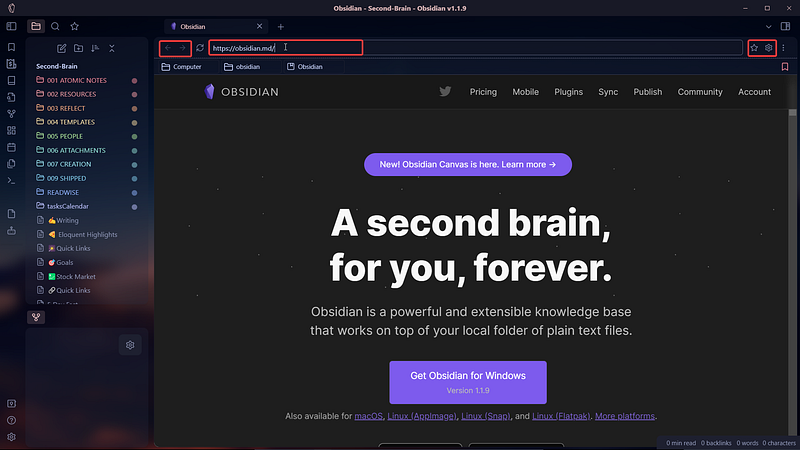
Using obsidian as a web browser

GPT-3 Notes

We’re in the phase of the AI revolution. One of the most recent developments in the field of AI is the release of GPT-3. It is a powerful language model created by OpenAI. It can be used to generate highly relevant and useful human-like text based on prompts provided by the user.

As the name itself suggests, GPT-3 Notes uses GPT-3 technology to write text based on your prompts.

How to use this plugin

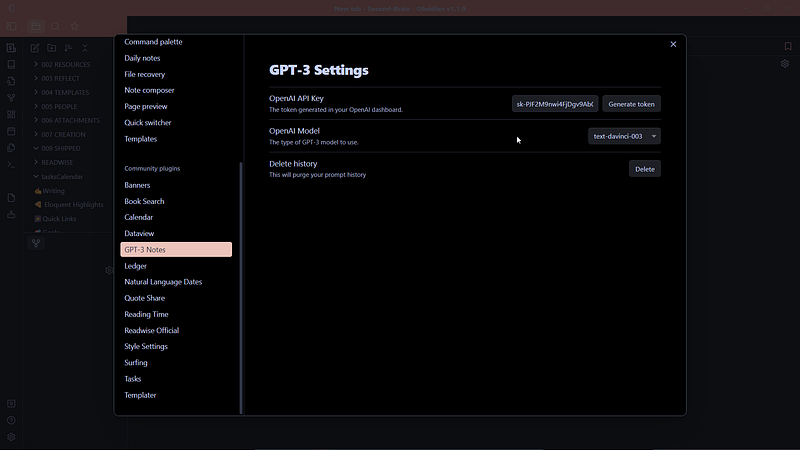
Once you have finished installing the plugin, go to openAI’s website and create an account.

That’s all. You are now ready to use GPT-3 inside obsidian.

Click on the ribbon icon called GPT-3 notes and you will see a pop-up window. Let’s talk about all the elements in there.
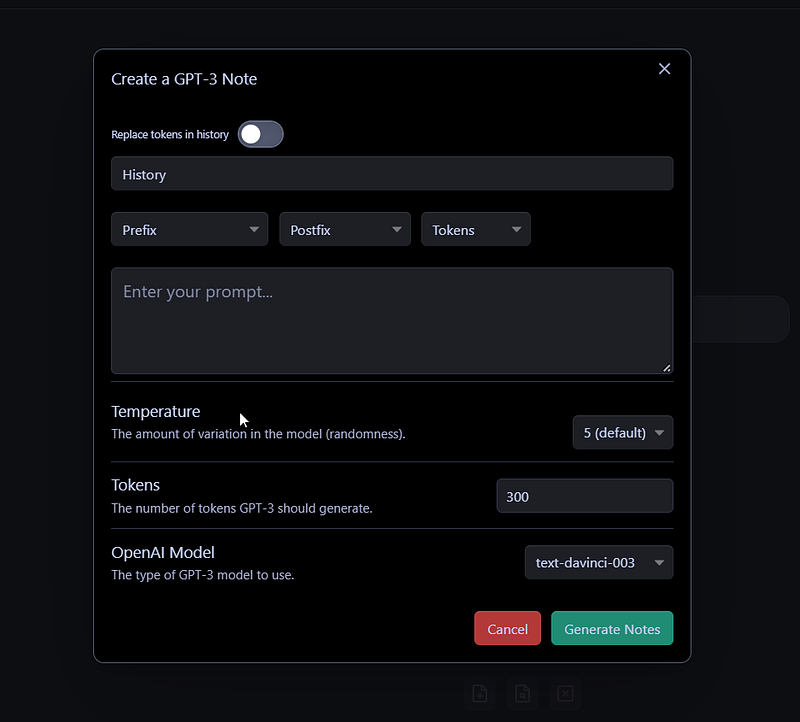
The prefix, postfix, and tokens are helpful to write a good prompt. Or you can also create a prompt of your own.

  • Temperature: It is used to control the randomness and creativity of the model’s prediction. The more the value, the more creative will be the generated text.
  • Tokens: You can think of tokens as words. They say 1000 tokes is nearly equal to 750 words.
  • OpenAI Model: Choose the model you want to choose. Here’s a picture showing a comparison.
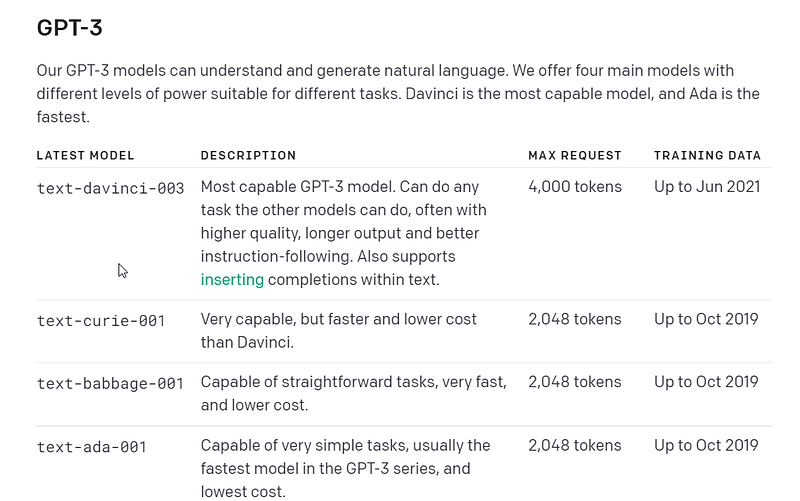
Configure all the options and you can start using GPT-3 AI technology inside of obsidian.

Not a Medium Member Yet?

If you liked this story, you will love the medium subscription. With only $5 a month(less than the price of a cup of coffee), you get unlimited access to the best stories and articles written on the web.

This is my referral link. If you sign up using this link, I earn a small commission with no additional charges to you.

Obsidian
Notetaking
Tools
Productivity
Knowledge Management
Recommended from ReadMedium