
Neovim LSP Basics
One of the most important pieces of configuration in Neovim is your LSP or Language Server Protocol. I’ll show you the basics of how to configure yours to get autocompletion up and running.
What is a LSP?
LSP stands for Language Server Protocol, which is meant to standardize the format or protocol for how language servers and clients communicate. A LSP enables code analysis, autocomplete, linting, and other features through language-specific servers.
There are two sides to the configuration we need:
- Configuration for the Neovim LSP client (e.g.
nvim-lspconfig) - Language Servers (e.g.
typescript-language-server,solargraph)
Neovim acts as a client to Language Servers and includes a Lua framework (vim.lsp) for building tools.
Language servers are developed by third parties. Here is a list to see many different options.
Prerequisites
Before installing a LSP, make sure you have both Neovim and a package manager installed.
My favorite package manager to use is lazy.nvim.
If you don’t have Neovim installed, you can follow the instructions here.
Configure Neovim LSP Client
There are several options for configuring Neovim to use a specific language server.
Manual Config
One option is to start the language server yourself using the vim.lsp.start command in your init.lua file in your Neovim config.
vim.lsp.start({
  name = 'my-server-name',
  cmd = {'name-of-language-server-executable'},
  root_dir = vim.fs.dirname(vim.fs.find({'setup.py', 'pyproject.toml'}, { upward = true })[1]),
})
Then you could set up anything else (e.g. custom keymaps) using an autocommand that checks the language server capabilities first.
vim.api.nvim_create_autocmd('LspAttach', {
  callback = function(args)
    local client = vim.lsp.get_client_by_id(args.data.client_id)
    if client.server_capabilities.hoverProvider then
      vim.keymap.set('n', 'K', vim.lsp.buf.hover, { buffer = args.buf })
    end
  end,
})
Checkout this article if you want to better understand autocommands:
Lightweight Config
While you could manually setup your language server, I would recommend to at least use nvim-lspconfig, which is a set of configurations that are maintained for many language servers.
Install this using your preferred package manager. Here is an example using lazy.nvim:
  {
    "neovim/nvim-lspconfig",
    config = function()
       require'lspconfig'.pyright.setup{}
       require'lspconfig'.tsserver.setup{}
    end,
  }
Then you will need to install / manage the language server separately and Neovim will automatically launch the language server when the correct file type is opened (e.g. nvim main.py).
I’ll cover more about ways to install and manage language servers in the Install Language Servers section.
Note: you still still need to configure keymaps yourself. Check out this page for the suggested config.
Full Config (Recommended)
What I prefer and am using today, is having an all in one solution to configure the language server client, language server, and keymaps together. Although I may have outgrown this setup as I have customized it quite heavily at this point.
You can do that using LSP Zero, which is a “collection of functions that will help you setup Neovim’s LSP client, so you can get IDE-like features with minimum effort.”
Drop in the config to install using your package manager (e.g. lazy.nvim):
--- Uncomment these if you want to manage LSP servers from neovim
-- {'williamboman/mason.nvim'},
-- {'williamboman/mason-lspconfig.nvim'},

{'VonHeikemen/lsp-zero.nvim', branch = 'v3.x'},
{'neovim/nvim-lspconfig'},
{'hrsh7th/cmp-nvim-lsp'},
{'hrsh7th/nvim-cmp'},
{'L3MON4D3/LuaSnip'},
And then create an lsp-zero.lua file to configure everything:
local lsp_zero = require('lsp-zero')

lsp_zero.on_attach(function(client, bufnr)
  -- see :help lsp-zero-keybindings
  -- to learn the available actions
  lsp_zero.default_keymaps({buffer = bufnr})
end)

require('mason').setup({})
require('mason-lspconfig').setup({
  ensure_installed = {},
  handlers = {
    lsp_zero.default_setup,
  },
})
After installing and restarting Neovim, you should have a working LSP and be able to install Language Servers.
Here is the list of keybindings you should have automatically configured.
Note: you may not need lsp zero if you are only looking to autoconfigure Language Servers.
Install Language Servers
Language Servers are the second half of our config and there are multiple ways to install them.
Manual Installation
If you only want one or two language servers then you could manually install them onto your system via another command or package manager.
Here are two examples of installing a couple language servers using npm:
npm i -g typescript-language-server
npm i -g pyright
Mason
What many people prefer these days is to install Language Servers directly from inside Neovim.
To do that you will need two plugins:
mason.nvim is a package manager for managing LSP servers, DAP servers, linters, and formatters.
mason-lspconfig.nvim is bridges mason.nvim with the lspconfig plugin — making it easier to use both plugins together.
Install them using your favorite package manager:
{'williamboman/mason.nvim'},
{'williamboman/mason-lspconfig.nvim'},
After restarting Neovim, you should now be able to run :Mason. After running that command you should see the management window to install, update, and uninstall Language Servers, as well as other items.
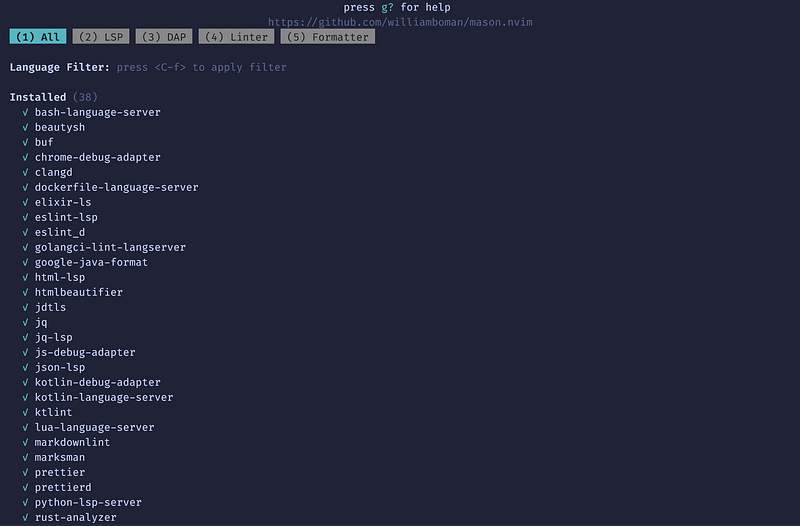
Install a couple language servers and after restarting Neovim, your LSP should be able to connect to your Language Server and you should get some better syntax highlighting and be able to use keybindings to make calls to the Language Server (e.g. K to hover over an item to get information).
Conclusion
I hope this has given you a base understanding of how the LSP, LSP client in Neovim, and Language Servers are managed and you now have a working configuration. To read more about configuring the Neovim LSP Client check out the docs here.
If you enjoyed this article, consider subscribing to Medium!
Here are a few other Neovim articles you should check out:
If you or your company are interested in having someone conduct technical interviews then please DM me on Twitter (@Exosyphon) or visit my website. If you enjoy topics like this then you might also like my Youtube channel. Have a great day!


