
Neovim for Beginners — Snippets using Lua
Better coding experience using snippets.
In the previous article, we configured snippets plugins and wrote our snippets using Lua. We will build on the existing setup and improve the configuration to help us code more efficiently. We are going to
- Refactor existing configuration to use Lua snippets loader.
- Go through Luasnip basics.
- Develop code snippets to help us code more efficiently.
This article is part of the Neovim for Beginners series.
The Neovim configuration files can be found in this repository.
Lua Snippets Loader
In the previous article, we separated our snippets by the languages under the lua/config/snip/snippets folder, and use an autocmd to load the snippet files. For Luasnip, there is a better way to do this now. We are going to refactor our configuration to use the Lua snippets loader.
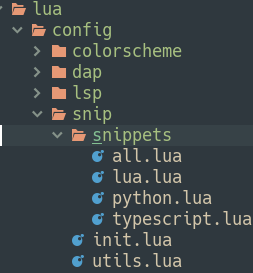
We already used the VSCode snippets loader and Snipmate snippets loader in the lua/config/snip/init.lua file. To load the Lua snippets, add the following lines of code.
- We use the Lua snippets loader to lazy load snippet files under the
snippets folder. - We configure a command called
LuaSnipEditto edit the snippet files.
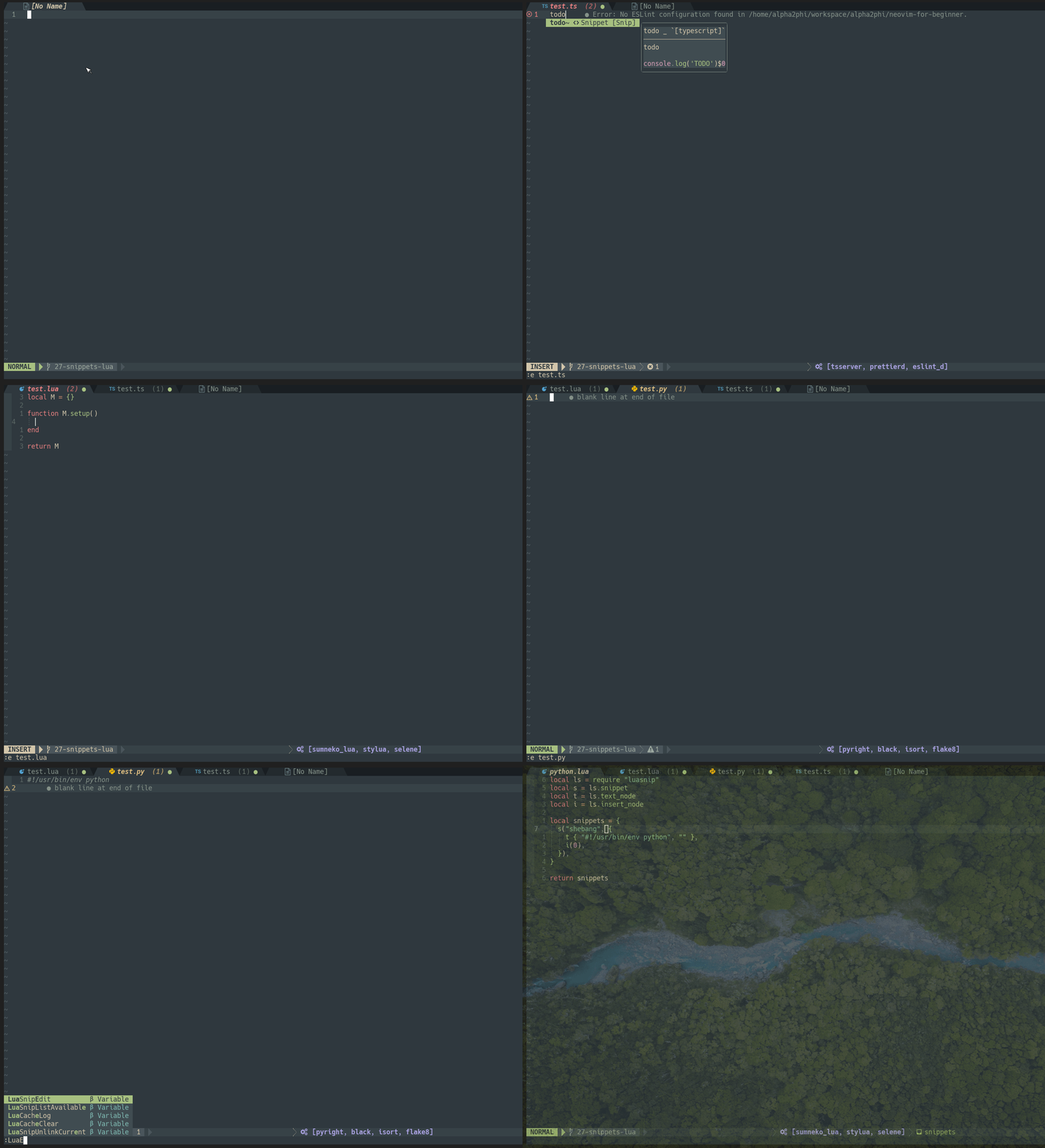
Once loaded, the snippet files will be automatically reloaded on save (BufWritePost).
The Basics
Before we deep dive into the details, we need to understand the basics of Luasnip. In LuaSnip, snippets are made up of nodes. These can contain either
- static text (
textNode) - text that can be edited (
insertNode) - text that can be generated from the contents of other nodes (
functionNode) choiceNode: allows choosing between two nodes (which might contain more nodes)restoreNode: store and restore input to nodes- or nodes that can be generated based on input (
dynamicNode).
Let’s go through several examples. More details and examples can be found in the Luasnip documentation.
Choice Node
Choice node allows choosing between multiple nodes.
In the lua/config/snip/snippets/all.lua file, add the following sample snippet.
local ls = require "luasnip"
local s = ls.snippet
local t = ls.text_node
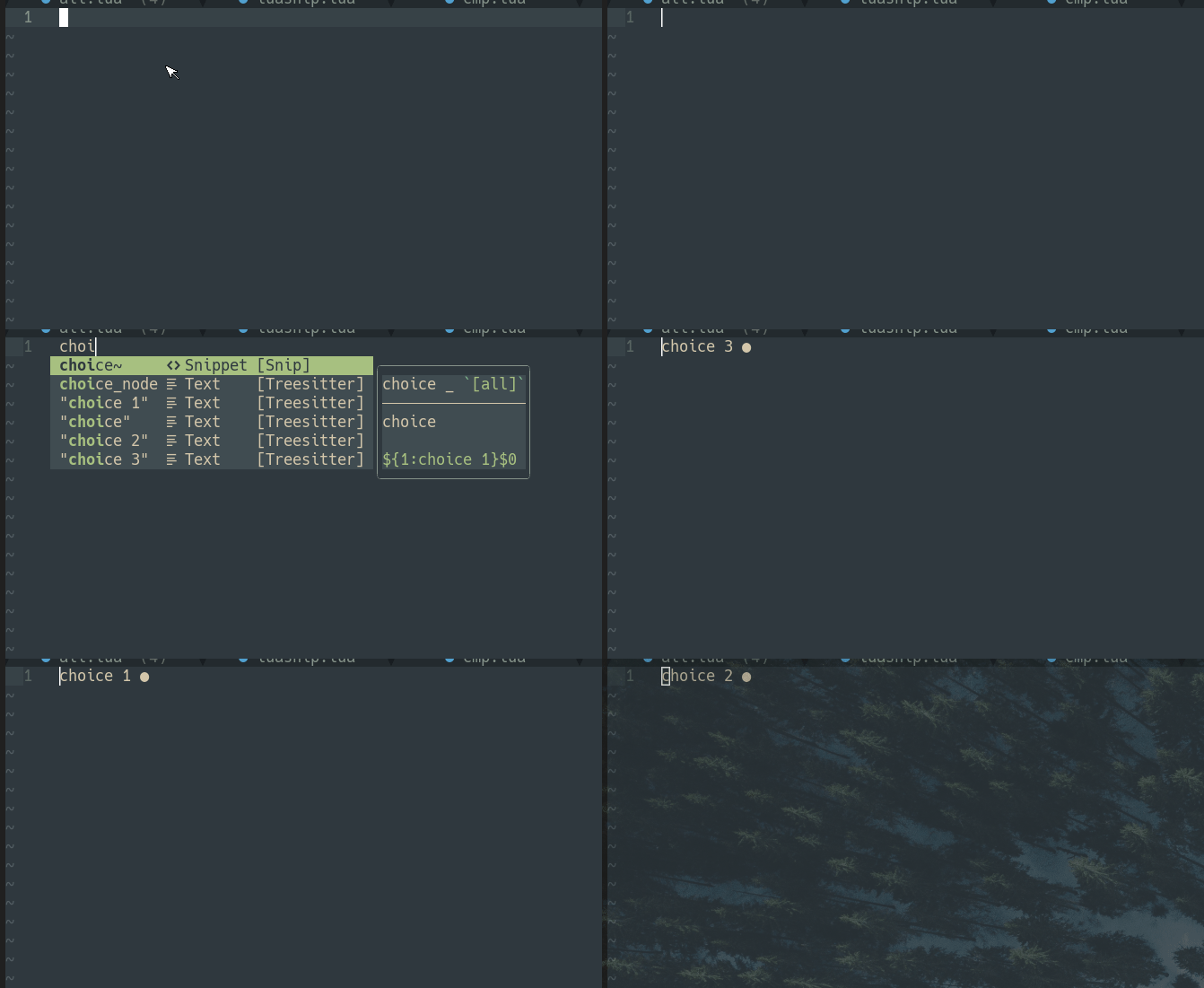
local c = ls.choice_nodes("choice", { c(1, { t "choice 1", t "choice 2", t "choice 3" }) })We need to define the keymapping to cycle between the choices. In the lua/config/cmp.lua file, add the key mapping.
We define <Ctrl-l> to cycle between the choices.
This snippet applies to any file type.
Function Node
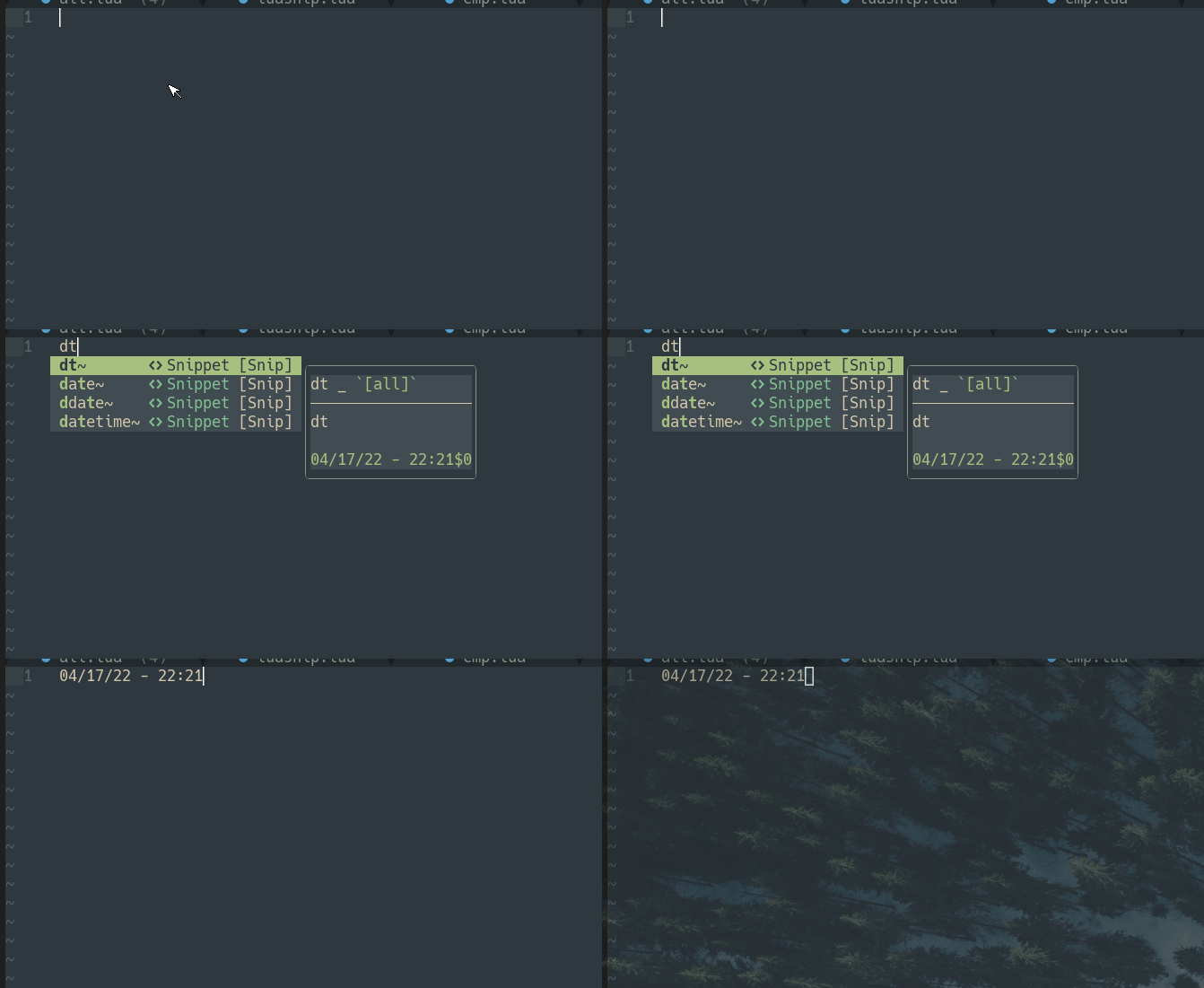
Function node inserts text based on the content of other nodes using a user-defined function.
E.g. add the following sample snippet to the lua/config/snip/snippets/all.lua file.
local s = ls.snippet
local f = ls.function_node
s(
"dt",
f(function()
return os.date "%D - %H:%M"
end)
),We use the function node and the Lua library to return the current date and time.
Snippet Node
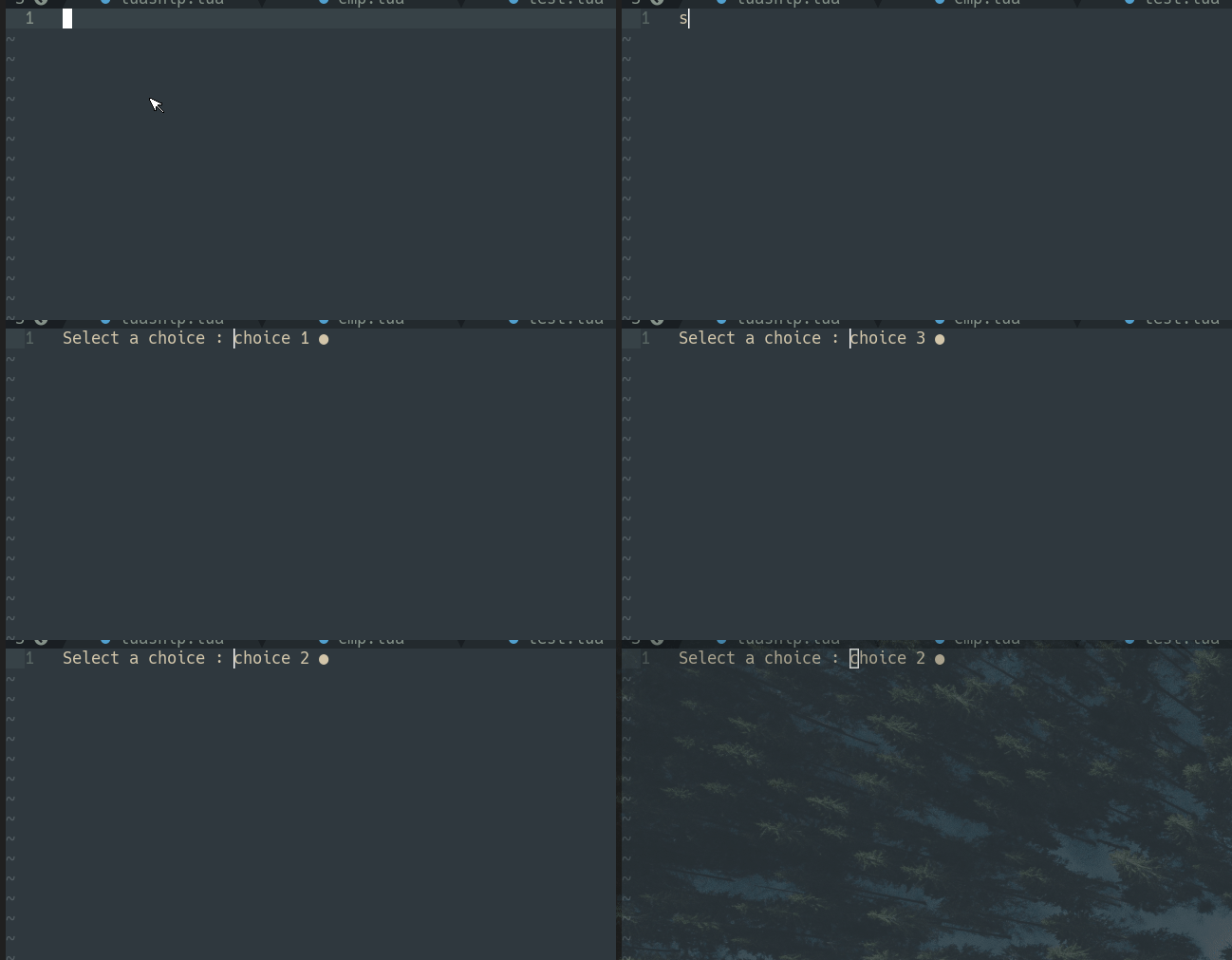
The snippet node directly inserts its contents into the surrounding snippet. This is useful for a choice node, which only accepts one child, or a dynamic node, where the node is created at runtime and inserted as a snippet node.
E.g. add the following sample snippet to the lua/config/snip/snippets/all.lua file.
local s = ls.snippet
local t = ls.text_node
local c = ls.choice_node
local sn = ls.snippet_node
s(
"sn",
sn(1, {
t { "Select a choice :" },
c(1, { t "choice 1", t "choice 2", t "choice 3" }),
})
),
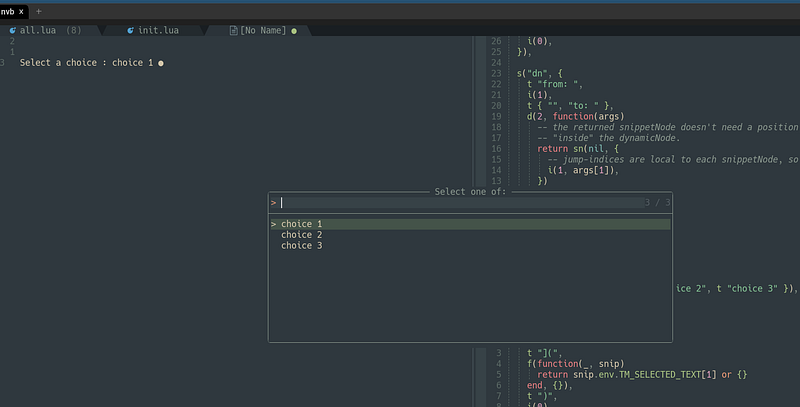
Select Choice
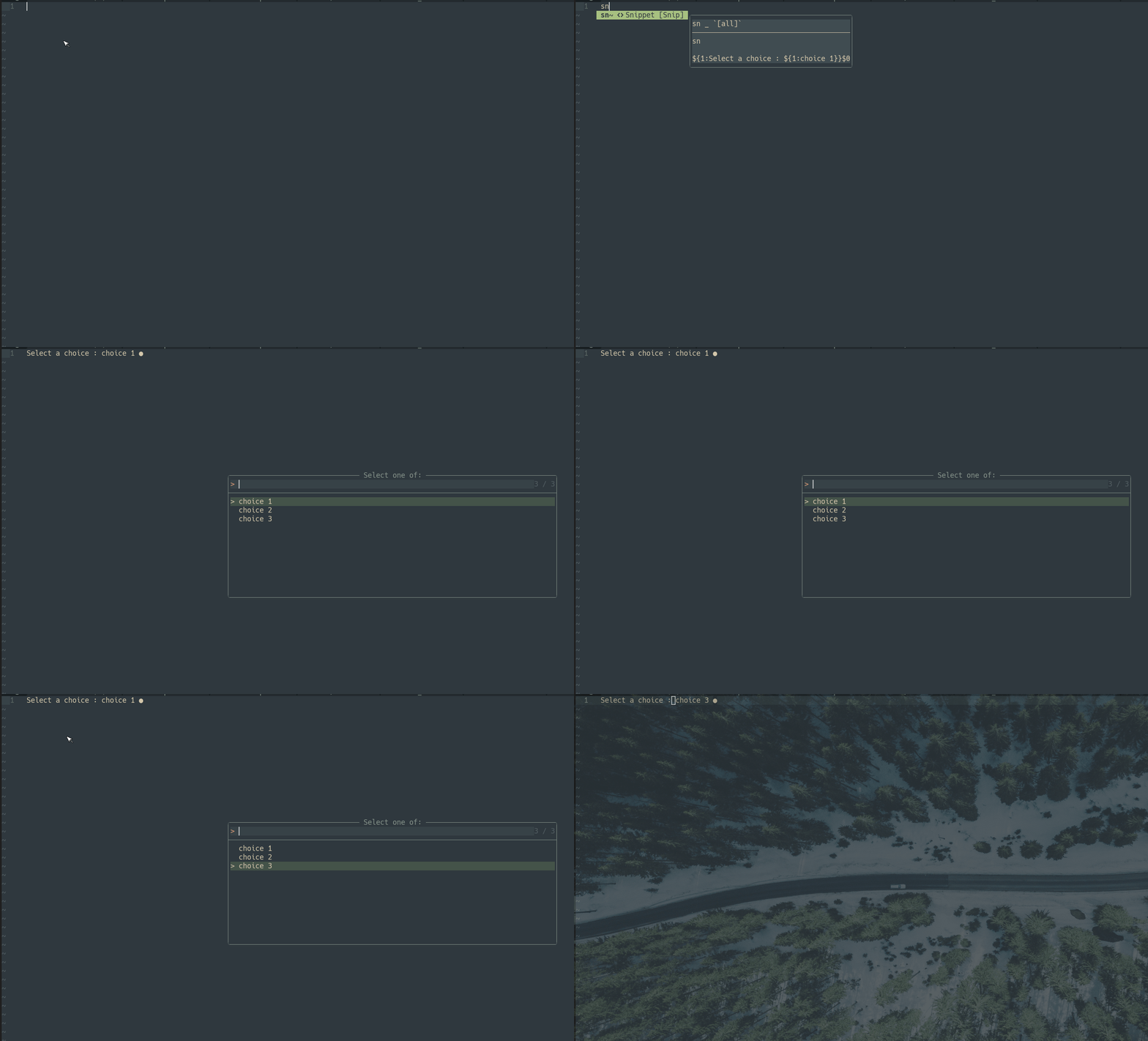
We can also use vim.ui.select (:h vim.ui.select()) to select the choice by using the select choice feature.
In the lua/config/cmp.lua file, add the key mapping.
We define <Ctrl-u> to show the choices when the choice node is active.
Using the same snippet, we can now press <Ctrl-u> to display the choices.
Dynamic Node
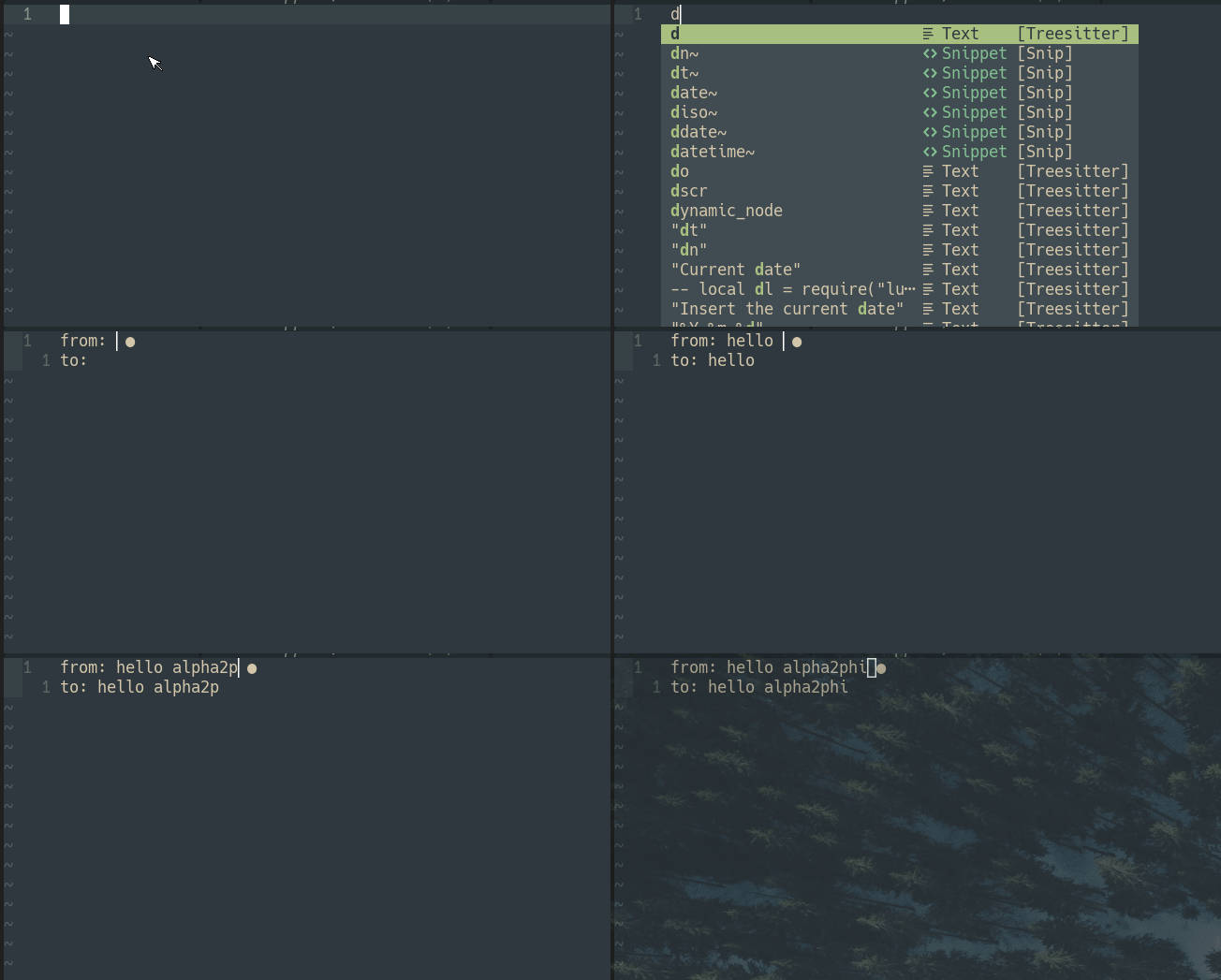
Dynamic node is very similar to function node but returns a snippet node instead of just text, which makes it very powerful as parts of the snippet can be changed based on user input.
E.g. add the following sample snippet to the lua/config/snip/snippets/all.lua file.
Extras
The module luasnip.extras contains nodes that ease writing snippets.
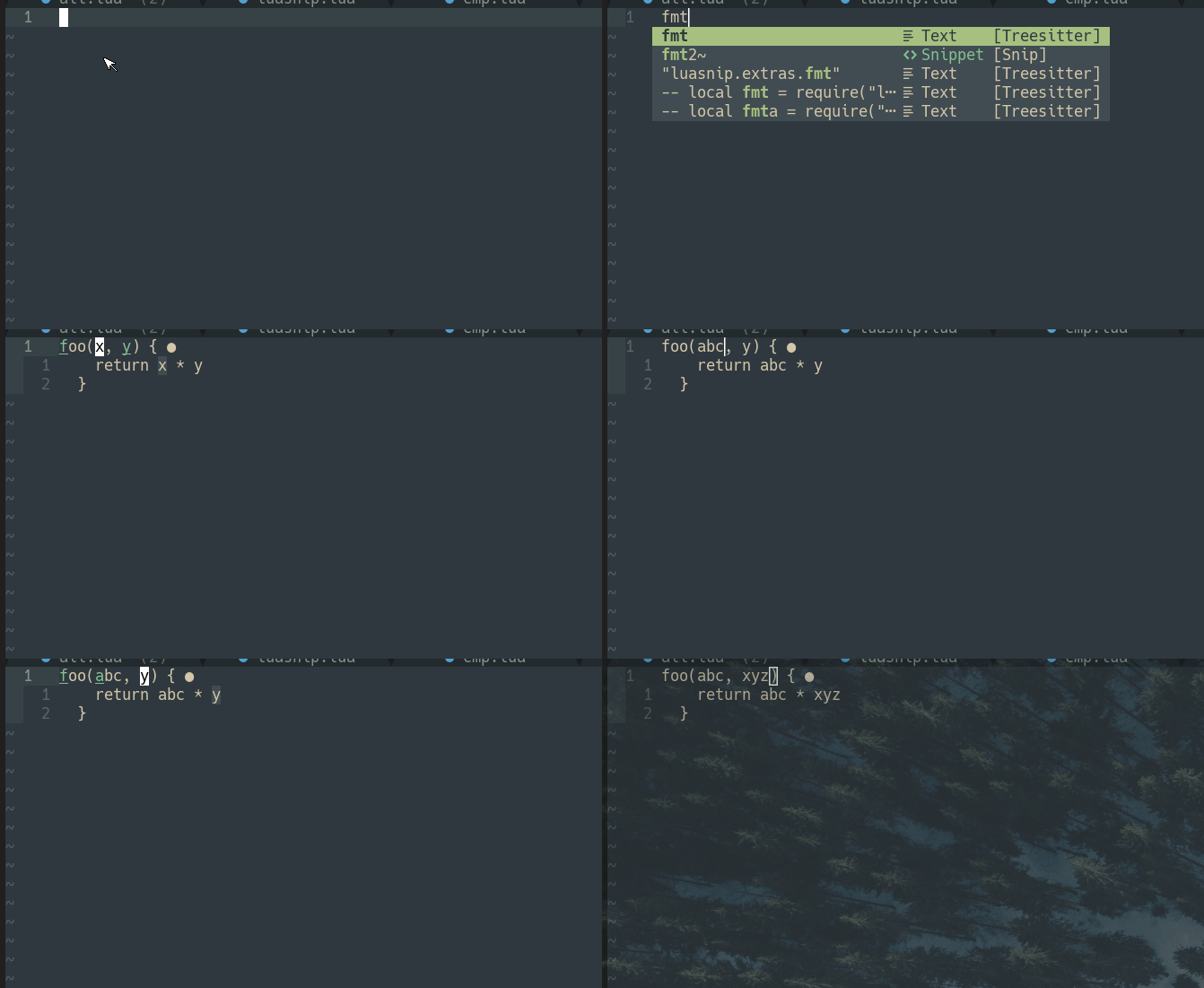
For example, we can use therep node to repeat the node with the passed index, e.g.rep(1) to repeat the content of the first insert.
Let’s add the following sample snippet to thelua/config/snip/snippets/all.lua file.
local s = ls.snippet
local fmt = require("luasnip.extras.fmt").fmt
local rep = require("luasnip.extras").rep
local i = ls.insert_node
s(
"fmt2",
fmt(
[[
foo({1}, {3}) {{
return {2} * {4}
}}
]],
{
i(1, "x"),
rep(1),
i(2, "y"),
rep(2),
}
)
),In the screenshot below, we can see the variables get changed automatically as we type.
We can use the partial node to directly insert the output of a function.
For example, add the following sample snippet to thelua/config/snip/snippets/all.lua file.
local s = ls.snippet
local p = require("luasnip.extras").partials("yy", p(os.date, "%Y")),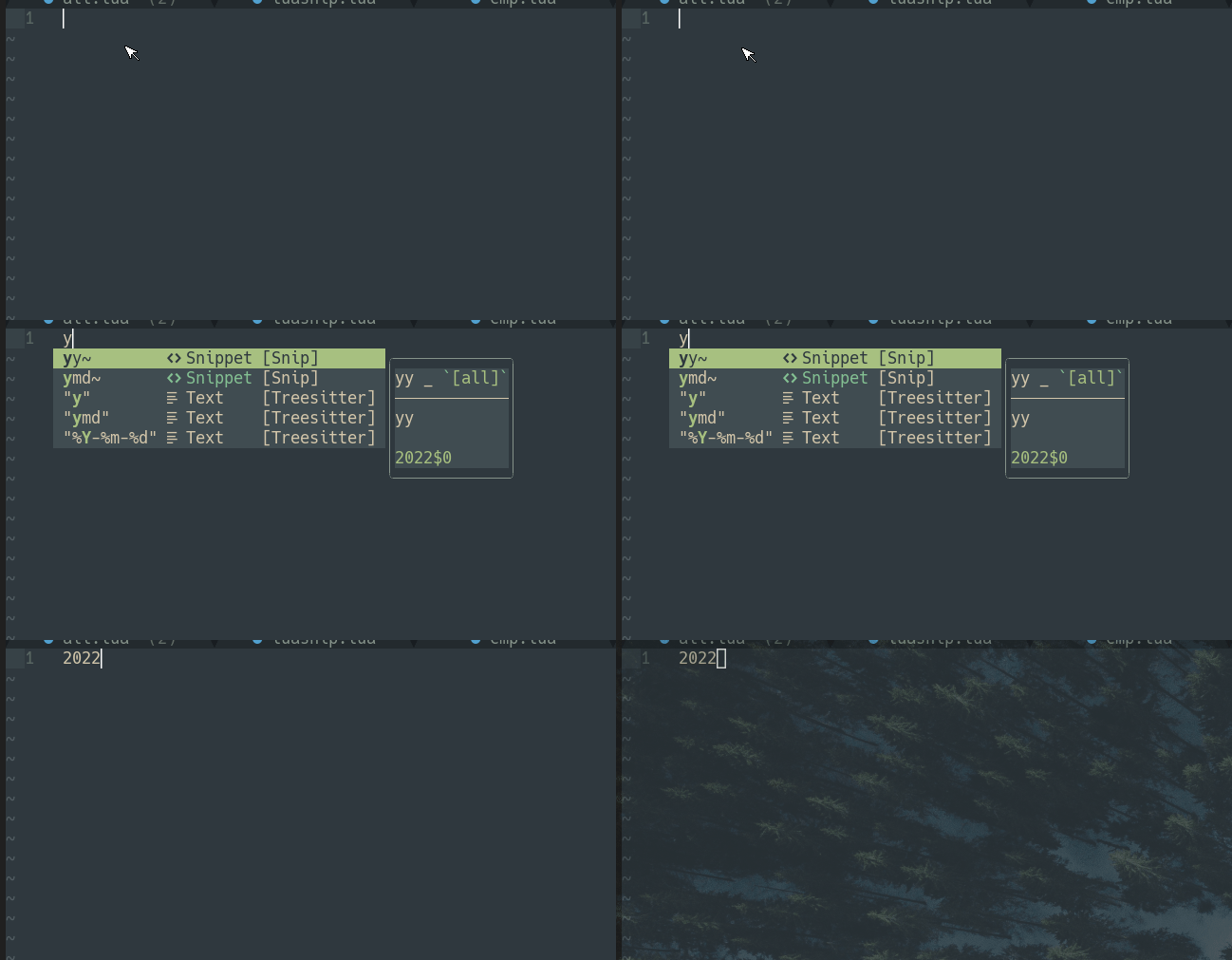
For more supported extra nodes like lambda, match, nonempty, dynamic_lamdba, check out the documentation.
Let’s go through several useful code snippets.
Lua Snippets
Require a Module
Add this snippet to the lua/config/snip/snippets/lua.lua file.
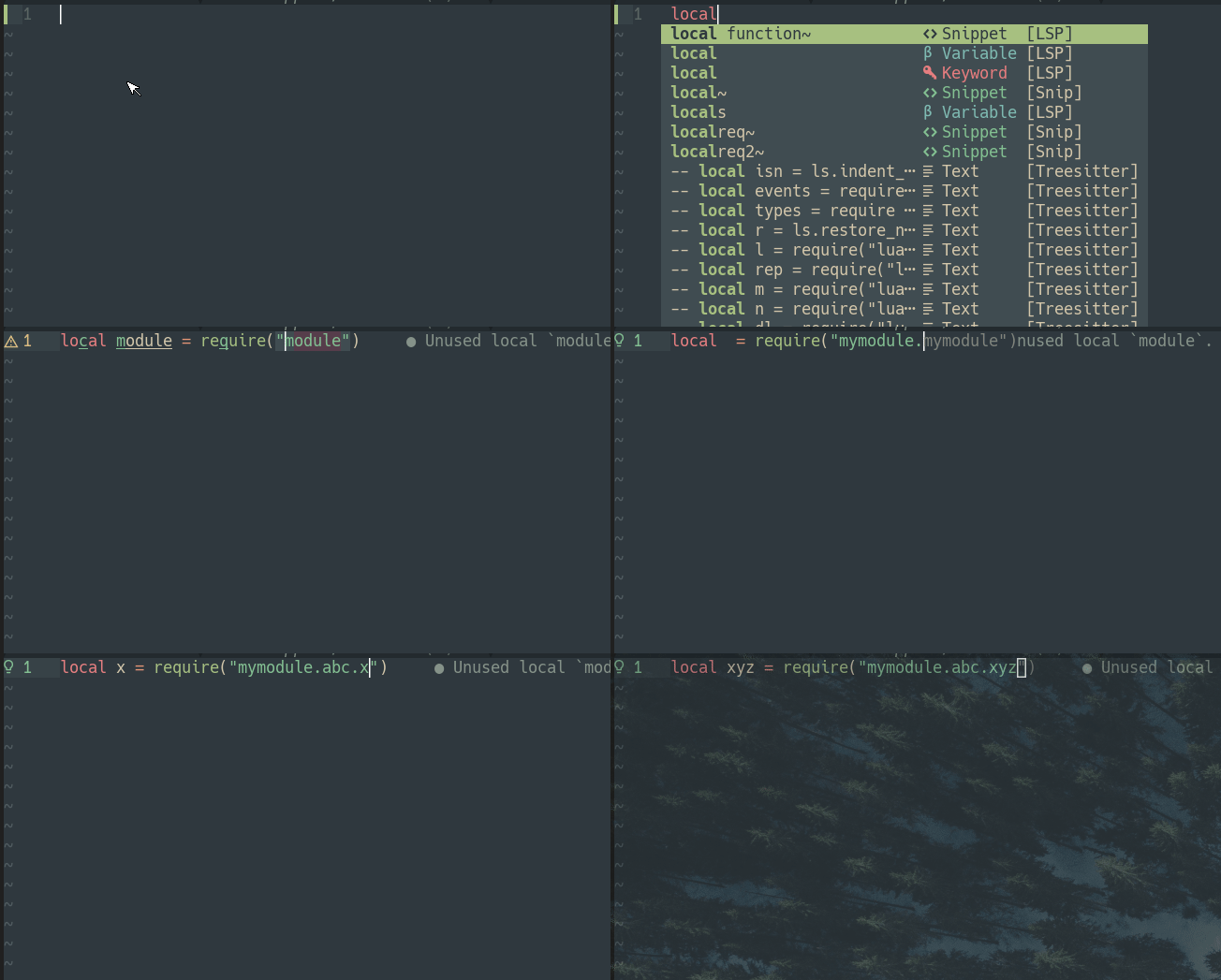
The variable name is derived automatically from the module.
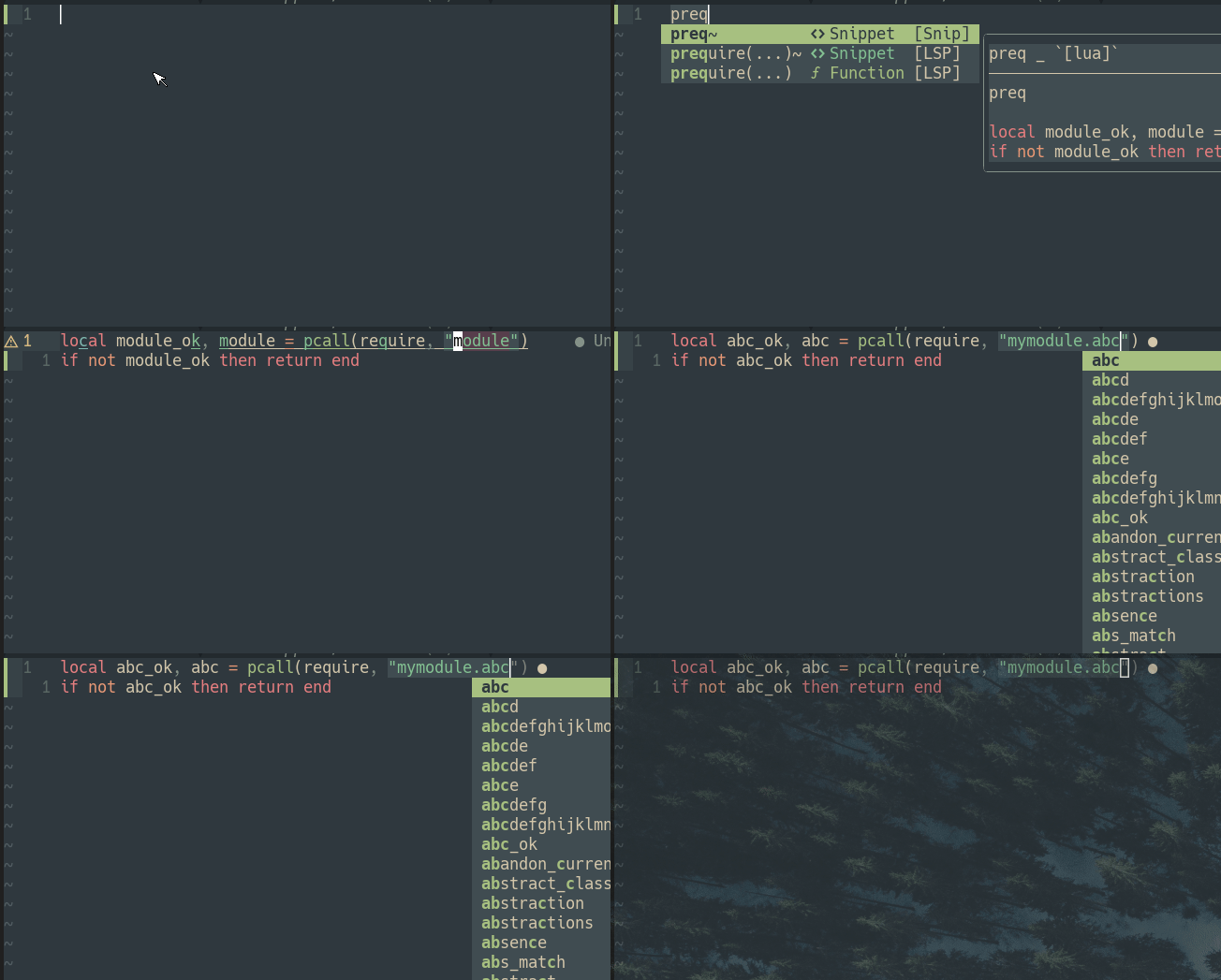
Protected Call
Add this snippet to the lua/config/snip/snippets/lua.lua file.
Create a Module
Add this snippet to the lua/config/snip/snippets/lua.lua file.
We use an LSP-style snippet here.
ls.parser.parse_snippet("lm", "local M = {}\n\nfunction M.setup()\n $1 \nend\n\nreturn M"),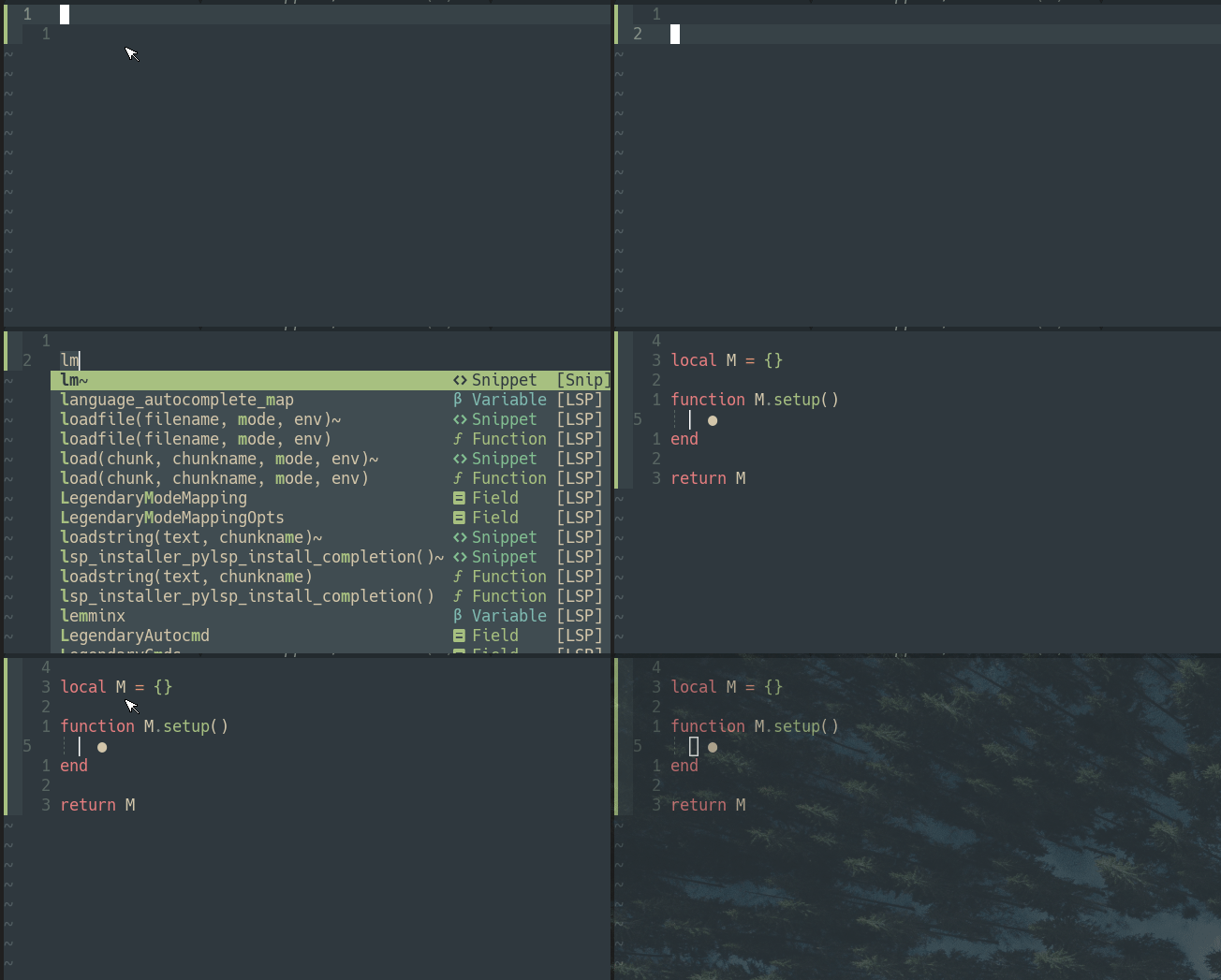
Create a Function
Add this snippet to the lua/config/snip/snippets/lua.lua file.
ls.parser.parse_snippet("fun", "local function ${1:name}($2)\n\t$0\nend"),

ls.parser.parse_snippet("mfun", "function M.${1:name}($2)\n\t$0\nend"),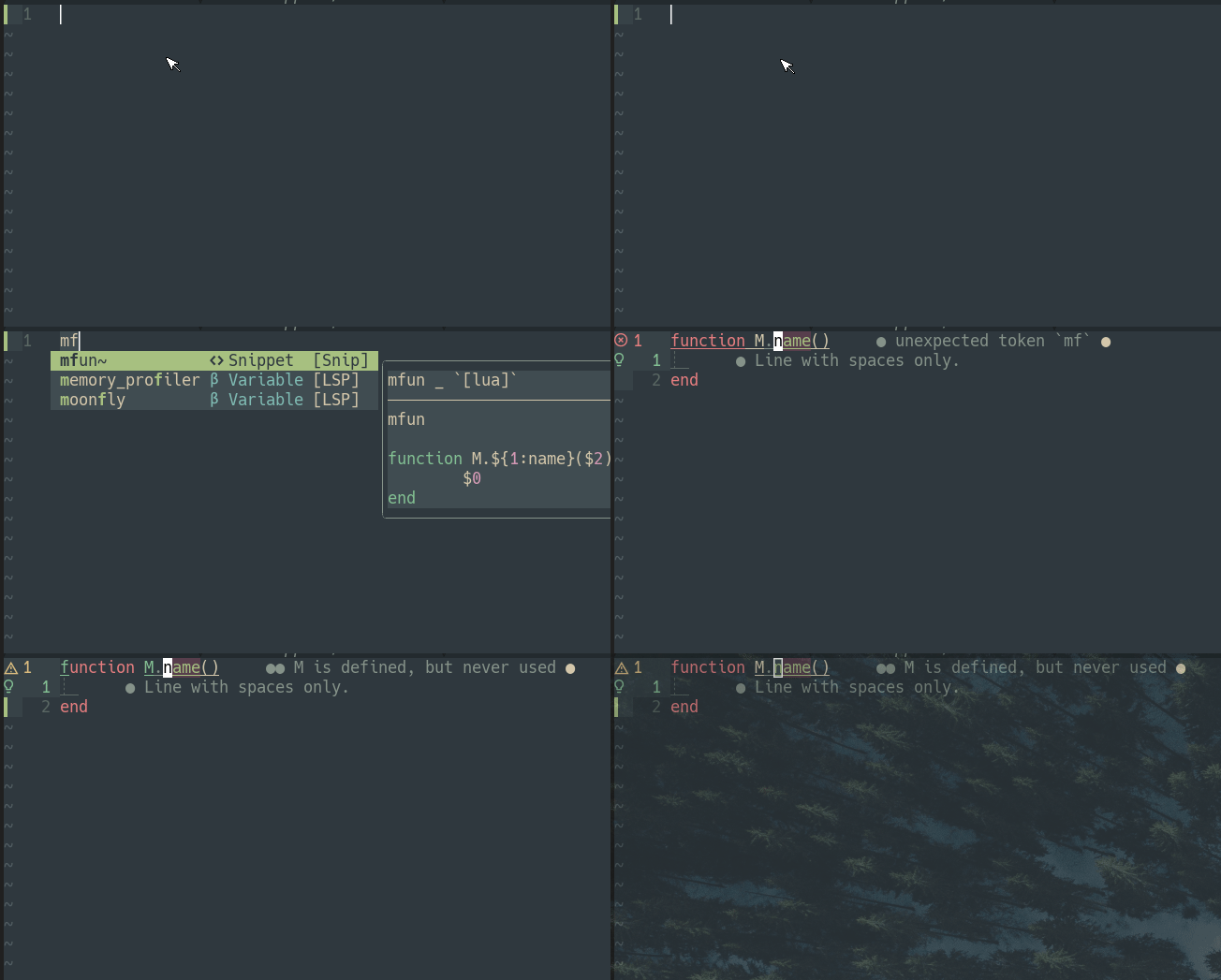
General Snippets
In the lua/config/snip/init.lua file, configure the store selection key.
We configure <Ctrl-q> as the store selection key.
URL to HTML Link
Add the following snippet to the lua/config/snip/snippets/all.lua file.
s("link_url", {
    t '<a href="',
    f(function(_, snip)
      -- TM_SELECTED_TEXT is a table to account for multiline-selections.
      -- In this case only the first line is inserted.
      return snip.env.TM_SELECTED_TEXT[1] or {}
    end, {}),
    t '">',
    i(1),
    t "</a>",
    i(0),
  }),
Now we can change an URL to an HTML link easily.
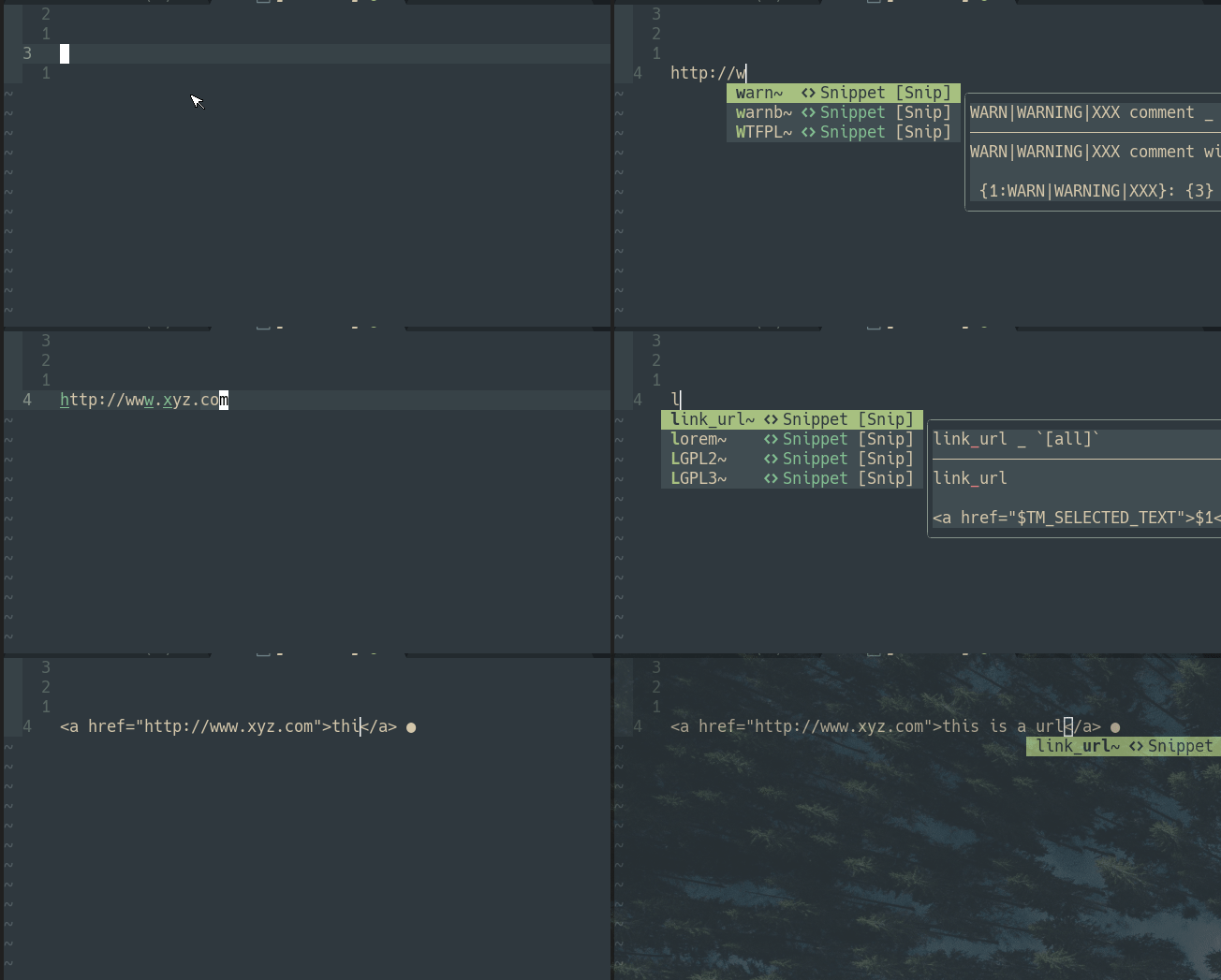
- We select the URL and press
<Ctrl-q>. The URL is removed automatically. - We type the trigger word
link_urland the snippet is automatically populated with the URL
URL to Markdown Link
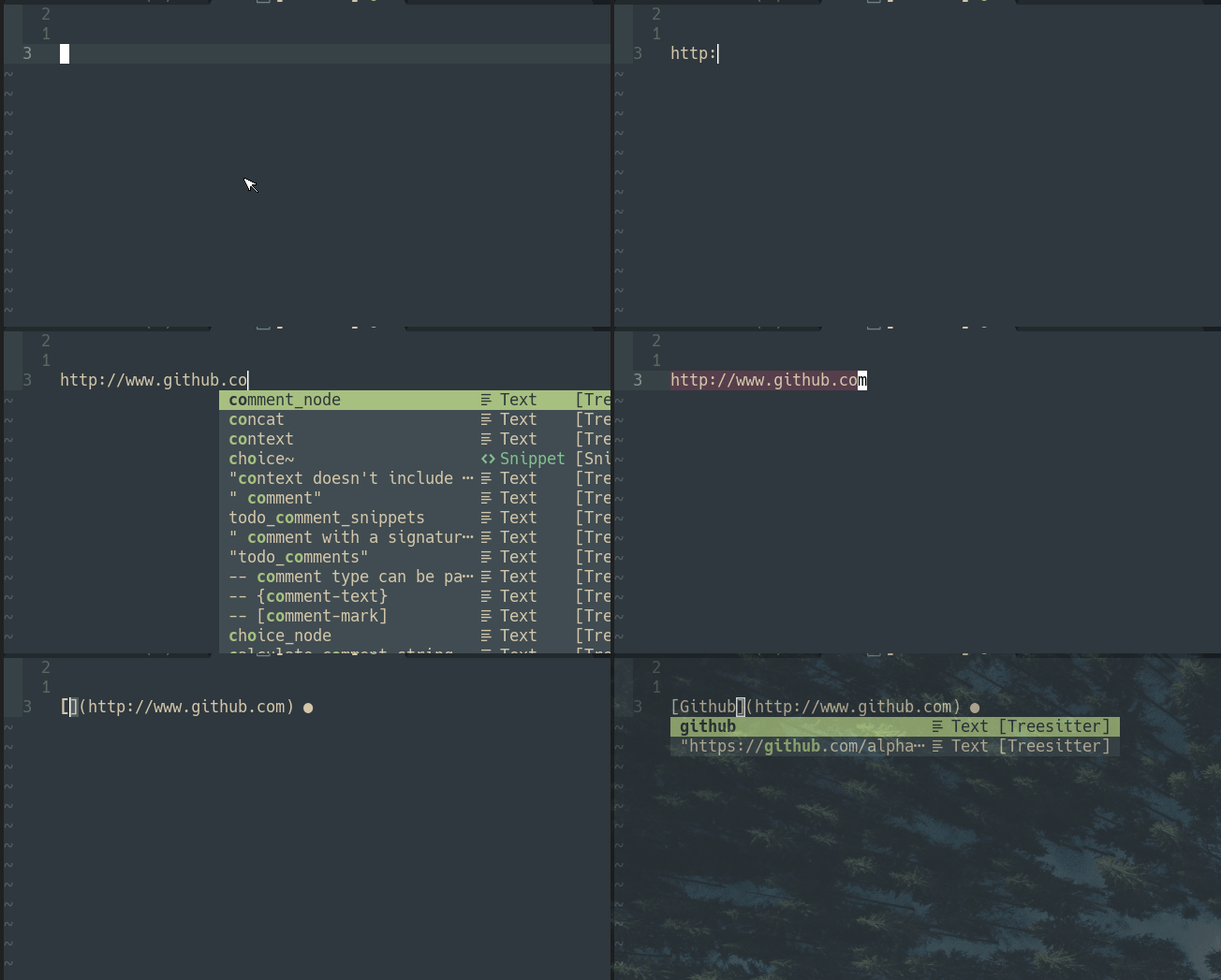
We can perform a similar action for the markdown link. Add the following snippet to the lua/config/snip/snippets/all.lua file.
s("mlink", {
    t "[",
    i(1),
    t "](",
    f(function(_, snip)
      return snip.env.TM_SELECTED_TEXT[1] or {}
    end, {}),
    t ")",
    i(0),
}),
Python Snippets
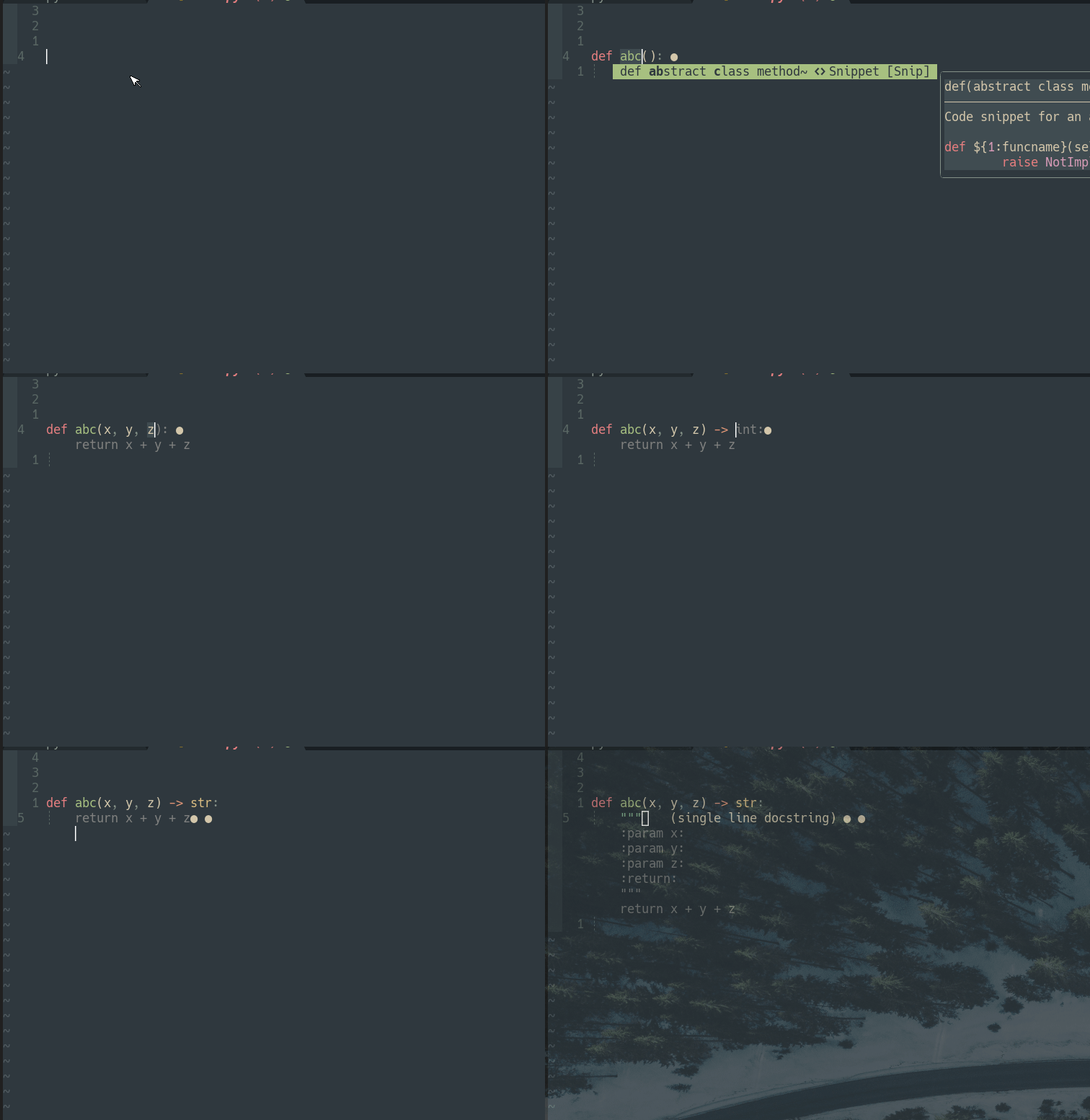
Function Definition with Dynamic Virtual Text
This snippet is from the Luasnip Wiki.
Add the following snippet to the lua/config/snip/snippets/python.lua file.
This snippet expands to a function definition in Python and has choice nodes for the return declaration and the types of doc-string to use.
Check out Learn Neovim The Practical Way for all the Vim/Neovim articles!
If you are not a Medium member yet and want to become one, click here (A part of the subscription fee will be used to support alpha2phi).


