
Neovim for Beginners— Note Taking, Writing, Diagramming, and Presentation
Explore plugins for note-taking, writing, diagramming, and presentation.
Vim/Neovim is a great tool for note-taking and writing. In this article, we will recap the relevant plugins mentioned in the previous articles, and go through new plugins, tools, and tricks for note-taking, writing, diagramming, and presentation.
This article is part of the Neovim for Beginners series.
The Neovim configuration files can be found in this repository.
Getting Started
Besides coding, Neovim is a great tool for note-taking and writing. In several past articles, we walked through the plugins that could help us. Let’s recap before we explore other useful plugins and tools.
Note Taking
In the Vim/Neovim — Managing Notes and Todo List article, we talked about the following plugins.
- For note-taking, we can use
VimWiki,vim-bujo,todo.txt-vim,neuron.nvim,vim-dotoo,Taskwarrior + VimWiki + TaskWiki,Neorg,nvim-orgmode,telekasten.nvim,mind.nvim,Obsidian.nvim. - For Markdown preview, we can use
markdown-preview.nvim,glow.nvim,vim-instant-markdown,peek.nvim.
Scientific Note Taking
For scientific note-taking, we can use nabla.nvim.
Writing
In the Vim/Neovim Plugins for Writing article, we talked about the following plugins.
- For focused writing, we can use
goyo.vim,TrueZen.nvim,zen-mode.nvim. - For writing in Markdown and previewing, we can use
vim-markdown,vim-markdown-toc,glow.nvim,markdown-preview.nvim,vim-livedown,peek.nvim. - For writing in Latex we can use
vim-tex,vim-latex-live-preview. - For grammar checking, we can use
vim-grammarous,vim-LanguageTool,LanguageTool.nvim,ALE. - Other useful plugins for writing like
vim-table-mode,vim-pandoc,vim-pencil,vim-abolish,HighStr.nvim.
Presentation
In the Using Vim/Neovim for Presentation article, we talked about the following plugins.
- For presentation, we can use
presenting.vim,Vim + Pandoc + reveal.js,Slidy.
Diagramming
For diagramming, we can leverage 3rd-party tools like Mermaid.js, or use plugins to draw diagrams within Neovim.
Mermaid.js, PlantUML
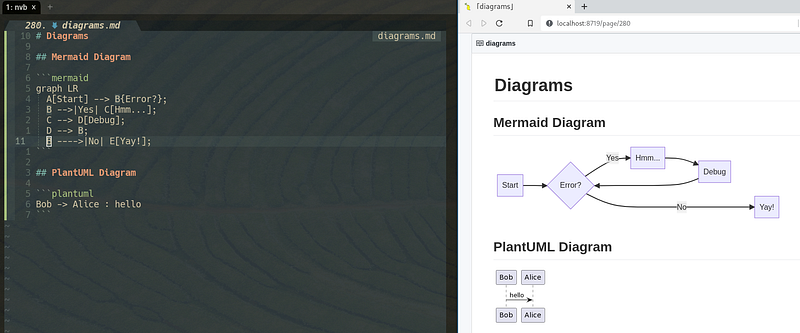
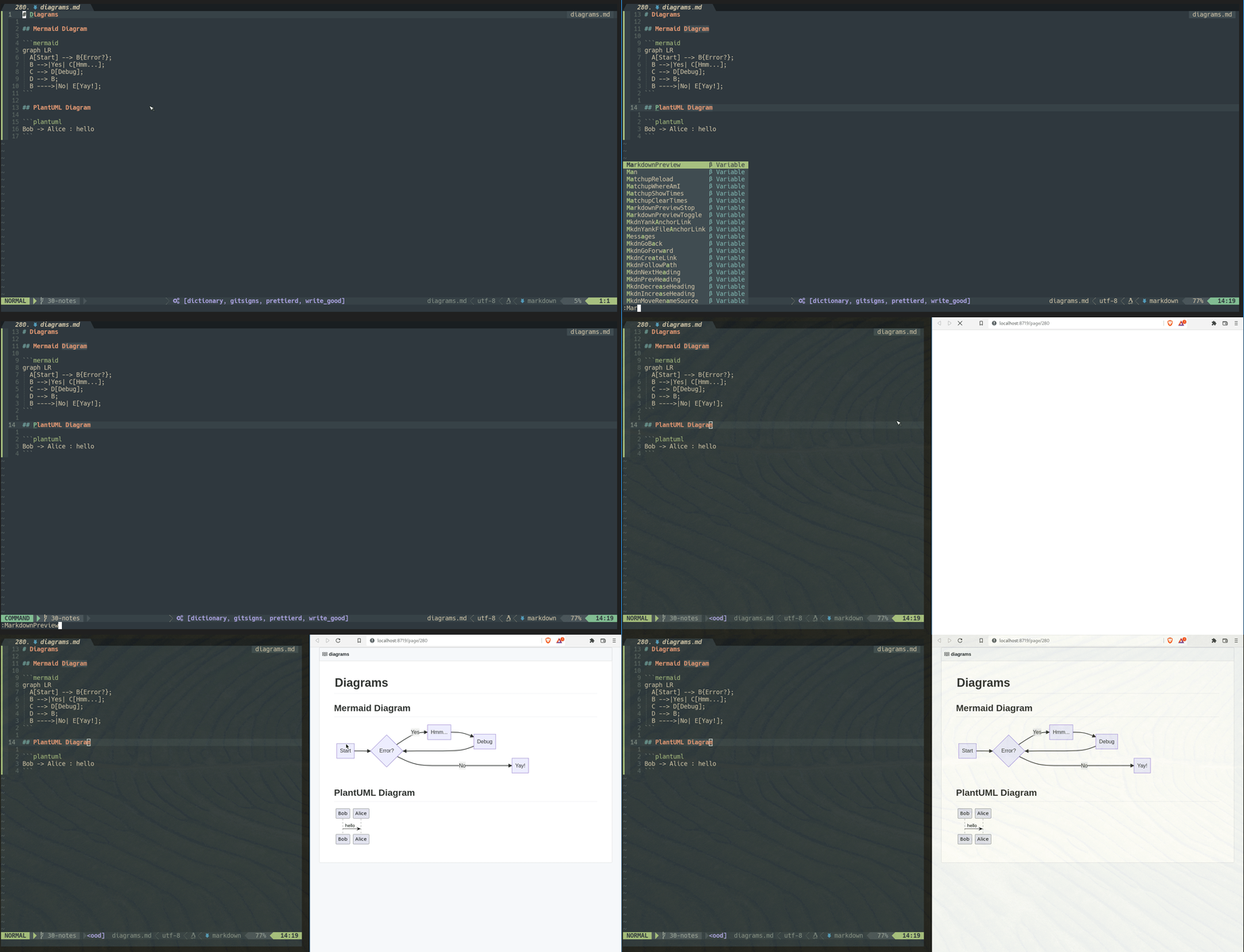
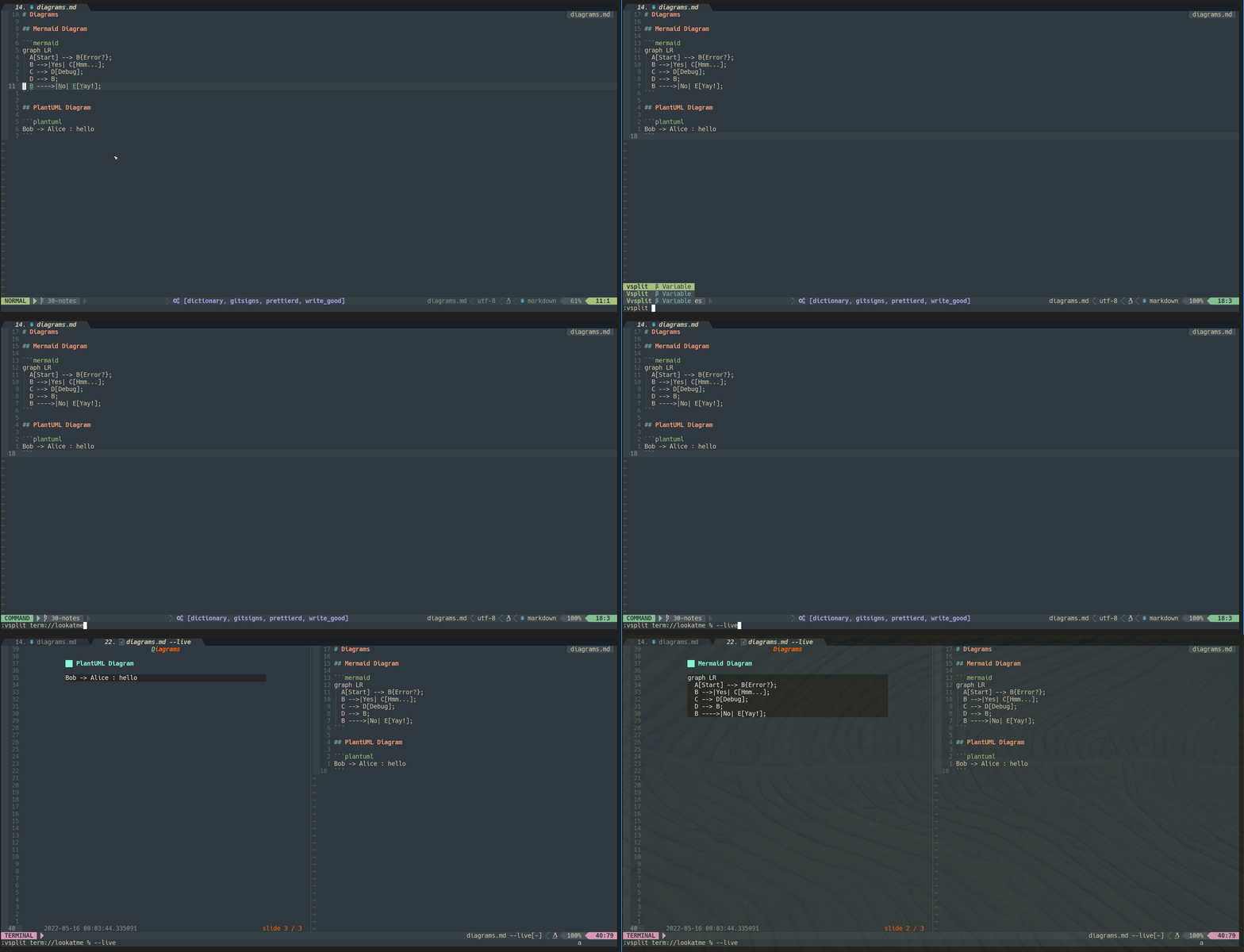
We can create diagrams in Markdown using Mermaid.js or PlantUML, and view them using markdown-preview.nvim or peek.nvim.
For example, we create the following diagrams using Markdown and preview them in the browser.
# Diagrams## Mermaid Diagram
```mermaid
graph LR
  A[Start] --> B{Error?};
  B -->|Yes| C[Hmm...];
  C --> D[Debug];
  D --> B;
  B ---->|No| E[Yay!];
```
## PlantUML Diagram
```plantuml
Bob -> Alice : hello
```
For syntax highlighting, we can use the syntax plugins for Mermaid.js and PlantUML.
To install the plugins using packer.nvim.
-- Markdown
use {
  "iamcco/markdown-preview.nvim",
  run = function()
    vim.fn["mkdp#util#install"]()
  end,
  ft = "markdown",
  cmd = { "MarkdownPreview" },
  requires = { "zhaozg/vim-diagram", "aklt/plantuml-syntax" },
}vim-diagram is a syntax plugin forMermaid.jsdiagrams. The file type must be set tosequenceor the file extensions must be in*.seq, or*.sequence.plantuml-syntax is a syntax plugin forPlantUMLdiagrams. The file type must be set toplantuml, or the file extensions must be in.pu,*.uml,*.plantuml,*.puml,*.iuml.
Other Plugins
venn.nvim — A plugin to draw ASCII diagrams.vim-boxdraw — A plugin to draw ASCII boxes.asciitree.nvim — A plugin to convert selected text into an ASCII tree.ascii-block.nvim — A plugin to quickly convert ASCII boxes into more visually appealing extended UTF-8 boxes.
Other Approaches
For other approaches, check out the following articles.
- Code-based Diagramming
- Text-based Diagramming using Vite and Mermaid
- Text-based Diagramming in Writing Technical Documentation
Presentation
Neorg
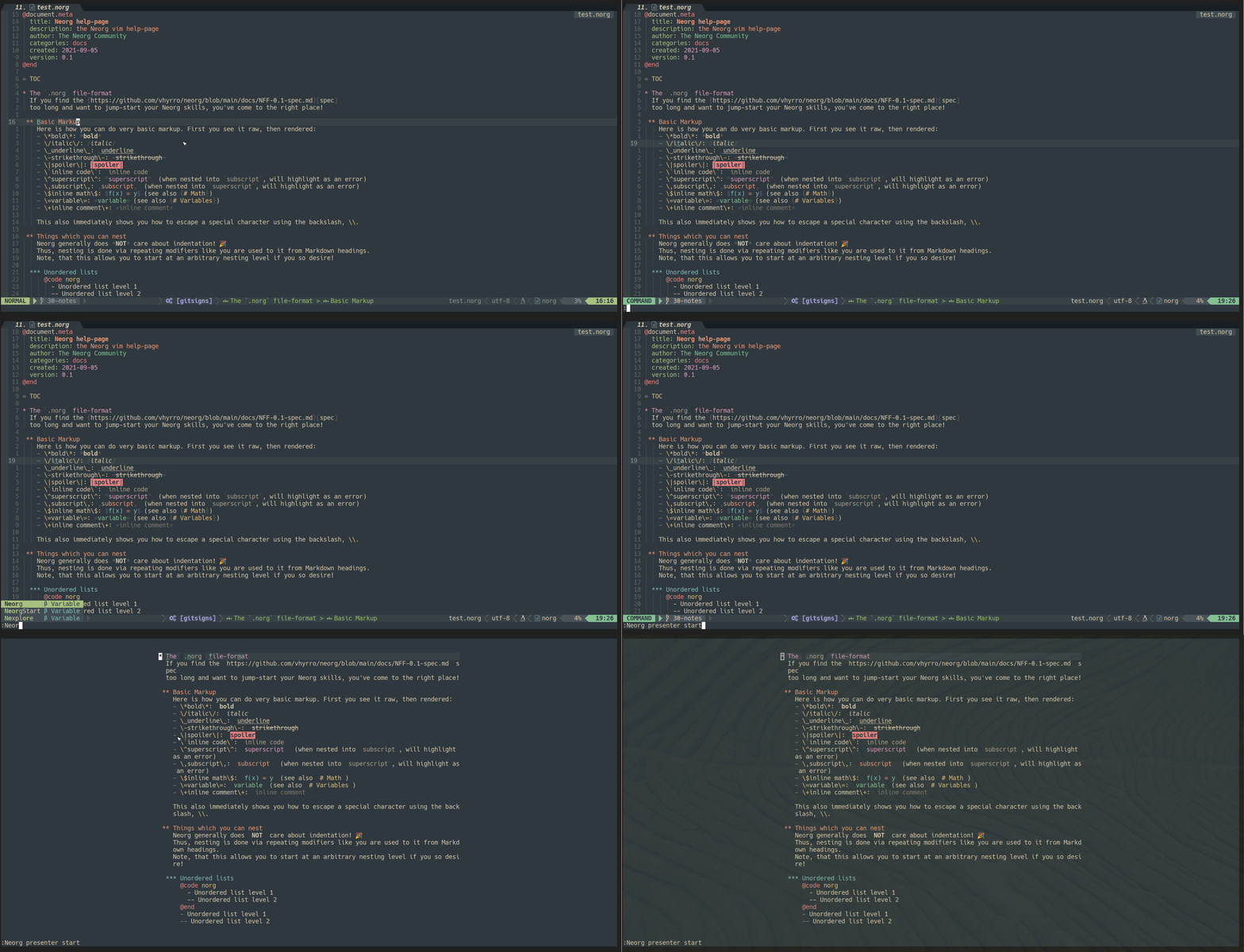
We talked about the Neorg plugin in a previous article. It supports presentation mode now using the Zen mode plugins.
For example, we configure this plugin using packer.nvim.
We can either use the zen-mode.nvim, or TrueZen.nvim plugin.
Slidev
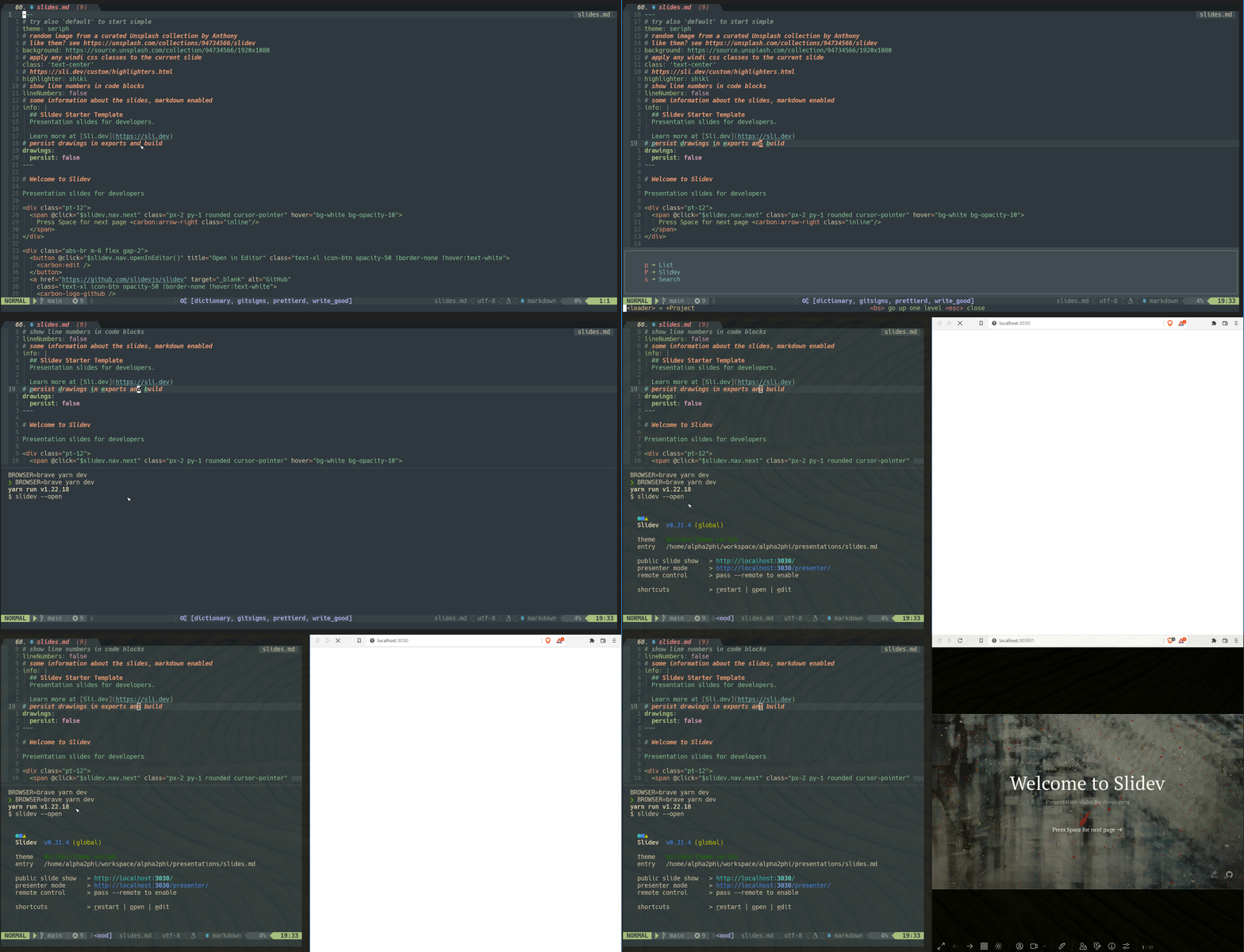
In the Presentation — The Developer’s Way article, we talked about Slidev which is a web-based slides maker and presenter.
There is no editor plugin available for Neovim. However, we can define the key mapping to start the browser to preview the content. Any changes we make can be viewed immediately in the browser.
For example, in the lua/config/whichkey.lua file, we define the key mapping (<leader>pP) to start the Brave browser to view the slides using toggleterm.nvim.
keymap_p = {
name = "Project",
P={ "<cmd>TermExec cmd='BROWSER=brave yarn dev'<cr>", "Slidev" },
LookatMe
Using a similar trick, we can integrate the lookatme command-line Markdown presenter.
For example, we can use the command vsplit term://lookatme % --live to preview and live reload the current Markdown slide.
Notes:
- Another similar command-line Markdown presenter to try is
patat - Install the utility and we can use the command
vsplit term://patat % --watchfor presentation.
Other Plugins
vim-translator
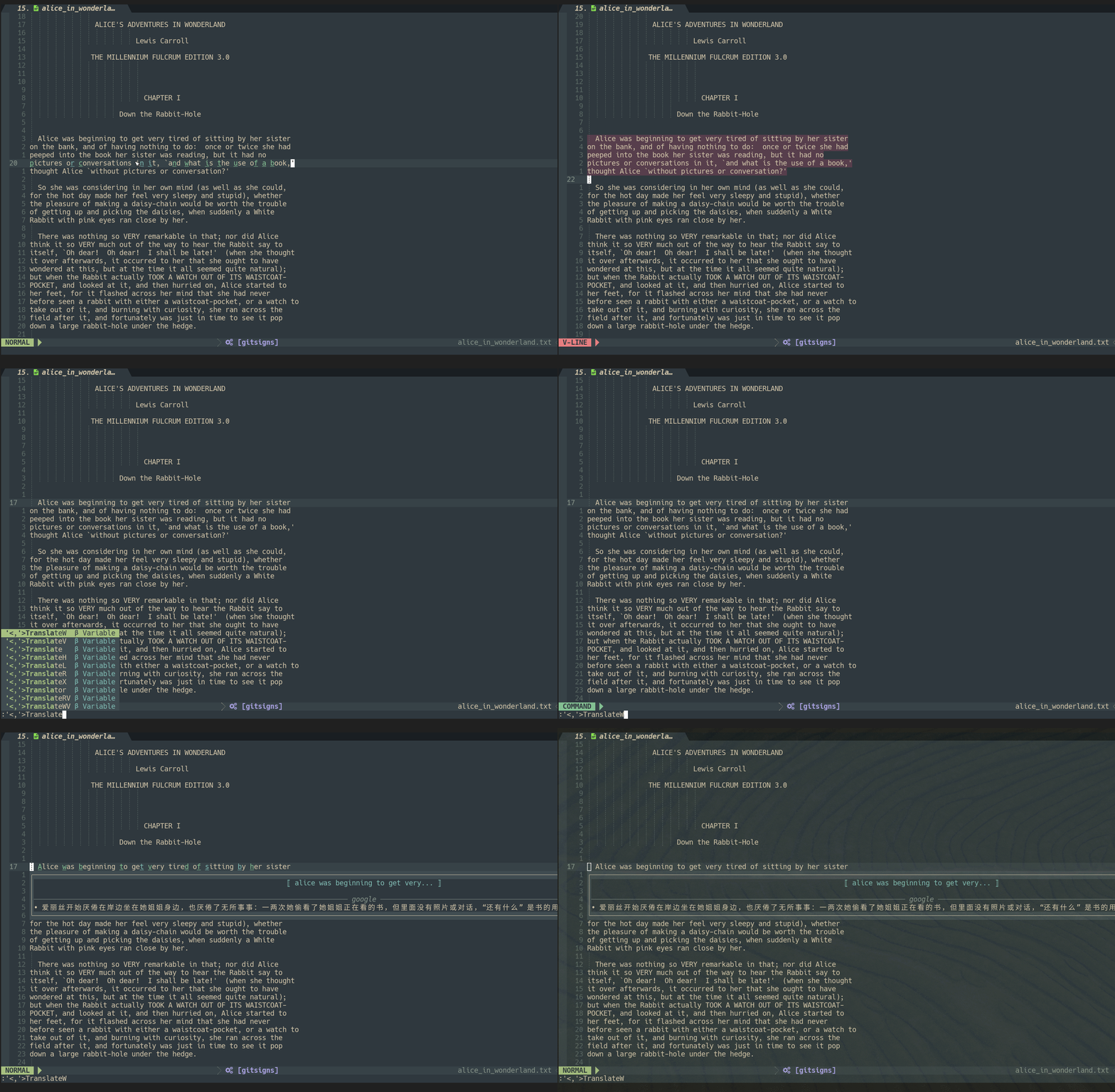
vim-translator comes in handy when we need to translate text in the current document.
To install it usingpacker.nvim.
pantran.nvim
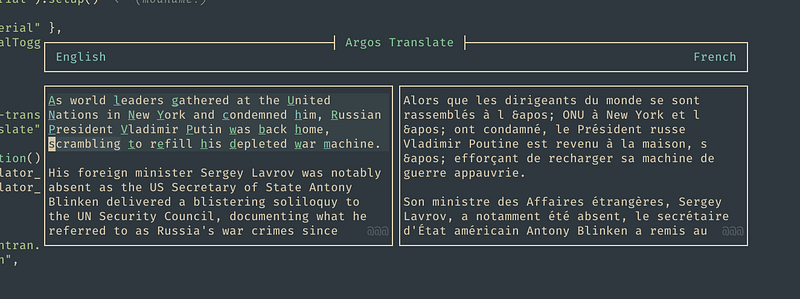
Another great translator plugin is pantran.nvim. It makes use of Neovim’s api-floatwin to implement an asynchronous, interactive machine translation interface, similar to how most of the various machine translation web frontend work.
To install it using packer.nvim.
use {
  "potamides/pantran.nvim"
}
Alternatively, in the Neovim for Beginners — Remote Plugins article, we use Python to develop a translator plugin.
mkdnflow.nvim
mkdnflow.nvim is designed for the fluent navigation of notebooks/journals/wikis written in Markdown.
It is a set of functions and mappings to those functions which make it easy to navigate and manipulate Markdown notebooks/journals/wikis in Neovim.
To install it using packer.nvim.
use {
  "jakewvincent/mkdnflow.nvim",
  config = function()
    require("mkdnflow").setup {}
  end,
  ft = "markdown",
}
In the screenshot below, we use the provided key mappings to increase or decrease the heading and create a link for the current word under the cursor.

ascii.nvim
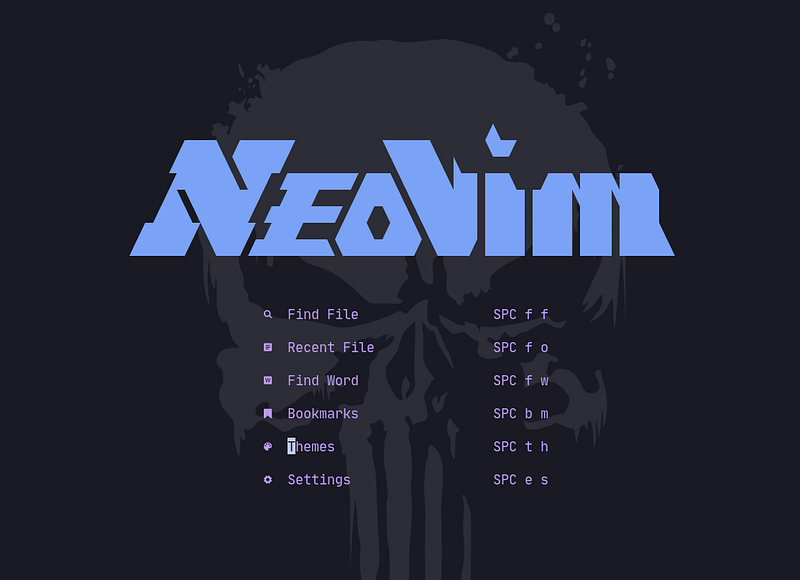
ascii.nvim provides a curated collection of ASCII art and utilities for your Neovim dashboard.
Do check out other plugins from Awesome Neovim.
Check out Learn Neovim The Practical Way for all the Vim/Neovim articles!
If you are not a Medium member yet and want to become one, click here (A part of the subscription fee will be used to support alpha2phi).


