
Neovim for Beginners — Managing Projects
Manage multiple projects using Neovim.
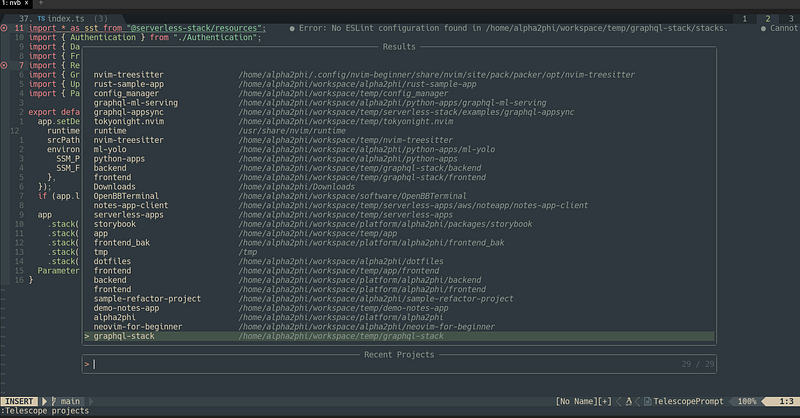
Managing multiple projects is always challenging. In this article, we will see how Neovim can help us. We are going to
- Configure the buffer line to make it easy to use tabs for multiple projects.
- Configure plugins to search for projects in the file system.
- Configure plugins to switch among multiple projects.
- Explore plugins to manage sessions and the working directory.
This article is part of the Neovim for Beginners series.
The Neovim configuration files can be found in this repository.
Getting Started
This article provides tips and tricks that we can use to manage multiple projects. In a previous article, I have shown you the basic Vim/Neovim way of managing projects, plugins and Lua scripts to manage and switch projects, and useful Tmux plugins if we use Tmux to manage multiple Vim/Neovim sessions.
Do go through the article if you are new to Vim/Neovim.
Every developer has a different workflow for managing projects. I used Tmux + Neovim previously. The tips in this article are my current workflow.
Tabs for Multiple Projects — Configure Buffer Line
The usual Vim/Neovim way of managing multiple projects is to use 1 tab per project. There are challenges to using this approach. For example,
- We want to see the buffers related to the active tab/project only.
- We want to navigate, pick or close the buffers related to the current project only.
We used bufferline.nvim to manage the buffer line. Let’s configure it to fit our requirements.
Project Files by Tabs
The behavior that we want would be
- If there is only 1 tab, files for all projects should be shown at the buffer line. No changes to any default Neovim behavior.
- If there is more than 1 tab, each tab should only show the files related to the projects.
In the lua/config/bufferline.lua file, we add the custom filer function.
- The custom filter function checks the number of current tab pages.
- If the count of the tab pages is more than 1, for the same tab it will show the buffers if they all belong to the same working directory.
- If the count of the tab pages is 1, no check is performed.
For example, in the screenshot below, we use Telescope to search for a file in a different project and use Ctrl-T to open it in a different tab.
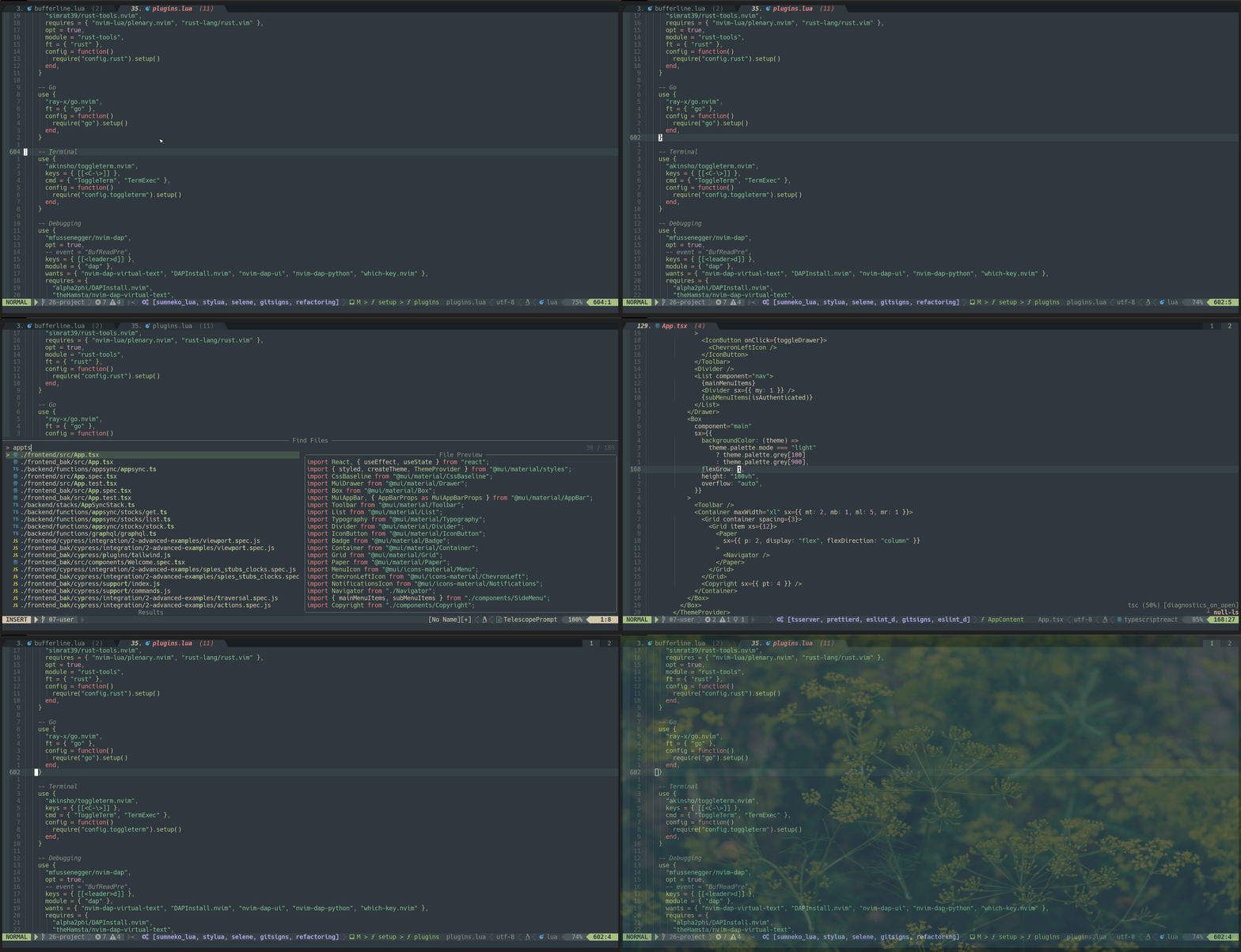
We can see each tab shows buffers/files for the current project only.
Navigate, Pick, or Close Project Files
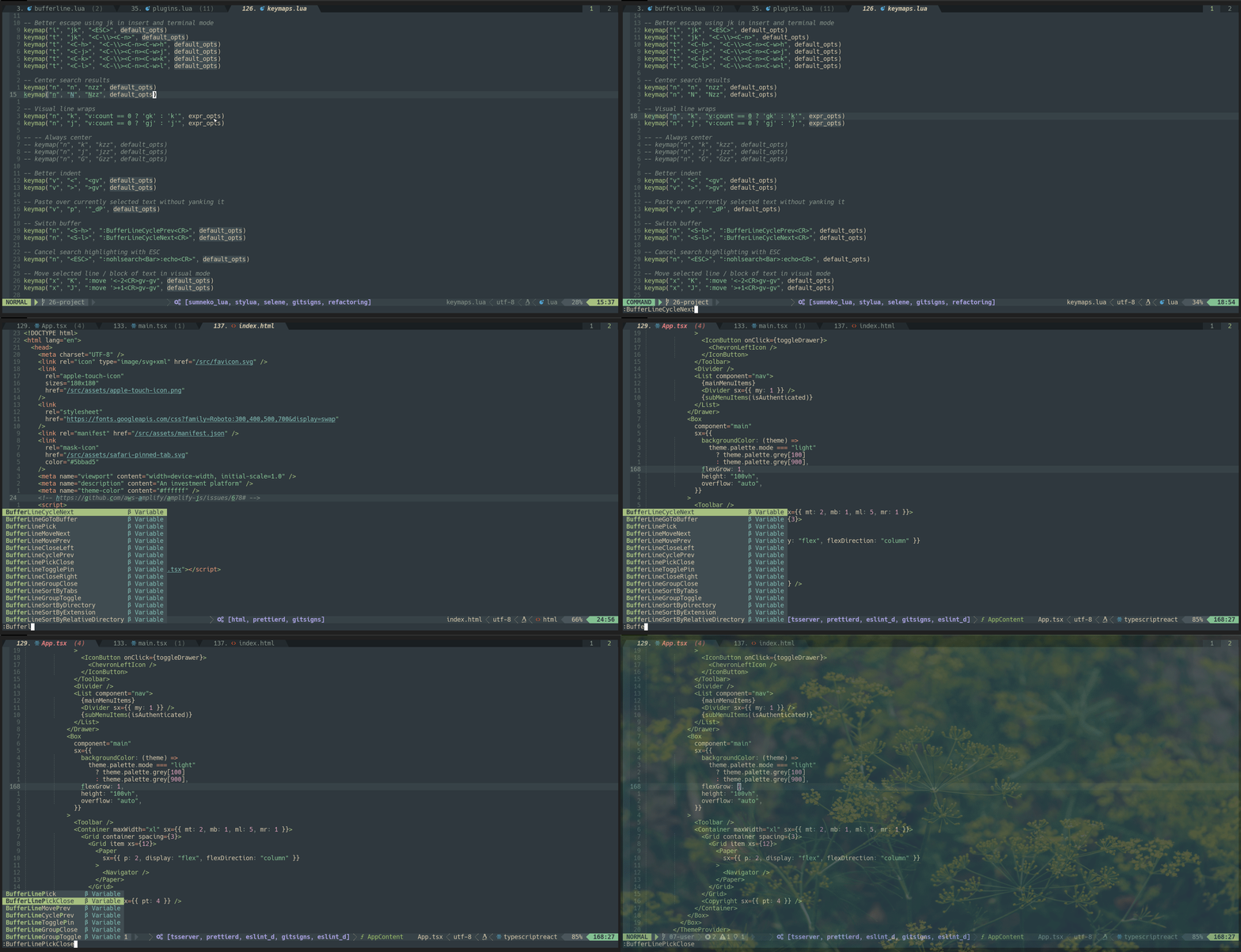
We can use the following commands to navigate, pick or close the buffers for the active tab.
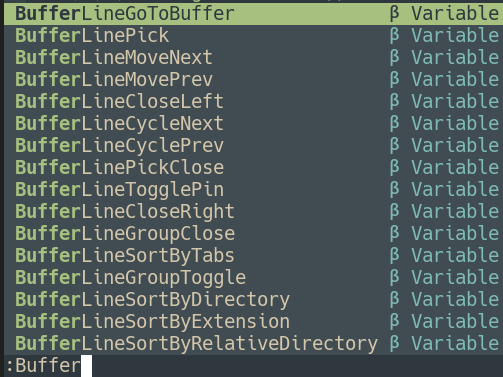
For example,
- We can use
BufferLineCycleNextorBufferLineCyclePrevto go to the next or previous buffer in the current tab. - We can use
BufferLinePickto go to a particular buffer. - We can use
BufferLinePickCloseto close a particular buffer.
Tip:
- Configure the key mappings for these commands to make them easier to use. E.g. I mapped
Shift-htoBufferLineCyclePrev, andShift-ktoBufferLineCycleNext.
Searching Projects
There are multiple ways to search for projects in the current file system. The simplest way is to use telescope-repo.nvim.
telescope-repo.nvim
We talked about this plugin in a previous article. It is a Telescope extension that searches the filesystem for git (or other SCM, like Pijul, Mercurial…) repositories.
It does not require any setup. The list of repositories is built on the fly from the $HOME folder. We can customize it to include or exclude folders from the search.
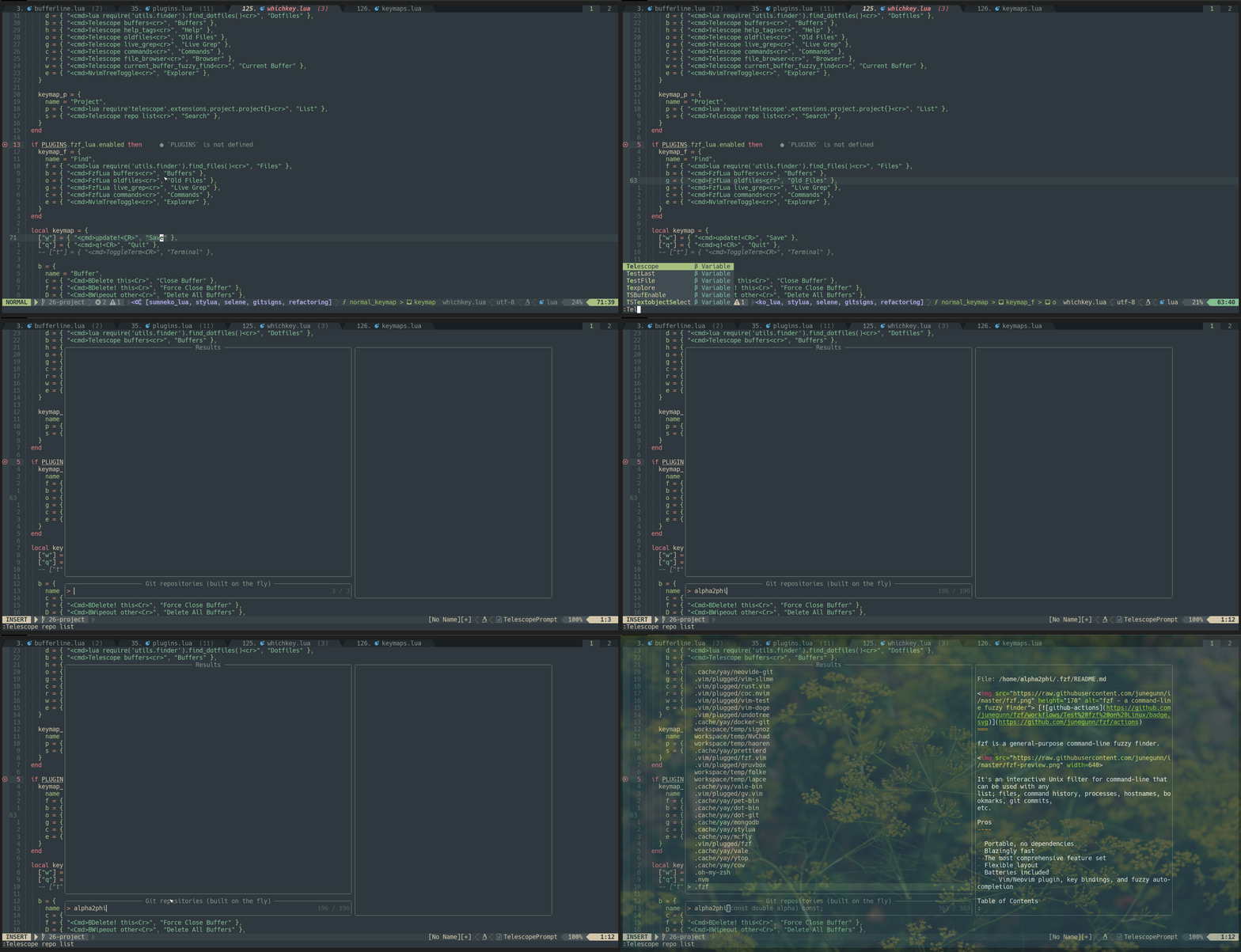
We can also use plugins like fzf.vim, or fzf-lua to search for projects. Check out these articles for details.
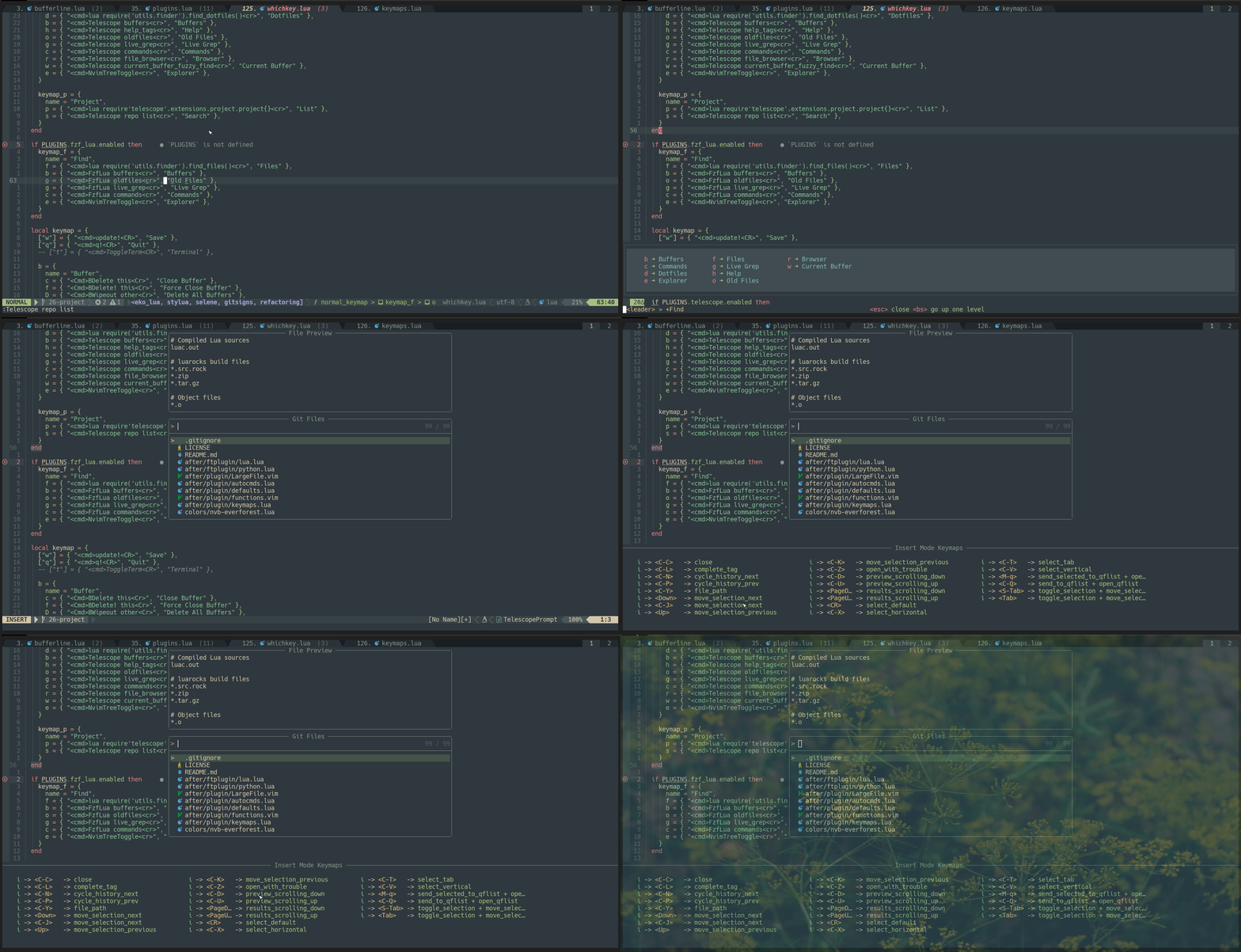
Tip:
- We do not need to remember all the Telescope key mappings. Use
Ctrl-/(insert mode), orCtrl-?(normal mode) to show the mappings.
telescope-file-browser.nvim
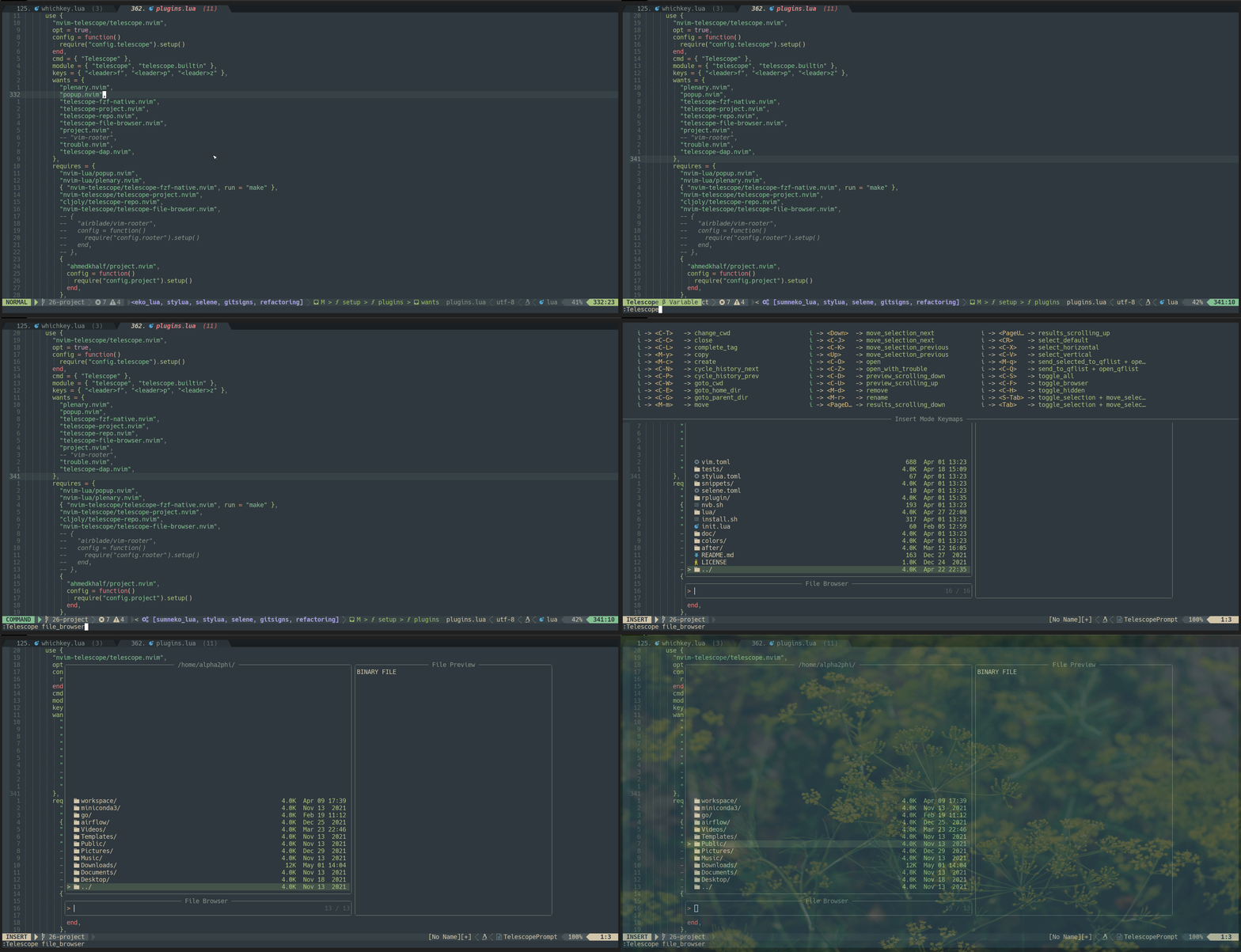
We can also use telescope-file-browser.nvim to search files and folders in the current file system.
Switching Projects
Once we can search for new projects and open them in Neovim, we can easily switch among different projects.
Again, there are multiple ways to do this.
Telescope Old Files
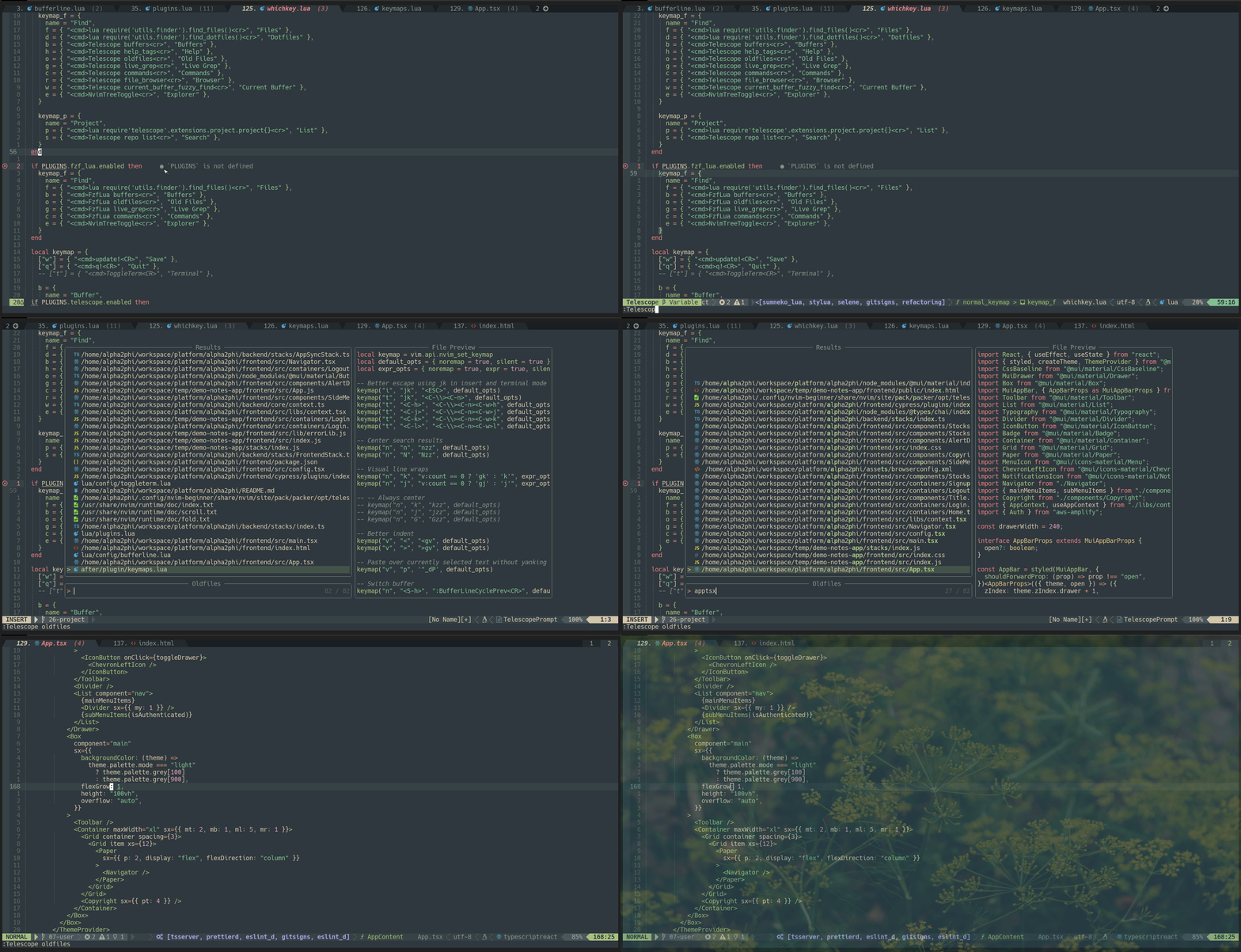
By default, Telescope provides an oldfiles command to search for files that have been opened before.
In the screenshot below, we use this command to search for a file for another project, and press Ctrl-T to open it in a different tab. Now each tab should contain files related to its project only.
Telescope Frecency
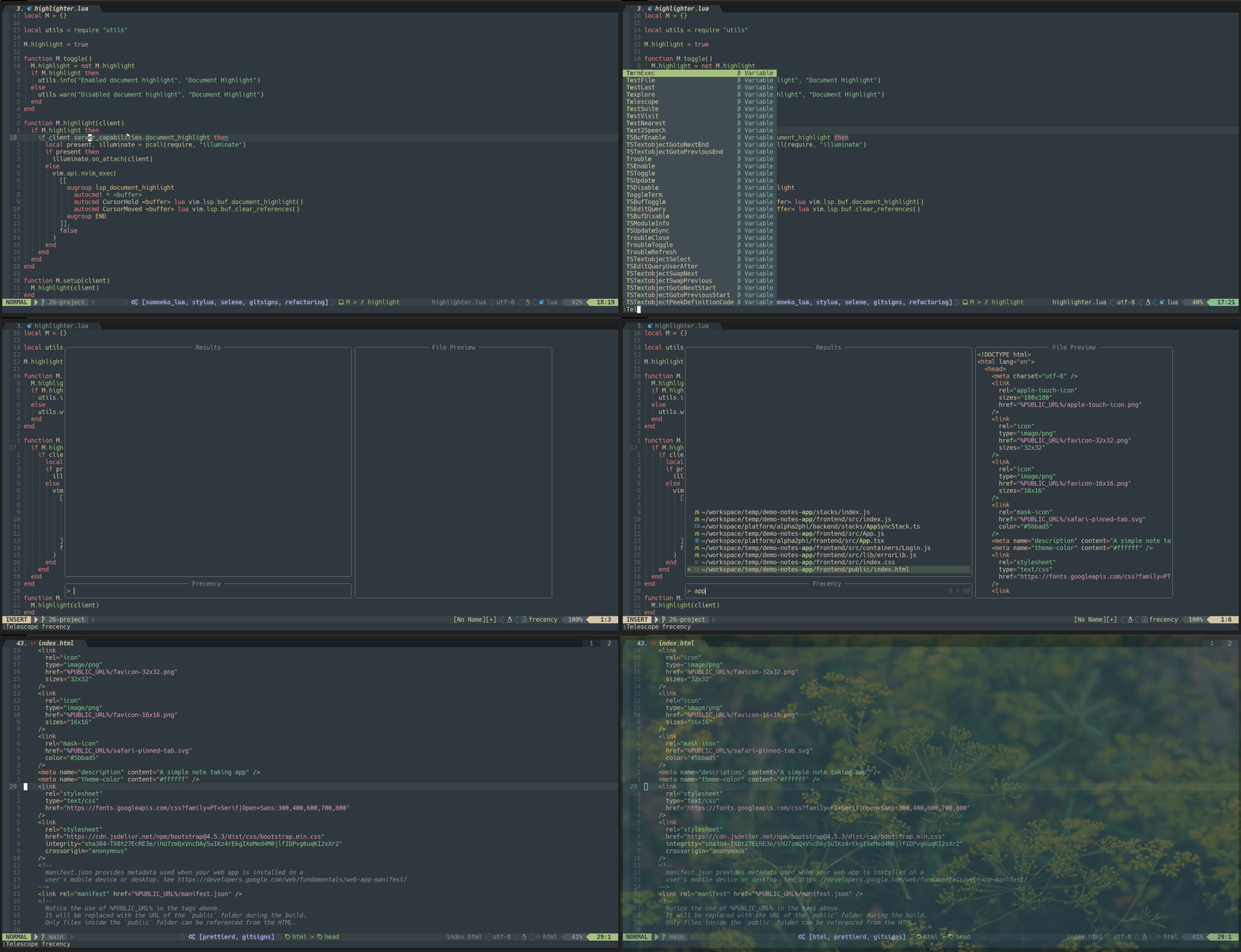
telescope-frecency.nvim is aTelescope extension that offers intelligent prioritization when selecting files from the editing history. Using this plugin, we can search for recent project files and open them in another tab.
Telescope Project
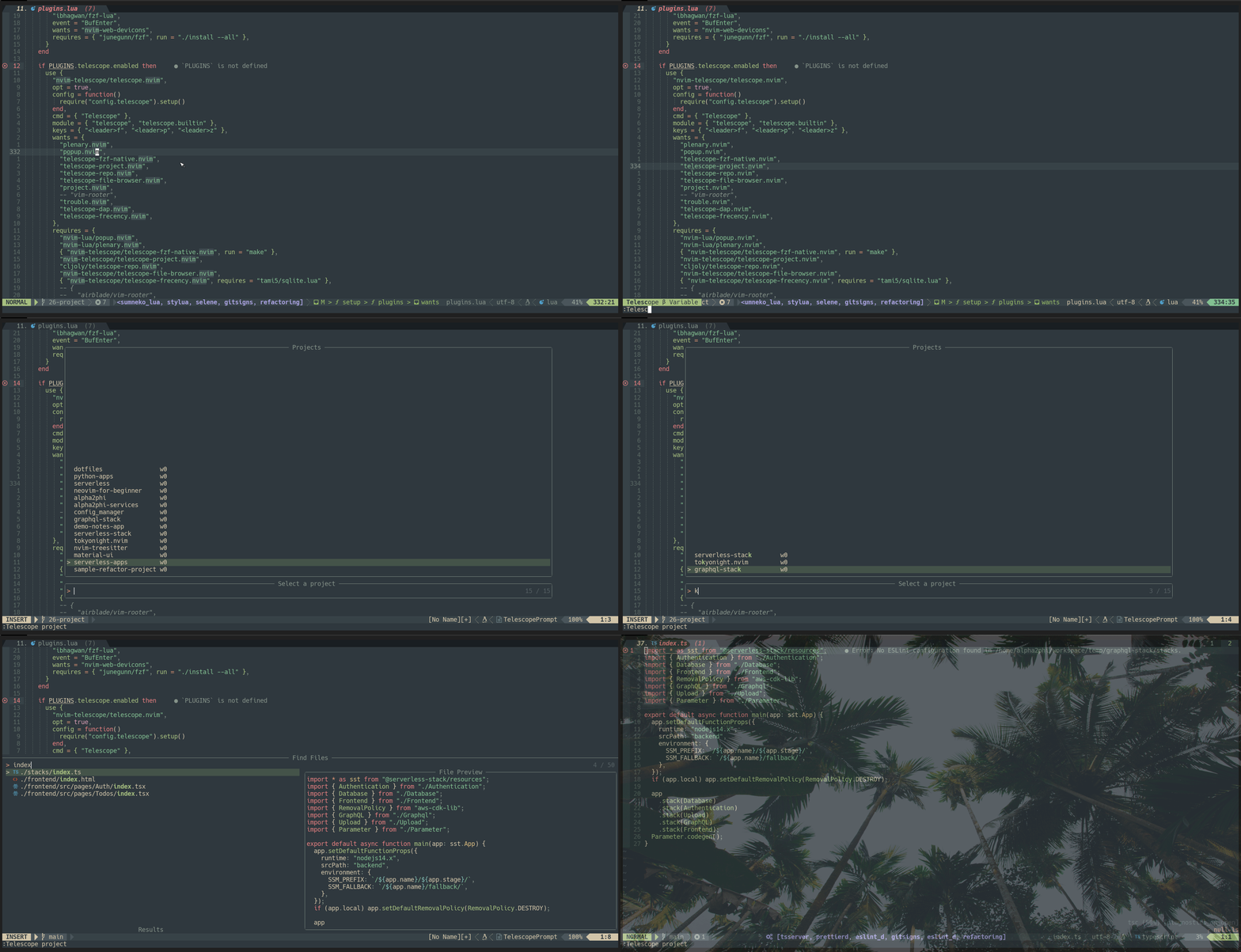
We talked about this plugin several times. telescope-project.nvim is a Telescope extension that allows us to bookmark projects and switch among them easily.
project.nvim
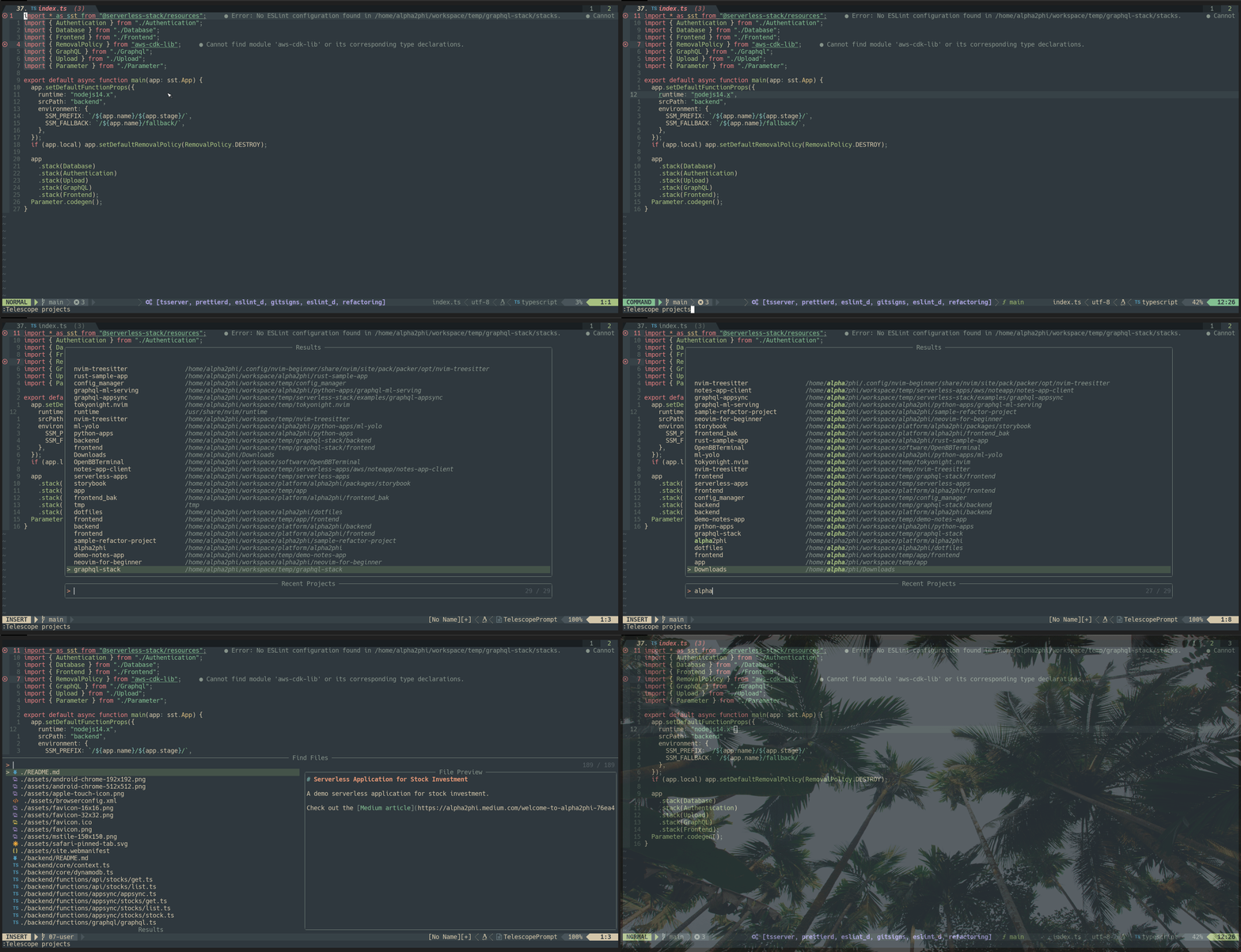
project.nvim is an all-in-one Neovim plugin that provides superior project management. It has features similar to vim-rooter that automatically change the project working directory and also features to find, browse and search project files.
Change Working Directory
When we switch among multiple projects, the working directory also has to be changed. The built-in Neovim autochdir (:h autochdir) option can be used but sometimes it does not work correctly to set the working directory based on the .git folder.
There are 2 plugins we can use.
We will useproject-nvim for our configuration. In the lua/config/project.lua file, we configure it to detect the working directory based on the .git folder.
Session Management
Vim/Neovim session makes it easy for us to restore the project workspace.
For a simple session management solution, check out the previous article in which we develop a Lua module in around 100 lines of code to save, list, delete and track Neovim sessions.
There are numerous plugins for session management. Below we list several of them.
obsession.vim from tpope.rmagatti/auto-session and theSession LensTelescopeextension.vim-startify that provides a fancy startup screen and session management features.
Plugins for Focused Coding
Lastly, while there is a need to switch and work on multiple projects, there are times we need to focus on one particular project. Here are several plugins to help.
- For distraction-free coding, we can use
zen-mode.nvim,TrueZen.nvim, orgoyo.vim. - For even more focused code editing, we can use
yode-nvim, orNrrwRgn to focus on a selected part of our code
Check out Learn Neovim The Practical Way for all the Vim/Neovim articles!
If you are not a Medium member yet and want to become one, click here (A part of the subscription fee will be used to support alpha2phi).


