
Neovim for Beginners — Java
Use Neovim for Java application development.
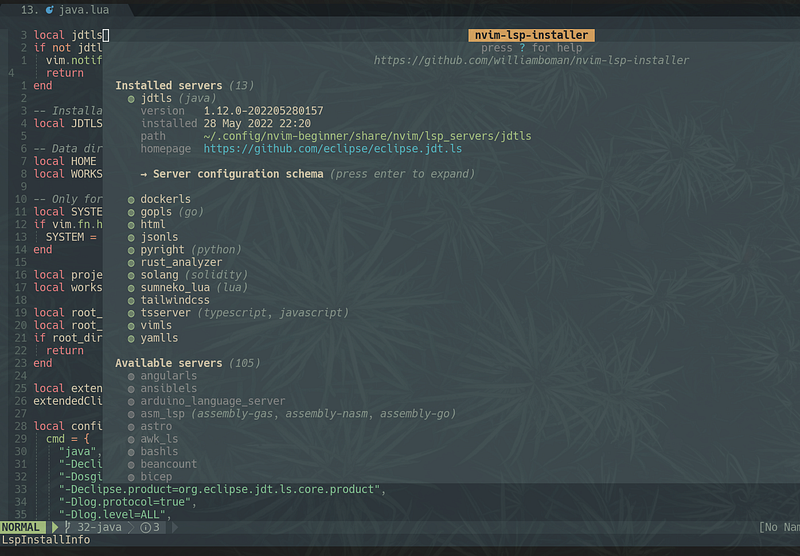
We have already configured Neovim for languages like Python, JavaScript, TypeScript, Rust, Go, Lua, HTML, etc. In this article, let’s check out how we can use Neovim for Java application development.
This article is part of the Neovim for Beginners series.
The Neovim configuration files can be found in this repository.
Getting Started
Java Development Kit (JDK)
Depending on the operating system, we need to install OpenJDK or Oracle JDK.
Language Server
For the language server, we can use eclipse.jdt.ls.Installing the language server is easy by using nvim-lsp-installer.
Type the command :LspInstall jdtls to install the language server. Alternatively, type the command :LspInstallInfo, select jdtls and press i to install.

The installation folder can be found under the standard path location.
local JDTLS_LOCATION = vim.fn.stdpath "data" .. "/lsp_servers/jdtls"We will use this trick later to avoid hard-coding the location.
Configuration
Let’s get started with the configuration.
Plugin — nvim-jdtls
In the lua/plugins.lua file, add the following lines to install the nvim-jdtls plugin using packer.nvim.
use { "mfussenegger/nvim-jdtls", ft = { "java" }File Type Plugin
Create the Java file type plugin after/ftplugin/java.lua file with the following Lua code. We will go through the code in more detail.
- We make a protected call to the
jdtlsmodule (line 1 — line 5). If it is not available we skip the configuration. - The
JDTLS_LOCATIONis derived from the Neovim standard path location.
local JDTLS_LOCATION = vim.fn.stdpath "data" .. "/lsp_servers/jdtls"The variable is used in the language server configuration to avoid hard coding (line 46 — line 49).
"-jar",
vim.fn.glob(JDTLS_LOCATION .. "/plugins/org.eclipse.equinox.launcher_*.jar"),"-configuration",
JDTLS_LOCATION .. "/config_" .. SYSTEM,- For the data directory, we configure it to be under the
HOMEfolder.
-- Data directory - change it to your liking
local HOME = os.getenv "HOME"
local WORKSPACE_PATH = HOME .. "/workspace/java/"
local project_name = vim.fn.fnamemodify(vim.fn.getcwd(), ":p:h:t")
local workspace_dir = WORKSPACE_PATH .. project_nameIt is used to configure the data directory parameter (line 50 — line 51).
"-data",
 workspace_dir,
Ensure the data directory is different from the project folder to avoid the issue mentioned here — Cannot detect the project, only syntax errors are reported.
- For formatting, we prefer the Google style (line 81 — line 86).
format = {
  enabled = true,
 settings = {
   url = vim.fn.stdpath "config" .. "/lang-servers/intellij-java-google-style.xml",
    profile = "GoogleStyle",
  },
},- We also add the following
jdtlscommands (line 136).
require("jdtls.setup").add_commands()
Key Mappings
In the lua/config/whichkey.lua file, we configure the key mappings for the Java file type.
We add the key mappings to organize imports and extract variable/constant/method in both normal and visual modes.
Testing
Let’s try this out with a Spring Boot project.
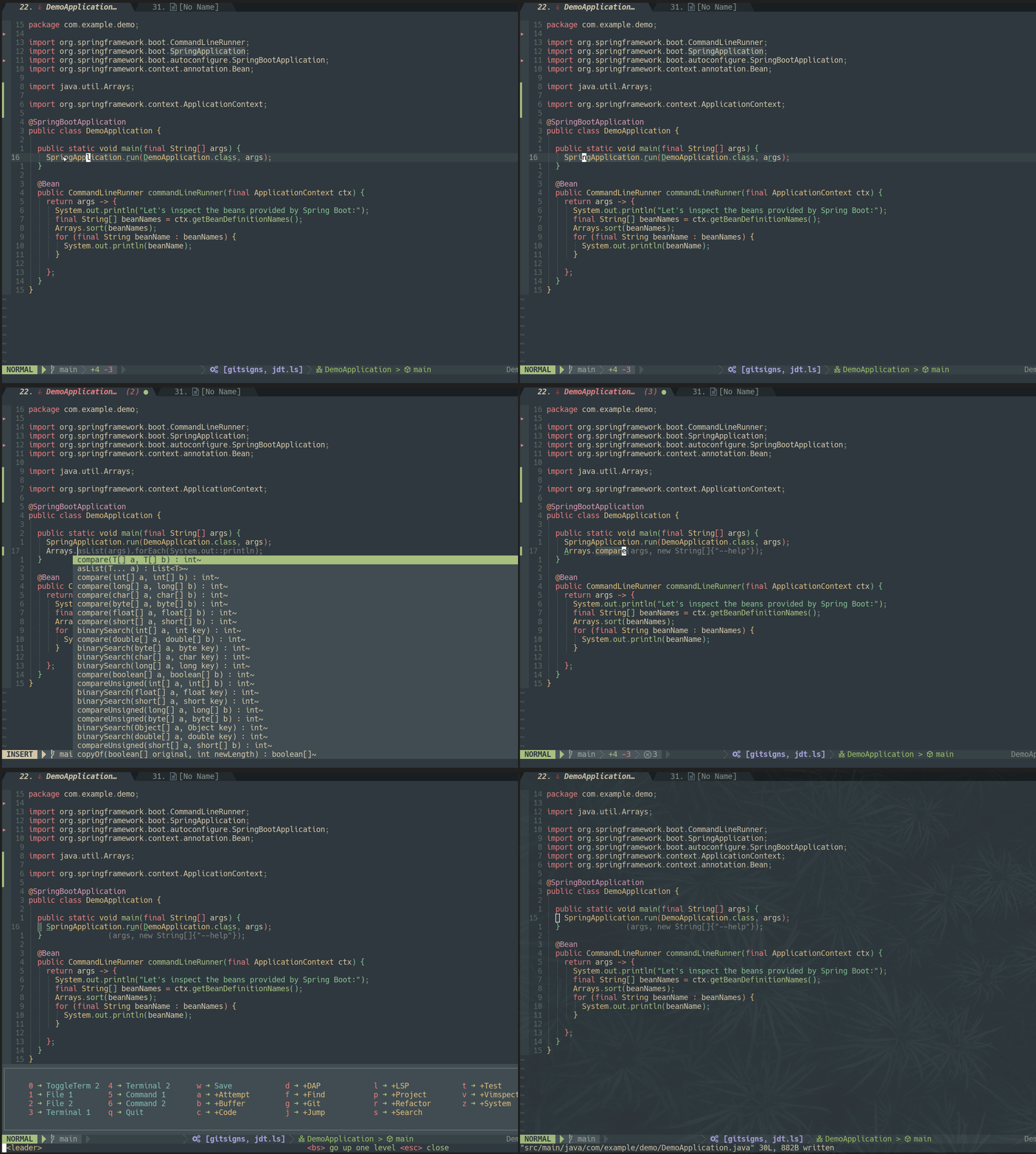
- The language server works now and
nvim-cmpis used as the completion engine. - Any error or diagnostic messages are displayed.
- The code is formatted automatically when the buffer is saved.
- The
importsare organized when we invoke the command.

- From the code actions menu, we can generate the
toStringmethod, extract the method, generate the constructor, and perform other refactoring actions depending on the current cursor location. - We can select the code, and extract the constant, variable, or method.
Note: If you encounter any error and the language server is not attached to the buffer, make sure the JDK is compatible with jdtls.
Formatting
For anyone who prefers the Google Java formatting style, we can use the null-ls.nvim formatter.
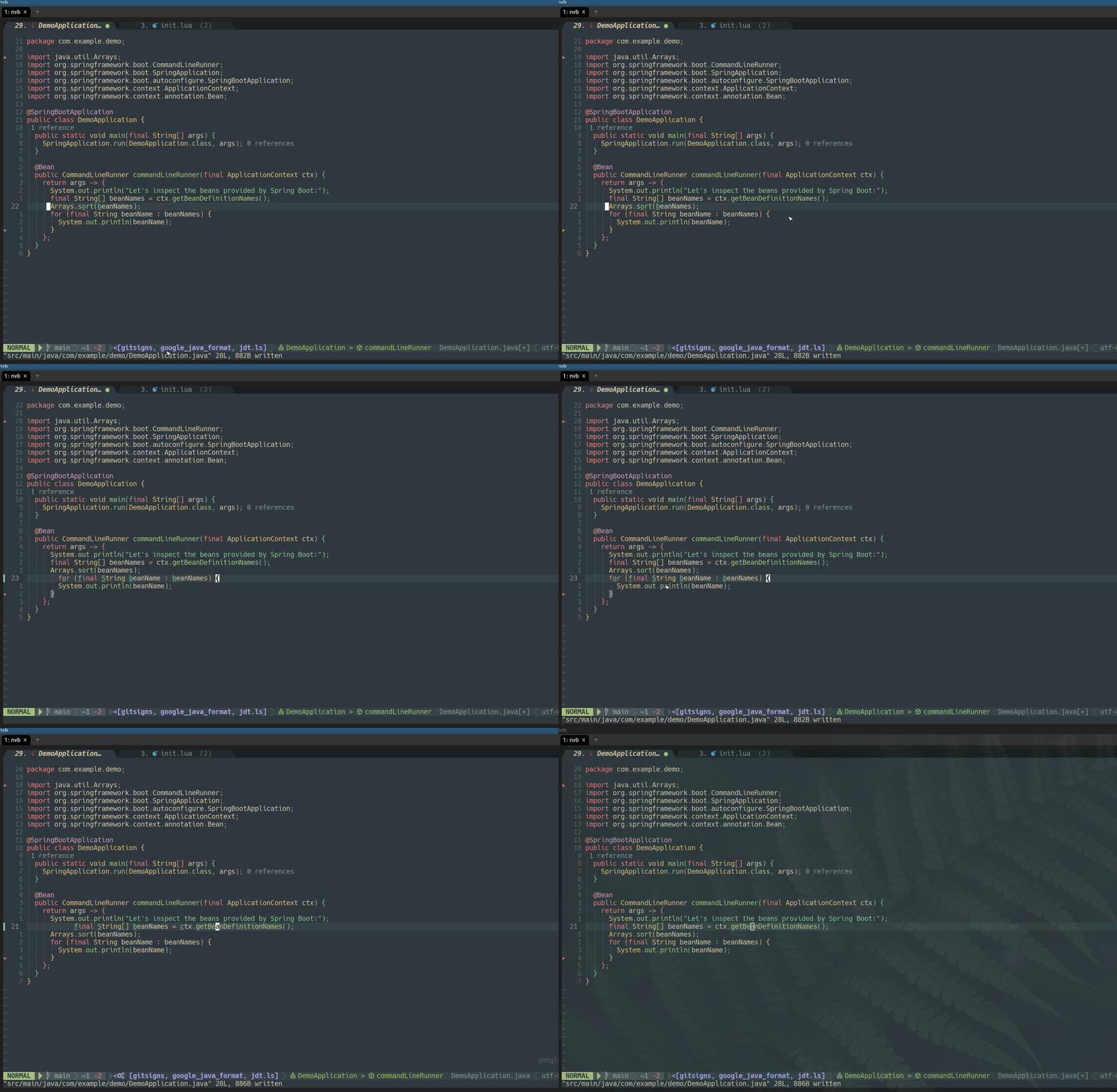
Check out this article on how to configure thenull-ls.nvim plugin.
In the following article, we will configure Neovim to debug a Java application.
Other Plugins
Do also check out jc.nvim which is a Java completion plugin that automates the installation of jdt.ls and provides many more features.
Check out Learn Neovim The Practical Way for all the Vim/Neovim articles!
If you are not a Medium member yet and want to become one, click here (A part of the subscription fee will be used to support alpha2phi).


