
Neovim for Beginners — Fuzzy File Search (Part 2)
Gaze deeply into fuzzy searching using Telescope.

We learned how to search for files efficiently with and without plugins. In this second part of fuzzy searching, we are going to
- Configure
Telescopewhich is a highly extendable Lua-based fuzzy finder. - Configure extensions to search and navigate projects. With this, we can manage all our projects without leaving Neovim.
- Customize the pickers to search for dotfiles, and skip any binary or large files.
- Customize the file pickers and use a custom action to yank the full file path.
- Change the default theme, and customize the theme to fit our needs.
For Part 1, check out this article.
This article is part of the Neovim for Beginners series.
The Neovim configuration files can be found in this repository.
Basic Setup
Let’s start with a basic installation of the plugin.
Installation
In the lua/plugins.lua file, add the following lines.
- We configure
Telescopeas an optional plugin, and specify the command, module, and keys to load the plugin. Check out the plugin management article if you are not sure what this means. plenary.nvimandpopup.nvimcontain the Lua modules and functions needed byTelescope. The plugins are also used by many other plugins.telescope-fzf-native.nvim is a sorter extension that provides a native FZF sorter that uses compiled C to do matching. For better performance, we should install either thefzf orfzy sorter extension.telescope-project.nvim is an extension that allows us to switch between projects easily.telescope-repo.nvim is an extension that searches the file system for Git repositories.telescope-file-browser.nvim is a file browser extension that supports synchronized creation, deletion, renaming, and moving of files and folders.- We also installed
project.nvim that automatically change the current working directory to the project directory using LSP. - There are many extensions available. Check out the list here.
Create the configuration file lua/config/telescope.lua with the following content.
- By default
TelescopeusesCtrl-nandCtrl-pto move up and down on the selection. I prefer to useCtrl-jandCtrl-kinstead. I remapCtrl-nandCtrl-pto cycle between the historical searches (:h telescope.defaults.mappings). - Check out the default mappings table. E.g. we can use
Ctrl-/to show the help in insert mode,?to show the help in normal mode,Ctrl-tto open the file in a tab,Ctrl-xandCtrl-vto open the file in a horizontal or vertical split,Ctrl-qto send all items to the quick-fix list, etc. - For all the extensions, we need to explicitly load them (line 20 — line 24).
Note: We use a global variable to enable and disable the plugins. It is declared in the lua/config/init.lua file, and require in the main init.lua file.
File Explorer Integration
Previously we installed nvim-tree as our file explorer. For better integration, we want the file explorer to automatically change the working directory to the current buffer.
In the lua/config/nvimtree.luafile, add line 14 to line 21.
Key Mappings
In the lua/config/whichkey.lua file, add the key mappings for common Telescope functions (line 1 to line 20).
- We configure
<leader>fto useTelescopeto search files, buffers, and old files, perform live grep, list all available commands, and open the file browser (usingtelescope-file-browser.nvim). These features are calledpickersinTelescopeterminology. - There are many more built-in pickers. There are File pickers (
find_files,git_files,live_grep,grep_string), Vim pickers (buffers,commands,oldfiles,search_history,help_tags,man_pages,marks,colorscheme,registers,jumplist,current_buffer_fuzzy_finder, etc), Neovim LSP pickers (lsp_references,lsp_document_symbols,lsp_workspace_symbols,lsp_code_actions,diagnostics,lsp_definitions, etc), Git pickers (git_commits,git_bcommits,git_branches,git_status,git_stash), and Lists pickers (planets,builtin,reload,symbols). - We configure
<leader>pto navigate to projects usingtelescope-project.nvim(<leader>pp), and search for all Git repositories in the file system usingtelescope-repo.nvim(<leader>ps).
Tips:
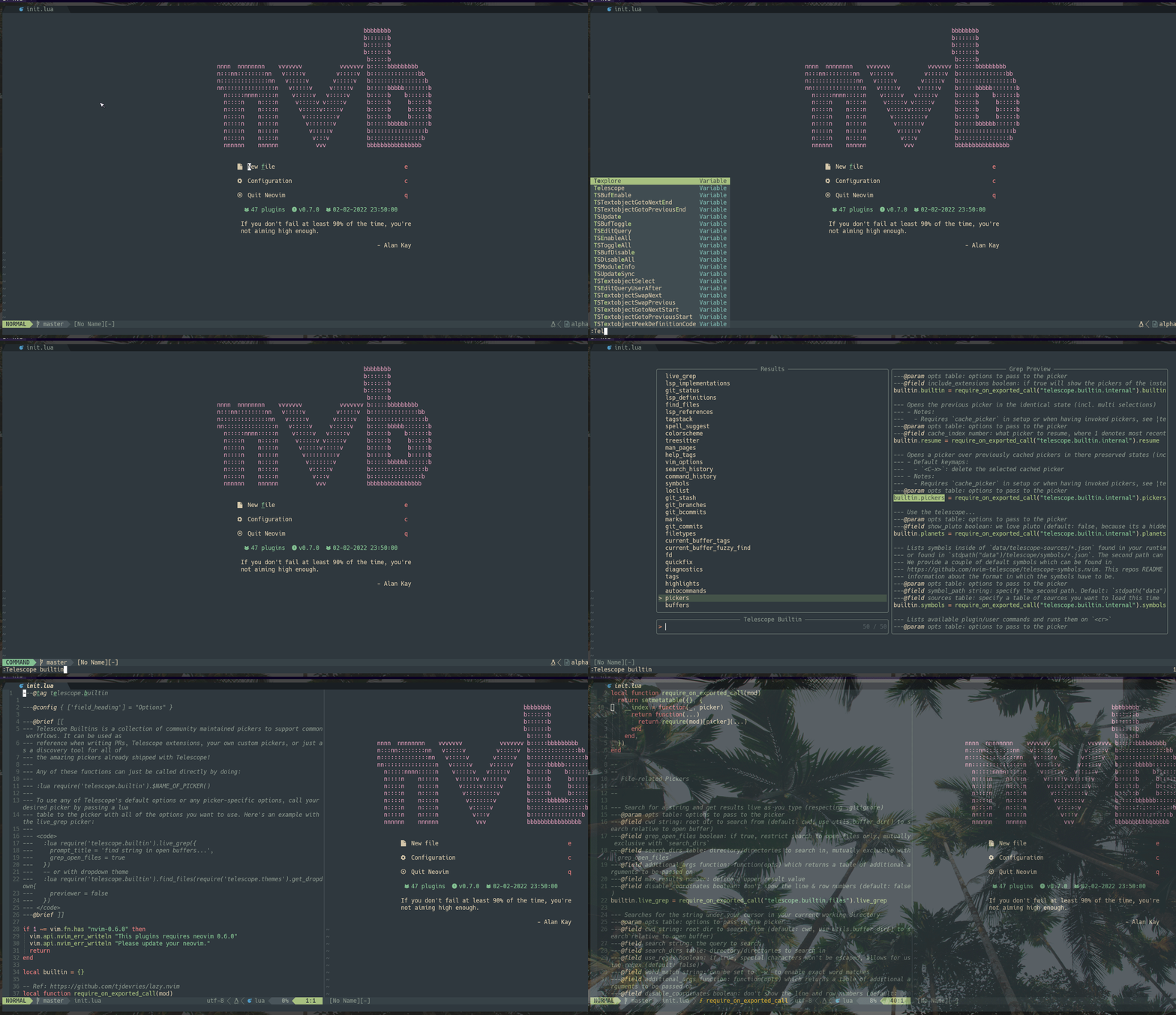
- To see all the built-in pickers, type
:Telescope builtin. - To see the source code of the built-in pickers, press
Ctrl-von the selected picker.
Custom Search
In the lua/utils/finder.luamodule, we modify the find_files function to either search for Git files if we are inside a Git repository or the file system.
Screenshots
Run the :PackerInstall command to install the plugins.
Now we can search and browse files, folders, commands, perform live grep, etc using <Leader>f.

We can search for all existing Git repositories, and add them to the project list. This makes project management and navigation extremely easy. We can manage all our projects without leaving the editor.

- Press
<Leader>psto search for all existing projects in the file system. - Once the project is loaded, press
<Leader>ppto open the project list, and press<Ctrl-a>in insert mode to bookmark the project.
Tip: You do not need to remember all the key bindings. Press Ctrl-/ in insert mode, or ? in normal mode to see all the possible key bindings.
Basic Customization
Let’s see how to further customize Telescope to fit our coding workflow.
In Telescope terminology, we can customize the pickers, sorters, previewers, and also the layout and theme.
For pickers, we can apply the customization globally or individually. Several configuration recipes are worth exploring.
Picker — Search for dotfiles
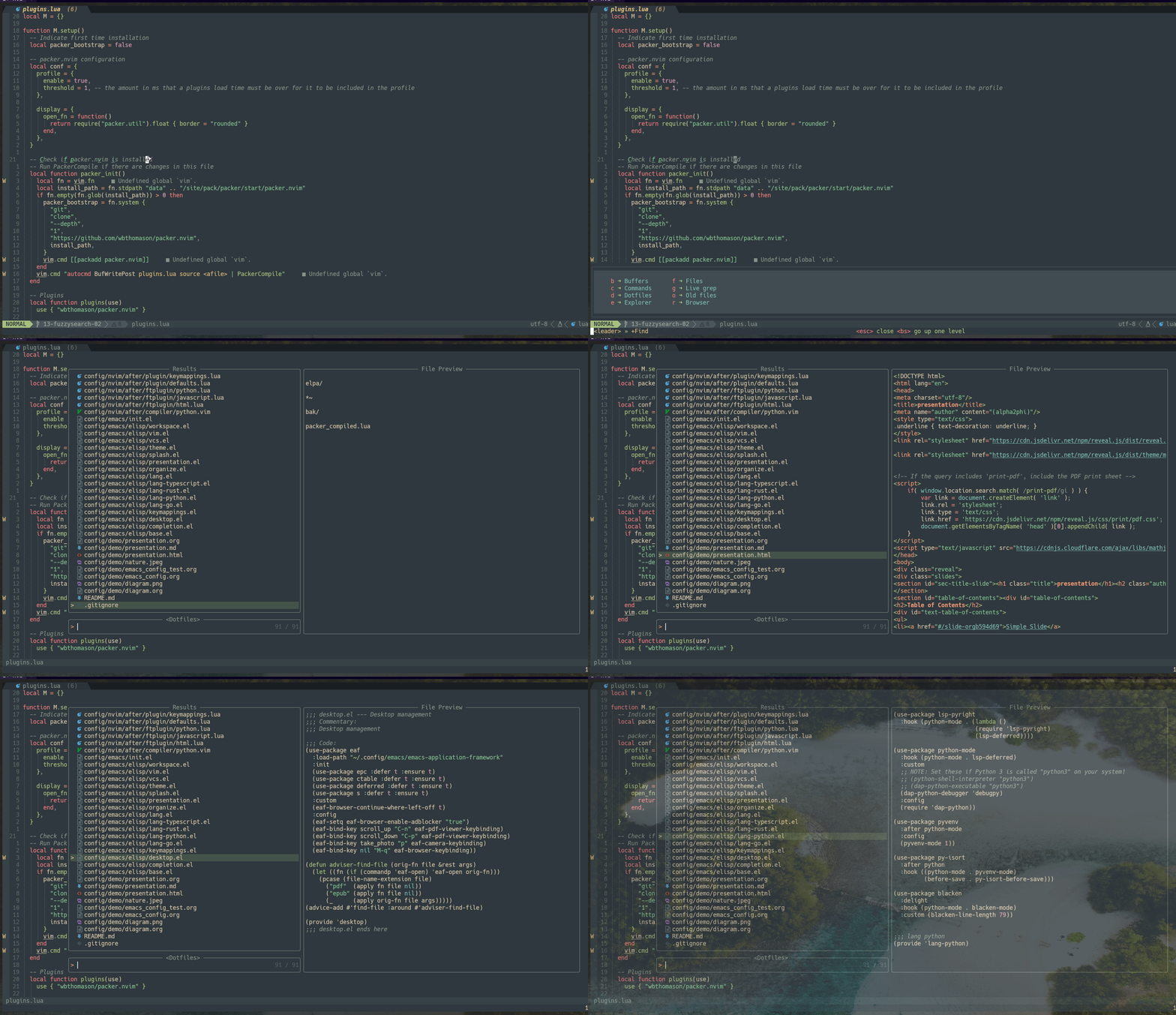
To make it easy for us to search the dotfiles, let’s create a custom search picker.
In the lua/utils/finder.lua file, add the following function.
In the lua/config/whickey.lua file, add the mapping for this function (line 4).
Now we can easily search the dotfiles.
Previewer — Binary File and Big File
The code below is taken from the configuration recipes.
In the lua/config/telescope.lua file, we add the previewer code to skip the binary file and file with a size bigger than 500kb (line 7 to line 43).
Now the previewer will skip the binary file, and file with a size exceeding 500kb.

Picker — Custom Action to Yank File Path
Let’s create a custom action for the file pickers to get the full path of the selected file.
E.g. if we select a file named abc.txt, press y (in normal mode), Ctrl-y (in insert mode) should yank the full path (/x/y/z/abc.txt) into the unnamed register.
In the lua/config/telescope.lua file, add line 3 to line 18 for the custom action, and line 38 to line 61 for the pickers configuration.
- For the
find_filespicker, we set the theme toIvy, and for thegit_filespicker we set the theme toDropdown. - For both pickers, we configure the custom action called
nvb_actions.file_pathfor they(normal mode) andCtrl-y(insert mode) keys. - For the custom action
nvb_actions.file_path, we get the selected entry, derive the full path of the file, set the value into the unnamed register, and close the popup up window.

Theme
Telescope has several built-in themes (:h telescope.themes) that we can apply to the pickers.
Drop Down
Type the Lua function below to find files using the Dropdown theme.

Ivy
Alternatively, we can use the command, e.g. type the following command to use the Ivy theme.
:Telescope find_files theme=ivy

Cursor
Type the command below to use the Cursor theme.
:Telescope find_files theme=cursor

Theme Customization
The theme is configured at the picker level. Let’s see how we can define a global theme and configure a custom theme.
Create a new file lua/utils/pickers.lua and add the following content.
- We configure several themes —
Dropdown,Ivy,Cursor, and custom themes (line 4 to line 21). - We define a custom picker to select the dotfiles (line 24 to line 31).
- For the custom picker to select dotfiles, we use the custom theme (line 26).
- For all the built-in functions, we use the
Dropdowntheme (line 38). You can change it to other themes, e.g.IvyorCursor.
Now if we run :lua require(“utils.pickers”).run(“find_files”), it will use the dropdown theme.

We can use this function for all built-in functions mentioned earlier, e.g git_files, colorscheme, marks, etc.
We can also search for the dotfiles using the custom theme by running :lua require(“utils.pickers”).run(“dotfiles”).

In the subsequent article, let’s explore how we can customize Telescope further to improve our coding experience.
Check out Learn Neovim The Practical Way for all the Vim/Neovim articles!
If you are not a Medium member yet and want to become one, click here (A part of your subscription fee will be used to support alpha2phi).


