
CYBERSECURITY HOMELAB: CHAPTER ONE
My Virtual HomeLab: Introduction
Simple Overview of My Virtualized HomeLab with VMware Workstation Pro
Free Member? Read Here.
INTRODUCTION
I’ve always wanted to build a professional HomeLab.
Funny enough, I once set up Kali Linux along with some VulnHub boxes and did some testing, but I stopped because the setup didn’t feel professional enough for me.
This time, I’m taking a more structured approach.
While planning, I came across some great articles that have helped me—big thanks to the Authors:
In this article, I’ll share my HomeLab setup plan—from the hardware to the software and networking configurations.
Let’s get started!
PC SPECIFICATIONS
To build a HomeLab, you need a decent amount of RAM and hard drive space, but the exact requirements depend on what you plan to do. Below is my system specs:
- System Model: HP EliteBook 840 G6
- CPU: Intel(R) Core(TM) i5–8265U CPU 4 cores
- GPU: Intel(R) UHD Graphics 620 (Integrated)
- RAM: 16GB
- Storage: 512GB SSD (+ 256GB External, 16GB USB)
- OS: Microsoft Windows 11 Pro
- Virtualization Support: Enabled
If things are tight and you’d also love to follow along, make sure your PC has at least 8GB RAM and 256GB of hard drive storage.
VIRTUALIZATION SETUP
I’ll be using VMware Workstation Pro as my virtualization software and I’ll show the installation process.
A good alternative is VirtualBox, it’s open-source.
Before following along with the installation process, do confirm if your PC supports virtualization and that it is enabled.
To check if virtualization is enabled on your PC, open Task Manager (Ctrl+Shift+Esc) and go to the Performance tab. If it shows virtualization as enabled, you are good to go.
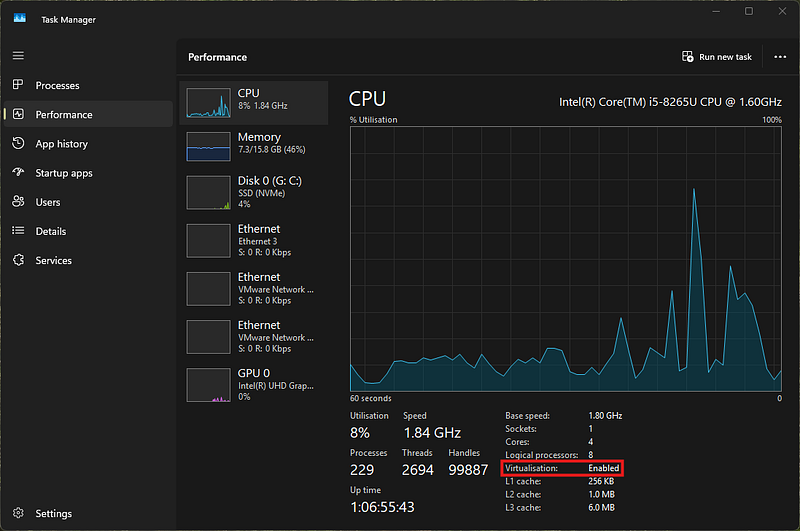
If virtualization is disabled, your CPU supports it, but it’s turned off in the BIOS.
If you don’t see the virtualization option, it means your CPU doesn’t support it.
ENABLING VIRTUALIZATION IN BIOS
Note: This process was performed on an HP laptop. The steps may vary for other brands, but they are generally similar.
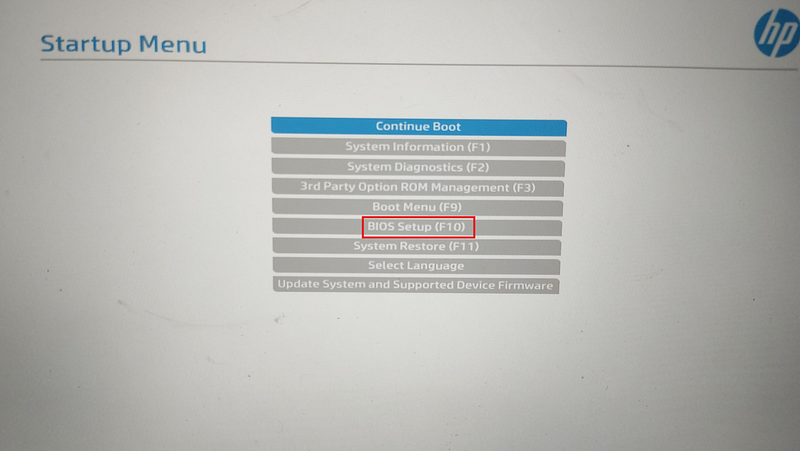
- Reboot/Turn on your laptop and repeatedly press the ESC key to access the Startup Menu.
- Go to the BIOS Setup (F10).
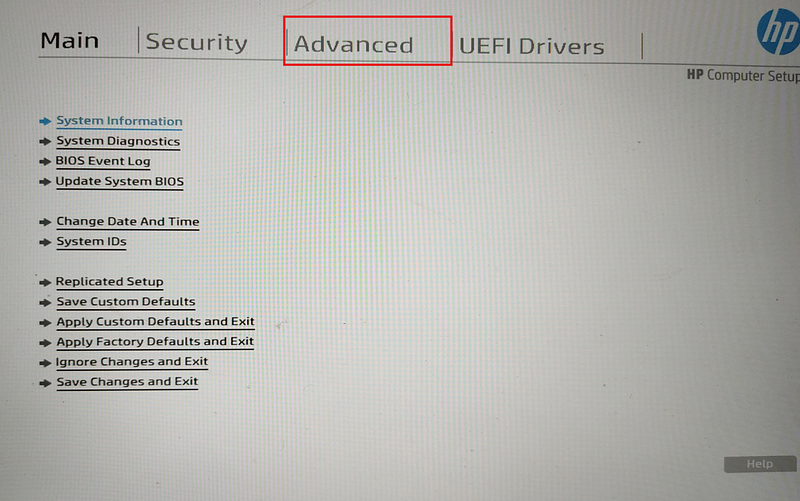
3. Navigate to the Advanced tab using the arrow keys.
4. Now go to the System Options tab.
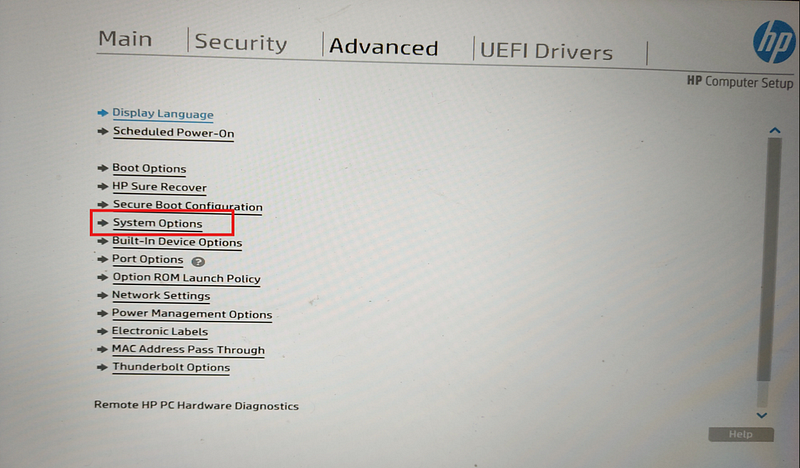
5. Locate Virtualization Technology (VTx) and enable it.
6. If available, also enable Virtualization Technology for Directed I/O (VTd).
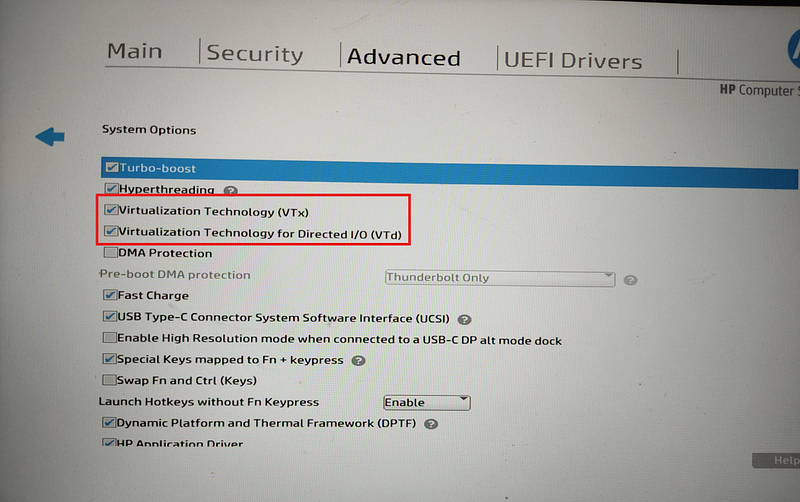
7. Go back to Main using the arrow keys and select Save Changes and Exit, then confirm.
VMWARE WORKSTATION PRO DOWNLOAD
VMware now offers its Pro version for free personal use.
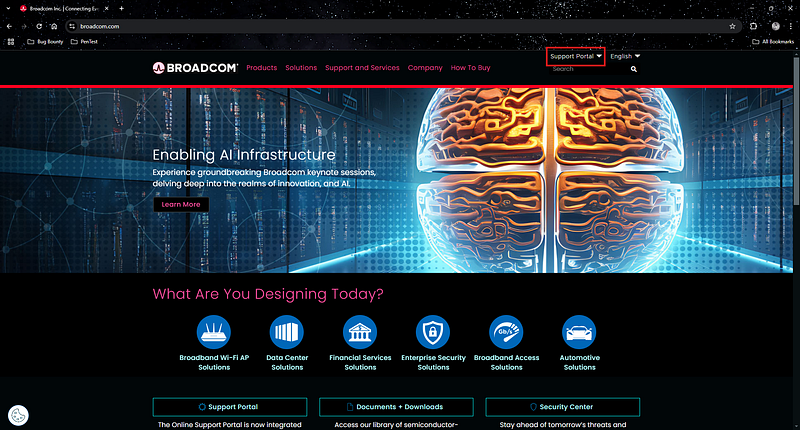
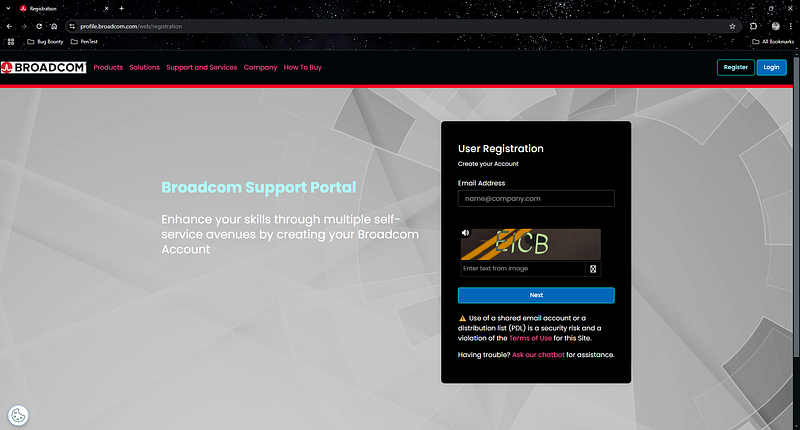
- Go to broadcom.com, click Support Portal at the top right, then click Register, fill in the required details, and complete the registration.
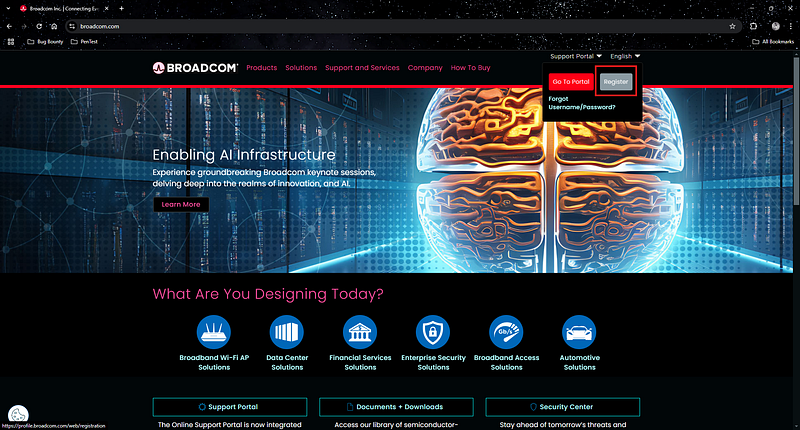
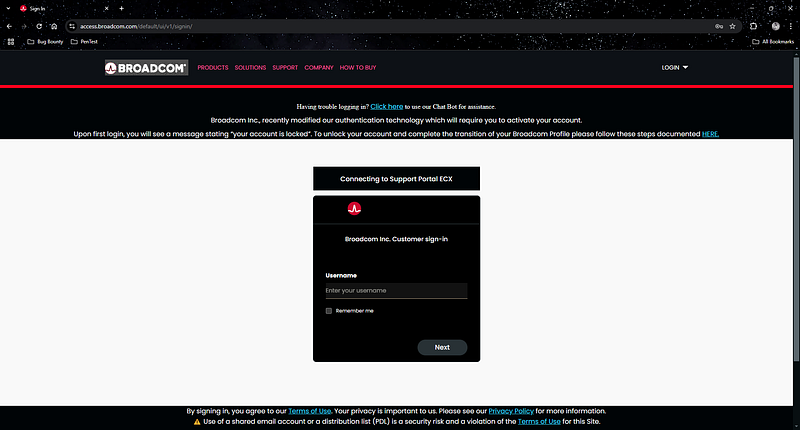
2. Sign in using your newly created credentials.
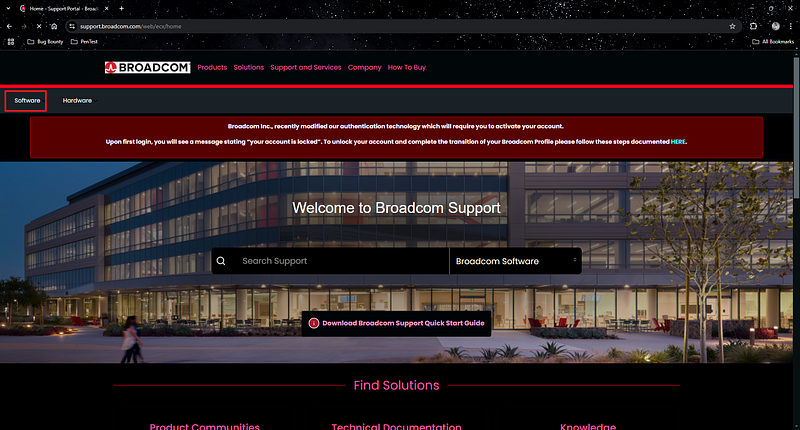
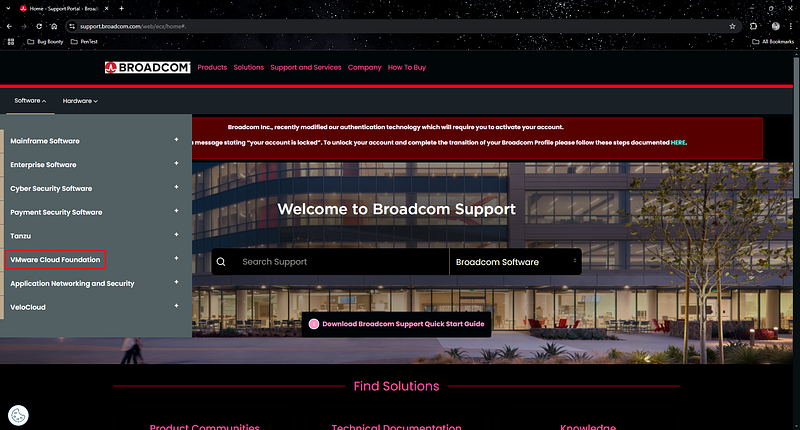
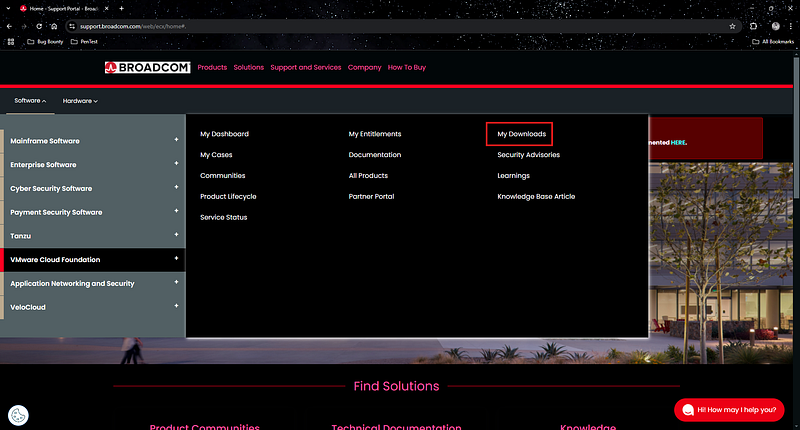
3. Click Software, then select VMware Cloud Foundation from the list.
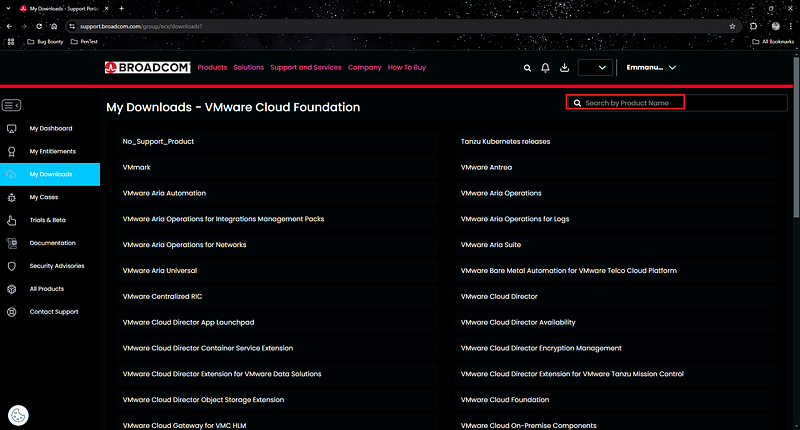
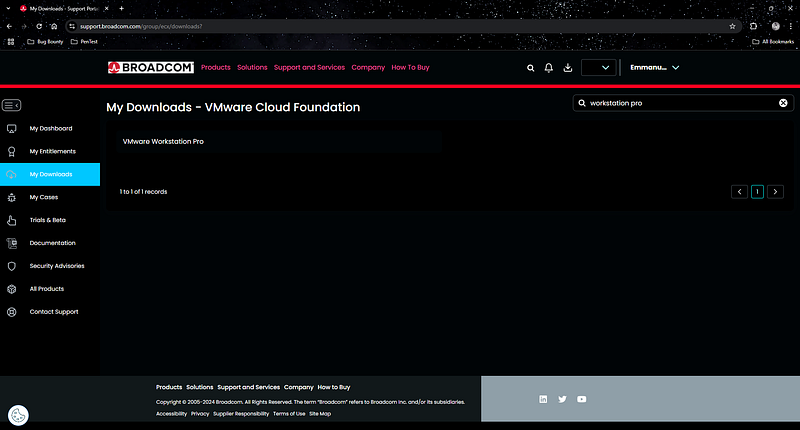
4. Click My Downloads to access available software, then search for VMware Workstation Pro using the search bar.
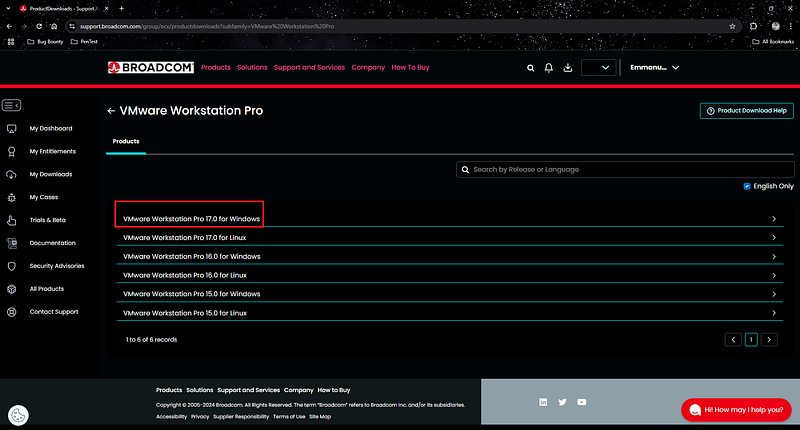
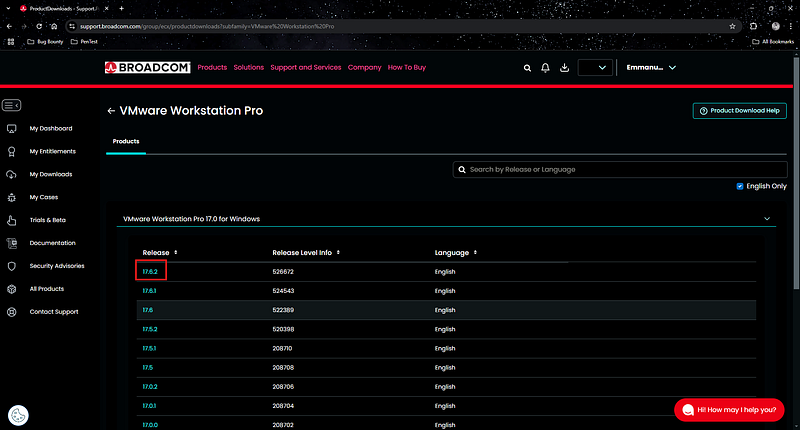
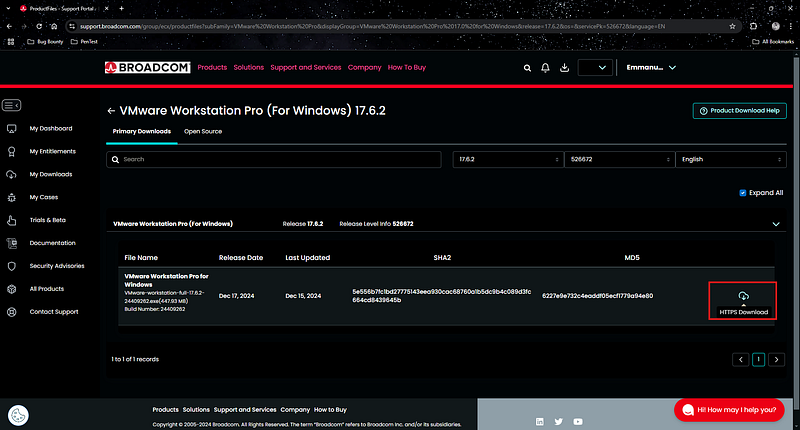
5. Click VMware Workstation Pro 17.0 for Windows, then select 17.6.2.
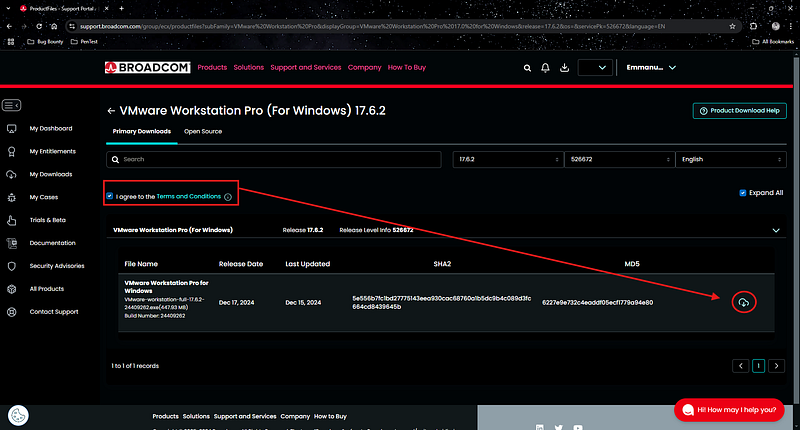
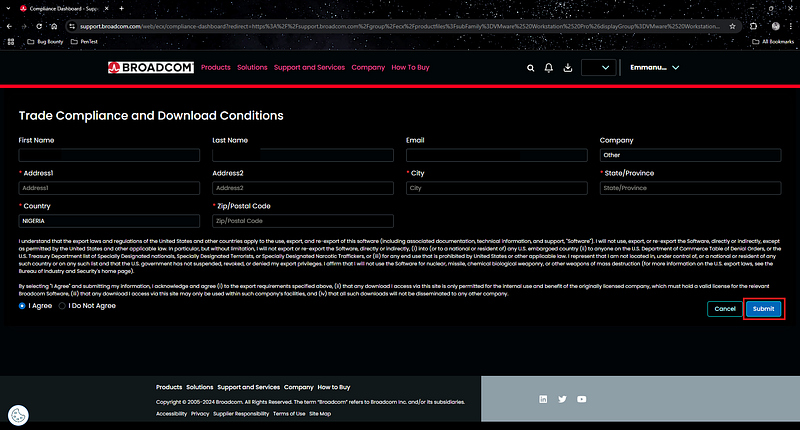
6. Accept the Terms and Conditions, click the Download icon, fill in your details, then click Submit.
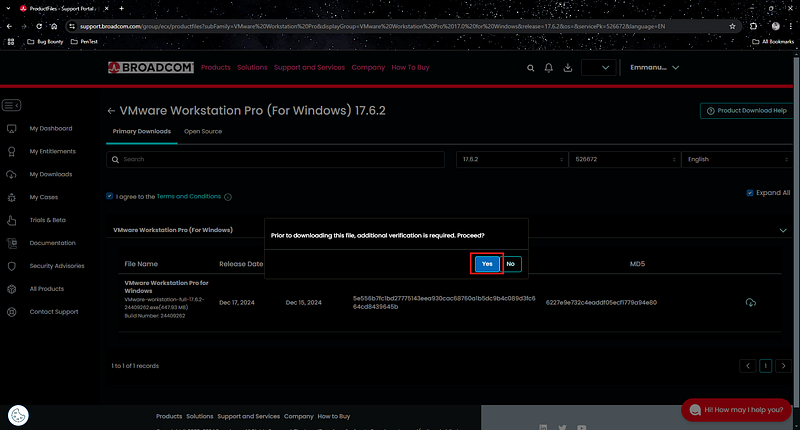
7. Click the Download icon again to start downloading.
VMWARE WORKSTATION PRO INSTALLATION
Installation after downloading is quite easy. Just follow the on-screen instructions to install VMware Workstation Pro on your PC.
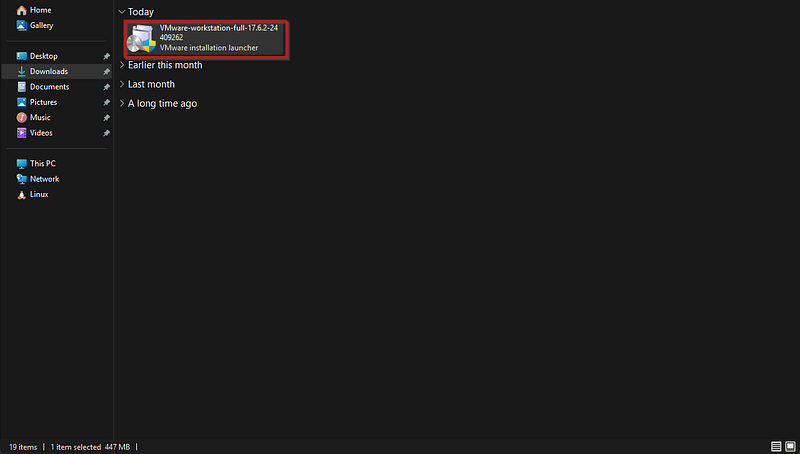
- Locate the downloaded VMware installer file and double-click it to start the installation.
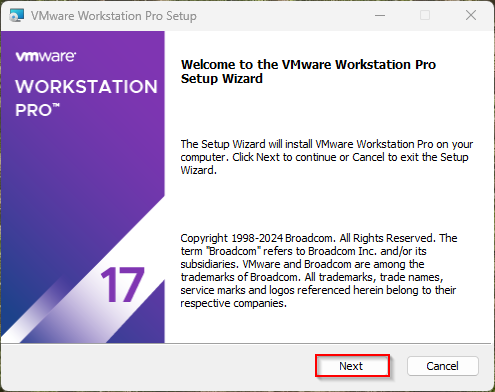
2. Click Yes if prompted by User Account Control (UAC) and wait for the setup wizard to open.
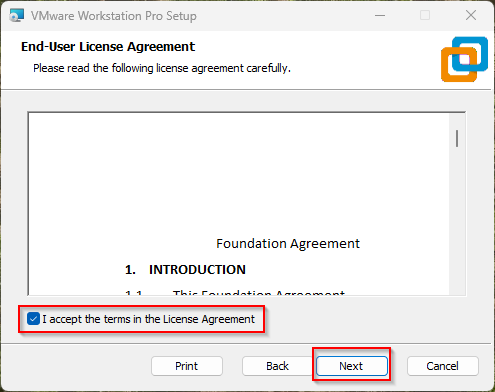
3. Accept the License Agreement and click Next.
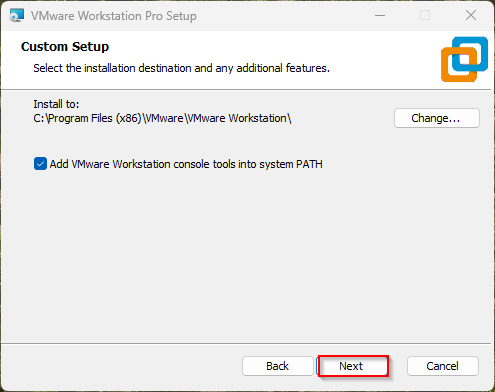
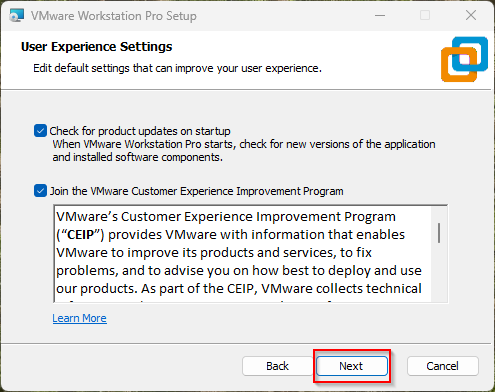
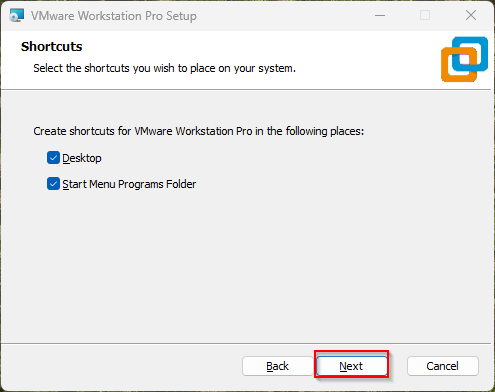
4. Click Install to begin the installation.
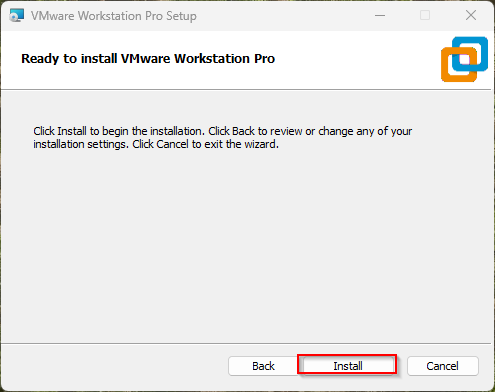
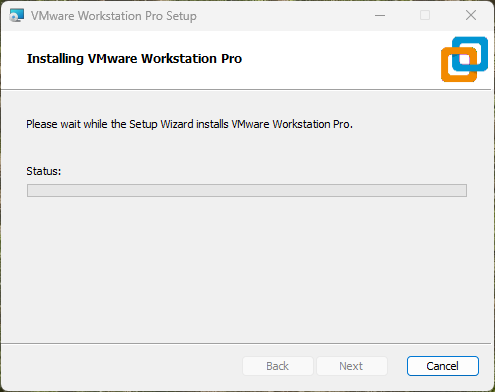
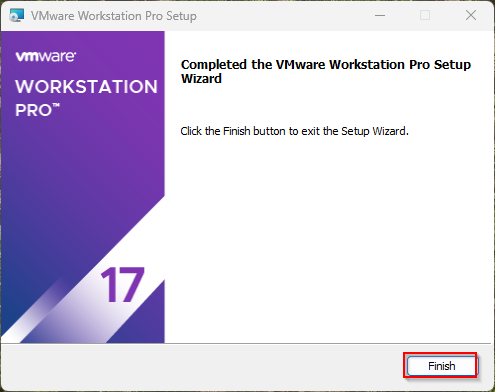
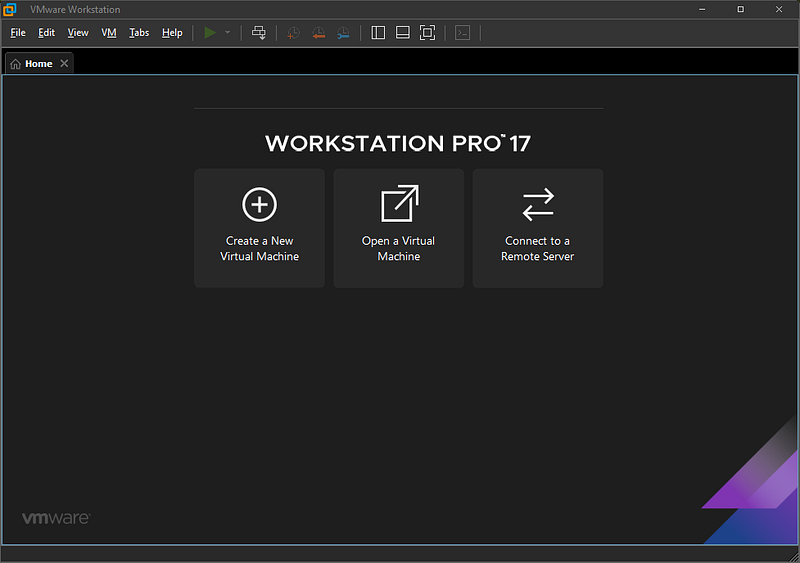
5. Wait for the installation to complete, then click Finish.
CONFIGURATION
For my HomeLab, I’ll be using the following setup:
- FIREWALL AND GATEWAY - pfSense: Acts as the main firewall and gateway, which is for network segmentation and traffic control.
- MANAGEMENT - Kali Linux: My primary system for managing the lab and conducting security testing.
- CYBER RANGE - Metasploitable, OWASP Web Apps and VulnHub Boxes: A collection of intentionally vulnerable machines for hand-on testing.
- ACTIVE DIRECTORY - Windows Server: Functions as a domain controller for simulating enterprise environments. - Windows 10 and Ubuntu: Client machines for testing authentication, access control, and other security scenarios.
- DMZ (Demilitarized Zone) - Ubuntu Server: A public-facing server for testing security configuration.
- MALWARE ANALYSIS - Flare VM : A windows-based toolkit for malware analysis and reverse engineering. - REMnux: A Linux-based system for malware analysis.
- SECURITY - Security Onion: For security monitoring and intrusion detection. - Splunk: SIEM (Security Information and Event Management) for log analysis and threat detection. - Tsurugi Linux: DFIR (Digital Forensics and Incident Response) system.
As regards the networking configuration, I’ll go into more details in my upcoming article during the pfSense installation and configuration.
CONCLUSION
Apologies for late upload, I was researching networking. My next article will cover installing and configuring pfSense.
Thank you so much for reading, don’t forget to follow me and subscribe so you don’t miss out on the next chapters. I hope you learnt something new, If you have any questions, ask in the comment section and I will reply to you. If you’d like to support my journey, you can Buy Me a Coffee.


