avatarNuno Campos

Summary

Nuno Campos shares an overview of his current Obsidian plugin setup, detailing the functionality and personal use cases for each plugin in the first part of a series.

Abstract

In the article "My Obsidian Setup (Part 30) — Plugins I’m Using Now (1/3)," Nuno Campos provides a detailed account of the Obsidian plugins he currently employs to enhance his personal knowledge management (PKM) system and project workflows. The plugins range from those that track activity history, manipulate tables with advanced features, and control vault features through URIs, to ones that customize the sidebar, query the vault like a database, and create Notion-like databases. Campos also discusses plugins that improve navigation, such as the Calendar and Kanban plugins, and those that add visual elements like banners and folder icons. He emphasizes the power of plugins like Dataview for complex queries and Excalidraw for drawing on an iPad. The article includes personal anecdotes on how each plugin fits into his daily routine, with screenshots providing visual context. Campos promises to reveal the rest of his plugin setup in the next article.

Opinions

  • The author finds the Activity History plugin useful for tracking PKM activity and project progress.
  • Advanced Tables is appreciated for its enhanced navigation and the ability to use formulas within markdown tables.
  • Advanced URI is valued for its integration with iOS shortcuts and widgets, streamlining the process of opening specific notes and adding content.
  • Banners are seen as a beneficial addition for personalizing notes with image banners.
  • The Calendar plugin is deemed essential for visualizing and navigating daily notes.
  • Customizable Sidebar is customized to remove less-used buttons and add a QuickAdd choice, indicating a preference for a streamlined interface.
  • Dataview is highlighted as the most powerful plugin, extensively used for various queries and data manipulation within the vault.
  • DBFolder is utilized for creating Notion-like databases, enhancing the organization of contacts, network objects, and project files.
  • The Doubleshift plugin is configured to run a main QuickAdd choice, showcasing the author's preference for efficient workflows.
  • Excalidraw's integration is particularly useful for drawing on an iPad and saving directly to the vault.
  • Folder Note is employed to create folder notes with a "Map of Content" (MOC) for each folder, indicating a structured approach to note-taking.
  • Icon Folder is used to add visual cues to folders, which the author demonstrates with a personal example.
  • The Kanban plugin is used to manage tasks in a Kanban-style format for each project, reflecting an agile approach to project management.
  • List Modified is appreciated for listing and linking to recently created or modified files within daily notes.
  • Metadata Menu is praised for its context menu options that allow for easy modification of frontmatter and inline fields.

My Obsidian Setup (Part 30) — Plugins I’m Using Now (1/3)

After 2 months of writing articles about My Obsidian Setup, I've changed my workflows a few times, so it's time to go over the plugins I'm currently using.

Activity History

This plugin shows a Github-like activity block for the specified folder(s).
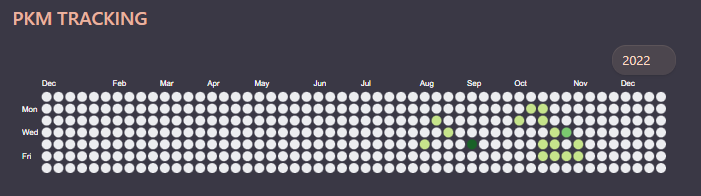
Activity History. Image by Nuno Campos

I'm using it to keep track of my PKM activity as well as projects.

Advanced Tables

Enhanced navigation, formatting, and manipulation of markdown tables in Obsidian. It also adds the possibility of using formulas.

Advanced URI

This plugin allows you to control specific features in your vault just by opening some URIs.

I’m using this plugin to use iOS shortcuts and widgets to open specific notes and add content directly from the shortcut.
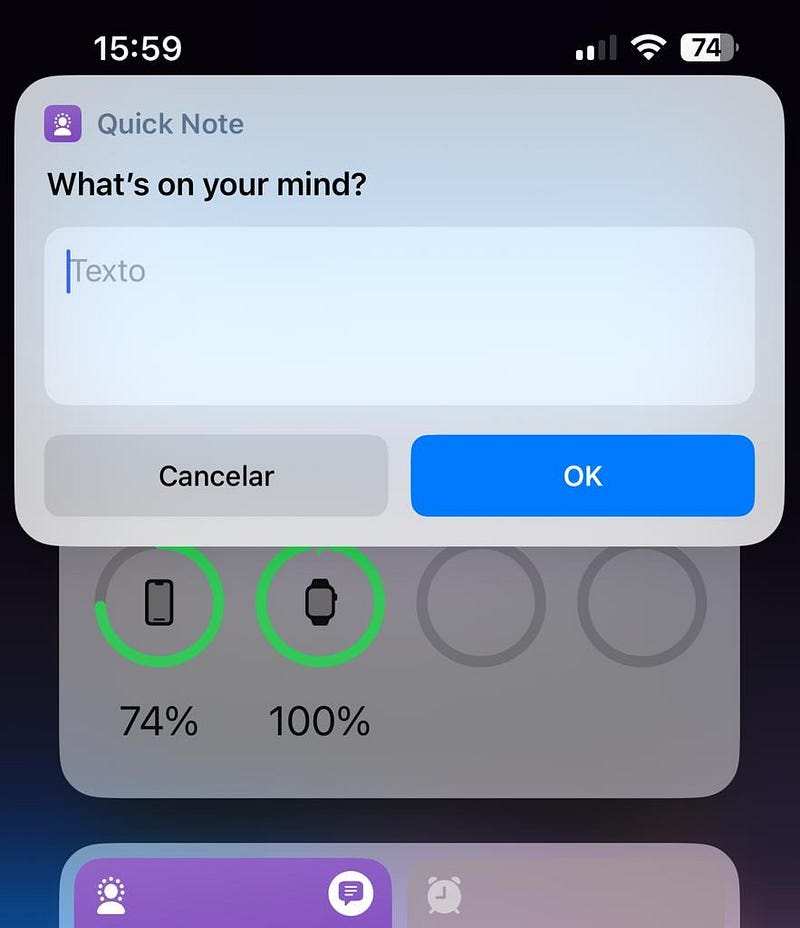
iOS Shortcut. Image by Nuno Campos

Banners

Adds an image banner to the notes.
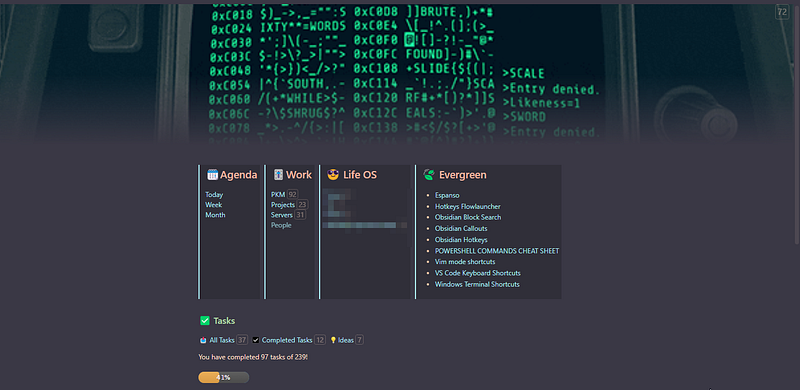
Banners. Image by Nuno Campos

Calendar

Adds a calendar view to the right sidebar for visualizing and navigating between your daily notes.
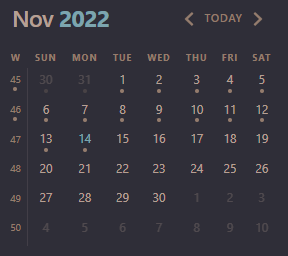
Calendar. Image by Nuno Campos

Customizable Sidebar

Allows adding or removing commands from the left sidebar.
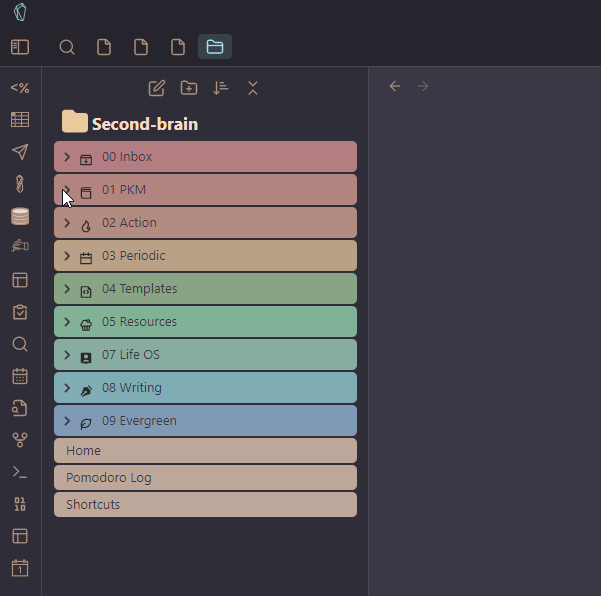
Customizable SIdebar. Image by Nuno Campos

I’m using this plugin to remove a couple of buttons that I don’t use very often and to add a button that runs a QuickAdd choice.

Dataview

This plugin allows you to query your vault like a database, allowing you to filter, sort, and extract data from your notes. This is probably the most powerful plugin in Obsidian.

I’m using this almost everywhere in my vault: from simple queries to list files with specific tags, to more complex dataviewjs. Check out my previous articles for more details.

Dataview. Image by Nuno Campos

DBFolder

Create Notion-like databases based on folders, links, tags, or dataview queries.

I’m using this to view my contacts and network objects, and in my projects, I have a dbfolder listing the project files.
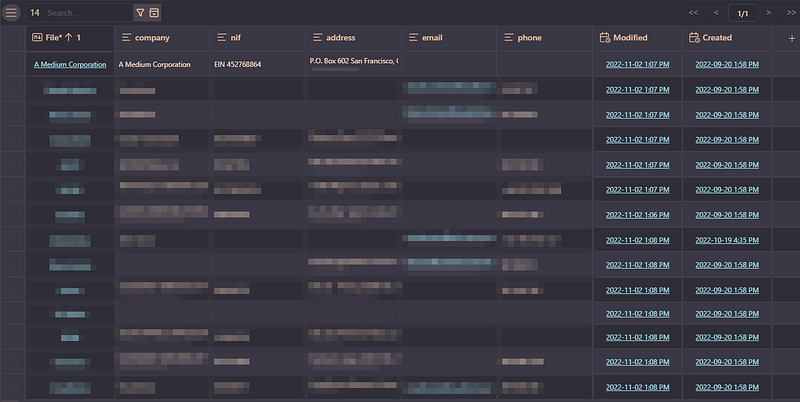
DBFolder. Image by Nuno Campos

Default New Tab Page

Allows to set the page to open when opening a new tab.

Doubleshift

With this plugin, we can assign an action to double-click shift (or another key).

I’m using to run my main QuickAdd choice.

Excalidraw

Integrates Excalidraw into Obsidian.

I’m using mainly to draw on my iPad and save it to my vault.

Folder Note

Allows you to create notes associated with folders.

I’m using it to create folder notes with a MOC of that folder, so when I click the folder, it opens the folder note with the MOC.

Icon Folder

Allows to add icons to folders.

Here’s mine:
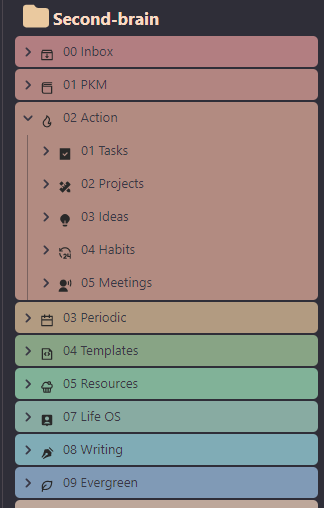
Icon Folder. Image by Nuno Campos

Kanban

Creates a Kanban-style page for tasks.

I’m using a Kanban page for each of my projects.
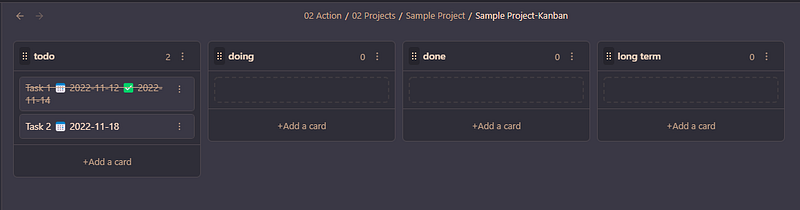
Kanban. Image by Nuno Campos

List Modified

Lists and links created or modified files in your daily notes.
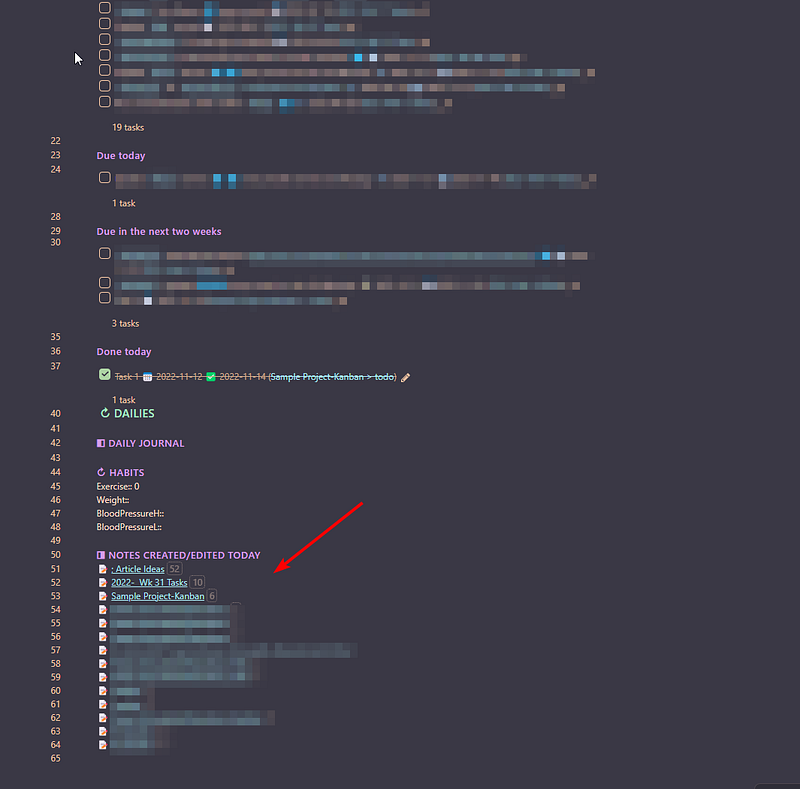
List Modified. Image by Nuno Campos

Metadata Menu

Adds context menu items to modify frontmatter fields and inline fields by right-clicking the note content, link or within the dataview table.
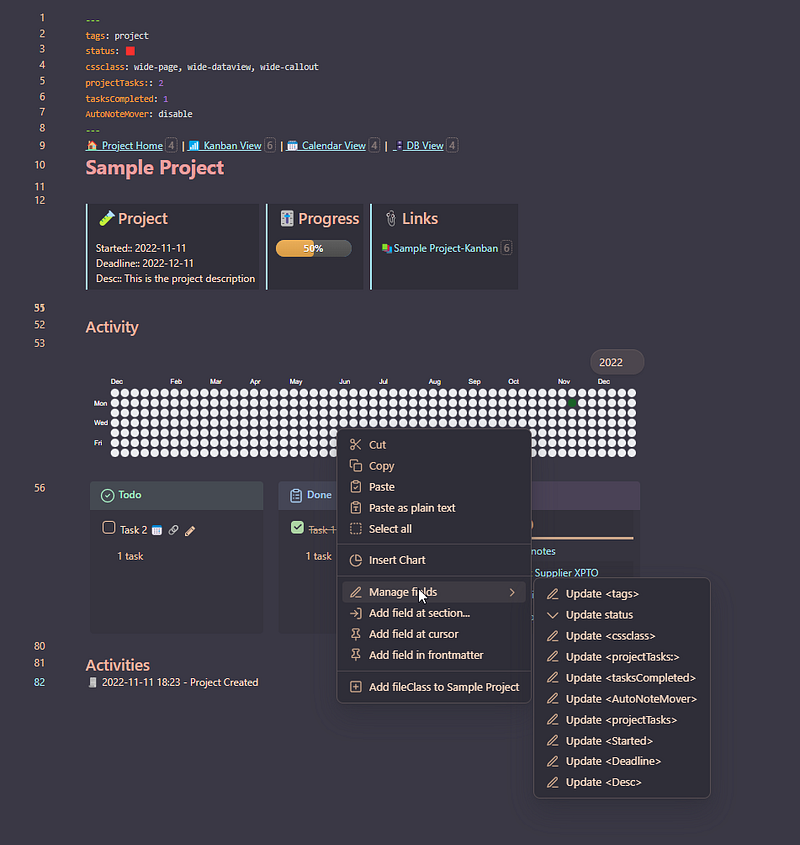
Metadata Menu. Image by Nuno Campos

This is the first half of my current plugins. In the next article, I’ll show you the remaining.

You can read the previous parts of My Obsidian Setup series here:

Click here to be notified every time I publish a new story 😉.

If you’re not a Medium member yet and wish to support me or get access to all my stories, click here.

Programming
Obsidian
Notes
Notetaking
Illumination
Recommended from ReadMedium