
My Obsidian Setup (Part 20) — Obsidian 1.0.0 Release
Obsidian has just released its 1.0.0 version. This version includes many new features and improvements, making it even more powerful and easy to use.
Obsidian is a powerful knowledge base app that helps you organize your ideas and thoughts. It’s fast, reliable, easy to use. With Obsidian, you can keep track of all your ideas and thoughts in one place. And because it’s based on Markdown, it’s easy to format and organize your information.
Plus, Obsidian is highly extensible. You can install plugins to add new features and functionality. And if you’re a developer, you can even create your own plugins.
So if you’re looking for a powerful, easy-to-use knowledge base, Obsidian is a great choice. And if you’re looking for a way to organize and format your information, Markdown is the way to go.
Let’s go through some of the highlights
Tabs
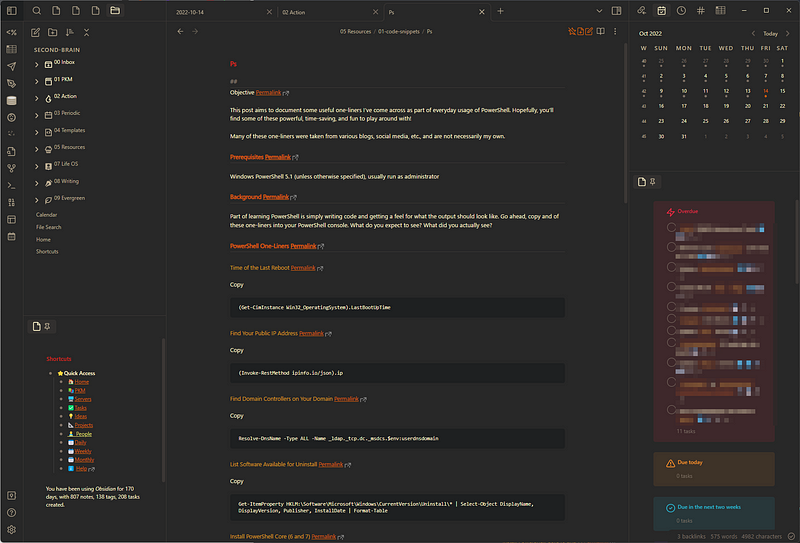
Tabs allow you to have multiple panes open in the Obsidian workspace. This is great for comparing notes or working on multiple projects at the same time. To use tabs, simply click the “+” icon in the top right corner of the Obsidian workspace, or use the shortcut Ctrl+T, like in most apps that have tabs. This will open a new tab where you can start adding notes. You can also rename tabs by clicking on the pencil icon next to the tab name. Tabs are a great way to organize your Obsidian workspace and make it more efficient.
Tab stacks
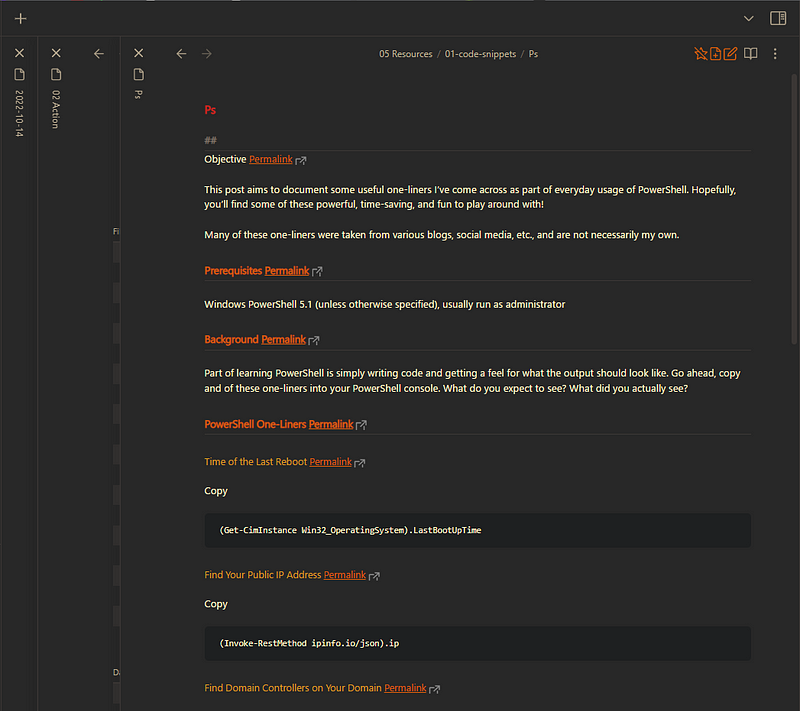
Another great new feature in Obsidian 1.0 is tab stacking. This allows you to group related tabs together so you can easily switch between them. This works exactly the same way as the plugin Sliding Panes (Andy Matuschak Mode). To stack tabs, simply drag one tab on top of another. The tabs will then be grouped together, and you can switch between them by clicking on the stack or using the shortcut Ctrl+Tab/Ctrl+Shift+Tab. This is a great way to keep related information organized and easily accessible. It also allows you to declutter your workspace by grouping tabs that you don’t need to have open all the time. Tab stacking is a great new feature that can help you boost your productivity. Give it a try and see how it can help you organize your information.
New appearance settings
There are a couple of new settings in Settings -> Appearance.
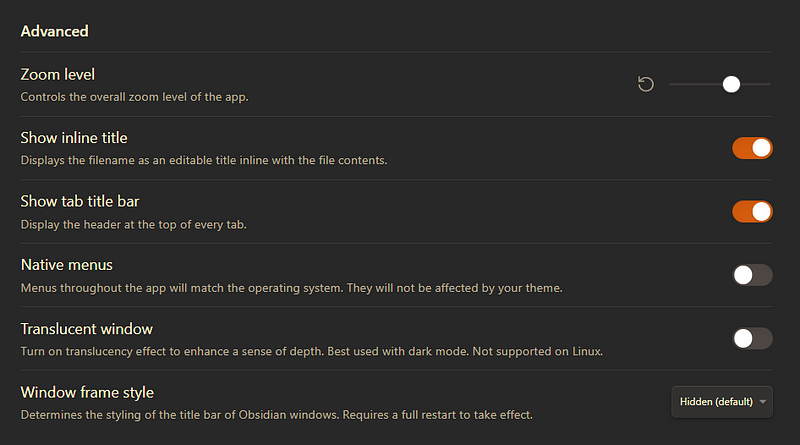
- Show inline title — You can now display the note’s title inline with the content. If you’re using Tab stacking, the note’s title is shown vertically on the left side, so showing the title inline with the content may come in handy. This was previously done with the plugin Embedded Note Titles.
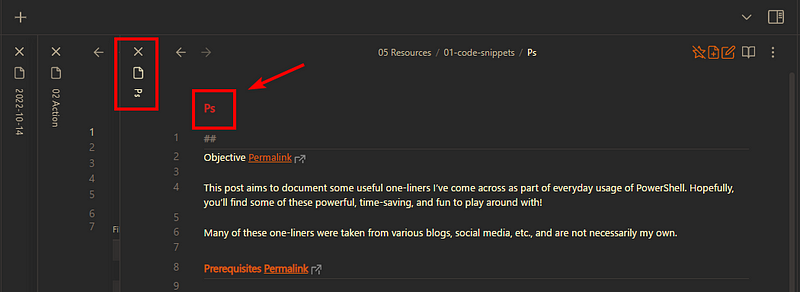
- Show tab title bar — This shows the title bar at the top of every tab. This was done before with the plugin Path Title (although the plugin has more interesting options, like replacing text with emojis).
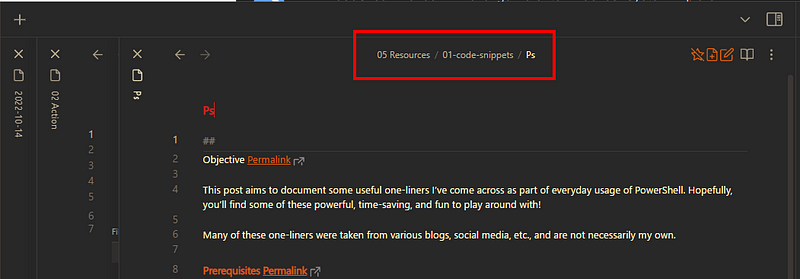
- Window frame style — You can have now Obsidian in frameless mode (default), Obsidian frame, or Windows OS native frame.



- Accent color There’s now an “accent color” color-picker to give your vault its own unique style. It may not work in every theme.
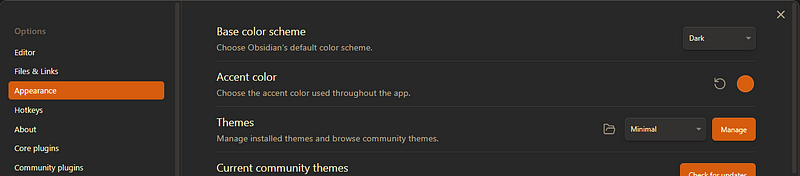
- Zoom level — Sets the overall zoom level of the app. So if you notice the font size of your vault is very high or very low after the update, you might want to check this option.

- Native menus — Menus’ style will match the context menus provided by the operating system.
There are many other improvements, like a new theme gallery, and a bunch of bug fixes.
Please check the FAQs for the Obsidian Release v1.0.0 on Obsidian’s website if you have any problems after the update.
This new release is sure to make Obsidian even more popular. So, if you haven’t tried Obsidian yet, now is the time!
I hope you enjoyed the reading. Stay tuned for more articles on My Obsidian Setup.
You can read the previous parts of My Obsidian Setup series here:
Click here to be notified every time I publish a new story 😉.
If you’re not a Medium member yet and wish to support me or get access to all my stories, click here.


