
My Obsidian Setup (Part 2)
In the previous article of this series, I went through my folder structure and workflow for storing knowledge notes.
In this article, I’ll explain my task and project management system.
First of all, let me say that my system is based on this vault:
and customized to my needs. So many thanks to Eli Wimmer (eliwimmer.com).
Plugins
The required plugins for this workflow are:
- Dataview
- QuickAdd
- Tasks
- Templater
Tasks
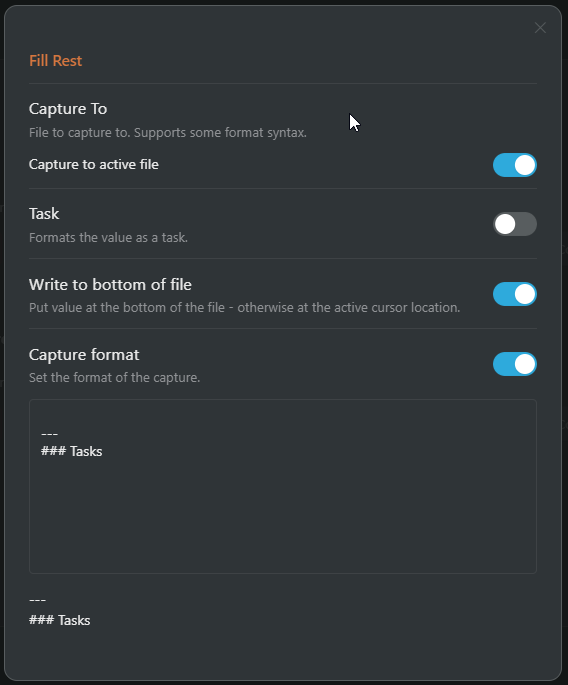
I create new tasks with a QuickAdd macro. I use a configured hotkey for QuickAdd to add notes, projects, ideas and tasks.
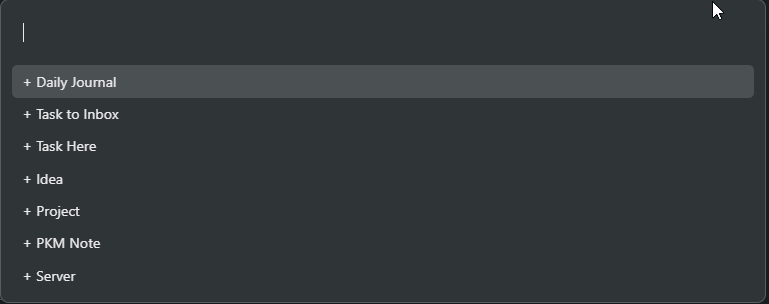
This is the macro to a new task:
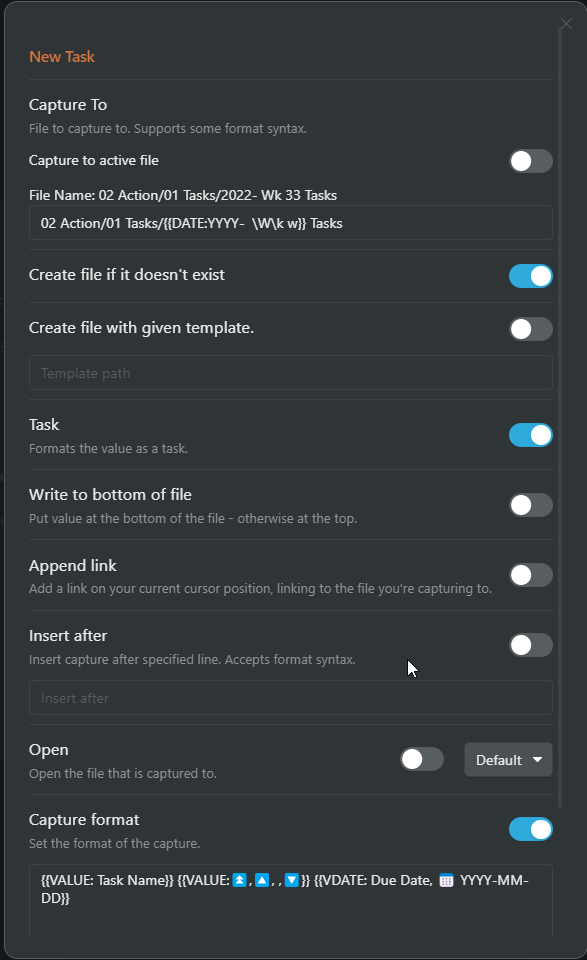
Here is configured where the task is created, and also the prompts for new tasks: name, priority and due date.
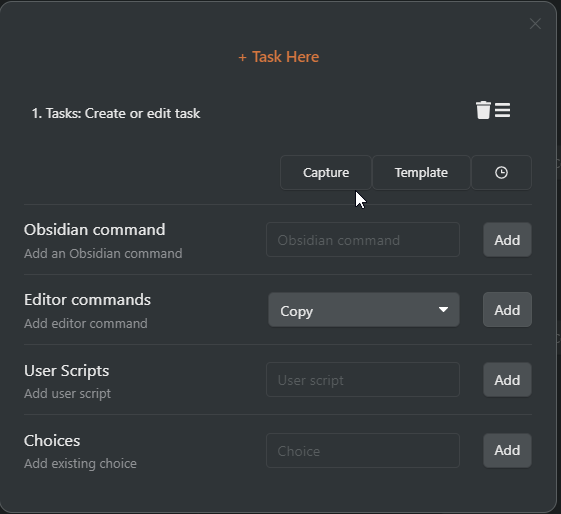
I also have an option “+ Task here” which is used to add tasks to the currently focused note. For example, to be used when adding tasks to projects.
Tasks Display
The tasks are shown on the right sidebar below the calendar.
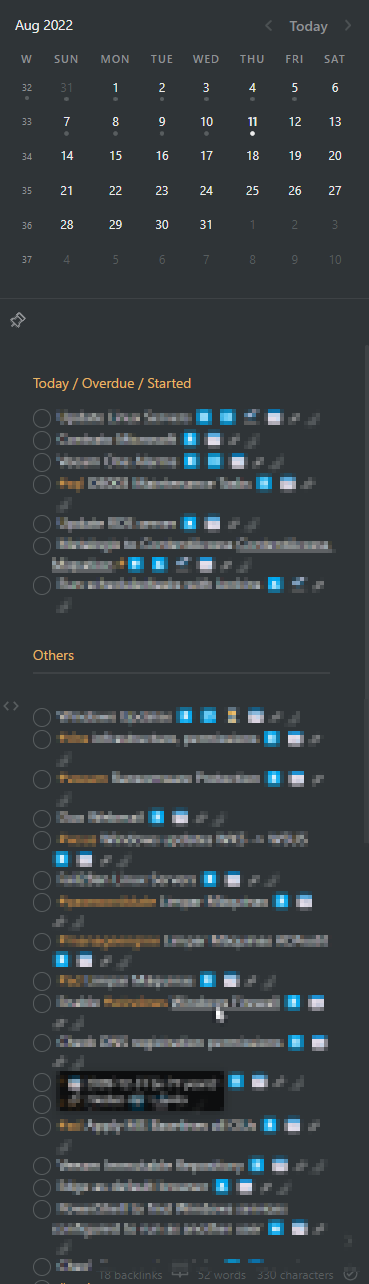
On the top, I list the overdue, started and today’s tasks, sorted by the due date.
```tasks
not done
tags do not include #💡
hide task count
short mode
(has start date) OR (due before tomorrow)
sort by due
```
And then, all other tasks.
```tasks
not done
tags do not include #💡
hide task count
short mode
no start date
happens after today
sort by priority
```
Tasks plugin adds all these neat icons to the tasks showing priority, dates, and recurrence. There’s also a button to edit the task.
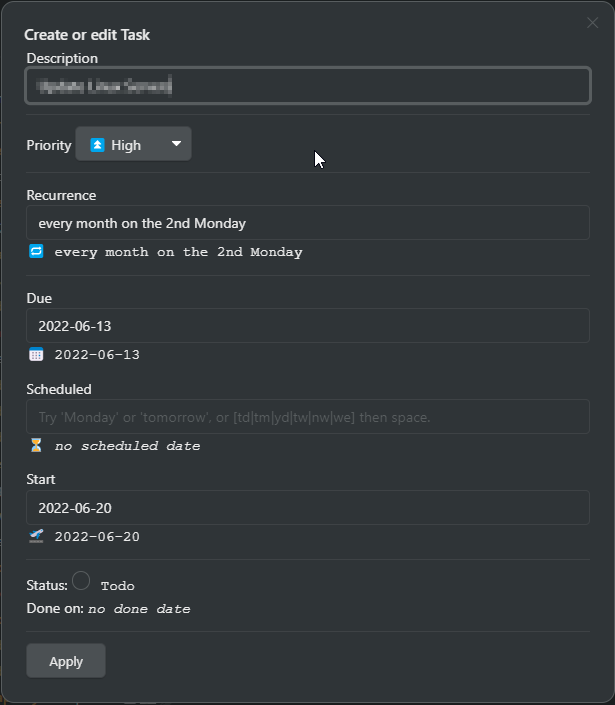
I absolutely love the tasks plugin.
There’s also a shortcut to the Tasks page in the left sidebar shortcuts section.
To view all completed tasks:
```tasks
done
sort by done date
```
Introduction — Obsidian Tasks (obsidian-tasks-group.github.io)
Projects
The Add Project QuickAdd macro will create a new folder for the project and a file with the project info and project tasks.
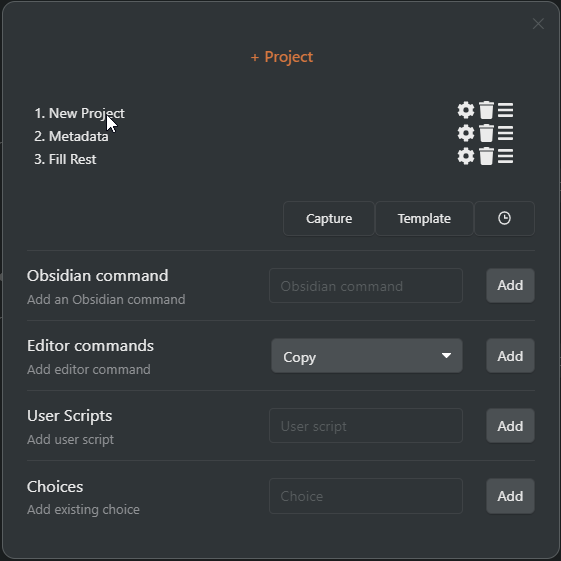
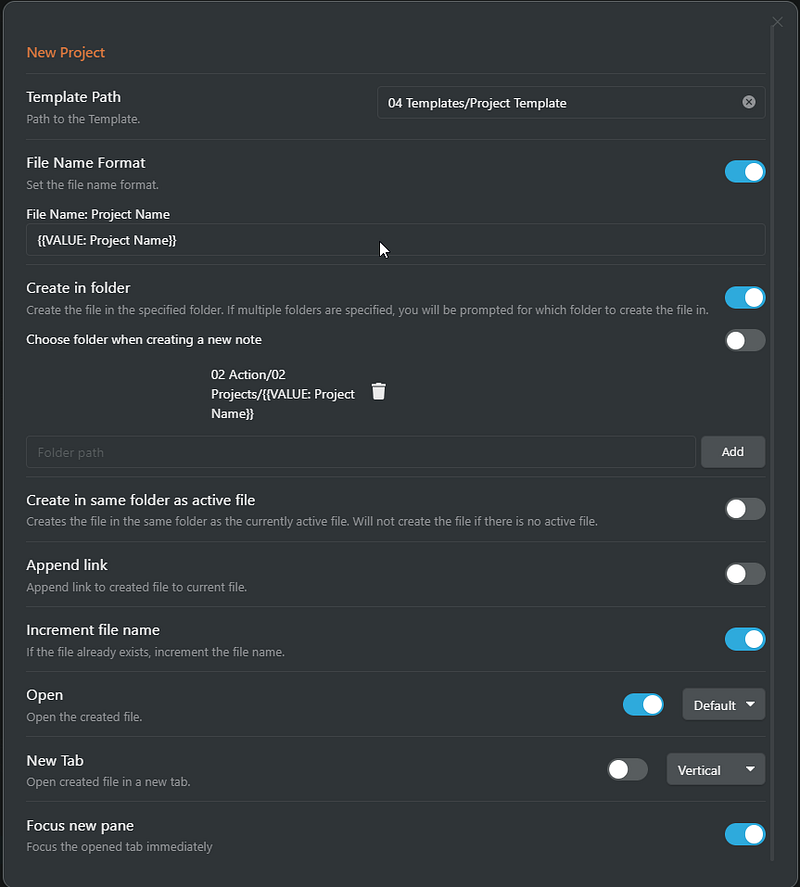
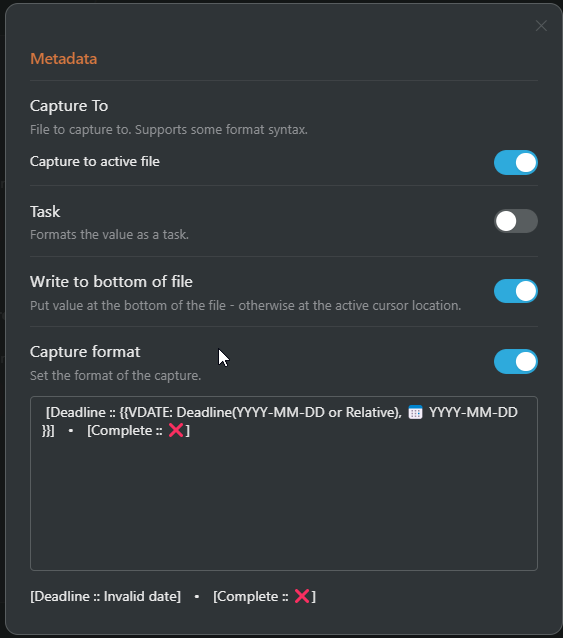
Projects MOC with progress bar
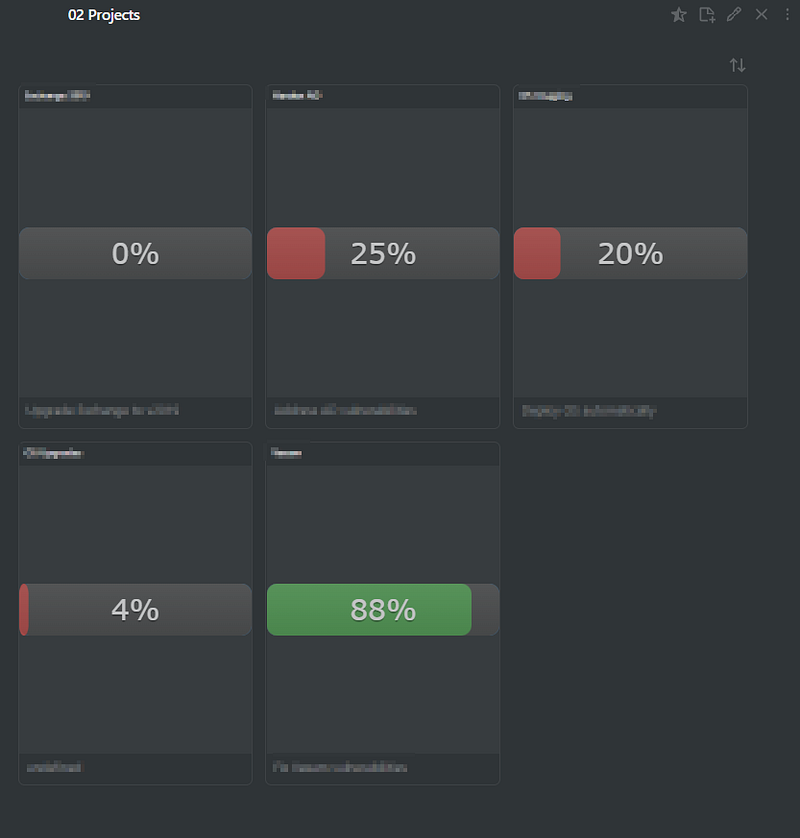
---
cssClass: cards cards-1-1 table-wide
---
```dataview
table WITHOUT ID (link(file.path, alias)) as Project,
" => t = true)) / length(file.tasks.text)) * 100) + "/)" AS Progress, Goal
from #project/activeSORT file.path ASCENDING
```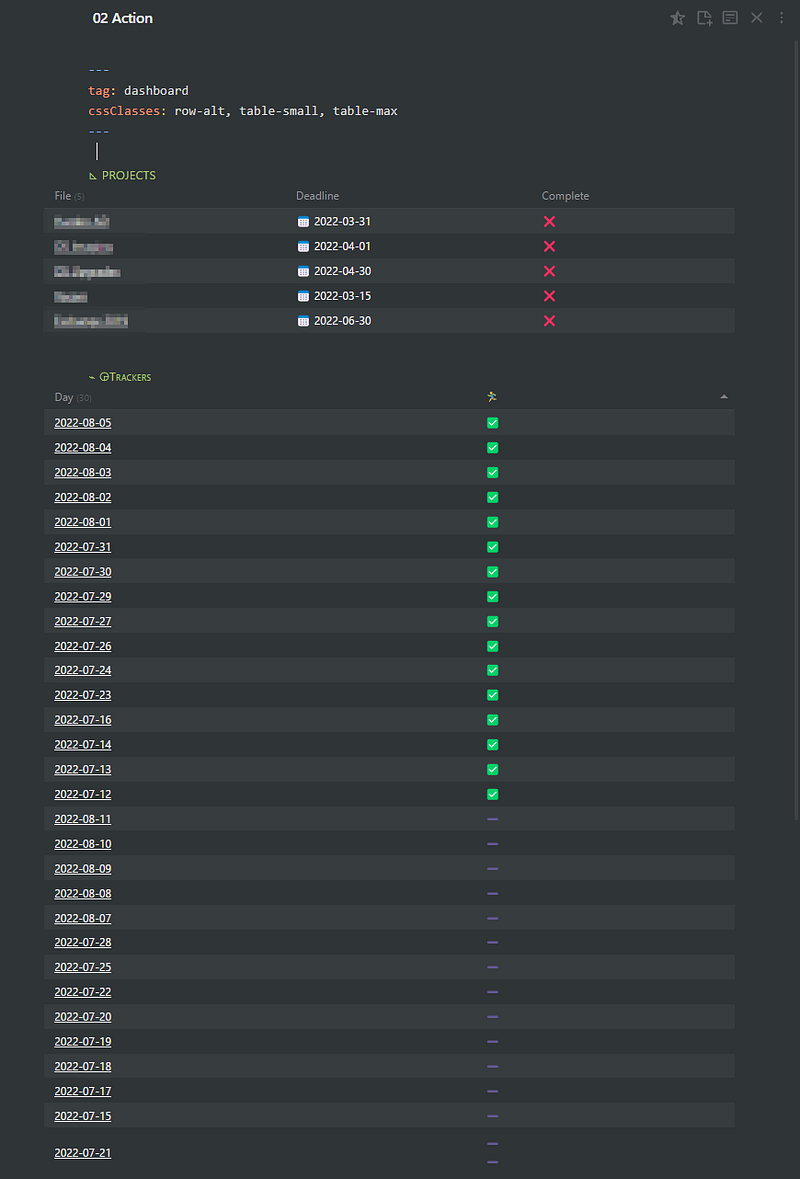
#### ◺ PROJECTS
```dataview
TABLE
 deadline as "Deadline",
 complete as "Complete"
FROM "02 Action/02 Projects"
WHERE file.name != "02 Projects"
SORT complete DESCENDING
```
#### ⌁ ◶Trackers
```dataview
TABLE WITHOUT ID
link(file.name) as "Day",
exercise AS "🏃♂️"
FROM "03 Periodic/01 Daily"
SORT file.name DESC
LIMIT 30
```That’s all for task and project management. In the next part of the series, I’ll describe the periodic notes system I use.
Checkout my other My Obsidian Setup articles:


