
My Obsidian Setup (Part 15) — Mind Mapping
My preferred Obsidian plugin for mind mapping is Markmind. Why? Because it’s the only one that allows visual edition. In the others, you have to edit the markdown. Also, this plugin can convert the mindmap to outline and annotate pdfs.
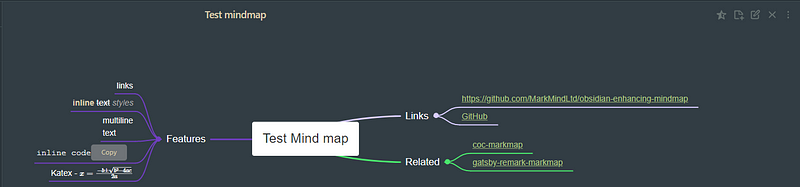
Usage
You can right-click the folder to create a new mind map, create a new markdown file, then add YAML it to create a mindmap. Rich mode is only available in the Catalyst (paid) version.
---
mindmap-plugin: basic (or rich)
---
While in the primary mode, you only have essential mind map functions, richly, you have more options.
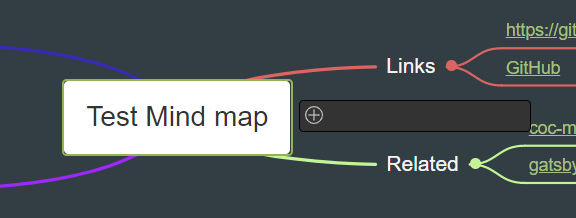
In basic mode, you just add the nodes and children, which will auto-arrange and create the connections for you.
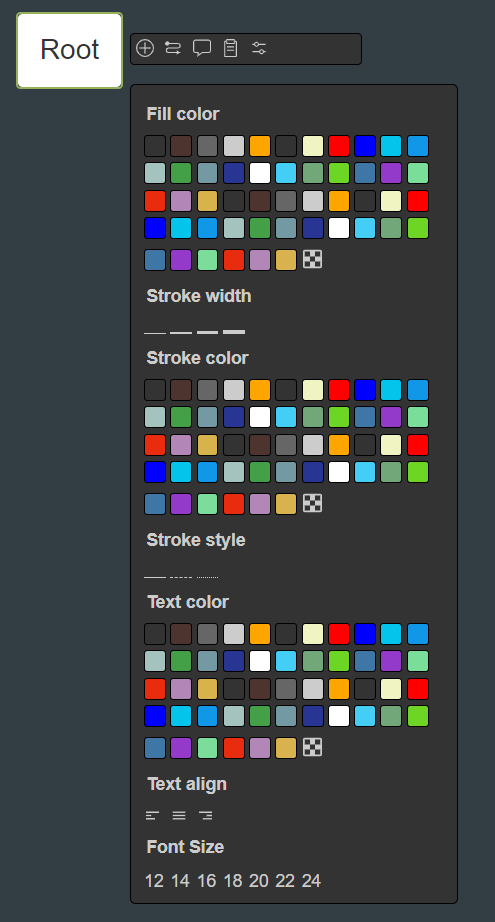
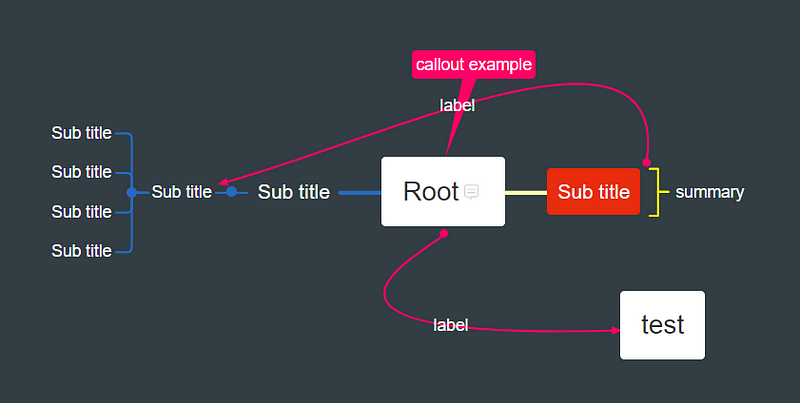
In rich mode, you can :
- Add a summary;
- Add a boundary;
- Add a node-related link;
- Add a free node;
- Move around the nodes as you please;
- Create connections manually and change connection curves;
- Add callouts and comments;
- Change the fill and stroke color of every object;
- Change font size and text alignment.
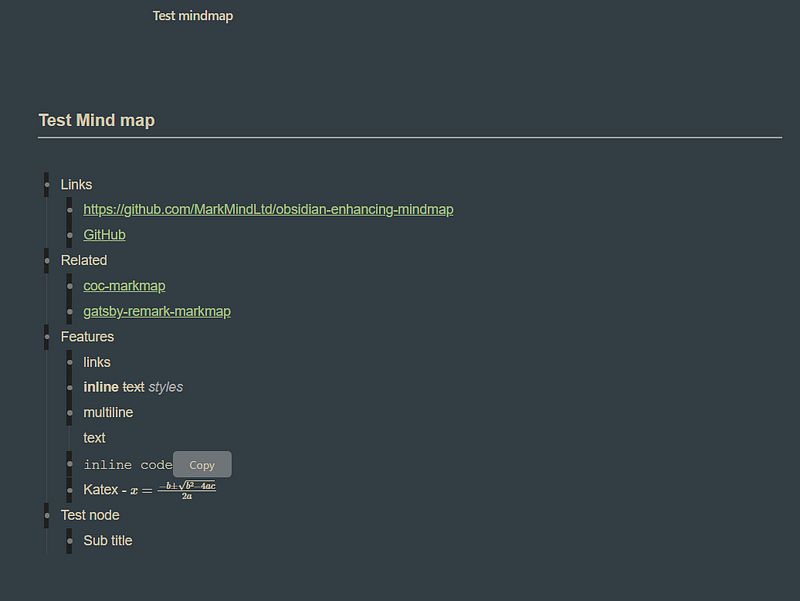
Outline Mode
Example of resulting outline mode:
PDF Annotate
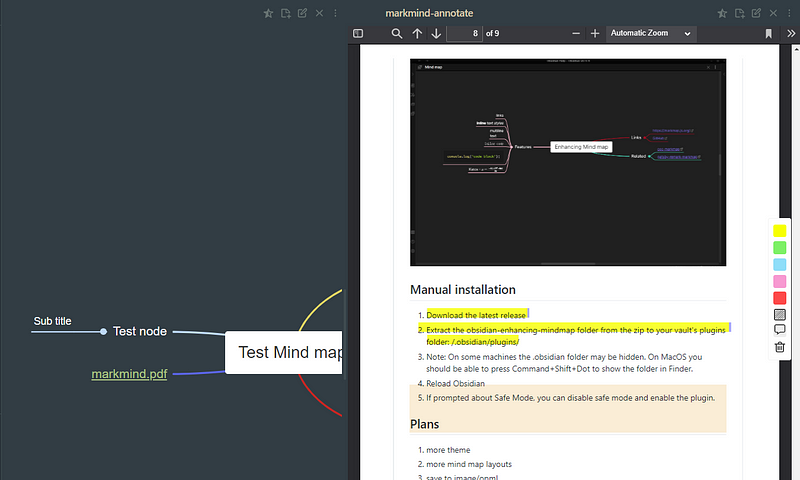
You need to link the pdf in the format [[name_of_file.pdf]], and it will open a new pane with the pdf ready to annotate.
This is my favorite plugin for creating mind maps. In my work as SysAdmin, I often turn to mind maps to help me organize ideas.
I also use my iPad to create mind maps but use the Excalidraw plugin. I’ll dedicate an article to this amazing plugin.
Stay tuned for more Obsidian articles. Meanwhile, check out the previous parts of the My Obsidian Setup series.


