
My Obsidian Setup (Part 13) — Inbox Folder / Quick Note Capture Workflow
The Inbox folder, which is on top of my vault, is one of the most important folders of my workflow. This is where I store my temp notes, quick notes, or notes captured on my mobile.
I’ve already explained in my previous article how I quickly capture on my iPhone.
There are 3 ways that I use to capture a quick note: using mobile, using QuickAdd plugin and creating an empty note, and using Templater to apply my quick note template.
---
tags: type/quicknote
status: unread
---
Created On :: [[<%tp.date.now("YYYY-MM-DD")%>]]
This is my simple quick note. Because a quick note is supposed to be simple, right 😜?
And here’s my QuickAdd action:
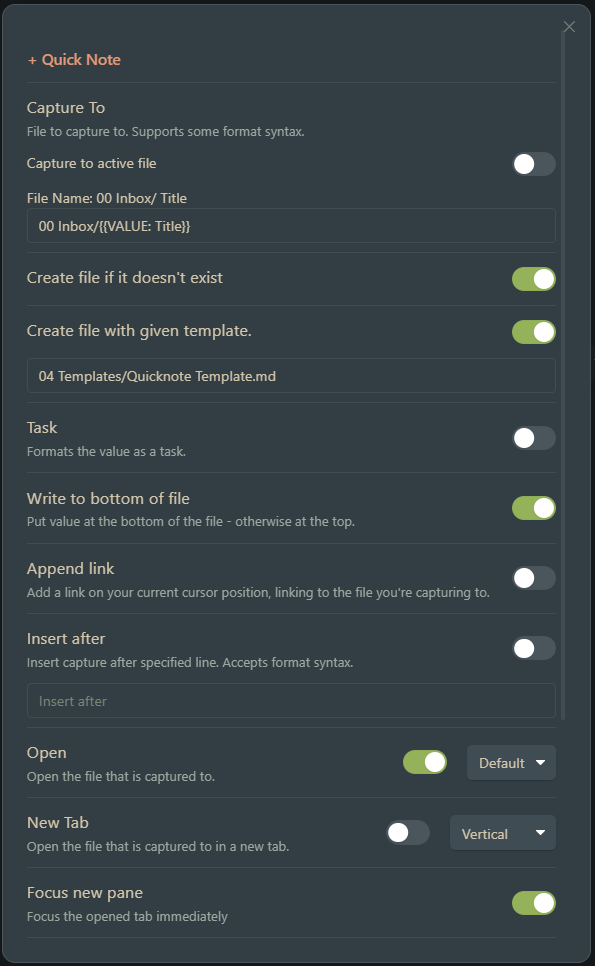
Let’s go through the template.
The tag type/quicknote is meant to classify the file type in order to easily query all files using Dataview.
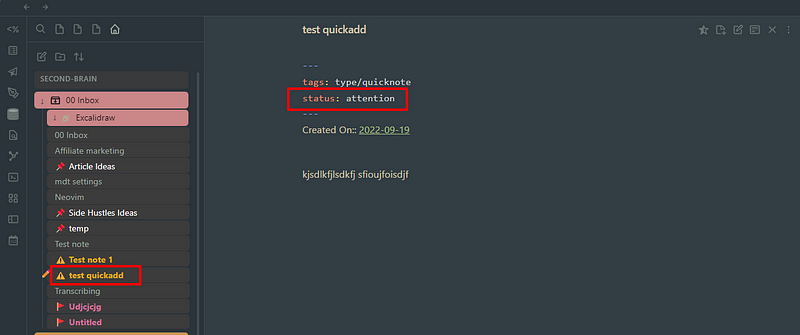
Now, the interesting part. I have different quick note statuses.
- 🚩 Unread — unread note
- 📌 Pinned — like an evergreen quick note
- ⚠️ Attention — important quick note, that I must not forget
- Read — read temporary quick note, not that important
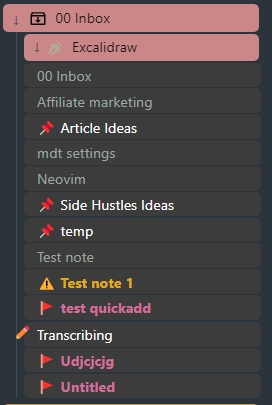
The quick notes’ icons and font color are set automatically based on the status metadata. How is it done? Supercharged Links and Style Settings plugins. Let’s have a look:
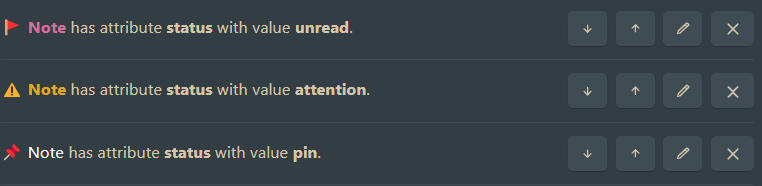
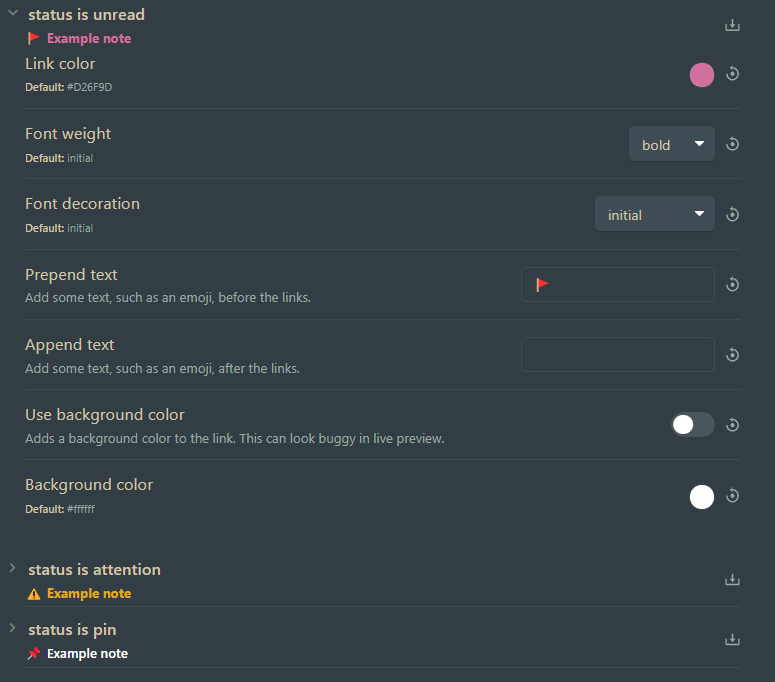
And how do I quickly change quick note status? I’m doing this in 2 different ways. Using MetaEdit plugin or using Metadata Menu plugin.
MetaEdit
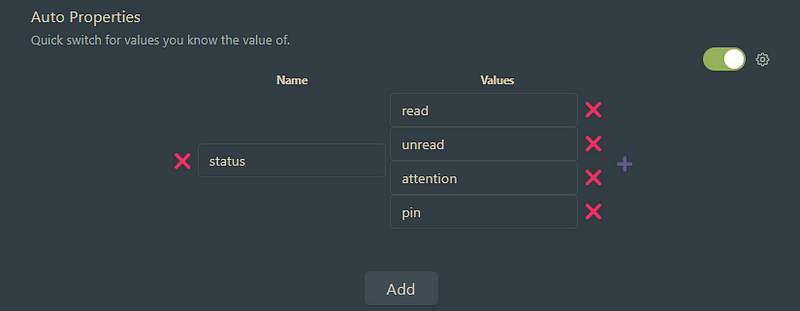
Using MetaEdit plugin. I have configured an hotkey to Run MetaEdit.

And added the following Auto Properties:
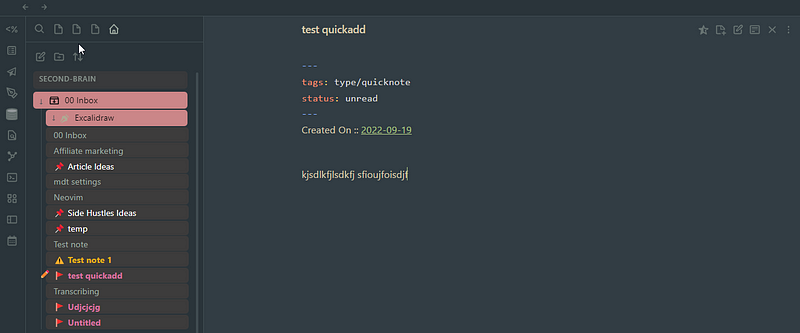
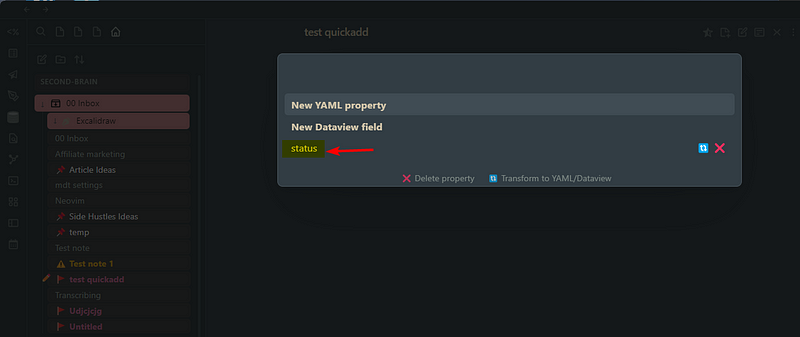
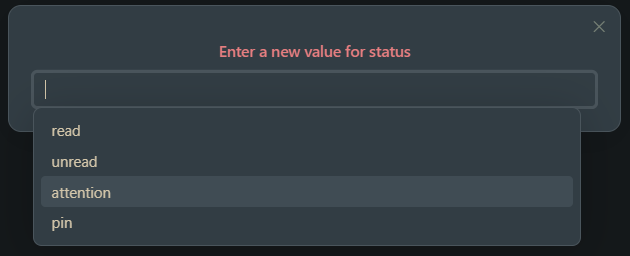
Now, from within a quick note, I press ctrl+shift+M and:
Metadata Menu
Using this plugin, you just have to right click the note and click Update status.
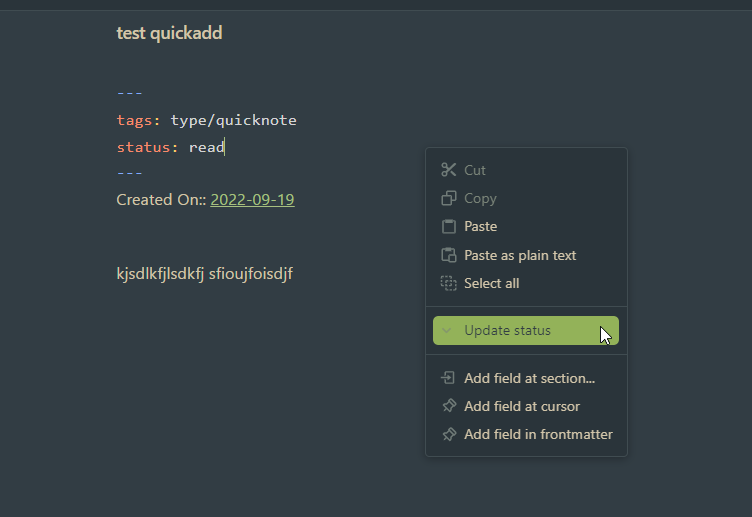
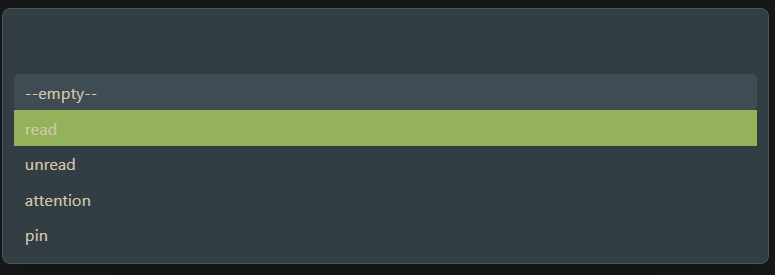
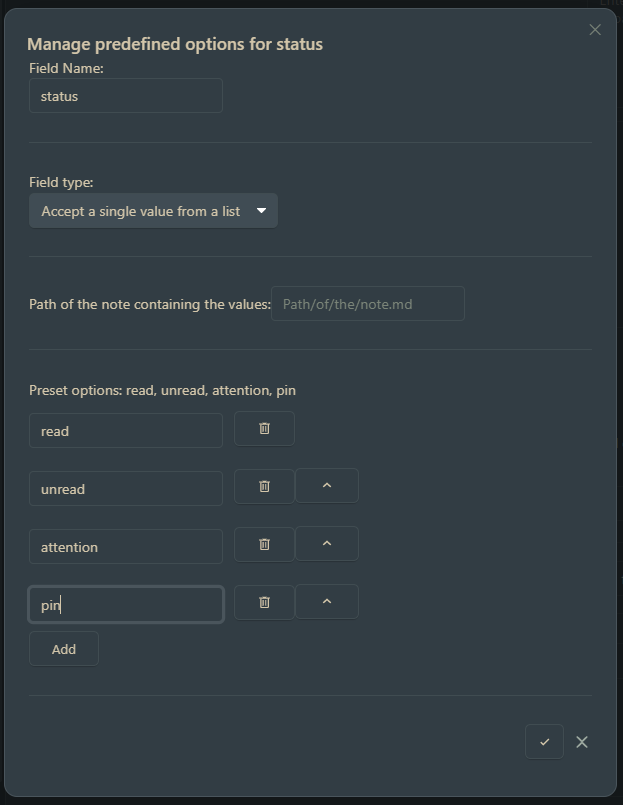
For do this way, you have to go to Metadata Menu settings and add a new field, in this case status.
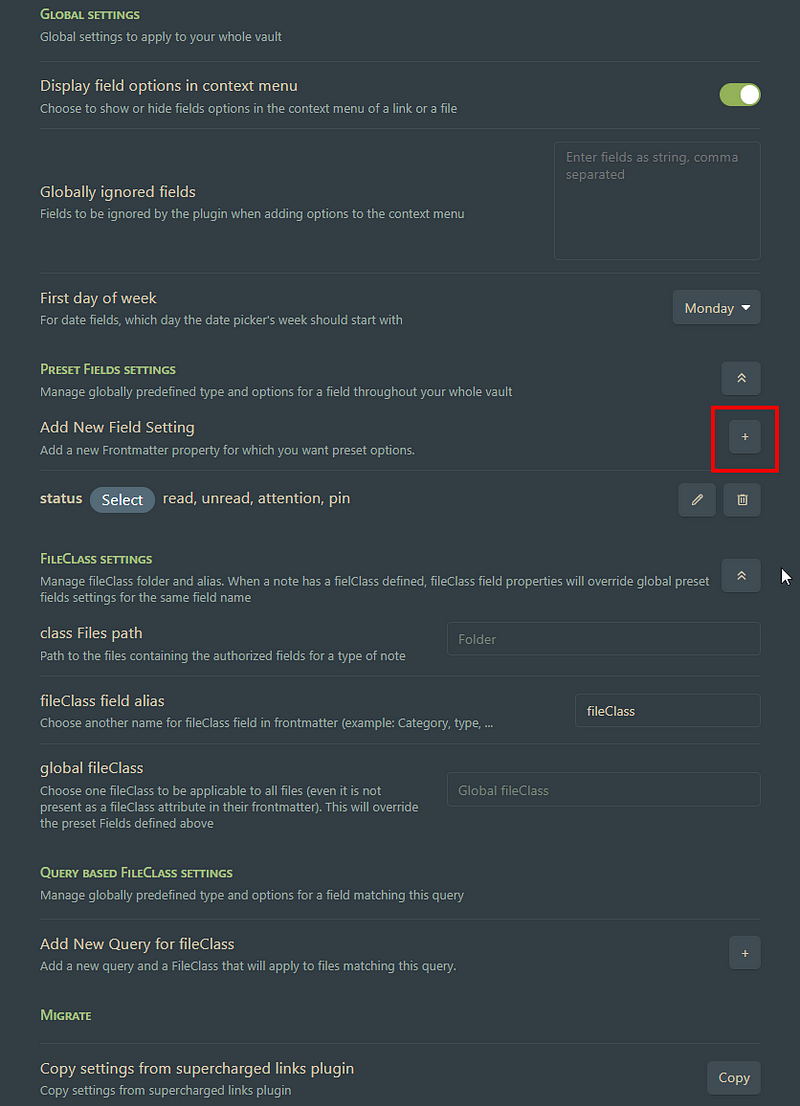
And then add the possible values.
Link to Daily Note
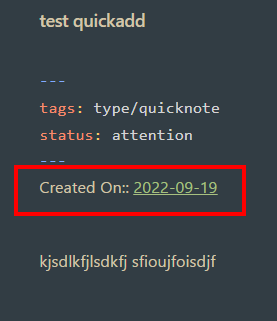
Finally, I also have the template insert a backlink to today’s date, so the note is linked to the Daily Note of the day it was created.
This is my Inbox folder and quick note capturing workflow.
Check out my other articles on My Obsidian Setup:


