
My Obsidian Setup (Part 1)
Obsidian is an excellent tool for managing your personal knowledge. There is some sort of a cult following online for this “second brain”. And that includes me. After migrating all my notes into Obsidian, I haven’t looked back. For note-taking, writing, research, and task management, I use it almost every day.
Obsidian is a bi-directional note-taking app that offers security and longevity using plain text Markdown files stored in a local folder. Some of its best features include tags, syntax highlighting, markdown tables, backlinks, graph view, and note Multiplexer. Obsidian also has a community marketplace where you can find and install plugins to extend its capabilities. You can even apply custom CSS code.
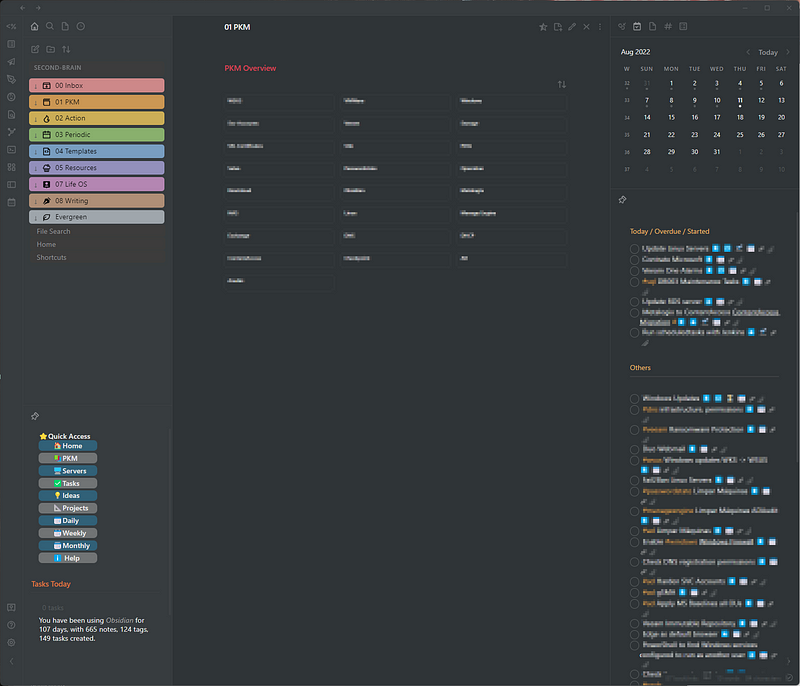
In this first part, I’ll go through the PKM part, and in the following articles, I’ll go through the Task Management and plugins I use and how I configure them.
Folder Structure
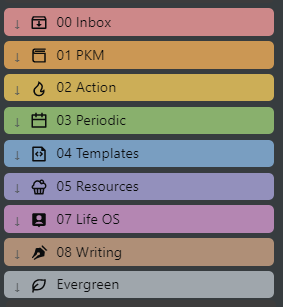
In the Inbox folder, I keep my temporary notes. In other words, notes that are not meant to be kept on my knowledge base, or are not ready yet to be placed there.
I’m using the Minimal theme, but for the coloured folders I’m using the CSS snippet from here: Iterative Rainbow Folder Colors css — Share & showcase — Obsidian Forum
The PKM folder is where I store notes about my work. How something is done, how I solved that problem, etc., all organized in a 2-level folder. I just have these top-level subjects, like Active Directory, MS Exchange, Windows, Linux, etc. Then for each top subject, I have a MOC page where I list all notes inside the folder, plus, as I also use tags, all notes with that subject tag. I use both folders and tags for organization because I don’t like to keep all notes in the same folder, and some notes may fall in more than one subject. This way I see all relevant notes on the MOC files. I also include all tasks with that subject tag in the top subject MOC files. Using this method, I have a list of all tasks organized by subject.
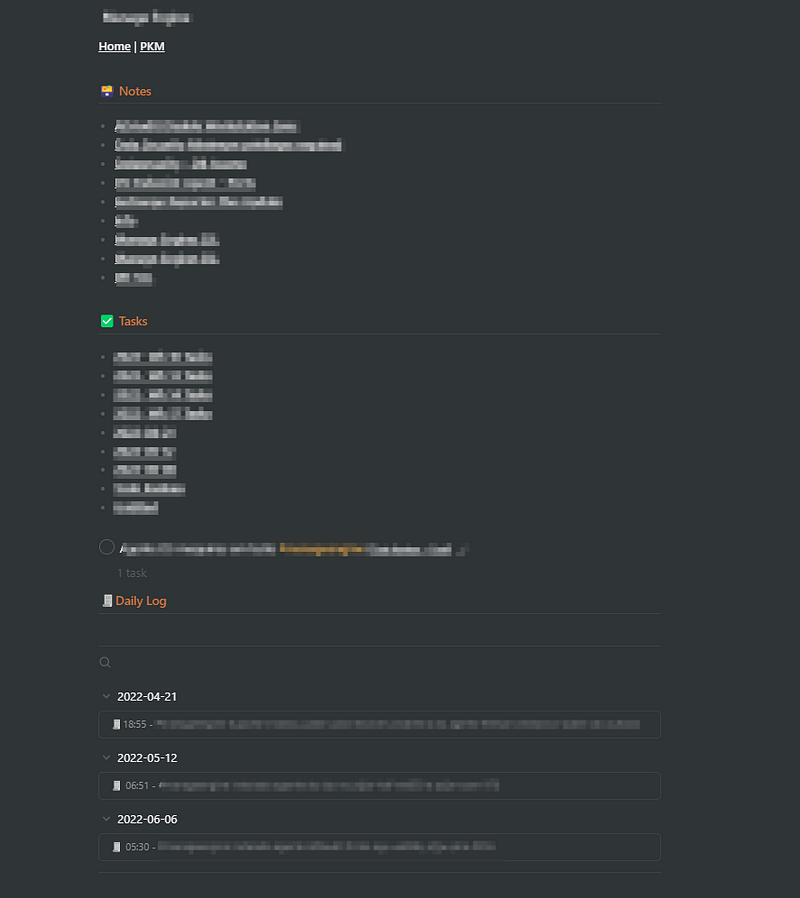
Here’s the markdown used on the MOC pages.
Notes:
```dataview
List
from #ad and #type/note
SORT file.name ASC
```
Tasks:
```tasks
done
description includes #ad
sort by start date
```
Daily Log (will explain later):
```query
block:(/.*🧾.+#ad.*/ OR /.*🧾.+#ad.*/)
```
And this is my simple new note template:
[[Home]] | [[01 PKM|PKM]]
#type/note
[Created On :: [[<%tp.date.now("YYYY-MM-DD")%>]]]
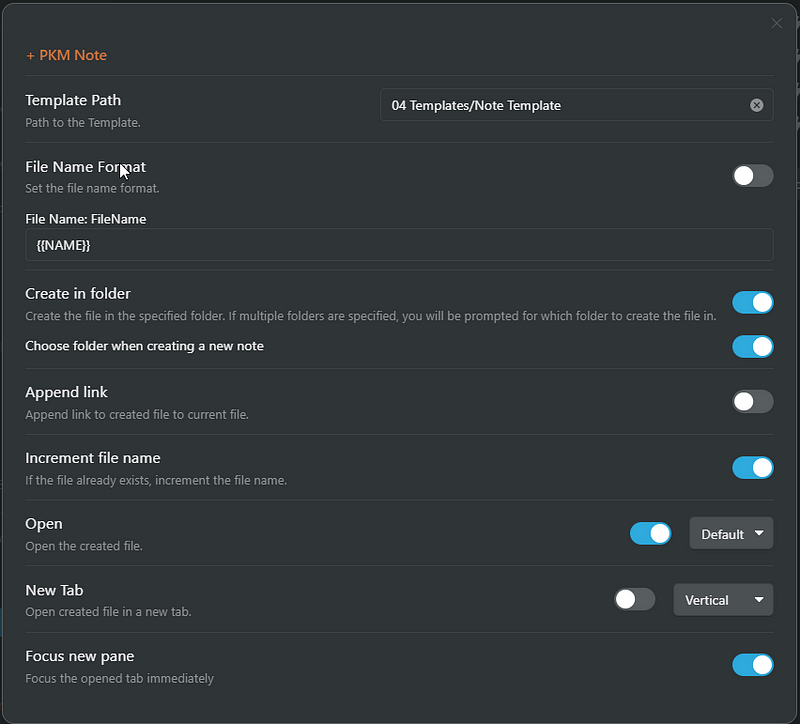
I use QuickAdd plugin to add new content to my vault. In this case, for new Knowlege note, I’m first prompted for where I want to store it and the name of the note. Here’s the QuickAdd config for the new PKM note:
Resources
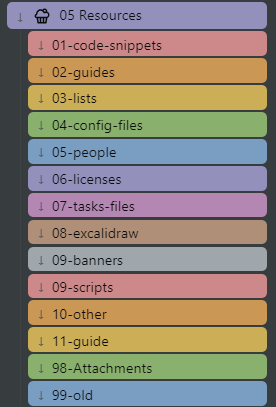
Well, the subfolders’ names are self-explanatory about the Resources folder. Just a quick note for the People folder, which is where I store important contacts. Each contact has its own file, and I list all of them in a table with the DB Folder plugin. Having each contact in a separate file, allows me to link notes, tasks or projects to contacts.
Other Folders
The remaining folders are Life OS, where I keep my personal notes; Writing, where I store articles for Medium; and Evergreen, for evergreen notes.
Quick Access
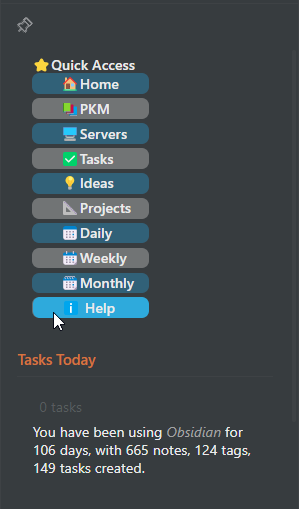
This is just a quick navigation area, with links to the different areas of my vault, for easy area switch.
Then I have today’s tasks:
```tasks
due on today
hide backlink
hide due date
hide edit button
not done
```
And some stats:
```dataviewjs
let ftMd = dv.pages("").file.sort(t => t.cday)[0]
let total = parseInt([new Date() - ftMd.ctime] / (60*60*24*1000))
let totalDays = "You have been using *Obsidian* for "+total+" days,"
let nofold = '!"misc/templates"'
let allFile = dv.pages(nofold).file
let totalMd = " with "+
 allFile.length+" notes, "
let totalTag = allFile.etags.distinct().length+" tags, "
let totalTask = allFile.tasks.length+" tasks created. "
dv.paragraph(
 totalDays+totalMd+""+totalTag+""+totalTask
)
```
I hope you found this article useful, thanks for reading. If you have any questions or comments, feel free to send me a message.
In the next part, I’ll explain my tasks and project management workflow.
Checkout my other My Obsidian Setup articles:


