
My Martin Tile Server Setup!
Another great tool written in Rust 🦀
Intro
Martin is a blazing fast and lightweight PostGIS, MBtiles, and PMtiles tile server, tile generation, and mbtiles tooling. It’s written in Rust, so it caught my attention at first glance, as I’m more into Rust for CLI tools.

Let’s start configuring the Martin server to serve MBtiles with Docker.
Prerequisite
Martin is a CLI tool, so you can use it standalone without the Docker; I will explain both ways.
You need a little terminal knowledge to run the CLI tool and a bit of docker knowledge to run it inside a docker container.
You need an MBtiles file. I’m using my bangladesh.mbtiles, you can download any country’s MBtiles from maptiler, and Docker installed on your system. If Docker is not installed and you wish to run it with it, you can follow this doc to install it on your system.
I’m on MacOS, but it works in Linux/Ubuntu similarly.
Run with CLI
First, you need to install the Martin CLI on your system to run with the CLI tool. Martin has very detailed documentation. You can follow the docs or run this Homebrew command to install Martin on your MacOS.
brew tap maplibre/martin
brew install martin
Alternatively, if you have the Rust toolchain installed on your system, you can install Martin with cargo with this one-liner; this works for both MacOS and Linux/ubuntu.
cargo install martin --locked
Now, to check if Martin installed it correctly, run martin --help , you’ll see something like this,
Blazing fast and lightweight tile server with PostGIS, MBTiles, and PMTiles support

Usage: martin [OPTIONS] [CONNECTION]...

Arguments:
  [CONNECTION]...
          Connection strings, e.g. postgres://... or /path/to/files

Options:
  -c, --config <CONFIG>
          Path to config file. If set, no tile source-related parameters are allowed

      --save-config <SAVE_CONFIG>
          Save resulting config to a file or use "-" to print to stdout. By default, only print if sources are auto-detected
...
We are ready to run our Martin server if you get this.
To run the Martin server for any MBtiles or PMtiles, it’s just a one-liner
martin bangladesh.mbtiles
and starts the server immediately. Then you can visit localhost:3000/catalog, and you will see something like this,
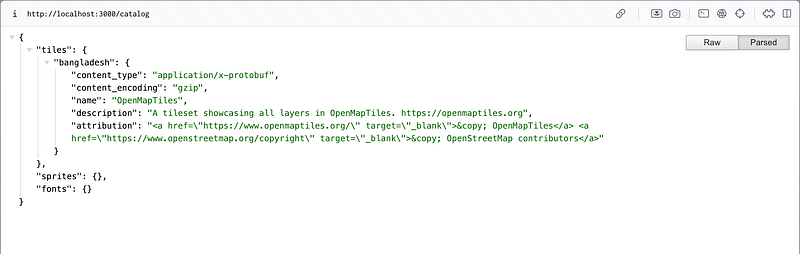
Voila! We have served the Bangladesh MBtiles with Martin.
Let’s explain some basic CLI options for Martin,
Here, I’m running Martin with the MBtiles file to serve it. It’s that easy, but you can add some options with the CLI to make more configurations. Martin generates a default config yaml file, which you can save to your system with this — save-config option with the config file name in yaml.
martin bangladesh.mbtiles --save-config martin.config.yaml
Or you can use your config file with the — config option with the config file,
martin --config martin.config.yaml
and the config file for mine is as simple as this,
mbtiles:
  sources:
    bangladesh: bangladesh.mbtiles
Run with Docker
Running with Docker is similar. You need Docker installed on your system and run with a simple Docker run command,
docker run \
  -p 3000:3000 \
  -v $(pwd):/files \
  ghcr.io/maplibre/martin /files/bangladesh.mbtiles
Here, I’m binding my current folder to the container’s /files folder, and with Martin docker images, I’m running the MBtiles file.
With docker-compose, it looks like this,
version: "3.9"

services:
  martin:
    command: /files/bangladesh.mbtiles
    image: ghcr.io/maplibre/martin
    volumes:
      - "$(pwd):/files"
    ports:
      - "3000:3000"
Here, I bind the command for the image.
Also, you can use all the CLI options with Docker. If you want to save the config, the command should be,
docker run \
  -p 3000:3000 \
  -v $(pwd):/files \
  ghcr.io/maplibre/martin /files/bangladesh.mbtiles --save-config /files/martin.config.yaml
and with docker-compose it should be,
version: "3.9"

services:
  martin:
    command: /files/bangladesh.mbtiles --save-config /files/martin.config.yaml
    image: ghcr.io/maplibre/martin
    volumes:
      - "$(pwd):/files"
    ports:
      - "3000:3000"
If you want to use your config file, then it should be,
docker run \
  -p 3000:3000 \
  -v $(pwd):/files \
  ghcr.io/maplibre/martin --config /files/martin.config.yaml
and the docker-compose should be,
version: "3.9"

services:
  martin:
    command: /files/bangladesh.mbtiles --config /files/martin.config.yaml
    image: ghcr.io/maplibre/martin
    volumes:
      - "$(pwd):/files"
    ports:
      - "3000:3000"
Now, you have a simple Martin tile sever running for yourself! Cheers 🍻
Next, you can configure it with all the bells and whistles. The official docs for Martin are very detailed. Check it out!
Have a nice day! 🙏


