
My Focus Mode setup (with screenshots)
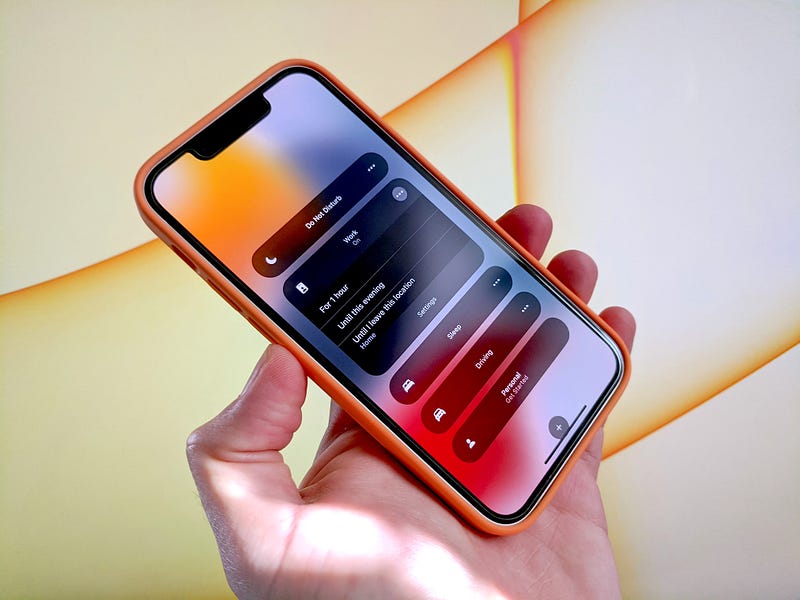
In my opinion, one of the most exciting parts of Apple’s iOS15 release was the introduction of Focus Modes.
The idea of Focus Modes was to give users more control over how to manage direct messages and notifications from contacts or apps. The standard “Do Not Disturb” feature was a bit of a sledgehammer when it came to doing that — either you got every single notification … or none at all.
With Focus Modes, though, the user was able to tailor the setup to allow notifications to come through, based on their unique requirements. In addition to that, users could attach one (or multiple) screens to a Focus Mode to allow different apps and widgets to become more accessible in specific circumstances.
My excitement around this came from the fact that I could essentially create different setups on my phone for the different areas of my life. Each one could be configured separately depending on what I was doing at the time, with my phone switching between different modes automatically based on the time of day or day of the week.
In short, my phone would be adapting to my circumstances, which would make my life a whole lot easier.
So how did I go about implementing this? Well, to be honest, it’s still a work in progress so I’d love to hear any thoughts/feedback that you might have.
To highlight the possibilities of Focus Modes though, I wanted to share the configurations I’ve set up so far along with details on the apps and people that I’ve allowed to send me notifications as well as the Custom Screens that I’ve built for each of them.
Deep Focus
Allowed People: None Allowed Apps: Forest Custom Screen: None
This is the mode for when I just need to block out all of my surroundings and get some work out of the door. That could be pulling together a presentation for a client, writing an article for Medium or processing a load of emails from my inbox.
The Deep Focus shuts off all notifications from everyone except for my Pomodoro timer, as I work in 45 minutes shifts and want to know when my time is up. This usually gets activated alongside a focus playlist in Spotify — Thomas Frank’s Sunday Study and this list of Video Game Soundtracks are two of my long-standing favourites.
Driving:
Allowed People: Direct Family (Parents, Brother, Wife) Allowed Apps: N/A Custom Screen: N/A
This is pretty much the default Driving configuration that was released with iOS15.
I’ve amended it slightly to only allow texts and calls from my direct family while driving. Other than that, I haven’t done anything with it and don’t notice it: it kicks in automatically when I plug the phone into the car and turns off again when the phone is unplugged.
Mindfulness
Allowed People: None Allowed Apps: Balance Custom Screen: None
I’ve been trying to build a meditation habit since the beginning of the year. I’ve had mixed results, so I built out this Focus mode to help me. In a lot of ways, this is similar to the Deep Focus Mode, in as far as it blocks off all communication.
However, it is also a little different as it automatically kicks in when my meditation app opens, whereas the Deep Focus Mode is manually triggered by myself.
Similarly, once I’ve finished my meditation (and closed the app), the Focus Mode automatically stops and all restrictions are lifted.
Morning:
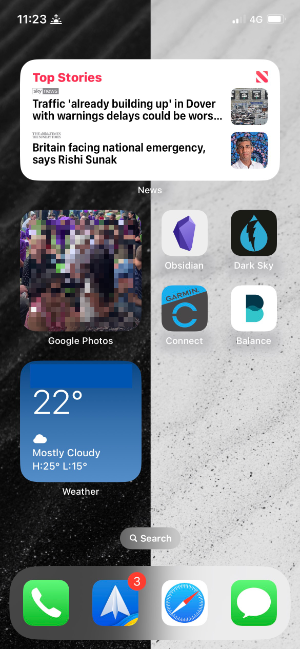
Allowed People: All Allowed Apps: All Custom Screen: News Headlines (widget); Today’s weather (widget); Photos (widget); Garmin Connect, Dark Sky, Balance
This is a quick little focus mode that kicks in for 30 minutes after my alarm goes off in the morning.
It’s not about limiting who can get in touch with me (as the previous Focus Modes have been). Instead, it’s all about a custom screen which is designed to give me a quick overview of what’s happened while I’ve been asleep along with an idea of what the weather for the day is going to be like.
I’ve deliberately not put any communication apps on the screen, as I don’t want to be looking at personal messages from people as soon as I’ve woken up. I try to save that until after breakfast and a coffee!
Reading:
Allowed People: My wife Allowed Apps: Kindle Custom Screen: None
Another mode similar to “Deep Focus” and “Mindfulness”, the “Reading” mode kicks in as soon as I open up the Kindle App. As with Deep Focus, I tend to try to read in dedicated chunks of 45 minutes.
Therefore, I block out all incoming messages and calls during that time so that I can focus on the book at hand. The only exception to this is my wife who is still able to reach me, in case of emergency.
Sleep:
Allowed People: Direct Family Allowed Apps: None Custom Screen: None
As with “Driving”, the “Sleep Focus” comes as one of the default options shipped with iOS15. I haven’t made many changes to it, other than to only allow direct family to get in touch with me while it is on.
It automatically activates at 22.30 each evening. If anyone else needs to get in touch with me at that time of night, I’m pretty much certain that it can wait until the next day.
Weekend:
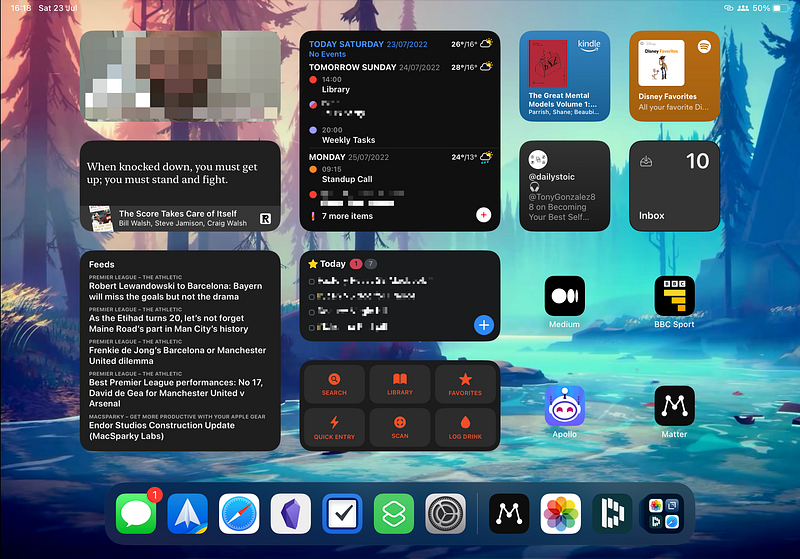
Allowed People: Family and Friends Allowed Apps: BBC News, Photos, Kindle, Medium, Matter, Messages, Reeder, The Athletic, Readwise Custom Screen: — iPhone: Fantastical (Widget); Things3 (Widget); FoodNoms (Widget); Apollo; Readwise; BBC Sport; WhatsApp — iPad: Photos (Widget); Readwise (Widget); Reeder (Widget); Fantastical (Widget); Things3 (Widget); Foodnoms (Widget); Kindle (Widget); Spotify (Widget); Twitterific (Widget); Drafts (Widget); Medium; BBC Sport; Apollo; Matter
My latest Focus Mode, which I built out last month, is aimed at taking my mind off work at weekends.
Any calls or messages from work colleagues or industry contacts are blocked and the only apps I’m accepting notifications from are those which are not work-related.
This is still a work in process as I figure out how I use my devices over the weekend but the idea would be that I’m able to access everything I need from a single screen on my iPhone and iPad
Work:
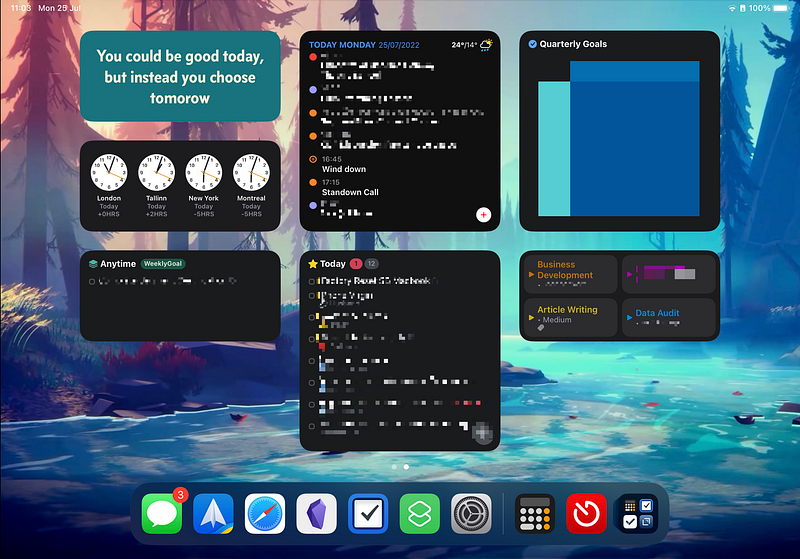
Allowed People: All Allowed Apps: Slack, Fantastical, Forest, Spark, Things3, WhatsApp, Zoom Custom Screen: — iPhone: Fantastical (Widget); Timery (Widget); Things3, Slack, LinkedIn, Confluence, Expenses, Workplace, Google Docs; Google Slides — iPad: Widgetsmith (Widget); Things3 (Widget); Fantastical (Widget); Timery (Widget)
If “Weekend” was all about keeping my mind off work, this Focus Mode is all about keeping my mind on what I should be doing during the week.
It automatically kicks in at 09.00 and runs through to 17.30 every weekday, at which point, it turns off. During that time, it limits notifications to my more work-focused apps, while allowing all contacts to get in touch with me directly.
This Focus Mode is also fairly unique, as it’s designed almost entirely for my iPad, whereas the other modes were designed primarily for my phone.
The reason for this is that I don’t tend to work on my phone — most of my daily work is carried out on a laptop. However, during that time I use my iPad as an additional screen and so the Work Focus mode becomes handy for ensuring that the right information is always available when I use my iPad during work hours.
The iPad screen I’ve set up (below) is a dashboard which stays on throughout the day to keep me focused on my priorities. It contains my tasks for the day as well as separate widgets for my weekly and quarterly goals. I also include the Fantastical widget so I can see my daily agenda and the Timery widget which allows me to easily start timers for clients who need a breakdown of my time.
One more thing
I’m a new writer on Medium so, if you found the above article useful, please consider following me.
If you’re not currently a member of Medium, you can support me by signing up here (which will give you access to a ton more articles on similar themes!) or you can buy me a coffee here.
Failing that, any thoughts/feedback generally would be appreciated as I look to build a writing habit.
Thanks very much


