Multi-Layer Planning with Obsidian, Why and What
As we embark upon 2024, this is a perfect time to highlight how I have set up my multi-layer planning in Obsidian. This article and video are also the first where I’m launching them early in the I Wanna Be Me When I Grow Up Community and then I’ll follow up by putting them on Medium about a week later. I’m really excited to begin building out content in the Obsidian Hub area of my community and I hope you’ll join for free to get the articles and videos. I’m planning a course on Obsidian later this year there that will also be for sale. Join for free now and always get my Obsidian articles and videos earlier than anywhere else.
What is Multi-Layer Planning
Multi-layer planning is a process of looking at the various components of your life through the lens of different time periods. For me, most often, the time periods are Yearly, Quarterly, Monthly, Weekly, and Daily. I look at my life as a whole in this way but I also have a paper calendar for instance where things that my house mate needs to know get written. Also, my calendar — Fantastical is my calendar app of choice at the moment — is where all appointments get set up and managed. I record my agenda weekly in a digital note on my iPad as well as on daily notes in Obsidian though as I plan what tasks and activities I will do on each day.
While some of this may feel redundant, it helps me stay on top of things and keep an eye on both the forest and the trees at the same time. This is definitely a “take what you need and leave the rest kind of situation”. My process is my process and it works for me. It may or may not work for you but you may find some things that do work for you.
Who inspired me
I take some of these things from R.J. Nestor who is a great friend and productivity guru. You should definitely check out R.J.’s new book that is coming out in 2024. I also watched videos from Jess Corrin. She is experimenting in 2024 with cyclic planning cycles (every 4 weeks aligned to week start rather than month start). I’m intrigued by this but not going to go all the way there yet. I also listened to a recent episode of The Focused podcast featuring Mike Schmitz and David Sparks where they discussed this exact topic. I’d already been thinking about doing an in-depth look at my multi-layer planning and all this synergy pushed me over the edge to go ahead and do it.
What do the tools look like
In this article and video, I’m going to take you through what the tools look like. In the next article and video in this two part series, I’ll give you the templates themselves and show you the ins and outs of how to make them with the aim that the methods I show you can be used to customize as you need to.
So, let’s begin our look at the templates from the top down with the yearly template.
Yearly Template

Right off the top, you’ll notice that there is a note to add a text expander template. That text expander snippet looks like this. I only have to type the year once and it fills it in in every spot.
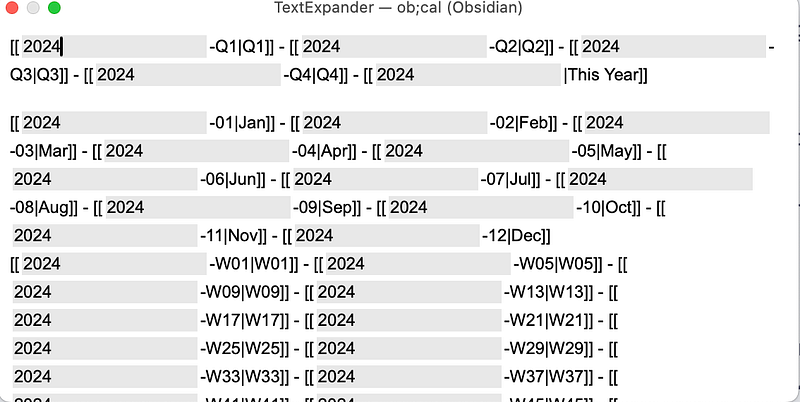
Using text expander allows me to creates a little year at a glance calendar for quarters, months, and weeks. It looks like this once inserted.
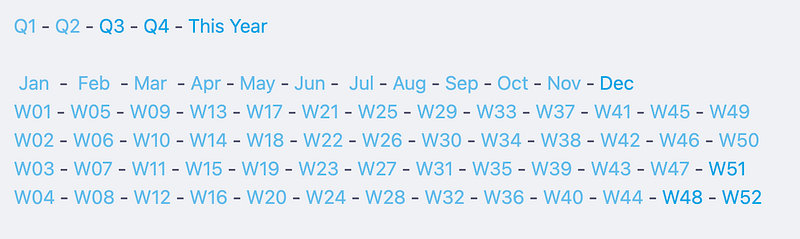
Using text expander instead of templater allows met to insert this at any time so if I wanted to set up my next year say in October, I could do that easily.
Next up on my yearly template are some places for my “Word of the year” which this year is actually a theme because for the first time every I have a two word theme — Manifest Wellness. I’m currently going through cancer treatment and so to remind me to have a positive outlook (to manifest what I want in life) and to think about all the aspects of wellness throughout the year — not just my physical health — this will be a good way to remember that and keep that front and center this year.
Next up is my Richard Feinman inspired 12 favorite problems which is provided as a transcluded note so that if I update the original file, those changes will be shown here. The transclusion only includes the heading of current so all of my past lists I have to go look at in the file if I want to do that.
The next section is a place to include a number of different review templates — Susannah Conway’s Find Your Word and Unravel Your Year as well as the YearCompass and My Personal Review template from my quarterly review (available for free in my community.)
Then there is a spot for a vision board. This year, I’m going to do all of my vision boards in Canva I think. I thought about doing them in Excalidraw but I have a load of pre-loaded images in Canva and so I think this will be easier.
The next section reminds me to create some annual project templates and a yearly folder structure. I manually move the weekly and daily notes for each month into their corresponding folder at the end of each month. I also realized as I was doing this write-up that i didn’t have a corresponding reminder note added in my monthly note to go and move them so that won’t be in the screen shot you see below but will be included in the how video and article.
In the next part of the template, I have my 24 for 24 lists. This year, I’ve got my personal one as well as a list for my business.
Next up are my themes by month. I’ll link to vision board images for each month which you’ll see in a bit. This is MUCH easier with Obsidian’s new easier to you tables.
The final two sections are transcludes from monthly and quarterly notes — another section I’ve decide I’m converting to a text expander snippet.
Quarterly Template
Here is the overview of the quarterly template. After the image, I’ll walk through it step by step.

Just like the annual template, I add the text expander snippet that shows that little navigational calendar. I also have a few setup reminders that are there at the top to complete.
Most of my quarterly planning is actually done in my quarterly planning workbook (available free in my community). I’ll be announcing a couple of Quarterly Retreat dates in the next few days so be sure to check that out. I simply come into Obsidian to record some of those things. Again, the updated Obsidian tables make this SOOOO much easier.
Let’s now turn our attention to the Monthly template
Monthly Template
I start with a smaller navigational calendar at the top of each month. Just like in other templates there is a little set of tasks to keep up on some of the important things that need to get done each month.
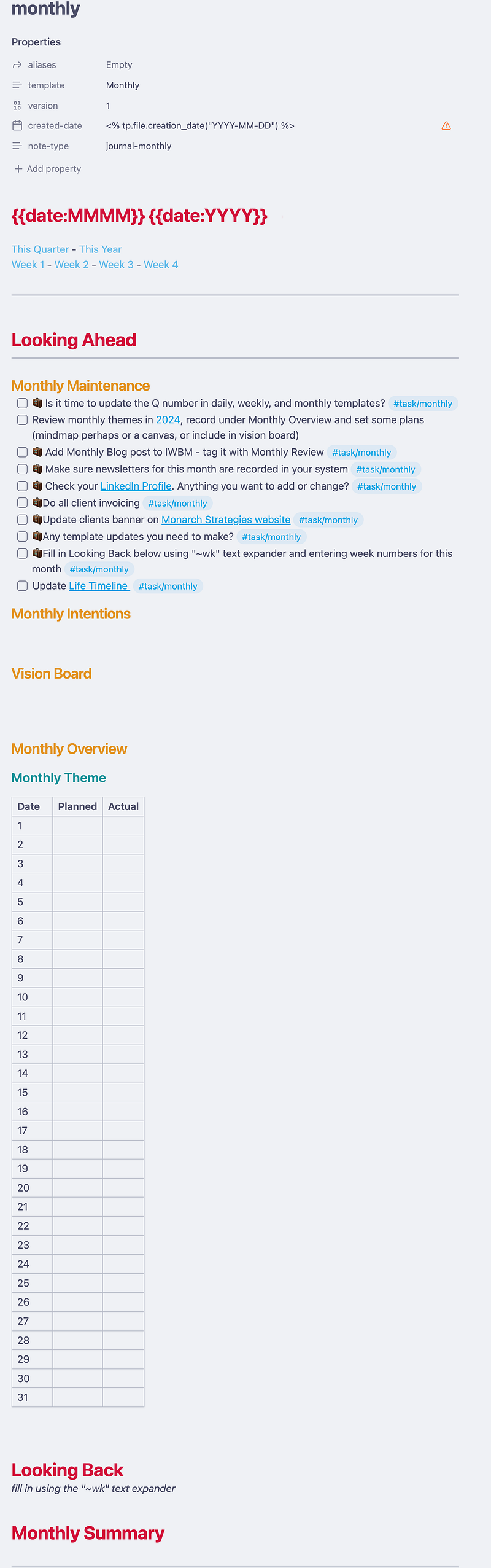
Next are my monthly intentions that I set up each month. And then a vision board space.
I’ve added a spot to put my monthly theme just under the overview. Those come from the theme area in the yearly planning template. The most “time consuming” part is where I add in the planned/actual of the calendar. I tend to fill in the actuals on a weekly basis.
Finally, another text expander snippet pulls in the weekly summaries I do along with a space for me to simply write a monthly summary.
Let’s now turn our attention to the weekly template. This is one of the most important templates in my system.
Weekly Template

Again, there is a navigational calendar at the top of the screen. Then there is a place to fill in the weekly intention as well as the weekly maintenance tasks. I typically do a little mini brain dump here. Based on how my tasks are set up to appear in my daily notes, the brain dump tasks will show up in my task list.
The weekly agenda is a transclude that comes in on its own as I build out each daily page. This makes it easy to look over as the week goes on.
At the end of each week, I come back to the weekly template to prepare and review for next week. I start by setting up my weekly note for the next week and then review the highlights from the week along with my logs which are also transcludes from daily notes.
Finally, I do a little summary of the week using Anne Laure Le Cunff’s Plus, Minus, Next format and then if I feel like it I might also write a little weekly reflection.
And that finally brings us to our Daily Notes — the glue of the system.
Daily Notes
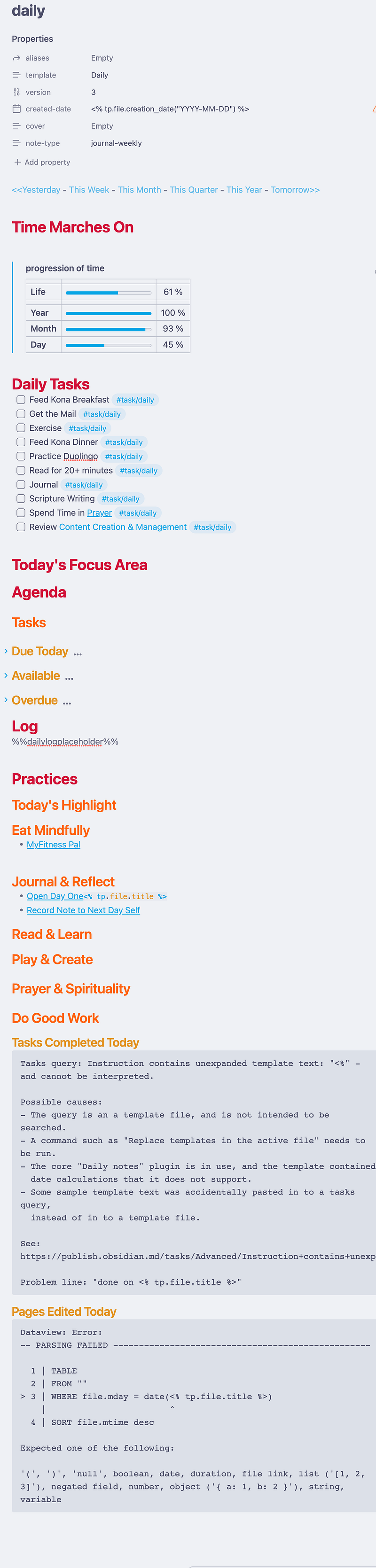
My daily note starts with my little navigational calendar again and then adds in the little “time marches on” piece from Mike Schmitz that is available in his classes on the Faith Based Productivity Community or the Obsidian University community. You can also see my previous daily notes template article here.
Next up are my daily habits. I am not in love with tracking habits in this way but in my quest to get as much inside of Obsidian as possible, this is what it looks like at the moment.
Next, I build out my plan for the day — my main focus area, my agenda, and then tasks searches for things due today, available tasks I can work on, and finally overdue tasks. I then have a log that I can fill in by typing or using a Shortcuts Quick Action on my phone, iPad or computer. Check out that article here.
Finally, I have a section for review. Right now, I’m not doing much with this section other than filling it in each day. However, this would be fun to look at on a regular basis so I may add it into my monthly template at some point.
Finally, I have two queries — one tasks and one dataview — that take the date from the filename and records what I worked on from Obsidian that day. It is nice to look back at this at the end of the day if I’m feeling discouraged about what I worked on.
How do I use them?
Now that you’ve seen the templates, you can see the links between them. The heart of the system are my daily and weekly notes. I typically sit down on Saturday or Sunday along with my iPad and Fantastical and plan out my week in my Nozonumoto Planner which you can find here on Etsy. I purchased the Yume Techo 2024 available here. This planner is sort of a perfect digital version of my beloved Jibun Techo analog planner. I start by planning my week out in the Yume and as I do that I review the past week and carry any tasks forward.
At the beginning of each month and quarter, I build out my pages for those and fill them in. The same with the annual. I can go back and forth between all of them easily at any point with the navigational links on each page.
What do you think?
So that’s a tour around my planning templates. Let me know what you think and what you’d like to know. I’ll be back in a week with the “how” to do it article and video.