
Multi-file Search and Replace in Neovim
Been searching for a way to do a search and replace across your project like you would in VSCode? Or looking for alternatives for your existing workflow? Here are a few ways that you can find text and replace it across your project in Neovim.
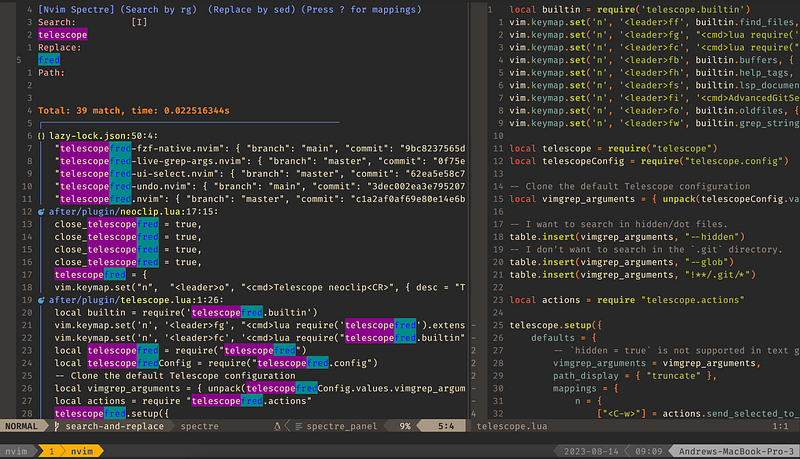
Telescope + cdo
If you already have Telescope as a plugin then you shouldn’t need any more plugins to get this option to work for you.
If you don’t have Telescope installed here is a link to check it out:
Once you have Telescope installed, open up Telescope to find files or find a string or whatever you are searching for.
Here’s my keymap for opening find_files:
local builtin = require('telescope.builtin')
vim.keymap.set('n', '<leader>ff', builtin.find_files, { desc = "Find Files"})
Once you have your results, open the list in the quickfix list.
The default keymap for this in Telescope is Ctrl+Q.
You should now see those results available in your quickfix list and look something like this:
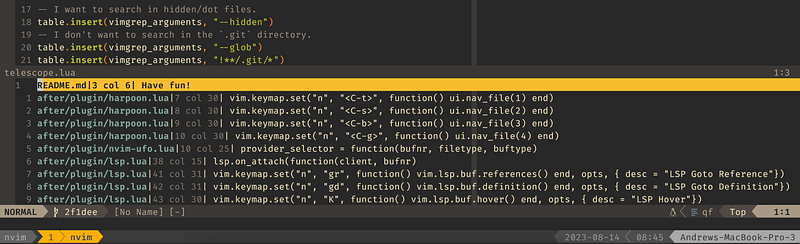
Now run the :cdo command to apply a regex on each entry in the list
:cdo %s/TEXT/NEW_TEXT/gc
Hit enter and you should be able to confirm each replace in the list.
Omit the ‘c’ if you don’t want to confirm each item.
Success!
Another option is to use :cfdo instead of :cdo, which will apply the command to each file instead of each result. This will result in fewer commands and better performance in large searches across your project.
Nvim-Spectre
Check out the Github link above to setup and view the commands / keymaps available for this plugin after installation.
To begin, hit <leader>S to open the search and replace buffer.
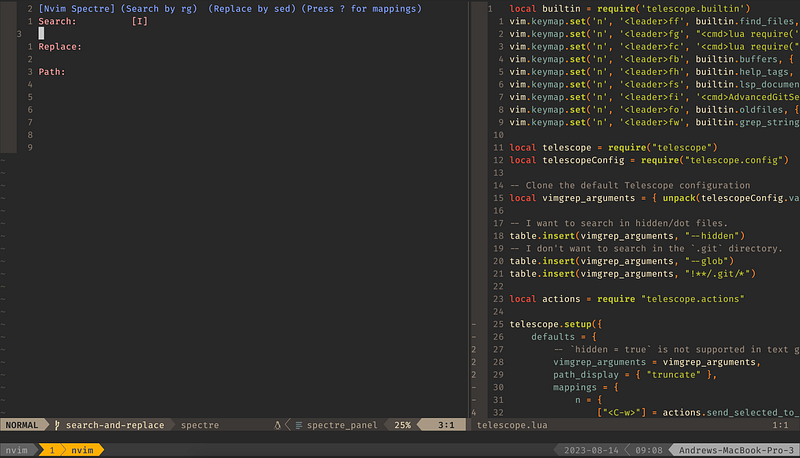
You should see something like the above screenshot.
Hit ? to see the available mappings
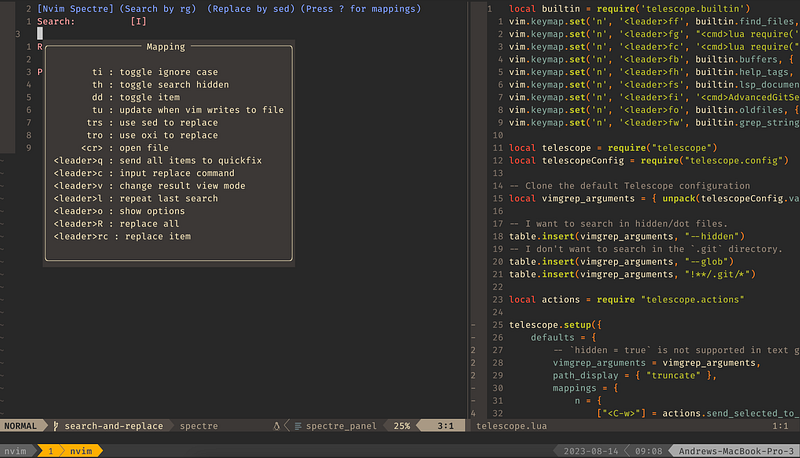
First enter insert mode (i) underneath the “Search” and you should see results pop into the bottom section of the buffer.
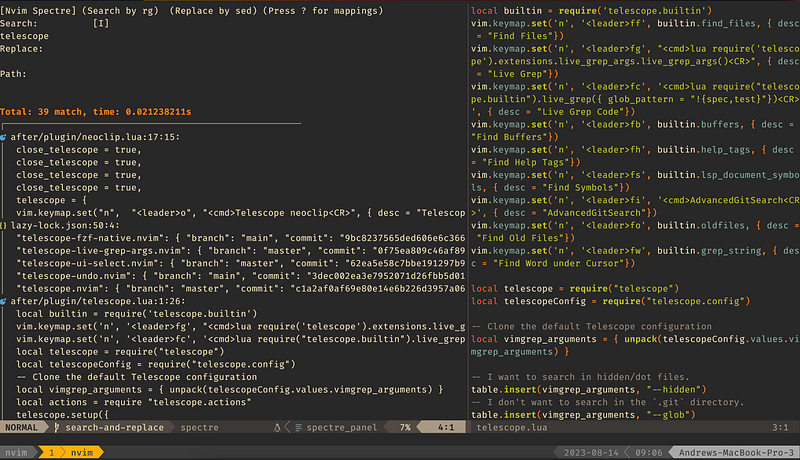
Next add your “Replace” string and you should see some inline diffs of what will be replaced.
Note: You can toggle how this view mode works using <leader>v.
To toggle items in the results use dd.
To replace all, use <leader>R.
To replace a single item, use <leader>rc.
You will see a “DONE” checkbox at the end of each selection that has been replaced.
Hit Enter to open up the selection in a buffer.
Note: There is no built-in undo capability so you will need to use git or something else if you need to rollback changes.
I have personally found myself toggling off ignore case (e.g. doing only exact matches) since it seems to be a very greedy match and will replace more occurrences than I want.
Here are two other keymaps for replacing text from the GitHub page:
vim.keymap.set('n', '<leader>sw', '<cmd>lua require("spectre").open_visual({select_word=true})<CR>', {
    desc = "Search current word"
})
vim.keymap.set('v', '<leader>sw', '<esc><cmd>lua require("spectre").open_visual()<CR>', {
    desc = "Search current word"
})
vim.keymap.set('n', '<leader>sp', '<cmd>lua require("spectre").open_file_search({select_word=true})<CR>', {
    desc = "Search on current file"
})
CtrlSF
Check out the Github link above to setup and view the commands available for this plugin after installation.
Essentially this plugin will open up a new buffer to allow you to modify search results just like you would in any normal file.
You can use other plugins to allow multi-cursor support or simply use %s replacements.
Start by using the following command to find a string and open it in a results buffer.
:CtrlSF SEARCH_TEXT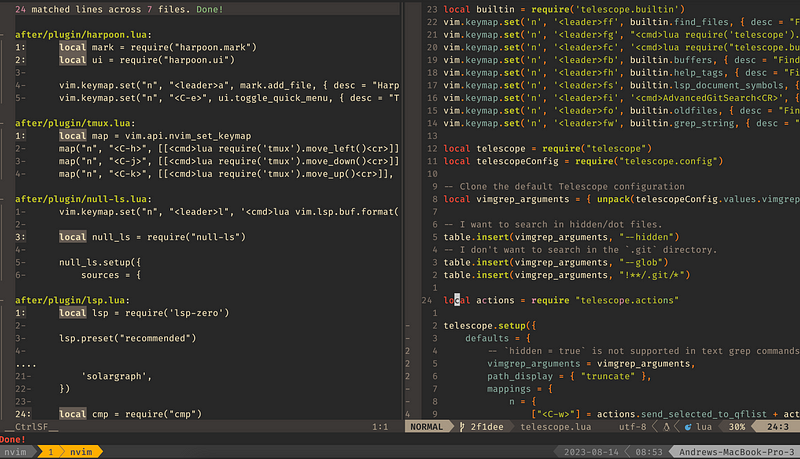
You should see something like the above screenshot where you have many files and results shown.
Use Ctrl-j / Ctrl-k to jump between matches and Ctrl-n / Ctrl-p to jump between files in the results.
If you want to preview a file then hit p. Hit P if you want to also focus the selection.
If you want to open that file then hit Enter on the selection.
Next use a %s replace command, hit enter and you should see a confirmation message after doing a :w
If you need to undo then simply hit u and then another :w
This plugin feels quite straight forward and I really like the undo capability in case I mess up a replacement. Note that you will lose this if you close and reopen the buffer from my experience.
Conclusion
You now have 3 different options to choose from when searching and replacing text across your project in Neovim. Which option do you prefer? Do you have a different plugin you use or prefer? Let me know in the comments so I can check it out too!
If you enjoyed this article, consider subscribing to Medium!
Here are a few other Neovim articles you should check out:
If you or your company are interested in having someone conduct technical interviews then please DM me on Twitter (@Exosyphon) or visit my website. If you enjoy topics like this then you might also like my Youtube channel. Have a great day!


