

MEDIUM | TIPS & TRICKS
More About The Way I ‘Medium’, And Other Tips
I’ve been on this Medium journey for two and a half years now, and love sharing the things I have learned along the way
Following my post where I shared my Medium-method — Reading And Commenting Are More Important Than Ever! — I want to share with you some more tips.
Or… ways I do things.
Checking Medium notifications
As you know, when you log onto Medium, you can see the number of notifications in a green bubble next to the little bell at the top right hand of your screen. On your mobile, you only see a green dot when you have notifications.
I always check my notifications on my laptop, never on my mobile.
To reply to or clap for comments, I scroll through my notifications list to roughly 24 hours earlier. I remember more or less where I’ve been the last time I checked the list. To know for sure I don’t miss any comments, I click on one I know I have already responded to.
When I click, I always hold down CTRL so the comment opens in a new tab on my browser. I scroll up (don’t scroll while holding down the CTRL key as it will change the zoom of your screen), and click on every ‘responded’ I see. I don’t look at notifications for claps or highlights — only responses.
Once I have reached the top of the list, I have a bunch of tabs open, and I work through those one by one, clapping for the comment and responding to it. If the comment is such that the conversation has ended, I only clap for it. The moment I have clapped and commented, I close the tab.
Adding stories to your reading list from email
When subscribed to an author’s work, you get an email alerting you of new articles or stories.
Because of the new engagement algorithm on Medium, I had to change the way I handle those emails. In the past, I clicked the green ‘continue reading’ button at the bottom of the email, which took me directly to the story. Then I clicked the little flag to add the story to my reading list.
However, with the August changes, that action would be seen as my first engagement with the story, penalizing the author because I’m not on the page for at least 30 seconds, don’t read, don’t highlight and don’t clap.
Now, when I receive an email, I click on the author’s name at the top of the mail, search for the title and then click the flag to add it to my reading list. That way, when I click the title on my reading list, it’s seen as my first engagement with the story.
I don’t always have the time to read new work immediately, but I don’t want my inbox to overflow either, which is why I add stories to my reading list.
One thing I miss on medium is the ability to add a story to your reading list from the front page of some publications (depending on the design they use). It would be nice to have this function on the front page of all publications when on my laptop. On mobile, this function is always available, though, but I prefer working on my laptop.
Promoting stories on Twitter
I tweet every story I read, providing the author has a Twitter account. Mostly I use text from the beginning of the story, and of course I don’t want to leave the story to tweet, once again because of the new engagement rules.
What I do is to highlight the text, and while holding the CTRL key down, I click on the little bird in the context menu which popped up.
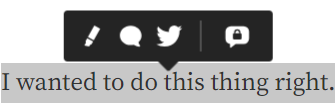
Just like when I checked all responses, this opens a new tab and I can deal with the tweets later, after I have read the full story, clapped and left a comment.
One thing I would like to see added is a Mastodon button, so we choose to also promote stories there. It’s not like I am looking for an extra action to perform. I just don’t understand why Medium gave us the option to claim our names on Mastodon and then they don’t add the function to their platform.
Other styling tips for Medium
Sometimes, when we write on Medium, the post just doesn’t look like we want it to. Then you see something written by someone else, and know what you want is possible, but you don’t know how.
These are some things I have learned or tried along the way:
* Shift-Enter: Have you noticed that sometimes people write poems, but there are unnecessary white lines in the verses? And a large white space between verses? Whenever you want to have text appearing directly on the next line, hold down the shift-button when you enter.
* Three-dot divider: Sometimes we write stories or articles where we want to use a centered three-dot divider to show the start of a new thought, or a jump in time. To achieve this, have your cursor on a blank line. Click the plus button at the beginning of the line and then the icon, where you see three dots between two horizontal lines.
* Subtitle and kicker: If you look at the title of this story, you see small text above it, as well as bold-ish text below it. The text above is called the ‘kicker’ and that below is the subtitle.
To achieve this, type what you want to have as your kicker before your title (don’t be alarmed when the text is as large as your title). Enter to move your original title to the next line, then highlight the text you want as your kicker. The context menu pops up and here you click the small ‘T’ and the text will be as small as you see it above.
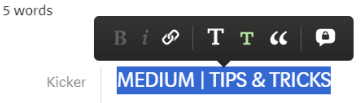
To add a subtitle, put your cursor at the end of your title, enter and type your subtitle text. Highlight the text and click that small ‘T’ again. Voila, you have a subtitle!
Note: When you want to do this on the mobile app, you see two T’s at the left bottom. Tap twice for the small ‘T’.
* Text box: Maybe you too have read an article and noticed a grey box with text inside, and wondered how in the world the author has managed that?
It’s actually easier than you might think.
Once again, stand on a new line, click the plus at the beginning of the line and then the icon with the two curled brackets.
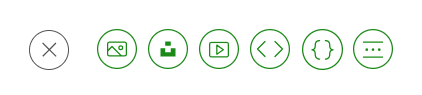
A text box with a light grey background will open. When you add this on the laptop, click the drop-down button inside the text box and choose ‘none’, then it will be seen as plain text. When you add it on the Medium mobile app, you can just start typing and it will auto-detect the type of content.
This is what the box will look like. Use sparingly, and remember to
enter at the end of each line, as Medium doesn't automatically align
the text according to the size of your screen.
There are more cool things you can do with this box, but I’m still learning. I will share when I have more, or if you have tips, please feel free to share!
🦋 About Me | 💻 Follow and subscribe | 📚 My stories | 🦜 Twitter