
Modern Neovim — Configuration Hacks
Configuration tips for a modern development environment with Neovim.
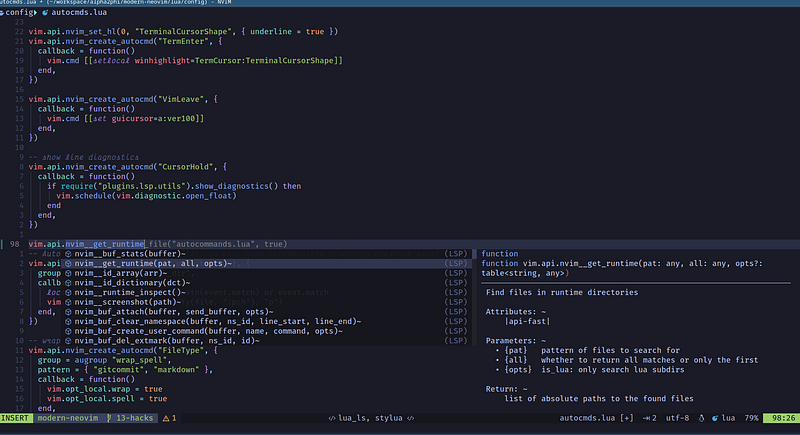
Let’s check out simple yet useful Neovim configuration hacks in this article!
This article is part of the Modern Neovim series.
The Neovim configuration files are available in this repository.
Getting Started
Neovim is designed to be a modern and maintainable editor, emphasizing improved performance, extensibility, and community-driven development. It provides a rich set of features and mechanisms for extending its functionality, making it a powerful tool for developers, writers, and other text editing enthusiasts.
The article will explore simple hacks and configuration recipes to make Neovim an ideal environment for everyone's needs.
Table of Content
· Getting Started · Table of Content · Last Location When Opening a File · Auto Indent the Current Empty Line · Signature Help, Documentation, and Completion for Lua APIs · Auto Create Intermediary Directories · = Operator in Command-Line Mode · Version Manager using Bob · Cursor Shape · Language Servers ∘ Ruff LSP for Python ∘ Marksman for Markdown · Configure Window Bar · References
Last Location When Opening a File
The following 0 and mark[1] <= lcount then pcall(vim.api.nvim_win_set_cursor, 0, mark) end end, })">auto command is designed to set the cursor position to the last used mark (if valid) after a buffer is read (loaded) in the current window.
The mark position is retrieved using the vim.api.nvim_buf_get_mark() function and the cursor is set using the vim.api.nvim_win_set_cursor() function.
-- Go to last location when opening a buffer
vim.api.nvim_create_autocmd("BufReadPost", {
  group = augroup "last_loc",
  callback = function()
    local mark = vim.api.nvim_buf_get_mark(0, '"')
    local lcount = vim.api.nvim_buf_line_count(0)
    if mark[1] > 0 and mark[1] <= lcount then
      pcall(vim.api.nvim_win_set_cursor, 0, mark)
    end
  end,
})- The function retrieves the current buffer’s mark position using
vim.api.nvim_buf_get_mark(0, '"'), where0represents the current buffer and'"'specifies the mark to retrieve (in this case, the last used mark). - It also retrieves the total number of lines in the buffer using
vim.api.nvim_buf_line_count(0). - If the mark position is valid (greater than 0 and less than or equal to the total line count), it then calls
vim.api.nvim_win_set_cursor(0, mark)to set the cursor position in the current window to the mark position, using a protected call withpcall().
Auto Indent the Current Empty Line
In the screenshot below,
- We insert a new line below the cursor
- We go into Insert mode, and the cursor goes to the beginning of the line
- We press
ito go into Insert mode, and the cursor position is not indented properly
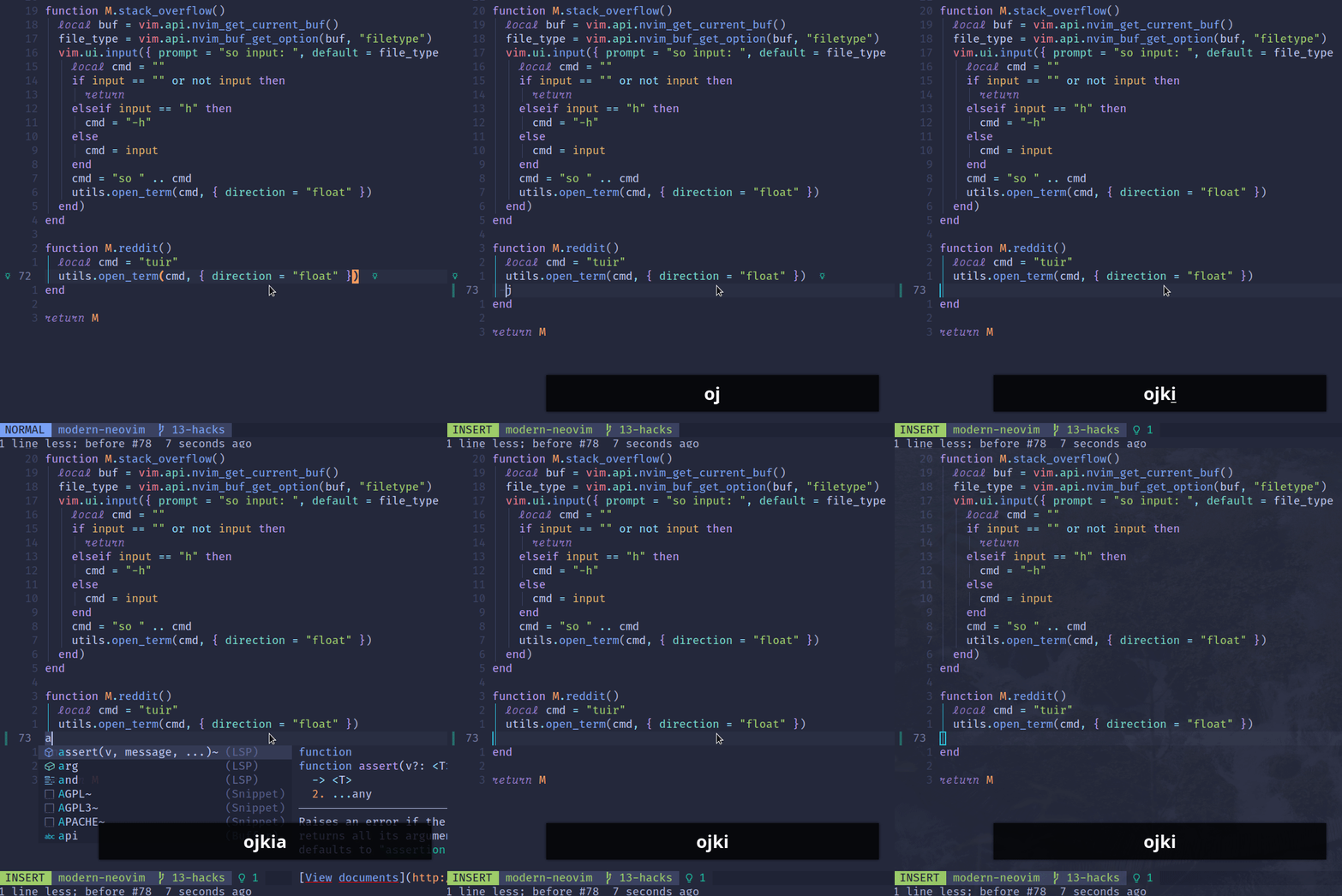
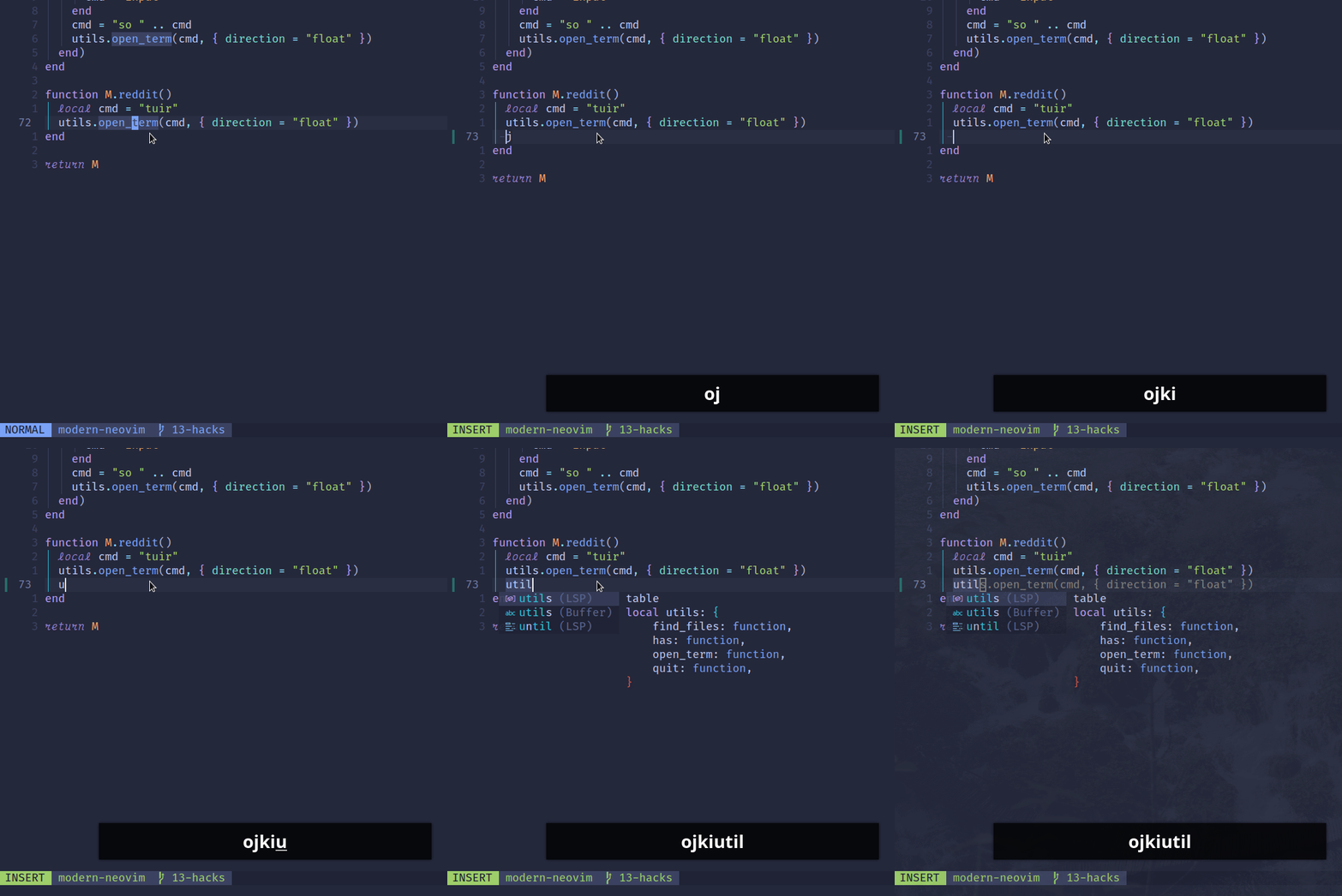
Using the following key mapping, we can fix this problem.
vim.keymap.set("n", "i", function()
  if #vim.fn.getline "." == 0 then
    return [["_cc]]
  else
    return "i"
  end
end, { expr = true })
Here is what the function does:
- It first checks the length of the line under the cursor using
vim.fn.getline "."to get the current line ("."represents the current line in Neovim). - If the length of the line is 0 (empty line), it executes the command
[["_cc]]to clear the current line and preserve the indent. We use the black hole register (“_) so that the deletion does not affect the normal registers. - If the line length is not 0 (non-empty line), it simply executes the insert command, which is the Normal mode command to enter Insert mode.
The { expr = true } argument passed to vim.keymap.set() specifies that the keymap should be evaluated as an expression, allowing the use of Lua code in the keymap definition.
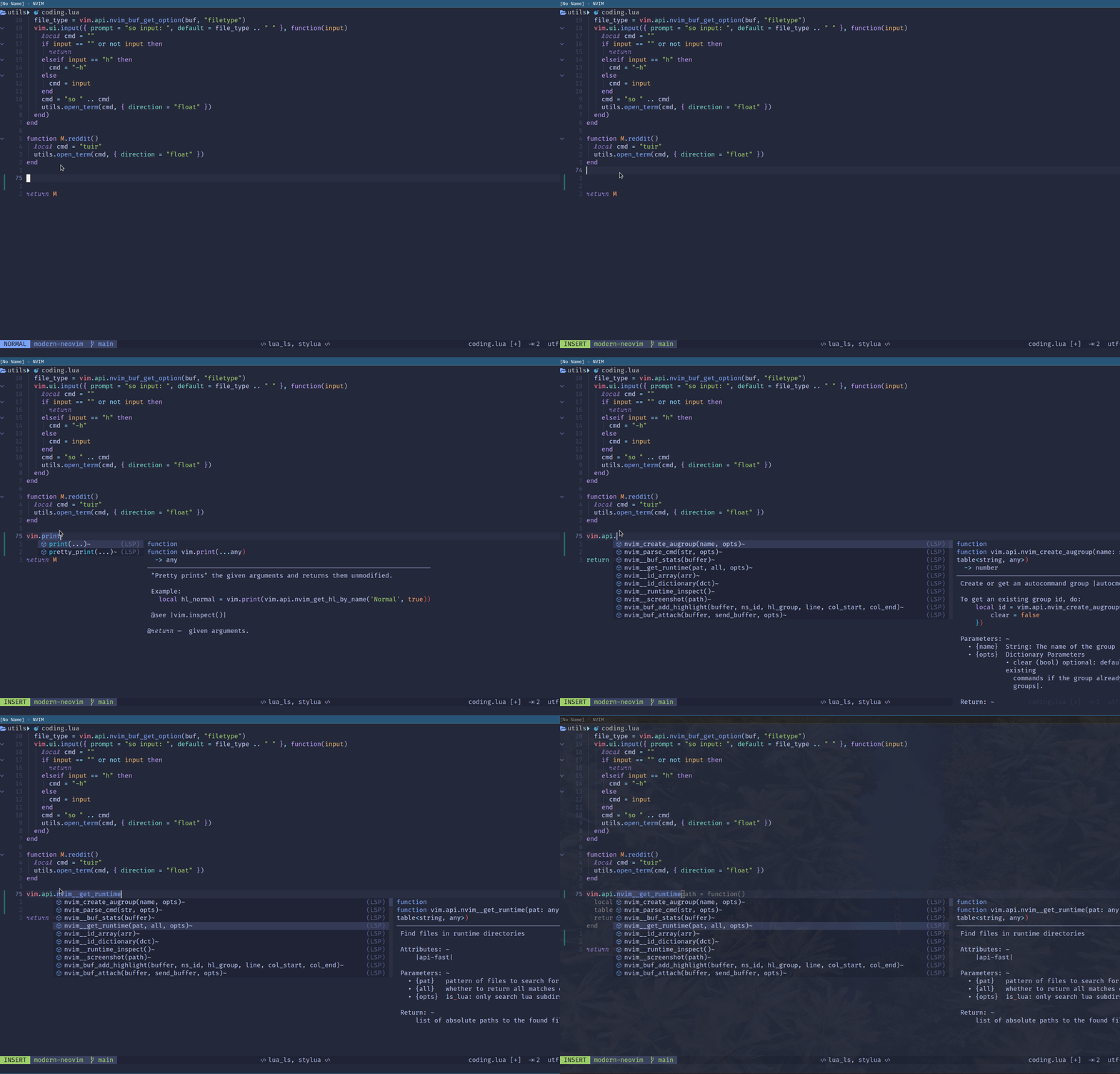
Signature Help, Documentation, and Completion for Lua APIs
To better customize Neovim to fit our needs, we need at least a basic understanding of the Lua APIs.
neodev.nvim provides a Neovim setup for init.lua and plugin development with full signature help, docs, and completion for the Neovim Lua APIs.
We configure this plugin using lazy.nvim.
{
  "folke/neodev.nvim",
  opts = {
    library = { plugins = { "neotest", "nvim-dap-ui" }, types = true },
  },
},
Auto Create Intermediary Directories
The auto command below creates intermediary directories when saving a buffer.
vim.api.nvim_create_autocmd({ "BufWritePre" }, {
  group = augroup "auto_create_dir",
  callback = function(event)
    local file = vim.loop.fs_realpath(event.match) or event.match
    vim.fn.mkdir(vim.fn.fnamemodify(file, ":p:h"), "p")
  end,
})
The auto command is triggered before writing a buffer to disk, and the callback function creates the parent directory of the file being written to disk if it doesn’t already exist.
= Operator in Command-Line Mode
The = operator comes in handy when we want to pretty print a Lua table or variable from the command line.
For example, we can use the following command to print out the loaded packages
:lua = package.loaded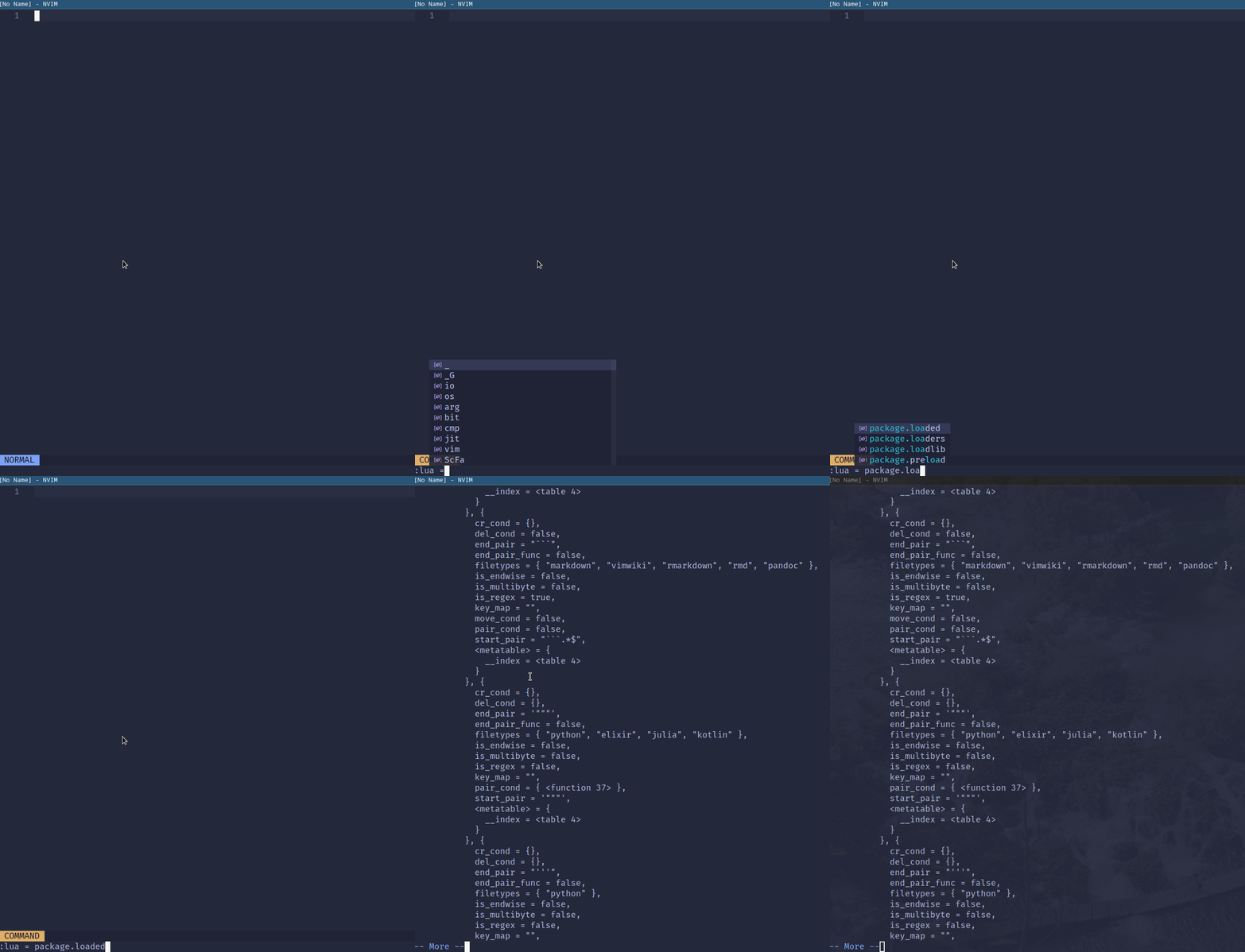
To redirect the output messages to the current buffer, we can use the put command.
For example, we can print the loaded packages to the current buffer using the command below.
:put = execute('lua = package.loaded')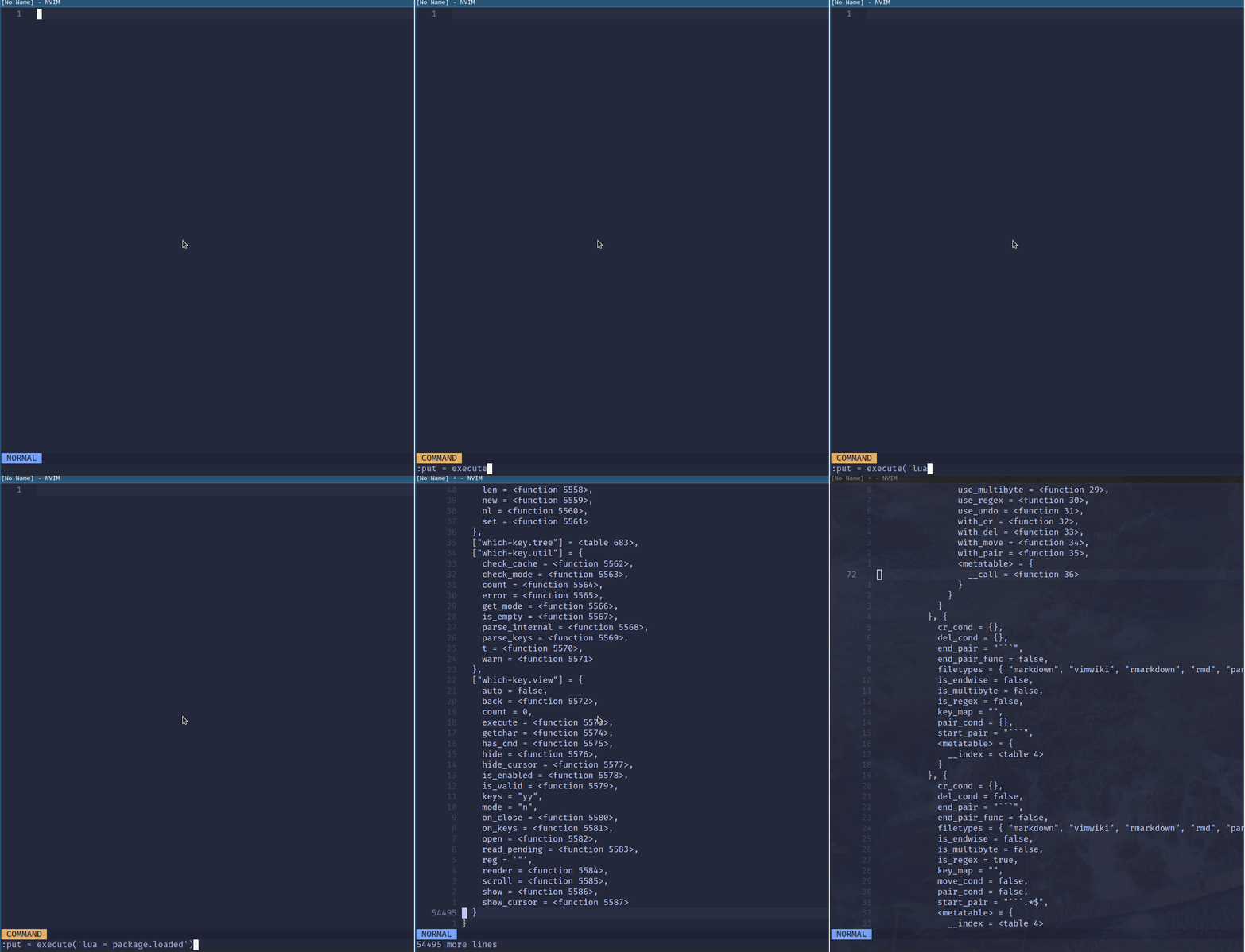
Alternatively, we can use the redir (:h redir) command to redirect the command output to a file, register, or variable.
For example, we redirect the command output to the register a using the commands below.
:redir @a
:lua = package.loaded
:redir END
Version Manager using Bob
Neovim is evolving fast. Trying out the new features, and having a stable release for daily use become challenging. Using a Neovim version manager like Bob helps.
Bob is a cross-platform and easy-to-use Neovim version manager, allowing for easy switching between versions right from the command line.
Bob is available for Unix/Linux, Windows, and MacOS.
We use the following command to install a specific version of Neovim or update the outdated nightly version.
bob install |nightly|stable|latest|<version-string>|<commit-hash>|We use the following command to switch to a specific version. By default, this command will auto-invoke the install command if the version is not installed.
bob use |nightly|stable|latest|<version-string>|<commit-hash>|We use the bob list command to list all installed versions and the current version in use.
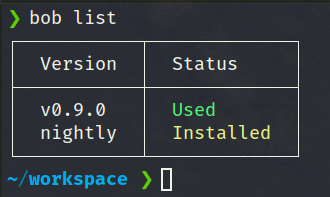
For more features, check out the GitHub repository.
Cursor Shape
To configure the desired cursor shape in different Neovim modes (Insert, Normal, Terminal, etc), check out the following article.
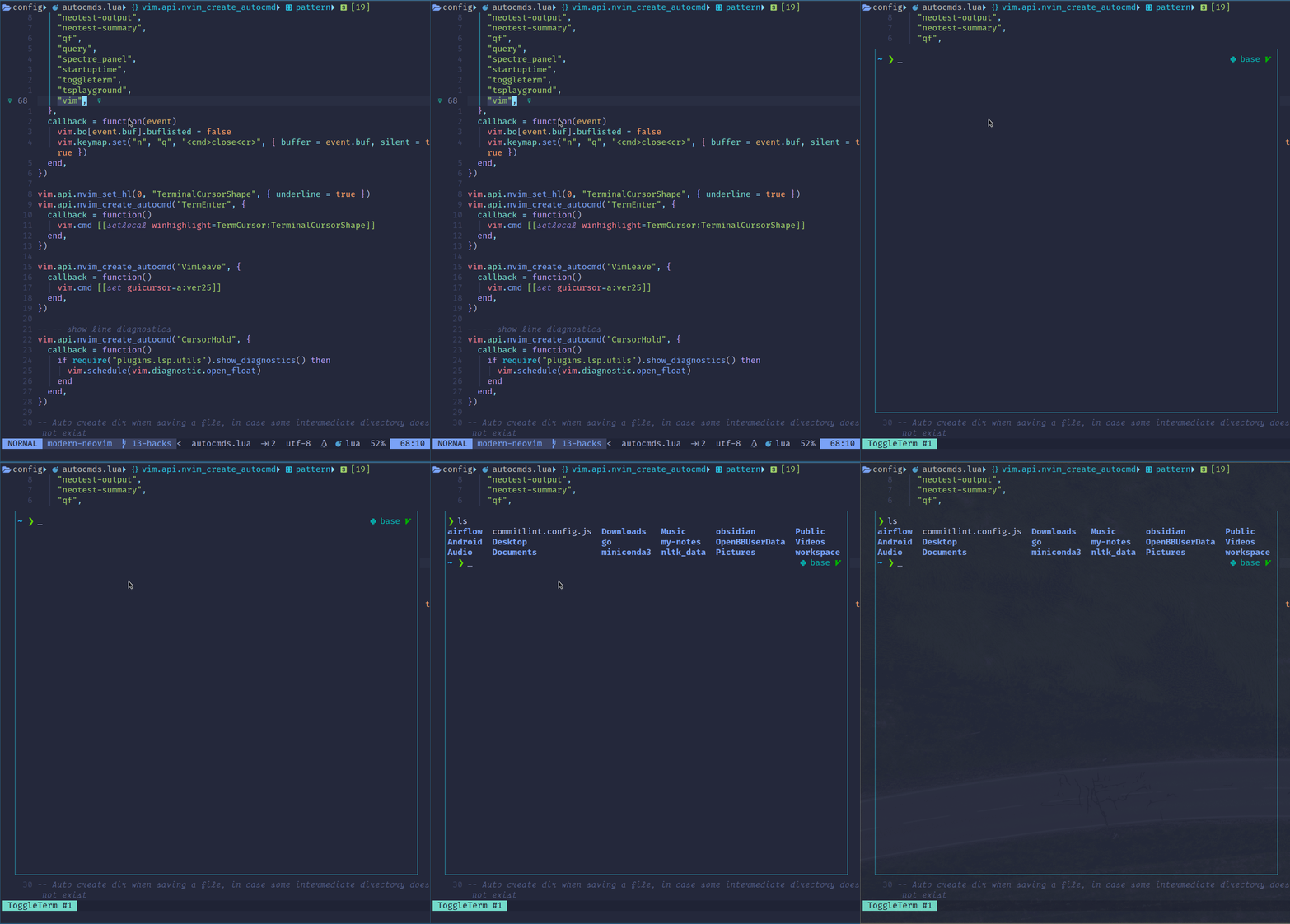
By default, Neovim changes the terminal cursor to a block cursor.
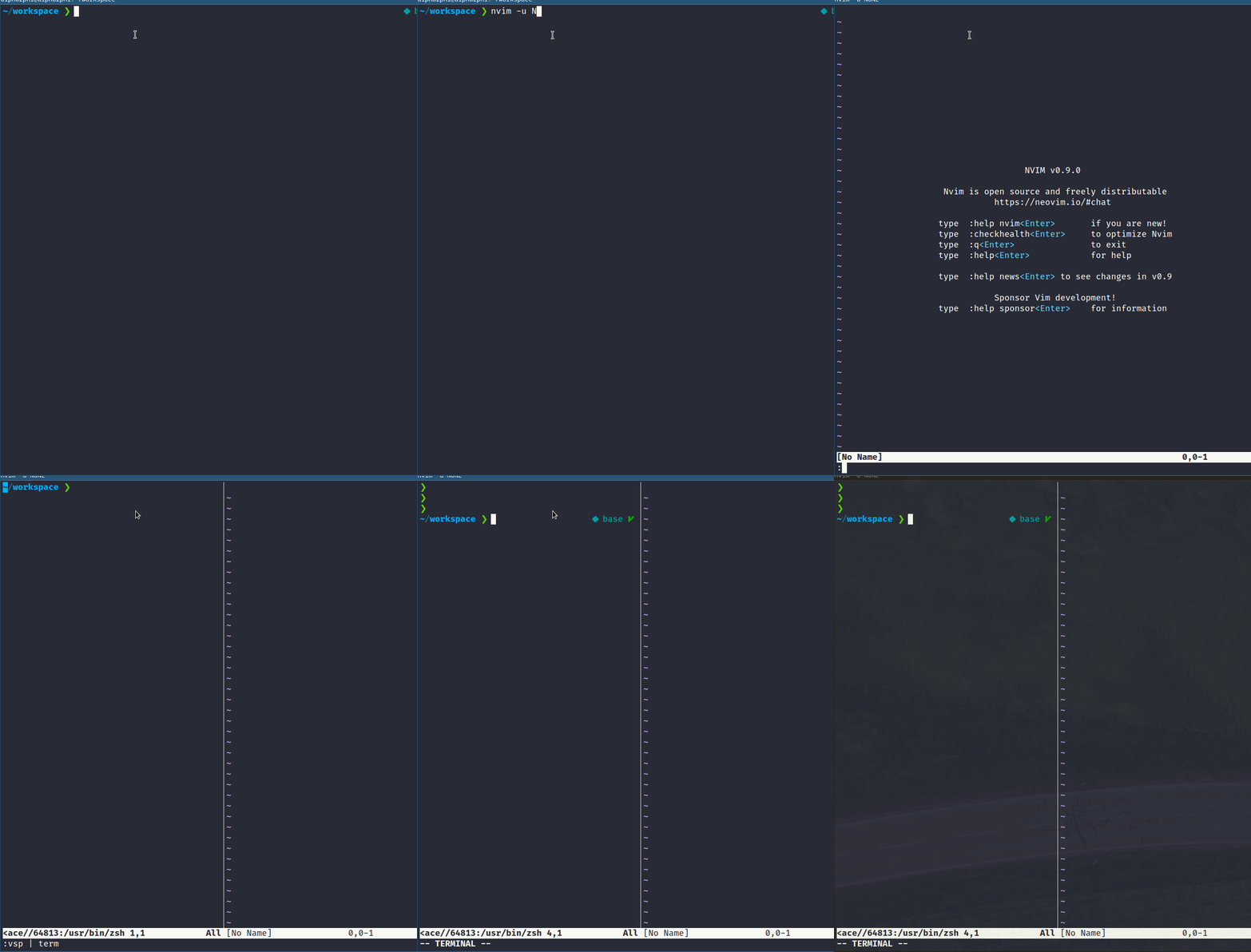
Using the following auto command, we can change the cursor to be underlined.
vim.api.nvim_set_hl(0, "TerminalCursorShape", { underline = true })
vim.api.nvim_create_autocmd("TermEnter", {
  callback = function()
    vim.cmd [[setlocal winhighlight=TermCursor:TerminalCursorShape]]
  end,
})
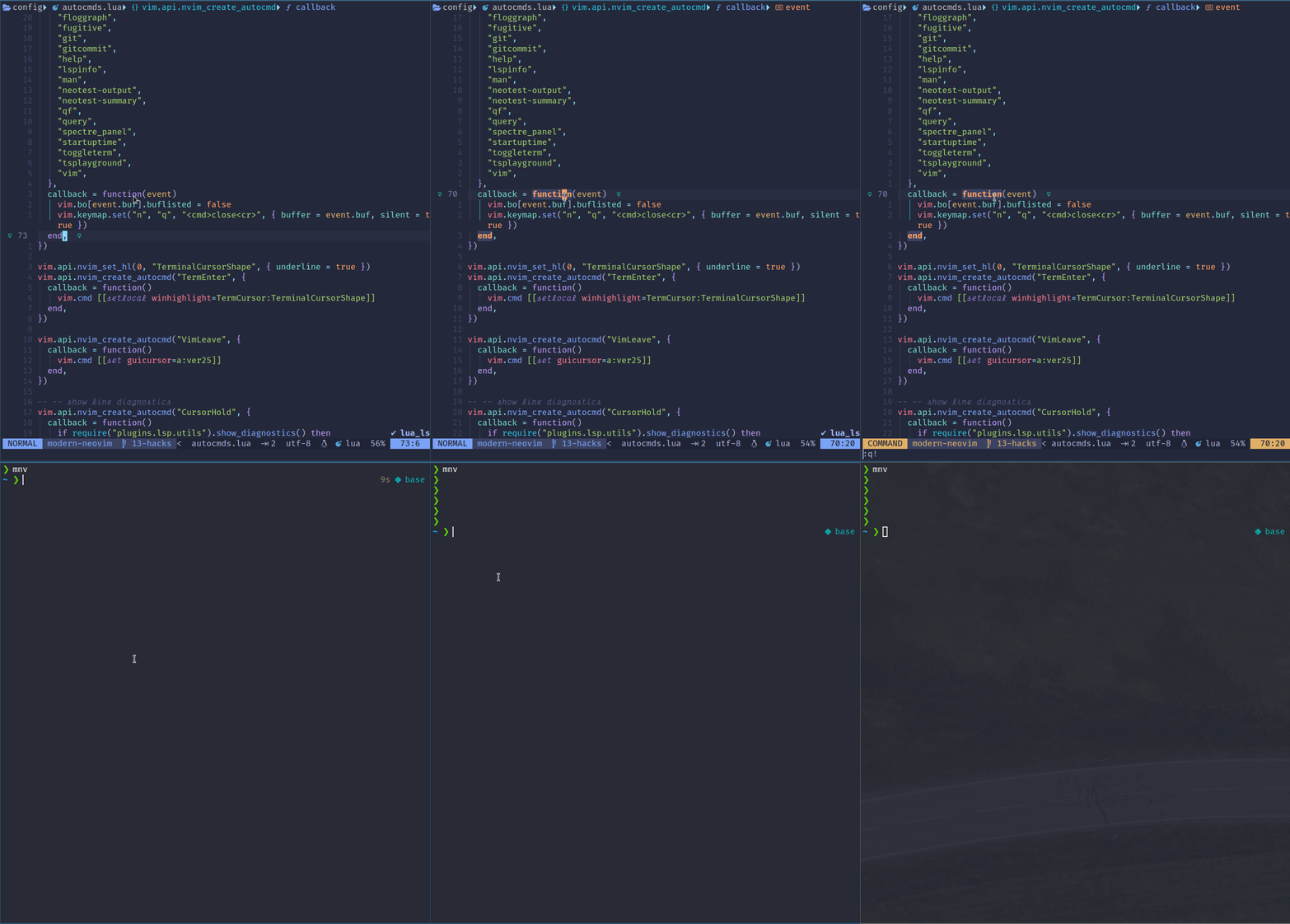
When exiting Neovim, we can use the following auto command to configure or reset the cursor to be a vertical line cursor.
vim.api.nvim_create_autocmd("VimLeave", {
  callback = function()
    vim.cmd [[set guicursor=a:ver25]]
  end,
})
Language Servers
Neovim built-in support for Language Server Protocol (LSP) facilitates features like go-to-definition, find-references, hover, completion, rename, format, refactor, etc., using semantic whole-project analysis.
Let’s go through several lesser-known language servers.
Ruff LSP for Python
Previously we use null-ls.nvim to configure Ruff, which is an extremely fast Python linter, written in Rust.
Ruff supports over 500 lint rules, many of which are inspired by popular tools like Flake8, isort, pyupgrade, and others.
Instead of using null-ls.nvim, now we can use ruff-lsp which is an LSP implementation for Ruff.
A sample configuration using lazy.nvim and nvim-lspconfig is shown below. We configure both ruff-lsp and pyright.
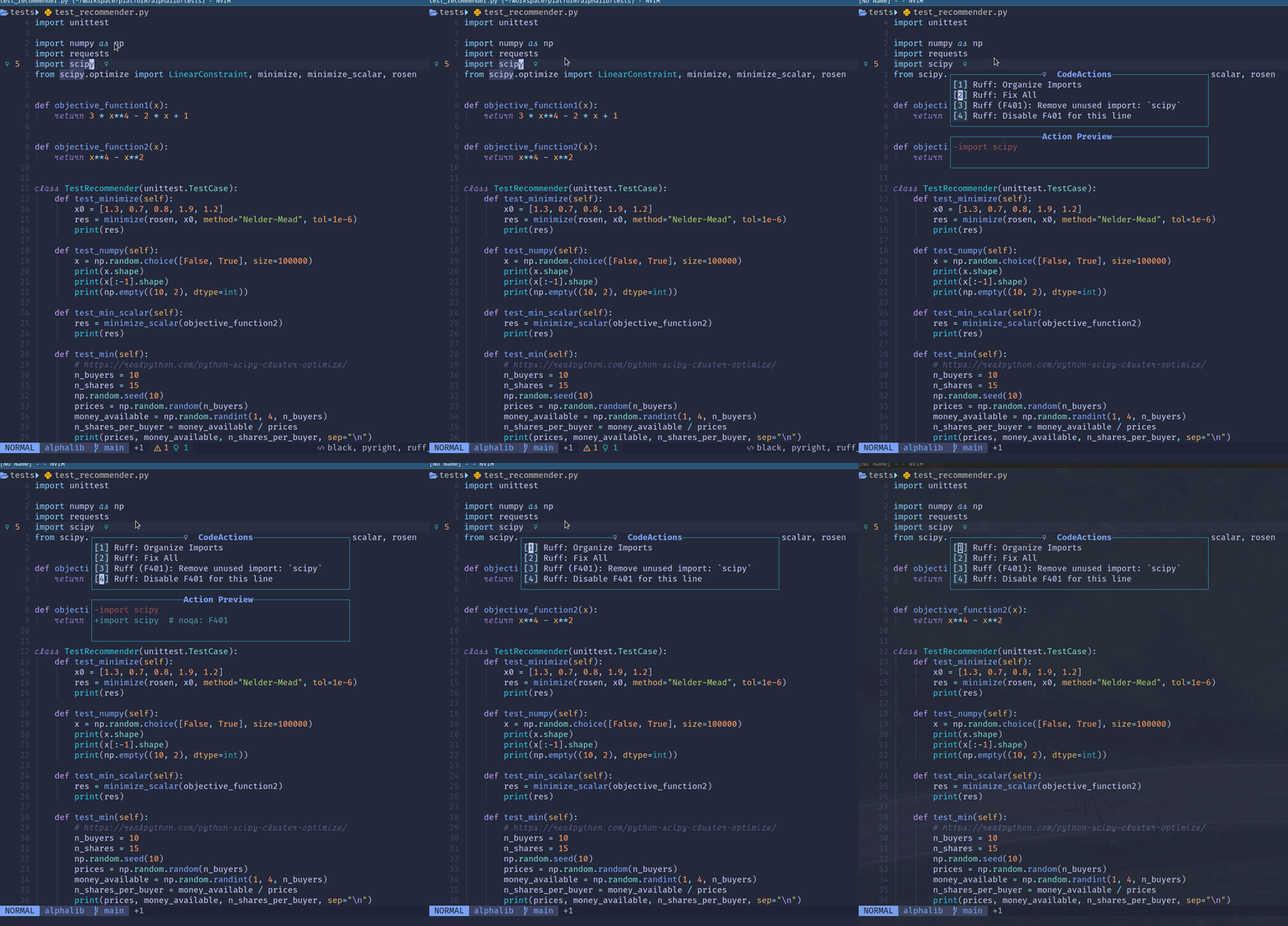
For anyone doing Python development, you should make use of Ruff.
Marksman for Markdown
For Markdown, we can configure the Marksman language server.
Marksman is a Markdown language server providing completion, cross-references, diagnostics, and more. In addition to regular Markdown, it also supports wiki-link-style references that enable Zettelkasten-like note-taking.
A sample configuration using lazy.nvim is shown below.
return {
  -- correctly setup lspconfig
  {
    "neovim/nvim-lspconfig",
    opts = {
      servers = {
        marksman = {},
      },
    },
  },
}
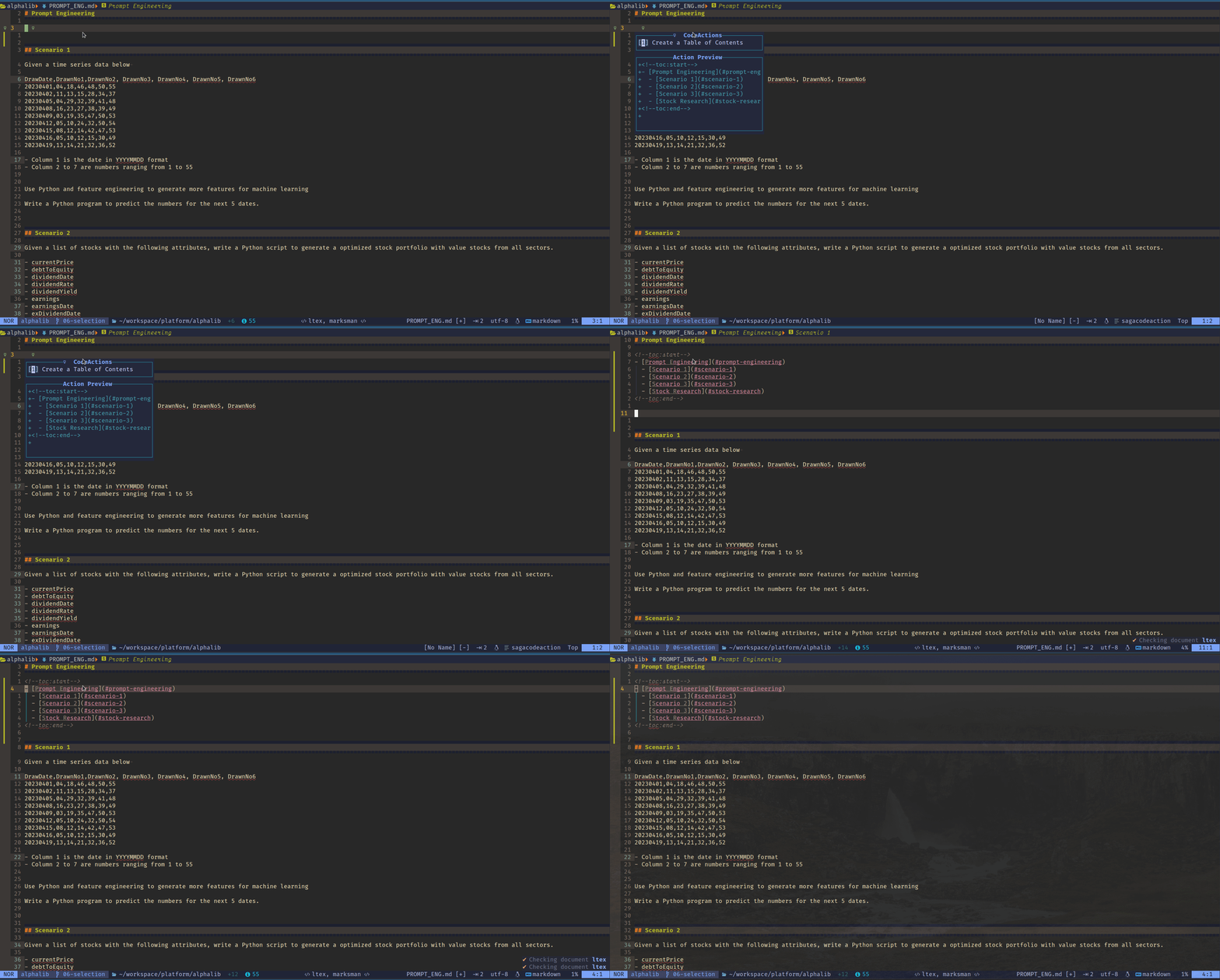
We can link to other pages easily using LSP.
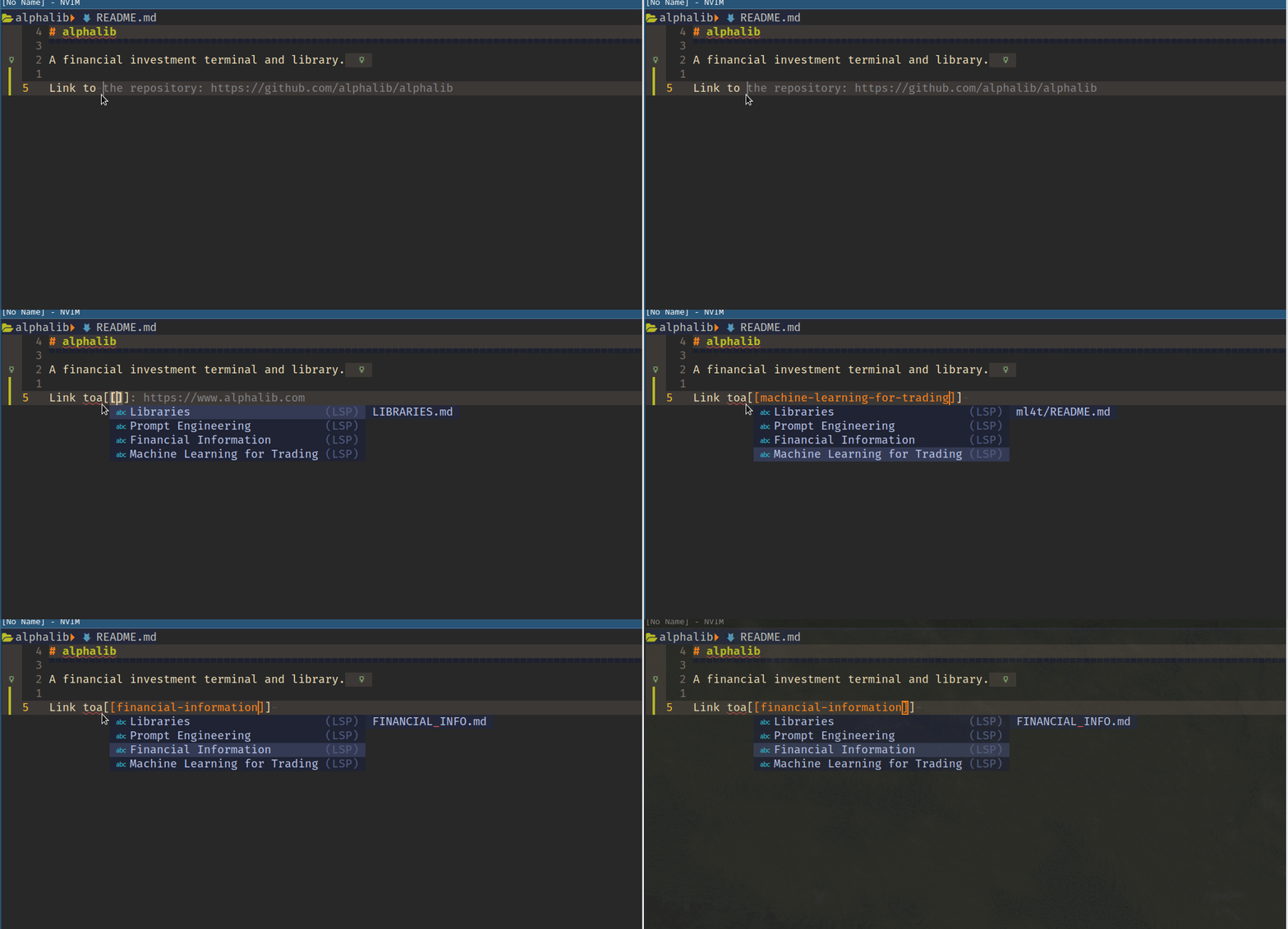
We can generate a table of content using code action.
Configure Window Bar
There are excellent plugins that can save you the effort, as listed below.
dropbar.nvim- IDE-like breadcrumbs, out of the box.barbecue.nvim — A VS Code like winbar for Neovim.lspsaga.nvim — Provide many features that enhance the LSP experience.
Check out these articles if you want to customize the window bar!
- Neovim 101 — Status Line, WinBar, and Buffer Line
- Neovim for Beginners — Window Bar using lualine.nvim
- Neovim for Beginners — Window Bar
For more Neovim configuration recipes, check out this article!
Check out other related articles!
- Neovim for a Better Integrated Experience without Plugins
- Neovim Tips for a Better Coding Experience
- Neovim 101 — LSP
- Neovim for Beginners — Testing
Check out the article Learn Neovim The Practical Way for all the Vim/Neovim articles!
If you are yet to be a Medium member and want to become one, click here. You will gain unlimited access to all Medium articles and support my work directly.


