
Midjourney’s New Feature Lets You Add Multiple Exact Characters in a Single Image
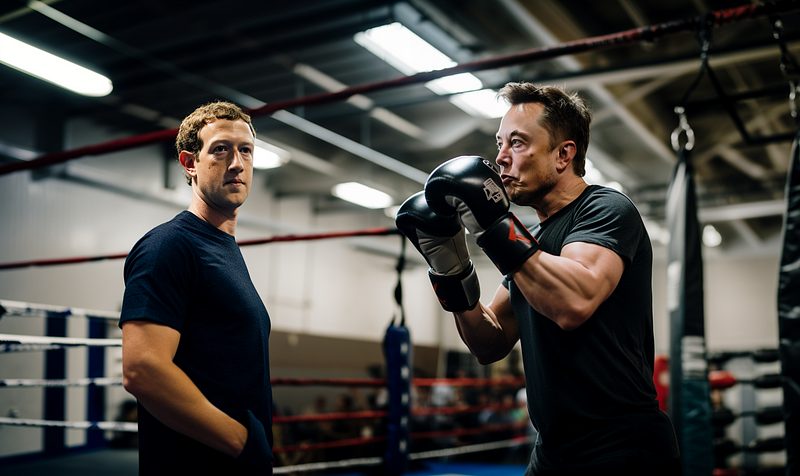
The new “Pan” feature of Midjourney is a great improvement for outpainting. It allows you to complete a scene or character and even include and combine multiple characters in the same setting!
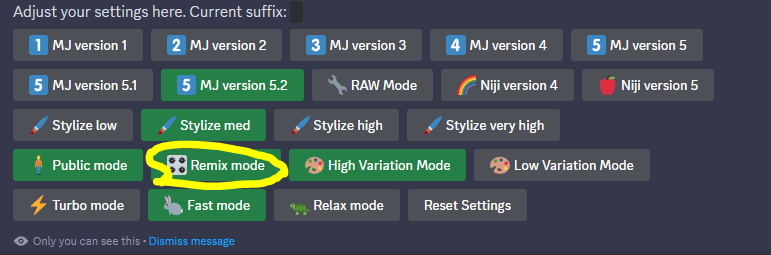
The important thing is to activate the “Remix mode” in /settings and then change the prompt after clicking on Pan.
Let’s imagine we want
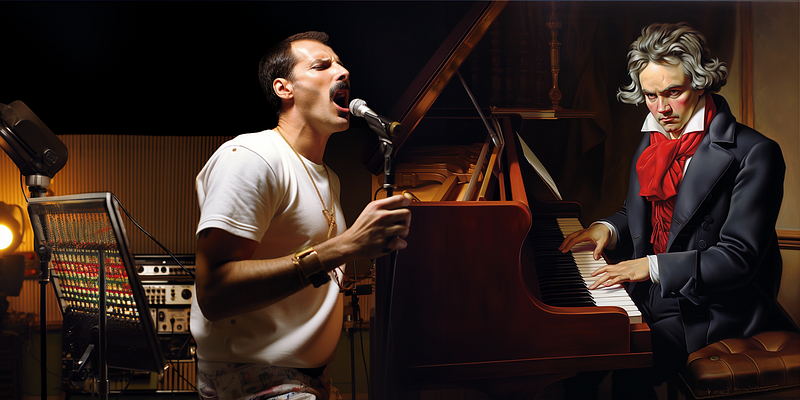
Ludwig van Beethoven and Freddie Mercury in a music studio having a jam session — ar 16:9 — v 5.2.
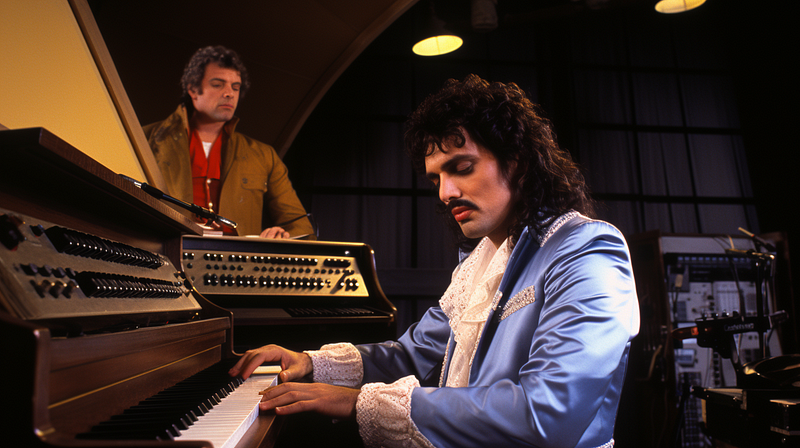
As is often the case, when we mention the names of famous individuals, they tend to merge into one. But if we truly want to have multiple characters in the same scene, we can use the new pan and zoom out functions. First, we generate an image of one character and then add the second one to the scene!
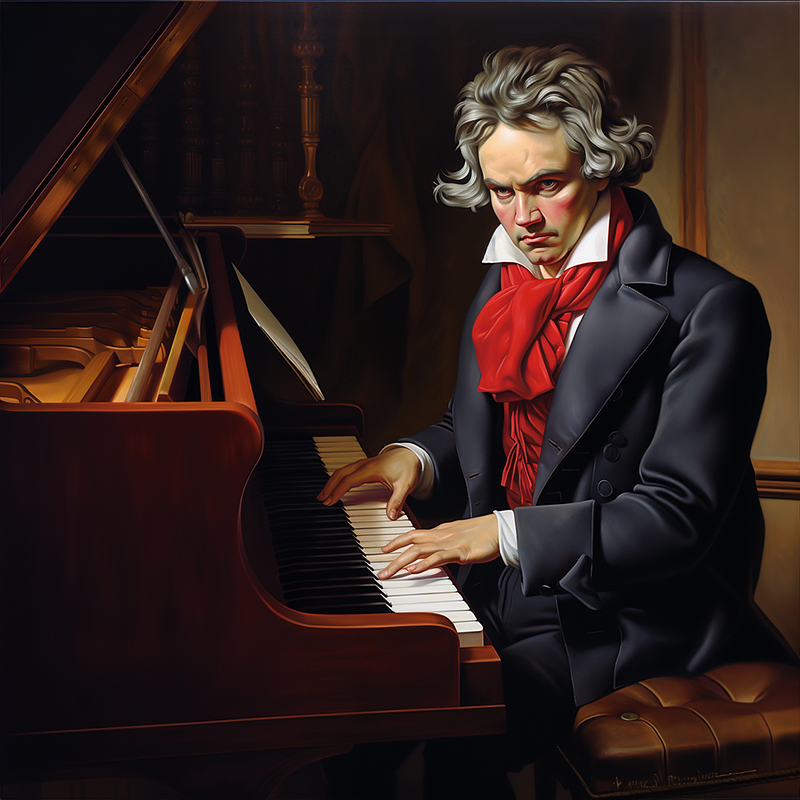
So let’s start with an image of Beethoven, then expand the scene to make room for Freddie and add him to the composition.
ludwig van beethoven playing piano in a music studio — ar 9:16 — v 5.2
Then klick on the arrow under the upscaled image
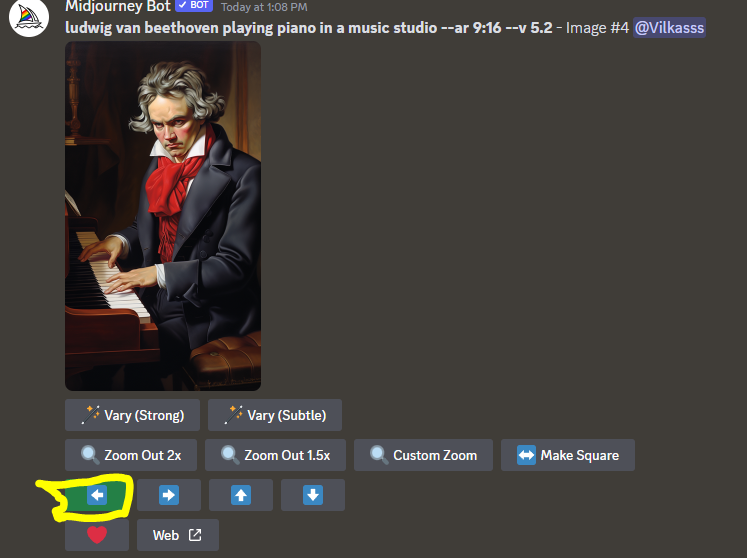
and change the pan prompt. Mine was
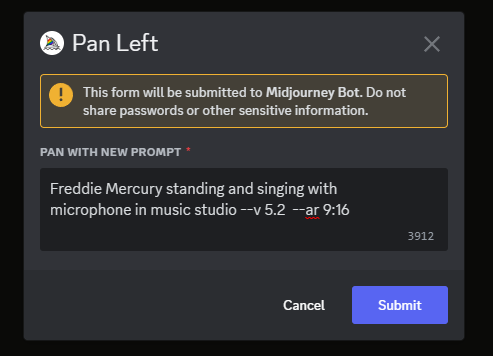
Pick one image that you like the most, upscale it and then pan again.
After 4 pan outs to the left, I got them booth in one image jamming.
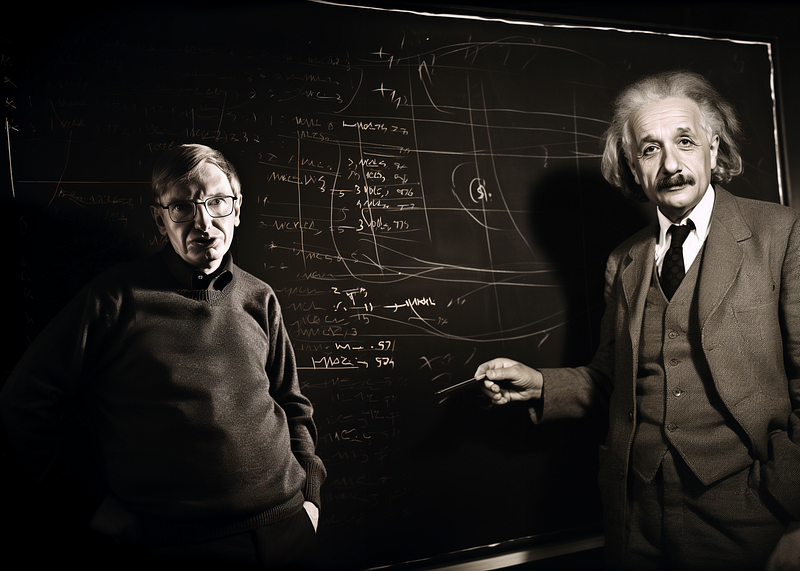
Or how about a black and white photo of Albert Einstein teaching a class together with Stephen Hawking?
And what about that highly speculated boxing match?
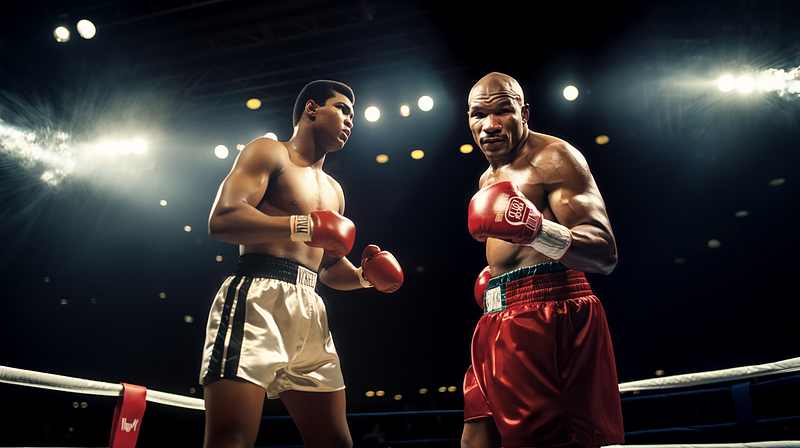
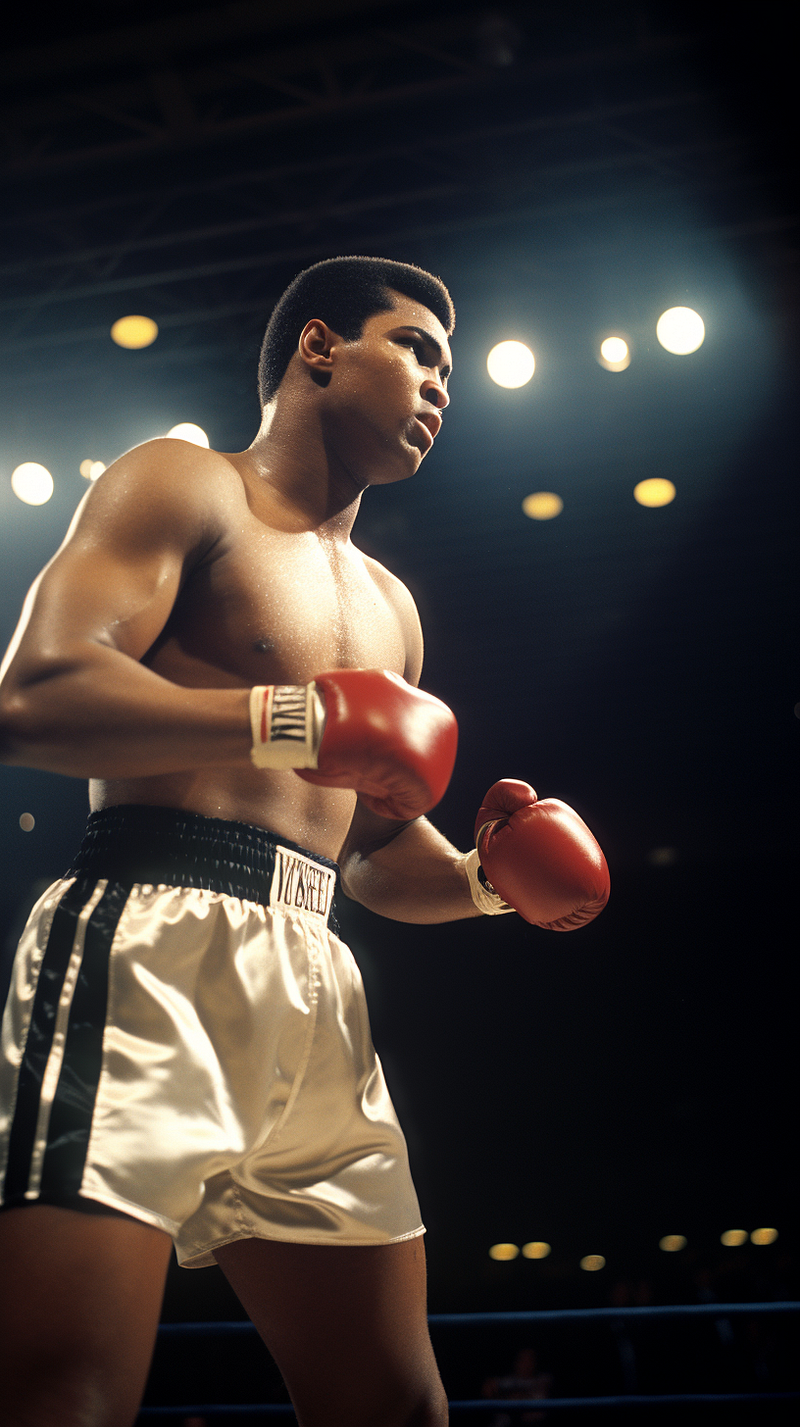
In my case, I first created Muhammad Ali but had some issues creating Mike Tyson.
photo of Muhammad Ali, in boxing ring, view from the side — ar 9:16 — v 5.2 — style raw
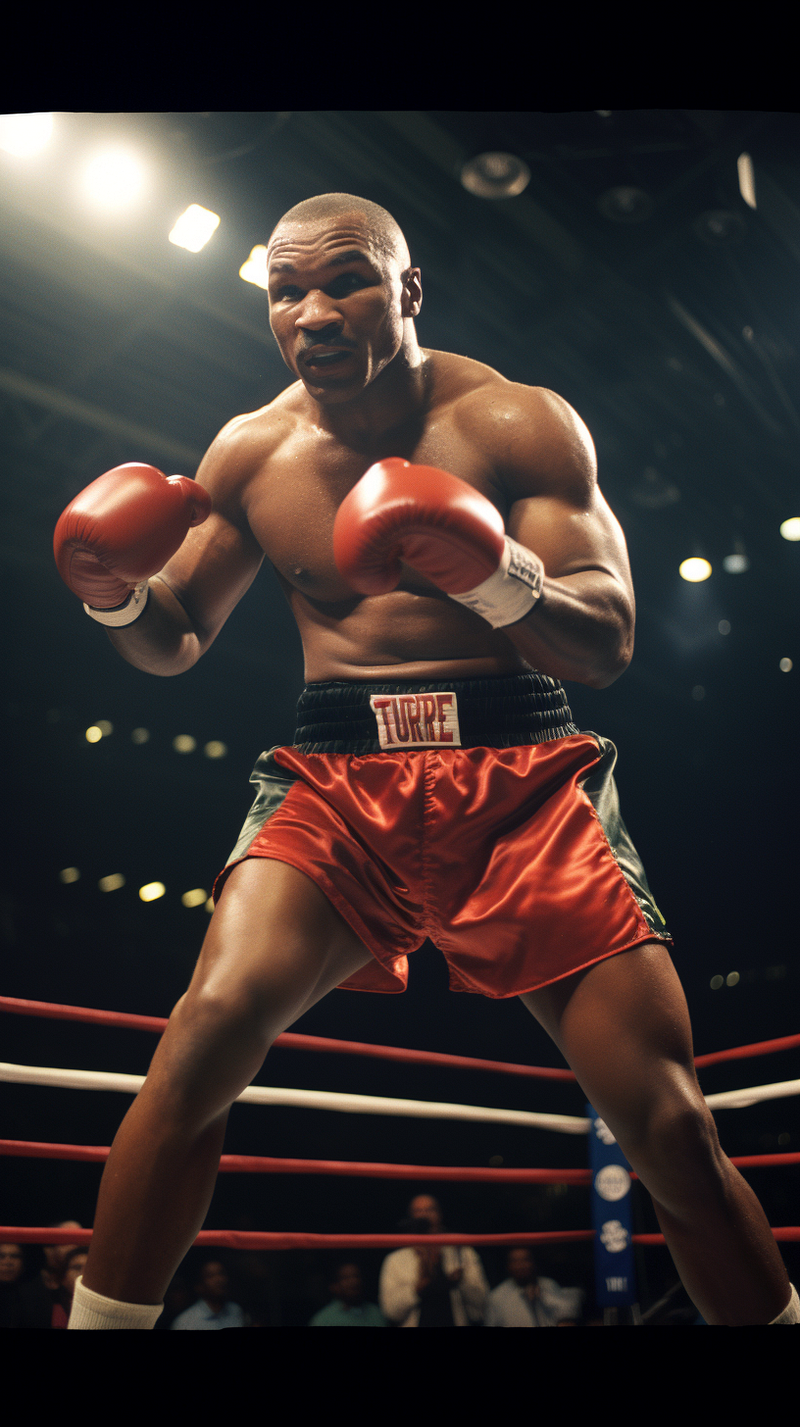
So I created an image of Mike in a separate file,
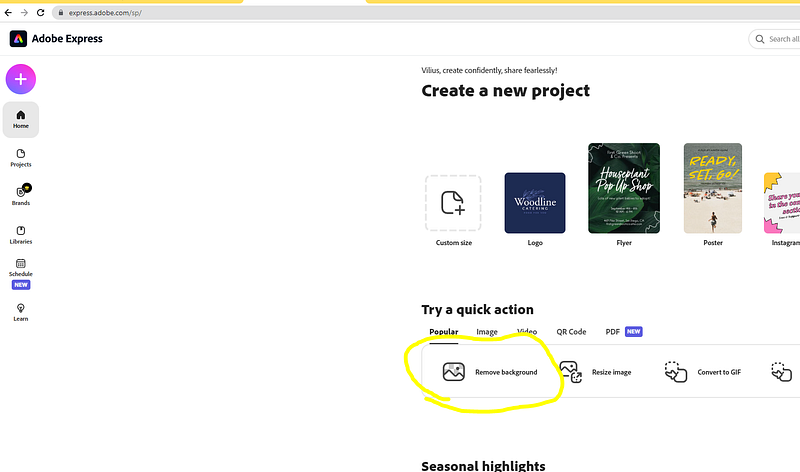
removed the background in https://express.adobe.com/ (for free, just registred with my google account)
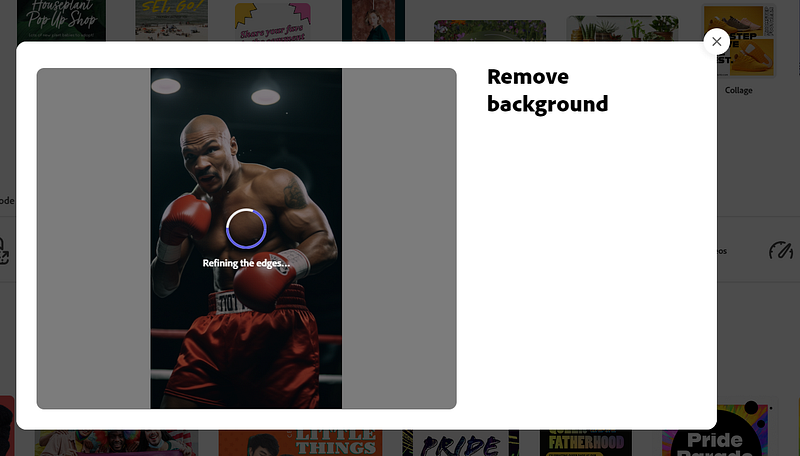
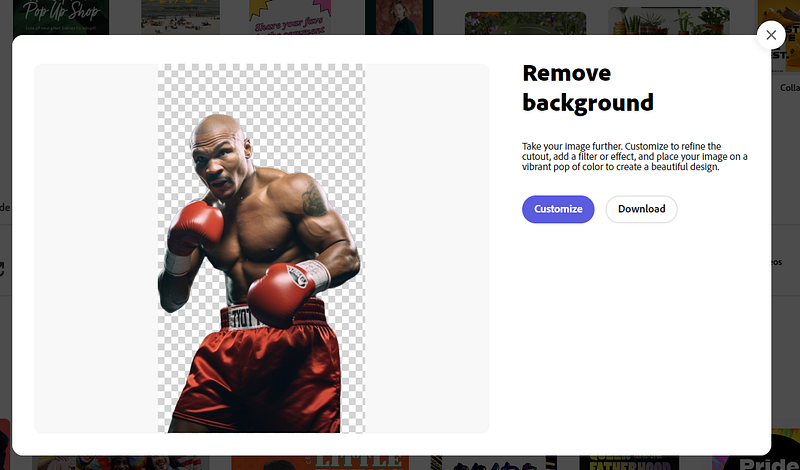
uploaded it to Discord to obtain a public URL.
If you want more Control while removing background, try
https://www4.lunapic.com/editor/
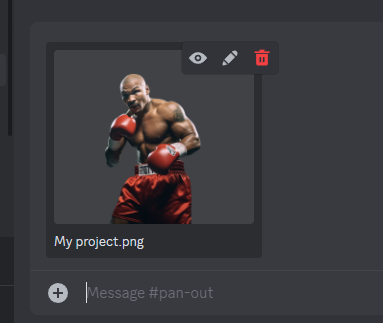
Don’t forget to klick “Enter” after you have copy pasted the image in discord ;)
Then click on the freshly copypasted image in discord with right mouseclick and choose the copy link option
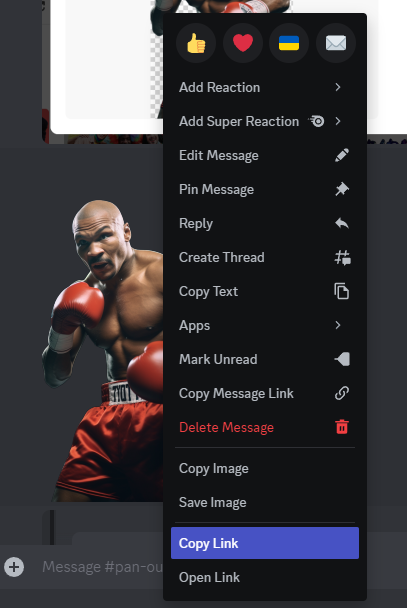
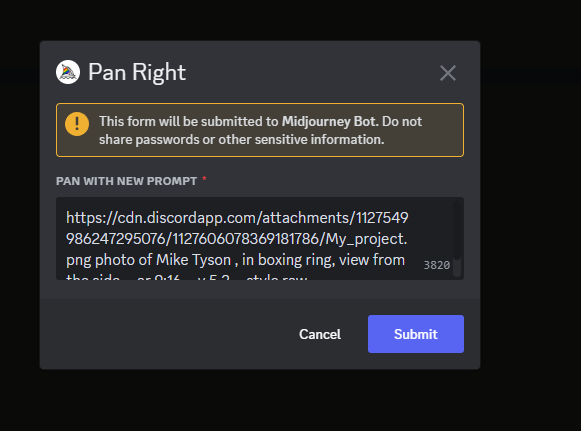
Then, I clicked on “pan right” for the upscaled image of Muhammad Ali, and as a prompt, I entered my image url that I just copied, a description, and — iw 2 to take my image reference seriously.
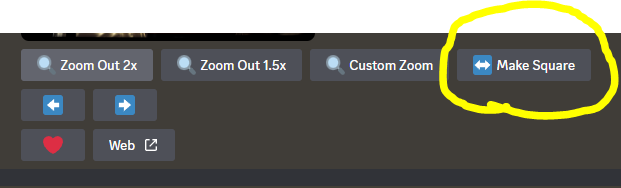
After you’re done with the pan and want to change the image format, you can use the “custom zoom” feature to specify the desired aspect ratio with the — ar parameter. If you prefer a 1:1 ratio, simply click on the “make square” button.
An interesting bonus is that after changing the format, you can pan in different directions again. For example, you can pan horizontally to find the desired image composition, custom zoom it to 16:9 or even more horizontally format, upscale the image and then pan vertically to add legs to the characters.
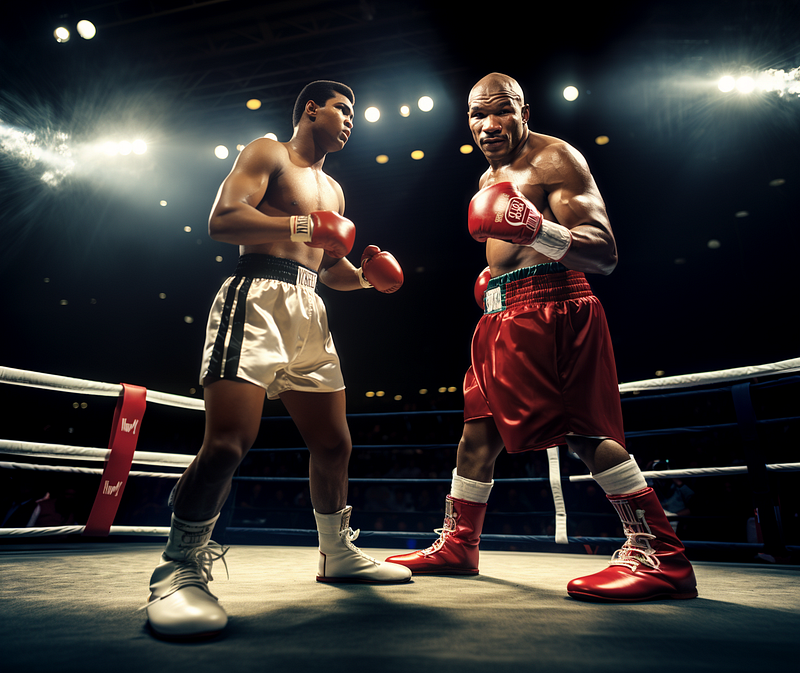
So there you have it. The biggest difference now is that instead of changing the prompt step by step to achieve the desired image, you can create a portion of an image you like and extend it directionally, adding new elements step by step to create the exact image you want. Enjoy !