
Midjourney v6 — Now with Vary(Region) in-painting
Master Midjourney v6’s Vary(Region) feature — transform your AI art with ease and creativity!
Welcome to an exciting update in Midjourney v6 — the Vary(Region) in-painting feature! As a generative art enthusiast, I’m thrilled to take you through this innovative addition. Vary(Region) introduces a new dimension of creativity, enabling you to tweak specific areas in your AI-generated images with remarkable precision. This feature is a game-changer for experienced artists and newcomers, unlocking new avenues for artistic expression.
Here’s how to get started with the Vary(Region) in-painting feature:
- Pick an image you’d like to enhance.
- Use the U1, U2, U3, or U4 buttons beneath your image to upscale it if you're on Discord.
- Ensure the Remix feature is enabled, and you’re working in V6. Using /settings in the command line will display your current settings. Verify that the Remix option is on and the version dropdown is set to V6.
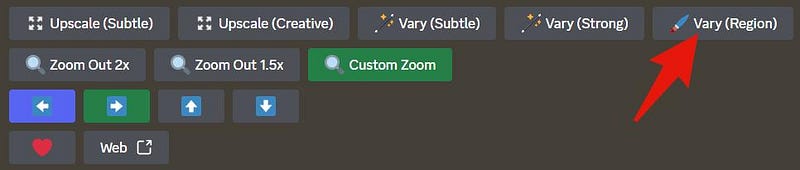
- Once your image is upscaled, you’ll notice several buttons below it. Look for the Vary(Region) button — that’s our key to unlocking these new creative possibilities.
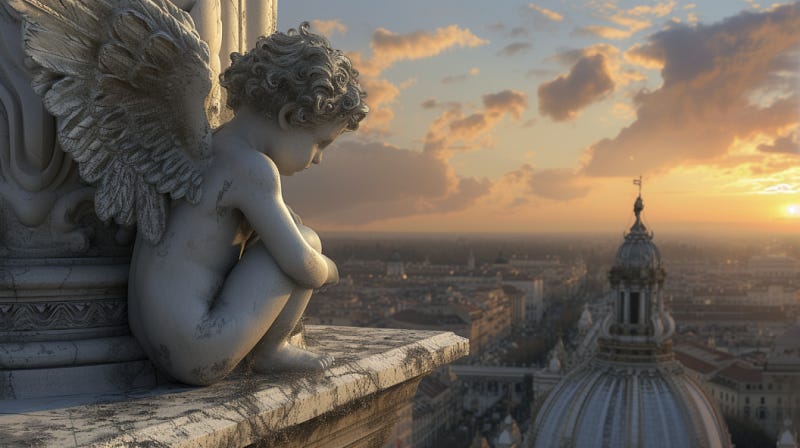
I have chosen this cute little cherub overlooking a city and upscaled it for this demonstration.
I wanted more in the city space in the picture, so I zoomed 1.5x.
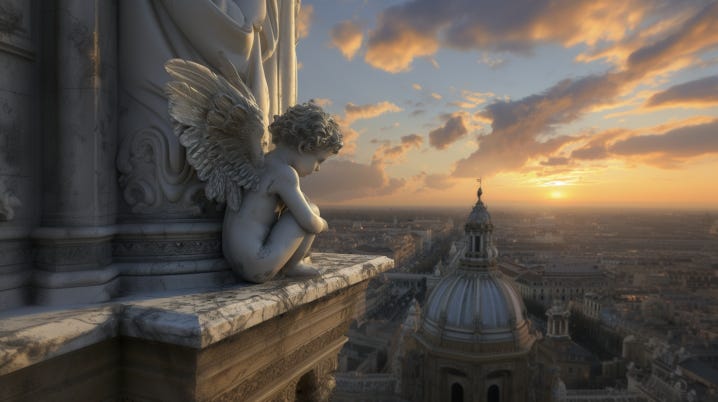
Imagine you want to alter the cityscape in an image where a cherub gazes over a city. Here’s how you can do it using Midjourney’s Vary(Region) feature:
- Click on the Vary(Region) button to open the editing tools.
- Select the rectangle or lasso tool to define the area you wish to change. The lasso tool can be tricky but offers more flexibility. Don’t worry about getting the edges perfect; the AI is pretty forgiving. The key is to ensure you’ve masked enough area for your desired change.
- Say we were to want to add a hat to the cherub. It’s crucial to mask the top, sides, and back of the head and where the hat’s brim would cast a shadow. This ensures the hat sits naturally. The AI will only modify the area within your mask, so if the resulting object seems oddly sized or placed, it’s likely due to the mask’s size. I cover this more in the final example below.
Pro tip: When altering a large component, like changing the entire cityscape, remove the original prompt in the Vary(Region) editor’s remix box. This lets you specify a new scene for the masked area, like switching the city view to Paris with the Eiffel Tower in the background. Just remember, the more specific your masked area and prompt, the more precise your result will be!
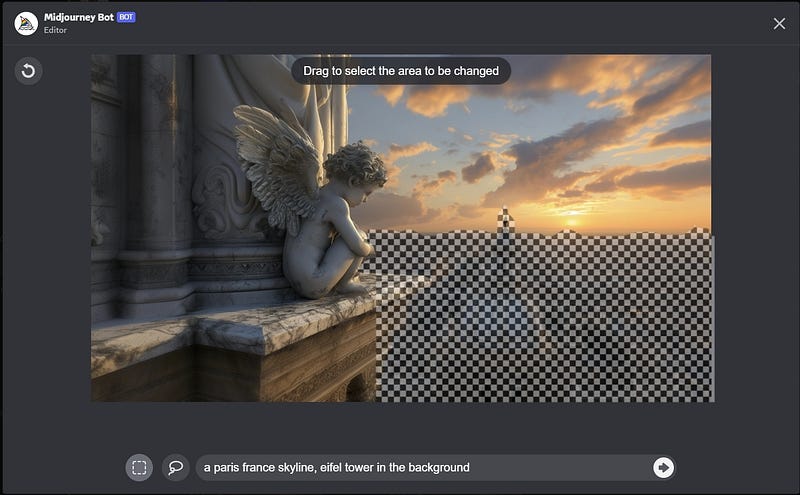
I’ve updated the prompt in the Vary(Region) remix box in the above image to “a Paris, France skyline, Eiffel Tower in the background” to modify the cityscape. If you’re not seeing the box to enter your prompt, it could mean that the Remix feature isn’t active. You’ll want to ensure Remix is turned on to use this feature effectively. This is crucial for guiding the AI to create the specific changes you envision in your image, like transforming a generic city view into a scenic Parisian skyline. Remember, activating Remix is the key to unlocking Midjourney’s full creative potential in your artistic endeavors.
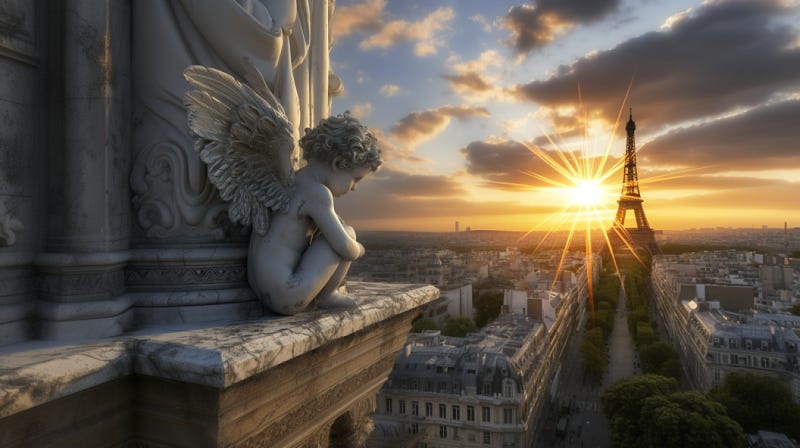
Here’s a quick heads-up from my recent experience: I unintentionally omitted the --v6 command the first time. To my surprise, this caused the image to revert to an older version of Midjourney’s Pan tool giving me undesirable results. My tip? Always double-check to ensure --v6 is included in your command before proceeding, especially when using Vary(Region). While it might not seem like a big deal, there are notable differences between the functionalities in V5 and V6.
After adjusting my image, it seemed off-balance, prompting me to use the Pan Right feature. If Remix is active, you’ll see a Remix window pop up for this action. This brings me to an interesting observation: in V5, using Pan Right duplicated certain elements, like ending up with two Eiffel Towers in my scene, a quirk that wasn’t present in V6. This highlights the importance of selecting the correct version for your artistic needs.
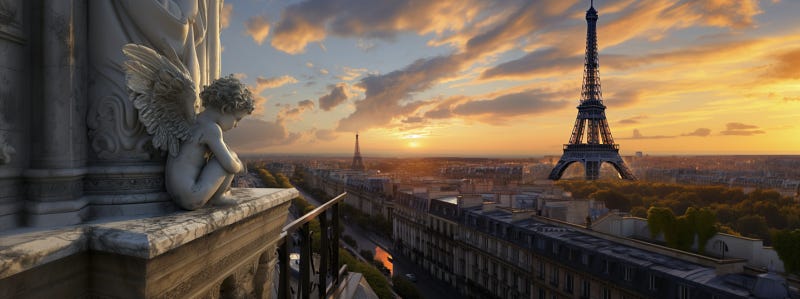
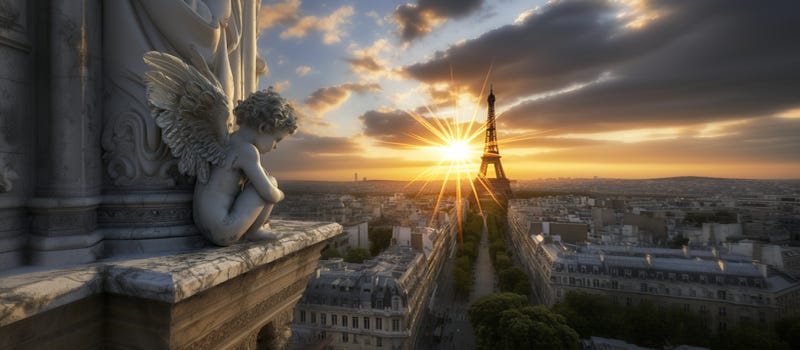
The new V6 panning is much smarter about what it puts in the pictures, so you do not pan a few times and find yourself with several setting suns on your horizon.
Another example
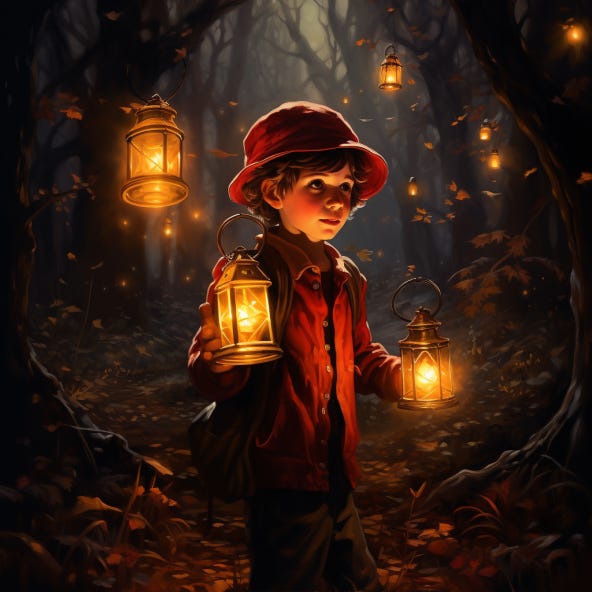
In one of my images, a pair of floating lamps added an eerie touch I wasn’t fond of. To fix this, I jumped into the Vary(Region) editor and targeted these spooky lamps for removal. Since my goal was to eliminate them rather than replace them with something else, I left the prompt unchanged. This is a great example of how Vary(Region) can be used for adding or altering elements and cleaning up unwanted details from your AI-generated art.
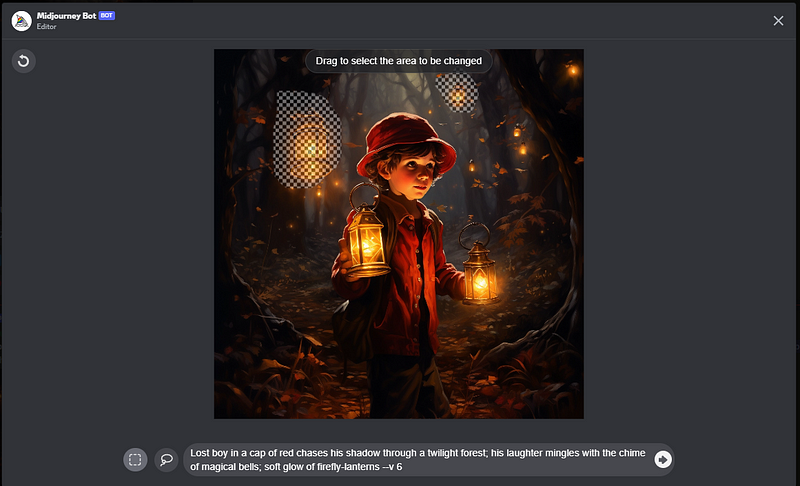
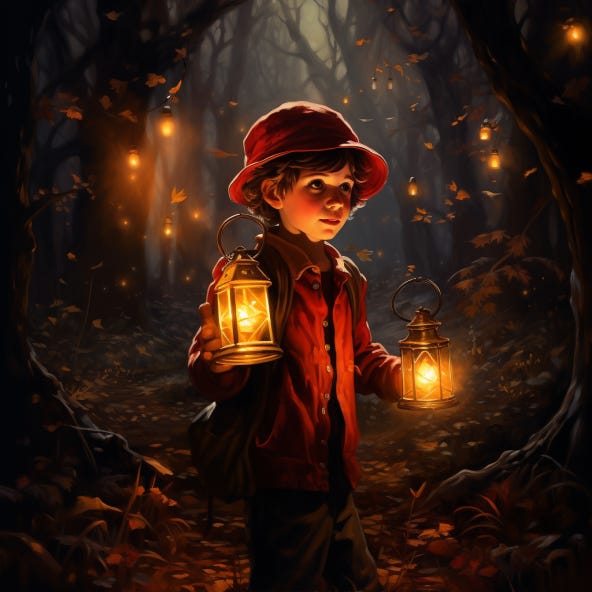
If I had intended to replace those lamps with another element, like a bat or bird, altering the Vary(Region) remix prompt would have been my go-to strategy. This flexibility in the editor allows for seamless substitutions, enabling me to tailor the scene exactly to my vision. Whether removing an object or introducing a new one, Vary(Region) offers a straightforward way to reshape the image's narrative.
Another addition
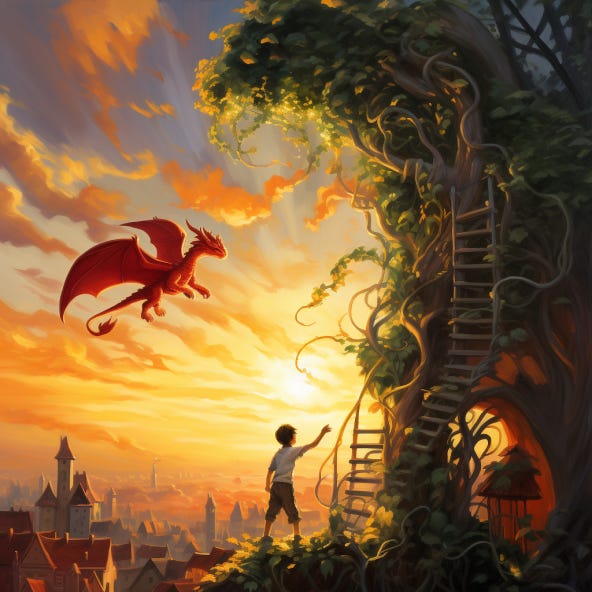
This image has a big empty expanse of sky; let’s add a dragon.
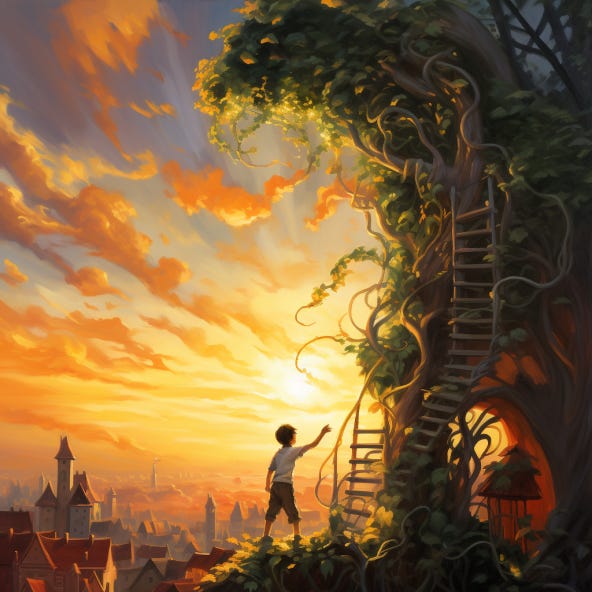
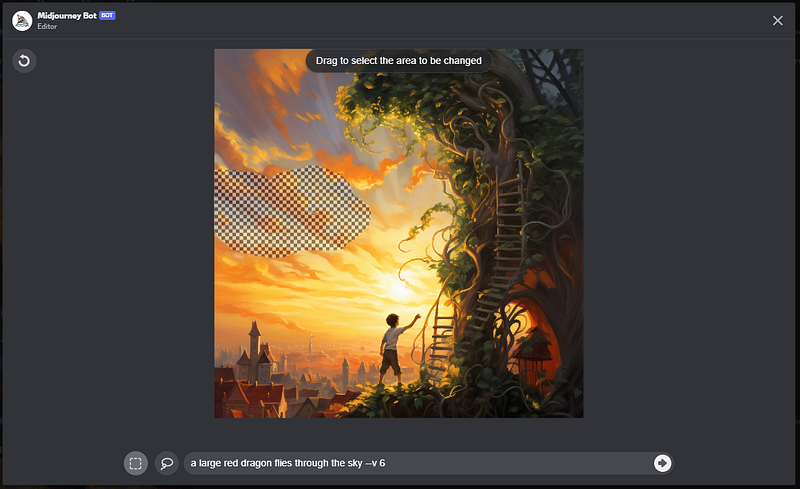
In crafting the scene with our dragon, I carefully chose the area for its placement. Selecting the entire sky would result in an excessively large dragon, so I opted for a more proportionate space. I also ensured the inclusion of the V6 command, realizing that the original image was from version 5.2. This step was crucial to access the updated capabilities of Vary(Region) in Midjourney v6, which offers more refined control and results. Such attention to detail in selecting the right space and version ensures the final image aligns perfectly with my creative intent.
For Giggles
Starting with an image offering ample creative space, I was inspired to add a Carmen Miranda-style fruit hat to the rather serious-looking young woman. I had already panned the image upwards to create room for this playful addition.
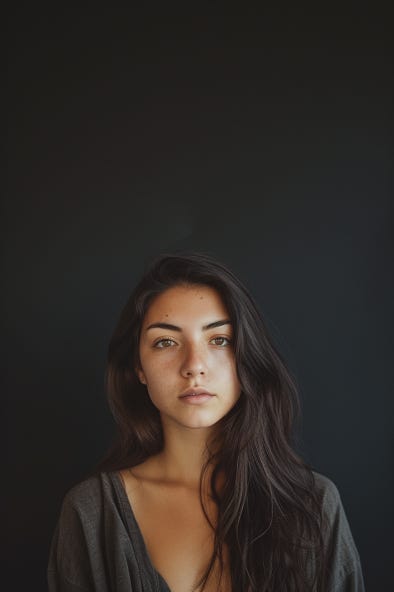
I opted for a more organic approach for the hat's placement, masking an area around where I envisioned the hat to sit. While the rectangular tool is a viable option, I find that freeform shapes allow the AI more flexibility to integrate new elements seamlessly into the image.
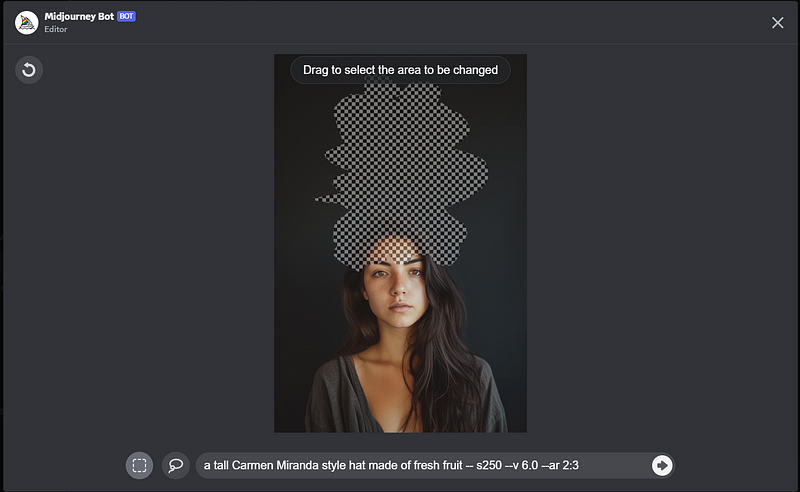
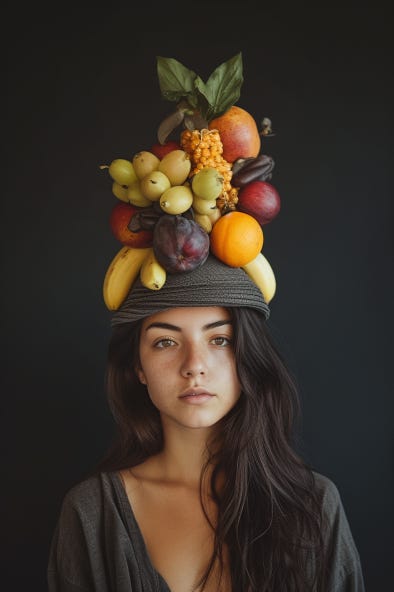
The key to a realistic addition lies in the details of the masking. I masked down to her eyebrows, ensuring the hat and its shadow would fall naturally on her forehead. It’s a delicate balance; masking too high results in the hat appearing perched atop her head rather than worn. The use of different shapes in masking can also affect the arrangement of the added elements, as seen in the more uniform layout of the fruit below when using a rectangular mask.
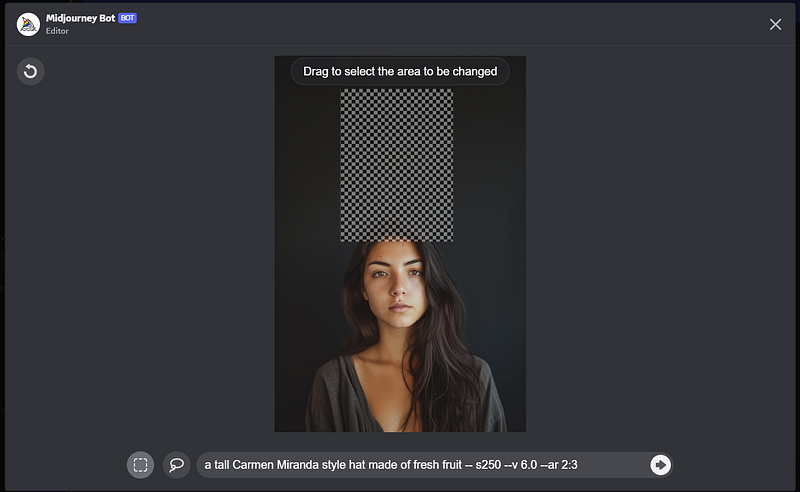
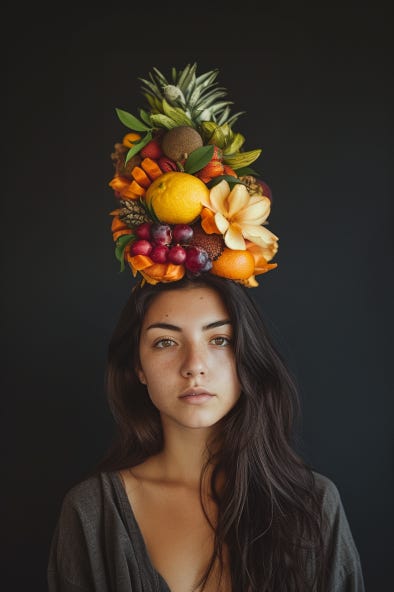
Finally, to complete the transformation, I focused on altering her expression. By selecting just her face and modifying the prompt to a “happy woman with a joyful smile,” we could shift the image's mood entirely, aligning her expression with the whimsicality of her new hat. This final touch truly brought the image together, showcasing the versatility and precision of Midjourney’s Vary(Region) feature.
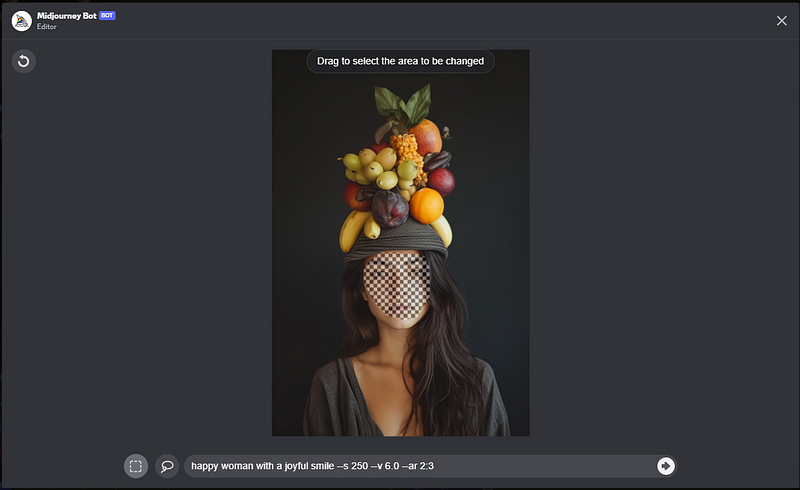
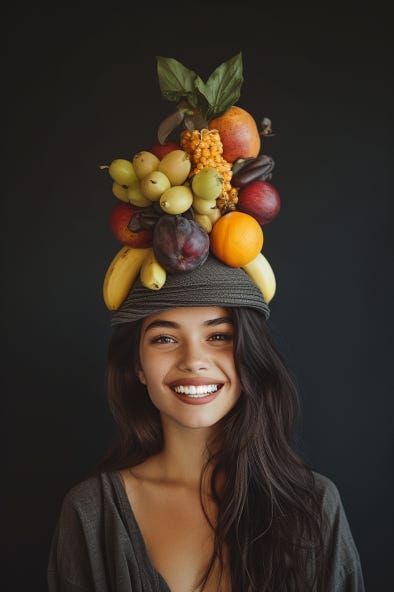
We’ve just scratched the surface of what’s possible with Midjourney v6’s Vary(Region) feature. From removing unwanted elements to adding whimsical touches like fruit hats or even dragons, the potential for creativity is boundless. This tool enhances our ability to fine-tune images and opens the door to a world of imaginative and playful artistry.
I hope this exploration sparked your curiosity and inspired you to experiment with your Midjourney creations. If you enjoyed this journey through the capabilities of Vary(Region) and found it enlightening, I’d love your support with claps (feel free to give up to 50!). Your engagement encourages me to continue delving into the fascinating world of AI art and sharing these discoveries. For more insights and tutorials on the latest in generative art technology, be sure to follow or subscribe. Let’s keep pushing the boundaries of creativity together in the ever-evolving landscape of AI-assisted art!


