
Medium Writing Tools
How to use them
I have recently been asked about the writing tools on Medium, how you use them, and what they are for, so this will be a short, sweet article for beginners.
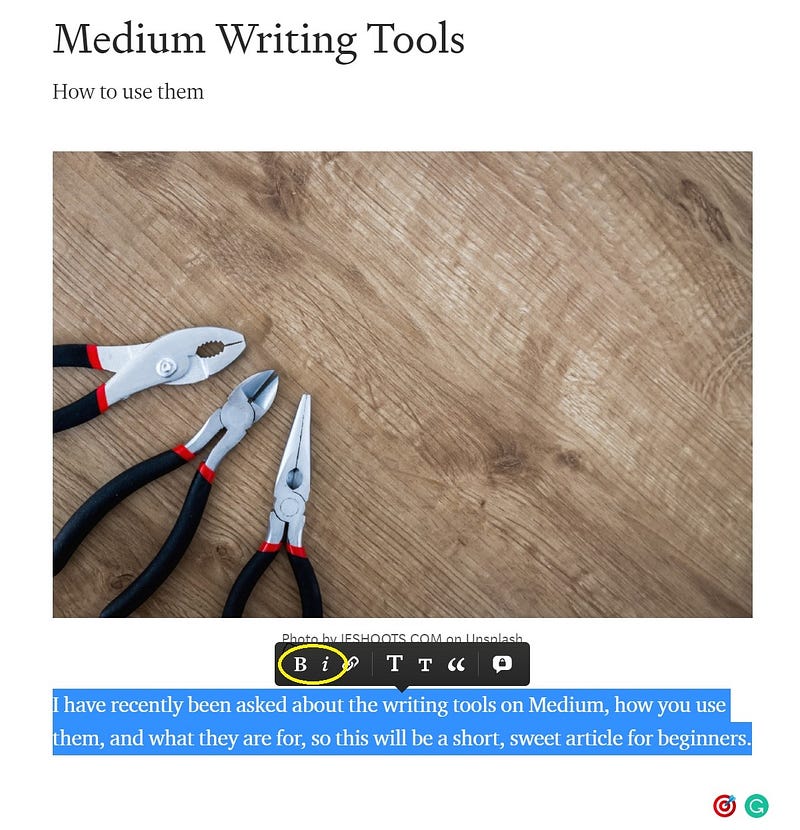
To use the Medium Editor, you need first to write something, like the sentence above, and then highlight it. Then the black toolbox will appear on your screen.
Those familiar with Microsoft Word will know the “B” stands for bold. Therefore, I have made this who sentence bold.
The “i” stands for Italic, and I have made this sentence all Italic.
They both look different from my first sentence in the standard text that Medium provides us.
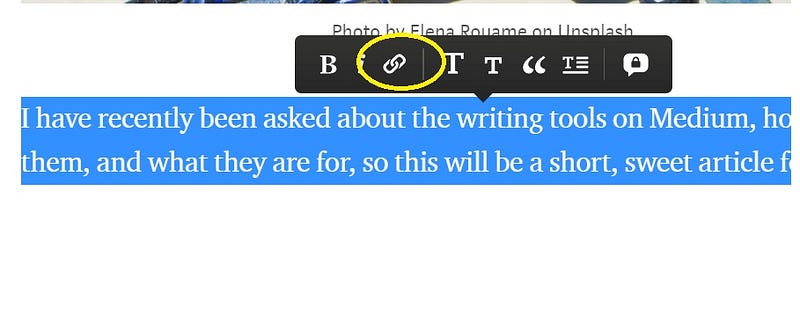
The next button is a link symbol. Once you have highlighted some text, click on the link button.
This will then provide you with a box to type a web address into, as shown in the picture below. Once you have put the address in, click on your ”return” button on your keyboard.
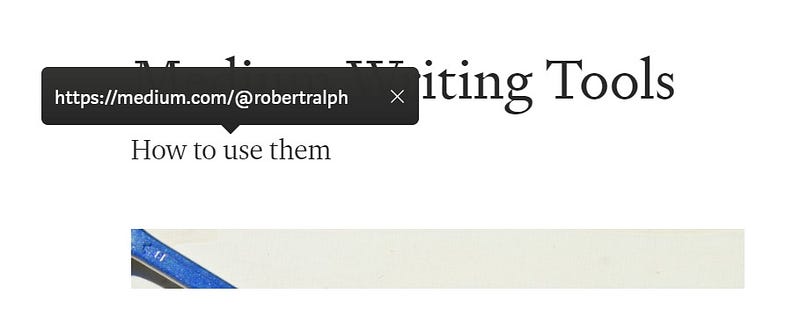
The sample would take the reader to my Medium profile page in this example.
Next, you have a large “T” and a slightly smaller “T”, the large “T.”
The large “T” is the title icon. Only the first line of the story is considered the title. Select the text and click the large “T” icon to format the title. It can be any length. Hit “return” on your keyboard to format that text.
The smaller “T” is the subtitle. Writing directly below the title is considered the subtitle. Select the text and click the small “T” icon to format the subtitle. It can be any length, then hit “return” on your keyboard. to format that text.
The next button is a quotation mark, again highlight the text you want to show as quoted and click that icon, then hit return on your keyboard to activate it, just like the example below.
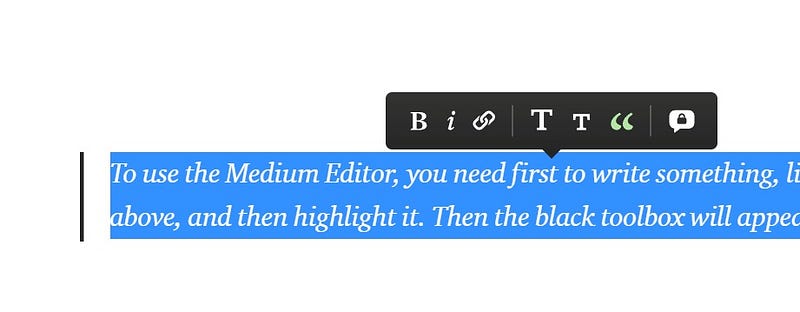
The next icon is a speech bubble with a padlock, and I use it every day. It gives you the option to send the writer of the article a private message, and they get the opportunity to respond.
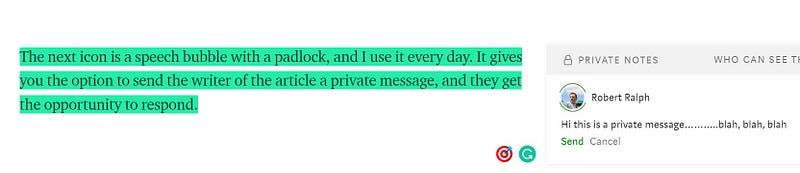
It works the same way as everything else, add your message, then click on the gree “send” button.
Warning, if you make a mistake, you cannot edit the message once it has been sent, so it works the same way as a text message would on your phone.
You can find more help topics in the link below
As requested, please let me know if you need anything added— Laurianne Muzangisa
Written by Robert Ralph
Join Medium here (affiliate link)


