
Medium RSS Feeds
Using an RSS feed to easily read Stories from your favorite Medium writers or Publications is ….. a convenient way to have lists of Story titles in a desktop feed.
RSS stands for Really Simple Syndication. It refers to files easily read by a computer called XML files that automatically update information. This information is fetched by a user’s RSS feed reader that converts the files into the latest updates from websites in an easy to read format.
You may notice that the list of your Followers (via your Profile page) is not sorted alphabetically. I would love this list to be alphabetical, because even though I can click on the link “New from your Network” then click on Writers (People); I would like to quickly find the new Stories of my favorite writers by scrolling through an alphabetical list to find the Writers.
At first, I simply bookmarked the Profile pages of my very favorite writers, as this was much easier than scrolling through a great big list of Followers of which there seems to be no “rhyme or reason” for how they are listed.
I follow a lot of people, more than I could possibly literally “follow” (i.e. read their new Stories) every day, because “Following” really allows me to “tag” a writer, just in case….one day I have the time and the inclination to read one or some of their Stories.
Of course, this works the other way around, hence why a writer on Medium may have tons of Followers, but few who actually read and clap your Stories.

Then I found RSS feeds! Medium has some information about them, the link below, however, missed out a critical part for the “un-technologically savvy” person, being that to use this, one has to download a piece of software called an RSS Feeder.
Medium members can use an RSS Feeder for the convenience of bringing up a list of new Stories.
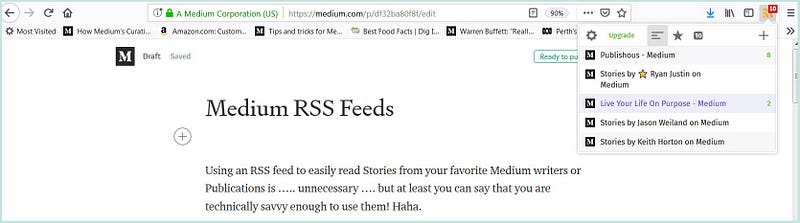
The software places a little icon at the top of your computer screen, which is a short-cut to the things that you subscribe to via your personalized Feed.
In the case of the Feeder that I am using, a small orange rainbow-looking thing appears at the top right-hand corner of my browser screen when I’m connected to the internet.
The number in the red square denotes the number of new items to read.
Do an internet search using the phrase “RSS feeder for [ x y z ]” but replace the x y z part with the name of your browser, e.g. Firefox or Chrome. I use the Mozilla Firefox browser and am using the free RSS Feeder at the page below.
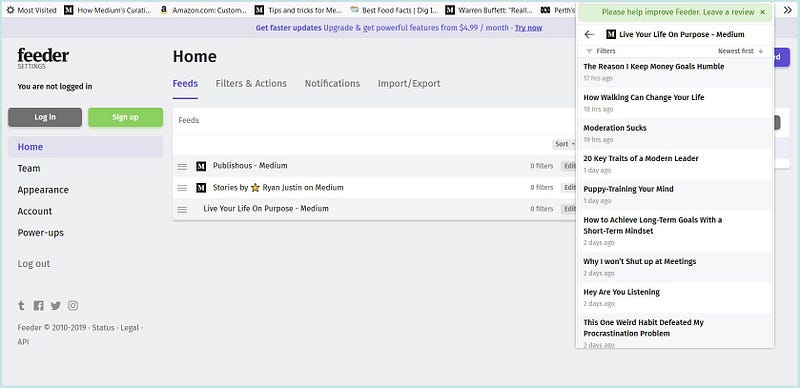
The “feeds” which you subscribe to appear in drop-down lists, which I find very easy to read, i.e. a handy feed or list of new Stories to browse, enabling me to click on those stories that I want to read.
You could use Bookmarks but not if you have as many Bookmarks as I have, which tends to be unorganized because I am always adding them.
I have “Live your Life on Purpose” in my news feed, and Publishous, and use the RSS feeder as a super quick organized way to look at new Story titles, for my research purposes and for finding something good to read.
Note: that if you subscribe to an individual Medium Writer, your Feed will include Comments or Responses that they make, as these are considered as Published Stories by Medium. I have my favorite three Writers ⭐ Ryan Justin and Jason Weiland and Keith Horton in my Newsfeed.
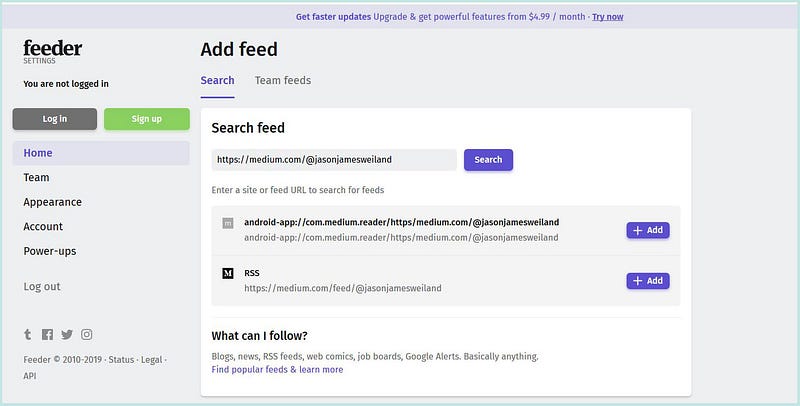
The screenshot above shows the “Add Feed” section of feeder.co and after you paste or type in the web address (URL) for the Medium profile name, if there are feeds available for a mobile device and for a desktop computer, they appear in the space below the field where you paste/type in the URL.
Click the +Add button to add the feed.
An RSS Feeder can be set up or configured to “grab” or show new posts or items every 24 hours or over other time-periods. RSS feeds are pretty easy to set up once you’ve downloaded and installed the RSS Feeder software.
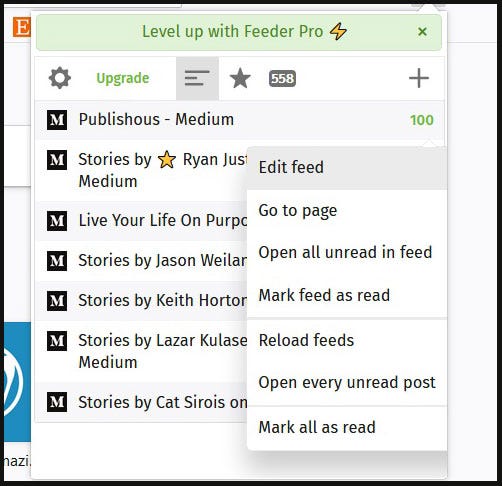
If you right-click on a Feed title when using feeder.co (for Mozilla Firefox), a menu will pop up, as shown below. Clicking on “Go to page” will take you to the web page with the URL associated with the RSS feed, e.g. clicking on “Stories by Ryan Justin” will take you to Ryan’s Medium Profile page.
Medium is for reading also (and that’s why I pay my membership fee), and the more you read and engage with other Medium writers (through complete reads, Claps, and Responses, highlighting pieces of their work, and leaving them positive Private Notes) the more interaction with your own written pieces that you will receive.
Clicking on the Feed name/title will drop down the Story titles if the Feed relates to a Medium Profile/writer.
The screenshot from my RSS feed (using feeder.co) shows Stories listed for Ryan Justin , from the oldest first, with 5M meaning 5 months ago.
Clicking on the little lines at the top left will bring up a Filters menu. You can click on the upward pointing arrow to organize the list to have the most recent or newer Stories listed at the top. If you tick Starred, it will bring up your favorite starred Stories, if you have starred any stories/articles.
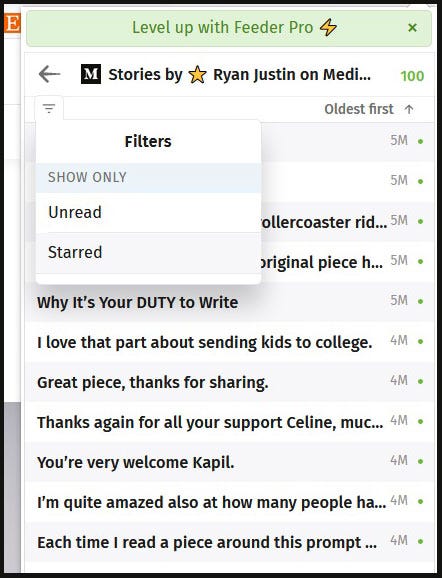
The green dots mean that the article has not been clicked on (which will take you to the Story on Medium). After you have clicked on a story/article name, it will be highlighted in blue and will disappear if you have selected to display “Unread” articles only.
On the right of each feed / Story title, there are 3 little dots. Clicking on them will bring up the menu below, for each item, so that you can “star” a story or article as a favourite, or take other options, shown below.
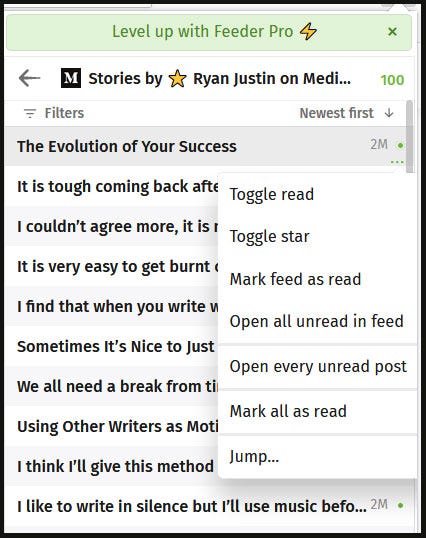
“Toggle read” just means move to the Next Story in the RSS list, (i.e. saves your fingers from using the mouse to click on the next item in the feed) and Jump lets you choose to move your mouse cursor to a Story one day, one week or one month down the list.
Clicking on the arrow at the top of the feed list, on the right, will bring up a Display menu. You can choose to have the oldest published articles first at the top of the feed list, or the newest.

The TIMESTAMP lets you choose from Relative which means the story publication date will appear as 1 month or 1 week or 1 day ago, etc. or from Absolute, which gives you the actual date of publication.
You can see the publication date and time of a Medium story by hovering your mouse over the Timestamp next to a story title, as shown below. 😃
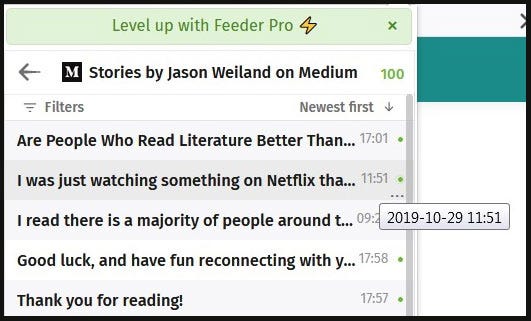
The Date and Time of publication (for your time zone) when the “I was just watching…on Netflix…” response was published by Jason Weiland, is shown above.
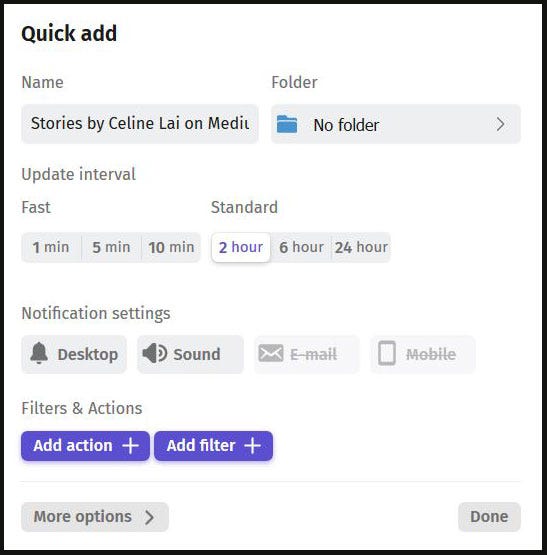
There are also settings to select an interval time for live updates or refreshes of the data coming into your feed, as shown below. Plus you can select to have a pop-up Notification for a single feed and / or have a sound play, whenever a new article/story is published/broadcast.
Call me a “geek” but I love using the RSS Feed Reader for its simplicity and to quickly choose and read Stories from my favorite Medium Publications and Medium writers.
It is a good alternative, I think, to using “New from your Network” or bookmarking the profiles of your favorite Medium writers. Some say RSS feeds are outdated technology or not useful because of in-house software functions or social media alternatives to find what one wants to read.
But I love all sorts of different programs or software and have found the feeder.co RSS Reader very useful. You can even use it to keep track of the publication dates/times of your own Medium stories!


