
Mastering Figma: Advanced Tips & Tricks. Part 4
Step up your Figma game with expert tips & tricks. From quick alignments to color previewing, learn to optimize your design workflow like a pro.
Welcome back to the most waited next part of our deep dive into Figma’s Tips and Tricks!
In this part, we’re going to elevate your design game even further.
However, I highly recommend you to read also my previous parts down below:
Whether you’re a seasoned pro or still getting the hang of this powerful tool, these tips, and tricks are designed to streamline your workflow, enhance your designs, and unlock new levels of creativity.
Let’s jump right in and explore more ways to make your Figma experience even more efficient and enjoyable!
Tip #1 — Aligning Elements Quickly
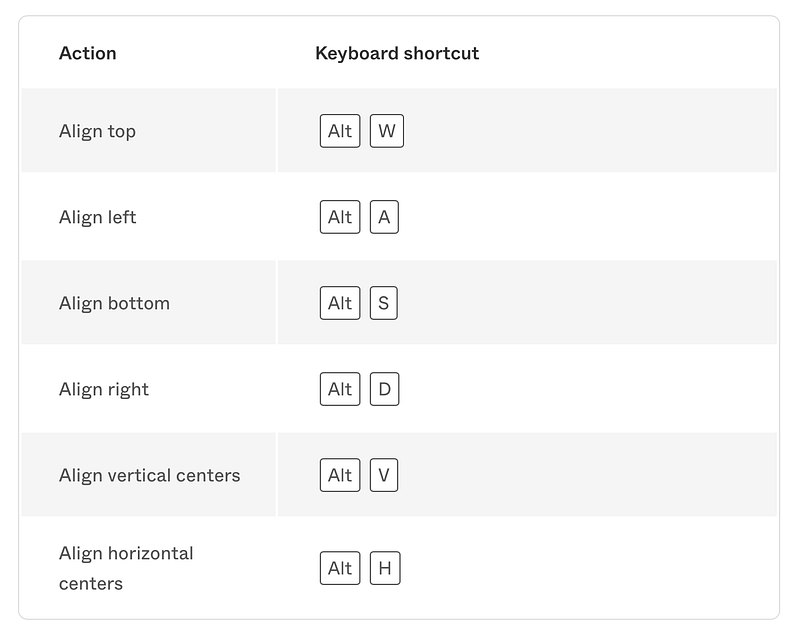
Align elements quickly in Figma and FigJam. Press the option key (alt) and: W for top, A for left, S for bottom, D for right.
Tip #2 — Previewing a Color with the Eyedropper
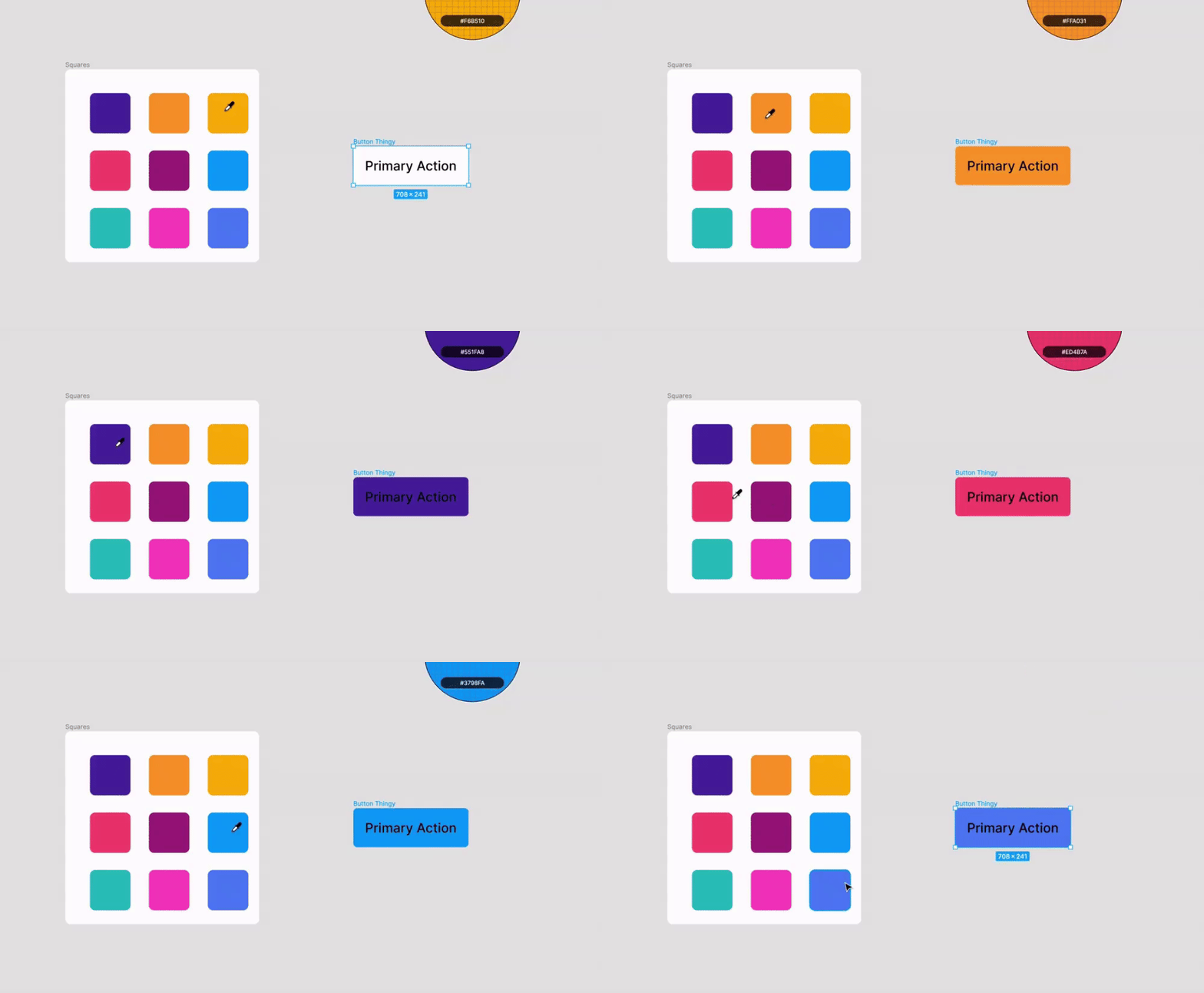
When using the eyedropper tool (Control + C), hold down (keep press) instead of tapping to preview different colors.
Tip #3 — Unlock all objects
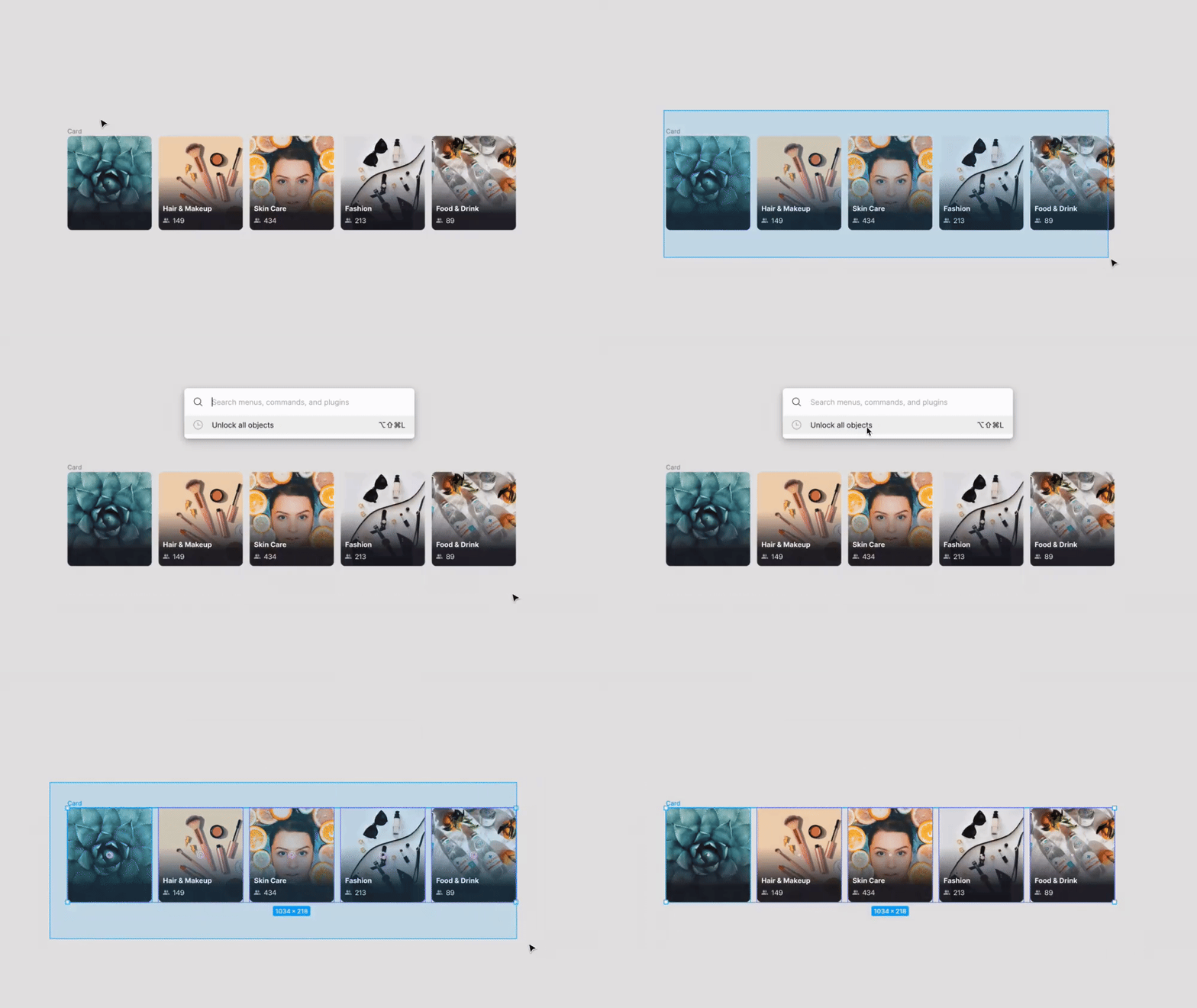
Use CMD + / to unlock all the objects, it has a ton of useful quick actions that will save you tons of time in your workflow.
Tip #4 — Saving Time with the Spacebar
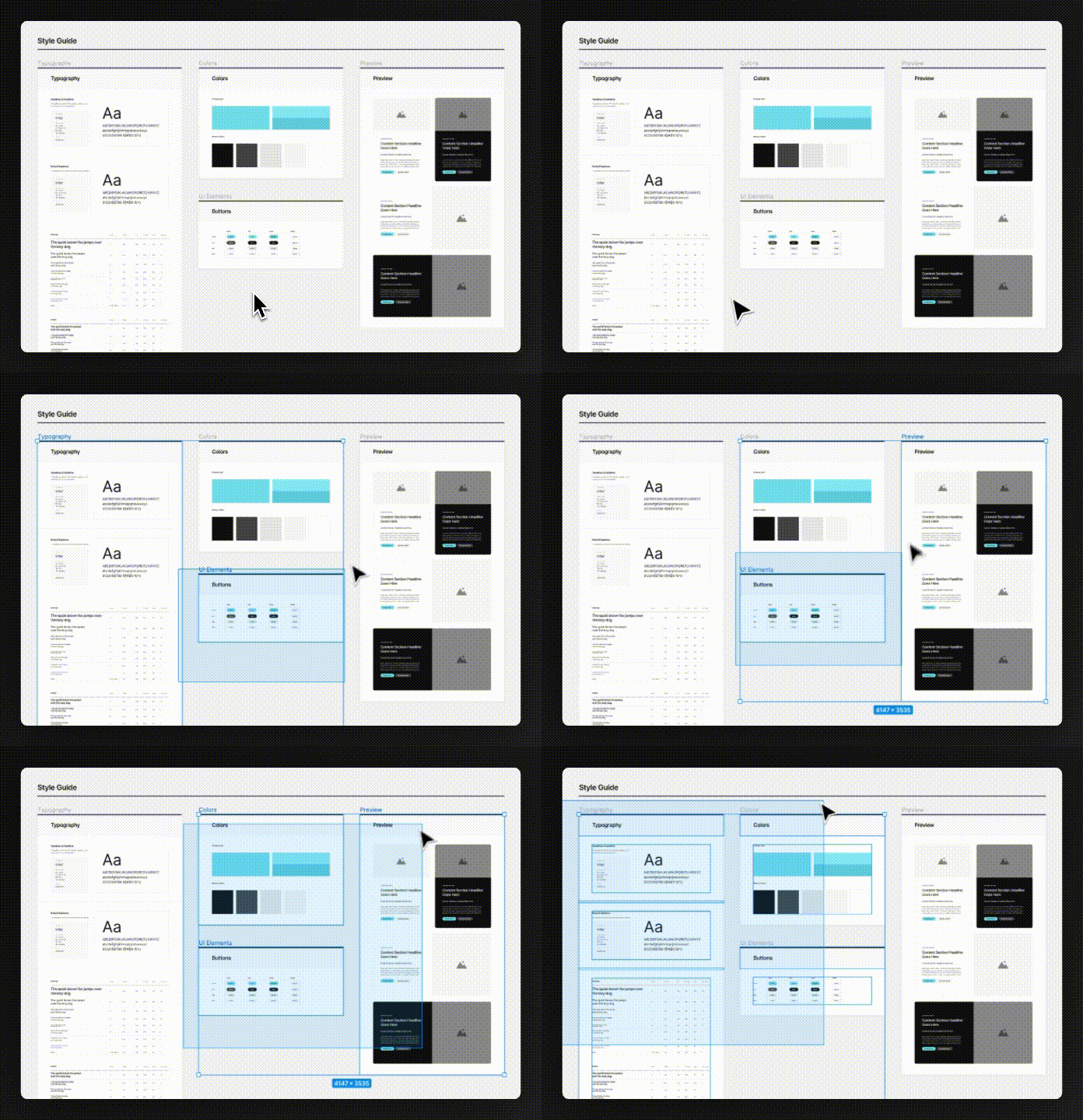
Click on the selection, then drag it with your mouse and press the spacebar to enlarge your cursor selection. When creating a specific shape, you’ll also be able to arrange space for the object to be moved in.
Tip #5 — Explore the Figma Color Wheel
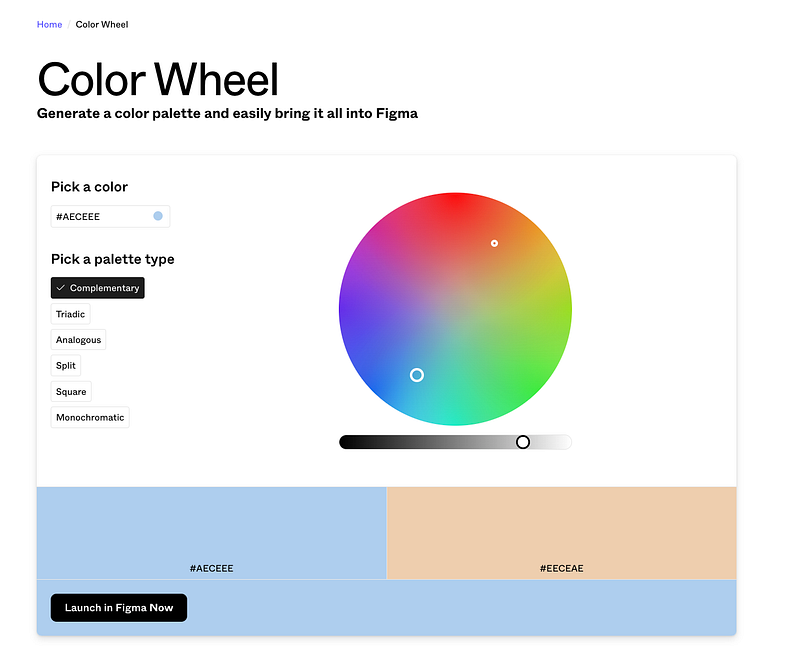
Explore the Figma Color Wheel, a handy tool for creating cohesive color schemes. Start by picking a base color, then use the wheel to find matching shades, adjusting saturation and brightness for the perfect balance.
It’s great for ensuring your colors are accessible, with features to check text-background contrast. Simple yet powerful, this tool is a go-to for developing professional color palettes efficiently.
Enjoyed these Figma tricks? Let’s keep the momentum going! Give a follow, share the love, and leave a comment if you’re ready for more. Your support sparks the next chapter. Eager for more design magic? Just say the word. Together, we make great things happen. Stay tuned!”


