
Mastering AWS CLI
Magic Tricks to Work with Logging, AWS Lambda and Much More

In this story I will write about a few AWS CLI (Command Line Interface) tricks which saved me a lot of time and made my work more efficient.
Anything we can do on the AWS website is also possible via the command line. It helps with documentation while writing `readme` files, inspecting our AWS resources and getting information about them. It also helps to avoid human errors.
However, there is much more we can do with AWS CLI. We just need to combine it with bash scripting.
In a nutshell AWS CLI is a library that can be installed locally and because these tools use the same REST API endpoints we can make the same calls from the command line as we would have it deployed in the cloud or by using any other programming language.
Indeed, keeping everything in bash scripts might be very powerful.
Because the Amazon command line tools adhere to the REST API standard, most actions return a large amount of data, often in JSON format. It can be used to create more complex operations if we chain the outputs of different AWS CLI commands using bash.
I am a data engineer and use AWS Lambda a lot. From my experience it turned out to be the most cost-effective way to create ETL data pipelines and I wrote about it here:
Routine AWS tasks might seem fiddly but if we use a little bit of imagination combined with bash scripts these common administrative tasks might become very effective.
Output AWS Lambda response to command line
Very often we might want to output AWS Lambda result to the terminal, i.e. when testing lambda locally. I wrote an article on how to do it on the local machine and I’ll put a link at the end of this story.
Consider this piece of code. I have a lambda called `pipeline-manager` that orchestrates ETL pipelines.
I would like to invoke it and read the response directly in my terminal.
However, by default it will save the output to response.json:
aws \
lambda invoke \
--function-name pipeline-manager \
--cli-binary-format raw-in-base64-out \
--payload '{ "first_name": "Mike", "last_name": "Shakhomirov" }' \
response.json
In response.json we would see: `{“statusCode”: 200, “body”: {“lambdaResult”: “Hello Mike Shakhomirov!”}}`. We can also print our lambda response in the terminal.
How do we do it?
aws \
lambda invoke \
--function-name pipeline-manager \
--cli-binary-format raw-in-base64-out \
--payload '{ "first_name": "Mike", "last_name": "Shakhomirov" }' \
/dev/stdout

# {"statusCode": 200, "body": {"lambdaResult": "Hello Mike Shakhomirov!"}}%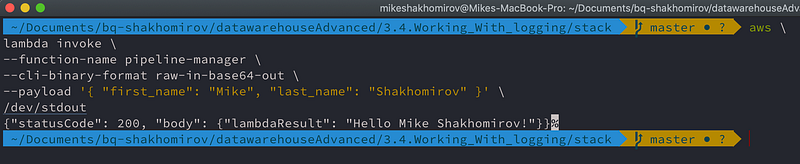
Alternatively, we can use something like this to simultaneously print both Lambda response and Lambda API execution result:
LAMBDA_RESULT=$(aws \
lambda invoke \
--function-name pipeline-manager \
--cli-binary-format raw-in-base64-out \
--payload '{ "first_name": "Mike", "last_name": "Shakhomirov" }' \
--output json \
/dev/stdout
)
echo $LAMBDA_RESULT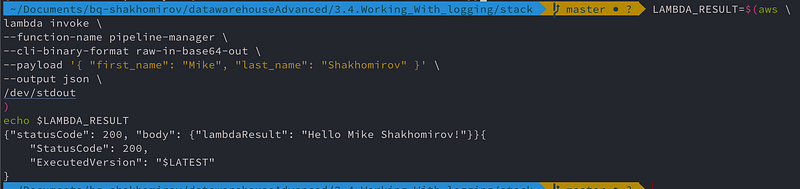
This is a very powerful technique because now we can chain it in scripts using bash.
My Python Lambda is a simple app.py that looks like this one below and you can deploy it easily in AWS by copy pasting this code:
def lambda_handler(event, context):

    try:
        message = 'Hello {} {}!'.format(event['first_name'], event['last_name'])
        print('[app] Logging fisrt name: {}!'.format(event['first_name']))
    except Exception as e:
        print("[error] app failed with error: " + str(e))

    return {
        'statusCode': 200,
        'body': { 'lambdaResult': message }
    }
Parsing AWS Lambda response in command line
If we have `jq` installed we can achieve even more. Install `jq` binary for your platform, run `(chmod +x jq)` and you will be able to parse any JSON output from a string like so:
# install jq on MacOSX:
HOMEBREW_NO_AUTO_UPDATE=1 brew install jq

aws \
lambda invoke \
--function-name pipeline-manager \
--cli-binary-format raw-in-base64-out \
--payload '{ "first_name": "Mike", "last_name": "Shakhomirov" }' \
--output json \
/dev/stdout | jq -r '.body.lambdaResult' | read OUTPUT

echo $OUTPUT
# Hello Mike Shakhomirov!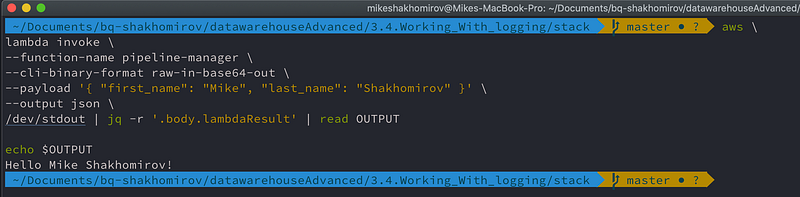
`jq` is a great tool
And now we can pass it further down the script and chain our shell commands.
Extract only the data that we need
Any AWS CLI command will send a request to a service’s API and get a response from that service back. For instance, `aws cloudformation create-change-set` command will return this JSON:
aws \
cloudformation create-change-set \
--stack-name ${STACK_NAME} \
--change-set-name ChangeSet${TIME} \
--template-body file://stack_simple_service_and_role.yaml \
--capabilities CAPABILITY_IAM \
--parameters \
        ParameterKey="StackPackageS3Key",ParameterValue="pipeline_manager/${base}${TIME}.zip"

{
    "Id": "arn:aws:cloudformation:eu-west-1:123456789:changeSet/ChangeSet20230410075618/e2199768-d4d7-4b50-9aac-5f2c22eff64c",
    "StackId": "arn:aws:cloudformation:eu-west-1:123456789:stack/SimpleStackWithLambdaAndRole/a5901580-d6c8-11ed-b93c-0a6419c3aea5"
}
What if we would want to chain the output of this command to `execute-change-set` after it has been created? How do we achieve this? By supplying ` — query Id` flag and the name of the field you want to any Amazon command line, we can extract exactly the portions of data we need.
CHANGE_SET_ID=$(aws \
cloudformation create-change-set \
--stack-name ${STACK_NAME} \
--change-set-name ChangeSet${TIME} \
--template-body file://stack_simple_service_and_role.yaml \
--capabilities CAPABILITY_IAM \
--parameters \
        ParameterKey="StackPackageS3Key",ParameterValue="pipeline_manager/${base}${TIME}.zip" \
--query Id \
--output text
)
# arn:aws:cloudformation:eu-west-1:123456789:changeSet/ChangeSet20230410075618/553828ce-f6b0-4e47-89d3-67bd5a007925

change_set_result=($?)
echo  "Command create-change-set executed with code: $change_set_result"
echo "waiting for change-set ${CHANGE_SET_ID} to be created and updating instead..."

aws --profile mds \
cloudformation wait change-set-create-complete \
    --change-set-name ChangeSet${TIME} \
    --stack-name Datalake

aws --profile mds \
cloudformation execute-change-set \
    --stack-name ${STACK_NAME} \
    --change-set-name ChangeSet${TIME}

echo "done"
As you can see we use this id to run `aws cloudformation execute-change-set`
Filtering AWS Lambda logs
We can use `aws logs filter-log-events` for our log group. However, `start-time` and `end-time` must be UNIX epoch long types.
aws logs filter-log-events \
    --start-time 1680188330000 \
    --end-time 1682866730000 \
    --log-group-name /aws/lambda/pipeline-manager \
    --filter-pattern Something
This is very annoying but there is a way to fix it. We can try to create a bash script and run all in one go like so:
start_ts=$(date -j -f "%Y-%m-%d %H:%M:%S" "2023-04-10 00:58:50" "+%s""000")
end_ts=$(date -j -f "%Y-%m-%d %H:%M:%S" "2023-04-30 15:58:50" "+%s""000")
echo $start_ts
echo $end_ts

aws logs filter-log-events \
    --start-time $start_ts \
    --end-time $end_ts \
    --log-group-name /aws/lambda/pipeline-manager \
    --filter-pattern error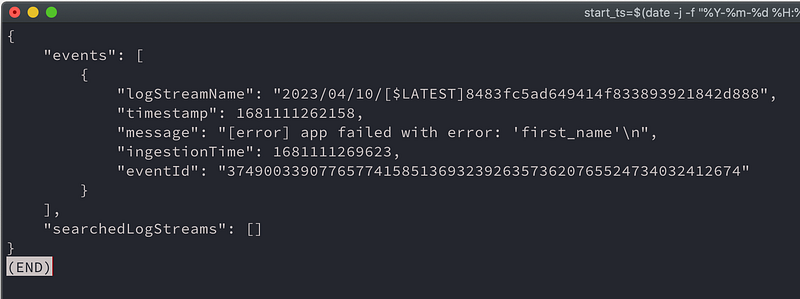
The output is JSON so we can query it with ease.
{
    "events": [
        {
            "logStreamName": "2023/04/10/[$LATEST]8483fc5ad649414f833893921842d888",
            "timestamp": 1681111262158,
            "message": "[error] app failed with error: 'first_name'\n",
            "ingestionTime": 1681111269623,
            "eventId": "37490033907765774158513693239263573620765524734032412674"
        }
    ],
    "searchedLogStreams": []
}
On a given response, when using the `- — query` flag, it can extract data from the `searchedLogStreams` and `events` fields. Basically the ` — -query` parameter is a JMES Path expression and we can use it to filter and search for anything. I’ll put a link at the end of the article.
start_ts=$(date -j -f "%Y-%m-%d %H:%M:%S" "2023-04-10 00:58:50" "+%s""000")
end_ts=$(date -j -f "%Y-%m-%d %H:%M:%S" "2023-04-30 15:58:50" "+%s""000")
echo $start_ts
echo $end_ts

aws logs filter-log-events \
    --start-time $start_ts \
    --end-time $end_ts \
    --log-group-name /aws/lambda/pipeline-manager \
    --filter-pattern error \
    --query 'events[*].message'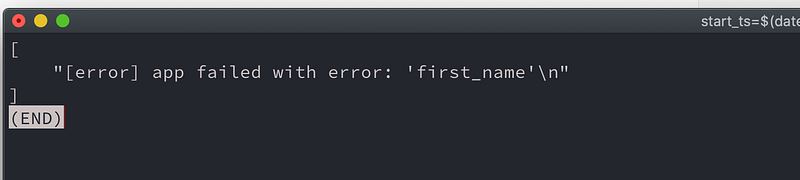
We can also use more complex filter patterns :
--query 'events[?contains(message,`'something'`)]'`
#or
--query 'events[?starts_with(message,`'something'`)]'`
Looping through AWS resources
This is another useful trick when we need to list through a set of resources we have deployed in AWS and to do something, i.e. `download` code package for a lambda, `delete` all ‘test’ Lambdas, etc.
Simple command
aws lambda list-functions --query 'Functions[?starts_with(FunctionName, `mysql`)].FunctionName' --output textwill get a list of all Lambda functions:
{
    "Functions": [
        {
            "FunctionName": "mysql-lambda",
            "FunctionArn": "arn:aws:lambda:eu-west-1:12345678:function:mysql-lambda",
            "Runtime": "python3.8",
            "Role": "arn:aws:iam::23456789:role/ETLSolutionStaging-LambdaExecutionRole-1D45A12RF6YFT",
            "Handler": "mysql_connector/app.lambda_handler",
            "CodeSize": 106170,
            "Description": "Microservice that orchestrates SQL query execution.",
            "Timeout": 300,
            "MemorySize": 128,
            "LastModified": "2023-03-26T13:42:31.000+0000",
            "CodeSha256": "1UrBKh/MJbwFz0RROEFNn4nBY+04APMXlcA1+Pb6+6w=",
            "Version": "$LATEST",
            "Environment": {
                "Variables": {
                    "DEBUG": "true"
                }
            },
...
We can download all lambda code packages by running this bash script below:
lambdas=$(aws lambda list-functions --query 'Functions[?starts_with(FunctionName, `mysql`)].FunctionName' --output text)
for lambda in $lambdas; do
  echo downloading function code for lambda $lambda
  aws lambda get-function --function-name $lambda
done
# downloading function code for lambda mysql-lambda
Conclusion
AWS CLI is a very powerful tool per se. It is based on AWS REST API and enables software engineers with a powerful command-line interface to communicate with AWS services endpoints to describe and modify resources. Combined with bash scripting techniques it becomes even more powerful. We can use the output of one CLI command and provide it as input for another. Chaining these commands in a such manner makes engineers’ work much easier. We can deploy and update the required AWS resources with scripts, pull the info about existing ones and then use it in scripts. I am a data engineer and often use bash scripts to deploy ETL services and to create change sets using AWS Cloudformation. Combined with bash scripting it enables CI/CD pipelines with any settings business might require. Might be worth a read:
https://levelup.gitconnected.com/infrastructure-as-code-for-beginners-a4e36c805316
I hope these bash snippets and examples will be useful for you as they helped me a lot.
Recommended read
1. https://docs.aws.amazon.com/cli/latest/reference/logs/index.html
2. https://awscli.amazonaws.com/v2/documentation/api/2.4.18/reference/logs/tail.html
3. https://docs.aws.amazon.com/AmazonCloudWatch/latest/logs/FilterAndPatternSyntax.html
4. https://docs.aws.amazon.com/cli/latest/reference/logs/filter-log-events.html
5. https://docs.aws.amazon.com/es_es/AWSCloudFormation/latest/UserGuide/AWS_Logs.html
6. https://stackoverflow.com/questions/47675032/invoking-aws-lambda-without-output-file
7. https://stackoverflow.com/questions/1955505/parsing-json-with-unix-tools
8. https://stedolan.github.io/jq/download/
9. https://awscli.amazonaws.com/v2/documentation/api/2.0.34/reference/lambda/list-functions.html
10. https://towardsdatascience.com/data-pipeline-design-patterns-100afa4b93e3
11. https://readmedium.com/test-data-pipelines-the-fun-and-easy-way-d0f974a93a59


