
Master The Art of Writing Xpath For Web Scraping
A Gentle Introduction To The RegEX of Web Scraping
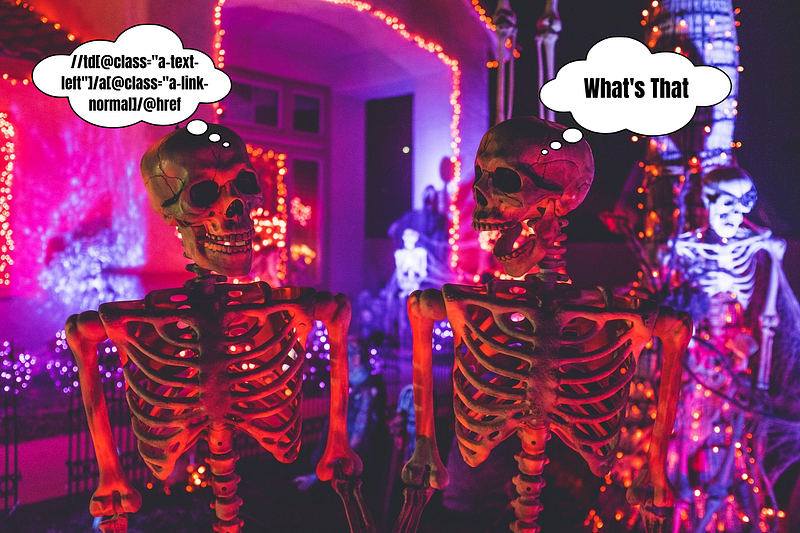
The key part of web Scraping is to describe the computer how it should look for an element on the web. Xpath is a way to write a pattern that can be matched to a document structure for scraping data. It specifies the parts of a document in a tree structure manner where the parent node is written before the child node inside a pattern.
XPath stands for XML path language, is a tool for locating elements in XML documents. Thus, HTML is an implementation of XML it can be used to locate elements in HTML documents too.
Features
- Target Element Perfectly.
- Has a built-in browser tool for extraction.
- best choice to have when there is no suitable id or class.
- Capability to scrape multiple pages at the same time.
- More powerful than CSS selectors
Downsides
- Hard To Understand.
- Not at all beginner-friendly.
There are two major libraries of python that use Xpath on a big scale for web scraping — selenium and scrapy.
Selenium is an automation & testing library that can be used for web scraping as well. One of the biggest advantages of selenium is, it can scrape dynamically generated data from the web very easily.
Scrapy is a complete python framework for web scraping. It contains multiple tools for large-scale web scraping. Xpath is a major selector in scrapy.
We will consider both while learning about Xpath expressions.
> Xpath Browser Essential
 - Finding Xpath
 - Testing Xpath
> Xpath
- Types of Xpath
- Xpath Basic Functions
- Xpath Advance Functions> Python Web Scraping Project Using XpathFinding Xpath
Most of the modern browsers (like chrome, firefox) provide a very useful feature using which you can copy the Xpath of an element with a few mouse clicks.
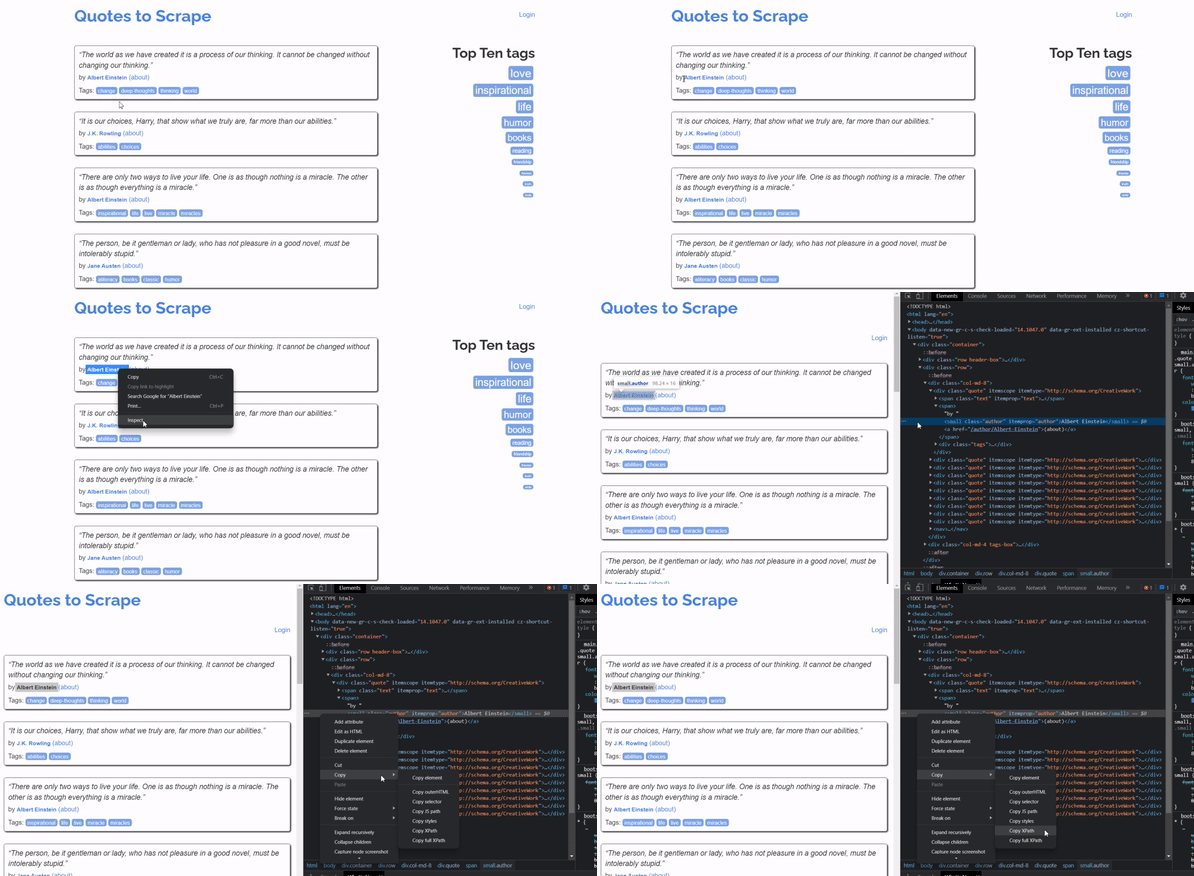
To get the Xpath, Right-click on the element you want to get the XPath for then click inspect. Once the source code will appear click on copy > copy Xpath.
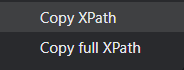
You will see two options for Xpath that represents the two types of Xpath.
Types of Xpath
1. Absolute XPath (Full Xpath): It uses the complete path from the root to our element. It starts with a single /
For Example —
/html/body/div/div[2]/div[1]/div[1]/span[2]/small2. Relative Xpath: It is a direct reference to the element you want to extract. It starts with //
For Example —
//*[@class='author']Relative Xpath is always chosen on top of Absolute Xpath because they are not the complete path from the root element. Also, if in near future a new element is added or removed then Absolute Xpath becomes invalid and stops working. So Relative Xpath is preferable.
Xpath follows a syntax using which each expression is created.
Xpath Syntax
Before Looking At the syntax you should understand the node structure of HTML and terminology Xpath uses —
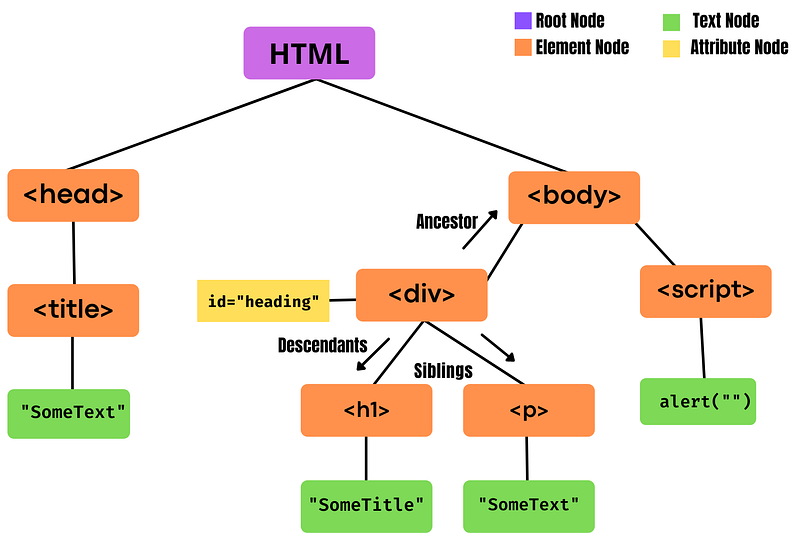
- HTML is divided into four different nodes mainly — root node, element node, attribute node, and text nodes that contain the value.
- Root Node is the top node inside a node tree. Every node has a parent except for the root node. a root node can have n number of children.
- Every element inside the document except the root is considered an Element Node. Each element node has one parent.
- Attribute node contains information about all the attributes used by an element node.
- Text nodes Contain the text value for the element node. These values are visible to the user.
- Ancestor nodes are the parent or parent’s parent nodes of the current node.
- Descendants nodes are child or child’s chile nodes of the current node.
- Siblings are nodes that share the same parent node.
The Basic Syntax For an Xpath Expression is —
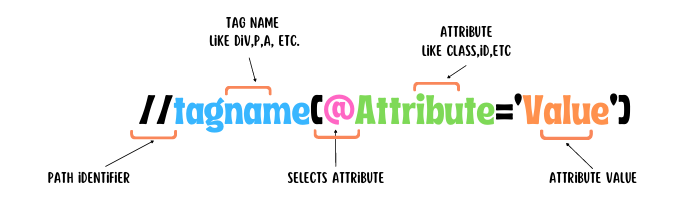
There are different types of functions & operators that combine help writing expressions for selecting elements on the web. Let’s see some of them one by one.
// : Select any Descendant Node that matches
/ : Selects from the root, useful for writing absolute path.
nodename : Select a particular node ex:
. : Select the element from the current node
.. : Selects the element from the current node parent.
@ : Select the attribute from the element.
* : Match the expression with any node.
@* : Matches Any Attribute Node
Advance Expression
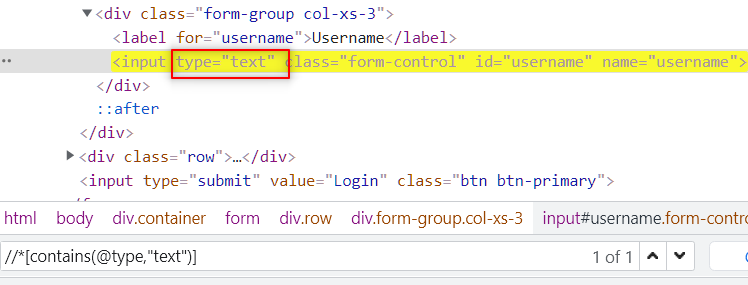
contains(A,B): Search for a stringAinside the elementB. Suppose you want to select a tag with some fixed attribute Like type, name, etc then It can be used.
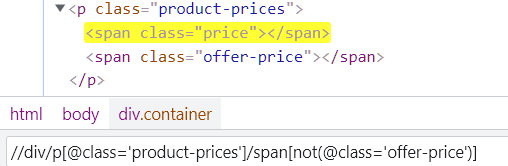
not: negate some part of the query. It can be used in conditions where you want to select a tag from a set of tags negating an attribute or tag.
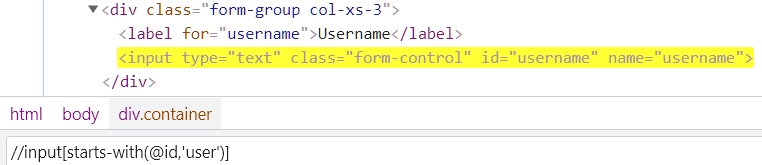
starts-with: Search for an element that starts with a stringA
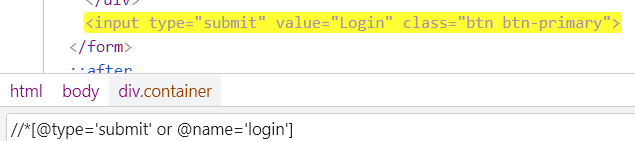
ends-with: Seach for an element that ends with a stringBOR: Select an element that satisfies either condition 1 or 2.
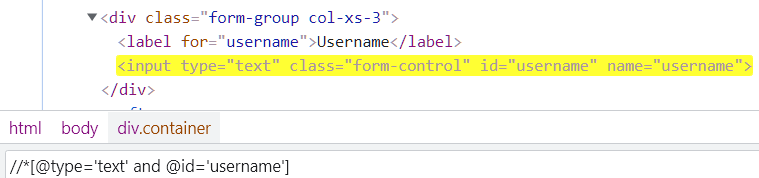
and: Select an element that satisfies both the conditions.
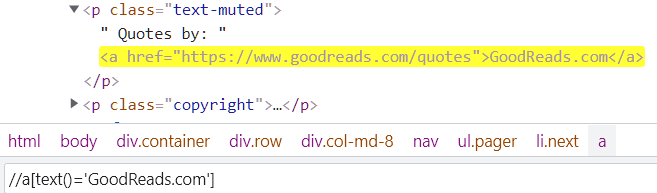
text(): locate element based on the text of a web element. it is a built-in function of the selenium web driver.
following: It will select all the elements of the current node following a particular tag.

Above Xpath matches two following input tags (password, submit) of the current node (username).
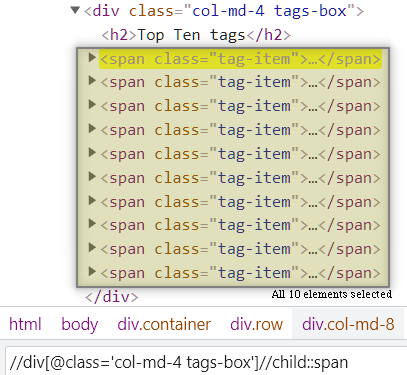
Child: Selects all the children elements of the current node.
preceding: It selects all the nodes that come before the current node.
//*[@name='submit']//preceding::inputAbove Xpath will select all the input tags that come before the input tag that has an attribute name with value submit.
following-siblings: it will select all the siblings of the same level for the currently selected node. You can use it to select cards, buttons, etc.
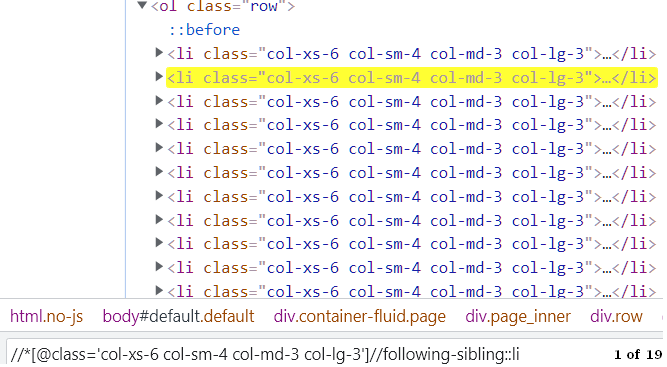
parent: Selects all the parents of the current node. You can choose a particular parent by specifying the index inside square brackets.
//*[@id='data']//parent::divAbove Xpath will select all the parent divs of an element that has an id of data.
descendant: It is similar to a child selector but the difference is that it selects all the HTML elements that are either child, grandchild, or great-grandchild, and so on. while child selector only selects elements that are a direct child of the currently selected node.
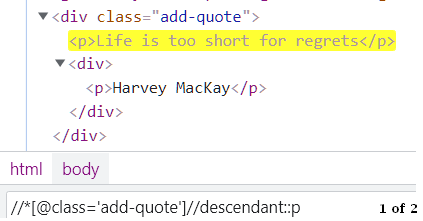
Ancestor: It selects all the ancestor parent, grandparent, great grandparent, and so on of the current node.
//*[@id='info']//ancestor::divAll of these functions are just a part of Xpath functions. There are many that you can find out from MDN Web Docs Functions In Xpath.
Testing Xpath
Sometimes Xpath can become very complicated and hard to write, so it is a better idea to test all your Xpath in the browser itself before using them inside the scraping script.
Most Browsers we use today provide a way to test your Xpath expressions. To do this open a web page, right-click and select inspect.
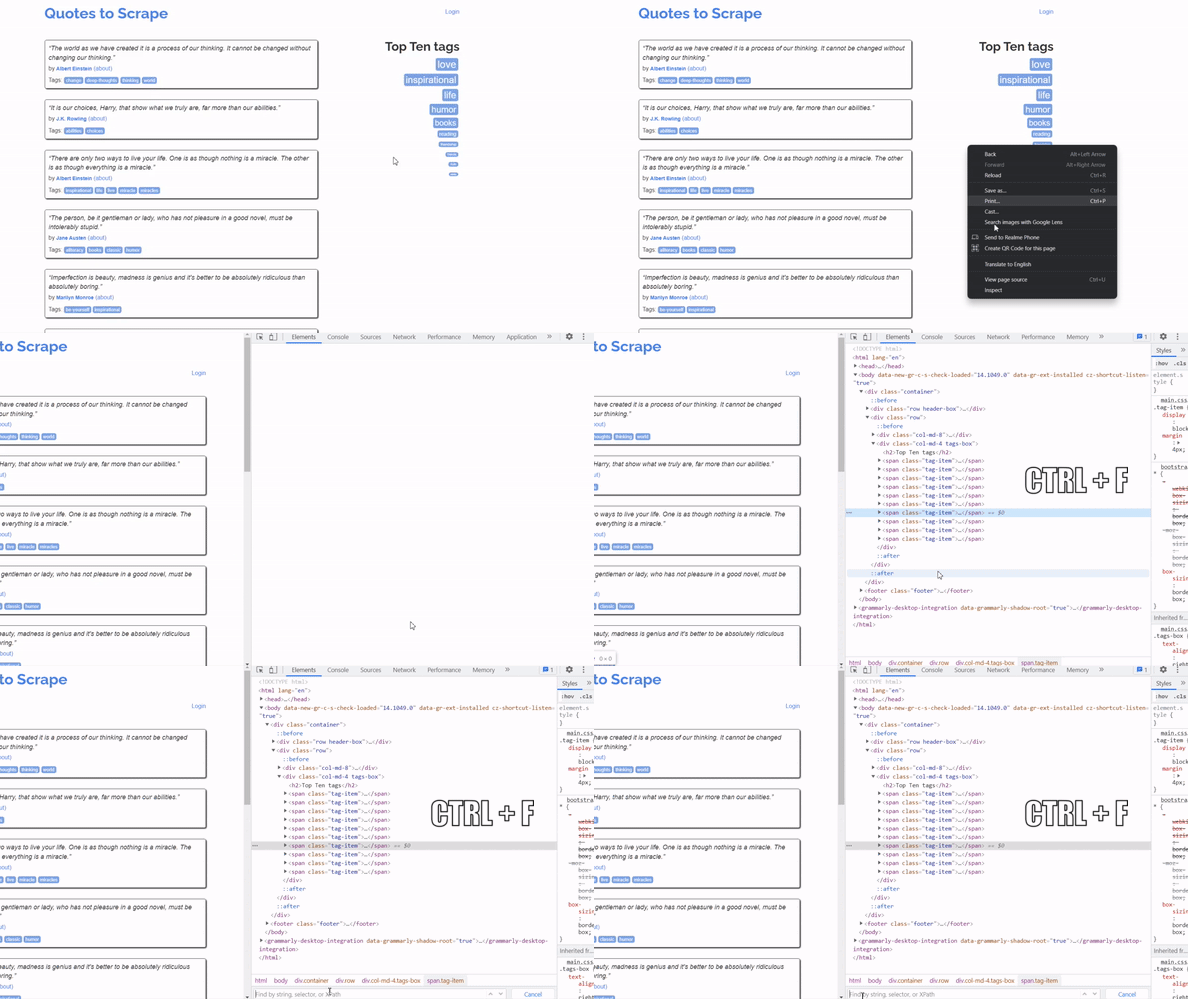
Once the Source Code is opened press ctrl+f to open the expression test filed. Write any expression you want and then simply press enter.
Xpath With Python
Let’s use our learning of python combined with scrapy to scrape all the book records from this free scraping site https://books.toscrape.com/
If you don’t know anything about scrapy I would suggest you go through my previous blog on web scraping using scrapy. Create a project structure and a spider for web scraping.
Let’s Come to the main part of the web scraping code is selecting elements using Xpath.
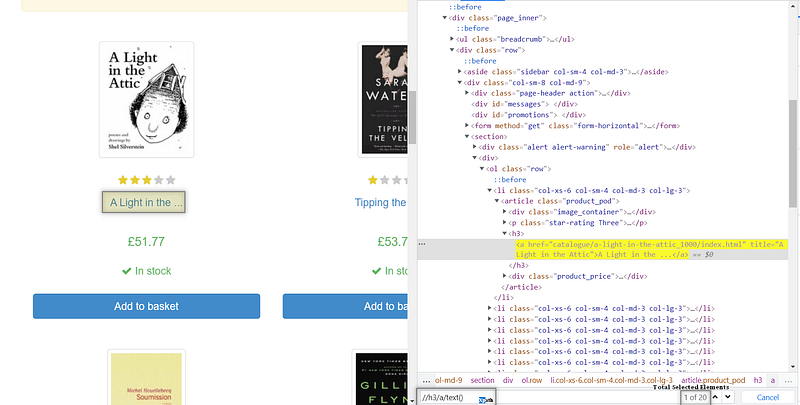
The Title of the Books Is inside an anchor tag that is a child of heading 3 tags. The Xpath for this will be
//h3/a/text()Next For Price,
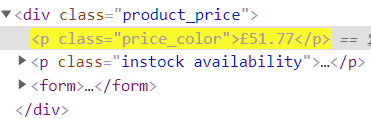
The price is inside a paragraph tag that has a class of price color. To access this element we have multiple options. Like we can access it directly threw the class name //*[@class='price_color'] or with tag and class name //p[@class='price_color'] or with parent div //div[@class='product_price']//child::p[1] ,etc. you can use any method you want. For simplicity, I will use to access it using the class name.
Last For Links,

To extract the link we will use @href() at the end of our expression.
Xpath : //h3/a/@hrefNow, That We have all the data let’s combine them and scrape each and every page of this website using Xpath.
References
[1] https://www.guru99.com/xpath-selenium.html [2] https://developer.mozilla.org/en-US/docs/Web/XPath
Conclusion
In this blog, we have learned about - What is Xpath, - Features of Xpath, - How to Find Xpath on Browsers, - Types of Xpath, - Different Xpath Functions, - Testing Xpath On the Web.
I tried my best to include most of the concepts and functions that you will ever require for web scraping using Xpath. Next, try to get familiar with the libraries that use Xpath for web scraping like selenium and scrapy.
Like Oscar De La Hoya Says “There is always space for improvement” if anything you want to add to the article then I am always open to your suggestions and response.
*All images used in the article are by the author or referenced otherwise.
Recommended Readings
Thanks For Reading Till Here, If You Like My Content and Want To Support Me The Best Way is —
- Follow Me On Medium.
- Connect With Me On LinkedIn.
- Become a Medium Member Using My Referral Link. a small part of your membership fee will go to me.
- Subscribe To My Email List To Never Miss An Article From Me.