Managing Terraform State in Azure: Best Practices for Multiple Environments
Managing Terraform state is critical for ensuring that your deployments are reliable and scalable. In this article, we’ll discuss best practices for managing Terraform state in Azure, including how to manage multiple environments with Terraform.
Understanding Terraform State in Azure
Terraform state is a crucial component of any Terraform deployment. It tracks the current state of your infrastructure and resources, and allows Terraform to manage and update them as needed. In Azure, Terraform state can be stored in Azure Blob Storage or you can use other options such as Terraform Cloud. It’s important to choose a storage option that meets your needs in terms of security, performance, and scalability, in this article we will focus on Azure Blob Storage.
To manage Terraform state in Azure, it’s important to follow best practices such as:
- Using state locking to prevent multiple users or processes from making conflicting changes to your infrastructure.
- Using remote state to store your Terraform state in a centralized location that can be accessed by your team.
Creating an Azure Storage Account for the Terraform Backend
To use Azure Storage as a backend for Terraform, you’ll need to create a Storage account in Azure. Here’s an example PowerShell script that creates a new Storage account:
# Login to Azure
Connect-AzAccount

# Set variables for the storage account name and resource group
$storageAccountName = "<change me>"
$resourceGroupName = "<change me>"

# Create a new resource group
New-AzResourceGroup -Name $resourceGroupName -Location "<change me>"

# Create a new storage account for Terraform state
$storageAccount = New-AzStorageAccount -ResourceGroupName $resourceGroupName `
    -Name $storageAccountName `
    -SkuName Standard_LRS `
    -Location "<change me>" `
    -Kind StorageV2 `
    -AccessTier Hot `
Creating Terraform State
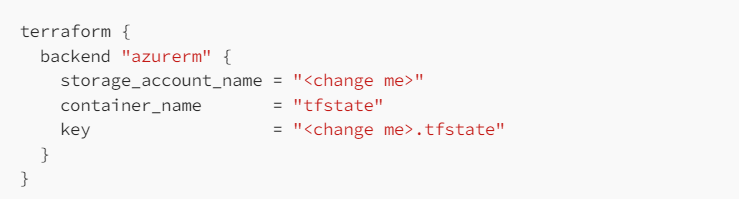
To create your Terraform state, you need to define a “backend” in your Terraform configuration. A backend is a storage location for your Terraform state that Terraform can use to store and retrieve the state information. For example, to create an Azure Blob Storage backend, you can add the following to your Terraform configuration:
terraform {
  backend "azurerm" {
    storage_account_name = "<change me>"
    container_name       = "tfstate"
    key                  = "<change me>.tfstate"
  }
}
This configuration sets up an Azure Blob Storage backend, with a storage account with a name of your choice and a container named “tfstate”. The key parameter specifies the name of the state file within the container.
Once you’ve defined your backend, you can initialize your Terraform state by running the terraform init command. This command downloads the necessary provider plugins and sets up the backend you defined in your configuration.
Once your backend is set up, you can begin managing your infrastructure with Terraform. As you make changes to your infrastructure, Terraform will automatically update your state file to reflect the current state of your resources.
Managing Multiple Environments with Terraform
When managing multiple environments with Terraform (e.g. dev, test, prod), it’s important to use a strategy that allows you to manage and update each environment separately. There are several strategies for managing multiple environments with Terraform, including:
- Using separate workspaces for each environment within the same Terraform configuration.
- Using separate Terraform configurations for each environment.
- Using separate Terraform state files for each environment.
Each strategy has its own pros and cons, and it’s important to choose the one that best fits your needs.
Best Practices for Terraform in Azure
In addition to managing Terraform state and multiple environments, there are several other best practices to follow when using Terraform in Azure. These include:
- Using modules to organize and reuse your Terraform code.
- Using naming conventions to ensure consistency and clarity in your resource names.
- Using Azure Policy to enforce standards and compliance across your deployments.
- Optimizing Terraform performance by using parallelism, reducing the size of your Terraform state, and minimizing API calls to Azure.
Conclusion
Managing Terraform state and multiple environments in Azure can be challenging, but by following best practices and using the right tools, you can ensure that your deployments are reliable, scalable, and secure. By implementing the best practices discussed in this article, you can improve your Terraform deployments in Azure and ensure that they meet your business needs.