
Making High-Resolution DALL-E Images; My Simple Process
Topaz makes enlarging AI images easy
Images from AI generation systems like DALL-E or Midjourney are valuable asset for everything from blog posts to financial reports. If you need to quickly generate an image, DALL-E can do it for a few pennies.
The problem is that DALL-E images are small. They’re only 1024 pixels by 1024 pixels. That’s less than a megabyte, which means they’re too small to print at a high resolution.
Luckily, there’s a tool called Topaz Photo AI that makes it incredibly easy to turn your DALL-E photos into high resolution images in a few clicks. You can download a free trial here.
Here’s how I use Topaz Photo AI to make high resolution DALL-E images without any advanced photo editing.
Step 1: Make a DALL-E Image
To get started, sign up for DALL-E if you haven’t already, and then head over to the DALL-E interface.
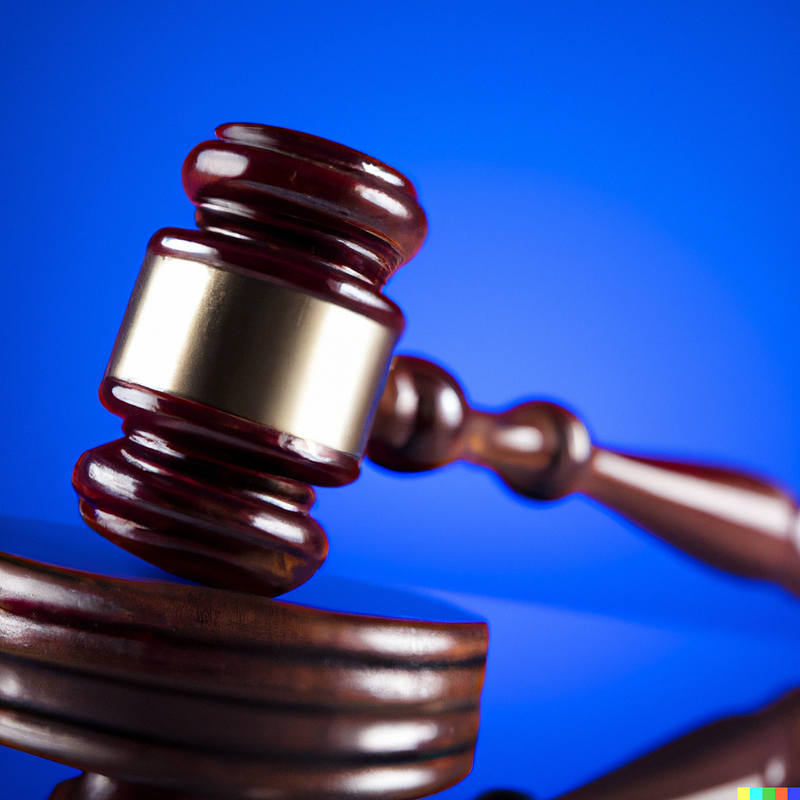
Enter your prompt to create an image. For this example, let’s create an image for a report about a legal or financial topic. We’ll ask DALL-E for a fairly standard illustrative stock photo: a banging gavel on a blue background.
Gavel on a blue background
The result looks great. This is definitely usable visually — it’s just too small to print.
Enlarging With Topaz Photo AI
Next, head to the Topaz website and download a copy of Photo AI. You can get a free trial.
Topaz Photo AI uses a process called superresolution upscaling to enlarge images up to 800% without losing quality. Essentially, it uses AI to make your DALL-E and other low-resolution images into high-resolution ones, without the artifacts, blurring, and other issues you’d get with traditional upscaling.
Open Topaz Photo AI, and load your DALL-E image.
Photo AI will automatically analyze your image, and determine the best way to improve and upscale it.
On the right of the screen, choose Enhance Resolution.
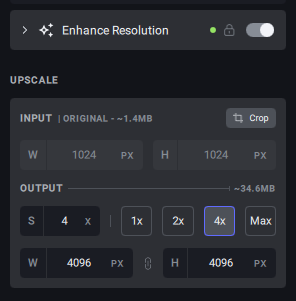
Select your upscaling factor. I find that 4x is a good upscaling amount for DALL-E images. That’s a 400% size improvement, resulting in an image that’s over 4,000 pixels square. That’s more than enough to print.
Choose Save Image. Topaz Photo AI will work its magic, making your image 400% larger. Depending on your graphics card, this usually takes about 5–10 seconds.
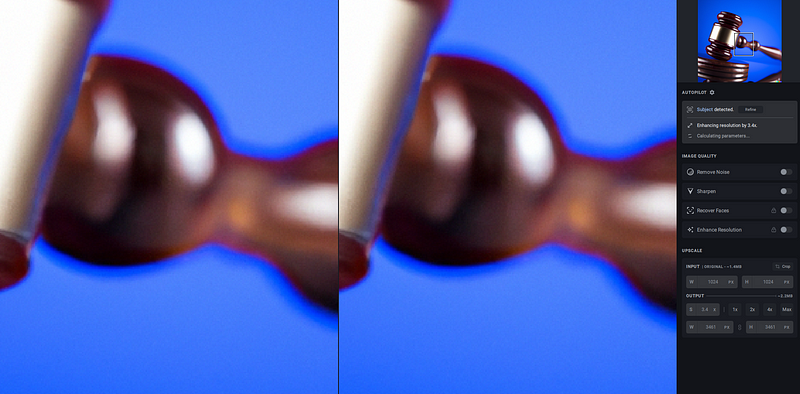
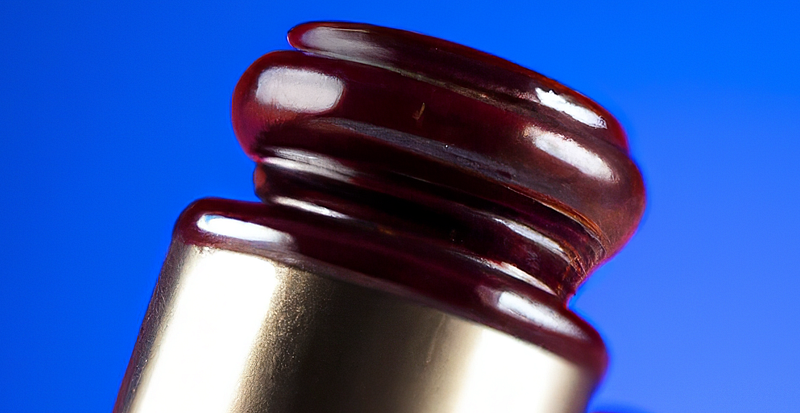
Our gavel image is now large enough to include in our financial report. You can zoom into the image and see how well Topaz has preserved the quality, despite the large upscaling.
Print or Use Your Image at High Resolution
Congratulations, you now have a high-resolution DALL-E image that you can easily print out or use in documents requiring a high image size.
It looks crisp and bright printed out on actual paper.
If you need to upscale a lot of DALL-E images, I recommend buying a copy of Topaz Photo AI. I use it all the time to increase the size of my DALL-E images, and also to upscale old photo scans, low-resolution images from old digital cameras, and more.
The software also allows you to fix common image issues, like blurring and background noise.
Try out my process, and let me know in the responses how it worked for you.
Medium is an amazing platform. For just $5 per month, you’ll get access to every article on Diy Life Tech, all my other writing, and the writing of thousands of other medium contributors, from Clive Thompson to Barack Obama. Subscribe today!
This article contains affiliate links that support my writing at no cost to you. Thanks!


