
Making a RTS game #5: Transforming our data into Scriptable Objects (Unity/C#)
Let’s continue our RTS game project by exploring Unity’s Scriptable Objects!
⬅️ Tutorial #4: Selecting units | TOC | Tutorial #6: Improving the UI ➡️
📕 Get the ebook and bonus material on Gumroad! 🚀 Find the code of this tutorial series on my Github!
Today, we’re going to see how to store data into Scriptable Objects, rather than defining them directly in our scripts.

At the moment, our data is defined in our global variables — and those global variables are of two types:
- some are “external” data that we want the game to be aware of and use during the loading phase when it starts
- others are utilities shared across of all scripts and internal to the game logic
The second type of variables should stay as is — there is no point in loading the reference to the “Terrain” layer from an external data source, for example. On the other hand, our building types could be loaded from another source: they are not determined by the game state. The list of in-game resources is somewhere in-between: though the notion of “gold”, “wood” and “stone” as resources could be loaded up, remember that our global variable actually holds the current amount of each, so it is linked to the game current state.
To keep things simple, and because this list of resources should not evolve a lot, we are going to focus on using Scriptable Objects to represent our building types (our building data).
Why use Scriptable Objects?
Throughout the previous tutorials, we gradually added more and more data in our Globals class. In particular, think of our list of building types: for now, there are only two; but when we start to have a few more, and perhaps other unit types, and relations between the two, this file will get too big to remain easily maintainable.
Scriptable Objects were introduced a while ago in Unity. As stated in the docs, they are very useful for:
- saving and storing data during an editor session
- saving data as an asset in our project to use at runtime
Scriptable Objects are saved as assets in the project’s folder. You basically create a class of pure data, like our current BuildingData, but have it inherit Unity's ScriptableObject class. It is then possible to create an asset in the project for it.
They avoid useless memory copies for shared data because each created asset can then be referenced in your scripts without re-instantiating it each time. Also, since they show up in the inspector with all their (serialisable) fields, they are super easy to edit and tweak — even at runtime, they’ll save all changes when you exit the preview!
Note: for more details on the power and utility of Scriptable Objects, you can check out this talk at Unite Austin 2017 by R. Hipple on how his game company started to use Scriptable Objects as a core feature of their game architecture and design.
Transforming our BuildingData class into a Scriptable Object
Changing the class itself
So far, we’ve coded up the following BuildingData class:
To transform it into a Scriptable Object, we have to:
- have it inherit from the
ScriptableObjectclass - replace all “private” accessors to “public” so they show up in Unity’s inspector
- make sure all fields are serialisable… so they show up in Unity’s inspector! ;)
The first two points aren’t hard to take care of; let’s talk about the third point instead.
Unity’s script serialisation is a vast topic. Basically, serialisable data is a type of data that can be saved and later reloaded by Unity. In our case, it’s mainly related to the fact that only serialisable class fields are shown in the inspector.
For example, we currently have a Dictionary for the building’s cost in game resources. This won’t appear in the inspector if we make an asset from our Scriptable Object. Instead of this basic Dictionary, we’re going to use a super simple class:
Note that I’ve marked the class as “serialisable” and I’ve made all of its fields public. This way it will show up properly in the inspector. And we can now finally use it in our new BuildingData class to create our Scriptable Object:
You see that I also added a unitName field that will be used for pretty display and a direct reference to the game object prefab.
The line above the class definition (using the CreateAssetMenu() tool) allows Unity to add a menu associated with this Scriptable Object so it's quicker to create assets from the class.
Updating the references to the class in other scripts
In the Building class, we have to update some fields - in particular, we don't need to load the prefab from the "Resources" folder anymore since it is stored in the BuildingData asset:
Also, in the UIManager class, the Awake() function goes through the available building types and creates buttons for each in the building menu; we need to change some fields with our new class:
Creating assets from our class
At that point, our Scriptable Object is ready and can be used to create one or more assets. It’s quite easy: we just need to go to the Create > Assets > Scriptable Objects menu and click on the “Building” menu:

This creates a new asset in the project — let’s name it “House” and setup its parameters:
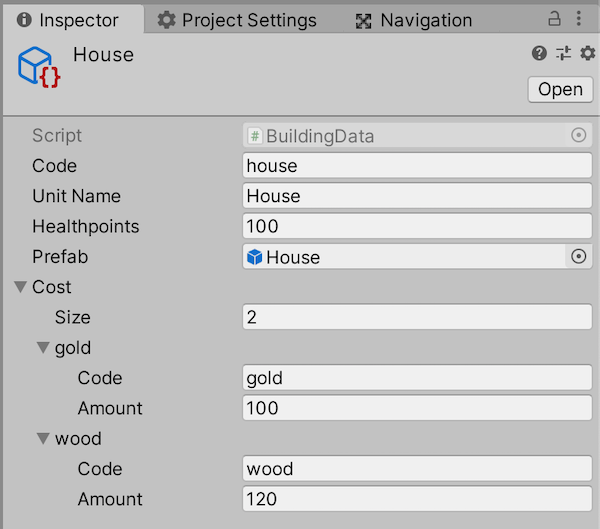
In order to access it easily in our scripts, we will move this asset to a subfolder of the “Resources” folder. I created a hierarchy with three subdirectories: “Scriptable Objects”, “Units” and “Buildings”. So in the end I got:
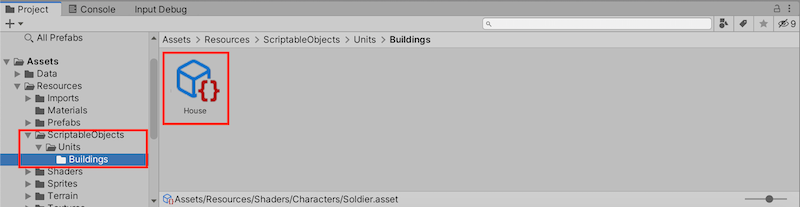
Loading up the assets at runtime
We now have assets in our project’s folder — but we haven’t loaded them in our game yet! We want to load our building assets dynamically when the game starts to get our list of available building types.
Adding a DataHandler class
First things first: we will create a new DataHandler static class to manage all data loading and saving. At that point, we only need to load the building types. This will only take one line, so let's directly put in a LoadGameData() function - the central hub for game data initialisation.
The buildings data loading simply relies on Unity’s built-in Resources.LoadAll() method: thanks to this function, you can automatically list and read all the assets at a given subpath of the "Resources" folder in your project's assets. Here, we read our building assets from the folder we just created.
Since we are now assigning this value, we can edit our Globals.cs file to only keep the BUILDING_DATA variable declaration and remove the variable initialisation:
Calling the data load function
The last step is to actually call this data loading pipeline. It’s time to define another global manager script to add on our “GAME” object: the GameManager class. Ultimately, this script will take care of the overall game state management at a very global scale. But for now, in this class, we can just call the LoadGameData() method in the Awake() function:
And that’s it! If you start the game again, you should only get as many building types in your building menu as you have building assets in your data folder. Of course, you need each asset to have a corresponding prefab in the Resources folder, otherwise there will be errors when you try to create the “phantom” building.
Go ahead and play with the values in the Scriptable Objects: these will immediately influence the game the next time it is used (even at runtime) :)
Note: if you happen to have some null reference when iterating through the BUILDING_DATA, it might be because the scripts GameManager and UIManager aren't executing in the proper order, so the BUILDING_DATA hasn't been filled when it is accessed. To insure the scripts run in the correct order, you can set in the Project Settings > Script Execution Order panel:
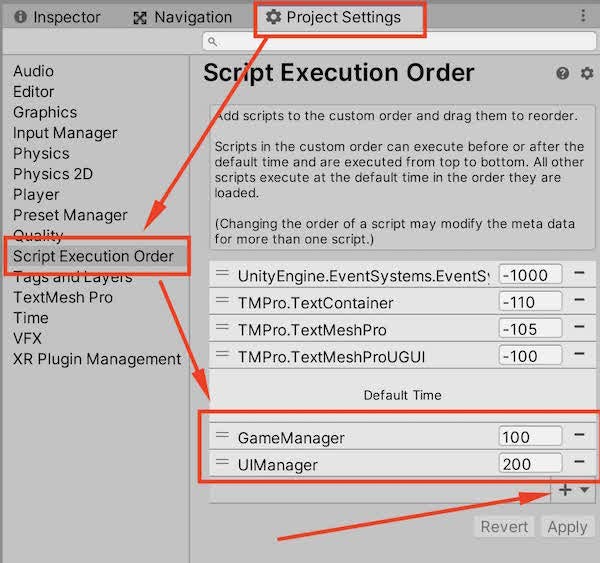
Taking advantage of this format to add a description to our buildings
Just to make sure we get how this works, let’s add a simple string field to our BuildingData class: the description of the building. To extend our building info, we only need to do two things:
- add the field (and a getter) in the
BuildingDataclass - edit it in our building assets
So we just need to add a public string description; to the BuildingData class, and we're done! The new field will automatically show in the inspector and we can edit it in our asset:
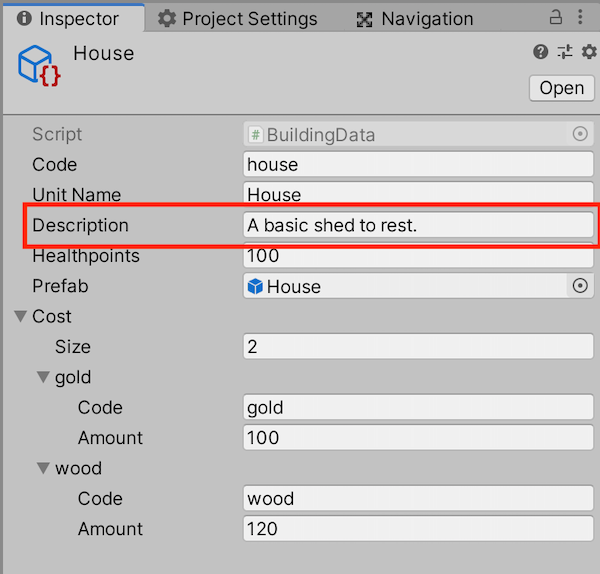
Isn’t it an easy workflow? Even someone who’s not a coder could edit this building data and update the game values — Scriptable Objects are an essential feature of modern collaborative game design that requires programmers to discuss and work together with non-coder designers :)
Alternate solution: loading data from files
Another idea would be to extract pure data from the code and load it from files on the system. We would keep a class like the one we had before this tutorial and use data loaders to parse a file containing the data for each building. This way, changing the cost of a building or the requirements for producing a unit could be as quick and easy as changing a line in a file somewhere. And the game would automatically reload this new data next time it is launched — without having to recompile it from scratch!
An “extreme” version of this data-driven code philosophy is the Bytecode programming pattern where you don’t really code anything but an interpretor for your data files… and then all the meat of your game comes from the content of your files. Bob Nystrom gives a brilliant explanation of it in his “Game programming patterns” book (among lots of other gems) — I really encourage you to check this book out, it’s a must-read for any game developer!
There are several data formats we can use. For example, Unity provides either raw parsing using the basic C# XML library or an XML.Serializer that allows you to directly map an XML file to a C# serialisable class.
The idea is to tell the XML parser where each class field is located in the XML file (is it a node inner text? an attribute?) and then to let it recursively dive into your structure to associate the values in the new instance of the class. In my experience, it is very powerful for “flat” classes, i.e. data types where you have lots of fields of a basic type (string, integer, float, bool…) and it handles arrays or lists pretty well. On the other hand, it’s not as easy to use with associative structures like Dictionaries that rely on key-value pairs.
Conclusion
This tutorial is an important stepping stone for future improvements — it will be easier to extend and update those Scriptable Objects now that we’ve gotten the hang of it on a simple example.
Next time, we’ll improve our game UI by adding healthbars above selected units and an information panel to see our building types’ data when we hover the buttons in the building menu.
⬅️ Tutorial #4: Selecting units | TOC | Tutorial #6: Improving the UI ➡️
📕 Get the ebook and bonus material on Gumroad! 🚀 Find the code of this tutorial series on my Github!
If you liked this article, you can find more blog posts about tech, AI and programming on my website :)


