avatarTemitope C. Samuel

Free AI web copilot to create summaries, insights and extended knowledge, download it at here

2483

Abstract

and fonts.</p><figure id="600e"><img src="https://cdn-images-1.readmedium.com/v2/resize:fit:800/1*Y7Ut5QSC9DyCRg72QpC7zg.png"><figcaption>Kirstie Taylors header image</figcaption></figure><figure id="e1cb"><img src="https://cdn-images-1.readmedium.com/v2/resize:fit:800/1*zYl-cMPZFDEuFfzFRzQMQA.png"><figcaption>Sinem Gunel’s header image</figcaption></figure><p id="5d85">In this article, I will help you transform your rather bland Medium profile to something visually pleasing.</p><p id="ed61">Here it goes.</p><h1 id="c69b">Step One: Make A Signature Logo</h1><p id="90f0">To make a logo of your name, I found a website: fontmeme.com, there is a page on the website that helps you to make a custom<a href="https://fontmeme.com/signature-fonts/"> signature name.</a></p><p id="dfb9">Scroll to halfway down the page you should see the 5 place holders:</p><p id="2b96">The first one is where you place the text, the second one is where you pick the font you want, the third is where you chose the font’s size, and the fourth is for style, and the fifth is for color.</p><figure id="6953"><img src="https://cdn-images-1.readmedium.com/v2/resize:fit:800/1*mo7sVRasB9IgmeoJsWoPjw.png"><figcaption></figcaption></figure><p id="bfae">Put in the text you want to make a logo out of. Then click the big red button that says: <b>generate </b>below.<b> </b>It should bring up the signature text you want, depending on the variables you picked in the different placeholders. Experiment with it till you find the one you like best. This is what I came up with after a lot of tinkering.</p><figure id="feb7"><img src="https://cdn-images-1.readmedium.com/v2/resize:fit:800/1*F0BnzzV4PBXoGsYJ4JSKUw.png"><figcaption>Photo by Author</figcaption></figure><h1 id="4c2f">Step Two: Choosing A Background</h1><p id="5669">I tried using the gradient feature for a background, but it was a little difficult to find colors that blend well together; Kirstie Taylor pulled it off the gradient background colors in her header well.</p><p id="3271">I thought I had found a better approach: Canva. I tried Canva and could not find the right banner size. After a lot of trials, I gave up entirely.</p><p id="83e5">I went on Pexels.com to find a background that will fit just right with my logo signature.</p><p id="4328">I picked this one:</p><figure id="4daa"><img src="https://cdn-images-1.readmedium.com/v2/resize:fit:800/1*E_VM5pOQrQmPwbOZLgRXZA.jpeg"><figcaption>Source: Pexels.com</figcaption></figure><p

Options

id="5861">Download the picture of your choice. Then we go to the third and final step.</p><h1 id="f344">Step Three: Putting Them All Together</h1><h2 id="4b67">Part A</h2><p id="4076">Visit the Medium homepage, click on your image at the top right corner of your screen.</p><p id="ef25">Pick “design” in the drop-down menu. It opens the design page, on the left side of your screen is a slide-out tray with texts that read: Color, Fonts, and Header. Click on the “Header.”</p><p id="8331">It opens a drop option. We are looking for the “Background” option. Look for the “Image” option and click on “add” the picture you downloaded from Pexels. Below the “Image” are the options, “Image display” and “Image position,” they let you adjust the image in the header.</p><figure id="c470"><img src="https://cdn-images-1.readmedium.com/v2/resize:fit:800/1*EzzRJwjDma11Ldja8I_Xvw.png"><figcaption>Image by author</figcaption></figure><p id="32fb">Again, try out various styles.</p><h2 id="a137">Part B</h2><p id="3e99">Still in the tray, right below the “Header” part, is the “Name” section. The two options you should see are the “Text” and “Logo”.</p><p id="25c4">For the “Text,” you have your name written in default fonts, you’d only have to change the fonts. But if you followed the first step and you have a logo you made, we’d pick the “Logo” option.</p><figure id="8665"><img src="https://cdn-images-1.readmedium.com/v2/resize:fit:800/1*epm0yI_g1tTECjXX7xpNpQ.png"><figcaption>Image by author</figcaption></figure><p id="2609">Click “Add” to upload the signature logo you made earlier on, choose a size that you like — I picked large — go to the top right corner of your screen to click the publish button.</p><p id="b646">That is all. This is what I came up with:</p><figure id="fbc4"><img src="https://cdn-images-1.readmedium.com/v2/resize:fit:800/1*PygbY5B_sZdEgwmvJcBdLA.png"><figcaption>Image by author</figcaption></figure><p id="cfde">Do you like it?</p><h1 id="01e7">Rounding Off</h1><p id="e298">Customizing your header is not a necessity, but if you’d like to add a personal touch to your Medium profile, it does not hurt to take out some 20 minutes to personalize your page.</p><p id="5604">Remember to keep in mind, the colors and fonts will also affect the look of your profile, so make sure you pick any color with white or black; simple is the way to go, always.</p><p id="4e01">Thank you for reading this piece; I’ll be happy to answer questions.</p></article></body>

Make A Visually Pleasing Medium Profile In 3 Easy Steps
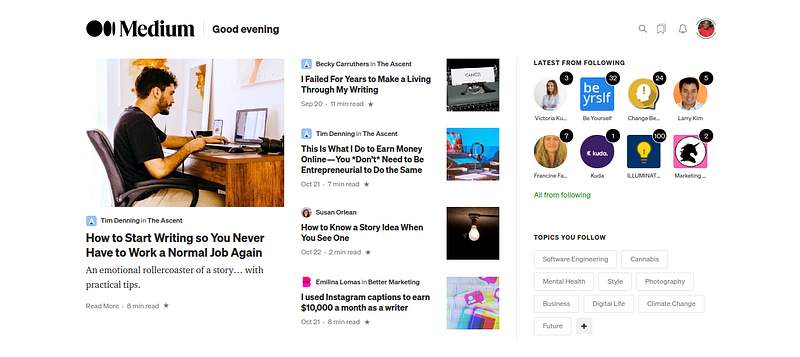
My homepage on Medium.com

We have seen new features on Medium. The new logo, their new curation guidelines (some of them we understand, some of which we don’t), and one perhaps one of my favorite changes: a complete overhaul of our Medium profile pages.

As a writer on Medium, you’d notice your profile now has features similar to that of a publication. Medium has introduced an option to customize our profile page to taste.

Now you can edit the header, color theme, and even your fonts — there are not a lot of customization options, but enough to help you stand out from the crowd.

This additional feature is also great if you use your Medium account as a portfolio of sorts; if you refer clients to your profile, your brand can shine through.

Took a minute to understand how to customize my profile, it is a good thing Medium just allows us 3 options: Colors, Fonts, and Header.

For me, choosing the right color and fonts for my design was not a hassle; you have very few options, so it is this or that. But creating a header that I liked?

That was a bit of a problem.

So, I looked to other Medium writers to see what they had been up to with their header, and I was pretty impressed.

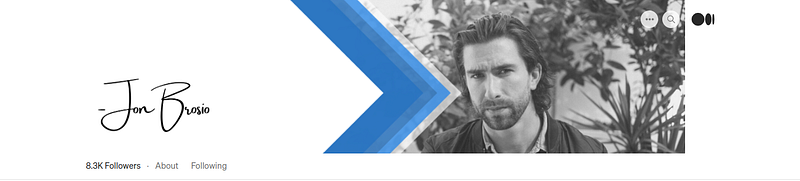
This is Meghan Gause’s header,
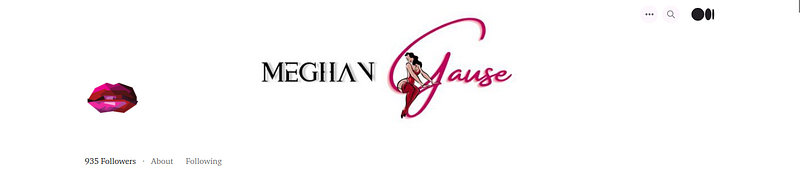
Meghan Gause’s header image

And Jon Brosio’s.

Jon Brosio’s header image

We both see these profile headers have some certain amount of work put into them. You might need some Photoshop skills or hire someone to make a signature logo for you.

I do not have Photoshop skills, neither do I want to pay any designer to make a header image because there is every chance that I might change my “header” later.

I looked for other writers with simpler header designs like Kirstie Taylor and Sinem Gunel; theirs is basically a simple background and fonts.
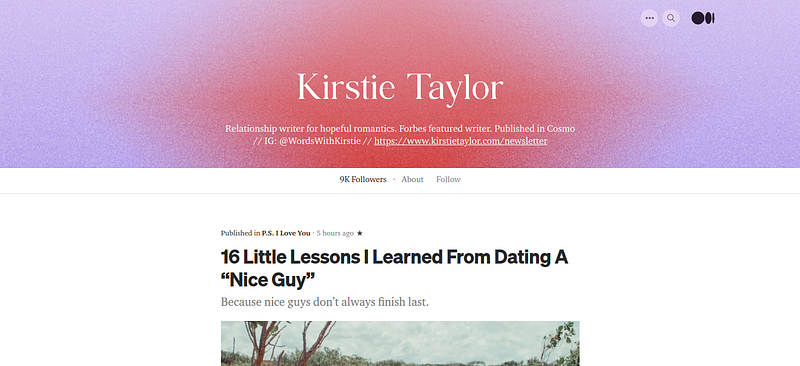
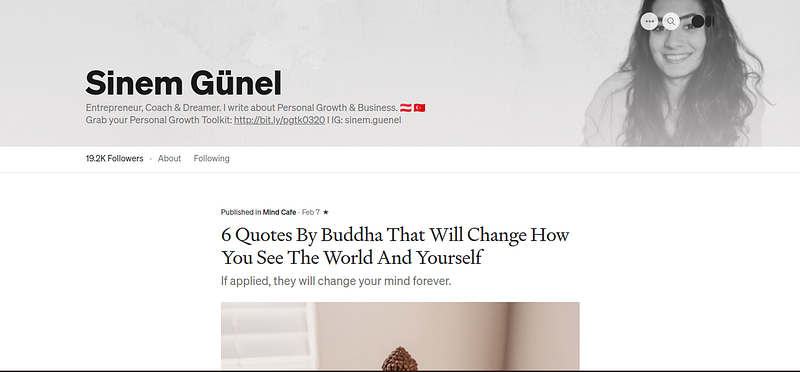
Kirstie Taylors header image
Sinem Gunel’s header image

In this article, I will help you transform your rather bland Medium profile to something visually pleasing.

Here it goes.

Step One: Make A Signature Logo

To make a logo of your name, I found a website: fontmeme.com, there is a page on the website that helps you to make a custom signature name.

Scroll to halfway down the page you should see the 5 place holders:

The first one is where you place the text, the second one is where you pick the font you want, the third is where you chose the font’s size, and the fourth is for style, and the fifth is for color.
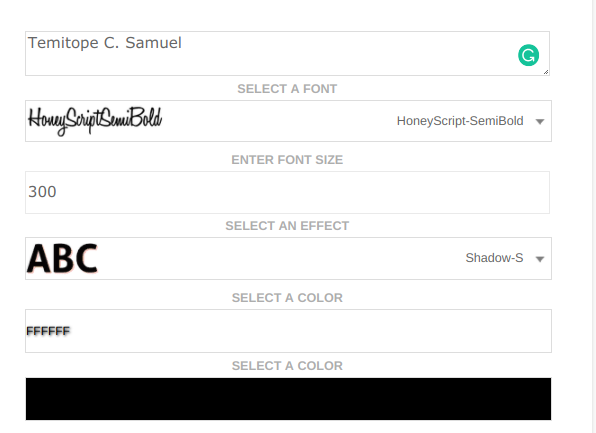
Put in the text you want to make a logo out of. Then click the big red button that says: generate below. It should bring up the signature text you want, depending on the variables you picked in the different placeholders. Experiment with it till you find the one you like best. This is what I came up with after a lot of tinkering.

Photo by Author

Step Two: Choosing A Background

I tried using the gradient feature for a background, but it was a little difficult to find colors that blend well together; Kirstie Taylor pulled it off the gradient background colors in her header well.

I thought I had found a better approach: Canva. I tried Canva and could not find the right banner size. After a lot of trials, I gave up entirely.

I went on Pexels.com to find a background that will fit just right with my logo signature.

I picked this one:

Source: Pexels.com

Download the picture of your choice. Then we go to the third and final step.

Step Three: Putting Them All Together

Part A

Visit the Medium homepage, click on your image at the top right corner of your screen.

Pick “design” in the drop-down menu. It opens the design page, on the left side of your screen is a slide-out tray with texts that read: Color, Fonts, and Header. Click on the “Header.”

It opens a drop option. We are looking for the “Background” option. Look for the “Image” option and click on “add” the picture you downloaded from Pexels. Below the “Image” are the options, “Image display” and “Image position,” they let you adjust the image in the header.
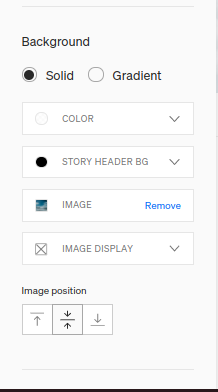
Image by author

Again, try out various styles.

Part B

Still in the tray, right below the “Header” part, is the “Name” section. The two options you should see are the “Text” and “Logo”.

For the “Text,” you have your name written in default fonts, you’d only have to change the fonts. But if you followed the first step and you have a logo you made, we’d pick the “Logo” option.
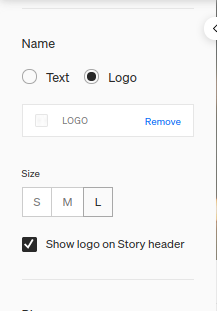
Image by author

Click “Add” to upload the signature logo you made earlier on, choose a size that you like — I picked large — go to the top right corner of your screen to click the publish button.

That is all. This is what I came up with:
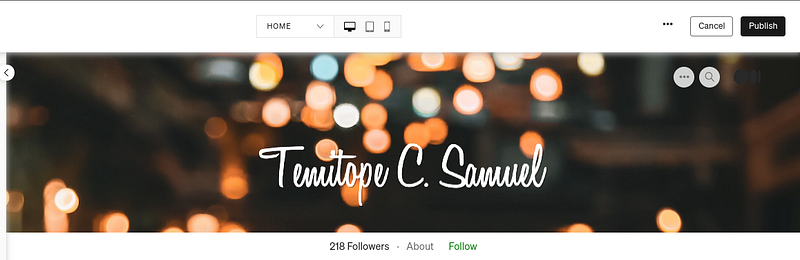
Image by author

Do you like it?

Rounding Off

Customizing your header is not a necessity, but if you’d like to add a personal touch to your Medium profile, it does not hurt to take out some 20 minutes to personalize your page.

Remember to keep in mind, the colors and fonts will also affect the look of your profile, so make sure you pick any color with white or black; simple is the way to go, always.

Thank you for reading this piece; I’ll be happy to answer questions.

How To
Médium
Blogging
Personalization
Writing
Recommended from ReadMedium