
macOS Ventura — 3 BIG user tips
I have been running Ventura for the past few weeks — and I have a few ideas for you
Are you an early adopter?
Updates — generally, I love ‘em.
Often times, it is just because of security patches, or the fact that the device will run smoother & quicker, with the latest OS or updates installed. With iOS, I am always there…day one. With Mac’s typically, I have historically been more cautious. But this fall, with Ventura, for some reason, I was more gung-ho.
Looking back, heavens only knows why I was so cavalier in flexing my download trigger-finger. I think there were a few headlines features I wanted to try first-hand — Continuity Camera, iMessage, and Stage Manager being the top three.
And, I have been lucky. All of my audio plug-ins have worked just fine, the Creative Cloud apps had updates waiting, and it may possibly have helped that my two Macs are brand new too. But, I have had no traumas, or headaches.
The only teeny-tiny problem that I have had, has been with attachments in Mac Mail. PDFs attach and send just fine, but there is no, familiar PDF icon on the mail as you send it. Have you had that issue? Checking on some forums, it seems I am not alone. I told you it was a petty, first-world problem, but I am guessing that will be sorted with an update.
When I posted my last column about Ventura, three weeks ago, I had only been using it for a few hours. But now, with some good mileage under my belt, I have come across a few things that I thought I’d share with you.
Starting with, oddly, the clock app.
Simple things
In that first article, I wrote that I would be keeping the clock app in my dock. I knew I was gonna love it, and for some reason, I actually do.
To start with, it’s so familiar. As macOS and iOS become closer in appearance, part of the clock’s appeal, is the icon, it looks friendly. It is the same as one, more or less, that you’ll find on your iPhone or iPad. The only difference is that this one has no sweeping second hand. But, sitting in the dock, the icon still displays the correct time — a detail I have always loved. I have a small mind — what can I say?
The UI is simple and clean, a design that, I think, will last the test of time well. The four options are clearly laid out in tab form across the top of the app. As ever you get a world clock, alarm, stopwatch & a timer. The world clock looks simply gorgeous on the larger display on a Mac. The more world clocks you add, the better it starts to look. It builds up a global picture of your clocks, and the actual clock-faces display across the bottom of the app.
The timer element has clearly been given some thought too in Ventura. When starting a timer, it will automatically load up in your menu bar. Even if the clock app is closed, the timer will carry on being shown to you in the menu bar. And if a timer goes off, it will send a notification to you. The alarm will carry on until you action that notification.
And, for the first time, in true iOS style, Siri is now available to use with the clock app in Ventura.
Sexy system settings
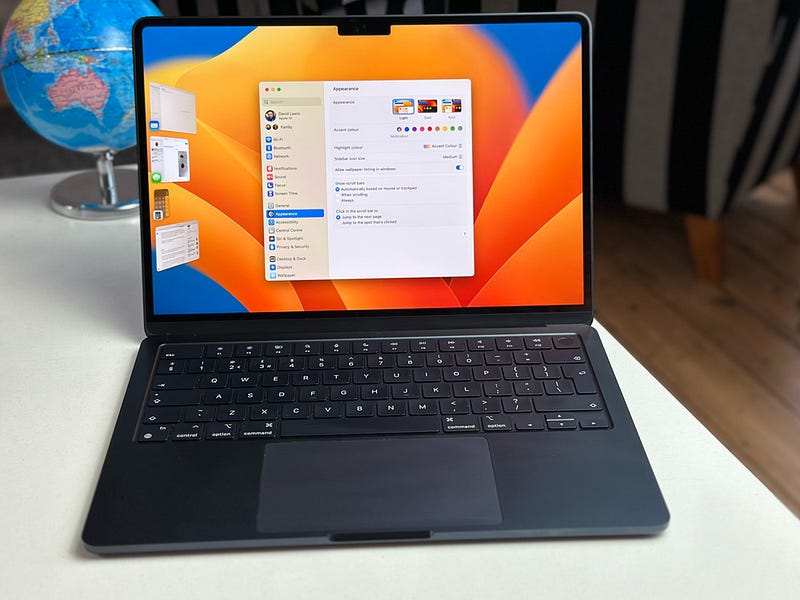
In Ventura, one of the biggest changes you’ll notice, is that your old friend, System Preferences, has now gone. In its place, is a very iOS looking new panel named System Settings.
The tile layout, that you will have used many times over the years, is replaced with a UI that is far more sidebar focused. There is no customisation in this new layout. Before, you could remove items that you didn’t use. In Ventura, and System Settings, what you see, is what you get.
If you are familiar with the Settings app on your iPhone or iPad, then you’ll immediately feel at home with System Settings. One thing that I am struggling with is the order of the list, though. As far as I can make out, you can’t re-order the list or even put it in alphabetical order. The list just seems to be set out in an odd way. There is one sort of work-around I have found. By clicking on the View option in the menu, it will then display every option in alphabetical order.
Oddly, you can’t make the System Settings box any wider, but you can make it taller.
Overall, though, I am quite a fan of this new Ventura layout. The Displays section is now a much cleaner, more friendly layout. AirPods gets an easy-to-use panel too.
And now for something completely different
Stage Manager. So much had already been said about this feature, whilst still in beta testing.
I am not part of any beta testing groups, so for me, the first time I had got to use it was after the general release. I had spoken to guests on my Minus Sixteen podcast about it a few times. Hartley Charlton had some great insight on it in this episode.
Of course, the main focus and user-group that Stage Manager had been aimed at, was the iPad user. But, it has come to Mac as well. As per the iPad, it is not open by default. If you want to run Stage Manager in Ventura, you’ll need to head in to Control Centre to turn it on. If you think it is something that you’ll want to turn on and off regularly, you can add it to your menu bar from the control centre, back in System Settings.
I have left it open on my MacBook Air, but not on my main workstation, 16-inch M1 Max MacBook Pro. It is designed to improve focus and flow, but for me at least, I am not finding it a help at all.
One thing I came across that I didn’t like, was to do with the calculator app. I had my online banking open in Safari, and wanted to check some figures on the calculator. But, as soon as you open that app, Safari is pushed to one side. It’s infuriating. I am guessing there will be other instances of this UI through Stage Manager, but this is one I have come across which I hate. It genuinely slows me down.
So for me, the jury is still out on Stage Manager. I want to give it a fair trial, which is why I have left it open on the MBA, but for me…it just seems, not very Mac-centred. For you iPad users, it may be different, but Stage Manager on Mac…I need convincing.
You want more
The one other Ventura feature I am keen to try out fully, is Continuity Camera.
We all know this was a clever little work-around for the poor quality cameras in Macs and the Studio Display. But, as the iPhone camera is so good, it does make sense to start to use this as your webcam.
It’s simple to use. By bringing an iPhone (XR or later) close to a Mac, any app that requires a camera, will detect your iPhone, and give you the option to use that as the webcam.
It will also then offer you all the video, and lighting effects that you are familiar with on iPhone.
I want to check out the desk view in Continuity Camera…so, waiting for me at home is the authorised Belkin stand. Using the ultra-wide camera, the desk view, was shown off as being like a top-down view, that a YouTuber may use on a product unboxing.
In the ‘real’ world, I guess it could be used for presentations or demonstrations, but I have my doubts as to how well it will really work. I will have a play over the weekend, and let you know about that one, though.
Wrapping up
I’d say, Ventura is an update worth doing. Even with all the audio plug-ins I run, the switch to the latest OS has been smooth. There are some great features to it, and it does seem to make both my Macs run quicker and smoother.
If you are in two minds, I’d say give it a go. If for no other reason, then I’d love your take on Stage Manager!
Getting involved
Guess what — if you look forward to my articles & blogs landing each day, you can help that happen! By clicking via this link, you can join Medium, and get my blogs every day, the moment I publish them. And, you can even get email notifications about them too. Go on — one little click of the Magic Mouse, will make a big difference to both you and me! 😋
Get in the vibe and listen along to today’s chosen soundtrack. I wrote this whilst listening to get in the vibe and listen along to today’s chosen soundtrack. I wrote this whilst listening tohttps://music.apple.com/gb/album/rhythm-machine/310794194
Fancy receiving my weekly video newsletter?
It’s free, and simple to join. Just leave me your details here, and every Sunday lunchtime, I will drop in to your inbox, catching up on the last week.
And Finally…
I am now on Vero — follow me here https://www.vero.co/dtalkingtech
Originally published at https://talkingtechandaudio.com on November 10, 2022.


