
MacBook M1: installing TensorFlow and Jupyter Notebook
Last week, I received my new MacBook M1 and I wanted to setup the local environment to do some machine learning with TensorFlow. These are the steps that worked for me. I installed the latest version of TensorFlow available at the time 0.1-alpha3.
Step 1: Install Xcode
Xcode consists of a suite of tools that developers use to build apps for Apple platforms.
You can install Xcode from the App Store or you can download it from the Developer site.
Step 2: Install the Command Line Tools Package
As defined in the documentation, the Command Line Tools Package is a small self-contained package available for download separately from Xcode and that allows you to do command line development in macOS.
For a fresh install, this command should be enough:
xcode-select --installStep 3: Install Miniforge
Anaconda is a distribution of the Python and R programming languages for scientific computing, that aims to simplify package management and deployment. However, Anaconda comes with many Python packages included, some of which are not Apple Silicon (i.e. ARM) compatible and thus Anaconda is not ARM compatible. Miniforge has Conda, which means you can install many of the packages you want such as Pandas, Scipy, and Numpy — unlike Anaconda, you just have to do the install manually by running ‘conda install mypackagenamehere’.
Miniforge homepage: https://github.com/conda-forge/miniforge
I downloaded ‘miniforge3-macosx-arm64.sh’ (v4.10.0 at the time) from https://github.com/conda-forge/miniforge/releases/, which is the one for the Apple Silicon architecture.
And to install it, I used the following command:
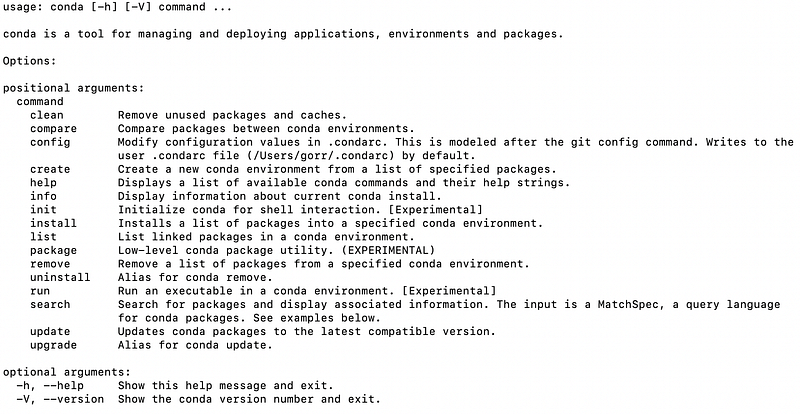
bash Miniforge3-MacOSX-arm64.shI had to accept licensing and terms and when the installation was completed I opened a new terminal and run the following command to verify it worked:
condaThis is what it shows:
Step 4: Create a conda environment and install Tensorflow
TensorFlow is a free and open-source software library for machine learning. It can be used across a range of tasks but has a particular focus on training and inference of deep neural networks. Tensorflow is a symbolic math library based on dataflow and differentiable programming.
To install TensorFlow on Apple Silicon, I followed the instructions from Apple found in https://github.com/apple/tensorflow_macos/issues/153.
First, download environment.yml from https://raw.githubusercontent.com/mwidjaja1/DSOnMacARM/main/environment.yml or use the following content:
name: apple_tensorflow
channels:
  - conda-forge
  - nodefaults
dependencies:
  - grpcio
  - h5py
  - ipython
  - numpy
  - pip=20.2.4
  - python=3.8
  - scipy
  - termcolor
  - typeguard
  - wheel
  - absl-py
  - astunparse
  - python-flatbuffers
  - gast
  - google-pasta
  - keras-preprocessing
  - opt_einsum
  - protobuf
  - tensorboard
  - tensorflow-estimator
  - termcolor
  - typing_extensions
  - wrapt
I created a new conda environment with the following command:
conda env create --file=PATH_TO_ENVIRONMENT.YML --name=YOUR_ENV_NAMEI then activated the newly created environment:
conda activate YOUR_ENV_NAMEAnd then I installed TensorFlow and TensorFlow Addons for MacOS v0.1-alpha3:
pip install --upgrade --force --no-dependencies https://github.com/apple/tensorflow_macos/releases/download/v0.1alpha3/tensorflow_macos-0.1a3-cp38-cp38-macosx_11_0_arm64.whl https://github.com/apple/tensorflow_macos/releases/download/v0.1alpha3/tensorflow_addons_macos-0.1a3-cp38-cp38-macosx_11_0_arm64.whlNext, I verified the TensorFlow installation. I ran python and then imported TensorFlow:

Step 5: install Jupyter Notebooks
This one was pretty easy:
conda install notebook -yAnd I verified the installation launching the Jupyter Notebook application:
jupyter notebookStep 6: installing common additional packages
The common packages can be installed with conda-forge. For me, it was the best way to avoid installation problems and avoid loosing hours googling for the solutions.
Choose the ones you need, for instance:
conda install matplotlib -y
conda install pandas -y
conda install scikit-learn -y
Step 7: start playing with the notebooks
Again:
jupyter notebookAnd tada!

And that’s all!
Troubleshooting
After publishing the article, someone reached me with this error when installing TensorFlow:
ERROR: tensorflow_macos-0.1a3-cp38-cp38-macosx_11_0_arm64.whl is not a supported wheel on this platform.This happened because Anaconda was installed. As I describe above, Anaconda is not ARM compatible, so the most direct way to solve this is to uninstall Anaconda and install Miniforge instead.


