
Loading Data Into BigQuery From Cloud Storage. Complete Guide.
Loading data into BigQuery using Cloud Functions in 20 minutes.

In this article, we will build a streaming real-time analytics pipeline using Google Client Libraries. We will create a Cloud Function to load data from Google Storage into BigQuery. This is a complete guide on how to work with tables, different file formats, and schemas.
Our Cloud function is built on top of the hybrid solution using both AWS and Google Cloud Platform.
Let’s assume we have all our source files in Google Storage. Using the techniques that we’ll cover for this part, you will have a foundation to build any sort of table in BigQuery Data Warehouse.
We will also be going over the details of wiring up a simple data loading system, along with covering some guidelines for schemas, different file formats and BigQuery Python API components, e.g. load_table_from_json, load_table_from_file and load_table_from_dataframe.
Before trying this article, follow the Python setup instructions in the BigQuery Quickstart Using Client Libraries.
Prerequisites:
- Google developer account.
- Google Command Line Interface. Follow this article to install it: https://cloud.google.com/sdk/.
- Finally, we’ll need Python to run our core application. Just install Anaconda distribution.
Before starting, let’s think about the data we are going to load into BigQuery.
BigQuery has a specific limitation regarding the data format: JSON data must be newline delimited. Each JSON object must be on a separate line in the file:
However, we also want to load data from JSON like so:
We would also like to load data from file when it’s not a newline delimited. Everything is on one line, no line breaks, no commas:
- We want to load data from JSON as CSV where each line is a record (Snowflake like)
- We want to load data from CSV with column delimiters
These are the most common source formats and structures I met. If you want to know more about other formats like parquet, Avro and ORC please check the official Google documentation
Let’s do it.
How do we do it
We will be using BigQuery Python API in order to process and load files. You can find usage guides here.
We will also need to have a Google service account in order to use Google account credentials. We have already done that in Part 1 but just in case you are only interested in this particular tutorial this page contains the official instructions for Google managed accounts: How to create a service account. After this, you will be able to download your credentials and use Google API programmatically with Node.js. Your credentials file will look like this (example):
./your-google-project-12345.json
Clone Starter Repository
Run the following commands to clone the starter project:
The master branch includes a base directory template for Part 1, with dependencies, declared in package.json.
After you did git checkout part2, you will be in branch for this part with Python code we need.
Basic Data Load using CLI
First, let’s create just one dataset staging and one table called table_1 as an example.
Use your Google account credentials (replace the file name to match yours) and in the command line run this:
$ export GOOGLE_APPLICATION_CREDENTIALS="./client-50b5355d654a.json"Then in your command line run these two commands which will create the dataset and a table:
$ bq mk staging
$ bq mk staging.table_1 ./schemas/schema.json
Notice that we used ./schemas/schema.json to define the table. Have a look at this file:
After you run this command in your command line you will see:
Table ‘your-project:staging.table_1’ successfully created.
and if you go to Google web console -> BigQuery, new table will be there.
Now let’s load some data in.
Use the file ./test_files/data_new_line_delimited_json.json and run this in your command line:
$ bq load --source_format=NEWLINE_DELIMITED_JSON \
staging.table_1 \
test_files/data_new_line_delimited_json.json
Run this in your command line to select the data from your table:
Great. The data is there.
Getting Started With Cloud function.
How do we do it:
- We want our Cloud Function to use ./schemas.yaml config file where we keep our table names, their schemas and data formats.
- Once we deployed our Cloud Function we don’t want to touch it anymore if we need to create a new table and/or set up a new data pipeline. That should be done with just one file schemas.yaml by adding a new record set.
- Cloud Function will be triggered by a new bucket create/update event, e.g. new file saved.
- Cloud Function will read the file, check its name and if it is in our schemas.yaml table names list, it will insert the data into the relevant BigQuery table.
- If the table doesn’t exist in BigQuery yet, then Cloud Function will create it.
Let’s create a bucket called staging_files and upload our test_files there. In your command line run this:
The last command will copy all the test files from the repo you cloned into your project_staging_files folder so if you go to console you will see it there:
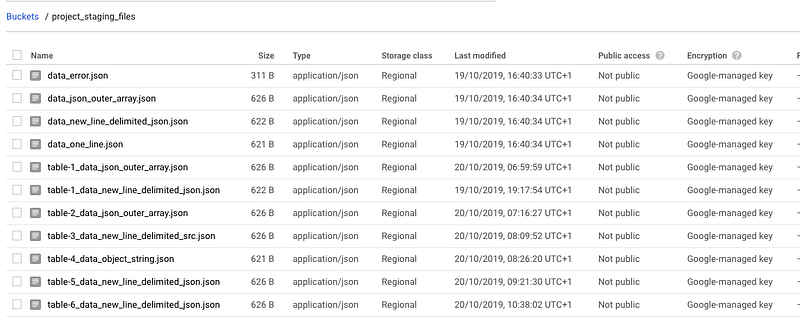
Let’s create our Cloud function file called:
./main.py
It looks massive but there is nothing super difficult about it.
It contains 6 different functions to process the data we have in our source files we copied a moment before. Each of them handles one of the most popular scenarios to handle data in modern datalakes. We described source data files types in the very beginning of this article but essentially they are different types of JSON and CSV. Have a look at ./test_files folder. Each file with table_ prefix represents a use case and has its own data structure. Also, take your time to familiarise yourself with the code or just keep reading and I will talk you through each step.
Now let’s create ./schemas.yaml.
yaml file:
You can see table names and their schemas. Remember we created table_1 with the command line using schema.json file? Well, that’s how it looks in yaml. For example, name: table_4 is a table name and also a file name prefix, e.g. gs://project_staging_files/table-4_data_object_string.json. So. Cloud Function decides that this file goes to table_4.
Test your Cloud Function locally and load the data
Now, let’s see how files with different data structure can be loaded into BigQuery using schemas and BigQuery Python API.
Just a few words about why we are using schemas. Of course, BigQuery has autodetect feature which works just fine. However, I prefer to have everything under control and define field types myself. This might be very useful when you start getting load errors. When knowing your schema, it’s easier to understand what happened with the data so the load went wrong.
You might notice that we’re using test.py file in our project.
./test.py:
You can see that we declared from event import data. File ./event.py is to emulate Create object event. This file should have these contents:
./event.py:
All we really care about is the name of the bucket and object key here. So change it to reflect your Google Storage test files accordingly.
Now run python test in your command line. It will trigger your local Cloud Function which will use the file in Google Storage you specified in event data[‘name]:
$ python test
Job finished.
Now if you run SELECT you will see two new records in table_1:
Load data when your source data file is JSON with outer array brackets.
Now let’s try table_2 which is exactly the same as table_1 but the source data file is a JSON with outer array brackets, e.g.:
Remember we talked about JSON format limitation? JSON files must be New line delimited
To deal with this situation I wrote a fucntion called _load_table_from_json:
It converts our JSON file to a NEWLINE_DELIMITED_JSON before loading it to BigQuery.
Change your ./event.py to use file for table_2:
In your command line run:
$ python testJob finished.
And SELECT statement will show new rows added to table_2 even if it wasn’t created beforehand. Our Cloud function took care of it. It used schema.yaml file to create a new table_2 that didn’t exist.
Load data when you need to load each JSON object (row) into one column (field)
Sometimes we need to load each JSON object (row) we have in our source file into one column (like in SRC format in ) and use JSON parse function later. The very standard task for ETL. It’s very useful when we don’t want to worry about schema changes.
To deal with this situation I created a function called _load_table_as_src:
It loads each JSON object as CSV string column so then you can parse it in BigQuery.
Change the ./event.py to use
data = {“name”: “table-3_data_new_line_delimited_src.json”, \
As a result in BigQuery you will see this:

Pretty cool, huh?
Load data into BigQuery from a string of JSON objects (when the file doesn’t have outer array brackets and commas separating them)
Sometimes, you have data in object string without commas separating your records (objects):
This case is a bit tricky but it can be handled too. I created a _load_table_from_object_string function.
It transforms your source file to outer array JSON first and then loads it. BigQuery Python API load_table_from_file is very useful for cases like this.
Try it by changing the ./event.py to use file
data = {“name”: “table-4_data_object_string.json”, \
Again don’t worry about the table schema definition. We have it in schemas.yaml table_4. Cloud Function will create it for you.
Load data from outer array JSON using Pandas dataframe
Yup. Sometimes you need to swap columns and/or use Pandas to transform data before loading it to BigQuery.
Function _load_table_from_dataframe takes care of this:
Have a look table_5 in ./schemas.yaml:
As a result, you will have this in your table_5:

You can JSON parse addresses now.
Party On.
INSERT data from deeply nested JSON when you need to normalize data.
Sometimes you have data with nested JSON like in our case.
Often we would like to have it in standard columnar format. To handle this case I created _load_table_as_df_normalized function.
Change your ./event.py to use
data = {“name”: “table-6_data_new_line_delimited_json.json”, \
As a result, you will have this in your table_6:
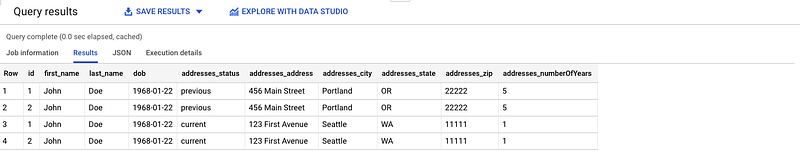
How to create BigQuery schema object from yaml
I wrote a function called create_schema_from_yaml to help with this:
It will transform our yaml definition into an object like so:
All done
We created a Cloud Function to load data from Google Storage into BigQuery and tested it locally.
We created a schema.yaml file to hold all information about tables.
We came up with 6 different ways to process different types of data which represent various use cases for ETL.
In one of my next articles, I’ll deploy our Cloud Function and add bucket event trigger to invoke it. We will use a shell script for this.
Then we will build a full ETL pipeline with load monitoring using Firestore and error handling.
Thanks for reading.
Originally published at https://mydataschool.com.


