
Let’s take some baby steps; creating a pipeline status report using the GitLab API
Create a wiki-based status report on your pipelines using the GitLab API

I have been using the GitLab API for a few years, and it used to be painful. Hopefully, this article will help you get started and help you avoid some of the common pitfalls.
What is the GitLab API?
The GitLab API enables you to do all the things you can do via the web UI using the keyboard and mouse but via a REST API or GraphQL API.
When do I use the GitLab API?
I don’t think there is a generic answer to the question; most likely, you will never have to use the GitLab API because the web UI is so feature-rich. However, if you don’t want to overuse your keyboard and mouse, it helps you automate tasks and extract information from GitLab conveniently.
My journey with the GitLab API started when we wanted to create a simple dashboard that showed us the status of our software module's pipelines. At the time, we had about 15 projects, and there was no easy way to see the project's overall status of modules (without doing a lot of mouse clicking).

I initially did what most of us do; yep, I Googled it…
I found multiple promising projects. One of our favorite projects was the gitlab-ci-pipelines-exporter; it can create a dashboard like this:
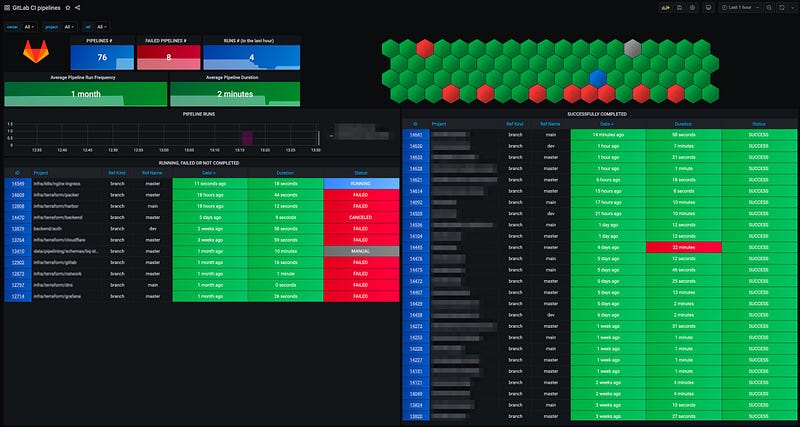
It ticked most boxes and is easy to install. By installing this brilliant piece of software, we completed the task to find a dashboard, and now we could sing songs and celebrate all night long!
I need something else…
The weeks passed, and we forgot the dashboard until our friendly project manager told us:
The dashboard looks great but I need a test report for the release notes which is based on a git tag. You can skip the fancy graphics the customer only wants a simple table. Can you do Microsoft Excel?
With the new requirements in place, we quickly decided to do something inside of GitLab, i.e., not use an external tool like gitlab-ci-pipelines-exporter. Keeping everything inside of GitLab made the release process easier (but another story for another time).
Using the GitLab REST API
We decided to use the REST API, and we quickly found out that everything centers around groups and projects:
- gitlab.com/api/v4/groups
- gitlab.com/api/v4/projects
If you have a private project, you need either a Personal Access Token or a Project Access Token. If you plan to access multiple projects, the Personal Access Token is the way to go.
Let´s say that you want to look at the GitLab project in GitLab
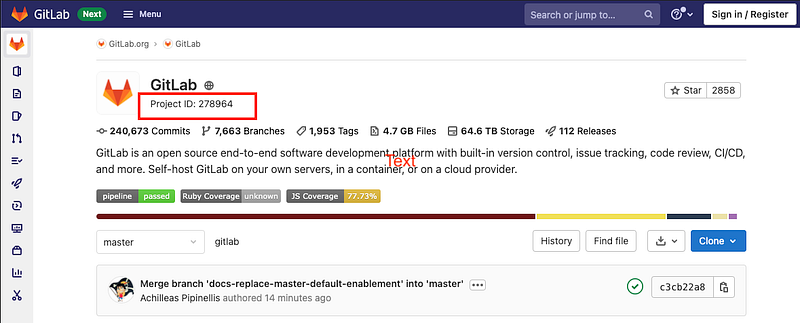
Do you see that the Project ID is 278964? (jsonpp is a command-line JSON pretty printer)
$ curl https://gitlab.com/api/v4/projects/278964 | jsonppWould you give us the following output:
If we want to see the latest pipelines, we do the following:
$ curl https://gitlab.com/api/v4/projects/278964/pipelines | jsonppIf you have a private project, it could look like this:
curl --header "PRIVATE-TOKEN: <your_access_token>" "https://gitlab.com/api/v4/projects/278964/pipelines"If you have been using the GitLab web UI, you know several dashboards, views, graphs, badges, logs, etc. A feature that is easily forgotten is each project’s Wiki page.
Did you know that the Wiki pages are a git repository that you can access from the pipeline?
You can publish information on your Wiki page from the pipeline. This issue explains how it works.
Our project for reporting
We wanted to use the Wiki page to create a simple table in markdown that showed all projects in a group and the status of the last run. This is what the output looks like:
Break down of the .gitlab-ci.yml file
We are using the node image (node:14.16.1) because the job application is written in JavaScript (TS). Before we run the application, we need to install the node packages and build the application (convert TS to JS). Line 18; we see that we start the application with the option “ — group” and the GitLab Group “himinds-boosting-innovation.” This is a private group, so the project has a Personal Access Token configured as “BOT_TOKEN”. The NodeJS application will print the token on the command line, but no worries, “BOT_TOKEN” is masked.
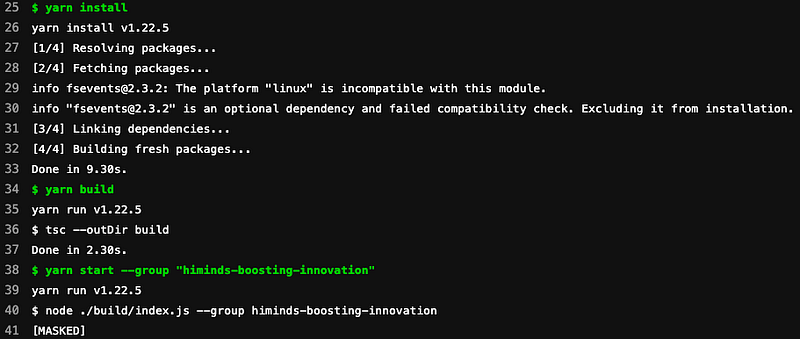
The application will create a file called “ci-report.md” which we push to the Wiki git repository. In this simple example, we overwrite the file each time.
The complete .gitlab-ci.yml file looks like this:
The NodeJS application
I have tried several different node packages that simplify interaction with the GitLab API, and my favorite is @nerdvision/gitlab-js. As of the time of writing, it is still in Alpha, but I ❤️ it!
Using the @nerdvision/gitlab-js package, we can easily scrape GitLab, and with the “json2md” package, we create a markdown file. The project is available here, and here is the source code:
So there are basically two functions. The first function that scrapes all the data is called “getProjectCollection" and then we have the function."convertToMarkDown" that converts the array you get from “getProjectCollection" into a markdown file.
By extending this simple example, I hope you can build a reporting tool that fulfills all your needs and run it from GitLab. Happy coding!
I hope this helps you; thank you for reading! Take care, and I hope to see you soon. 🙏🏽


