avatarColette Becker

Free AI web copilot to create summaries, insights and extended knowledge, download it at here

957

Abstract

"https://cdn-images-1.readmedium.com/v2/resize:fit:800/1*lyeT0pOxz1WN4t6r2DAc3Q.jpeg"><figcaption></figcaption></figure><h1 id="adeb">SOLUTION</h1><p id="dbd3">Change the “Color and Theme” setting to contrasting colors.</p><p id="3ba1"><b>STEP 1: </b>With your browser open, click on a new tab by clicking the plus sign just to the right of the open tabs.</p><p id="9fc9"><b>STEP 2: </b>When the new tab is visible, the “Customize” button will appear on the bottom right.</p><figure id="3458"><img src="https://cdn-images-1.readmedium.com/v2/resize:fit:800/1*07S5uoyiP6sCNYTxGt1dfA.jpeg"><figcaption></figcaption></figure><p id="53a7"><b>STEP 3:</b> The Customize window will pop up. Along the left side, select “Color and Theme”. Note the color that is currently selected.</p><p id="11fe">My browser was set to “white on white” which was causing the problem.</p><figure id="8160"><img src="https://cdn-images-1.readmedium.com/v2/resize:fit:800/1*SF0iulO-nm

Options

IQy_w9sQ0q4Q.jpeg"><figcaption></figcaption></figure><p id="6e7c"><b>STEP 4:</b> Click on a different color scheme and hit “Done”</p><figure id="a6a0"><img src="https://cdn-images-1.readmedium.com/v2/resize:fit:800/1*QtFvjjvF0tnLbVOhAnf66g.jpeg"><figcaption></figcaption></figure><h1 id="55f9">PROBLEM SOLVED!</h1><p id="42c3"><i>Example:</i> Light Blue Tabs with White Active Tab</p><figure id="fd05"><img src="https://cdn-images-1.readmedium.com/v2/resize:fit:800/1*CkCxTexx6SQPRmr-MQrUZQ.jpeg"><figcaption></figcaption></figure><p id="bb54"><i>Example:</i> Grey Tabs with White Active Tab</p><figure id="2694"><img src="https://cdn-images-1.readmedium.com/v2/resize:fit:800/1*IHY6UBuJ8NhqnUT0BVLzVQ.jpeg"><figcaption></figcaption></figure><p id="0b43">I am so happy to have finally solved the issue that I wanted to spare others of this headache.</p><blockquote id="3cc2"><p><b>Happy Browsing!</b></p></blockquote><p id="9a34">Colette</p></article></body>

TROUBLESHOOTING A CHROME BROWSER ISSUE

Learn How To Fix The Color Of The Active Tab In Your Chrome Browser

If you can’t tell which tab you are on, change to contrasting colors.

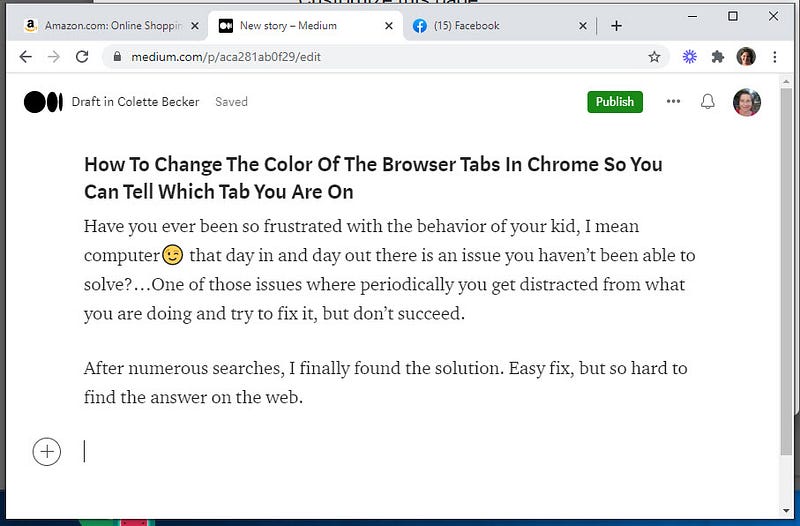
Have you ever been so frustrated with the behavior of your child, I mean computer😉 that day in and day out there is an issue you haven’t been able to solve? Periodically attempting to find a solution, but giving up and just living with it.

After numerous searches, I finally found the solution. Easy fix, but so hard to find the answer on the web.

PROBLEM

With all the tabs the same color, it is hard to figure out which tab I am on. When shopping, I open multiple tabs to compare products. Because I can’t tell which is the active tab, I often close the wrong ones.
SOLUTION

Change the “Color and Theme” setting to contrasting colors.

STEP 1: With your browser open, click on a new tab by clicking the plus sign just to the right of the open tabs.

STEP 2: When the new tab is visible, the “Customize” button will appear on the bottom right.

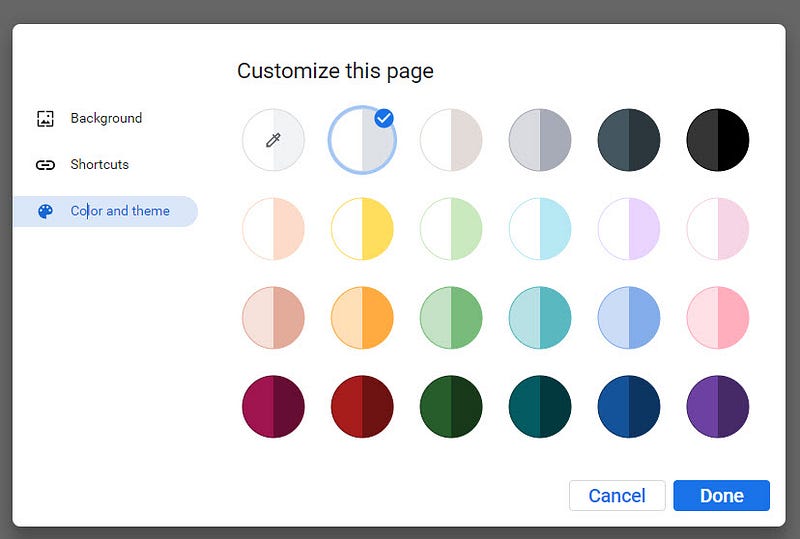
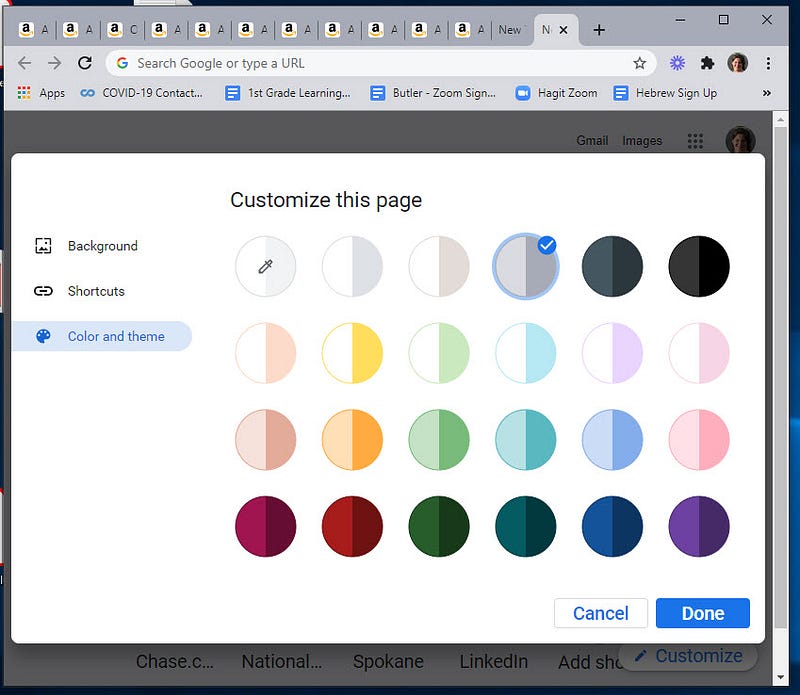
STEP 3: The Customize window will pop up. Along the left side, select “Color and Theme”. Note the color that is currently selected.

My browser was set to “white on white” which was causing the problem.
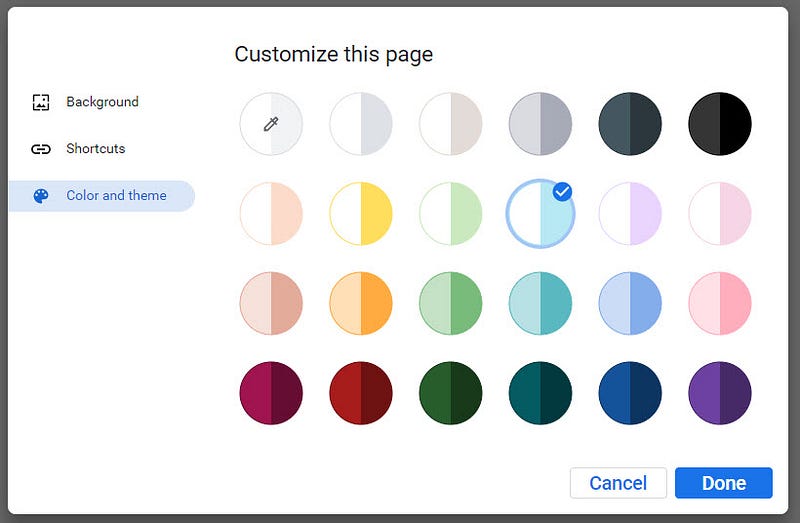
STEP 4: Click on a different color scheme and hit “Done”
PROBLEM SOLVED!

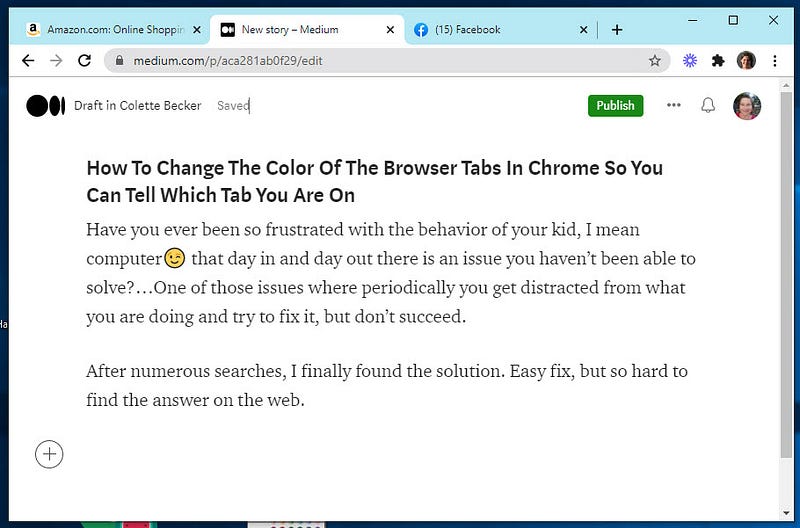
Example: Light Blue Tabs with White Active Tab
Example: Grey Tabs with White Active Tab
I am so happy to have finally solved the issue that I wanted to spare others of this headache.

Happy Browsing!

Colette

Chrome
Browsers
Troubleshoot
How To
Recommended from ReadMedium