
Learning Android Development
Kotlin Automatic Code Style Formatting
No longer worry about forget to format our code when committing

More than 4 years ago I wrote on two housekeeping habit for coder, that keep our code style clean and remove unused imports
However, I have to admit, I still forget to do so many times. I’m thinking how nice would it be if it gets done for us automatically without us pressing the short-cut key on every file we change.
I didn’t find anything from Android Studio, although they have the ability to reflect wrong formatting as error (though it is still compilable)
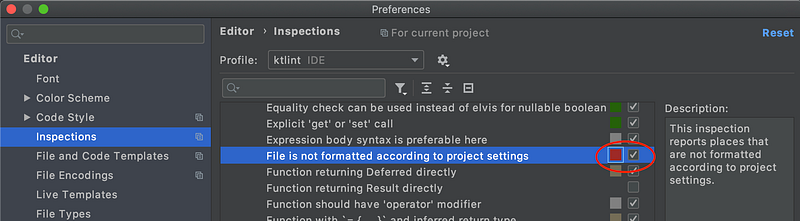
The above helps, but it is limiting as it doesn’t auto-correct for us, and prevent the bad style from checking in.
KtLint came to rescue
The good news is, there’s a tool (has been there for a while) that comes in handy. It is KTLINT!!
Not only it can detect the violation, but it can also fix the basic violation automatically (although not all).
There are 2 ways of using KtLint
The Gradle approach
To use KtLint, in your module build.gradle, you can add
configurations {
    ktlint
}
// make ./gradlew ktlint for checking
task ktlint(type: JavaExec, group: "verification") {
description = "Check Kotlin code style."
classpath = configurations.ktlint
main = "com.pinterest.ktlint.Main"
args "src/**/*.kt"
}
check.dependsOn ktlint //Attach to ./gradlew check as well.// make ./gradlew ktlint for check and auto fix
task ktlintFormat(type: JavaExec, group: "formatting") {
description = "Fix Kotlin code style deviations."
classpath = configurations.ktlint
main = "com.pinterest.ktlint.Main"
args "-F", "src/**/*.kt"
}dependencies {
// .. other dependencies
ktlint "com.pinterest:ktlint:0.39.0"
}After that, you just need to sync. Then just for checking you can run
./gradlew ktlint
An example report is shown below
> Task :app:ktlint FAILED/com/example/pdfreader/FileDownloader.kt:3:1: Imports must be ordered in lexicographic order without any empty lines in-between with "java", "javax", "kotlin" and aliases in the end/com/example/pdfreader/FileDownloader.kt:9:1: Unused import/com/example/pdfreader/FileDownloader.kt:14:1: Unexpected indentation (12) (should be 8)/com/example/pdfreader/FileDownloader.kt:15:1: Unexpected indentation (12) (should be 8)While this is nice, we hope it will automatically fix it for us. To do so it is easy, just run
./gradlew ktlintFormat
For fixable issues, it will automatically do it for us 😎.
There are cases where it cannot perform automatically, e.g. the wildcard import. It fixes all it could and report those it can’t fix as shown below
> Task :app:ktlintFormat FAILED/com/example/pdfreader/FileDownloader.kt:8:1: Wildcard import (cannot be auto-corrected)The Command-Line approach
While the build.gradle approach is nice, I think it has several limitation e.g.
- The gradle script is needed in all modules (maybe there’s a way to consolidate them to have them defined in the root project’s gradle, do share with me)
- It is executed slower, as each time it performs a synching the gradle before the check. For a big project, this is slow.
- It cannot take in a subset of files (e.g. only those files that have changed compared to the git repo file list). Maybe there’s an approach, I can’t get it to work yet.
To run it in command-line, you’ll need the ktlint executable. Just download it using the below command on your project folder (or anywhere you like to have it)
curl -sSLO https://github.com/pinterest/ktlint/releases/download/0.39.0/ktlint && chmod a+x ktlintAfter that, you can run either ./ktlint to check or ./ktlint -F to auto fix the issue.
Git pre-commit check and fix
The other nice thing about the command-line approach is, the ability to perform a git pre-commit check and fix the issue.
To do so, you can run the below to set up the pre-commit hook.
ktlint installGitPreCommitHookIt will generate the below file in your root folder of ./git/hooks/pre-commit
#!/bin/sh
# https://github.com/shyiko/ktlint pre-commit hook
git --no-pager diff --name-only --cached --relative | grep '\.kt[s"]\?$' | xargs ./ktlint --relative .
if [ $? -ne 0 ]; then exit 1; fi
Warning: If your project already have the pre-commit hook, it will overwrite the entire file.
What the script does is to only find the git added changed file to be verified
--no-pagerthis is added by me to ensure the list doesn’t stop at one page only.--name-onlydon’t display the content, but only the name--cachedonly take those file that is been added. Ignore those changed but not added to be committed.--relativeonly for files that is from the folder onwardgrep '\.kt[s"]\?$'only grab the Kotlin file (ends withktorkts)
Once you have this in place, when you are about to commit your file in, it will modify and fix all the styling issue (only for the file you have changed) before committing. 🤩
If there’s any error it cannot fix, the commit will fail as below (dialog from sourceTree)
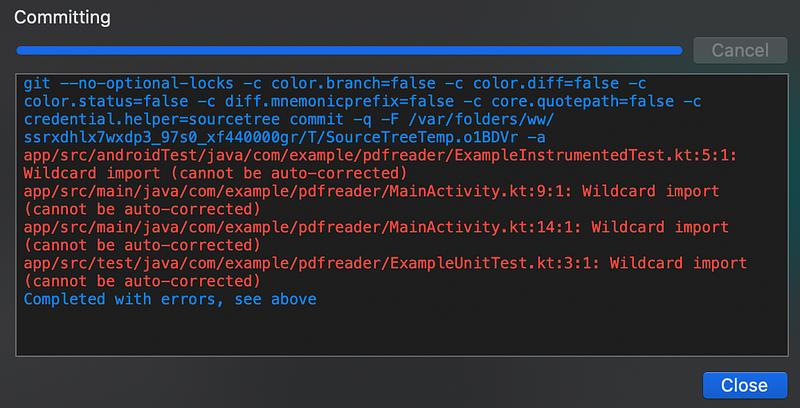
Tip: If you want to set up the precommit hook automatically during gradle sync, just add a task to it.
task setupKtlintPreCommitHook() {
    exec {
        workingDir "$rootProject.projectDir"
        commandLine './ktlint', 'installGitPreCommitHook'
    }
}
Conflict with Android Studio Style
While the KtLint is nice, the formating does conflict with the Option+Command+L Android Studio style change. This makes one change get corrected by the other, which is annoying.
I notice two ways of workaround it.
The .editorconfig workaround
The conflict I realize is mostly the indent size, as stated in
A simple way to solve it is to introduce a .editorconfig file in the root folder of your project. This is an IntelliJ (Android Studio) file that one can use to determine the code style. It is also supported to be honored by Ktlint.
[*.{kt,kts}]
indent_size=4
By setting the indent_size=4 (or 8 if you prefer), the automatic formating Option+Command+L will honor it, while the Ktlint also follows as well.
The nice bit about this approach is, the file can be committed in git. and used by all developers.
The ktlint — android applyToIDEAProject workaround
Ktlint enables one to add the Ktlint rules to Android Studio. One just need to run
ktlint --android applyToIDEAProjectAnd it will ask something as below.
The following files are going to be updated:
    /Users/.../AndroidStudio4.0/codestyles/ktlint.xml
    /Users/.../AndroidStudio4.0/options/code.style.schemes.xml
    /Users.../AndroidStudio4.0/inspection/ktlint.xml
    /Users/.../AndroidStudio4.0/options/editor.codeinsight.xml
    /Users/.../IntelliJIdea2020.1/codestyles/ktlint.xml
    /Users/.../IntelliJIdea2020.1/options/code.style.schemes.xml
    /Users/.../IntelliJIdea2020.1/inspection/ktlint.xml
    /Users/.../IntelliJIdea2020.1/options/editor.codeinsight.xml
    ./.idea/codeStyleSettings.xml
    ./.idea/inspectionProfiles/profiles_settings.xml
Do you wish to proceed? [y/n]
(in future, use -y flag if you wish to skip confirmation)Just type y to update it. Restart your entire Android Studio (not just that project). Then when you open the code style for Kotlin, you can pick the Ktlint style.
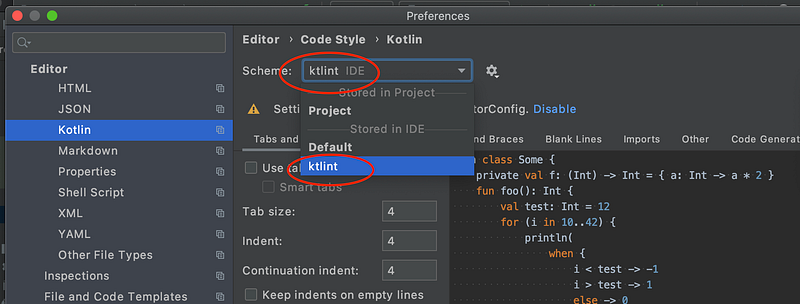
Tip, if you like to set this up using Gradle, check this stackOverflow.


