
JupyterAI: Generative AI + JupyterLab
You will not need a Copilot in VSCode! I doubt it.
JupyterLab has been one of the best friends of a budding data scientist. Even for veterans, it has been one of the most used playgrounds before the code goes to production. It is truly a powerful and user-friendly way to explore models in notebooks and improve early productivity. In certain cases like Netflix, the whole data pipelines, including scheduled jobs, are being run using JupyterLab.
Jupyter AI provides a user-friendly and powerful way to explore generative AI models in notebooks and improve your productivity in JupyterLab and the Jupyter Notebook. More specifically, Jupyter AI offers —
- An
%%aiMagic that turns the Jupyter Notebook into a reproducible generative AI playground. This works anywhere the IPython kernel runs (JupyterLab, Jupyter Notebook, Google Colab, VSCode, etc.). - A native chat UI in JupyterLab that enables you to work with generative AI as a conversational assistant.
- Support for a wide range of generative model providers and models (AI21, Anthropic, Cohere, Hugging Face, OpenAI, SageMaker, etc.).

Installation
To install JupyterAI,
pip install jupyter_ai
The latest major version of jupyter_ai, v2, only supports JupyterLab 4. If you need support for JupyterLab 3, you should install jupyter_ai v1 instead:
pip install jupyter_ai~=1.0For all the JupyterNotebook users who are not using Labs, you may use JupyterAI via magic actions. To install magic actions for Jupyter AI, run the following command.
pip install jupyter_ai_magics
Supported Model Providers
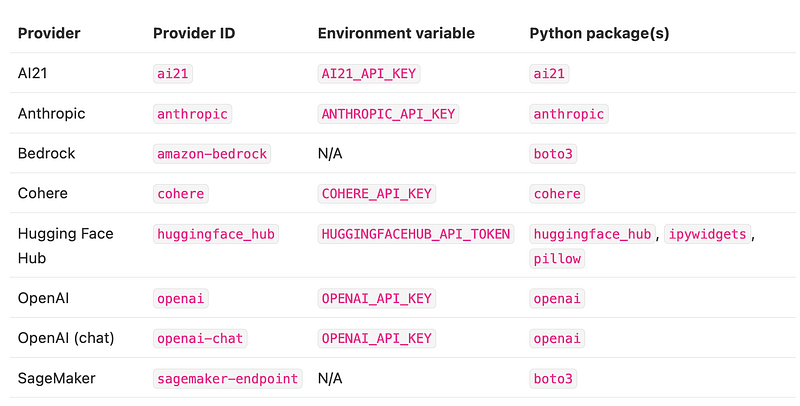
The environment variables need to be defined in the Python environment that you will be working on. So please take note of the actual names of the variables. Also, please make a note of Python package dependency to use the models.
Here is an example of how you can set up the Environment variable before starting the JupyterLab instance
OPENAI_API_KEY=your-api-key-here jupyter labChat with AI inside Jupyter Lab
First-time visitors to Jupyter Lab while the Jupyter AI is installed will be greeted with a settings prompt on the Jupyter Lab interface.
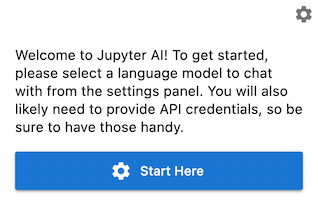
Please follow the Start here prompt and set up the language model that you would like to use. Provide the API key, and you should be good to go.
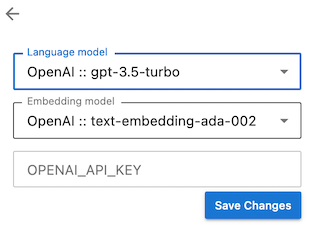
You can choose either the embedding model or the language model. The embeddings model will help you to convert input into a numeric form but wont return a response. Embedding model is a lot cheaper too — for more information, follow OpenAI’s embeddings blog or Huggingface.
Now a familiar interface will always be available on the left side panel. IF the panel does not show up, just click left arrow. Ask, any question and it will answer you. Remember that codex performance improved in GPT-3.5-turbo models and GPT-4, so select a model that won’t break the bank (because every query and generated token will be billed to you via your model provider). That's it, it's lazy man’s paid ChatGPT in the form of Jupyer AI inside your notebook, so you don't have to swap windows and copy code over (sarcasm).
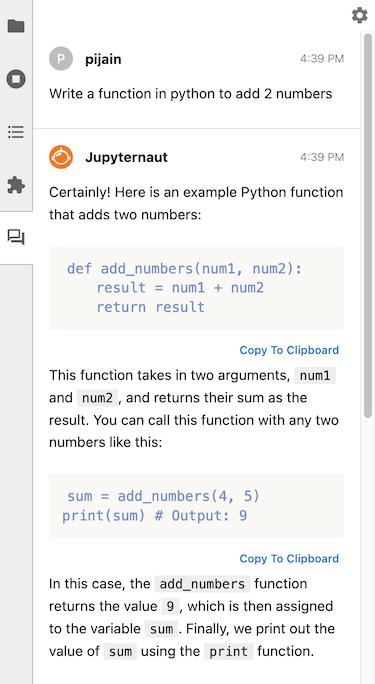
You can follow up your question as many times as you want. Generally, GPT3 models have a large enough context window, but please be careful about forgotten context when asking follow-up questions.
Code Interpreter in the notebook
When using in the Lab, you might be using someone’s notebook, and you want to know what a certain piece of the code is doing. Just highlight the function or a chunk of the code and ask the Jupyter AI, what does this code do? Please make sure to use the checkbox for “include selection.”
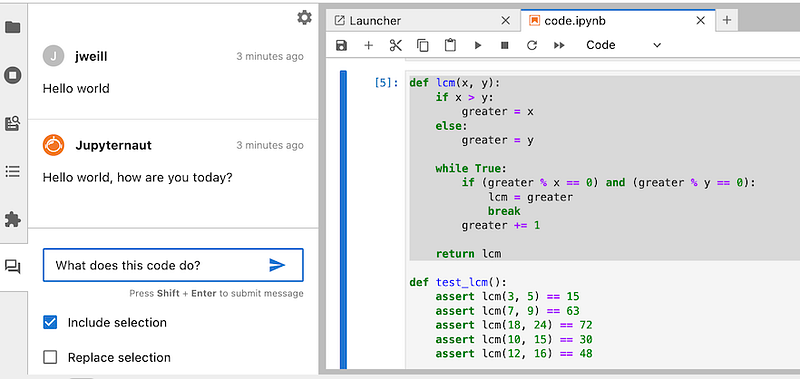
It will interpret the code and answer your question. Again, your answer will be as good as the model you select. You could change the code and replace the selection (use the checkbox) to replace the code in the notebook. This could be handy, but just be careful. A true programmer will create a new function and test it before replacing it. But you are the king of your notebook — so…
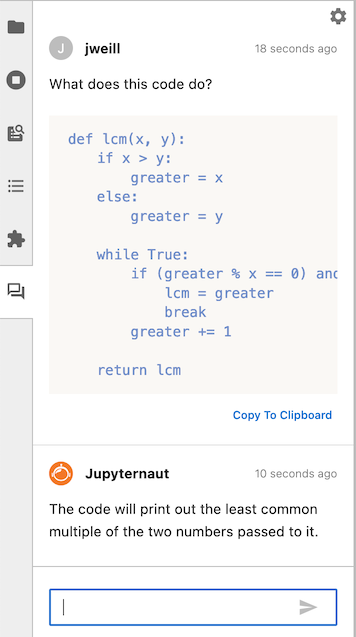
These prompts are capable of generating a whole notebook from scratch. Especially if you ask the prompt with a broad enough task — like “generate a notebook that compares various joins in pandas tables and visualizes each join.”
Learn My documents
using a special prompt, Jupyter AI will be able to learn about all the documents in the folder where the folder. It will save it to a local database in the folder Users/<your username>/git/jupyter-ai/docs/ . These are the vector representations (embeddings) of the documents in your working directory. Remember that each file in the folder will be shared with OpenAI or whichever model provider you choose and converted into embeddings. Everything that you do at this level can cost you a significant amount of money.
To achieve that, run following command in the chat window
/learn docs/
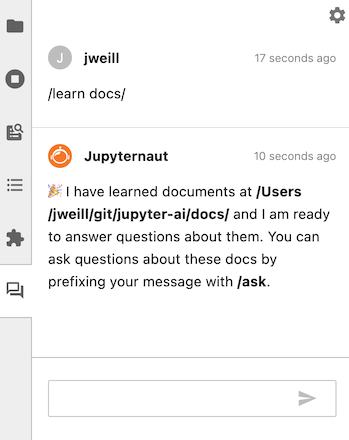
Now you can ask whatever you need to ask about your folder to Jupyter AI. Just start the prompt with /ask
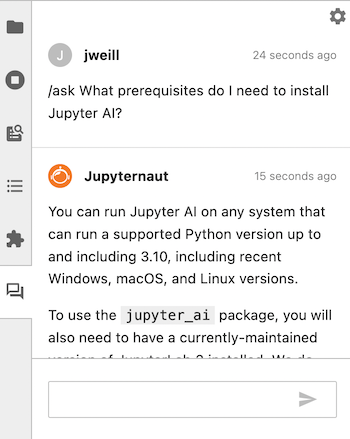
To clear the learnings, run /learn -d . Each time you learn, it costs you money, so please check if you really need to unlearn before answering your questions.
There are some other commands that can tweak learning, like below —
/learn -c is for — chunk-size and -o is for — chunk-overlap
# default chunk size and chunk overlap
/learn <directory>
# chunk size of 500, and chunk overlap of 50
/learn -c 500 -o 50 <directory># chunk size of 1000, and chunk overlap of 200
/learn --chunk-size 1000 --chunk-overlap 200 <directory>When the document is too long, each segment/chunk of the document is converted to embeddings with a small overlap to allow continuity.
But I only use Jupyter Notebook.
If you use only Jupyter Notebook, you are like most data scientists. We like to do things a bit differently and more minimalistically. So just install jupyter ai magic actions using
pip install jupyter_ai_magics
And load extension using when you open your notebook
%load_ext jupyter_ai_magics
Set up the environment variables as shown above in your notebook.
Then use the %%ai <provider-id>:<local-model-id> to set up your provider. Then you can ask it to do whatever you want from the notebook
%%ai ai21:j2-jumbo-instruct
Write some JavaScript code that prints "hello world" to the console.
You can have good control over the output of the return from the language model. using -f parameters, you can control how it shows up on the notebook. Here are some examples of using HTML and math formatting, which uses Latex and code
%%ai anthropic:claude-v1.2 -f html
Create a square using SVG with a black border and white fill.
%%ai chatgpt -f math
Generate the 2D heat equation in LaTeX surrounded by `$$`. Do not include an explanation.%%ai chatgpt -f code
A function that computes the lowest common multiples of two integers, and
a function that runs 5 test cases of the lowest common multiple functionIf you want to be fancy, you can actually pass variables in your prompts
%%ai chatgpt
Write a poem in the style of {poet}
Reroute input and output using In[] and Out[] syntax.
Let's say you want ChatGPT to explain the output of cell 254. Then ask Jupyter AI. Remember that these are run numbers (and not sequence numbers), and they will change based on how many cells you have run before and after your execution. So be cautious; you really don’t want to run an output of a cell that is a paginated 10000-row datafrarme shown in jupyter notebook to be shipped to OpenAI for an explanation. It will cost you a bunch of money.
%% chatgpt
explain the output below
--
{Out[254]}
This could be particularly useful when you don't want to copy an error message.
%%ai chatgpt
Explain the following Python error:
--
{Err[3]}
Or provide the context of the error like below and ask for correction.
%%ai chatgpt --format code
The following Python code:
--
{In[3]}
--
produced the following Python error:
--
{Err[3]}
--
Write a new version of this code that does not produce that error.
Build your Custom Magic Actions
Let's say you want to create your own custom prompt using LangChain and call it in a future cell — First, create the LangChain chain of actions, which includes the template and then register it using %ai register command
from langchain.chains import LLMChain
from langchain.prompts import PromptTemplate
from langchain.llms import OpenAI
llm = OpenAI(temperature=0.9)
prompt = PromptTemplate(
input_variables=["product"],
template="What is a good name for a company that makes {product}?",
)
chain = LLMChain(llm=llm, prompt=prompt)Then in a new cell
%ai register give_me_name chain
You can always delete a magic action by running
%ai delete chain
Alrighty, to me, this was an interesting experience, as I kept thinking that “WHY” would I do it when Copilot is so much superior and costs a fixed amount of money? Secondly, why would I be so lazy not to copy-paste my code in a free chatGPT instance and ask my questions? When would I need all these other models from other providers?
I am just being realistic; unless I need to compare providers for the same prompt, I am rarely going to be using AI-based magic actions. This is a nice gimmick but I am yet to see a real use-case for this integration and really usefulness. Maybe I am old-school. Let me know if you differ in your opinion. I would love to know.
If you have read it until this point — Thank you! You are a hero (and a Nerd ❤)! I try to keep my readers up to date with “interesting happenings in the AI world,” so please 🔔 clap | follow | Subscribe 🔔
Become a member using the referral: https://ithinkbot.com/membership
Find me on Linkedin https://www.linkedin.com/in/mandarkarhade/


