
Journey Begins: Launched an AI Chatbot on My Website
A new feature was recently deployed on https://datatec.studio: an AI chatbot that currently uses the OpenAI GPT-3.5 Turbo API.
Table of Contents
1. Introduction of the Chatbot UI
2. Usage of this Chatbot
3. Lessen learned during development
4. Next Steps
1. Introduction of the Chatbot UI
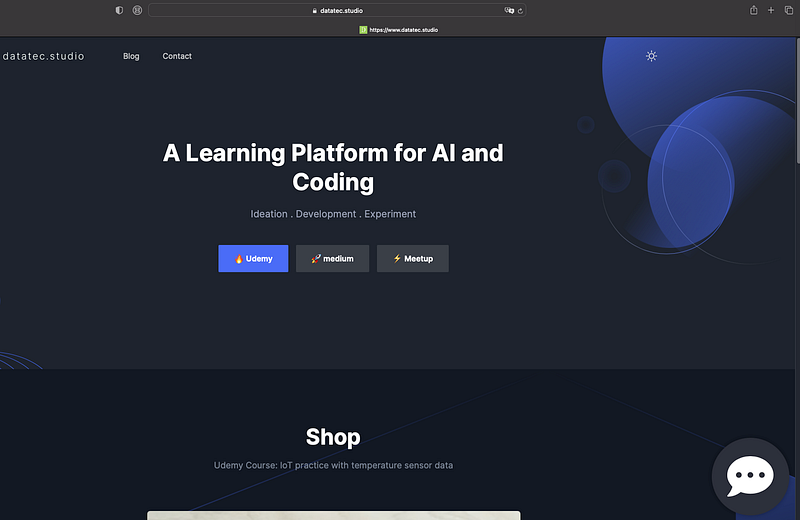
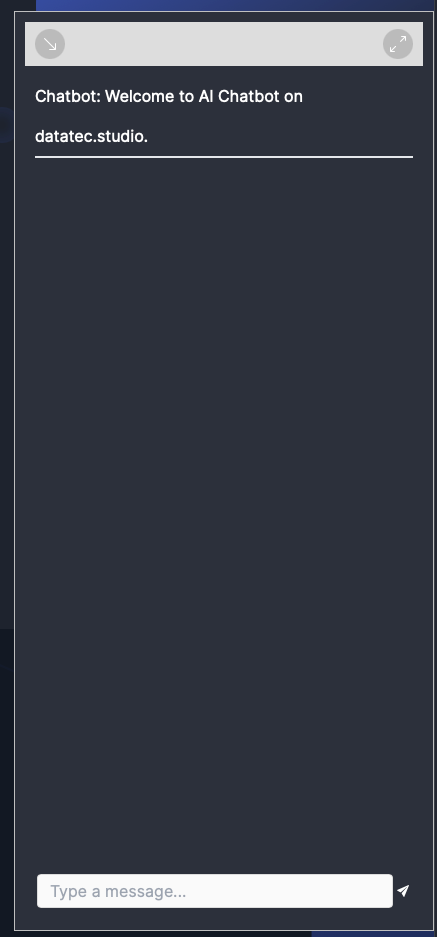
The first and second UIs of this chatbot are as follows:
At the bottom right, as usual, you can find a chatbot icon.
By clicking on it, a chat window will open, allowing you to interact with the chatbot.
2. Usage of this Chatbot
Currently you can access this Chatbot without login.
I got a bonus from OpenAI for the API and i just set a maximal usage per month for this Chatbot.
The UX-Feature of the Chatbot is limited, if you wanna clear the content, please just refresh the webpage. Maybe i will upgrade it with one more button in near future.
As the most Services i used was Free on Azure, the Chatbot itself might be instabil due to usage of capacity.
I would say it should work in the first few weeks before i must upgrade the solution.
3. Lessen learned during development
3.1 FrontEnd
a) Use Template
Use FrontEnd Template if you are not a UI Expert. e.g., I used the nextjs template from this github repository.
b) Use GitHub Copilot Chat
Use GitHub Copilot Chat together with VS Code, it will save you a lot time by trouble shooting and automatic completation.
c) Build target folder
As i use ReactJS and NextJS for the FrontEnd implementation, the “yarn build” command will build the target file into a folder called “out”. To make this work, the file next.config.js on the root should something like this:
const nextConfig = {
  output: 'export',
};

module.exports = nextConfig;
3.2 Backend
a) DevOps and Pipeline
I used Azure Web Apps, MongoDB for the Backend. The deploy process was done inside IDE.
e.g., the maven plugin “azure-webapp-maven-plugin” was used in pom.xml and i deploy the backend just by using command
mvn azure-webapp:deployHowever, i do miss the CI/CD pipeline and Infrastructure of Code (IoC), because this will automatic some steps and configurations.
b) CORS and IP Whitelist
Because we would like to protect our endpoint of the web services, only the request from our FrontEnd should reach the web services, the API should not be accessible overall from internet, define the Cross-Origin Resource Sharing (CORS) on Azure Web App will make the job done.
Also MongoDB offers the opportunity to define IP Whitelist, so the connection to MongDB can be limited with IPs you allowed.
c) Wake the Idle Azure Web App
As the free Azure Web App will sleep if there is no request in certain time period, we can create a Azure Cron Job to invoke it in special interval. This was introduced in my previous article:
4. Next Steps
Actually, as the title mentioned, launching such a Chatbot is just a begin of the Journey into AI world.
The next steps could be how to build a production ready application and how to use the diverse open source AI model in the application.
Also suitable use cases should be considered.
I hope you enjoyed today’s content.
You are welcome to connect with me on medium and datatec.studio.
Your claps 👏 keep me continue writing high-quality articles. Thank you!