
How to Create Joins in DAX with/without Relationships — DAX in Power BI — Chapter 5
Exploring how to combine data from different tables with or without a relationship in DAX.

For most cases, we can consider defined standard relationships in DAX calculations as per the data model. But it is not applicable every time. For more flexibility, there are some DAX functions are available that support joining tables.
Standard Relationship in DAX
When a data model has more than one table, it is possible to have a relationship between them that will be used by DAX during calculations.
There are some limitations where this DAX relationship process does not work.
Only One to One and One to Many relationships
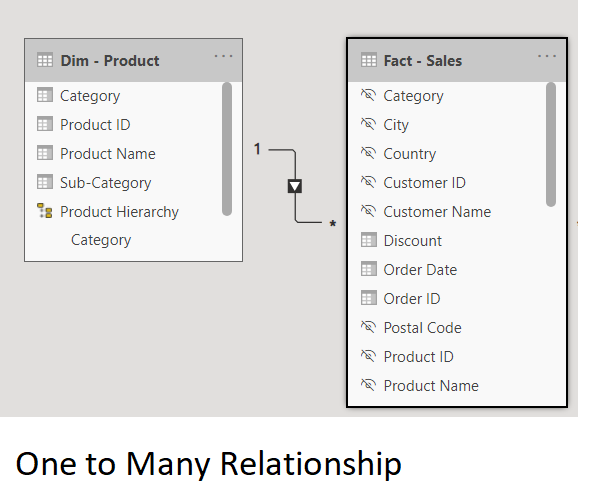
The product table has a unique row and for every product, there are multiple rows in the sales table.
For the one to one relationship, the column involved in each table must have unique values.
Only a single column from each table can be used
More than one column can not be used for defining any relationship. In such scenarios, you can create a new column with a combination of multiple columns and use it in a relationship.
Match criteria should be an exact match
Most of the default operator is =. But sometimes you can use ≥ it or ≤ when you need to join with a range of rows.
Self-joins cannot be used
Self-joins which means a table joins back with itself, cannot be possible.
Joining Without a Relationship
Now it’s time to explore the DAX functions which help us to calculate without a standard relationship.
CROSSJOIN Function
Base Syntax:
CROSSJOIN ( ,
- A minimum of two tables and can be added additional tables.
- Output is a table.
- Every row from the first table joins with a matched row from the second table and then that output results match with the row of the third table. You can say it is a cartesian effect.
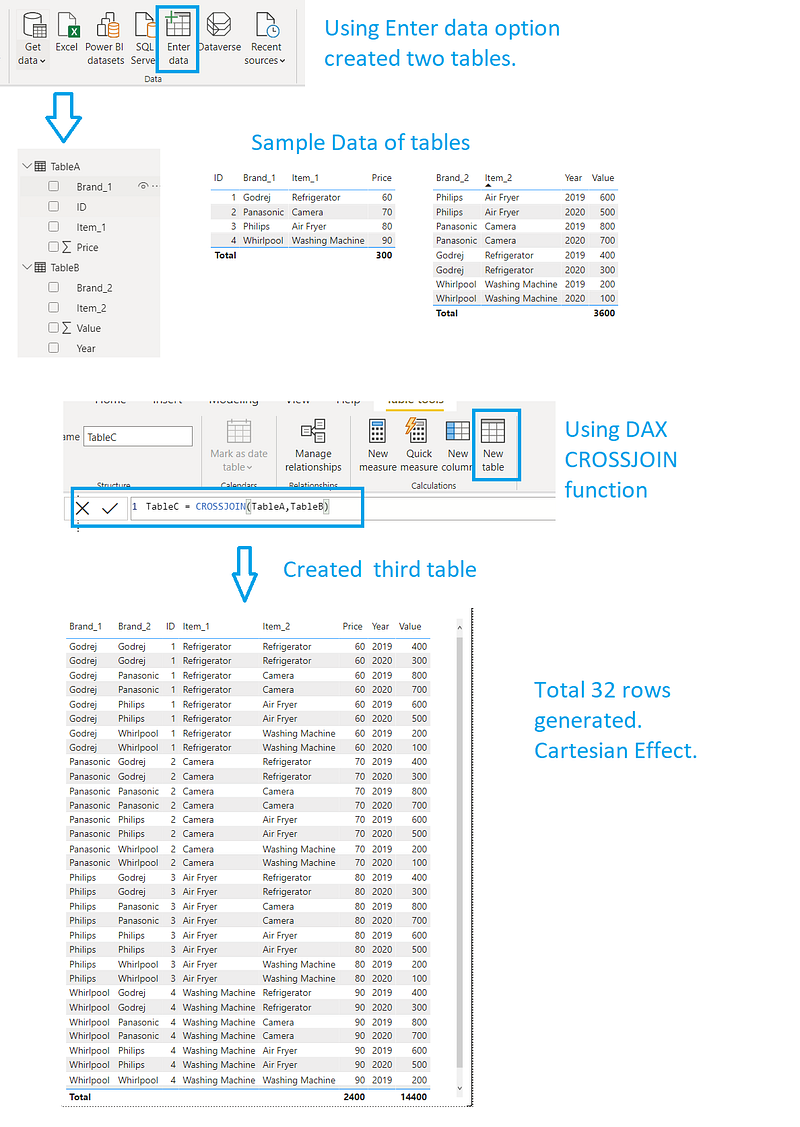
GENERATE Function
Base syntax:
GENERATE (
- Only Two tables
- Must be different tables.
Let’s see one example. This time you will create one calculated measure using GENERATE function.
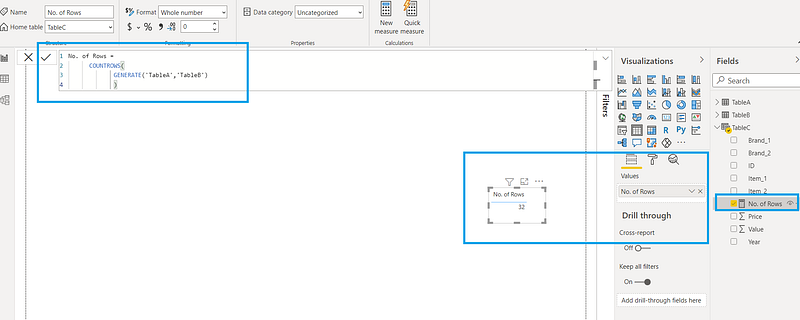
If you want to add the FILTER function, then it is better to use GENERATE function instead of CROSSJOIN.
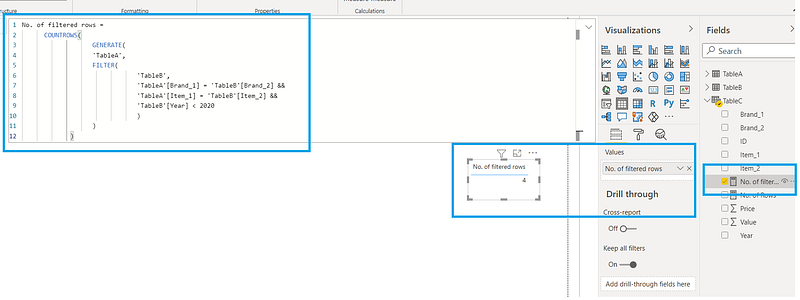
Please note, the column names of TableA and TableB are unique. If it has the same column name, then it will give an error. In that case, you can use SELECTCOLUMNS function. Using this function you can rename columns to avoid an error in the output of GENERATE function.
GENERATE Function to Multiply Rows
Create one table TableD with numerical values. Using GENERATE, GENERATESERIES functions to create rows. Let’s see the example below.
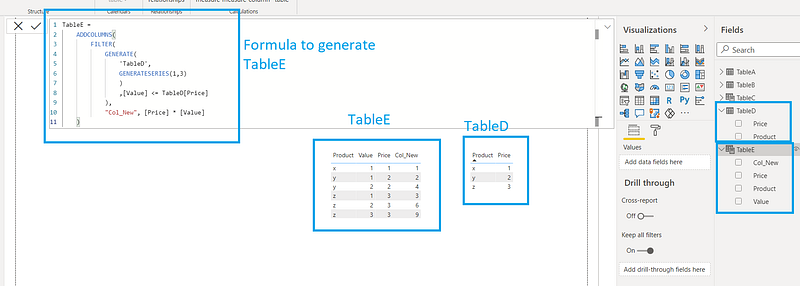
The syntax for the GENERATESERIES function is
GENERATESERIES (
The third parameter is optional and by default, it will take 1 if not supplied. This function helps to create a dynamic number table.
Using GENERATE function, you can perform a self-join. We need self-join when we want to understand how long it has been since a customer lastly made a purchase.
NATURALINNERJOIN and NATURALLEFTOUTERJOIN
The syntax for this function is
NATURALINNERJOIN (
This function matches every row from the first table with every row from the second table. It has the matching values in any column which shares the same column name and data type.
To know how this function is working, create two tables. In these tables, if you keep one of the column names is same as another table, then you need to use SELECTCOLUMNS function to avoid an error. Let’s see how you can do this.
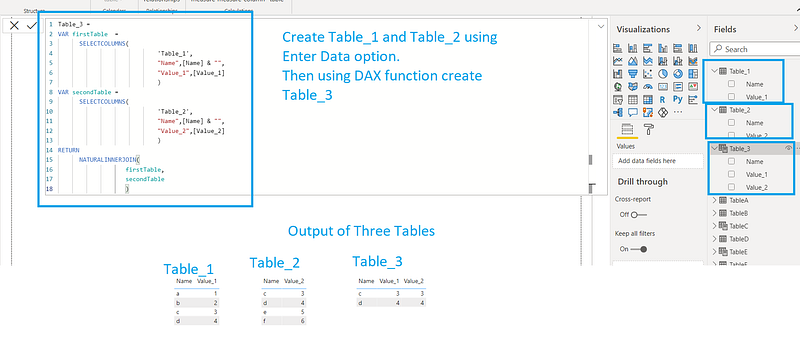
In the above example, if you are going to replace with NATURALLEFTOUTERJOIN, then the output will be like below
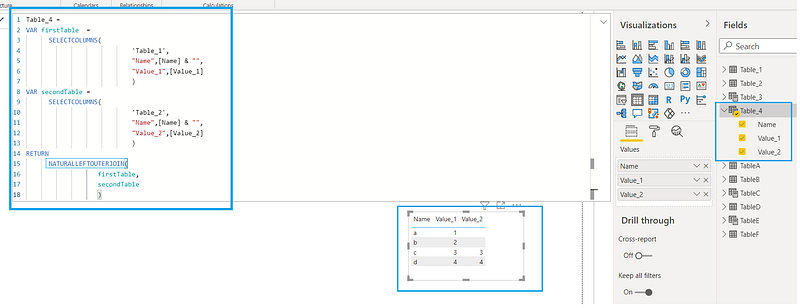
Union, Except, and Intersect
These functions help to merge or combine tables.
UNION(
The output of this function is a table that contains all the rows from each of the two table expressions.
INTERSECT(
The result of this function is a table that contains all the rows in table_expression1 that are also in table_expression2
EXCEPT(
It will return a table that contains the rows of one table minus all the rows of another table.
You can experiment with these functions using two dummy tables.
Download
Please find the code in the below location
DAX — Chapter 5 https://github.com/arpitag1/Power-BI
Video
Conclusion
In this blog, the following things have been captured
- Joining with standard relationships
- Joining without a relationship
In my next blog, we will learn more about DAX.
If you have any questions related to this project, please feel free to post your comments.
Please like, comment and subscribe to my YouTube channel which you have already seen. :-) Keep Learning.


