Javascript Console API?
Easy ways to Learn Basic to Advance All Console Web API with Demo
In This Article, We Learn Javascript Web Console API. I hope you enjoy 😍 that and give me feedback 📢 or suggestion 🙏🏼 about my work ❤️.
Console.< web API Name here >Exmple:
console.log();
console.clear();Demo:
Web Console API
- assert
- clear
- count
- countReset
- debug
- dir
- dirxml
- error
- group
- groupCollapsed
- groupEnd
- info
- log
- markTimeline
- profile
- profileEnd
- table
- time
- timeEnd
- timeLog
- timeStamp
- trace
- warm
- memory
Opening the console
In most current browsers, the javascript console is integrated with dev tools. The shortcut keys help us open the console more easily.
Chrome:
Opening the dev-tool panel in the Chrome console.
1. Window/Linux:
Ctrl + Shift + J
Ctrl + Shift + I //then click to console tab
2. Mac Os
Cmd + Opt + JFirefox
I am opening the dev-tool panel in the Firefox console.
We are opening the dev-tool panel in the Firefox console.
1. Window/Linux
Ctrl + Shift + K
Ctrl + Shift + I // then click to console tab
2. Mac Os
Cmd + Opt + K3. Edge and Internet Explorer
Opening the console panel in the developer tool F12, Click on the console tab.
4. Opera
We are opening the dev-tool panel in the Opera console.
Ctrl + Shift + I // Then click on the console tabConsole
Console part of the window global object. So check all associate property in the console, so write window. console. A window is a global object in the web browser.
window.console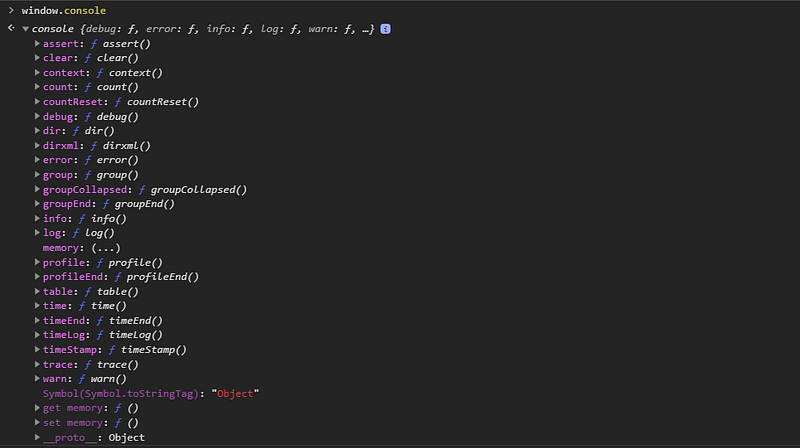
Compatibility:
When checking compatibility, provide information for developers and other staff. So in the case of using the if statement.
if(typeof window.console !== 'undifined'){
  console.log('this working'); // some code here
}if(window.console){
console.log('this is working') // some code here
}Formatting console output
Many console methods can also handle string formatting, using % token.
Javascript provides a list of formatting specifiers in js.
Specifier:
- %s: formatting the value as a string.
- %i or %d: formatting the value as an integer.
- %f: formatting the value as a floating-point value.
- %o: formatting the value as an expandable DOM element.
- %O: formatting the value as an expandable javascript object.
- %c: Applies CSS style rules to the output string as specified by the second parameter.
console.log("Hello, My name is %s. You've called log %d. Floting value %f and javscript object %O", "Rajdeep Singh", 1, 6.7 ,{test:'testing', num:34});console.warn("Hello, My name is %s. You've called warn %d. Floting value %f and javscript object %O", "Rajdeep Singh", 1, 5.7, {test:'testing', num:34});console.info("Hello, My name is %s. You've called info %d. Floting value %f and javscript object %O", "Rajdeep Singh", 1, 6.75, {test:'testing', num:34});console.error("Hello, My name is %s. You've called error %d. Floting value %f and javscript object %O", "Rajdeep Singh", 1, 6.7455, {test:'testing', num:34});formatting Example %s, %f, %O
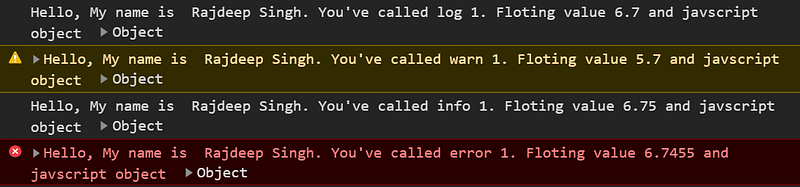
Formatting Example With CSS style
console.log("%cHello, My name is %s do working .", "color:red", "Rajdeep Singh" );console.warn("%cHello, My name is %s . working", " color:green", "Rajdeep Singh");
Formatting Example with %o
console.log("Hello, My name is %s. You've called log. %o", "Rajdeep Singh", document.body);console.warn("Hello, My name is %s. You've called log. %o", "Rajdeep Singh", document.body);console.error("Hello, My name is %s. You've called log. %o", "Rajdeep Singh", document.body);console.info("Hello, My name is %s. You've called log. %o", "Rajdeep Singh", document.body);
Note
The sequence is a matter of formatting. Right sequence Show Right Output.
// console.warn(" %c Hello, My name is %s do notwork .", "Rajdeep Singh", "color:green" ); // No Working Seuence matterAssert
console.assert() method writes a message to the console, but only if an expression evaluates to false. Otherwise, if the expression evaluates to true, this does nothing.
Note
Like if a statement when the expression was true works; otherwise, no work. But this method work when returning false.
console.assert(expression , message)expression = Boolen Value (true or false)
message = your custom messageExampleconsole.assert(false , 'this working');
console.assert(true , 'this is not working');clear
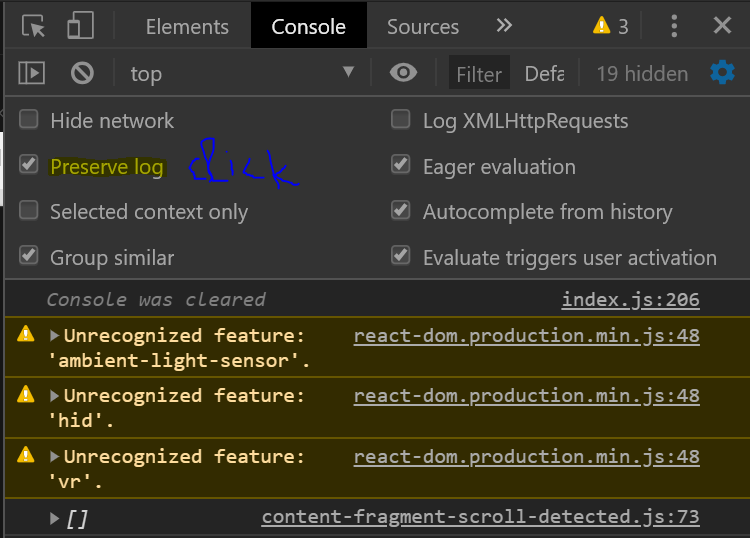
You can clear the console window using the console.clear() method. this removes previously printed messages in the console tab. When using the clear method in your code, you show a message “console was cleared” in your console tab.
console.clear()
The web browser provides a console.clear() functionality in build in chrome browser you click on the console.
Click Settings Icon > click on preserve log
Count
Each time when console.count() method invoked, the counter is increased by one. in your console tab, you see counter + label.
console.count( label here )Exmpleconsole.count(); //default
console.count("test"); // custom label
countReset()
console.countReset() method helps to reset your counter. Based on the label, make sure your label is the same.
console.countReset( label here );
Exmple:
console.countReset(); // default
console.countReset("test"); // reset counter base on label
console.countReset('test2'); // label not be same than not work
log
The console.log() method is very important for us. Because most time, we use the log method to learn another person’s code.
I always use the log method daily.
console.log()
Exmple
console.log('rajdeep');
console.log(" my name is %s  %s Exmple by formating log ", "rajdeep", "singh"); // formating console
Note:
The text Color is not the same in your browser.
debug
console.debug() method is another way to debug your code, like a console.log() method. The debug method provides you with a different colour in the console tab. console.debug()provides Blue Color text in the console tab.
Note:
Some work like console.log().
console.debug();Exmple
console.debug('rajdeep singh');
console.debug({});
console.debug([]);warn:
The warn() method outputs a warning message to the Web Console.
console.warn();Example
console.warn('testing');info
The console.info() method outputs an informational message to the Web Console with a small icon.
console.info();Example
console.info('testing');error
The console.error() method Outputs an error message to the Web Console with a small X icon.
console.error();Example
console.error('testing');dir
console.dir() method used for debugging. this method prints value in the console tab form of an object.
Note:
Some web source says the console.dir() method is an object representation, and others say JSON representation.
console.dir()Example
console.dir( document.body, " console.dir");dirxml
console.dirxml() method use for debugging. this method prints value in the console tab form of an XML representation. Simple means that convert obj, array, etc. into XML form
console.dirxml();Example
console.dirxml( document.body, " console.dirxml");Difference between log(), dirxml() and dir()
understand with two-point.
- log() , dirxml() both some work. but dir() shows different stuff.
- Javascript very weird language.
const counting = {   one: 'one',   two: 'two',   three: 'three' };   console.log(counting);
console.dir(counting);
console.dirxml(counting);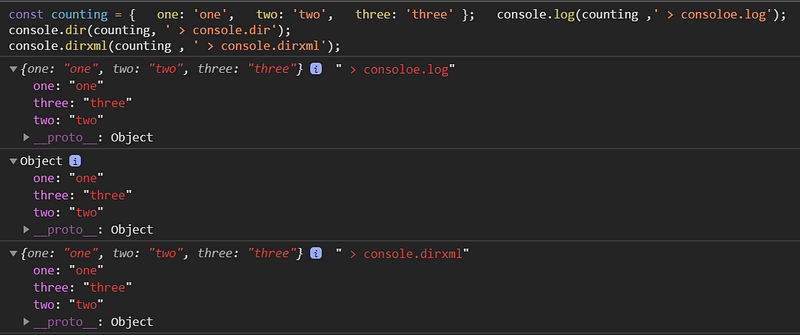
grouping
console.group() and groupEnd() both create a group message in console tab. the label is optional In this method.
console.group('start group'); // label optional
console.log('start test 1');
console.warn('start test 2');
console.error('start test 3');
console.groupEnd('start group')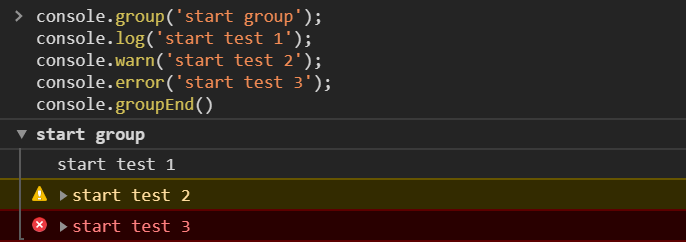
console.groupCollapsed() method create a close group with a small icon
console.groupCollapsed('start group');  // label optional
console.log('start test 1');
console.warn('start test 2');
console.error('start test 3');
console.groupEnd()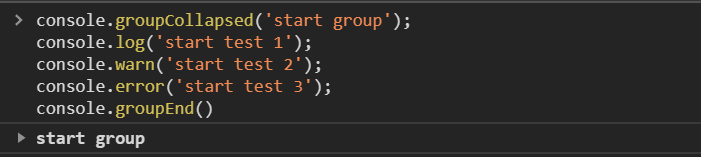
markTimeline:
console.markTimeline() method is not shown on Chrome and firefox. only working in Safari.
Check the issue on GitHub.
Profiling in Js:
console.profile() and console.profileEnd() work both.console.profile use for check performance or record performance in js.
Note:
console.profile() and console.profileEnd() is non-standard in js.I recommended not use for debugging.
console.profile('testing start')
console.log('testing start');
console.profileEnd('testing start');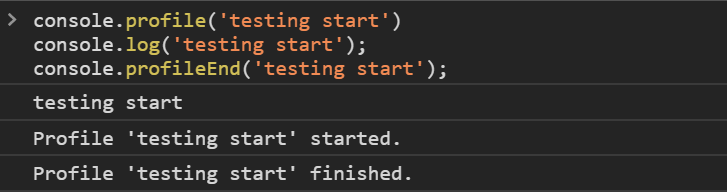
More console.profile():
table
console.table() method is another way be debugging code like console.log(). But this method shows data in a table form in the console tab.
console.table();
Exmple:console.table([ 1,2,3,4,5,6 ]);
console.table([
{
first: 'Rajdeep',
last: 'singh',
id:' 23456'
},
{
first: 'firstName',
last: ' ',
id:'18913',
},
{
first: 'Henri',
last: 'stom',
id:'18783',
}
]);
Timing in js :
It starts with a console.timer() you can use to track how long an operation takes time to complete. Each time you pass a unique name/label.
When you stop the console.timer() method that time you basely call console.timeEnd() with the same label/name
console.timeLog() method provides you with the current value of a timer that was previously started by calling console.time() the console.
Note
Label optional, but multiple times you use console.time() method in this case label recommended.
console.time(label);
Exmple:
console.time("time start");
alert("Click to continue");
console.timeLog("time start");
alert("click again");
console.timeEnd("answer time");
timeStamp
console.timeStamp() method again uses the browser’s performance or as a Waterfall tool.
This method is non-standard, and I will never be recommended using it on production sites.
Note
timeStamp doesn’t work in chrome. It shows undefined. But show output in chrome on the performance tab.
console.timeStamp() // undefinedtrace:
The console.trace() method displays a stack trace that shows how the code is interactive in web browsers.
Whats stack?
The stack is a Data Structure in Javascript.
console.trace()
Exmple:
function traceTest(a, b){
  console.trace(" Start Trace");
return a + b;
}
traceTest(23 ,3)
Read More about console.trace()
Read More About stack()
memory
console.memory is not a function or method. Because when you use a console.memory() show TypeError Message in Console.
console.memory help shows a web browser’s current memory information.
console.memory provides three properties.
- jsHeapSizeLimit
- totalJSHeapSize
- usedJSHeapSize:
console.memory // right syntax
console.memory() // show type Error
Exmple:
console.memory.jsHeapSizeLimit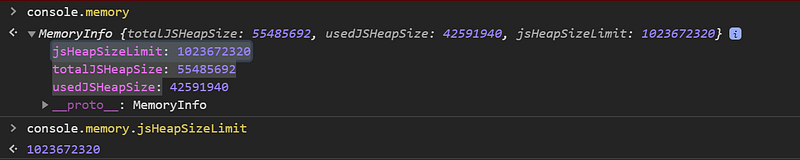

Code For Play
Note
I recommended using my web browser and editor for a test or play code. Please, make sure never to use an online javascript code editor. Because code run, but output maybe not show a clear.
Reference:
Conclusion:
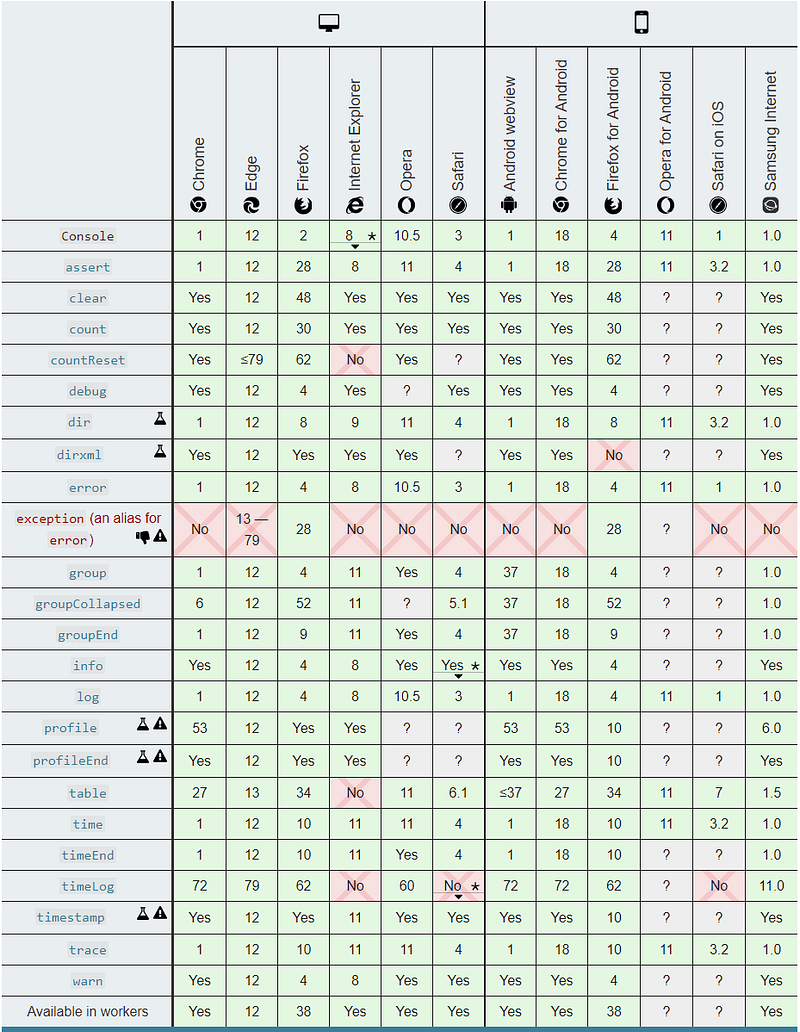
My Conclusion on console web API is very different. Because of javascript’s peculiar language. I recommended to you only log(), warn(),error(),and info() use for debugging.
Other web Api I never recommended you to because of some browser support.
In another region, some APIs work with Web Workers, and others show errors in the node.js.
If there are any queries, mistakes, and Suggestions. Please, tell me in the comment box.