
iTerm2 File utilities — What they are and how to use them
iTerm2 is the king of terminal replacement apps on MacOS, and rightfully so. Below we look at some of the iTerm2 utilities primarily related to file operations and using them across remote servers
Note: This article is an extension of our iTerm2 advanced tricks article
To adequately demonstrate the use cases, we will be using Multipass to set up a local ubuntu server
Let’s get started!

Pre-Requisite
[a] Install Multipass Multipass can be installed on MacOS using brew
brew install multipass
[b] once installed, start a Multipass instance with the name testBox using
multipass launch — name testBox

[c] Check if the multipass instance is running using
multipass list

[d] Try accessing the shell of the remote server using
multipass shell testBox
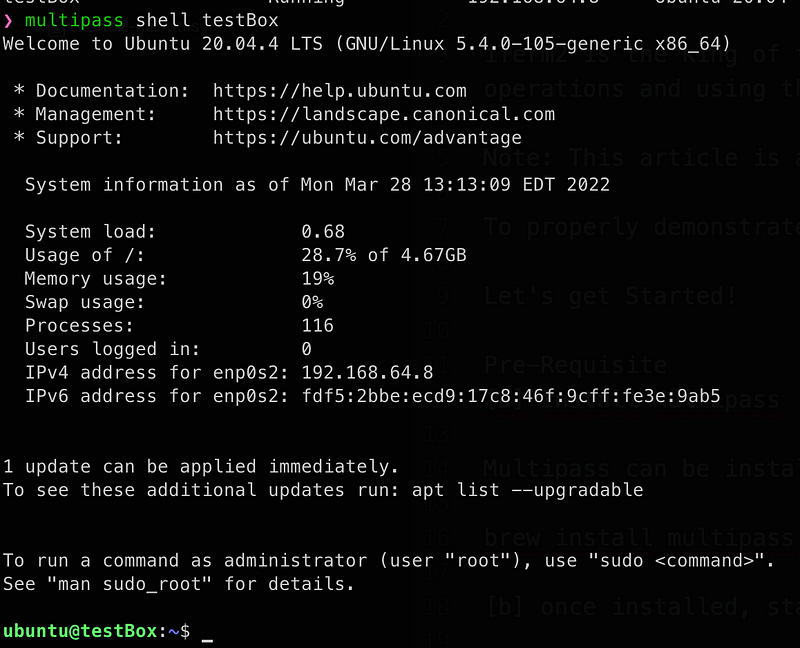
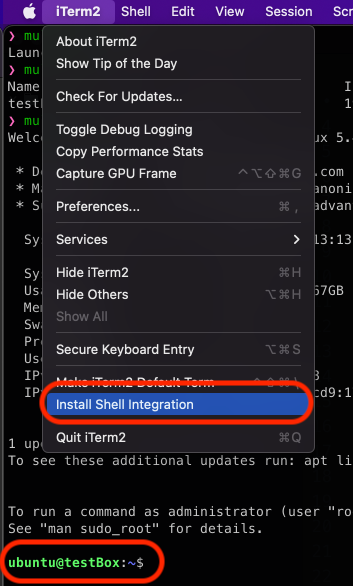
[e] Install iTerm2 Shell Integration with iTerm2 Utilities
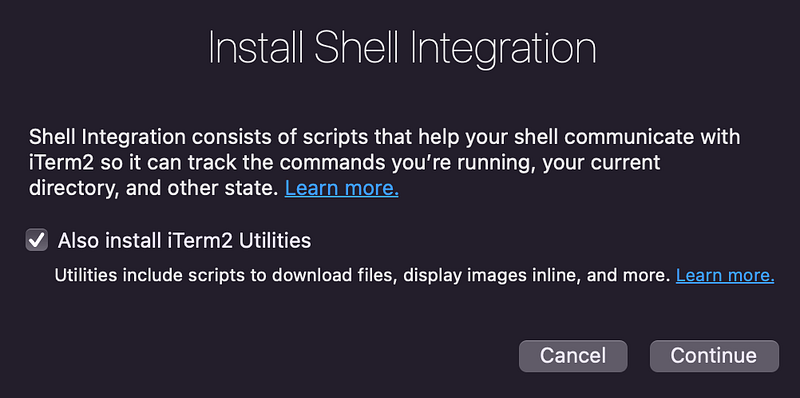
click Download and Run Installer
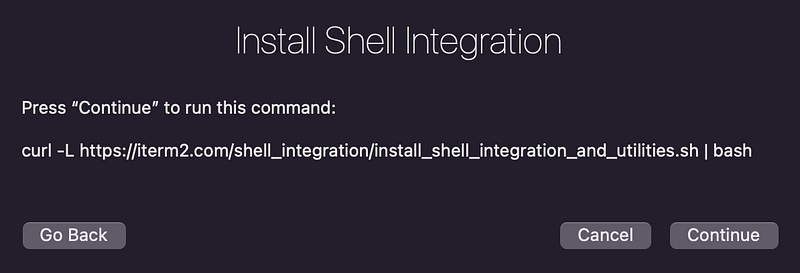
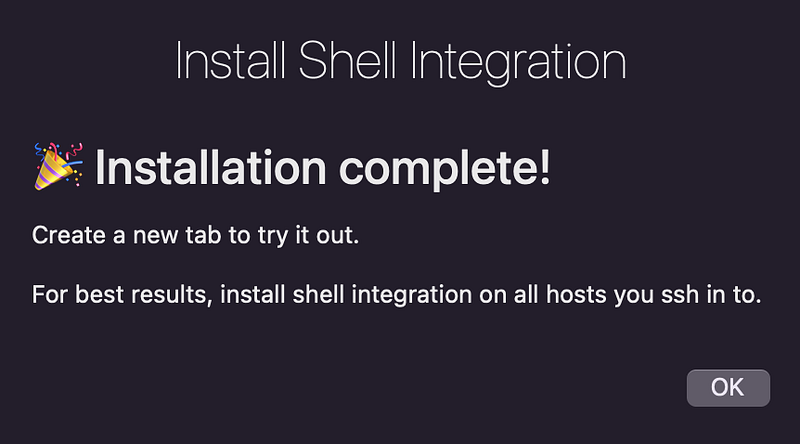
[e] Exit and Re-login to the ubuntu machine
exit
 multipass shell testBox
Use Case [1]: Download a File
Utility Name: it2dl
What does it do: Download a file
Syntax: it2dl {filename}
Let’s start by creating a test file on the remote server /tmp directory
Staying in the Ubuntu shell, let’s browse to the/tmp directory
cd /tmp
and create a simple text file
echo “THIS IS A TEST FILE FROM DECODED BYTES” > testFile.txt

You can review the contents of the testFile using
cat testFile.text
Now let’s download this file to the ~/Downloads directory on the local machine. Type
it2dl testFile.txt
and testFile.txt should download the file to your local ~/Downloads directory
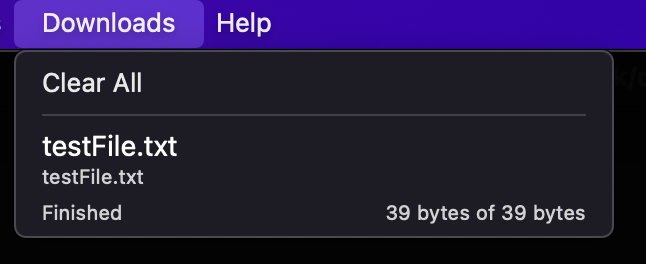
Note: We created a test file manually to showcase the capability, but this can be used to download logs and other important files from the server without setting up sftp connections or users
Use Case [2]: Upload a FILE
Utility Name: it2ul
What does it do: Upload a file
Syntax: it2ul — select the file from the finder window
Next, let's try and upload a file.
Still, in the /tmp directory on the ubuntu server, type in
it2ul
This will open a finder window where you can pick the file to upload
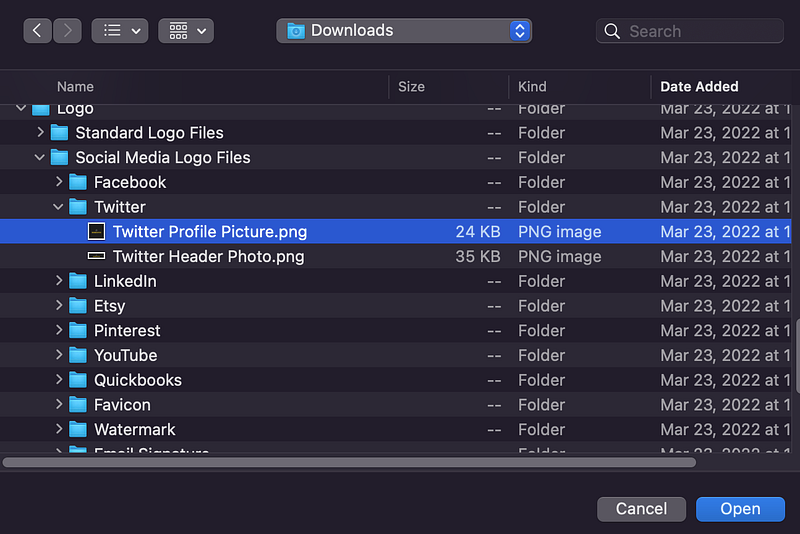
and check if the file upload is successful using
ls -ltr

Use Case [3]: Check the image file on terminal
Utility Name: imgcat
What does it do: View an image file inline on terminal
Syntax: imgcat {filename}
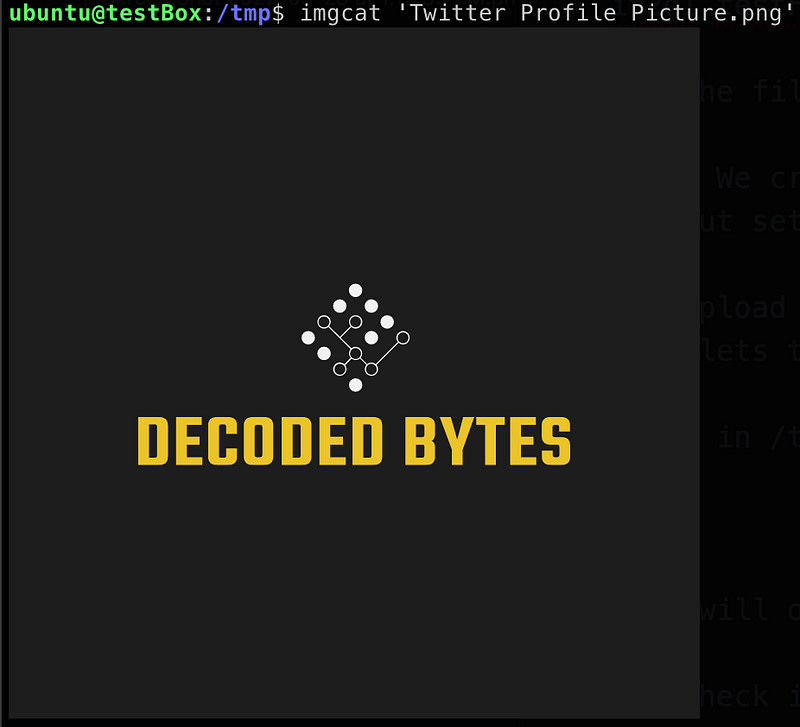
You can even check the image file on the terminal; just use
imgcat {filename}
which, in our case, is
imgcat ‘Twitter Profile Picture.png’
and voila
Use Case [4]: Copy File Contents to Clipboard
Utility Name: it2copy
What does it do: Copy file contents
Syntax: it2copy {filename}
Finally, suppose you want to copy the contents of a file to the clipboard; you can do that using
it2copy {filename}
Let's create a directory listing file in /tmp directory as
ls -ltr > dirlisting.txt
and then you can copy the contents of this file using
it2copy dirlisting.txt
Finally, you can paste the contents into Notes app or any other text app
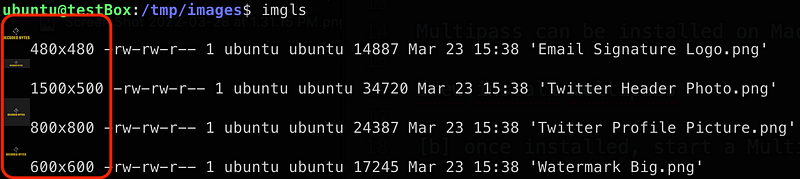
Bonus: If the remote server has `php` installed; you can use
imglsto show a listing of images with thumbnails
And that's all. Thanks for reading. Follow for more daily valuable content
Don’t forget to click the clap button a few times


